1. ആമുഖം
Thank you for choosing the SHARP 55GL4060E 55-inch 4K Ultra HD Google TV. This manual provides essential information for setting up, operating, and maintaining your new television. Please read this manual thoroughly before using the product to ensure safe and optimal performance. This television features a 4K Ultra HD display, Google TV operating system, HDMI 2.1 with eARC, Dolby Vision HDR, Dolby Atmos immersive sound, integrated Google Assistant, and Chromecast built-in.
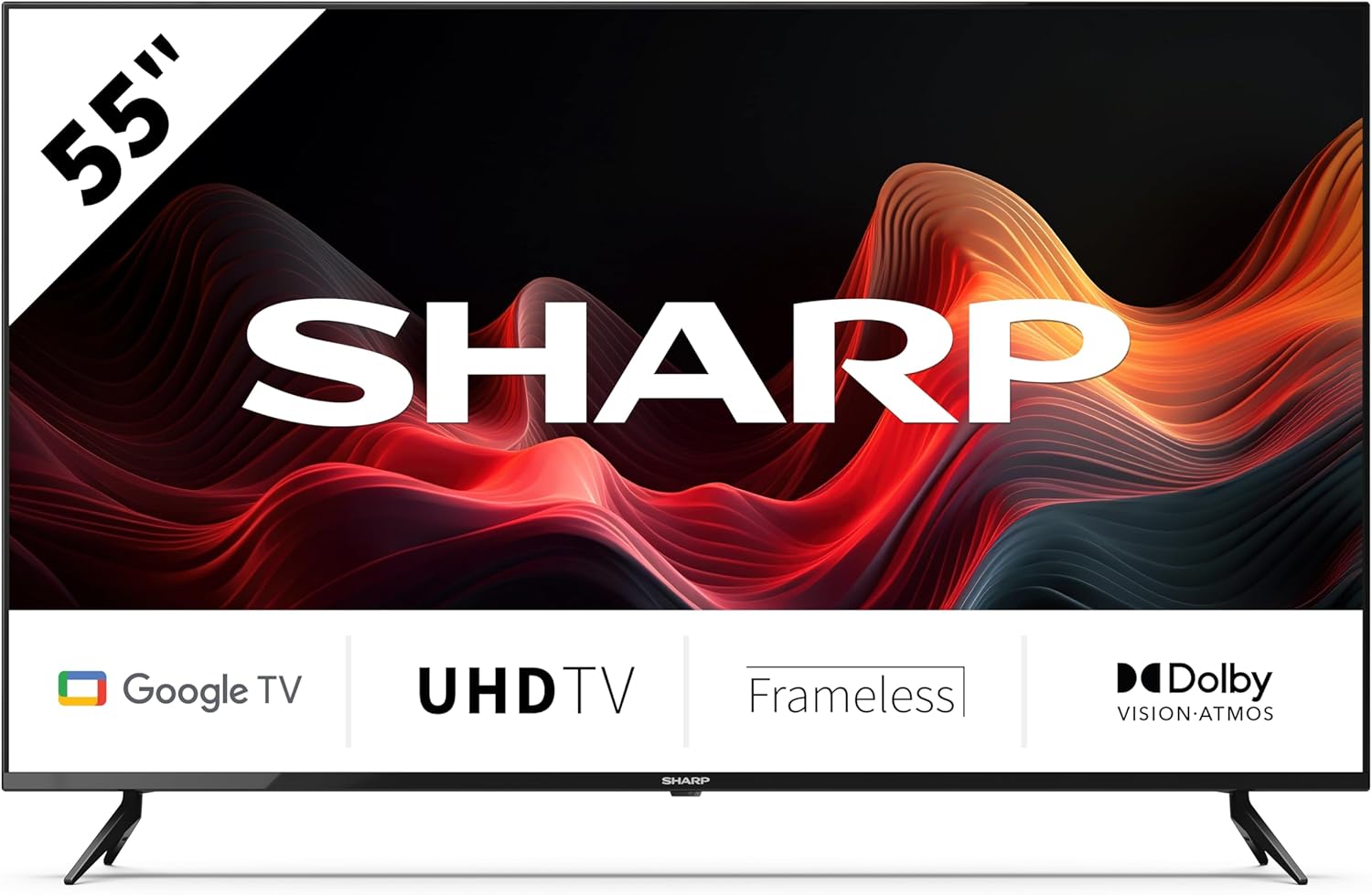
This image displays the SHARP 55GL4060E television from the front, showcasing its 55-inch frameless screen, the SHARP logo at the bottom center, and the two V-shaped stands. The screen shows a vibrant abstract red and orange waveform design. Below the screen, icons indicate 'Google TV', 'UHD TV', 'Frameless', and 'Dolby Vision Atmos'.
2 സുരക്ഷാ വിവരങ്ങൾ
കേടുപാടുകൾ തടയുന്നതിനും സുരക്ഷിതമായ പ്രവർത്തനം ഉറപ്പാക്കുന്നതിനും ഇനിപ്പറയുന്ന സുരക്ഷാ മുൻകരുതലുകൾ പാലിക്കുക:
- വൈദ്യുതി വിതരണം: ശരിയായ വോള്യമുള്ള ഒരു എസി പവർ ഔട്ട്ലെറ്റിലേക്ക് മാത്രം ടിവി ബന്ധിപ്പിക്കുക.tagഇ. പവർ ഔട്ട്ലെറ്റുകൾ ഓവർലോഡ് ചെയ്യരുത്.
- വെൻ്റിലേഷൻ: Ensure adequate ventilation around the TV. Do not block ventilation openings. Avoid placing the TV on soft surfaces or in enclosed spaces.
- വൃത്തിയാക്കൽ: വൃത്തിയാക്കുന്നതിന് മുമ്പ് ടിവി പ്ലഗ് ഊരിയിടുക. മൃദുവായതും ഉണങ്ങിയതുമായ തുണി ഉപയോഗിക്കുക. ലിക്വിഡ് അല്ലെങ്കിൽ എയറോസോൾ ക്ലീനറുകൾ ഉപയോഗിക്കരുത്.
- ജലവും ഈർപ്പവും: ടിവിയിൽ മഴയോ ഈർപ്പമോ ഏൽക്കരുത്. പാത്രങ്ങൾ പോലുള്ള ദ്രാവകങ്ങൾ നിറച്ച വസ്തുക്കൾ ടിവിയിൽ വയ്ക്കരുത്.
- പ്ലേസ്മെൻ്റ്: Place the TV on a stable, level surface. If wall-mounting, use a VESA-compatible mount and ensure it is securely installed. Keep the TV away from direct sunlight, heat sources, and strong magnetic fields.
- കുട്ടികൾ: കുട്ടികൾ ടിവിയിലോ സ്റ്റാൻഡിലോ കയറുന്നത് തടയാൻ മേൽനോട്ടം വഹിക്കുക.
3. പാക്കേജ് ഉള്ളടക്കം
പാക്കേജിംഗിൽ എല്ലാ ഇനങ്ങളും ഉണ്ടെന്ന് ഉറപ്പാക്കുക:
- SHARP 55GL4060E 55-inch 4K Ultra HD Google TV
- റിമോട്ട് കൺട്രോൾ
- AAA ബാറ്ററികൾ (x2)
- ദ്രുത ആരംഭ ഗൈഡ്
- TV Stands (x2) and Screws
4. സജ്ജീകരണം
4.1 ടിവി സ്റ്റാൻഡുകൾ ഘടിപ്പിക്കൽ
- കേടുപാടുകൾ സംഭവിക്കാതിരിക്കാൻ ടിവി സ്ക്രീൻ-ഡൗൺ മൃദുവായതും പരന്നതുമായ ഒരു പ്രതലത്തിൽ ശ്രദ്ധാപൂർവ്വം വയ്ക്കുക.
- ടിവിയുടെ അടിയിലുള്ള അനുബന്ധ സ്ക്രൂ ദ്വാരങ്ങൾ ഉപയോഗിച്ച് ഓരോ സ്റ്റാൻഡും വിന്യസിക്കുക.
- നൽകിയിരിക്കുന്ന സ്ക്രൂകൾ ഉപയോഗിച്ച് സ്റ്റാൻഡുകൾ ഉറപ്പിക്കുക. അവ ദൃഢമായി മുറുക്കിയിട്ടുണ്ടെന്ന് ഉറപ്പാക്കുക.
4.2 വാൾ മൗണ്ടിംഗ്
If you choose to wall-mount your TV, ensure you use a VESA-compatible wall mount. The VESA mounting dimensions for this model are 400 x 300 mm. Consult a professional for wall mounting installation to ensure safety and proper attachment.
4.3 ബാഹ്യ ഉപകരണങ്ങൾ ബന്ധിപ്പിക്കുന്നു
- എച്ച്ഡിഎംഐ: Connect devices such as Blu-ray players, game consoles, or set-top boxes to the HDMI ports. This TV features 4 HDMI 2.1 ports with eARC support.
- USB: Connect USB storage devices for media playback or software updates to the 2 USB ports.
- ഇഥർനെറ്റ്: സ്ഥിരമായ ഒരു ഇന്റർനെറ്റ് കണക്ഷന് വേണ്ടി, നിങ്ങളുടെ റൂട്ടറിൽ നിന്ന് ടിവിയുടെ ലാൻ പോർട്ടിലേക്ക് ഒരു ഇതർനെറ്റ് കേബിൾ ബന്ധിപ്പിക്കുക.
- വൈഫൈ: Connect to your wireless network for internet access and smart TV features.
- ബ്ലൂടൂത്ത്: Pair Bluetooth-enabled devices like headphones or soundbars.
4.4 പ്രാരംഭ സജ്ജീകരണം
- ഒരു ഇലക്ട്രിക്കൽ ഔട്ട്ലെറ്റിൽ പവർ കോർഡ് പ്ലഗ് ചെയ്യുക.
- ടിവി ഓണാക്കാൻ റിമോട്ട് കൺട്രോളിലെ പവർ ബട്ടൺ അമർത്തുക.
- Follow the on-screen instructions to complete the initial setup, including language selection, network connection, and Google account sign-in.
5. ടിവി പ്രവർത്തിപ്പിക്കൽ
5.1 റിമോട്ട് കൺട്രോൾ ഓവർview
The remote control allows you to navigate the Google TV interface, adjust settings, and control playback. Insert the two AAA batteries into the remote control, ensuring correct polarity.
5.2 അടിസ്ഥാന പ്രവർത്തനങ്ങൾ
- ശക്തി: ടിവി ഓണാക്കാനോ ഓഫാക്കാനോ അമർത്തുക.
- വോളിയം: ശബ്ദ നില ക്രമീകരിക്കാൻ വോളിയം ബട്ടണുകൾ ഉപയോഗിക്കുക.
- ഇൻപുട്ട്: Select the desired input source (HDMI 1, HDMI 2, USB, etc.).
- നാവിഗേഷൻ: Use the directional pad and OK button to move through menus and make selections.
- വീട്: Return to the Google TV home screen.
5.3 ഗൂഗിൾ ടിവി സവിശേഷതകൾ
- Google അസിസ്റ്റൻ്റ്: ഉള്ളടക്കം തിരയാനോ സ്മാർട്ട് ഹോം ഉപകരണങ്ങൾ നിയന്ത്രിക്കാനോ വിവരങ്ങൾ നേടാനോ നിങ്ങളുടെ റിമോട്ടിലെ Google അസിസ്റ്റന്റ് ബട്ടൺ അമർത്തി മൈക്രോഫോണിൽ സംസാരിക്കുക.
- Chromecast ബിൽറ്റ്-ഇൻ: നിങ്ങളുടെ അനുയോജ്യമായ സ്മാർട്ട്ഫോൺ, ടാബ്ലെറ്റ് അല്ലെങ്കിൽ കമ്പ്യൂട്ടർ എന്നിവയിൽ നിന്ന് നേരിട്ട് നിങ്ങളുടെ ടിവിയിലേക്ക് ഉള്ളടക്കം കാസ്റ്റുചെയ്യുക.
- അപ്ലിക്കേഷനുകൾ: Access a wide range of streaming services and applications from the Google Play Store.
6. പരിപാലനം
6.1 ടിവി വൃത്തിയാക്കൽ
- സ്ക്രീൻ: മൃദുവായ, ലിന്റ് രഹിത തുണി ഉപയോഗിച്ച് സ്ക്രീൻ സൌമ്യമായി തുടയ്ക്കുക. കഠിനമായ പാടുകൾക്ക്, ചെറുതായി dampതുണിയിൽ വെള്ളം തളിക്കുക (സ്ക്രീനിൽ നേരിട്ട് സ്പ്രേ ചെയ്യരുത്).
- ശരീരം: ടിവി ഫ്രെയിം തുടച്ച് മൃദുവായതും ഉണങ്ങിയതുമായ തുണി ഉപയോഗിച്ച് വയ്ക്കുക.
- ജാഗ്രത: Do not use abrasive cleaners, alcohol, benzene, or thinners, as these can damage the TV's surface.
6.2 സോഫ്റ്റ്വെയർ അപ്ഡേറ്റുകൾ
Your Google TV may receive automatic software updates. You can also manually check for updates through the TV's settings menu to ensure you have the latest features and security patches.
7. പ്രശ്നപരിഹാരം
നിങ്ങളുടെ ടിവിയിൽ പ്രശ്നങ്ങൾ നേരിടുകയാണെങ്കിൽ, ഇനിപ്പറയുന്ന പൊതുവായ പ്രശ്നങ്ങളും പരിഹാരങ്ങളും പരിശോധിക്കുക:
- ശക്തിയില്ല: Ensure the power cord is securely plugged into both the TV and the electrical outlet. Try a different outlet.
- ചിത്രം/ശബ്ദം ഇല്ല: Verify the correct input source is selected. Check all cable connections (HDMI, etc.). Restart connected devices.
- റിമോട്ട് കൺട്രോൾ പ്രവർത്തിക്കുന്നില്ല: ബാറ്ററികൾ പരിശോധിച്ച് ആവശ്യമെങ്കിൽ അവ മാറ്റിസ്ഥാപിക്കുക. റിമോട്ടിനും ടിവിയുടെ ഐആർ സെൻസറിനും ഇടയിൽ തടസ്സങ്ങളൊന്നുമില്ലെന്ന് ഉറപ്പാക്കുക.
- നെറ്റ്വർക്ക് കണക്ഷൻ പ്രശ്നങ്ങൾ: നിങ്ങളുടെ റൂട്ടറും മോഡവും പുനരാരംഭിക്കുക. വൈഫൈ പാസ്വേഡ് പരിശോധിക്കുക. ഇതർനെറ്റ് ഉപയോഗിക്കുകയാണെങ്കിൽ, കേബിൾ ശരിയായി ബന്ധിപ്പിച്ചിട്ടുണ്ടെന്ന് ഉറപ്പാക്കുക.
- ചിത്ര ഗുണനിലവാര പ്രശ്നങ്ങൾ: ചിത്ര ക്രമീകരണങ്ങൾ (തെളിച്ചം, ദൃശ്യതീവ്രത, നിറം) ക്രമീകരിക്കുക. ഉള്ളടക്ക ഉറവിടം ഉയർന്ന നിലവാരമുള്ളതാണെന്ന് ഉറപ്പാക്കുക.
For persistent issues, consult the online support resources or contact customer service.
8 സ്പെസിഫിക്കേഷനുകൾ
| ഫീച്ചർ | സ്പെസിഫിക്കേഷൻ |
|---|---|
| ബ്രാൻഡ് | മൂർച്ചയുള്ള |
| മോഡൽ നമ്പർ | 55GL4060E |
| സ്ക്രീൻ വലിപ്പം | 55 ഇഞ്ച് |
| ഡിസ്പ്ലേ ടെക്നോളജി | എൽഇഡി |
| റെസലൂഷൻ | 4K അൾട്രാ എച്ച്.ഡി |
| പുതുക്കിയ നിരക്ക് | 60 Hz |
| ഓപ്പറേറ്റിംഗ് സിസ്റ്റം | Google TV |
| പ്രത്യേക സവിശേഷതകൾ | Google Assistant and Chromecast built-in, Dolby Vision, Dolby Atmos |
| കണക്റ്റിവിറ്റി ടെക്നോളജി | Bluetooth, Ethernet, HDMI (4x HDMI 2.1 with eARC), USB (2x), Wi-Fi |
| നിറം | കറുപ്പ് |
| ഉൽപ്പന്ന അളവുകൾ (സ്റ്റാൻഡിനൊപ്പം) | 1116.4 x 692.9 x 264.7 mm (W x H x D) |
| ഉൽപ്പന്ന അളവുകൾ (സ്റ്റാൻഡ് ഇല്ലാതെ) | 1116.4 x 651.3 x 91.5 mm (W x H x D) |
| Distance between stands | 1095 മി.മീ |
| മൊത്തം ഭാരം | 11 കി.ഗ്രാം |
| VESA Wall Mount Support | 400 x 300 മി.മീ |
| അനുയോജ്യമായ ഉപകരണങ്ങൾ | Laptop, smartphone, tablet, game console |
| ബാറ്ററി കോമ്പോസിഷൻ | Alkaline (2 AAA included) |
9. വാറൻ്റിയും പിന്തുണയും
വാറന്റി വിവരങ്ങൾക്ക്, ദയവായി നിങ്ങളുടെ ഉൽപ്പന്നത്തിനൊപ്പം ഉൾപ്പെടുത്തിയിരിക്കുന്ന വാറന്റി കാർഡ് പരിശോധിക്കുകയോ ഔദ്യോഗിക ഷാർപ്പ് സന്ദർശിക്കുകയോ ചെയ്യുക. website. For technical support, troubleshooting assistance, or service inquiries, please contact Sharp customer support through their official channels. Keep your purchase receipt as proof of purchase.


