1. ആമുഖം
Welcome to the user manual for your new weelikeit 11-inch FHD Tablet. This guide provides essential information on setting up, operating, maintaining, and troubleshooting your device to ensure optimal performance and longevity. Please read this manual thoroughly before using your tablet.
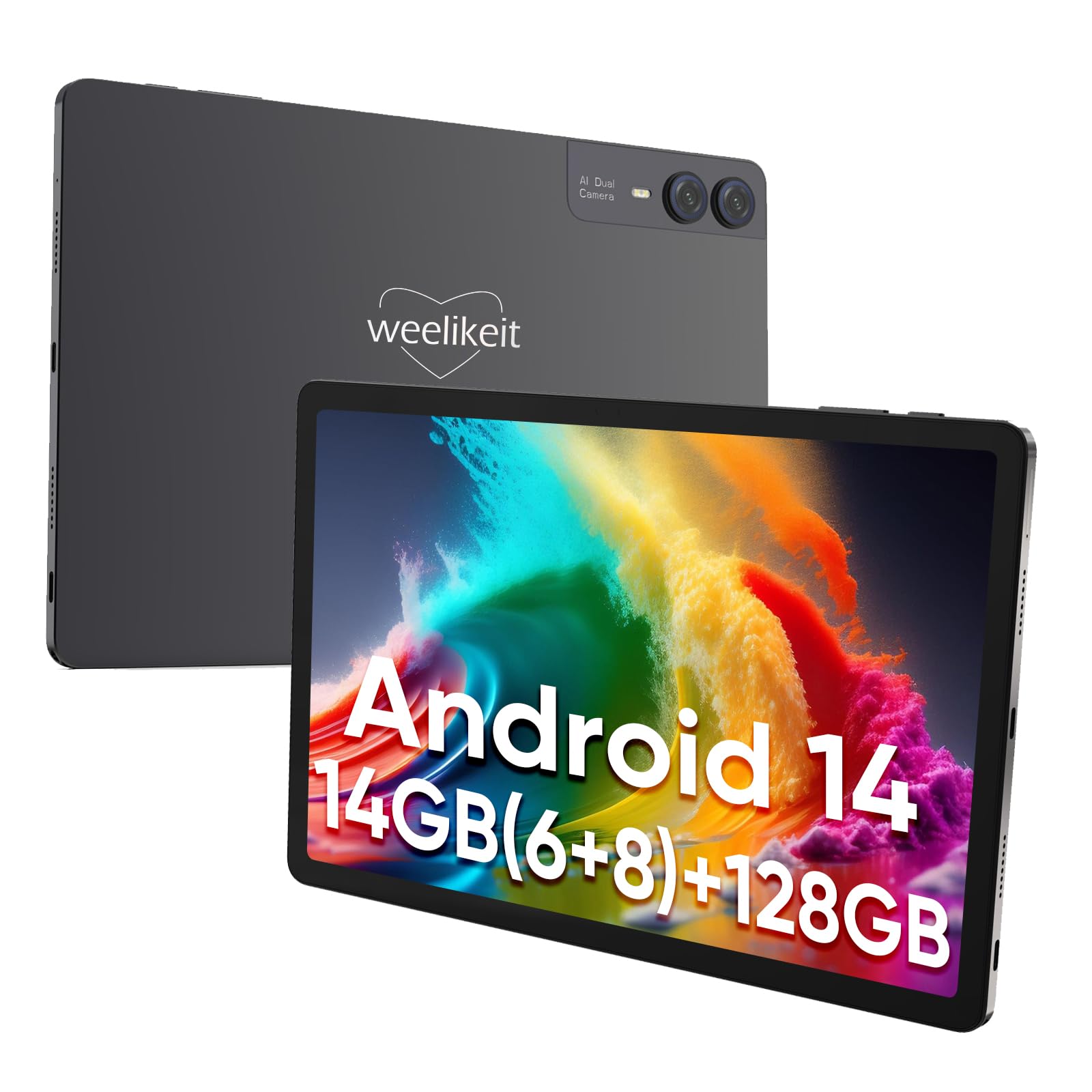
Figure 1.1: weelikeit 11-inch FHD Tablet. This image displays the tablet from both front and rear perspectives, showcasing its sleek design and camera setup.
2. ബോക്സിൽ എന്താണുള്ളത്?
Upon opening your weelikeit tablet package, verify that all the following items are included:
- Tablet (1)
- Charging Adapter (1)
- USB കേബിൾ (1)
- Screen Protector Film (1)
- ഉപയോക്തൃ മാനുവൽ (1)
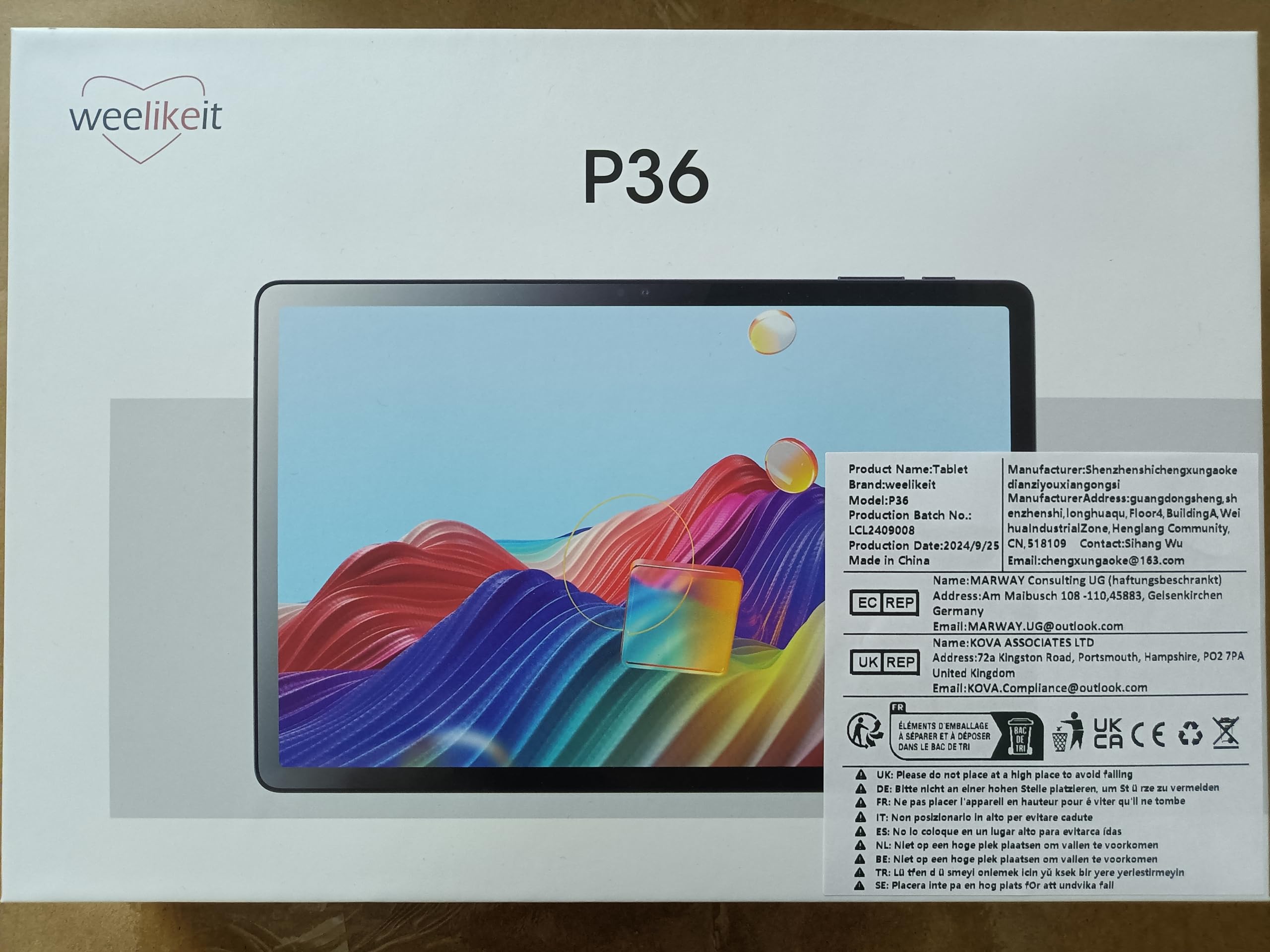
Figure 2.1: Tablet Packaging. The image shows the weelikeit P36 tablet box, indicating the product model and brand.
3. സജ്ജീകരണം
3.1 ടാബ്ലെറ്റ് ചാർജ് ചെയ്യുന്നു
Before first use, fully charge your tablet. Connect the provided USB cable to the tablet's charging port and the charging adapter, then plug the adapter into a power outlet. The battery indicator on the screen will show charging status. A full charge ensures optimal battery performance.
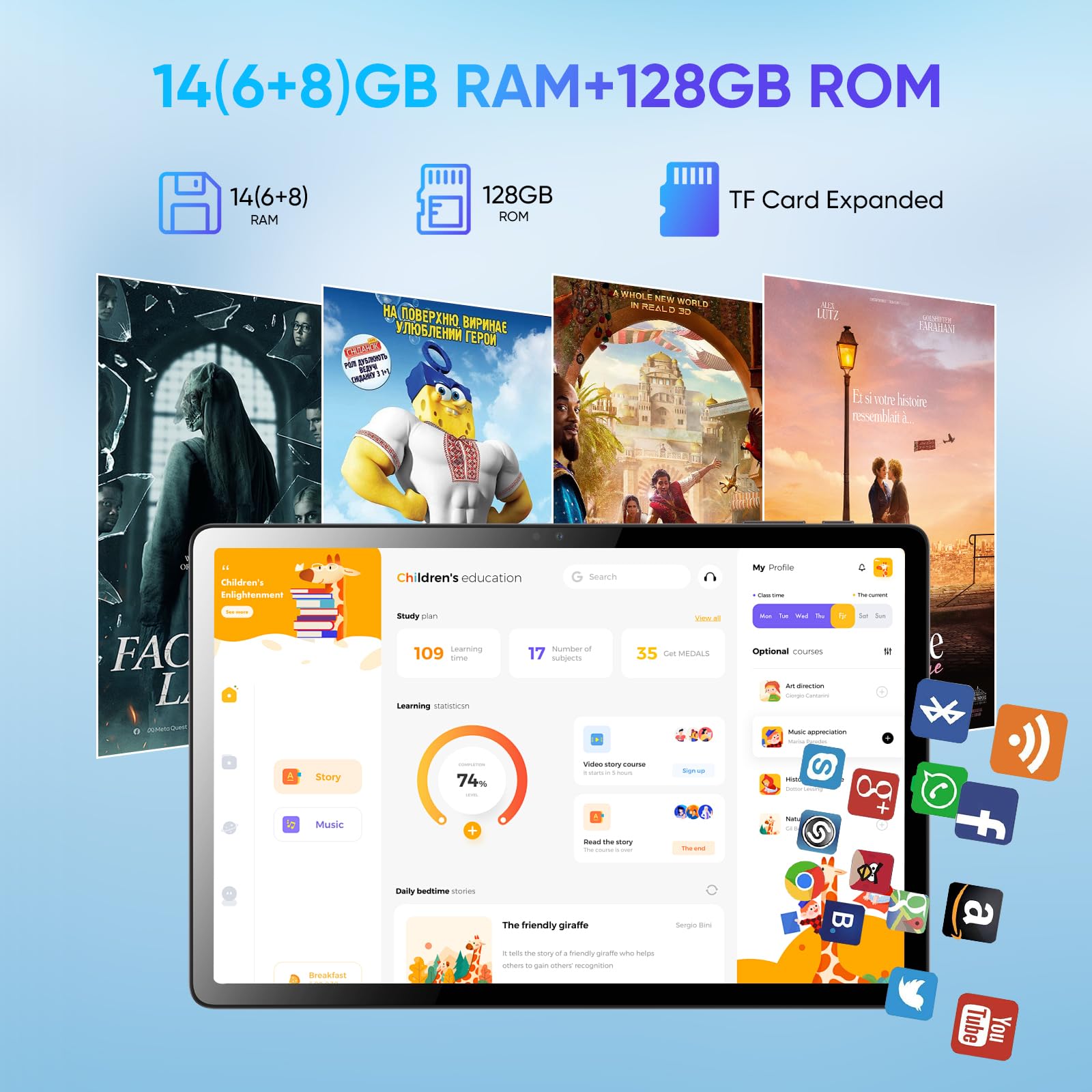
Figure 3.1: 7000mAh Battery Capacity. This image highlights the tablet's large 7000mAh battery, providing extended usage time.
3.2 പവർ ഓൺ/ഓഫ്
- പവർ ഓണാക്കാൻ: Press and hold the Power button located on the side of the tablet until the weelikeit logo appears on the screen.
- പവർ ഓഫ് ചെയ്യാൻ: Press and hold the Power button until a power-off menu appears. Select "Power off" to shut down the device.
3.3 ഒരു മൈക്രോ എസ്ഡി കാർഡ് ചേർക്കൽ
The tablet supports expandable storage via a MicroSD card. Locate the SIM/MicroSD card tray on the side of the tablet. Use the provided SIM ejector tool to open the tray. Carefully place the MicroSD card into the designated slot and reinsert the tray into the tablet. Ensure the card is inserted correctly to avoid damage.
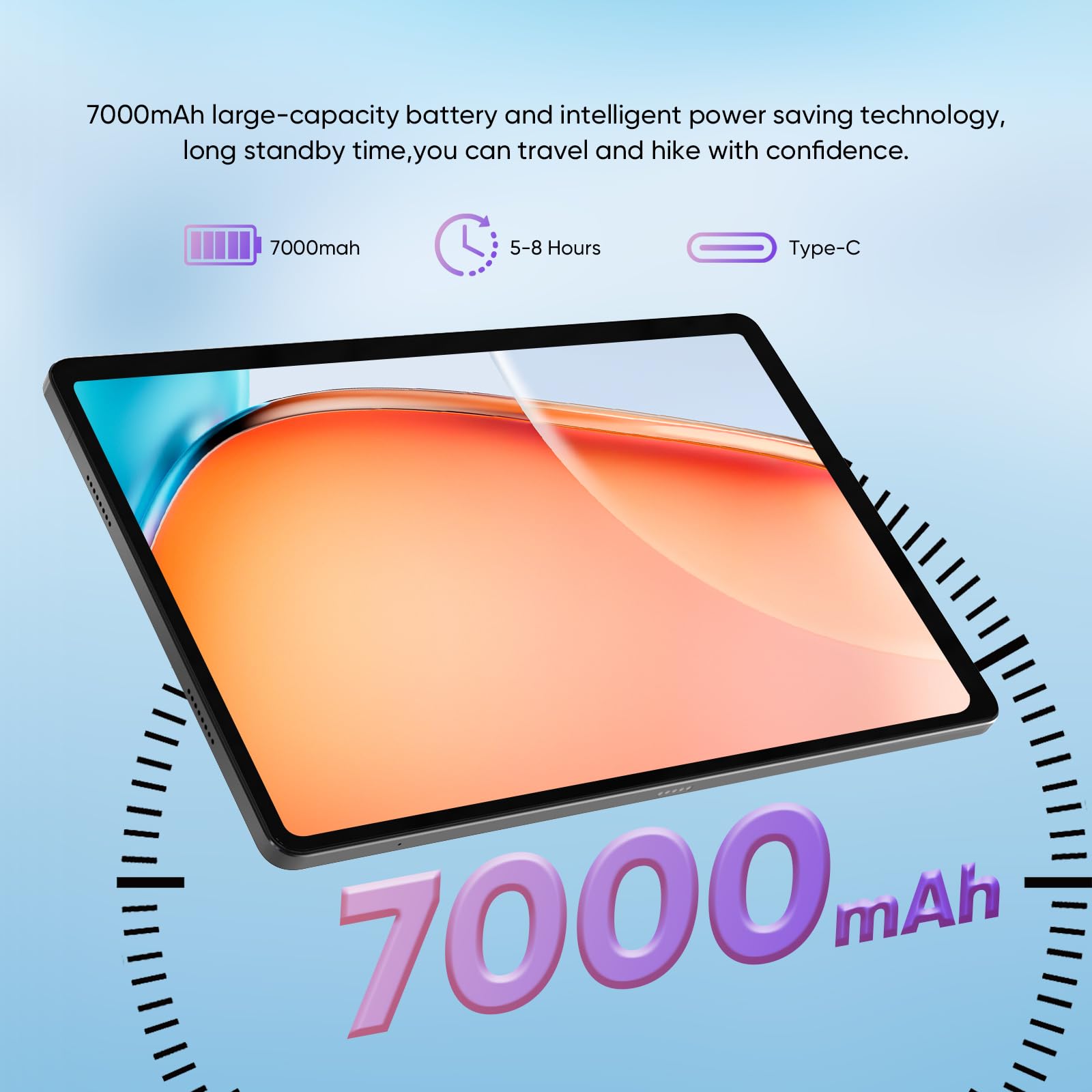
Figure 3.2: Expandable Storage. This image demonstrates the tablet's 128GB internal storage and the option to expand it using a TF (MicroSD) card.
3.4 പ്രാരംഭ കോൺഫിഗറേഷൻ
Upon first power-on, follow the on-screen prompts to complete the initial setup. This includes selecting your language, connecting to a Wi-Fi network, and signing in with your Google account. A stable Wi-Fi connection is recommended for software updates and app downloads.
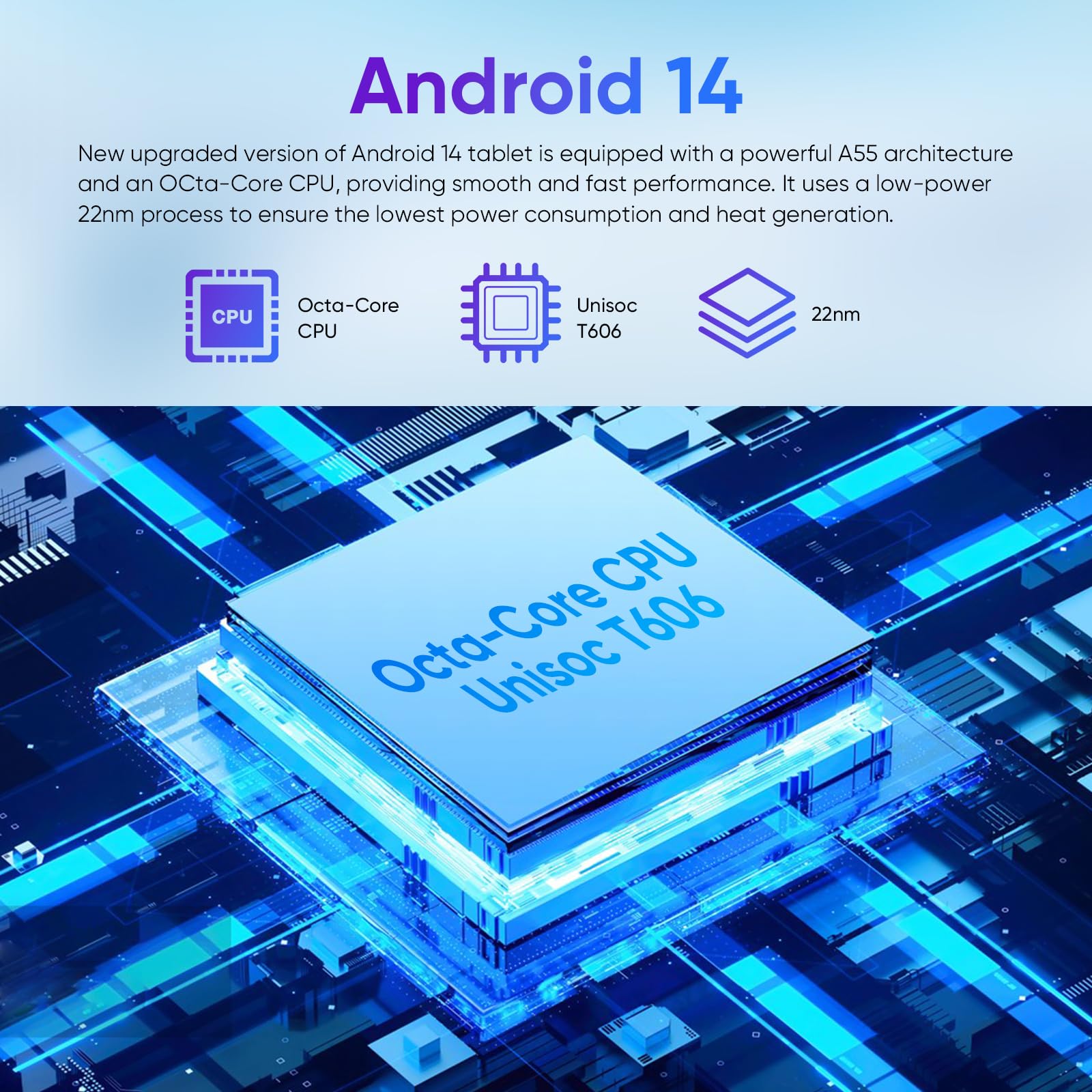
Figure 3.3: 5G WiFi Support. The tablet's screen displays a gaming interface, emphasizing its capability to connect to 2.4G/5G dual-band Wi-Fi networks.
4. ടാബ്ലെറ്റ് പ്രവർത്തിപ്പിക്കൽ
4.1 ആൻഡ്രോയിഡ് 14 നാവിഗേറ്റ് ചെയ്യുന്നു
Your weelikeit tablet runs on the Android 14 operating system, offering a user-friendly interface. Swipe up from the bottom of the screen to access the app drawer, swipe down from the top for quick settings and notifications, and use the navigation buttons (Back, Home, Recents) at the bottom of the screen to move between applications and screens.
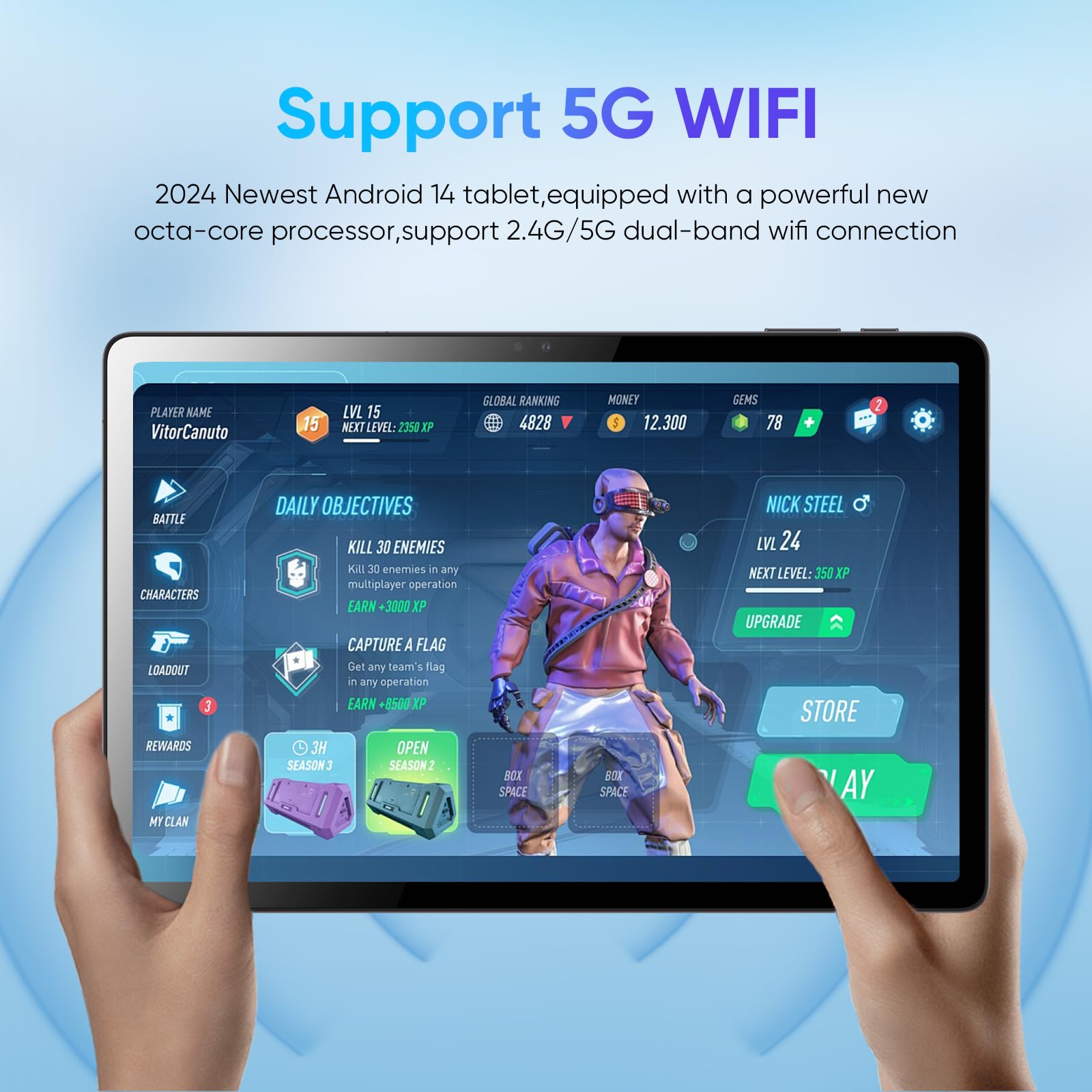
Figure 4.1: Android 14 Interface. This image illustrates the tablet's display with the Android 14 logo and information about its Octa-Core Unisoc T606 processor, indicating smooth performance.
4.2 ഡിസ്പ്ലേയും ടച്ച്സ്ക്രീനും
The tablet features an 11-inch Full HD (1920x1200) IPS display, providing clear and vibrant visuals. The multi-touch screen supports gestures such as pinch-to-zoom, swiping, and tapping for intuitive interaction with applications and content.
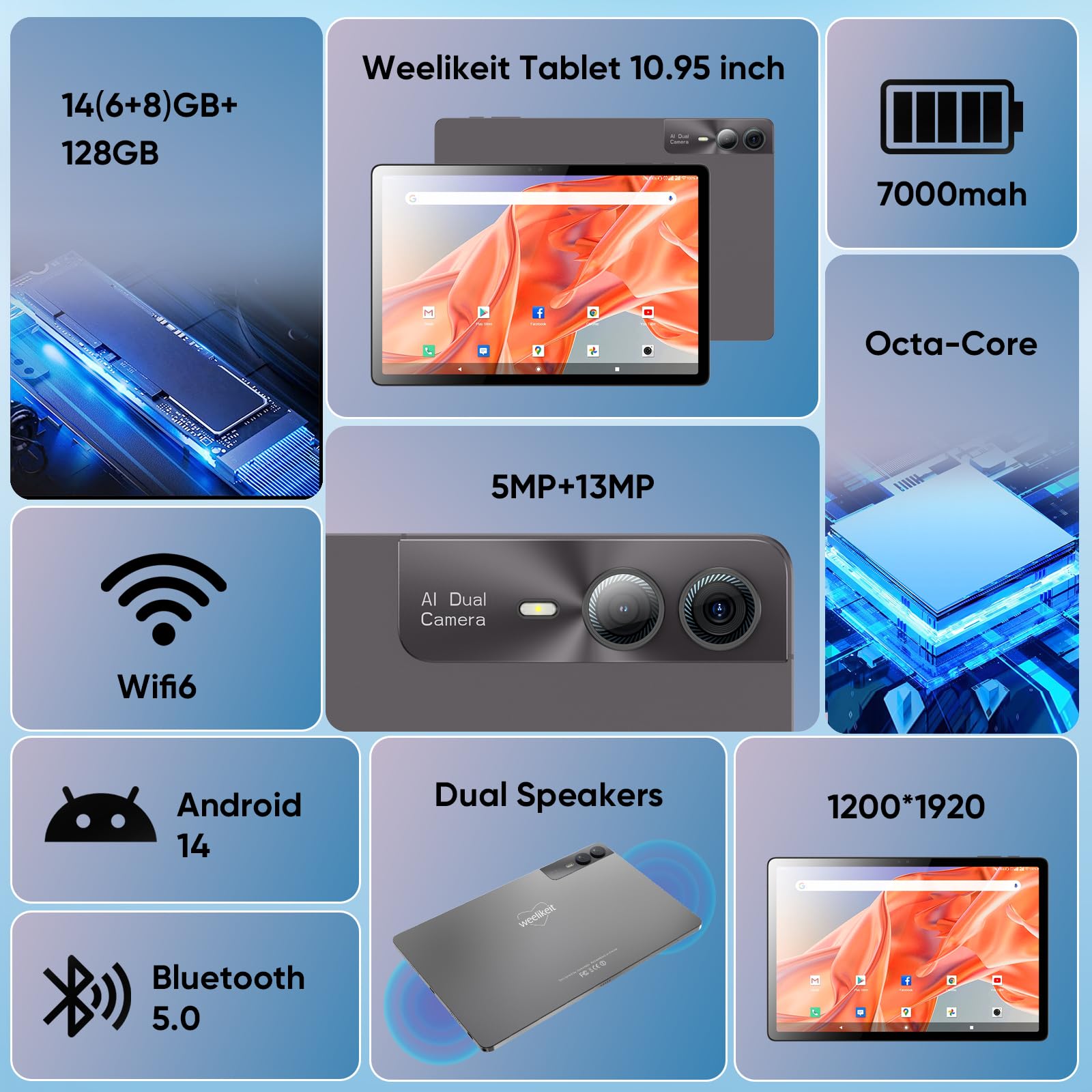
Figure 4.2: 10.95-inch FHD Display. The tablet's screen showcases a high-resolution image, highlighting its 10.95-inch IPS FHD display with 1200x1920 resolution.
4.3 ക്യാമറ ഉപയോഗം
The tablet is equipped with dual 13MP rear cameras and a front camera for capturing photos and videos. Open the Camera application from the home screen or app drawer. You can switch between photo and video modes, adjust settings, and use various features like panorama or macro mode. The dual rear cameras enhance photo quality and depth.
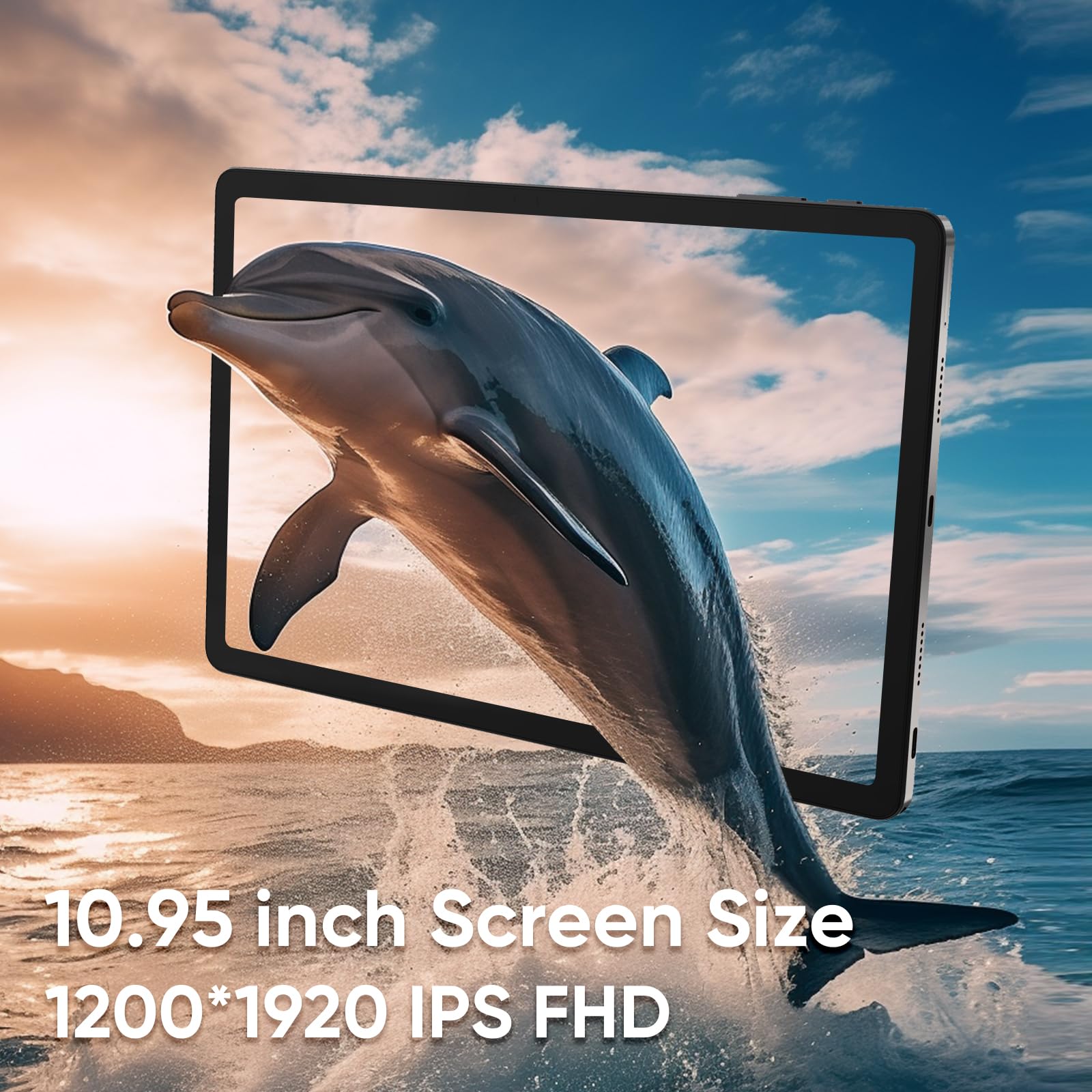
Figure 4.3: Dual 13MP Rear Cameras. A detailed view of the tablet's rear camera module, featuring two lenses for enhanced photography.
Video 4.1: weelikeit Tablet Overview. This video, provided by the seller, demonstrates various features of a weelikeit tablet, including its display and general usage. Note: The video title mentions a 10-inch tablet, but this manual is for an 11-inch model.
4.4 കണക്റ്റിവിറ്റി
The tablet supports 802.11ac Wi-Fi for high-speed internet access and Bluetooth 5.0 for connecting wireless accessories such as headphones, speakers, or keyboards. Access these settings via the Quick Settings panel or the main Settings application.
5. പരിപാലനം
Proper maintenance ensures the longevity and optimal performance of your weelikeit tablet.
- വൃത്തിയാക്കൽ: ടാബ്ലെറ്റിന്റെ സ്ക്രീനും ബോഡിയും വൃത്തിയാക്കാൻ മൃദുവായ, ലിന്റ് രഹിത തുണി ഉപയോഗിക്കുക. ഉരച്ചിലുകൾ ഉള്ള വസ്തുക്കളോ കഠിനമായ രാസവസ്തുക്കളോ ഒഴിവാക്കുക.
- ബാറ്ററി കെയർ: To prolong battery life, avoid extreme temperatures. Do not leave the tablet fully charged or completely drained for extended periods.
- സോഫ്റ്റ്വെയർ അപ്ഡേറ്റുകൾ: Regularly check for and install system updates to ensure your tablet has the latest features and security patches. Navigate to Settings > System > System update.
- സ്റ്റോറേജ് മാനേജ്മെന്റ്: അനാവശ്യമായത് ഇടയ്ക്കിടെ നീക്കം ചെയ്യുക files and applications to free up storage space and maintain performance.
6. പ്രശ്നപരിഹാരം
നിങ്ങളുടെ ടാബ്ലെറ്റിൽ നിങ്ങൾ നേരിട്ടേക്കാവുന്ന സാധാരണ പ്രശ്നങ്ങൾ ഈ വിഭാഗം അഭിസംബോധന ചെയ്യുന്നു.
| പ്രശ്നം | പരിഹാരം |
|---|---|
| ടാബ്ലെറ്റ് ഓണാക്കുന്നില്ല. | ബാറ്ററി ചാർജ്ജ് ചെയ്തിട്ടുണ്ടെന്ന് ഉറപ്പാക്കുക. ചാർജർ കണക്റ്റ് ചെയ്ത് വീണ്ടും പവർ ചെയ്യാൻ ശ്രമിക്കുന്നതിന് മുമ്പ് കുറച്ച് മിനിറ്റ് കാത്തിരിക്കുക. പ്രതികരിക്കുന്നില്ലെങ്കിൽ, റീസ്റ്റാർട്ട് ചെയ്യാൻ നിർബന്ധിതമാക്കാൻ പവർ ബട്ടൺ 10-15 സെക്കൻഡ് അമർത്തിപ്പിടിക്കുക. |
| വൈഫൈ കണക്ഷൻ പ്രശ്നങ്ങൾ. | ക്രമീകരണങ്ങളിൽ വൈഫൈ പ്രവർത്തനക്ഷമമാക്കിയിട്ടുണ്ടോയെന്ന് പരിശോധിക്കുക. നിങ്ങളുടെ വൈഫൈ റൂട്ടർ പുനരാരംഭിക്കുക. നെറ്റ്വർക്ക് മറന്ന് വീണ്ടും കണക്റ്റുചെയ്യുക. നിങ്ങൾ വൈഫൈ സിഗ്നലിന്റെ പരിധിയിലാണെന്ന് ഉറപ്പാക്കുക. |
| മന്ദഗതിയിലുള്ള പ്രകടനം അല്ലെങ്കിൽ മരവിപ്പിക്കൽ. | Close unused applications. Clear cache for frequently used apps. Restart the tablet. Consider performing a factory reset if the issue persists (back up data first). |
| ആപ്പുകൾ ക്രാഷ് ചെയ്യുന്നു അല്ലെങ്കിൽ പ്രതികരിക്കുന്നില്ല. | Clear the app's cache and data (Settings > Apps > [App Name] > Storage). Update the app to the latest version. Reinstall the app. |
| Screen not responding to touch. | Restart the tablet. Ensure the screen is clean and free of debris. If a screen protector is installed, ensure it is properly applied and not interfering with touch sensitivity. |
7 സ്പെസിഫിക്കേഷനുകൾ
Key technical specifications for the weelikeit 11-inch FHD Tablet:
| ഫീച്ചർ | വിശദാംശങ്ങൾ |
|---|---|
| മോഡൽ | 1090sc |
| ഓപ്പറേറ്റിംഗ് സിസ്റ്റം | ആൻഡ്രോയിഡ് 14 |
| സ്ക്രീൻ വലിപ്പം | 10.95 ഇഞ്ച് |
| സ്ക്രീൻ റെസല്യൂഷൻ | 1920 x 1080 പിക്സലുകൾ (FHD) |
| റാം | 6 GB (with 8GB expandable virtual memory) |
| സംഭരണം | 128 GB (expandable via MicroSD) |
| പിൻ ക്യാമറ | Dual 13 MP |
| ബാറ്ററി ശേഷി | 7000mAh |
| വയർലെസ് തരം | 802.11ac (2.4G/5G dual-band) |
| ബ്ലൂടൂത്ത് | 5.0 |
| ഇനത്തിൻ്റെ ഭാരം | 1.98 പൗണ്ട് |
| ഉൽപ്പന്ന അളവുകൾ | 10 x 6.57 x 0.3 ഇഞ്ച് |
8. വാറൻ്റിയും പിന്തുണയും
8.1 വാറൻ്റി വിവരങ്ങൾ
Your weelikeit tablet is covered by a manufacturer's warranty against defects in materials and workmanship. Please refer to the warranty card included in your package for specific terms, conditions, and duration. Keep your proof of purchase for warranty claims.
8.2 ഉപഭോക്തൃ പിന്തുണ
For technical assistance, troubleshooting beyond this manual, or warranty inquiries, please contact weelikeit customer support. Contact information can typically be found on the official weelikeit website or on the packaging materials. When contacting support, please have your tablet's model number (1090sc) and purchase details ready.
