1. ആമുഖം
This manual provides essential information for the safe and efficient operation of your VISION VP-621 4K Ultra HD Multimedia Projector. Please read this manual thoroughly before using the projector and retain it for future reference.
The VISION VP-621 is a versatile smart projector featuring 4K Ultra HD support, 11000 lumens brightness, 5G WiFi, Bluetooth 5.0, Auto Focus, Wireless Miracast, and an integrated Android 9.0 operating system. It is designed for various applications including home entertainment, business presentations, and educational purposes.
2 സുരക്ഷാ വിവരങ്ങൾ
- വെന്റിലേഷൻ ദ്വാരങ്ങൾ അടയ്ക്കരുത്. അമിതമായി ചൂടാകുന്നത് തടയാൻ പ്രൊജക്ടറിന് ചുറ്റും മതിയായ വായുസഞ്ചാരം ഉറപ്പാക്കുക.
- l ചെയ്യുമ്പോൾ പ്രൊജക്ടർ ലെൻസിലേക്ക് നേരിട്ട് നോക്കരുത്amp ഓണാണ്. തിളക്കമുള്ള വെളിച്ചം കണ്ണിന് കേടുപാടുകൾ വരുത്തിയേക്കാം.
- പ്രൊജക്ടർ വീഴാതിരിക്കാൻ ഒരു സ്ഥിരതയുള്ള, നിരപ്പായ പ്രതലത്തിൽ വയ്ക്കുക.
- പ്രൊജക്ടർ വെള്ളം, ഈർപ്പം, കടുത്ത താപനില എന്നിവയിൽ നിന്ന് അകറ്റി നിർത്തുക.
- പ്രൊജക്ടറിനൊപ്പം നൽകിയിരിക്കുന്ന പവർ അഡാപ്റ്റർ മാത്രം ഉപയോഗിക്കുക.
- പ്രൊജക്ടർ സ്വയം തുറക്കാനോ നന്നാക്കാനോ ശ്രമിക്കരുത്. എല്ലാ സേവനങ്ങളും യോഗ്യതയുള്ള ഉദ്യോഗസ്ഥർക്ക് റഫർ ചെയ്യുക.
- ഇടിമിന്നൽ ഉണ്ടാകുമ്പോഴോ ദീർഘനേരം ഉപയോഗിക്കാതിരിക്കുമ്പോഴോ പ്രൊജക്ടർ പ്ലഗ് ഊരിവയ്ക്കുക.
3. പാക്കേജ് ഉള്ളടക്കം
താഴെ ലിസ്റ്റ് ചെയ്തിരിക്കുന്ന എല്ലാ ഇനങ്ങളും നിങ്ങളുടെ പാക്കേജിൽ ഉൾപ്പെടുത്തിയിട്ടുണ്ടെന്ന് ഉറപ്പാക്കുക:
- VISION VP-621 Projector
- പവർ കോർഡ്
- അഡാപ്റ്റർ
- റിമോട്ട് കൺട്രോൾ
- എവി കേബിൾ
- പ്രൊജക്ടർ ലെൻസ് കവർ
4. ഉൽപ്പന്നം കഴിഞ്ഞുview
Familiarize yourself with the main components and interfaces of your VISION VP-621 projector.

ചിത്രം: മുൻവശവും വശവും view of the VISION VP-621 projector, showcasing അതിന്റെ ഒതുക്കമുള്ള രൂപകൽപ്പനയും ലെൻസും.
4.1 ഫ്രണ്ട്, ടോപ്പ് പാനൽ
- പ്രൊജക്ഷൻ ലെൻസ്: ചിത്രം പുറപ്പെടുവിക്കുന്നു.
- ഇൻഫ്രാറെഡ് റിസീവർ: റിമോട്ട് കൺട്രോൾ സിഗ്നലുകൾക്കായി.
- നിയന്ത്രണ ബട്ടണുകൾ: Power, Navigation (OK, Up, Down, Left, Right), Back.
- വെന്റിലേഷൻ ഗ്രില്ലുകൾ: For cooling the internal components.

ചിത്രം: മുകളിൽ view of the projector highlighting the integrated control buttons for power and navigation.
4.2 Rear Panel and Connectivity Ports
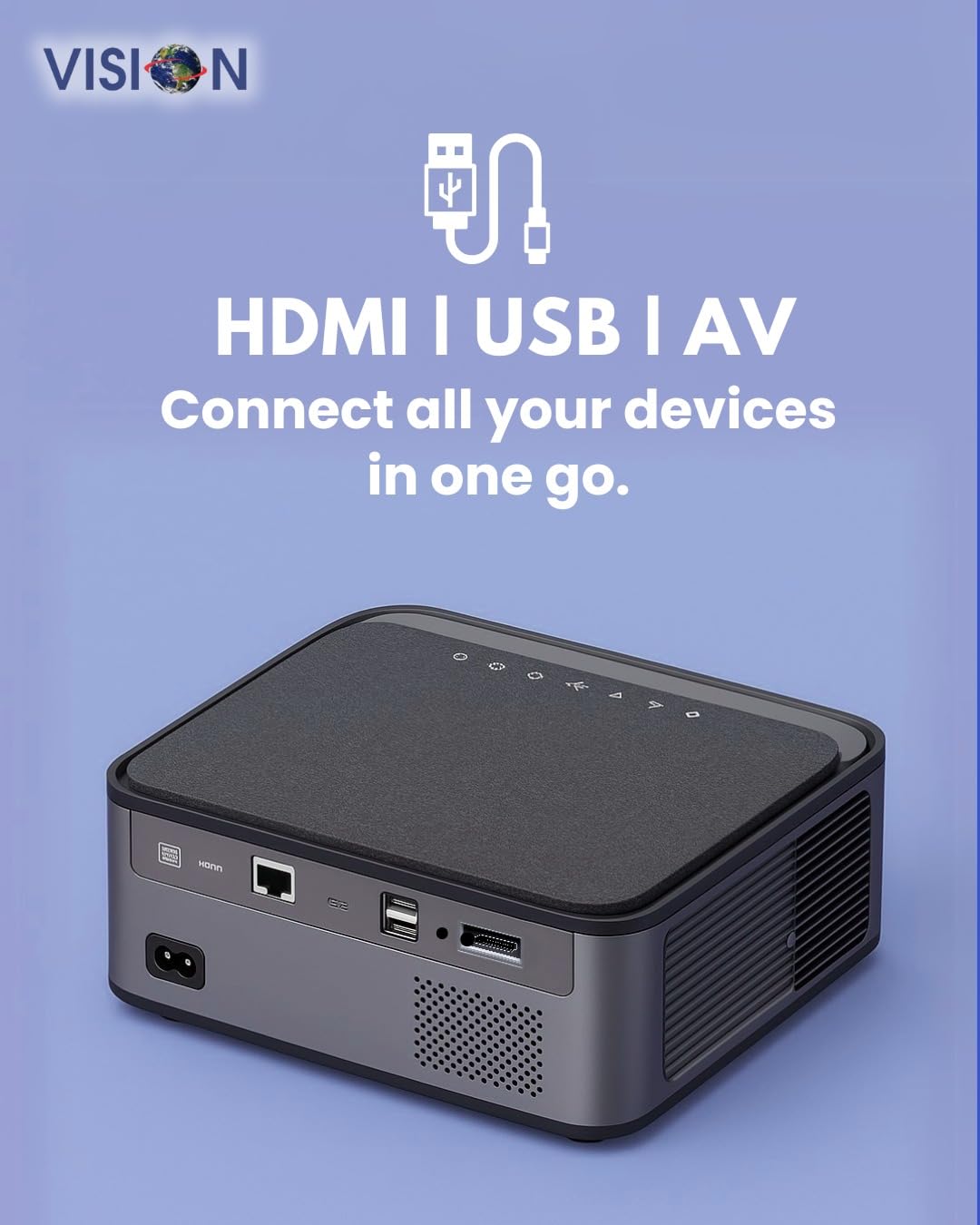
ചിത്രം: പിൻഭാഗം view of the projector displaying the various input and output ports, including HDMI, USB, and AV.
- പവർ ഇൻപുട്ട്: പവർ അഡാപ്റ്റർ ഇവിടെ ബന്ധിപ്പിക്കുക.
- എച്ച്ഡിഎംഐ പോർട്ട്: Connect to HDMI-enabled devices (laptops, gaming consoles, streaming sticks).
- യുഎസ്ബി പോർട്ടുകൾ (x2): Connect USB drives for media playback or external devices.
- AV ഇൻപുട്ട്: Connect to older devices using the provided AV cable.
- ഓഡിയോ ഔട്ട്പുട്ട് (3.5 മിമി): ബാഹ്യ സ്പീക്കറുകളോ ഹെഡ്ഫോണുകളോ ബന്ധിപ്പിക്കുക.
- LAN പോർട്ട്: For wired internet connection (if available).
5. സജ്ജീകരണം
5.1 പ്രൊജക്ടർ പ്ലേസ്മെന്റ്
Choose a flat, stable surface for the projector. Ensure there are no obstructions in front of the lens and that the ventilation grilles are clear.

Image: A projector positioned on a desk, illustrating a typical setup environment.
5.2 പവർ കണക്ഷൻ
- പ്രൊജക്ടറിന്റെ പവർ ഇൻപുട്ട് പോർട്ടിലേക്ക് പവർ അഡാപ്റ്റർ ബന്ധിപ്പിക്കുക.
- ഒരു മതിൽ ഔട്ട്ലെറ്റിൽ പവർ കോർഡ് പ്ലഗ് ചെയ്യുക.
- പ്രൊജക്ടറിലെ പവർ ഇൻഡിക്കേറ്റർ ലൈറ്റ് പ്രകാശിക്കും.
5.3 പ്രാരംഭ പവർ ഓൺ
- അത് ഓണാക്കാൻ പ്രൊജക്ടറിലോ റിമോട്ട് കൺട്രോളിലോ ഉള്ള പവർ ബട്ടൺ അമർത്തുക.
- The projector will boot up and display the Android 9.0 home screen.
5.4 ഫോക്കസും കീസ്റ്റോൺ ക്രമീകരണവും
The VISION VP-621 features automatic focus and 4D keystone correction for a clear and properly aligned image.

Image: Illustrates the projector's automatic focus and keystone correction capabilities, ensuring a sharp and aligned picture.
- ഓട്ടോ ഫോക്കസ്: The projector will automatically adjust the focus for a sharp image upon startup or movement.
- 4D കീസ്റ്റോൺ തിരുത്തൽ: The projector automatically corrects image distortion when placed at an angle. Manual adjustments may be available in the settings menu if needed.
6. പ്രവർത്തന നിർദ്ദേശങ്ങൾ
6.1 ആൻഡ്രോയിഡ് 9.0 സ്മാർട്ട് ഒ.എസ്.
The integrated Android 9.0 system allows direct access to streaming services and apps.
- നാവിഗേഷൻ: Use the remote control's directional buttons and "OK" button to navigate the interface.
- ആപ്പ് ഇൻസ്റ്റാളേഷൻ: Access the Google Play Store to download and install applications like YouTube, Netflix, and Prime Video.
- നെറ്റ്വർക്ക് കണക്ഷൻ: Go to Settings > Network to connect to a 5G WiFi network or a wired LAN connection.
6.2 ബാഹ്യ ഉപകരണങ്ങൾ ബന്ധിപ്പിക്കുന്നു
എച്ച്ഡിഎംഐ കണക്ഷൻ
- Connect an HDMI cable from your device (laptop, gaming console, Fire TV Stick) to the HDMI port on the projector.
- On the projector's home screen, select the HDMI input source.
USB കണക്ഷൻ
- Insert a USB drive into one of the USB ports on the projector.
- The projector will typically prompt you to open the media player or file browser. If not, navigate to the file manager app on the Android home screen.
AV കണക്ഷൻ
- Connect the provided AV cable to the AV input port on the projector and to your external device.
- Select the AV input source on the projector.
Bluetooth 5.0 Audio Output
- Go to Settings > Bluetooth on the projector.
- ബ്ലൂടൂത്ത് പ്രവർത്തനക്ഷമമാക്കി ലഭ്യമായ ഉപകരണങ്ങൾക്കായി തിരയുക.
- ജോടിയാക്കാനും ബന്ധിപ്പിക്കാനും ലിസ്റ്റിൽ നിന്ന് നിങ്ങളുടെ ബ്ലൂടൂത്ത് സ്പീക്കറോ ഹെഡ്ഫോണുകളോ തിരഞ്ഞെടുക്കുക.
Wireless Miracast (Screen Mirroring)
Miracast allows you to wirelessly mirror the screen of your compatible smartphone, tablet, or laptop.
- On the projector's home screen, select the "Miracast" or "Screen Mirroring" application.
- On your mobile device, enable screen mirroring (often found in quick settings or display settings, named "Cast," "Smart View," "Wireless Display," etc.).
- Select the projector from the list of available devices to establish the connection.
7. പരിപാലനം
7.1 പ്രൊജക്ടർ വൃത്തിയാക്കൽ
- ലെൻസ്: ഒപ്റ്റിക്കൽ ലെൻസുകൾക്കായി പ്രത്യേകം രൂപകൽപ്പന ചെയ്ത മൃദുവായ, ലിന്റ് രഹിത തുണി ഉപയോഗിക്കുക. അബ്രാസീവ് ക്ലീനറുകൾ ഉപയോഗിക്കരുത്.
- Casing: പ്രൊജക്ടർ തുടയ്ക്കുക casinമൃദുവായതും ഉണങ്ങിയതുമായ തുണി ഉപയോഗിച്ച് g തുടയ്ക്കുക. കഠിനമായ അഴുക്കിന്, ചെറുതായി dampതുണിയിൽ വെള്ളം നനച്ച് ഉണക്കി തുടയ്ക്കുക.
- വെൻ്റിലേഷൻ: Regularly check and clean the ventilation grilles to ensure proper airflow and prevent dust buildup. Use a soft brush or compressed air.
7.2 എൽamp ജീവിതം
The VISION VP-621 utilizes advanced LED technology, providing an estimated lamp life of up to 50,000 hours. This significantly reduces the need for lamp replacement compared to traditional projectors.
8. പ്രശ്നപരിഹാരം
| പ്രശ്നം | സാധ്യമായ കാരണം | പരിഹാരം |
|---|---|---|
| ചിത്രമൊന്നും പ്രദർശിപ്പിച്ചിട്ടില്ല |
|
|
| മങ്ങിയ ചിത്രം |
|
|
| ശബ്ദമില്ല |
|
|
| Wi-Fi-യിലേക്ക് കണക്റ്റുചെയ്യാൻ കഴിയില്ല |
|
|
9 സ്പെസിഫിക്കേഷനുകൾ
| ബ്രാൻഡ് | ദർശനം |
| മോഡലിൻ്റെ പേര് | VP-621 AN |
| ഡിസ്പ്ലേ ടെക്നോളജി | എൽസിഡി |
| ഡിസ്പ്ലേ തരം | എൽഇഡി |
| തെളിച്ചം | 11000 ല്യൂമെൻസ് |
| ഇമേജ് ദൃശ്യതീവ്രത അനുപാതം | 18000:1 Pixels |
| നേറ്റീവ് റെസല്യൂഷൻ | 1920 x 1280 (പൂർണ്ണ HD) |
| പിന്തുണയുള്ള റെസല്യൂഷൻ | 4K അൾട്രാ HD വരെ |
| വീക്ഷണാനുപാതം | 16:9, 4:3 |
| ഓപ്പറേറ്റിംഗ് സിസ്റ്റം | ആൻഡ്രോയിഡ് 9.0 |
| കണക്റ്റിവിറ്റി ടെക്നോളജി | Bluetooth 5.0, HDMI, USB, Wi-Fi (5G) |
| ഹാർഡ്വെയർ ഇന്റർഫേസ് | Bluetooth 5, HDMI, USB 3.0 |
| പ്രത്യേക സവിശേഷതകൾ | Built-In 3D, Built-In Cooling System, Built-In Speaker, Electric Focus, Wi-Fi Ready, Auto Focus, 4D Keystone Correction, Wireless Miracast |
| ഉൽപ്പന്ന അളവുകൾ | 30 x 18 x 7 സെ.മീ |
| ഇനത്തിൻ്റെ ഭാരം | 8 കി.ഗ്രാം |
| Lamp ജീവിതം | 50,000 മണിക്കൂർ വരെ |

Image: Illustrates the projector's Full HD (1920x1080) resolution capability for crisp visuals.

Image: Highlights the projector's 11000 lumens brightness, ensuring clear visuals in various lighting conditions.
10. വാറൻ്റിയും പിന്തുണയും
For warranty information and technical support, please contact the manufacturer:
- നിർമ്മാതാവ്: Scorpio Infosolutions
- സ്ഥാനം: Delhi, India
- ഫോൺ: +91-7982647130
- Webസൈറ്റ്: visionsheen.in
Please have your product model (VP-621) and purchase details ready when contacting support.


