1. ആമുഖം
Welcome to the weelikeit P36W Tablet User Manual. This guide provides detailed instructions on how to set up, operate, and maintain your new Android 14 tablet. Please read this manual thoroughly to ensure optimal performance and longevity of your device.
2. ഉൽപ്പന്നം കഴിഞ്ഞുview
The weelikeit P36W is a high-performance Android 14 tablet designed for a seamless user experience. It features a vibrant 10.95-inch FHD Incell display, a powerful Octa-Core Unisoc T606 processor, and ampനിങ്ങളുടെ എല്ലാ ആവശ്യങ്ങൾക്കും le സംഭരണം.
പ്രധാന സവിശേഷതകൾ:
- ഡിസ്പ്ലേ: 10.95-inch FHD Incell Screen (1200x1920 pixels)
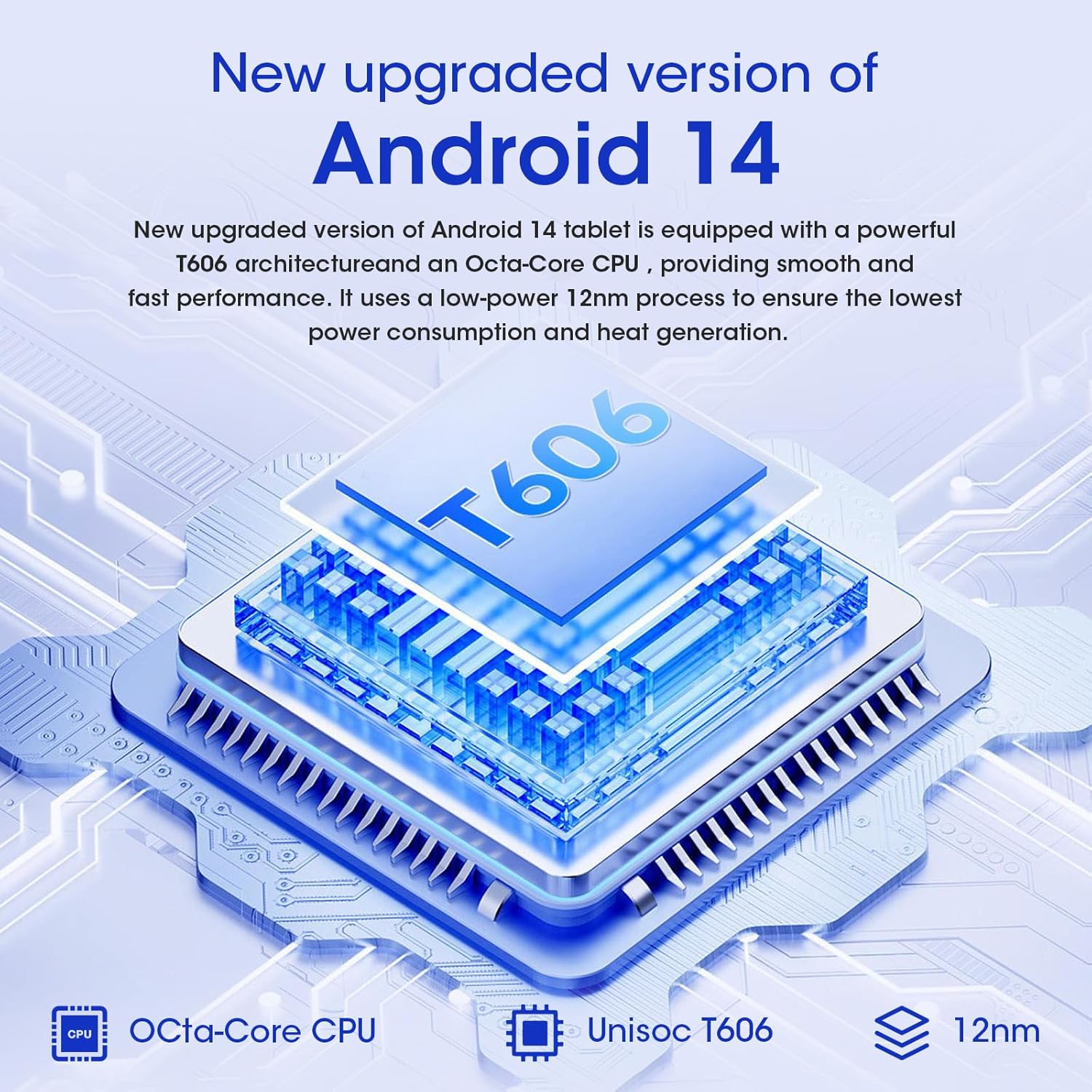
- പ്രോസസ്സർ: Octa-Core Unisoc T606 (2 GHz)
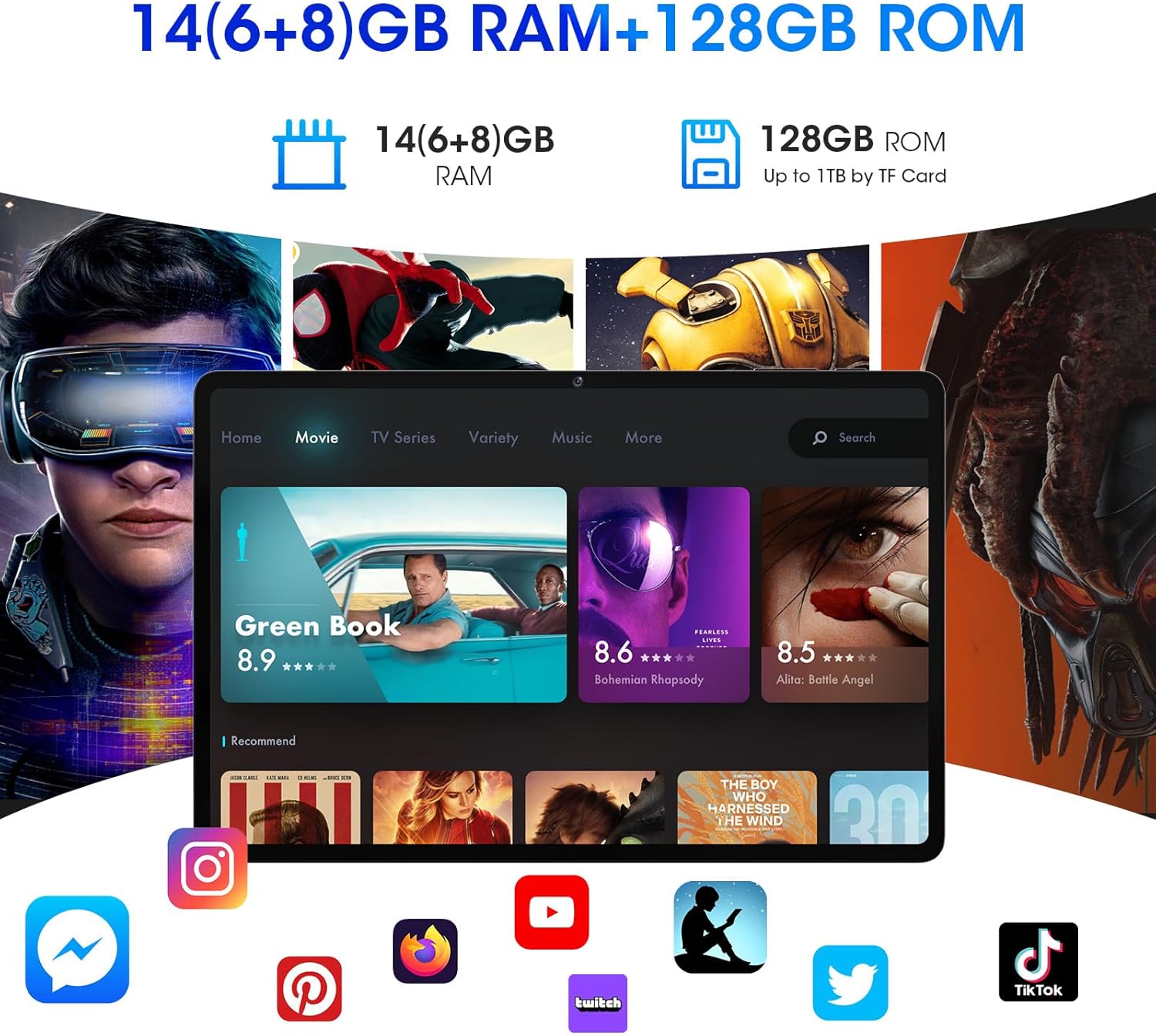
- മെമ്മറി: 14GB RAM (6GB + 8GB Expansion)
- സംഭരണം: 128GB ROM (Expandable up to 1TB via MicroSD card)
- ഓപ്പറേറ്റിംഗ് സിസ്റ്റം: ആൻഡ്രോയിഡ് 14
- ക്യാമറകൾ: 5MP ഫ്രണ്ട്, 13MP പിൻഭാഗം
- ബാറ്ററി: 7000mAh (approx. 10 hours average use)
- കണക്റ്റിവിറ്റി: 2.4GHz & 5GHz Dual-Band Wi-Fi, Bluetooth 5.0, GPS
- ഓഡിയോ: ഡ്യുവൽ സ്പീക്കറുകൾ, 3.5mm ഓഡിയോ ജാക്ക്

3. ബോക്സിൽ എന്താണുള്ളത്?
Upon unboxing your weelikeit P36W Tablet, you should find the following items:
- 1x weelikeit Android Tablet
- 1x പവർ അഡാപ്റ്റർ
- 1x ടൈപ്പ്-സി യുഎസ്ബി കേബിൾ
- 1x Protective Film (pre-installed)
- 1x ഉപയോക്തൃ മാനുവൽ (ഈ പ്രമാണം)

4. സജ്ജീകരണം
4.1 പ്രാരംഭ പവർ ഓൺ
To power on your tablet for the first time, press and hold the Power button located on the top edge of the device until the weelikeit logo appears. The tablet comes with a protective film pre-installed on the screen.
4.2 Language and Region Selection
Follow the on-screen prompts to select your preferred language and region. This will configure the tablet's basic settings.
4.3 വൈഫൈ കണക്ഷൻ
Connect your tablet to a Wi-Fi network to access the internet. Go to ക്രമീകരണങ്ങൾ > നെറ്റ്വർക്കും ഇന്റർനെറ്റും > വൈ-ഫൈ, select your network, and enter the password if required. The tablet supports both 2.4GHz and 5GHz Wi-Fi bands for stable and fast connections.

4.4 ഗൂഗിൾ അക്കൗണ്ട് സജ്ജീകരണം
Sign in with your Google account or create a new one. This is essential for downloading apps from the Google Play Store, syncing data, and accessing Google services.
4.5 Unboxing and Setup Video
5. പ്രവർത്തന നിർദ്ദേശങ്ങൾ
5.1 അടിസ്ഥാന നാവിഗേഷൻ
Your tablet uses a touch-based interface. Tap to select, swipe to scroll, and pinch to zoom. The navigation bar at the bottom of the screen provides Home, Back, and Recent Apps buttons.
5.2 അപ്ലിക്കേഷൻ ഇൻസ്റ്റാളേഷൻ
Download and install applications from the Google Play Store. Simply open the Play Store app, search for your desired app, and tap 'Install'.
5.3 മീഡിയ ഉപഭോഗം
The 10.95-inch FHD Incell screen provides a clear and immersive viewing experience for videos and movies. The dual speakers enhance audio quality.
6. ക്യാമറ ഉപയോഗം
The weelikeit P36W tablet is equipped with a 5MP front camera for selfies and video calls, and a 13MP rear camera for capturing high-quality photos and videos.
6.1 ഫോട്ടോകളും വീഡിയോകളും എടുക്കൽ
Open the Camera app from your home screen or app drawer. Select photo or video mode, frame your shot, and tap the shutter button to capture. The 13MP rear camera includes a flash for low-light conditions.
7. കണക്റ്റിവിറ്റി
7.1 വൈഫൈ
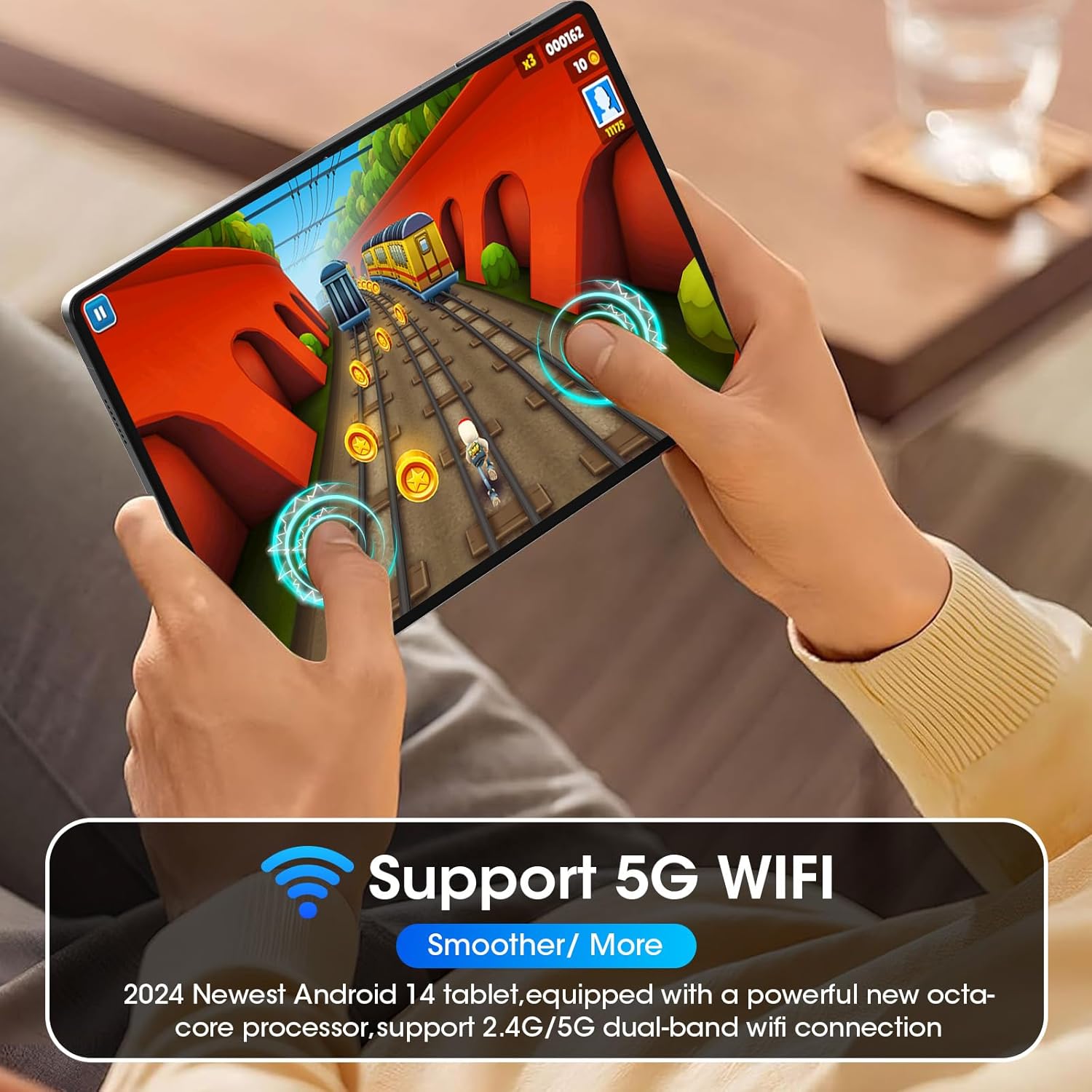
The tablet supports dual-band Wi-Fi (2.4GHz and 5GHz) for fast and reliable internet access. Ensure your Wi-Fi router is within range for optimal performance.
7.2 ബ്ലൂടൂത്ത് 5.0
Connect wireless accessories such as headphones, keyboards, or speakers via Bluetooth. Go to ക്രമീകരണങ്ങൾ > കണക്റ്റുചെയ്ത ഉപകരണങ്ങൾ > ബ്ലൂടൂത്ത് to pair new devices.
7.3 ജിപിഎസ്
The built-in GPS module allows for accurate location tracking and navigation. This feature is useful for mapping applications and location-based services.
8. സ്റ്റോറേജ് മാനേജ്മെൻ്റ്
Your tablet comes with 128GB of internal storage. If you require more space, you can expand it up to 1TB using a MicroSD card (sold separately).
8.1 ഒരു മൈക്രോ എസ്ഡി കാർഡ് ചേർക്കൽ
Locate the SIM/MicroSD card tray on the side of the tablet. Use the provided SIM ejector tool to open the tray. Carefully place the MicroSD card into the designated slot and reinsert the tray.
8.2 മാനേജ്മെന്റ് Files
Use the pre-installed Fileയുടെ ആപ്പ് view, organize, and manage your documents, photos, videos, and other files stored on the tablet and MicroSD card.

9. ബാറ്ററി വിവരങ്ങൾ
The tablet is equipped with a large 7000mAh battery, providing approximately 10 hours of average battery life for mixed usage.
9.1 ടാബ്ലെറ്റ് ചാർജ് ചെയ്യുന്നു
Connect the provided Type-C USB cable to the tablet's USB-C port and the other end to the power adapter. Plug the adapter into a wall outlet. A charging indicator will appear on the screen.
9.2 ബാറ്ററി ഒപ്റ്റിമൈസേഷൻ
To extend battery life, reduce screen brightness, disable Wi-Fi or Bluetooth when not in use, and close background applications.
10. പരിപാലനം
10.1 ഉപകരണം വൃത്തിയാക്കുന്നു
ടാബ്ലെറ്റിന്റെ സ്ക്രീനും ബോഡിയും വൃത്തിയാക്കാൻ മൃദുവായ, ലിന്റ് രഹിത തുണി ഉപയോഗിക്കുക. ഉപരിതലത്തിന് കേടുവരുത്തുന്ന കഠിനമായ രാസവസ്തുക്കളോ ഉരച്ചിലുകളുള്ള വസ്തുക്കളോ ഉപയോഗിക്കുന്നത് ഒഴിവാക്കുക.
10.2 സോഫ്റ്റ്വെയർ അപ്ഡേറ്റുകൾ
നിങ്ങളുടെ ടാബ്ലെറ്റിൽ ഏറ്റവും പുതിയ സവിശേഷതകൾ, സുരക്ഷാ പാച്ചുകൾ, പ്രകടന മെച്ചപ്പെടുത്തലുകൾ എന്നിവ ഉറപ്പാക്കാൻ സിസ്റ്റം അപ്ഡേറ്റുകൾ പതിവായി പരിശോധിച്ച് ഇൻസ്റ്റാൾ ചെയ്യുക. പോകുക ക്രമീകരണങ്ങൾ > സിസ്റ്റം > സിസ്റ്റം അപ്ഡേറ്റ്.
10.3 Screen Protection
The tablet comes with a pre-installed protective film. For additional protection, consider using a tempered glass screen protector or a protective case.
11. പ്രശ്നപരിഹാരം
11.1 Tablet Not Powering On
Ensure the tablet has sufficient battery charge. Connect it to the power adapter and wait a few minutes before attempting to power it on again. If the issue persists, try holding the power button for 10-15 seconds for a forced restart.
11.2 വൈഫൈ കണക്ഷൻ പ്രശ്നങ്ങൾ
Check if Wi-Fi is enabled in settings. Restart your Wi-Fi router and the tablet. Forget the network and reconnect. Ensure you are entering the correct password.
11.3 മന്ദഗതിയിലുള്ള പ്രകടനം
Close unnecessary background apps. Clear cached data from apps (Settings > Apps > [App Name] > Storage > Clear cache). Consider uninstalling unused apps or moving large files to a MicroSD card.
11.4 ഫാക്ടറി റീസെറ്റ്
നിങ്ങൾക്ക് സ്ഥിരമായ സോഫ്റ്റ്വെയർ പ്രശ്നങ്ങൾ നേരിടുകയാണെങ്കിൽ, ഒരു ഫാക്ടറി റീസെറ്റ് അവ പരിഹരിച്ചേക്കാം. മുന്നറിയിപ്പ്: ഇത് നിങ്ങളുടെ ടാബ്ലെറ്റിലെ എല്ലാ ഡാറ്റയും മായ്ക്കും. തുടരുന്നതിന് മുമ്പ് പ്രധാനപ്പെട്ട ഡാറ്റയുടെ ബാക്കപ്പ് എടുക്കുക. ഇതിലേക്ക് പോകുക ക്രമീകരണങ്ങൾ > സിസ്റ്റം > റീസെറ്റ് ഓപ്ഷനുകൾ > എല്ലാ ഡാറ്റയും മായ്ക്കുക (ഫാക്ടറി റീസെറ്റ്).
12 സ്പെസിഫിക്കേഷനുകൾ
| ഫീച്ചർ | വിവരണം |
|---|---|
| മോഡൽ | Weelikeit P36W tablet |
| പ്രദർശിപ്പിക്കുക | 10.95-inch IPS FHD Incell (1200x1920 pixels) |
| പ്രോസസ്സർ | Octa-Core Unisoc T606 (2 GHz) |
| റാം | 14GB (6GB + 8GB എക്സ്പാൻഷൻ) |
| ROM | 128GB (Expandable up to 1TB via MicroSD card) |
| ഓപ്പറേറ്റിംഗ് സിസ്റ്റം | ആൻഡ്രോയിഡ് 14 |
| മുൻ ക്യാമറ | 5എംപി |
| പിൻ ക്യാമറ | 13എംപി |
| ബാറ്ററി | 7000mAh (approx. 10 hours average life) |
| വൈഫൈ | 2.4GHz & 5GHz ഡ്യുവൽ-ബാൻഡ് |
| ബ്ലൂടൂത്ത് | ബ്ലൂടൂത്ത് 5.0 |
| ജിപിഎസ് | അന്തർനിർമ്മിത ജിപിഎസ് മൊഡ്യൂൾ |
| അളവുകൾ | 10.07 x 6.61 x 0.29 ഇഞ്ച് |
| ഭാരം | 2 പൗണ്ട് |
13. വാറൻ്റിയും പിന്തുണയും
Your weelikeit P36W Tablet comes with a one-year warranty from the date of purchase. If you encounter any quality issues or have questions regarding your tablet, please contact the reliable seller's support team. They are committed to providing satisfactory and professional solutions within 24 hours.
For customer service, please refer to the contact information provided with your purchase or on the official weelikeit webസൈറ്റ്.


