1. ഉൽപ്പന്നം കഴിഞ്ഞുview
The Darmoshark M5PRO is a lightweight, tri-mode wireless gaming mouse designed for precision and versatility. It features a PAW3950 optical sensor, up to 30000 DPI, and 5 programmable buttons. The mouse supports 8K wireless, Bluetooth, and wired connections.

Image 1.1: The Darmoshark M5PRO mouse (red) and its 8K wireless receiver.

Image 1.2: Key features of the M5PRO mouse, including its sensor, polling rate, and microcontroller.
വീഡിയോ 1.1: ഒരു ഓവർview of the Darmoshark M5PRO Wireless Gaming Mouse, showcasing its design and various color options.
2. സജ്ജീകരണ നിർദ്ദേശങ്ങൾ
2.1 മൗസ് ചാർജ് ചെയ്യുന്നു
Before initial use, ensure the mouse is fully charged. Connect the provided USB-C cable to the mouse and a power source (e.g., computer USB port, USB wall adapter). The LED indicator will show charging status.

Image 2.1: The M5PRO mouse is equipped with a 300mAh lithium battery for extended use.
2.2 കണക്ഷൻ മോഡുകൾ
The M5PRO mouse supports three connection modes: 8K wireless, Bluetooth, and wired USB-C.
2.2.1 8K Wireless Connection
- Connect the 8K wireless receiver to an available USB port on your computer.
- Turn on the mouse and select the 8K wireless mode using the switch on the bottom of the mouse.
- മൗസ് സ്വയമേവ റിസീവറുമായി ബന്ധിപ്പിക്കണം.

Image 2.2: The 8K wireless receiver provides a high-speed connection for the M5PRO mouse.
2.2.2 ബ്ലൂടൂത്ത് കണക്ഷൻ
- Turn on the mouse and select the Bluetooth mode using the switch on the bottom of the mouse.
- നിങ്ങളുടെ കമ്പ്യൂട്ടറിലോ ഉപകരണത്തിലോ, ബ്ലൂടൂത്ത് ക്രമീകരണങ്ങളിലേക്ക് നാവിഗേറ്റ് ചെയ്ത് പുതിയ ഉപകരണങ്ങൾക്കായി തിരയുക.
- Select "Darmoshark M5PRO" from the list of available devices to pair.
2.2.3 വയർഡ് കണക്ഷൻ
- Connect the USB-C cable to the mouse and the other end to a USB port on your computer.
- മൗസ് യാന്ത്രികമായി വയേർഡ് മോഡിലേക്ക് മാറുകയും ചാർജ് ചെയ്യാൻ തുടങ്ങുകയും ചെയ്യും.
3. പ്രവർത്തന നിർദ്ദേശങ്ങൾ
3.1 ബട്ടൺ പ്രവർത്തനങ്ങൾ
The M5PRO mouse features 5 programmable buttons:
- ഇടത് ക്ലിക്ക് ബട്ടൺ
- ബട്ടൺ റൈറ്റ് ക്ലിക്ക് ചെയ്യുക
- സ്ക്രോൾ വീൽ (ക്ലിക്കുചെയ്യാവുന്നത്)
- ഫോർവേഡ് ബട്ടൺ (വശം)
- പിന്നിലേക്ക് പോകാനുള്ള ബട്ടൺ (വശം)
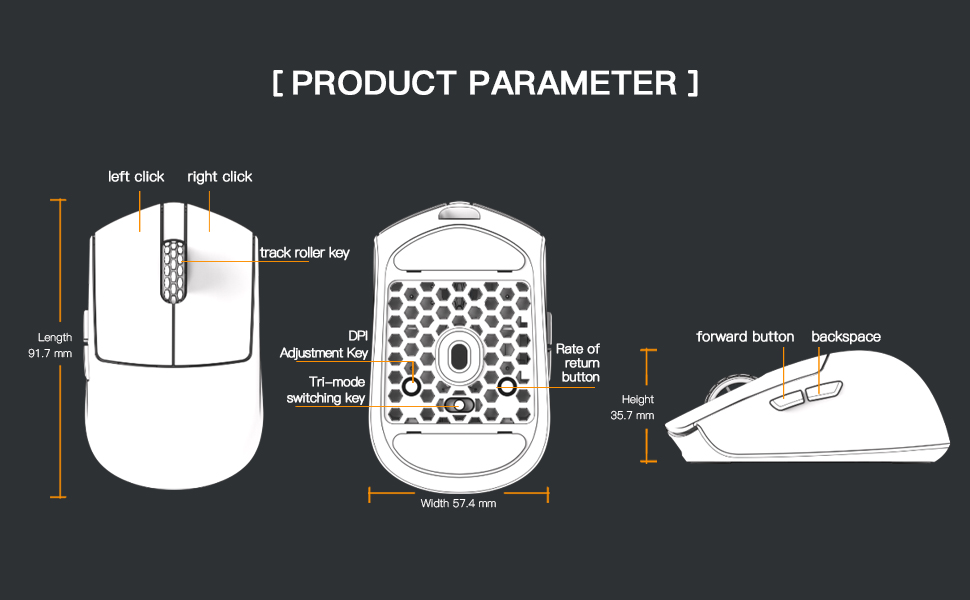
Image 3.1: Diagram illustrating the button layout and dimensions of the M5PRO mouse.
3.2 ഡിപിഐ അഡ്ജസ്റ്റ്മെന്റ്
The DPI (Dots Per Inch) sensitivity can be adjusted using the dedicated DPI adjustment key located on the bottom of the mouse. Press the button to cycle through preset DPI levels. The current DPI level may be indicated by an LED color change (refer to software for specific mappings).
3.3 മോഡ് സ്വിച്ചിംഗ്
Use the switch on the bottom of the mouse to select between 8K wireless, Bluetooth, and wired modes.
3.4 സോഫ്റ്റ്വെയർ കസ്റ്റമൈസേഷൻ
For advanced customization, including button remapping, macro creation, and DPI fine-tuning, download the proprietary drivers from the official Darmoshark website. The software allows for personalized settings to optimize your experience.
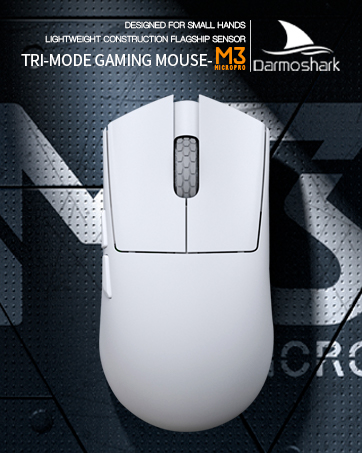
Image 3.2: The proprietary driver software allows for extensive customization of mouse settings.
4. പരിപാലനം
4.1 വൃത്തിയാക്കൽ
To clean the mouse, use a soft, dry cloth. For stubborn dirt, a slightly damp cloth can be used, but ensure no moisture enters the mouse. Avoid using harsh chemicals or abrasive materials.
4.2 സംഭരണം
ദീർഘനേരം ഉപയോഗിക്കാത്തപ്പോൾ, നേരിട്ട് സൂര്യപ്രകാശം ഏൽക്കാത്തതും ഉയർന്ന താപനില ഏൽക്കാത്തതുമായ തണുത്തതും വരണ്ടതുമായ സ്ഥലത്ത് മൗസ് സൂക്ഷിക്കുക. ബാറ്ററി ലൈഫ് ലാഭിക്കാൻ മൗസ് ഓഫാക്കിയിട്ടുണ്ടെന്ന് ഉറപ്പാക്കുക.

ചിത്രം 4.1: എക്സ്പ്ലോഡഡ് view of the M5PRO mouse, highlighting its internal structure and lightweight components.
5. പ്രശ്നപരിഹാരം
5.1 മൗസ് പ്രതികരിക്കുന്നില്ല
- ബാറ്ററി പരിശോധിക്കുക: Ensure the mouse is charged. Connect it via USB-C cable to charge.
- കണക്ഷൻ പരിശോധിക്കുക: Verify the correct mode (8K wireless, Bluetooth, or wired) is selected on the mouse.
- Receiver/Cable: For 8K wireless, ensure the receiver is securely plugged into a working USB port. For wired, ensure the cable is properly connected.
- ബ്ലൂടൂത്ത് വീണ്ടും ജോടിയാക്കുക: If using Bluetooth, try removing the device from your computer's Bluetooth settings and re-pairing it.
5.2 കഴ്സർ ചലന പ്രശ്നങ്ങൾ
- ക്ലീൻ സെൻസർ: Ensure the optical sensor on the bottom of the mouse is clean and free from debris.
- ഉപരിതലം: Use the mouse on a suitable surface, preferably a mouse pad, for optimal tracking.
- DPI ക്രമീകരണം: Adjust the DPI sensitivity to a comfortable level.
5.3 Software Not Detecting Mouse
- വയർഡ് കണക്ഷൻ: Connect the mouse via USB-C cable to ensure the software can detect it.
- സോഫ്റ്റ്വെയർ വീണ്ടും ഇൻസ്റ്റാൾ ചെയ്യുക: Try uninstalling and reinstalling the proprietary drivers.
- ഫേംവെയർ അപ്ഡേറ്റ്: Check the Darmoshark website for any available firmware updates for the mouse.
6 സ്പെസിഫിക്കേഷനുകൾ
| ഫീച്ചർ | സ്പെസിഫിക്കേഷൻ |
|---|---|
| ബ്രാൻഡ് | ഡാർമോഷാർക്ക് |
| മോഡൽ | M5PRO |
| കണക്റ്റിവിറ്റി ടെക്നോളജി | 8K Wireless, Bluetooth, Wired (USB-C) |
| മൂവ്മെന്റ് ഡിറ്റക്ഷൻ ടെക്നോളജി | PAW3950 ഒപ്റ്റിക്കൽ സെൻസർ |
| പരമാവധി DPI | 30000 ഡിപിഐ |
| പോളിംഗ് നിരക്ക് | Up to 8KHz (8K wireless mode) |
| ബട്ടണുകളുടെ എണ്ണം | 5 (പ്രോഗ്രാം ചെയ്യാവുന്നത്) |
| ഭാരം | ഏകദേശം 38 ഗ്രാം |
| ബാറ്ററി | 1 ലിഥിയം അയോൺ ബാറ്ററി (ഉൾപ്പെടുത്തിയിരിക്കുന്നു) |
| അനുയോജ്യത | Windows, Apple Mac |
Image 6.1: The PAW3950 optical sensor is a core component for precise tracking.
7. വാറൻ്റിയും പിന്തുണയും
For warranty information and technical support, please refer to the official Darmoshark webസൈറ്റിൽ ബന്ധപ്പെടുക അല്ലെങ്കിൽ അവരുടെ ഉപഭോക്തൃ സേവനവുമായി ബന്ധപ്പെടുക. വാറന്റി ക്ലെയിമുകൾക്കായി നിങ്ങളുടെ വാങ്ങിയതിന്റെ തെളിവ് സൂക്ഷിക്കുക.
ഔദ്യോഗിക ഡാർമോഷാർക്ക് Webസൈറ്റ്: Darmoshark Store


