1 പ്രധാനപ്പെട്ട സുരക്ഷാ വിവരങ്ങൾ
ഈ ഉൽപ്പന്നം ഉപയോഗിക്കുന്നതിന് മുമ്പ് ദയവായി എല്ലാ നിർദ്ദേശങ്ങളും ശ്രദ്ധാപൂർവ്വം വായിക്കുക. ഭാവിയിലെ റഫറൻസിനായി ഈ മാനുവൽ സൂക്ഷിക്കുക.
- വെന്റിലേഷൻ ദ്വാരങ്ങൾ തടയരുത്. പ്രൊജക്ടറിന് ചുറ്റും മതിയായ വായുസഞ്ചാരം ഉറപ്പാക്കുക.
- തീയോ വൈദ്യുതാഘാതമോ തടയാൻ പ്രൊജക്ടർ മഴയിലോ ഈർപ്പത്തിലോ തുറന്നുകാട്ടരുത്.
- നിർമ്മാതാവ് വ്യക്തമാക്കിയ അറ്റാച്ച്മെൻ്റുകൾ/ആക്സസറികൾ മാത്രം ഉപയോഗിക്കുക.
- ഇടിമിന്നൽ ഉണ്ടാകുമ്പോഴോ ദീർഘനേരം ഉപയോഗിക്കാതിരിക്കുമ്പോഴോ പ്രൊജക്ടർ പ്ലഗ് ഊരിവയ്ക്കുക.
- എല്ലാ സേവനങ്ങളും യോഗ്യതയുള്ള സേവന ഉദ്യോഗസ്ഥർക്ക് റഫർ ചെയ്യുക.
2. പാക്കേജ് ഉള്ളടക്കം
നിങ്ങളുടെ പാക്കേജിൽ എല്ലാ ഇനങ്ങളും ഉണ്ടെന്ന് ഉറപ്പാക്കുക:
- WEWATCH S3 4K Portable Projector
- റിമോട്ട് കൺട്രോൾ
- പവർ കേബിൾ
- HDMI കേബിൾ
- ഉപയോക്തൃ മാനുവൽ
3. ഉൽപ്പന്നം കഴിഞ്ഞുview
Familiarize yourself with the components and ports of your WEWATCH S3 projector.

ചിത്രം: മുൻവശം view of the WEWATCH S3 4K Portable Projector, showcasing അതിന്റെ മിനുസമാർന്ന രൂപകൽപ്പനയും ലെൻസും.
3.1. പോർട്ടുകളും കണക്ഷനുകളും
The projector features various ports for versatile connectivity:

ചിത്രം: പിൻഭാഗം view of the WEWATCH S3 projector, highlighting its various input and output ports including LAN, USB, HDMI, and audio jacks.
- LAN (x1): വയർഡ് നെറ്റ്വർക്ക് കണക്ഷനായി.
- USB (x2): For connecting USB drives or other USB devices.
- എച്ച്ഡിഎംഐ (x2): For connecting external devices like laptops, gaming consoles, or streaming sticks.
- AU (Audio Out x1): ബാഹ്യ ഓഡിയോ ഉപകരണങ്ങൾ ബന്ധിപ്പിക്കുന്നതിന്.
- AX (Audio In x1): ഓഡിയോ ഇൻപുട്ടിനായി.
4. സജ്ജീകരണം
Follow these steps to set up your projector for the first time:
- പ്ലേസ്മെൻ്റ്: Place the projector on a stable, flat surface or mount it securely. Ensure it is positioned to project onto a suitable screen or wall.
- പവർ കണക്ഷൻ: Connect the power cable to the projector's power input and then to a power outlet.
- പവർ ഓൺ: ഉപകരണം ഓണാക്കാൻ പ്രൊജക്ടറിലോ റിമോട്ട് കൺട്രോളിലോ പവർ ബട്ടൺ അമർത്തുക.

Image: The WEWATCH S3 projector set up in a living room environment, projecting an image onto a screen, demonstrating typical home usage.
5. പ്രവർത്തന നിർദ്ദേശങ്ങൾ
5.1. Android TV Operating System
The WEWATCH S3 features an integrated Android TV system, providing direct access to popular streaming applications.

Image: A person using the remote control to navigate the Android TV interface projected onto a large screen, showing various streaming app icons like Prime Video, YouTube, and Netflix.
- നാവിഗേഷൻ: Use the remote control's directional buttons and OK button to navigate the Android TV interface.
- ആപ്പ് ഉപയോഗം: For optimal experience with certain applications (e.g., Netflix, YouTube), it is recommended to switch the remote control to mouse mode. After using the application, switch back to normal mode.
6. കണക്റ്റിവിറ്റി
6.1. Wi-Fi Connection (2.4G + 5G)
Connect your projector to a wireless network for internet access and screen mirroring.
- Navigate to the Wi-Fi settings in the Android TV menu.
- നിങ്ങൾക്ക് ആവശ്യമുള്ള നെറ്റ്വർക്ക് തിരഞ്ഞെടുത്ത് പാസ്വേഡ് നൽകുക.
- The projector supports both 2.4G and 5G Wi-Fi bands for fast and stable connections.
6.2. ബ്ലൂടൂത്ത് കണക്ഷൻ
Connect external Bluetooth speakers or headphones for enhanced audio, or use the projector as a Bluetooth speaker.

Image: A smartphone wirelessly connected to the WEWATCH S3 projector, demonstrating the 2.4G/5G Wi-Fi and Bluetooth dual-channel capabilities for seamless content streaming.
- ബ്ലൂടൂത്ത് ക്രമീകരണങ്ങളിലേക്ക് പോകുക.
- നിങ്ങളുടെ ബ്ലൂടൂത്ത് ഉപകരണവുമായി ജോടിയാക്കുക.
- The projector can also function as a standalone Bluetooth speaker when connected to a phone.
6.3. HDMI and USB Connections
HDMI അല്ലെങ്കിൽ USB പോർട്ടുകൾ വഴി ബാഹ്യ ഉപകരണങ്ങൾ ബന്ധിപ്പിക്കുക.
- Insert the HDMI cable into one of the projector's HDMI ports and the other end into your device (e.g., laptop, game console).
- Insert a USB drive into a USB port to access media files.
7 പ്രധാന സവിശേഷതകൾ
7.1. Electronic Focus
Adjust the image clarity easily using the remote control.

Image: A hand holding the projector's remote control, pointing to the F+/F- buttons used for electronic focus adjustment, with a clear projected image of a tiger cub.
- ഉപയോഗിക്കുക F+ ഒപ്പം F- buttons on the remote control to fine-tune the focus until the image is sharp.
7.2. 4-Point Keystone Correction
Correct distorted images to achieve a perfectly rectangular projection, regardless of the projector's angle.
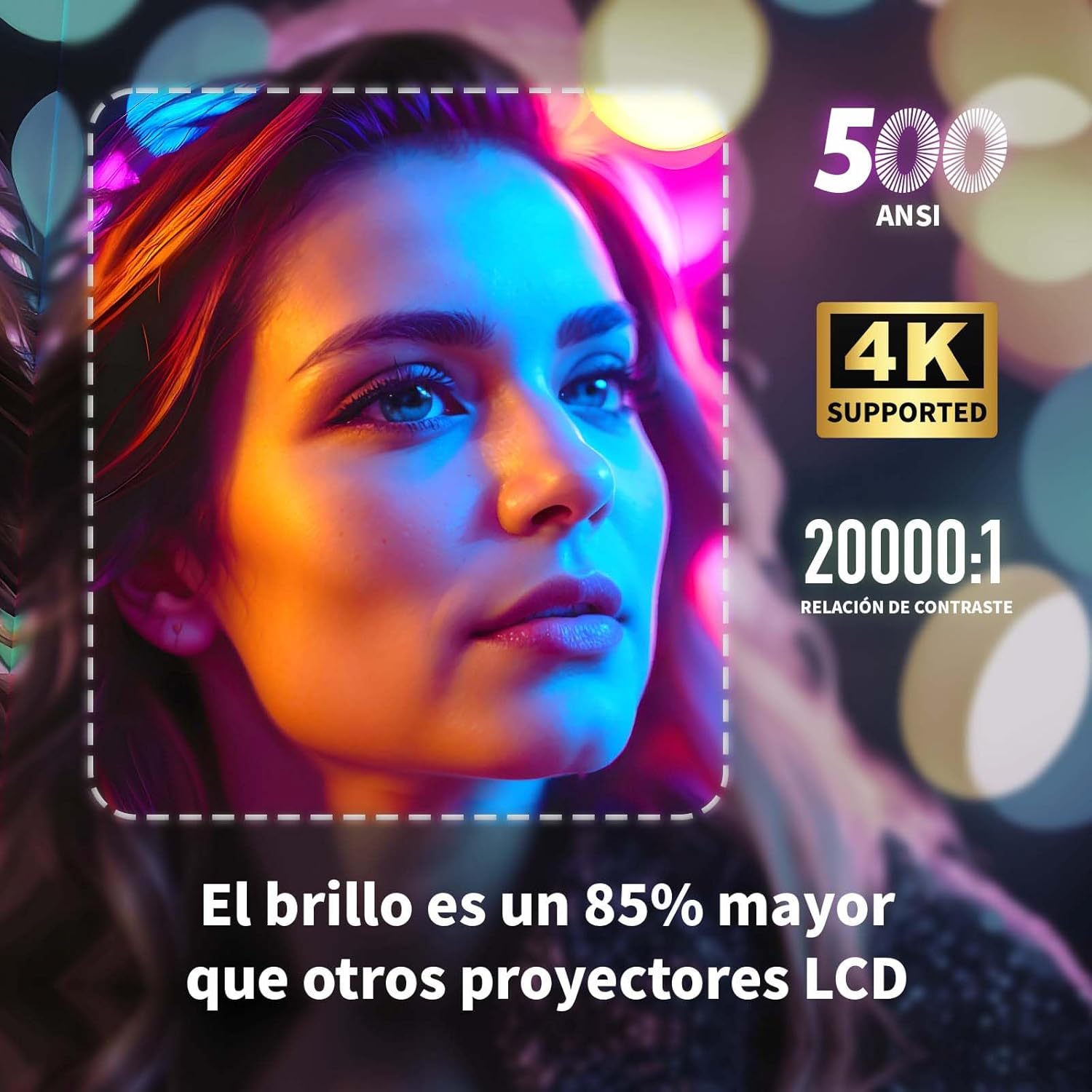
Image: A projected image of a woman's face with a dotted outline demonstrating how 4-point keystone correction adjusts the image to be perfectly rectangular, even when projected at an angle.
- Access the keystone correction settings in the menu to adjust each corner of the image independently.
- The projector also supports automatic vertical keystone correction.
7.3. സൂം ഫംഗ്ഷൻ
Adjust the image size without moving the projector.

Image: A visual representation of the projector's zoom function, showing how the image size can be reduced from 100% to 50% without physically moving the projector.
- The zoom function allows you to reduce the image size from 100% to 80%.
7.4. Large Screen Projection
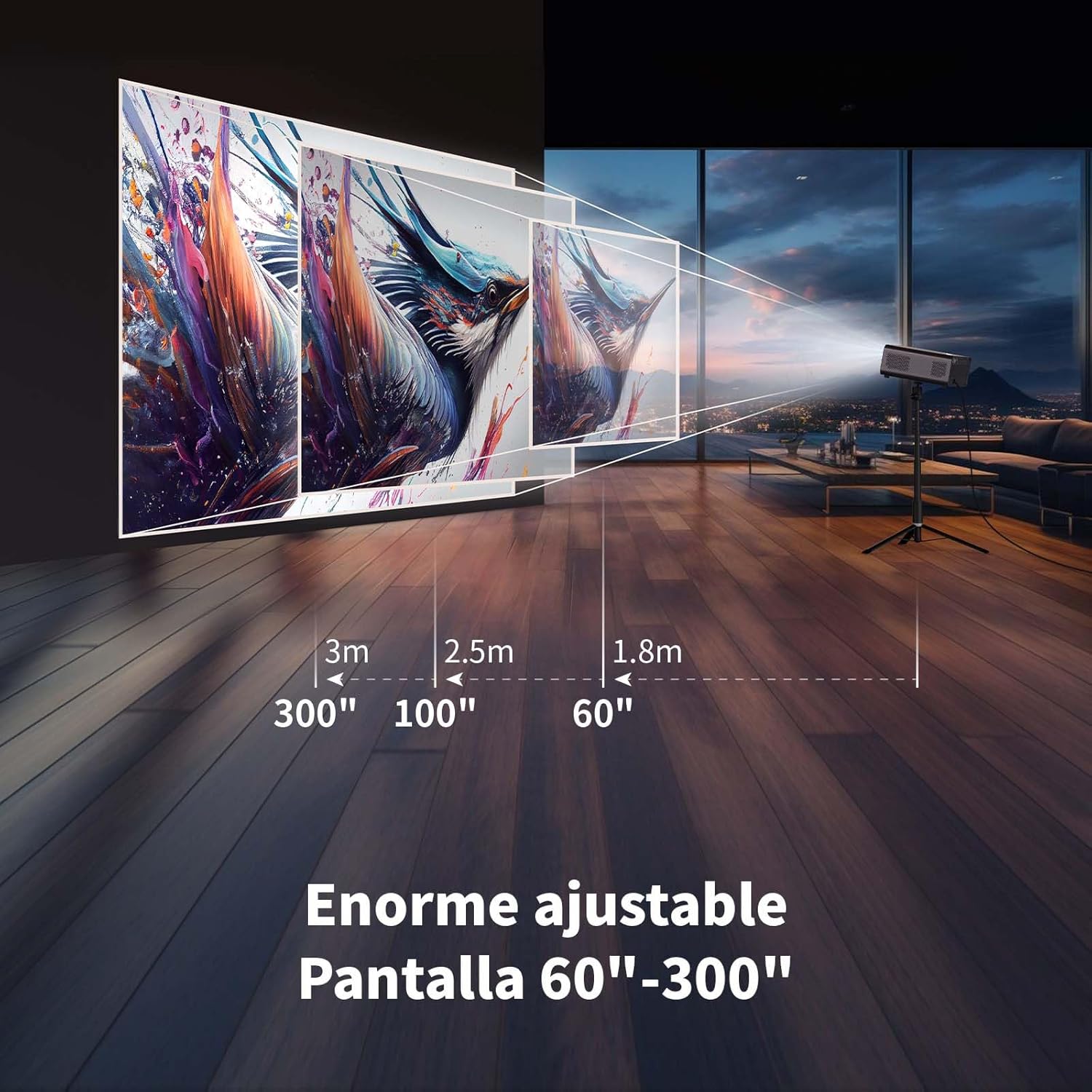
ആഴത്തിലുള്ള അനുഭവം viewing with a large adjustable screen size.

Image: A large projected image of an astronaut on a snowboard, illustrating the 300-inch screen capability of the projector in a home cinema setting.
- The projector can produce an adjustable screen size from 60 inches to 300 inches, suitable for various viewപരിസ്ഥിതികൾ.
8. പരിപാലനം
8.1. Dust-Proof Design and Cleaning
The projector features a dust-proof design with a hidden dust box to prevent dust accumulation.
ചിത്രം: ഒരു ക്ലോസ്-അപ്പ് view of the projector's hidden dust box, showing the filter inside, and an illustration of airflow, emphasizing the importance of regular cleaning to prevent dust from entering the device.
- Regularly clean the dust box to maintain optimal performance and prevent dust from affecting the image quality.
- പ്രൊജക്ടറിന്റെ പുറംഭാഗം വൃത്തിയാക്കാൻ മൃദുവായതും ഉണങ്ങിയതുമായ തുണി ഉപയോഗിക്കുക.
- ലിക്വിഡ് ക്ലീനറുകളോ എയറോസോളുകളോ ഉപയോഗിക്കരുത്.
9. പ്രശ്നപരിഹാരം
നിങ്ങളുടെ പ്രൊജക്ടറിൽ പ്രശ്നങ്ങൾ നേരിടുകയാണെങ്കിൽ, ഇനിപ്പറയുന്ന പൊതുവായ പ്രശ്നങ്ങളും പരിഹാരങ്ങളും പരിശോധിക്കുക:
| പ്രശ്നം | സാധ്യമായ പരിഹാരം |
|---|---|
| ഒരു ചിത്രവും പ്രൊജക്റ്റ് ചെയ്തിട്ടില്ല. | Check power connection. Ensure input source is correctly selected (HDMI, USB, etc.). Verify lens cap is removed. |
| ചിത്രം മങ്ങിയതാണ് | Adjust electronic focus using the F+/F- buttons on the remote. Ensure the projection surface is flat. |
| ചിത്രം വികലമാണ് (ട്രപസോയിഡ് ആകൃതി) | Use 4-point keystone correction in the settings menu to adjust the image corners. Check for automatic vertical correction. |
| ശബ്ദമില്ല | Check volume settings on the projector and connected device. Ensure external speakers are properly connected or Bluetooth is paired. |
| Wi-Fi കണക്ഷൻ പ്രശ്നങ്ങൾ | Ensure Wi-Fi is enabled. Re-enter Wi-Fi password. Restart the projector and router. Try connecting to a different Wi-Fi band (2.4G or 5G). |
10 സ്പെസിഫിക്കേഷനുകൾ
Key technical specifications for the WEWATCH S3 Projector:
- ബ്രാൻഡ്: വെവാച്ച്
- മോഡൽ നമ്പർ: S3
- നിറം: സ്മോക്ക്ഡ് ഗ്രേ
- ഉൽപ്പന്ന തരം: പോർട്ടബിൾ പ്രൊജക്ടർ
- തെളിച്ചം: 500 ആൻസി ലുമെൻസ്
- Native Display Resolution: 1920 x 1080 (പൂർണ്ണ HD)
- പരമാവധി ഡിസ്പ്ലേ റെസല്യൂഷൻ: 3840 x 2160 (4K പിന്തുണയുള്ളത്)
- ദൃശ്യതീവ്രത അനുപാതം: 20000:1
- ഡിസ്പ്ലേ തരം: എൽഇഡി
- കണക്റ്റിവിറ്റി ടെക്നോളജി: Bluetooth, Ethernet, HDMI, USB, Wi-Fi (2.4G/5G)
- പ്രത്യേക സവിശേഷതകൾ: Wi-Fi Compatible, Digital Keystone Correction, Built-in Speaker, Auto Focus, Portable
- അനുയോജ്യമായ ഉപകരണങ്ങൾ: Speaker, Laptop, Smartphone, Tablet
- ഉൽപ്പന്ന അളവുകൾ: 24.3L x 24.9W x 10.5H സെൻ്റീമീറ്റർ
- ശുപാർശ ചെയ്യുന്ന ഉപയോഗങ്ങൾ: Home Cinema, Video Games, Professional, Education
11. വാറൻ്റിയും പിന്തുണയും
The WEWATCH S3 Projector comes with a manufacturer's warranty to ensure your peace of mind.
- നിർമ്മാതാവിന്റെ വാറന്റി: 2 വർഷം
- For technical support or warranty claims, please refer to the contact information provided with your purchase documentation or visit the official WEWATCH webസൈറ്റ്.


