1. ആമുഖം
This manual provides detailed instructions for setting up, operating, and maintaining your Mercusys MR27BE BE3600 Dual-Band Wi-Fi 7 Router. The MR27BE is designed to deliver high-speed wireless connectivity with Wi-Fi 7 technology, featuring dual-band operation and multiple high-speed Ethernet ports for a robust home or small office network.
2. പാക്കേജ് ഉള്ളടക്കം
നിങ്ങളുടെ പാക്കേജിൽ ഇനിപ്പറയുന്ന ഇനങ്ങൾ അടങ്ങിയിട്ടുണ്ടെന്ന് പരിശോധിക്കുക:
- Mercusys MR27BE Wi-Fi 7 Router
- പവർ അഡാപ്റ്റർ
- ഇഥർനെറ്റ് കേബിൾ
- ദ്രുത ഇൻസ്റ്റലേഷൻ ഗൈഡ്

This image displays the retail packaging for the Mercusys MR27BE BE3600 Dual Band Wi-Fi 7 Router, highlighting key features and branding.
3. ഫിസിക്കൽ ഓവർview
3.1 പിൻ പാനൽ
The rear panel of the MR27BE router features various ports and buttons for connectivity and control.
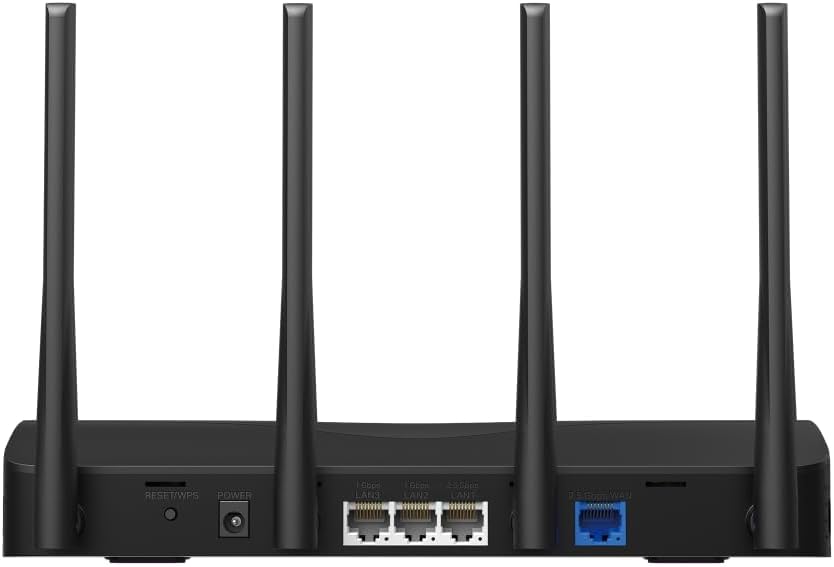
This image displays the rear panel of the MR27BE router, highlighting the 2.5 Gbps WAN port (blue), 2.5 Gbps LAN port, two 1 Gbps LAN ports, the Reset/WPS button, and the power input.
- പവർ പോർട്ട്: നൽകിയിരിക്കുന്ന പവർ അഡാപ്റ്റർ ഇവിടെ ബന്ധിപ്പിക്കുക.
- റീസെറ്റ്/WPS ബട്ടൺ: Press and hold for 1 second to activate WPS. Press and hold for more than 5 seconds to factory reset the router.
- LAN Ports (1 Gbps): Two Gigabit Ethernet ports for connecting wired devices.
- LAN Port (2.5 Gbps): One 2.5 Gigabit Ethernet port for high-speed wired connections.
- WAN Port (2.5 Gbps): One 2.5 Gigabit Ethernet port for connecting to your modem or internet service provider's (ISP) network.
3.2 പ്രധാന സവിശേഷതകൾ
The MR27BE router incorporates advanced features for enhanced network performance.

This graphic illustrates key features of the MR27BE, including its Wi-Fi 7 capabilities, the presence of 2x 2.5 Gbps ports and 2x Gigabit ports, four omni-directional high-gain antennas, EasyMesh compatibility, and easy app control.

This image demonstrates the speed performance of the MR27BE router, indicating up to 2880 Mbps on the 5 GHz band and 688 Mbps on the 2.4 GHz band, showcasing its Wi-Fi 7 capabilities.
4. സജ്ജീകരണം
4.1 ഹാർഡ്വെയർ കണക്ഷൻ
- പവർ ഓഫ്: Disconnect the power from your modem (if applicable).
- WAN പോർട്ട് ബന്ധിപ്പിക്കുക: Connect one end of the Ethernet cable to your modem's Ethernet port and the other end to the blue 2.5 Gbps WAN port on your MR27BE router.
- പവർ ബന്ധിപ്പിക്കുക: Connect the power adapter to the router's Power port and plug it into an electrical outlet.
- പവർ ഓൺ: Wait for the router to power on completely. The LED indicator should turn solid green.
- ഉപകരണങ്ങൾ ബന്ധിപ്പിക്കുക (ഓപ്ഷണൽ): For wired devices, connect an Ethernet cable from your computer or other device to one of the yellow LAN ports on the router.

This image shows the 2.5 Gbps ports of the MR27BE router in use, illustrating connections for 2.5 Gbps wired devices and multi-gig internet access, emphasizing high-performance networking.
4.2 പ്രാരംഭ കോൺഫിഗറേഷൻ
You can configure your router using the MERCUSYS app or a web ബ്രൗസർ.
Using the MERCUSYS App:
- Download the MERCUSYS app from the App Store or Google Play.
- Connect your smartphone to the router's default Wi-Fi network (SSID and password are on the label at the bottom of the router).
- Open the MERCUSYS app and follow the on-screen instructions to complete the setup.
എ ഉപയോഗിക്കുന്നത് Web ബ്രൗസർ:
- Connect your computer to the router via an Ethernet cable or the default Wi-Fi network.
- എ തുറക്കുക web ബ്രൗസറും ടൈപ്പും
mwlogin.netor192.168.1.1വിലാസ ബാറിലേക്ക്. - Create a login password when prompted.
- Follow the Quick Setup wizard to configure your internet connection and Wi-Fi settings.
5. റൂട്ടർ പ്രവർത്തിപ്പിക്കൽ
5.1 ഉപകരണങ്ങൾ ബന്ധിപ്പിക്കുന്നു
- വയർലെസ് ഉപകരണങ്ങൾ: ഇതിനായി തിരയുക your Wi-Fi network name (SSID) on your device and enter the Wi-Fi password you set during setup.
- വയർഡ് ഉപകരണങ്ങൾ: നിങ്ങളുടെ ഉപകരണത്തിൽ നിന്ന് ഒരു ഇതർനെറ്റ് കേബിൾ റൂട്ടറിൽ ലഭ്യമായ ഏതെങ്കിലും LAN പോർട്ടിലേക്ക് ബന്ധിപ്പിക്കുക.
5.2 EasyMesh അനുയോജ്യത
The MR27BE router supports EasyMesh, allowing you to create a seamless whole-home Wi-Fi network by adding compatible EasyMesh range extenders or other routers.

This diagram visually explains how the EasyMesh system, compatible with the MR27BE router, can expand Wi-Fi coverage throughout an entire home, ensuring seamless connections.
To set up an EasyMesh network, refer to the instructions provided with your EasyMesh compatible devices or the MERCUSYS app.
5.3 Advanced Settings (via Web ഇന്റർഫേസ്)
ആക്സസ് ചെയ്യുക web ഇൻ്റർഫേസ് (mwlogin.net) പോലുള്ള വിപുലമായ ക്രമീകരണങ്ങൾ കോൺഫിഗർ ചെയ്യാൻ:
- അതിഥി നെറ്റ്വർക്ക്: അതിഥികൾക്കായി പ്രത്യേക വൈ-ഫൈ നെറ്റ്വർക്ക് സൃഷ്ടിക്കുക.
- രക്ഷാകർതൃ നിയന്ത്രണങ്ങൾ: Manage internet access for specific devices.
- നെറ്റ്വർക്ക് സുരക്ഷ: Configure firewall rules and access control.
- പ്രവർത്തന രീതി: Switch between Router, Access Point, or Range Extender modes.
6. പരിപാലനം
6.1 ഫേംവെയർ അപ്ഡേറ്റ്
Regularly updating the router's firmware ensures optimal performance and security. You can check for updates via the MERCUSYS app or the web interface under System Tools > Firmware Upgrade.
6.2 റൂട്ടർ പുനരാരംഭിക്കുന്നു
If you experience network issues, a simple restart can often resolve them. You can restart the router via the MERCUSYS app, the web interface, or by unplugging and replugging the power adapter.
6.3 ഫാക്ടറി റീസെറ്റ്
A factory reset will restore the router to its default settings. This can be done by pressing and holding the Reset/WPS button on the rear panel for more than 5 seconds until the LED blinks rapidly, or via the web interface under System Tools > Factory Defaults.
7. പ്രശ്നപരിഹാരം
7.1 ഇന്റർനെറ്റ് ആക്സസ് ഇല്ല
- Check all cable connections, especially the WAN port connection to your modem.
- Ensure your modem is working correctly.
- നിങ്ങളുടെ മോഡവും റൂട്ടറും പുനരാരംഭിക്കുക.
- Verify your internet settings in the router's web ഇൻ്റർഫേസ്.
7.2 വൈഫൈ സിഗ്നൽ പ്രശ്നങ്ങൾ
- തടസ്സങ്ങളിൽ നിന്നും ഇടപെടലുകളിൽ നിന്നും (ഉദാ: മൈക്രോവേവ്, കോർഡ്ലെസ് ഫോണുകൾ) അകറ്റി, റൂട്ടർ ഒരു കേന്ദ്ര സ്ഥാനത്ത് സ്ഥാപിച്ചിട്ടുണ്ടെന്ന് ഉറപ്പാക്കുക.
- Adjust the router's antennas for optimal coverage.
- Consider using EasyMesh compatible devices to extend coverage in larger homes.
7.3 Forgotten Wi-Fi Password or Login Password
- റൂട്ടറിന്റെ അടിയിലുള്ള ലേബലിലാണ് ഡിഫോൾട്ട് വൈഫൈ പാസ്വേഡ്.
- If you changed it and forgot, you will need to perform a factory reset to restore default settings, then reconfigure the router.
8 സ്പെസിഫിക്കേഷനുകൾ
| മോഡലിൻ്റെ പേര് | MR27BE |
| വയർലെസ് സ്റ്റാൻഡേർഡ് | 802.11be (വൈ-ഫൈ 7) |
| ഫ്രീക്വൻസി ബാൻഡ് ക്ലാസ് | ഡ്യുവൽ-ബാൻഡ് |
| WAN പോർട്ട് | 1x 2.5 Gbps WAN Port |
| ലാൻ പോർട്ടുകൾ | 1x 2.5 Gbps LAN Port, 2x 1 Gbps LAN Ports |
| പ്രത്യേക ഫീച്ചർ | EasyMesh അനുയോജ്യം |
| ഉൽപ്പന്ന അളവുകൾ | 7.87 x 5.91 x 3.94 ഇഞ്ച് |
| ഇനത്തിൻ്റെ ഭാരം | 2.23 പൗണ്ട് |
| ഉൾപ്പെടുത്തിയ ഘടകങ്ങൾ | MR27BE, Power Adapter, instruction manual |
9. പിന്തുണ
For technical support, warranty information, or further assistance, please visit the official Mercusys website or contact Mercusys customer support.
- Mercusys Official Webസൈറ്റ്: www.mercusys.com
- Refer to the Quick Installation Guide for initial setup and contact details.


