ആമുഖം
Welcome to the user manual for your new Pisichen 27-inch 2K 100Hz Touch Panel Monitor. This monitor is designed to provide a vibrant visual experience and intuitive interaction for both work and entertainment. It features a stunning QHD 2560x1440 resolution, a smooth 100Hz refresh rate, and responsive 10-point multi-touch functionality.
This manual provides detailed instructions on setting up, operating, maintaining, and troubleshooting your monitor to ensure optimal performance and longevity.

ചിത്രം: മുൻഭാഗം view of the Pisichen 27-inch Touch Panel Monitor, showcasing its 100Hz 2K display, QHD resolution, IPS panel, USB-C connectivity, and built-in speakers.
പാക്കേജ് ഉള്ളടക്കം
നിങ്ങളുടെ ഉൽപ്പന്ന പാക്കേജിൽ ഇനിപ്പറയുന്ന എല്ലാ ഇനങ്ങളും ഉൾപ്പെടുത്തിയിട്ടുണ്ടെന്ന് ദയവായി പരിശോധിക്കുക:
- Pisichen 27-inch Touch Panel Monitor
- HDMI കേബിൾ
- DC Power Adapter (12V 3A)
- USB-A മുതൽ USB-C കേബിൾ വരെ
- USB-C മുതൽ USB-C കേബിൾ വരെ
- മോണിറ്റർ ബേസ്
- ഉപയോക്തൃ മാനുവൽ (ഈ പ്രമാണം)

Image: A visual representation of the monitor and its included accessories: HDMI cable, DC power adapter, USB-A to USB-C cable, USB-C to USB-C cable, monitor base, and user manual.
സജ്ജമാക്കുക
1. മോണിറ്റർ ബേസ് കൂട്ടിച്ചേർക്കുന്നു
- Carefully remove the monitor and base components from the packaging.
- Align the monitor stand with the mounting slot on the back of the monitor.
- Secure the stand to the monitor. For most models, this is a tool-free process, but some may require a screwdriver.
- കൂട്ടിച്ചേർത്ത മോണിറ്റർ ഒരു സ്ഥിരതയുള്ളതും പരന്നതുമായ പ്രതലത്തിൽ സ്ഥാപിക്കുക.
2. ഒരു പവർ സ്രോതസ്സിലേക്ക് ബന്ധിപ്പിക്കുന്നു
- Connect the DC power adapter to the monitor's DC input port.
- Plug the other end of the power adapter into a standard wall outlet.
3. ഒരു ഉപകരണത്തിലേക്ക് ബന്ധിപ്പിക്കുന്നു
മോണിറ്റർ വൈവിധ്യമാർന്ന കണക്റ്റിവിറ്റി ഓപ്ഷനുകൾ വാഗ്ദാനം ചെയ്യുന്നു:
- HDMI കണക്ഷൻ: Use the provided HDMI cable to connect the monitor to your computer, gaming console, or other HDMI-enabled device.
- ഡിസ്പ്ലേപോർട്ട് (ഡിപി) കണക്ഷൻ: Use a DisplayPort cable (not included) to connect the monitor to your device's DP output for high-resolution video and audio.
- USB-C കണക്ഷൻ: For devices supporting video output over USB-C (DisplayPort Alternate Mode), use the provided USB-C to USB-C cable. This single cable can transmit video, audio, and touch signals. Note: The monitor requires its own DC 12V 3A power adapter; power delivery to the connected device via USB-C is not supported.
- USB-A for Touch Functionality: When using HDMI or DP for video, connect the USB-A to USB-C cable from your computer's USB-A port to the monitor's USB-C port to enable the touch screen feature.
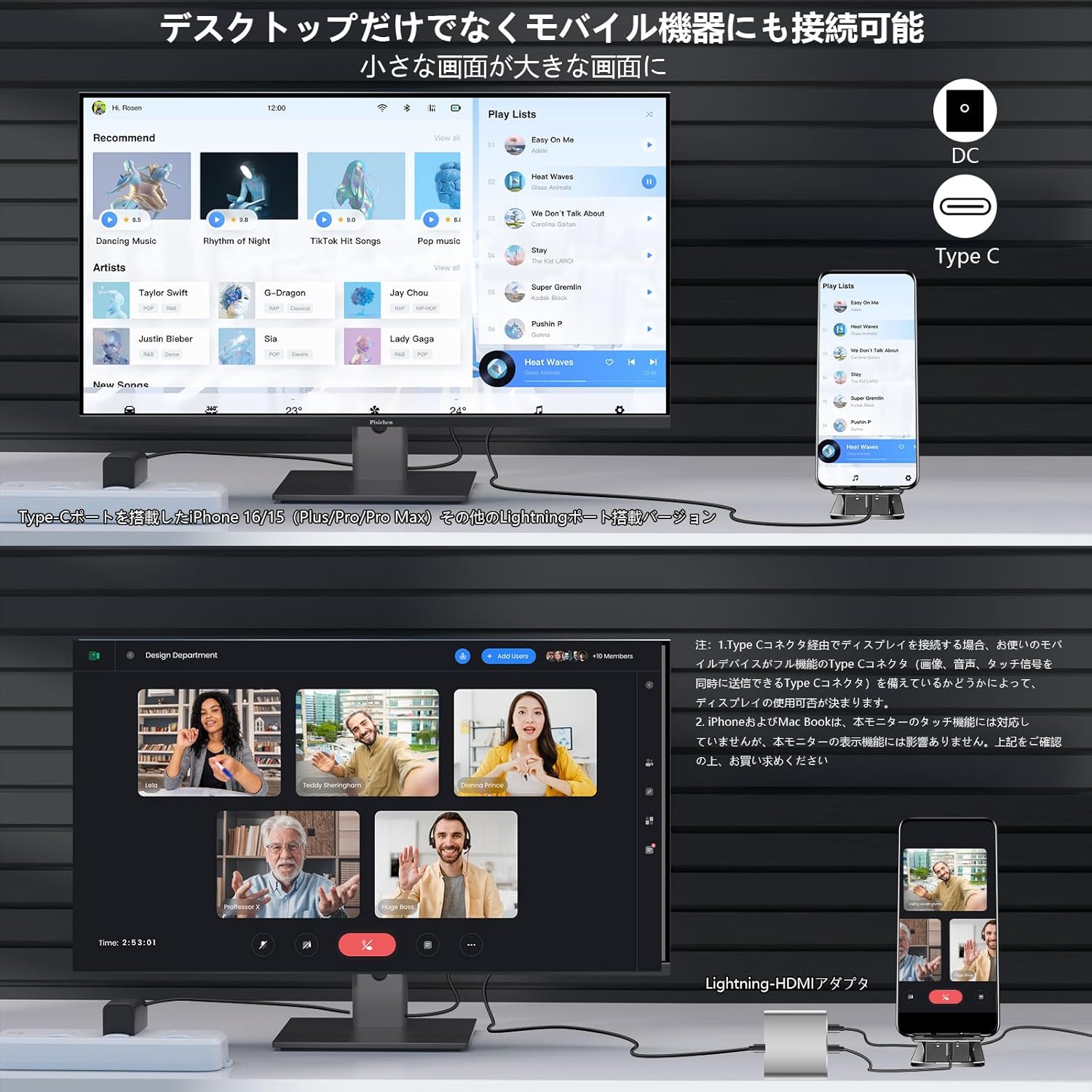
Image: Diagram showing various connection ports on the monitor, including DC power, USB-C, and HDMI, illustrating how to connect to different devices like laptops and mobile phones.

Image: An illustration demonstrating how to connect the monitor to a laptop using HDMI for video and a USB cable for touch functionality, and also showing a dual monitor setup.
മോണിറ്റർ പ്രവർത്തിക്കുന്നു
പവർ ഓൺ/ഓഫ്
Locate the power button, typically on the back or side of the monitor. Press it to turn the monitor on or off.
ഓൺ-സ്ക്രീൻ ഡിസ്പ്ലേ (OSD) മെനു
The OSD menu allows you to adjust various display settings. Use the physical buttons on the monitor to navigate the menu options:
- തെളിച്ചം/തീവ്രത: ഡിസ്പ്ലേയുടെ മൊത്തത്തിലുള്ള പ്രകാശവും കോൺട്രാസ്റ്റും ക്രമീകരിക്കുക.
- വർണ്ണ ക്രമീകരണങ്ങൾ: Modify color temperature, hue, and saturation to suit your preference.
- ഇൻപുട്ട് ഉറവിടം: Manually select the active input source (HDMI, DP, USB-C) if auto-detection does not work.
- ഓഡിയോ: Adjust the volume level for the built-in speakers.
- Eye-Care Mode: Activate Low Blue Light mode to reduce blue light emission and minimize eye strain during prolonged use.
- HDR: Enable or disable High Dynamic Range for enhanced visual experience with compatible content.
ടച്ച് സ്ക്രീൻ പ്രവർത്തനം
The monitor features responsive 10-point multi-touch technology. Ensure the USB touch cable is properly connected to your device for this feature to function.
- ആംഗ്യങ്ങൾ: Utilize standard touch gestures such as pinch-to-zoom, swipe, tap, and drag for intuitive navigation and interaction.
- Multi-User Interaction: The 10-point touch capability allows multiple users to interact with the screen simultaneously using fingers or a passive stylus.

Image: A user pointing at the touch screen monitor displaying data analytics, demonstrating the interactive capabilities of the 10-point multi-touch feature.

Image: A man interacting with a digital menu on the touch screen monitor, illustrating the ease of use for various applications like self-service kiosks.
മെയിൻ്റനൻസ്
മോണിറ്റർ വൃത്തിയാക്കൽ
- വൃത്തിയാക്കുന്നതിന് മുമ്പ് എല്ലായ്പ്പോഴും പവർ ഔട്ട്ലെറ്റിൽ നിന്ന് മോണിറ്റർ അഴിക്കുക.
- മൃദുവായ, ലിൻ്റ് രഹിത തുണി ഉപയോഗിക്കുകampened with water or a non-abrasive, electronics-safe screen cleaner.
- Do not spray cleaning solution directly onto the screen surface.
- Avoid using alcohol, ammonia, or abrasive cleaners, as these can damage the screen and casing.
സംഭരണം
When the monitor is not in use for extended periods, store it in a cool, dry place, away from direct sunlight, excessive heat, and extreme cold. If possible, use the original packaging for protection.
ട്രബിൾഷൂട്ടിംഗ്
If you encounter any issues with your monitor, please refer to the following table for common problems and their solutions:
| പ്രശ്നം | സാധ്യമായ കാരണം | പരിഹാരം |
|---|---|---|
| സ്ക്രീനിൽ ചിത്രമൊന്നുമില്ല | Power cable disconnected; Incorrect input source selected; Connected device not powered on or in sleep mode. | Ensure all power and video cables are securely connected. Use the OSD menu to select the correct input source. Verify that your connected device is powered on and outputting a signal. |
| ടച്ച് സ്ക്രീൻ പ്രതികരിക്കുന്നില്ല | USB touch cable not connected or faulty; Operating system driver issue. | Confirm the USB-A to USB-C cable is securely connected from your computer to the monitor. Try a different USB port on your computer. Check your device's operating system for touch screen drivers or updates. |
| Screen flickering or distorted image | Video cable issue; Incorrect display resolution or refresh rate; Electromagnetic interference. | Try a different video cable. Adjust the display resolution and refresh rate in your device's display settings to match the monitor's specifications. Move the monitor away from other electronic devices that may cause interference. |
| ബിൽറ്റ്-ഇൻ സ്പീക്കറുകളിൽ നിന്ന് ഓഡിയോ ഇല്ല. | Monitor volume too low or muted; Incorrect audio output selected on device; Video cable not transmitting audio. | Increase the monitor volume via the OSD menu. In your device's sound settings, ensure the monitor is selected as the audio output device. Verify that your HDMI, DP, or USB-C cable supports audio transmission. |
സ്പെസിഫിക്കേഷനുകൾ
Detailed technical specifications for your Pisichen 27-inch Touch Panel Monitor:
- മോഡൽ: 27''TS-2k-100hz
- ബ്രാൻഡ്: പിസിചെൻ
- സ്ക്രീൻ വലിപ്പം: 27 ഇഞ്ച്
- പാനൽ തരം: ഐ.പി.എസ്
- റെസലൂഷൻ: 2560x1440 (QHD 2K)
- പുതുക്കൽ നിരക്ക്: 100Hz
- തെളിച്ചം: 350 നിറ്റ്
- Viewഇൻ ആംഗിൾ: 178° (തിരശ്ചീനമായി/ലംബമായി)
- വീക്ഷണ അനുപാതം: 16:9
- ടച്ച് ടെക്നോളജി: 10-point Multi-Touch
- കണക്റ്റിവിറ്റി: 1x HDMI, 1x DisplayPort, 1x USB-C 3.1 (for video, audio, touch), 1x DC Power Input
- ബിൽറ്റ്-ഇൻ സ്പീക്കറുകൾ: അതെ
- വെസ മൗണ്ട്: 100x100 മി.മീ
- ടിൽറ്റ് അഡ്ജസ്റ്റ്മെന്റ്: -5° മുതൽ 15° വരെ
- അധിക സവിശേഷതകൾ: Anti-Glare, Anti-Flicker, Low Blue Light, HDR support
- ഉൽപ്പന്ന അളവുകൾ (സ്റ്റാൻഡ് ഇല്ലാതെ): ഏകദേശം 61.2 സെ.മീ (പടിഞ്ഞാറ്) x 36.3 സെ.മീ (ഉയരം) x 1.9 സെ.മീ (D)
- ഭാരം: ഏകദേശം 6.76 കി.ഗ്രാം

Image: A diagram illustrating the precise dimensions of the Pisichen 27-inch monitor, including width, height, and thickness.
വാറൻ്റിയും പിന്തുണയും
For information regarding the product warranty, please refer to the warranty card included in your package or visit the official Pisichen website. It is recommended to retain your purchase receipt as proof of purchase for any warranty claims.
For technical support or further assistance, please contact the seller directly through the platform where you purchased the product, or reach out to Pisichen customer service via the contact information provided on their official webസൈറ്റ്.


