1. ആമുഖം
Thank you for choosing the Jacchozhi Fingerprint Smart Lock with HD Camera. This advanced keyless entry system offers multiple unlocking methods, integrated video doorbell functionality, and remote management via a mobile application. Designed for enhanced security and convenience, this manual provides detailed instructions for installation, setup, operation, and maintenance to ensure optimal performance and longevity of your smart lock.
2 സുരക്ഷാ വിവരങ്ങൾ
ഇൻസ്റ്റാൾ ചെയ്യുന്നതിനും ഉപയോഗിക്കുന്നതിനും മുമ്പ് എല്ലാ സുരക്ഷാ നിർദ്ദേശങ്ങളും ശ്രദ്ധാപൂർവ്വം വായിക്കുക. ഈ നിർദ്ദേശങ്ങൾ പാലിക്കുന്നതിൽ പരാജയപ്പെടുന്നത് ഉൽപ്പന്നത്തിനോ വസ്തുവിനോ കേടുപാടുകൾ വരുത്തുന്നതിനോ വ്യക്തിപരമായ പരിക്കിനോ കാരണമായേക്കാം.
- ലോക്ക് ദീർഘനേരം ഉയർന്ന താപനിലയിലോ നേരിട്ടുള്ള സൂര്യപ്രകാശത്തിലോ തുറന്നുകാട്ടരുത്.
- Use only specified AA alkaline batteries. Do not mix old and new batteries or different types of batteries.
- Keep physical keys in a secure location outside the property.
- ലോക്കിന്റെ പ്രതലത്തിൽ അബ്രാസീവ് ക്ലീനറുകളോ ലായകങ്ങളോ ഉപയോഗിക്കുന്നത് ഒഴിവാക്കുക.
- Ensure all components are securely fastened during installation to prevent accidental dislodgement.
- In case of a low battery alert, replace batteries promptly.
3. പാക്കേജ് ഉള്ളടക്കം
ഇൻസ്റ്റാളേഷൻ ആരംഭിക്കുന്നതിന് മുമ്പ് എല്ലാ ഘടകങ്ങളും നിലവിലുണ്ടെന്ന് ഉറപ്പാക്കുക:
- Front Panel Assembly (with camera and keypad)
- Rear Panel Assembly (with battery compartment and handle)
- മോർട്ടൈസ് ലോക്ക് ബോഡി
- സ്ട്രൈക്ക് പ്ലേറ്റും സ്ട്രൈക്ക് ബോക്സും
- Mounting Screws and Hardware Kit
- ഭൗതിക കീകൾ (2)
- Fob Keycards (2)
- ഇൻസ്റ്റാളേഷൻ ടെംപ്ലേറ്റ്
- ഉപയോക്തൃ മാനുവൽ (ഈ പ്രമാണം)

ചിത്രം: കഴിഞ്ഞുview of Jacchozhi Smart Lock components, including the main unit, physical keys, and key fobs.
4. ഉൽപ്പന്നം കഴിഞ്ഞുview
The Jacchozhi Smart Lock integrates multiple security and convenience features into a sleek design. Key features include:
- HD ക്യാമറ: Provides clear video feed for monitoring visitors.
- വീഡിയോ ഡോർബെൽ: Alerts your phone when a visitor presses the doorbell, allowing remote communication.
- Multiple Keyless Access: Fingerprint, password, Fob keycard, and APP unlocking.
- അന്തർനിർമ്മിത വൈഫൈ: Enables remote management without an additional gateway.
- ടു-വേ ഓഡിയോ: ആപ്പ് വഴി സന്ദർശകരുമായി ആശയവിനിമയം നടത്തുക.
- അടിയന്തര പവർ: Micro-USB port for temporary power in case of battery depletion.
- ഫിസിക്കൽ കീ ബാക്കപ്പ്: Traditional key access for emergencies.
- യാന്ത്രിക ലോക്ക്: Automatically locks the door when closed.
- Anti-Peeping Keypad: Allows entry of virtual digits before or after the actual password to prevent onlookers from guessing your code.

Image: Key features of the Jacchozhi Smart Lock, including HD camera, two-way audio, fingerprint recognition, app control, built-in WiFi, and voice prompts.
5. ഇൻസ്റ്റലേഷൻ
Before installation, ensure your door meets the following requirements:
- Door thickness: 1.49 - 1.89 inches (38mm - 48mm)
- Backset: 2.36 or 2.75 inches (60mm or 70mm)
- Hole diameter: 2.13 inches (54mm)
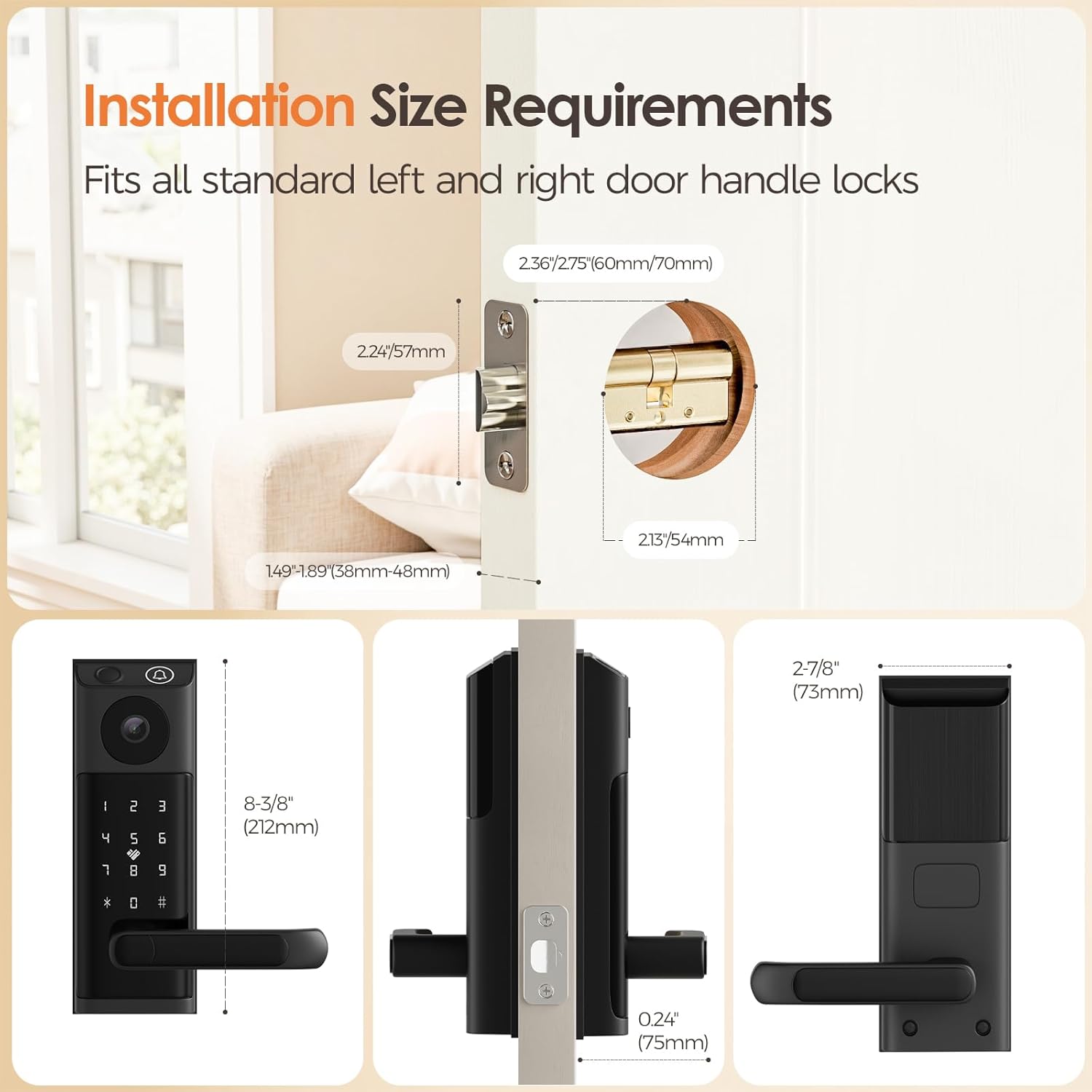
Image: Diagram illustrating the required door dimensions for smart lock installation.
5.1. വാതിൽ തയ്യാറാക്കൽ
- Remove your existing lock and handle.
- Use the provided installation template to mark and drill any necessary holes on your door.
5.2. Installing the Mortise Lock Body
- Insert the mortise lock body into the edge of the door.
- Secure it with screws. Ensure the latch bolt is facing the correct direction for your door's swing.
5.3. Installing the Front and Rear Panels
- Connect the cable from the front panel to the rear panel.
- Align the spindle with the mortise lock body.
- Mount the front panel on the exterior side of the door.
- Mount the rear panel on the interior side, securing it with the provided screws.
- Ensure the handle operates smoothly and the lock engages properly.
6. സജ്ജീകരണം
6.1. ബാറ്ററി ഇൻസ്റ്റാളേഷൻ
- Open the battery compartment on the rear panel.
- Insert 4 AA alkaline batteries, ensuring correct polarity.
- Close the battery compartment. The lock will power on and may provide a voice prompt.
6.2. App Download and Pairing (Tuya App)
- ഡൗൺലോഡ് ചെയ്യുക തുയ സ്മാർട്ട് നിങ്ങളുടെ സ്മാർട്ട്ഫോണിന്റെ ആപ്പ് സ്റ്റോറിൽ (iOS അല്ലെങ്കിൽ Android) നിന്നുള്ള ആപ്പ്.
- Register or log in to your Tuya Smart account.
- In the app, tap '+' to add a device. Select 'Security & Video Surveillance' then 'Smart Lock (Wi-Fi)'.
- Follow the on-screen instructions to put the lock into pairing mode (usually by pressing a button on the rear panel or keypad).
- Connect the lock to your home Wi-Fi network via the app.

Image: App control interface for the smart lock, showing remote unlocking and settings management.
6.3. Adding Users (Fingerprints, Passcodes, Key Fobs)
All user management is performed through the Tuya Smart app.
- ഫിംഗർപ്രിന്റ്: Navigate to 'User Management' in the app, select 'Add Fingerprint', and follow the prompts to register fingerprints on the lock's sensor.
- പാസ്കോഡ്: Select 'Add Passcode' in the app. You can create permanent, temporary, or one-time passcodes.
- കീ ഫോബ്: Choose 'Add Card' or 'Add Fob' in the app, then present the key fob to the designated area on the lock to register it.
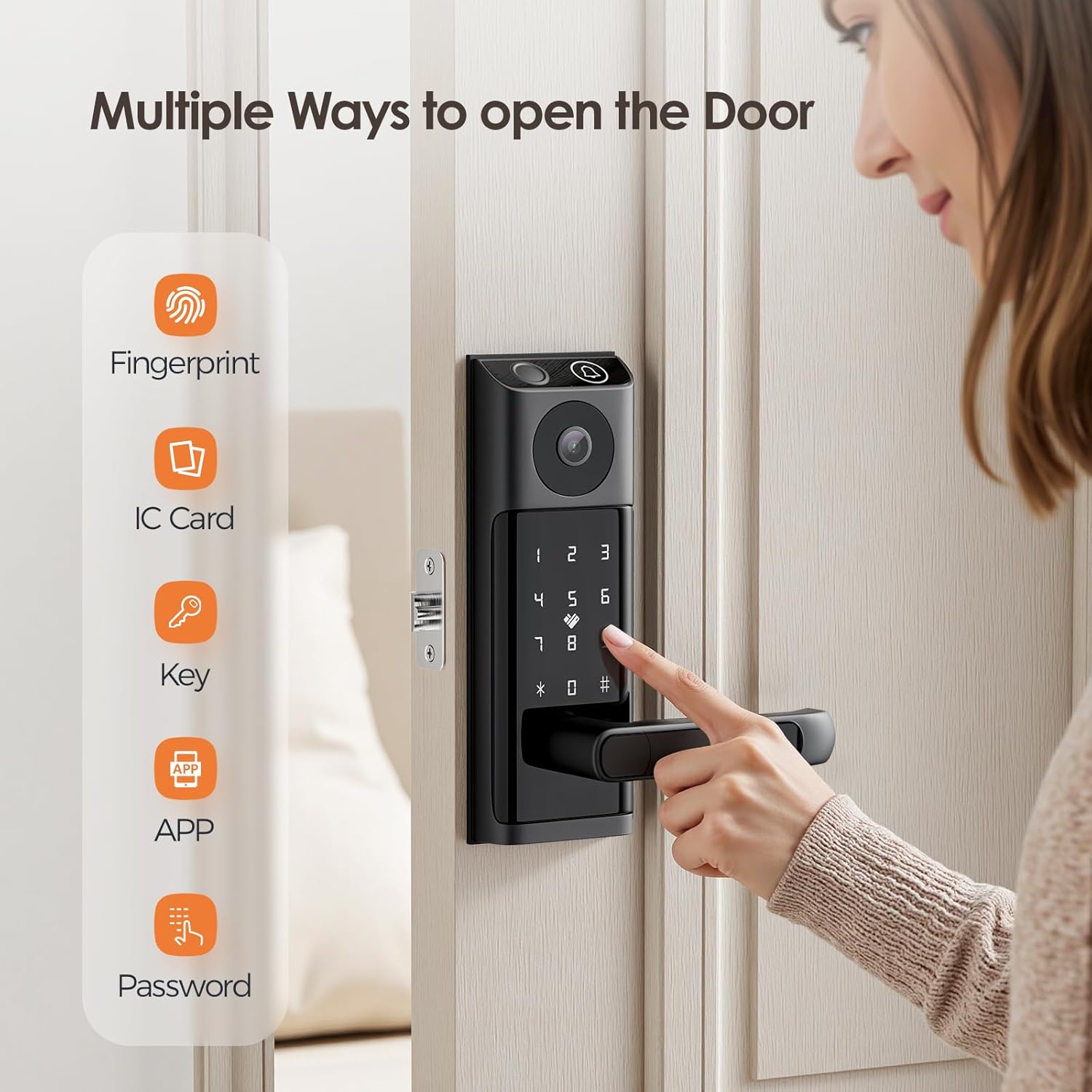
Image: Visual representation of the multiple unlocking methods available for the smart lock.
7. പ്രവർത്തന നിർദ്ദേശങ്ങൾ
7.1. അൺലോക്ക് രീതികൾ
- ഫിംഗർപ്രിന്റ് അൺലോക്കിംഗ്: Place your registered finger on the fingerprint sensor. The lock will unlock in approximately 0.5 seconds.
- പാസ്കോഡ് അൺലോക്ക് ചെയ്യുന്നു: Enter your registered passcode on the touchscreen keypad, followed by '#'. For enhanced security, you can enter random digits before and after your actual passcode (anti-peeping function).
- Fob Keycard Unlocking: Present a registered key fob to the card reader area on the lock.
- APP Unlocking: ടുയ സ്മാർട്ട് ആപ്പ് തുറന്ന് നിങ്ങളുടെ ലോക്ക് തിരഞ്ഞെടുത്ത് അൺലോക്ക് ഐക്കണിൽ ടാപ്പ് ചെയ്യുക.
- Physical Key Unlocking: Insert the physical key into the keyhole and turn to unlock. This method is primarily for emergency backup.

Image: Fingerprint unlocking in action, highlighting the speed and convenience.

Image: Password unlocking options, including permanent, temporary, and visitor codes.

Image: Physical key unlocking as a backup method for the smart lock.
7.2. Video Doorbell and Intercom
When a visitor presses the doorbell button on the smart lock:
- Your smartphone will receive a notification and a photo of the visitor.
- നിങ്ങൾക്ക് കഴിയും view the live video feed and engage in two-way audio communication with the visitor through the Tuya Smart app.
- You can remotely unlock the door for the visitor from the app.
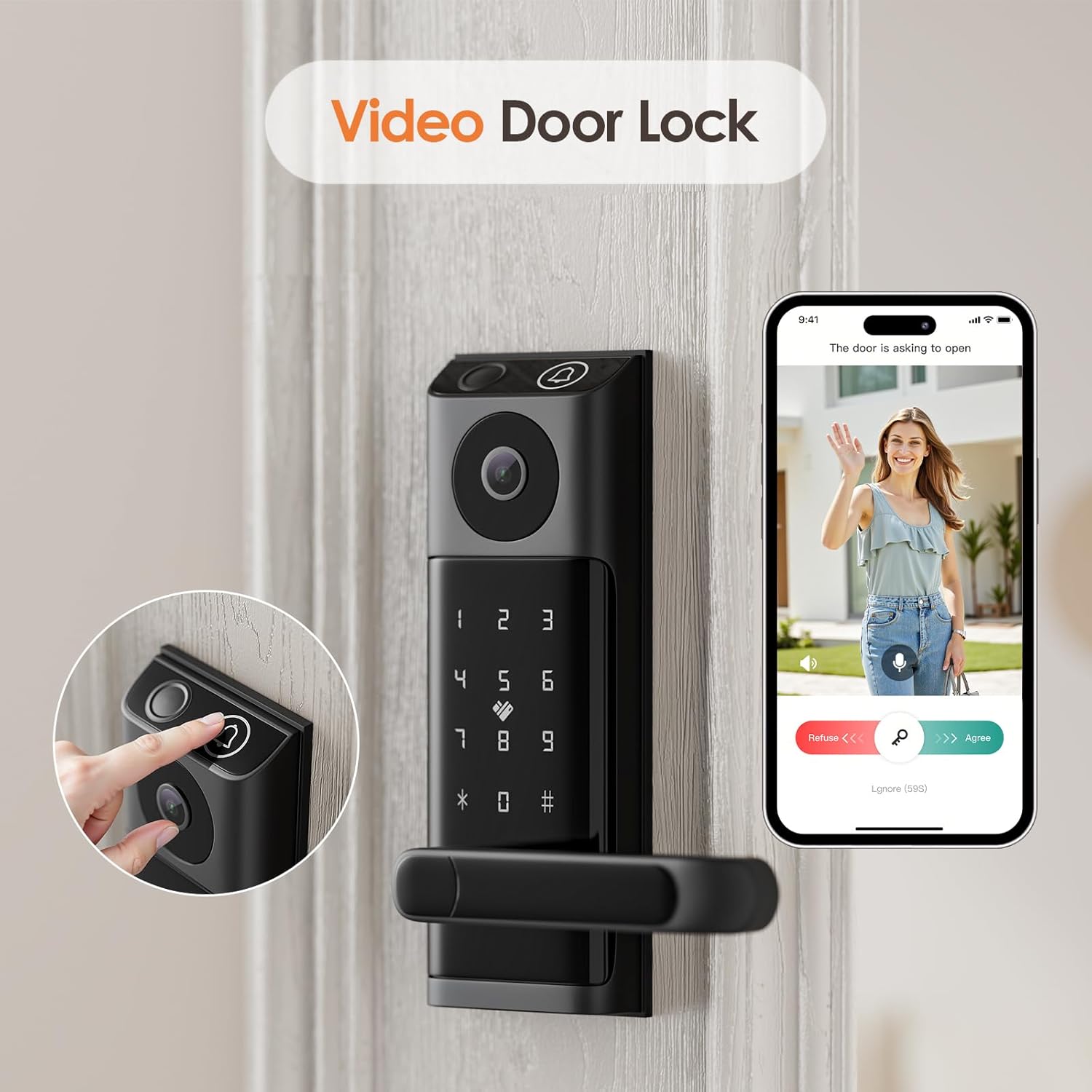
Image: The smart lock's video doorbell feature, showing a visitor on the screen.
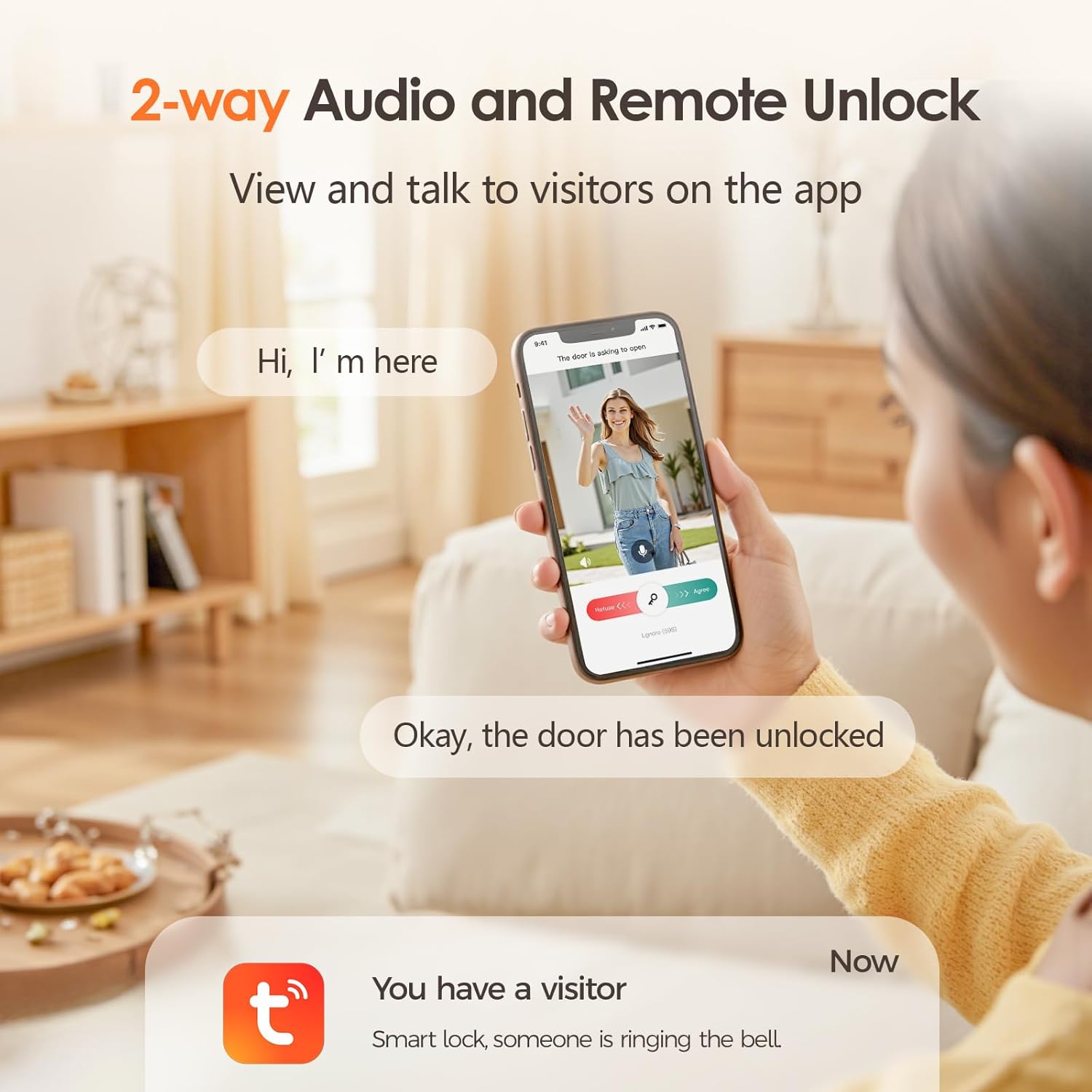
Image: Two-way audio and remote unlock functionality, allowing communication with visitors via the app.
7.3. റിമോട്ട് മാനേജ്മെന്റ്
With the built-in Wi-Fi module, you can manage your lock remotely via the Tuya Smart app:
- Unlock the door from anywhere.
- Add or delete users (fingerprints, passcodes, key fobs).
- Generate temporary passwords for guests or service personnel.
- View access logs to see who entered and when.
- Receive real-time alerts for password errors or forced entry attempts.
7.4. ഓട്ടോ-ലോക്ക് സവിശേഷത
The smart lock is designed to automatically lock itself after the door is closed, providing an added layer of security without manual intervention. This feature can typically be configured or disabled within the Tuya Smart app settings.
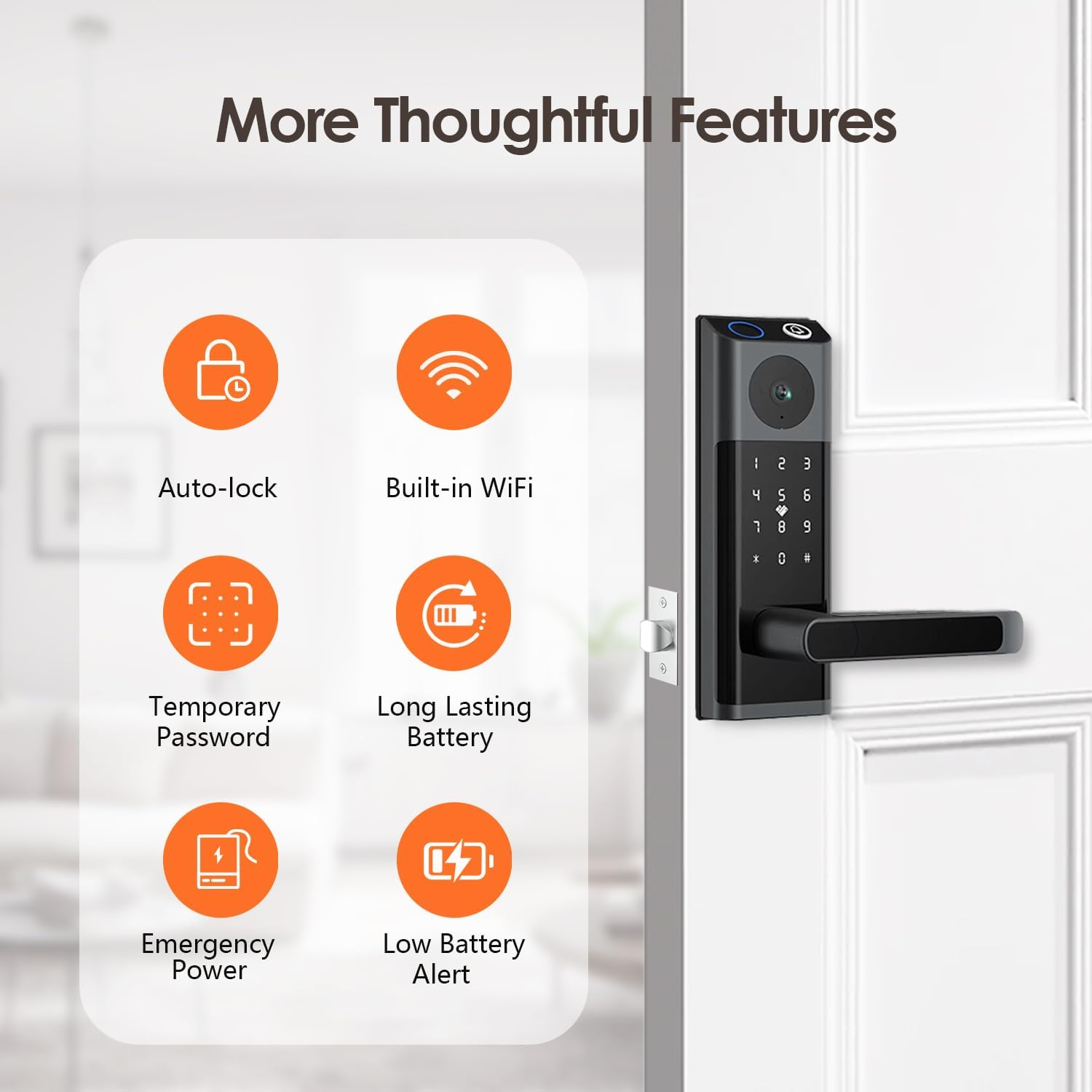
Image: Additional thoughtful features of the smart lock, including auto-lock and built-in WiFi.
8. പരിപാലനം
8.1. ബാറ്ററി മാറ്റിസ്ഥാപിക്കൽ
The lock operates on 4 AA batteries and can last up to 6 months. The lock will provide a low battery alert when replacement is needed. To replace batteries:
- Open the battery compartment cover on the interior panel.
- പഴയ ബാറ്ററികൾ നീക്കം ചെയ്യുക.
- ശരിയായ പോളാരിറ്റി ഉറപ്പാക്കിക്കൊണ്ട് 4 പുതിയ AA ആൽക്കലൈൻ ബാറ്ററികൾ ഇടുക.
- ബാറ്ററി കമ്പാർട്ട്മെൻ്റ് കവർ അടയ്ക്കുക.
In case of complete battery depletion, use the emergency power port (Micro-USB) on the exterior panel with a power bank to temporarily power the lock and gain access.
8.2. വൃത്തിയാക്കൽ
Clean the lock's surface with a soft, dry cloth. Do not use harsh chemicals, abrasive cleaners, or solvents, as these can damage the finish and electronic components. Regularly wipe the fingerprint sensor to ensure optimal performance.
9. പ്രശ്നപരിഹാരം
| പ്രശ്നം | സാധ്യമായ കാരണം | പരിഹാരം |
|---|---|---|
| ലോക്ക് പ്രതികരിക്കുന്നില്ല | Dead batteries; loose cable connection. | Replace batteries; check cable connection between panels; use emergency power. |
| വിരലടയാളം തിരിച്ചറിഞ്ഞില്ല | Finger wet/dirty; unregistered fingerprint; sensor dirty. | Ensure finger is clean and dry; re-register fingerprint; clean sensor. |
| പാസ്കോഡ് പ്രവർത്തിക്കുന്നില്ല | Incorrect passcode; keypad malfunction. | Verify passcode; try re-entering; check for keypad damage. |
| വൈഫൈ/ആപ്പിലേക്ക് കണക്റ്റ് ചെയ്യാൻ കഴിയുന്നില്ല. | Incorrect Wi-Fi password; weak signal; router issues. | Verify Wi-Fi password; move router closer; restart router; re-pair lock with app. |
| Video doorbell not notifying | App notifications disabled; poor Wi-Fi connection. | Enable app notifications; check Wi-Fi signal strength. |
| Lock alarm triggers frequently | Forced entry attempt; sensitivity setting too high. | ടി പരിശോധിക്കുകampering; adjust alarm sensitivity in app settings if available. |
10 സ്പെസിഫിക്കേഷനുകൾ
| ഫീച്ചർ | വിശദാംശങ്ങൾ |
|---|---|
| ബ്രാൻഡ് | ജച്ചോഴി |
| മോഡലിൻ്റെ പേര് | Smart lock with camera and handle (OS595) |
| ലോക്ക് തരം | ബയോമെട്രിക്, കീപാഡ് |
| മെറ്റീരിയൽ | അലുമിനിയം |
| നിറം | കറുപ്പ് |
| ഇനത്തിന്റെ അളവുകൾ (L x W x H) | 12 x 9 x 3.5 ഇഞ്ച് |
| ഇനത്തിൻ്റെ ഭാരം | 4.2 പൗണ്ട് |
| കണക്റ്റിവിറ്റി പ്രോട്ടോക്കോൾ | ബ്ലൂടൂത്ത്, വൈഫൈ |
| നിയന്ത്രണ രീതി | ആപ്പ്, റിമോട്ട്, ടച്ച് |
| കൺട്രോളർ തരം | Android, iOS (Tuya Smart App) |
| പവർ ഉറവിടം | 4 x AA ആൽക്കലൈൻ ബാറ്ററികൾ |
| ബാറ്ററി ലൈഫ് | Up to 6 months (approximate) |
| പ്രത്യേക സവിശേഷതകൾ | Auto-Lock, Fingerprint, Fob Unlock, Touchscreen, HD Camera, Video Doorbell, 2-Way Audio |
| ശുപാർശ ചെയ്യുന്ന ഉപയോഗങ്ങൾ | Home, Front Door |
| യു.പി.സി | 730425956865 |
11. വാറൻ്റിയും പിന്തുണയും
Jacchozhi provides a standard manufacturer's warranty for this product. Please refer to the warranty card included in your package or visit the official Jacchozhi webവിശദമായ വാറന്റി നിബന്ധനകൾക്കും വ്യവസ്ഥകൾക്കും സൈറ്റ്.
For technical support, troubleshooting assistance, or any inquiries regarding your Jacchozhi Smart Lock, please contact Jacchozhi customer service through the contact information provided on their official website or within the Tuya Smart app's support section.
കുറിപ്പ്: വാറന്റി ക്ലെയിമുകൾക്കുള്ള വാങ്ങിയതിന്റെ തെളിവായി നിങ്ങളുടെ വാങ്ങൽ രസീത് സൂക്ഷിക്കുക.