ആമുഖം
This manual provides essential information for setting up, operating, maintaining, and troubleshooting your HP 15-DY58 Slim Laptop. Please read this guide thoroughly to ensure proper use and to maximize the performance and longevity of your device.
ബോക്സിൽ എന്താണുള്ളത്
Upon opening your HP 15-DY58 Slim Laptop package, you should find the following items:
- HP 15-DY58 Slim Laptop
- എസി പവർ അഡാപ്റ്ററും പവർ കോഡും
- ക്വിക്ക് സ്റ്റാർട്ട് ഗൈഡ് (പ്രത്യേകമായി ഉൾപ്പെടുത്തിയിട്ടുണ്ടെങ്കിൽ)
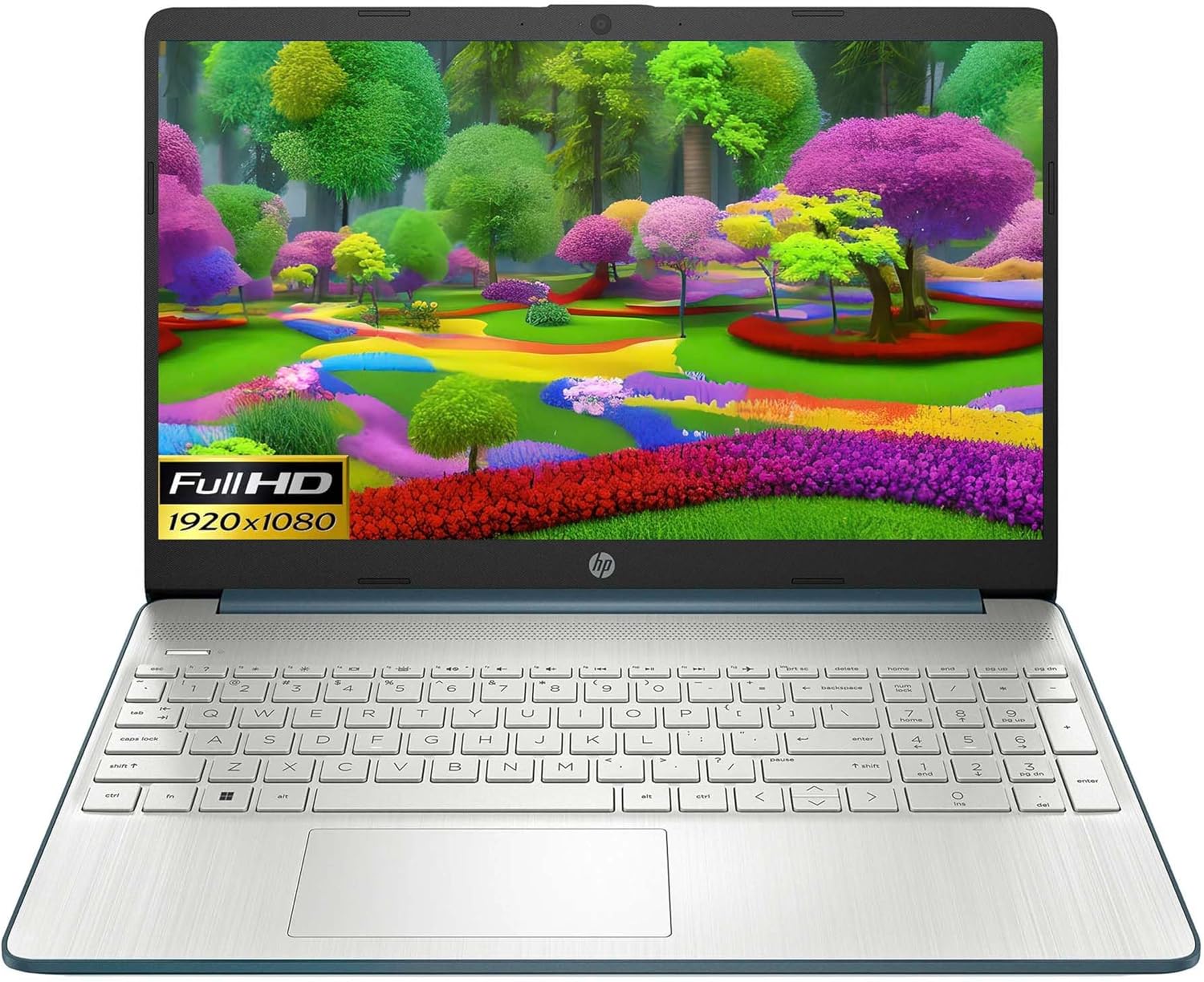
Image: HP 15 Slim Laptop, closed view, showing the blue lid with HP logo.
സജ്ജമാക്കുക
1. പ്രാരംഭ പവർ ഓൺ
- പവർ അഡാപ്റ്റർ ബന്ധിപ്പിക്കുക: Plug the AC power adapter into the laptop's AC smart pin port and then into a wall outlet.
- ലാപ്ടോപ്പ് തുറക്കുക: ഡിസ്പ്ലേ ലിഡ് ശ്രദ്ധാപൂർവ്വം ഉയർത്തുക.
- പവർ ഓൺ: Press the power button, usually located on the keyboard deck. The laptop will begin the initial Windows 11 setup process.
- ഓൺ-സ്ക്രീൻ നിർദ്ദേശങ്ങൾ പാലിക്കുക: Complete the Windows 11 setup, including language selection, network connection, and user account creation.

Image: HP 15 Slim Laptop open, showcasing the Windows 11 operating system interface during initial setup.
2. പെരിഫറലുകൾ ബന്ധിപ്പിക്കുന്നു
Your HP 15-DY58 Slim Laptop offers various ports for connecting external devices:
- യുഎസ്ബി ടൈപ്പ്-എ പോർട്ടുകൾ: Connect USB devices such as mice, keyboards, or external storage drives. There are two SuperSpeed USB Type-A 5Gbps ports.
- യുഎസ്ബി ടൈപ്പ്-സി പോർട്ട്: Connect compatible USB-C devices. This laptop features one SuperSpeed USB Type-C 5Gbps signaling rate port.
- എച്ച്ഡിഎംഐ പോർട്ട്: Connect an external monitor or TV using an HDMI cable for extended display. The laptop has one HDMI 1.4b port.
- ഹെഡ്ഫോൺ/മൈക്രോഫോൺ കോംബോ ജാക്ക്: ഹെഡ്ഫോണുകൾ, ബാഹ്യ സ്പീക്കറുകൾ അല്ലെങ്കിൽ മൈക്രോഫോൺ ഉപയോഗിച്ച് ഹെഡ്സെറ്റ് ബന്ധിപ്പിക്കുക.
- SD Media Card Reader: Insert an SD card to transfer photos and files.

Image: Left side ports including SD card reader, headphone jack, USB-C, AC power, and HDMI.

Image: Right side ports featuring two USB Type-A ports.
നിങ്ങളുടെ ലാപ്ടോപ്പ് പ്രവർത്തിപ്പിക്കുന്നു
അടിസ്ഥാന പ്രവർത്തനങ്ങൾ
- പവർ ബട്ടൺ: Located on the keyboard deck, use it to turn the laptop on or off, or to put it to sleep.
- കീബോർഡ്: The full-size island-style keyboard provides comfortable typing. Familiarize yourself with function keys (Fn) for quick access to settings like volume, brightness, and Wi-Fi.
- ടച്ച്പാഡ്: Use the integrated touchpad for navigation. It supports multi-touch gestures for scrolling, zooming, and more.

Image: HP 15 Slim Laptop open, showcasing അതിന്റെ ഡിസ്പ്ലേയും കീബോർഡും.
വയർലെസ് കണക്റ്റിവിറ്റി
- വൈഫൈ: Connect to wireless networks using Wi-Fi 5 (802.11ac). Access Wi-Fi settings through the Windows 11 taskbar or Settings app.
- ബ്ലൂടൂത്ത്: Pair Bluetooth-enabled devices such as headphones, speakers, or mice using Bluetooth 5. Manage Bluetooth devices in Windows 11 Settings.
ഡിസ്പ്ലേയും ഓഡിയോയും
- ഡിസ്പ്ലേ: The 15.6-inch Full HD (1920 x 1080) micro-edge display offers clear visuals. Adjust brightness and display settings via Windows 11.
- ഓഡിയോ: The laptop features dual speakers for audio output. The headphone/microphone combo jack allows for private listening or communication.
- ക്യാമറ: The HP True Vision 720p HD camera with integrated dual array digital microphones is suitable for video calls and online meetings.
മെയിൻ്റനൻസ്
നിങ്ങളുടെ ലാപ്ടോപ്പ് വൃത്തിയാക്കൽ
- സ്ക്രീൻ: നനവില്ലാത്തതും ലിനില്ലാത്തതുമായ തുണി ചെറുതായി ഉപയോഗിക്കുകampവെള്ളമോ സ്ക്രീൻ ക്ലീനറോ ഉപയോഗിച്ച് നനയ്ക്കുക. കഠിനമായ രാസവസ്തുക്കൾ ഒഴിവാക്കുക.
- കീബോർഡും ചേസിസും: Use a soft cloth to wipe surfaces. Compressed air can remove dust from between keys.
- തുറമുഖങ്ങൾ: പോർട്ടുകൾ പൊടിയും അവശിഷ്ടങ്ങളും ഇല്ലാത്തതാണെന്ന് ഉറപ്പാക്കുക. ആവശ്യമെങ്കിൽ കംപ്രസ് ചെയ്ത വായു ഉപയോഗിക്കുക.
സോഫ്റ്റ്വെയർ അപ്ഡേറ്റുകൾ
Regularly update your Windows operating system and drivers to ensure optimal performance and security. Access Windows Update through the Settings app.
ബാറ്ററി കെയർ
- തീവ്രമായ താപനില ഒഴിവാക്കുക.
- ബാറ്ററി ഇടയ്ക്കിടെ പൂർണ്ണമായും ഡിസ്ചാർജ് ചെയ്യരുത്.
- ദീർഘകാല സംഭരണത്തിനായി, ബാറ്ററി ഏകദേശം 50-70% വരെ ചാർജ് ചെയ്യുക.
ട്രബിൾഷൂട്ടിംഗ്
This section addresses common issues you might encounter with your HP 15-DY58 Slim Laptop.
ലാപ്ടോപ്പ് ഓണാകുന്നില്ല
- ലാപ്ടോപ്പിലേക്കും പ്രവർത്തിക്കുന്ന പവർ ഔട്ട്ലെറ്റിലേക്കും എസി അഡാപ്റ്റർ സുരക്ഷിതമായി ബന്ധിപ്പിച്ചിട്ടുണ്ടെന്ന് ഉറപ്പാക്കുക.
- മറ്റൊരു ഉപകരണം പ്ലഗ് ഇൻ ചെയ്ത് പവർ ഔട്ട്ലെറ്റ് പ്രവർത്തനക്ഷമമാണോ എന്ന് പരിശോധിക്കുക.
- ബാറ്ററി പൂർണ്ണമായും തീർന്നാൽ, പവർ ഓൺ ചെയ്യാൻ ശ്രമിക്കുന്നതിന് മുമ്പ് കുറച്ച് മിനിറ്റ് ചാർജ് ചെയ്യാൻ അനുവദിക്കുക.
ഡിസ്പ്ലേ പ്രശ്നങ്ങൾ
- ഡിസ്പ്ലേ ഇല്ല: If the laptop powers on but the screen remains black, try connecting an external monitor via the HDMI port to check if the issue is with the laptop's internal display.
- മങ്ങിയ ഡിസ്പ്ലേ: Adjust screen brightness using the function keys (usually F2/F3 or similar, look for sun icons) or through Windows 11 display settings.
കണക്റ്റിവിറ്റി പ്രശ്നങ്ങൾ (വൈ-ഫൈ/ബ്ലൂടൂത്ത്)
- വൈഫൈ: Ensure Wi-Fi is enabled in Windows 11 settings. Restart your router and modem. Run the Windows Network Troubleshooter.
- ബ്ലൂടൂത്ത്: Ensure Bluetooth is enabled. Try unpairing and re-pairing the device. Update Bluetooth drivers if necessary.
സ്പെസിഫിക്കേഷനുകൾ
| ഫീച്ചർ | വിശദാംശങ്ങൾ |
|---|---|
| മോഡൽ | HP 15-DY58 Slim Laptop |
| പ്രോസസ്സർ | Intel 12th Gen Core i5-1235U (up to 4.2 GHz, 10-core) |
| ഗ്രാഫിക്സ് | ഇൻ്റഗ്രേറ്റഡ് ഇൻ്റൽ ഐറിസ് Xe ഗ്രാഫിക്സ് |
| ഓപ്പറേറ്റിംഗ് സിസ്റ്റം | Windows 11 ഹോം (64-ബിറ്റ്) |
| മെമ്മറി (റാം) | 8 GB DDR4 |
| സംഭരണം | 256 ജിബി പിസിഐഇ എൻവിഎംഇ എം.2 എസ്എസ്ഡി |
| പ്രദർശിപ്പിക്കുക | 15.6-inch Full HD (1920 x 1080), Micro-edge, Anti-glare, 250 nits |
| വയർലെസ് കണക്റ്റിവിറ്റി | വൈ-ഫൈ 5 (802.11ac), ബ്ലൂടൂത്ത് 5 |
| തുറമുഖങ്ങൾ | 1x SuperSpeed USB Type-C 5Gbps, 2x SuperSpeed USB Type-A 5Gbps, 1x HDMI 1.4b, 1x AC Smart Pin, 1x Headphone/Microphone Combo, 1x Multi-format SD Media Card Reader |
| ക്യാമറ | HP True Vision 720p HD Camera with Integrated Dual Array Digital Microphones |
| ഓഡിയോ | ഡ്യുവൽ സ്പീക്കറുകൾ |
| കീബോർഡ് | Full-size Island-style Keyboard |
| അളവുകൾ (LxWxH) | 14 x 10 x 1 ഇഞ്ച് |
| ഭാരം | 3.3 പൗണ്ട് |

Image: HP 15 Slim Laptop, emphasizing its energy efficiency certifications.
വാറൻ്റിയും പിന്തുണയും
വിശദമായ വാറന്റി വിവരങ്ങൾക്ക്, ദയവായി നിങ്ങളുടെ ഉൽപ്പന്നത്തിനൊപ്പം ഉൾപ്പെടുത്തിയിരിക്കുന്ന വാറന്റി കാർഡ് പരിശോധിക്കുകയോ ഔദ്യോഗിക HP പിന്തുണ സന്ദർശിക്കുകയോ ചെയ്യുക. webസൈറ്റ്. HP വിവിധ പിന്തുണാ ഉറവിടങ്ങൾ നൽകുന്നു, അവയിൽ ഇവ ഉൾപ്പെടുന്നു:
- ഓൺലൈൻ പിന്തുണ: Access drivers, software updates, and troubleshooting guides.
- സാങ്കേതിക സഹായം: Contact HP customer service for assistance with technical issues.
- ഉൽപ്പന്ന രജിസ്ട്രേഷൻ: അപ്ഡേറ്റുകളും പിന്തുണയും ലഭിക്കുന്നതിന് നിങ്ങളുടെ ഉൽപ്പന്നം രജിസ്റ്റർ ചെയ്യുക.
സന്ദർശിക്കുക support.hp.com കൂടുതൽ വിവരങ്ങൾക്ക്.