1. ഉൽപ്പന്നം കഴിഞ്ഞുview
The FIDECO M.2 NVMe Cloner Dock is a versatile 4-bay device designed for efficient data management of M.2 PCIe NVMe SSDs. It supports high-speed data transfer, offline cloning, and offline data erasure, making it an ideal tool for professionals and enthusiasts alike. The integrated foldable cooling fan ensures optimal performance and extends the lifespan of your SSDs.
- Supported SSDs: Compatible with M.2 PCIe NVMe SSDs (M-Key or M+B Key) in sizes 2230, 2242, 2260, 2280, and 22110.
- Super Transfer Speed: Utilizes USB4 standard for speeds up to 40Gbps (4x 10Gbps, 2x 20Gbps), allowing simultaneous data read/write for up to 4 SSDs.
- 1-to-3 Offline Clone: Supports 1-to-1 (20Gbps max), 1-to-2, and 1-to-3 (10Gbps max) offline cloning without a computer connection.
- Offline Data Eraser: Features a one-button data eraser for up to 4 SSDs, ensuring privacy without needing a computer connection.
- Foldable Cooling Fan: Equipped with a 2500rpm fan to prevent SSD overheating and prolong device lifespan.
- വിശാലമായ അനുയോജ്യത: Plug-and-play with Windows, Mac OS, and Linux systems, no drivers required.

The FIDECO M.2 NVMe Cloner Dock, showcasing its compact design and four M.2 NVMe SSD slots with an active cooling fan.
2. ബോക്സിൽ എന്താണുള്ളത്?
- SSD Cloner Dock
- പവർ അഡാപ്റ്റർ
- USB-C മുതൽ USB-C കേബിൾ വരെ
- ഉപയോക്തൃ മാനുവൽ

Included items: The FIDECO M.2 NVMe Cloner Dock, power adapter, USB-C cable, and user manual.
3 സ്പെസിഫിക്കേഷനുകൾ
| ഫീച്ചർ | സ്പെസിഫിക്കേഷൻ |
|---|---|
| മോഡൽ നമ്പർ | M248 |
| അനുയോജ്യമായ SSD-കൾ | M.2 PCIe NVMe SSD (M-Key or M+B Key) |
| പിന്തുണയ്ക്കുന്ന SSD വലുപ്പങ്ങൾ | 2230, 2242, 2260, 2280, 22110 |
| ഡാറ്റ കൈമാറ്റ നിരക്ക് | Up to 40Gbps (USB4 standard) |
| Offline Clone Support | 1-to-1 (20Gbps), 1-to-2 (10Gbps), 1-to-3 (10Gbps) |
| Offline Data Eraser | Yes, for up to 4 SSDs simultaneously |
| കൂളിംഗ് ഫാൻ വേഗത | 2500rpm |
| അനുയോജ്യമായ സിസ്റ്റങ്ങൾ | വിൻഡോസ്, മാക് ഒഎസ്, ലിനക്സ് |
| മെറ്റീരിയൽ | അലുമിനിയം, എബിഎസ് |
| നിറം | കറുപ്പ് |
| ഇനത്തിൻ്റെ ഭാരം | 11.2 ഔൺസ് (0.7 പൗണ്ട്) |
| പാക്കേജ് അളവുകൾ | 6.46 x 3.74 x 3.15 ഇഞ്ച് |
4. സജ്ജീകരണ ഗൈഡ്
4.1 ഭൗതിക സജ്ജീകരണം
- Unpack the FIDECO M.2 NVMe Cloner Dock and all accessories from the box.
- Place the dock on a stable, flat surface.
- Connect the provided power adapter to the DC 5V port on the back of the dock and plug it into a power outlet.
- If using the dock as an external drive, connect the USB-C to USB-C cable from the dock's USB-C port to your computer's USB-C or Thunderbolt port.

കഴിഞ്ഞുview of the FIDECO M.2 NVMe Cloner Dock's ports and controls, including the Erase button, OFF/ON switch, USB-C port, DC 5V power port, and fan switch.
4.2 എസ്എസ്ഡി ഇൻസ്റ്റലേഷൻ
- Gently insert your M.2 NVMe SSD(s) into the designated slots (S1, S2, S3, S4). Ensure the SSD is M-Key or M+B Key compatible.
- For cloning, the source SSD must be inserted into the 'Source' slot (S1). Target SSDs should be inserted into 'Target' slots (S2, S3, S4).
- Ensure SSDs are fully seated in their slots.
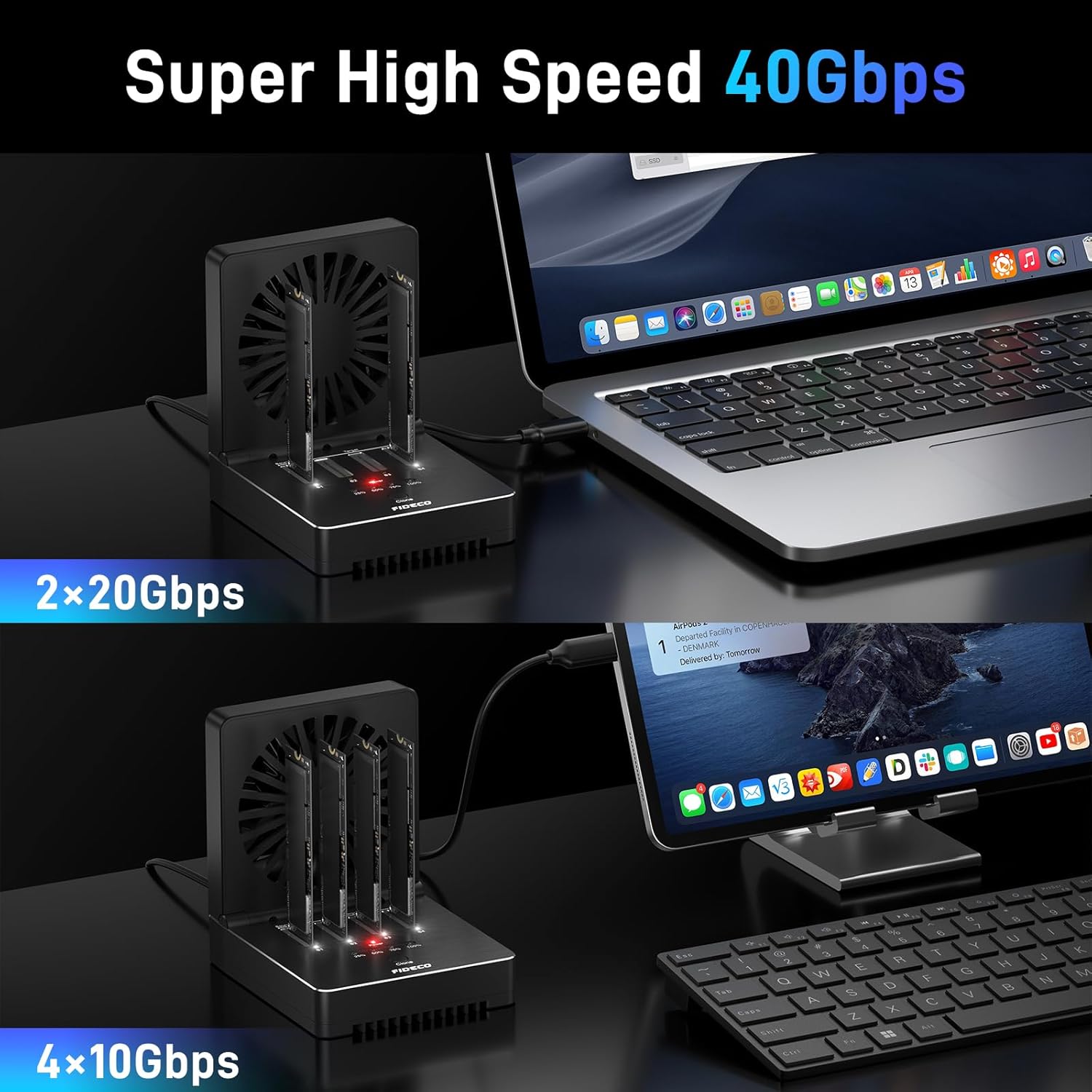
The FIDECO M.2 NVMe Cloner Dock in use, demonstrating its connection to a laptop and the insertion of M.2 NVMe SSDs for high-speed operations.
4.3 Hard Drive Initialization (for New SSDs)
For new SSDs that are not recognized by your computer, they need to be initialized and formatted. This process is standard for new storage devices.
Video Guide: HDD Initialization under Windows and Mac OS
This video provides a step-by-step guide on how to initialize and format new hard drives under both Windows and Mac OS, ensuring they are recognized and ready for use with your FIDECO Cloner Dock.
5. പ്രവർത്തന നിർദ്ദേശങ്ങൾ
5.1 ഓഫ്ലൈൻ ക്ലോൺ ഫംഗ്ഷൻ
The FIDECO Cloner Dock supports 1-to-1, 1-to-2, and 1-to-3 offline cloning without needing a computer connection. Ensure your target SSD(s) have equal or greater capacity than the source SSD.
- Insert the source M.2 NVMe SSD into the 'Source' slot (S1).
- Insert one, two, or three target M.2 NVMe SSDs into the 'Target' slots (S2, S3, S4).
- Ensure the power adapter is connected and the dock is powered on.
- Press and hold the 'Clone' button for approximately 3-5 seconds until the progress indicator lights (25%, 50%, 75%, 100%) begin to flash.
- Release the 'Clone' button. The cloning process will begin. The progress lights will illuminate sequentially to indicate completion percentage.
- Once all four progress lights are solid, the cloning process is complete.

The FIDECO M.2 NVMe Cloner Dock supports 1-to-3 offline cloning, with speeds up to 20Gbps for 1-to-1 and 10Gbps for 1-to-2 or 1-to-3 cloning.
Video Guide: FIDECO 4-Bay M.2 NVMe Cloner Dock - Offline Clone
This short video demonstrates the offline cloning process using the FIDECO 4-Bay M.2 NVMe Cloner Dock, highlighting its ease of use.
5.2 Offline Data Eraser Function
The dock allows for secure, one-button data erasure of up to four SSDs simultaneously, ensuring your privacy without connecting to a computer.
- Insert the SSD(s) you wish to erase into any of the four slots (S1, S2, S3, S4).
- Ensure the power adapter is connected and the dock is powered on.
- Using a SIM pin (not included) or a similar thin object, long press the 'Erase' button until all four blue progress lights (25%, 50%, 75%, 100%) are on.
- Release the button. The data erasure process will begin. All data on the inserted SSDs will be permanently erased.
- Once the erasure is successfully finished, all four blue lights will turn off.
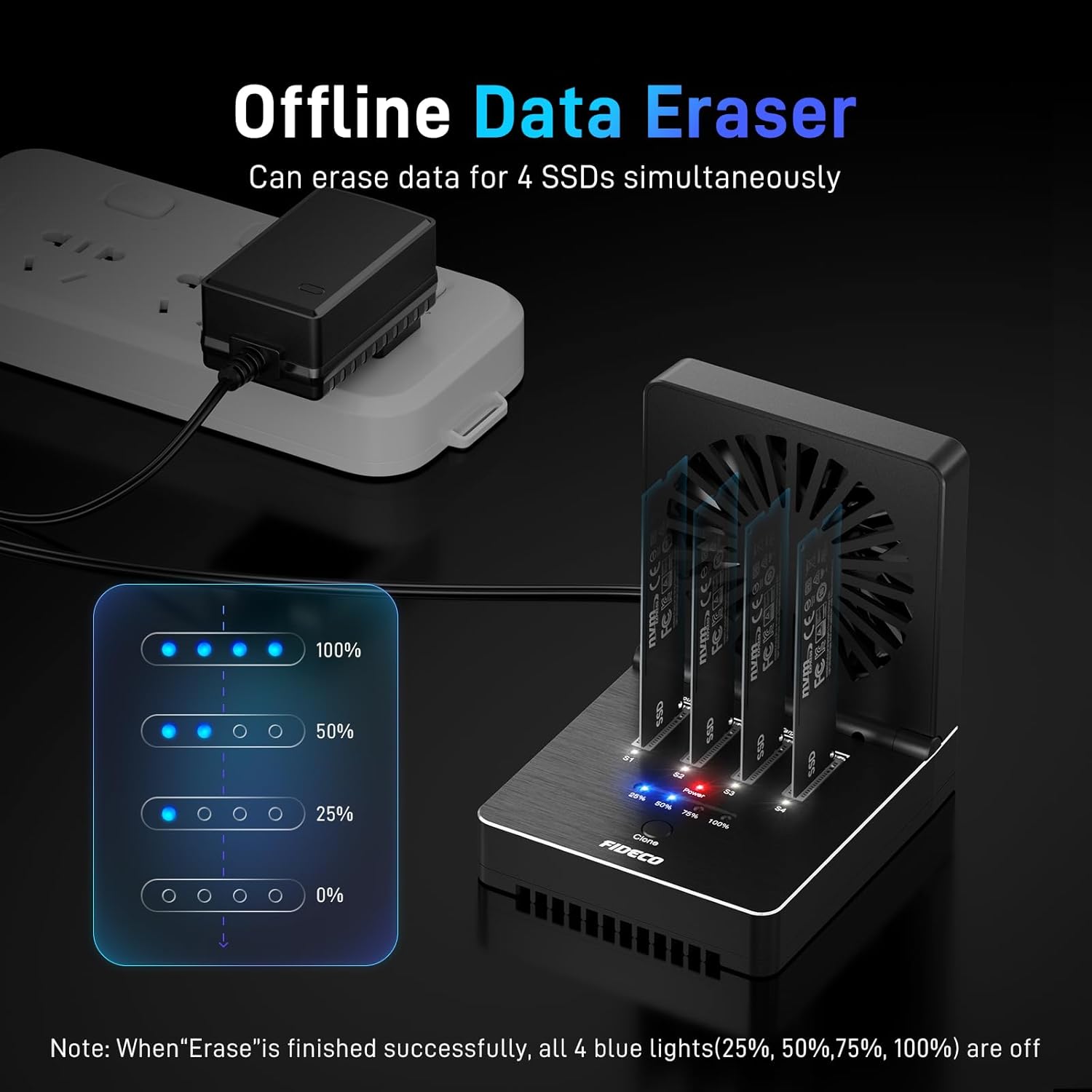
The FIDECO M.2 NVMe Cloner Dock's offline data eraser function, indicating progress through LED lights.
Video Guide: FIDECO 4-Bay M.2 NVMe Cloner Dock - Offline Data Eraser
This video demonstrates the simple process of performing an offline data erasure on SSDs using the FIDECO Cloner Dock.
5.3 Online Mode (External Drive Function)
When connected to a computer via the USB-C cable, the FIDECO Cloner Dock functions as a multi-bay external SSD enclosure, allowing you to access and manage data on up to four SSDs simultaneously.
- Connect the dock to your computer using the provided USB-C to USB-C cable.
- Insert your M.2 NVMe SSD(s) into any of the slots.
- The SSD(s) will appear as removable drives on your computer.
- You can now read, write, and manage files on the SSDs as you would with any other external storage device.

The FIDECO M.2 NVMe Cloner Dock operating in online mode, connected to a laptop for direct data access and management.
6. പരിപാലനം
- കൂളിംഗ് ഫാൻ: The foldable cooling fan helps maintain optimal operating temperatures for your SSDs. Ensure the fan is unobstructed during operation. You can turn the fan on or off using the dedicated switch on the back of the unit.
- വൃത്തിയാക്കൽ: Use a soft, dry cloth to clean the exterior of the dock. Do not use liquid cleaners or aerosols.
- സംഭരണം: ഉപയോഗത്തിലില്ലാത്തപ്പോൾ, നേരിട്ടുള്ള സൂര്യപ്രകാശവും കടുത്ത താപനിലയും ഏൽക്കാത്ത ഒരു തണുത്തതും വരണ്ടതുമായ സ്ഥലത്ത് ഡോക്ക് സൂക്ഷിക്കുക.
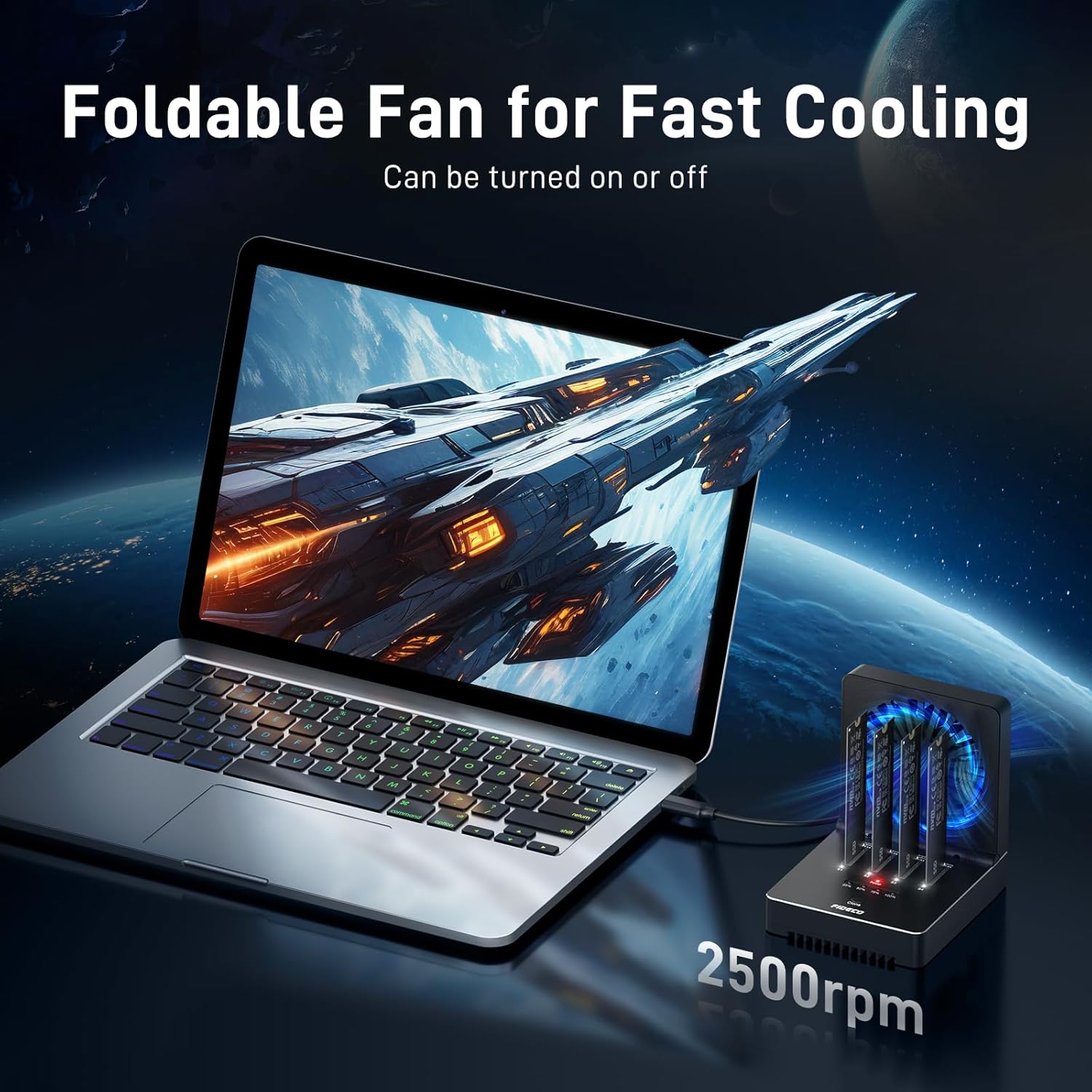
The foldable cooling fan of the FIDECO M.2 NVMe Cloner Dock, designed to keep SSDs cool during intensive operations and prolong their lifespan.
7. പ്രശ്നപരിഹാരം
- SSD തിരിച്ചറിഞ്ഞിട്ടില്ല:
- Ensure the SSD is properly seated in the slot.
- Verify the SSD is an M.2 NVMe type (not SATA).
- For new SSDs, ensure they have been initialized and formatted through your operating system's Disk Management (Windows) or Disk Utility (Mac OS). Refer to Section 4.3 for guidance.
- Check the USB-C cable connection to both the dock and the computer.
- Ensure the power adapter is securely connected and providing power.
- Cloning Fails or is Slow:
- Ensure the target SSD(s) capacity is equal to or greater than the source SSD.
- Verify all SSDs are correctly inserted.
- Ensure the 'Clone' button is pressed and held for the required duration until lights flash.
- Overheating can affect performance; ensure the cooling fan is on and unobstructed.
- Data Erasure Not Working:
- Ensure the 'Erase' button is long-pressed with a SIM pin until all four blue lights are on.
- Verify the SSDs are properly inserted and the device is powered on.
8. വാറൻ്റിയും പിന്തുണയും
FIDECO offers firmware updates and technical support for this product. For any questions or assistance, please contact us at സപ്പോർട്ട്@fideco.cn.
Please refer to the product packaging or official FIDECO webനിർദ്ദിഷ്ട വാറൻ്റി വിശദാംശങ്ങൾക്കും നിബന്ധനകൾക്കുമുള്ള സൈറ്റ്.


