1. ഉൽപ്പന്നം കഴിഞ്ഞുview
The SIXWIN Single Din Car Stereo P2 is a versatile car multimedia player featuring a 7-inch full HD touchscreen. It integrates wireless CarPlay and Android Auto for seamless smartphone connectivity, Bluetooth for hands-free communication and audio streaming, FM radio, and steering wheel control compatibility. This unit is designed to enhance your in-car entertainment and navigation experience.

ചിത്രം: മുൻഭാഗം view of the SIXWIN Single Din Car Stereo P2 with its 7-inch touchscreen display.
2. ബോക്സിൽ എന്താണുള്ളത്?
അൺബോക്സിംഗ് ചെയ്യുമ്പോൾ, എല്ലാ ഘടകങ്ങളും ഉണ്ടെന്ന് ഉറപ്പാക്കുക:
- SIXWIN Single Din Car Stereo P2 unit
- പവർ കേബിൾ
- ഹോൺ കേബിൾ
- മൈക്രോഫോൺ (മൈക്ക്)
- ഉപയോക്തൃ മാനുവൽ
- റിമോട്ട് കൺട്രോൾ
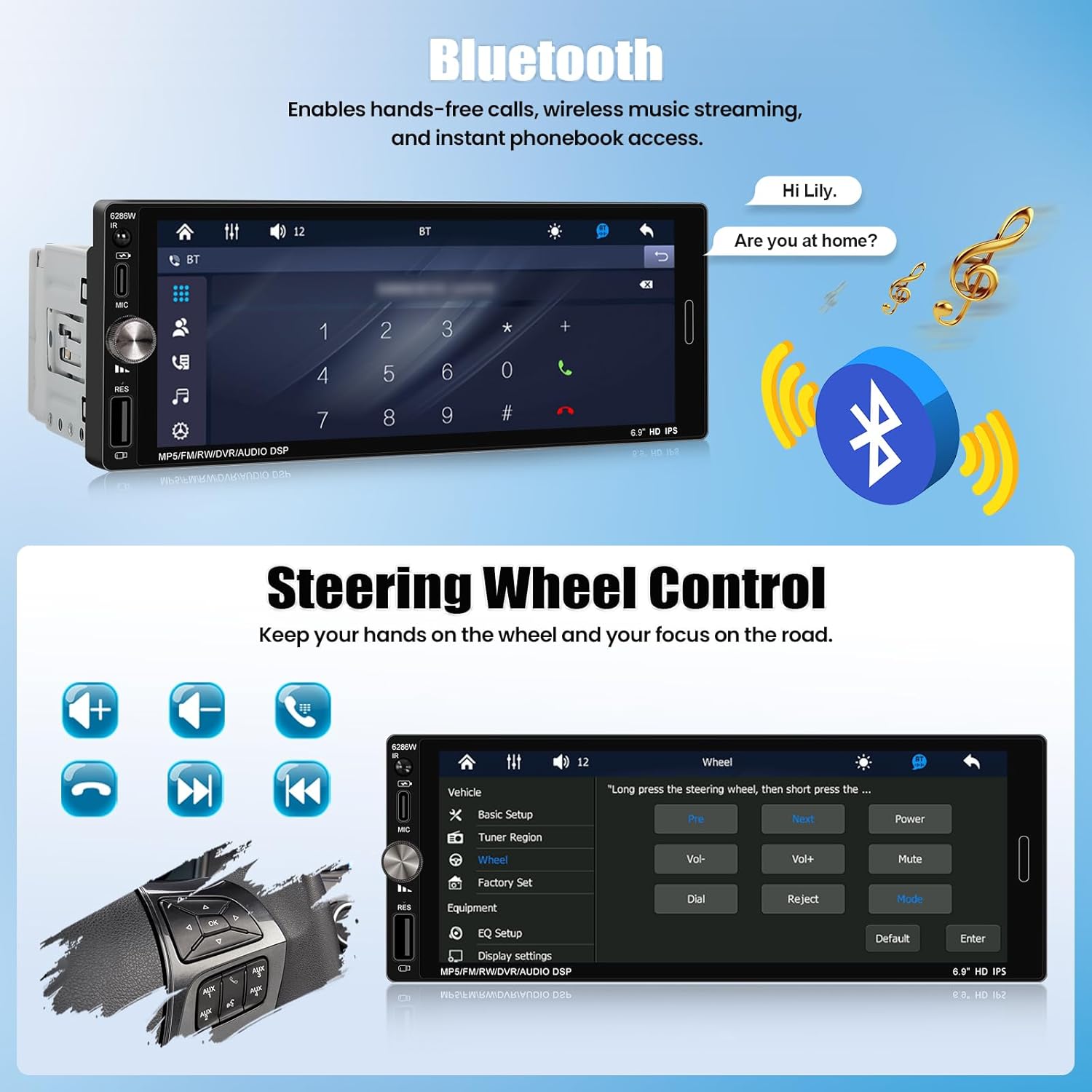
Image: Diagram showing the car stereo unit with its dimensions and a list of included accessories: horn cable, power cable, user manual, and remote control.
3. ഇൻസ്റ്റാളേഷൻ ഗൈഡ്
മികച്ച പ്രകടനത്തിന് ശരിയായ ഇൻസ്റ്റാളേഷൻ നിർണായകമാണ്. ഏതെങ്കിലും ഘട്ടങ്ങളെക്കുറിച്ച് നിങ്ങൾക്ക് ഉറപ്പില്ലെങ്കിൽ, ഒരു പ്രൊഫഷണൽ കാർ ഓഡിയോ ഇൻസ്റ്റാളറെ സമീപിക്കുക.
3.1 വയറിംഗ് ഡയഗ്രം
Refer to the detailed wiring diagram provided in the physical user manual for specific connections. Ensure all connections are secure to prevent malfunctions.
- പവർ കേബിൾ: Connect to the vehicle's power supply (ACC, B+, Ground).
- ഹോൺ കേബിൾ: Connect to the vehicle's speaker outputs.
- റേഡിയോ ആന്റിന: Connect the vehicle's antenna to the unit's radio antenna input.
- USB ഇൻ്റർഫേസ്: For media playback and charging.
- RCA Outputs (R-OUT, L-OUT): ബാഹ്യ കണക്ഷൻ ഉറപ്പാക്കാൻ ampജീവപര്യന്തം.
- Video Input (CAMIN): ഒരു പിൻഭാഗം ബന്ധിപ്പിക്കുന്നതിന്view ക്യാമറ (ബാധകമെങ്കിൽ).
- Steering Wheel Control (SW): നിങ്ങളുടെ വാഹനത്തിന്റെ സ്റ്റിയറിംഗ് വീൽ നിയന്ത്രണ വയറുകളുമായി ബന്ധിപ്പിക്കുക.
ചിത്രം: പിൻഭാഗം view of the car stereo showing various input/output ports including D-BUS, L-OUT, CAMIN, Horn Cable, Power Cable, USB Interface, R-OUT, and CVBSIN.
3.2 യൂണിറ്റ് മൌണ്ട് ചെയ്യുന്നു
Insert the single DIN unit into the vehicle's dashboard opening. Secure it using the provided mounting hardware. Ensure the unit is flush with the dashboard for a proper fit.

Image: A comparison showing a car dashboard with an old single DIN radio (Before) and the SIXWIN 7-inch touchscreen stereo installed (After).
4. പ്രവർത്തന നിർദ്ദേശങ്ങൾ
4.1 വയർലെസ് കാർപ്ലേയും ആൻഡ്രോയിഡ് ഓട്ടോയും
This unit supports wireless CarPlay for iOS devices and wireless Android Auto for Android devices, allowing access to navigation, calls, messages, and music directly from the stereo's screen.
- നിങ്ങളുടെ സ്മാർട്ട്ഫോണിൽ ബ്ലൂടൂത്തും വൈഫൈയും പ്രവർത്തനക്ഷമമാക്കിയിട്ടുണ്ടെന്ന് ഉറപ്പാക്കുക.
- On the car stereo, select the "CarPlay" or "Android Auto" icon.
- Follow the on-screen prompts to pair your phone via Bluetooth.
- Once paired, the system will automatically connect for wireless CarPlay or Android Auto functionality.

Image: The car stereo display showing a navigation map and music playback, with icons for CarPlay and Android Auto on the right, and illustrations of iPhone and Android phones connecting wirelessly.
4.2 മിറർ ലിങ്ക് ഫംഗ്ഷൻ
The Mirror Link feature allows you to mirror your smartphone's screen onto the car stereo display. This function supports one-way control for iOS and two-way control for Android devices. Note: This feature is not compatible with Samsung devices.
- Connect your smartphone to the stereo via a USB cable.
- സ്റ്റീരിയോയിൽ "മിറർ ലിങ്ക്" ഓപ്ഷൻ തിരഞ്ഞെടുക്കുക.
- Follow the instructions on the stereo screen and your phone to establish the connection.
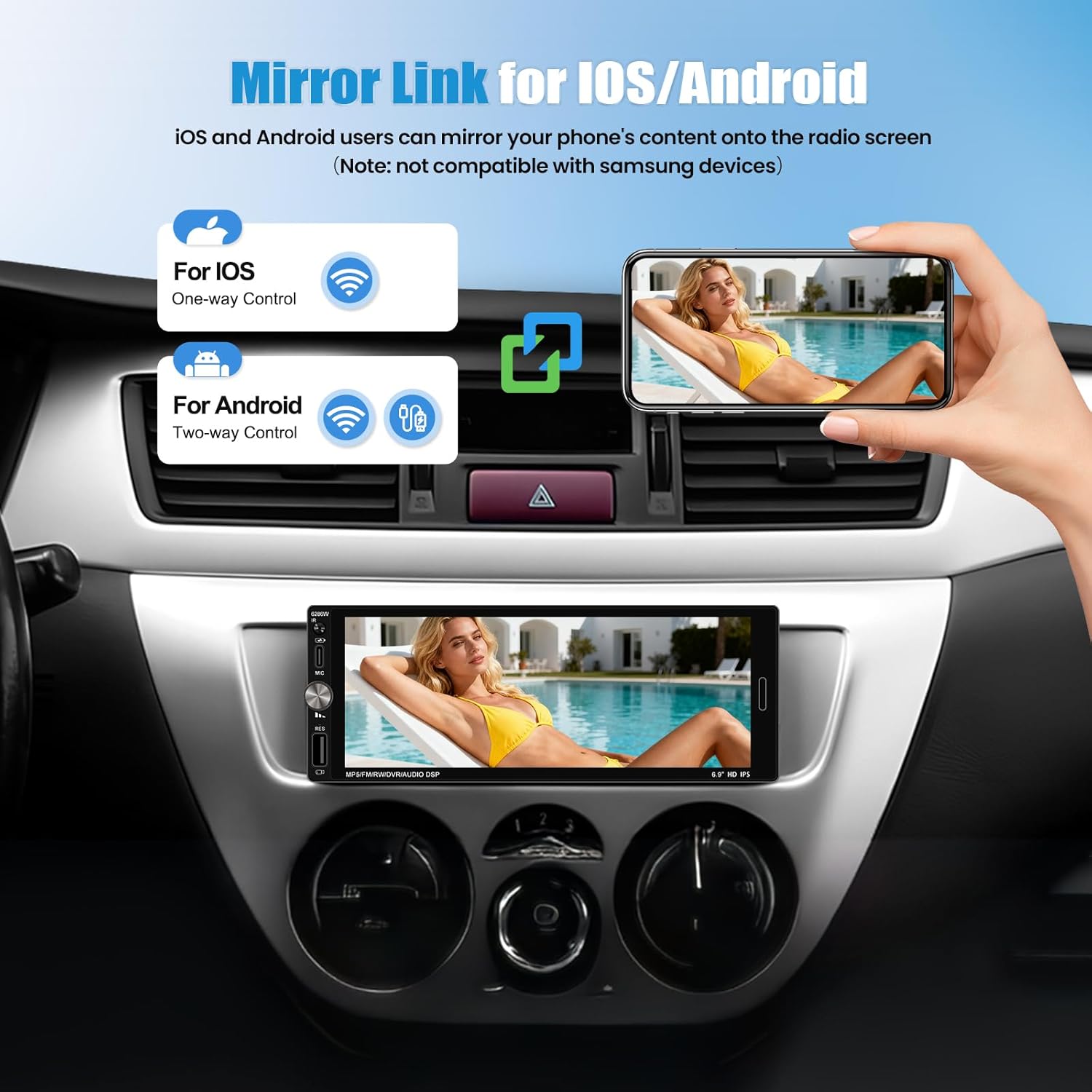
Image: A hand holding a smartphone mirroring its display onto the car stereo screen, illustrating the Mirror Link function for iOS (one-way control) and Android (two-way control).
4.3 ബ്ലൂടൂത്ത് കണക്റ്റിവിറ്റി
Connect your phone via Bluetooth for hands-free calling, wireless music streaming, and access to your phonebook.
- On the stereo, navigate to the "Bluetooth" menu.
- നിങ്ങളുടെ സ്മാർട്ട്ഫോണിൽ ബ്ലൂടൂത്ത് പ്രവർത്തനക്ഷമമാക്കുക, ലഭ്യമായ ഉപകരണങ്ങൾക്കായി തിരയുക.
- Select "SIXWIN P2" (or similar name) from the list on your phone and confirm pairing.
- Once connected, you can make/receive calls and play audio wirelessly.

Image: The car stereo display showing the Bluetooth dialing interface, with a phone icon and a speech bubble indicating a hands-free call.
4.4 എഫ്എം റേഡിയോ പ്രവർത്തനം
Access your favorite radio stations with clear signal reception.
- Select the "FM Radio" icon from the main menu.
- Use the on-screen controls to scan for stations, manually tune, or select from preset stations.
- The unit supports 18 preset stations.
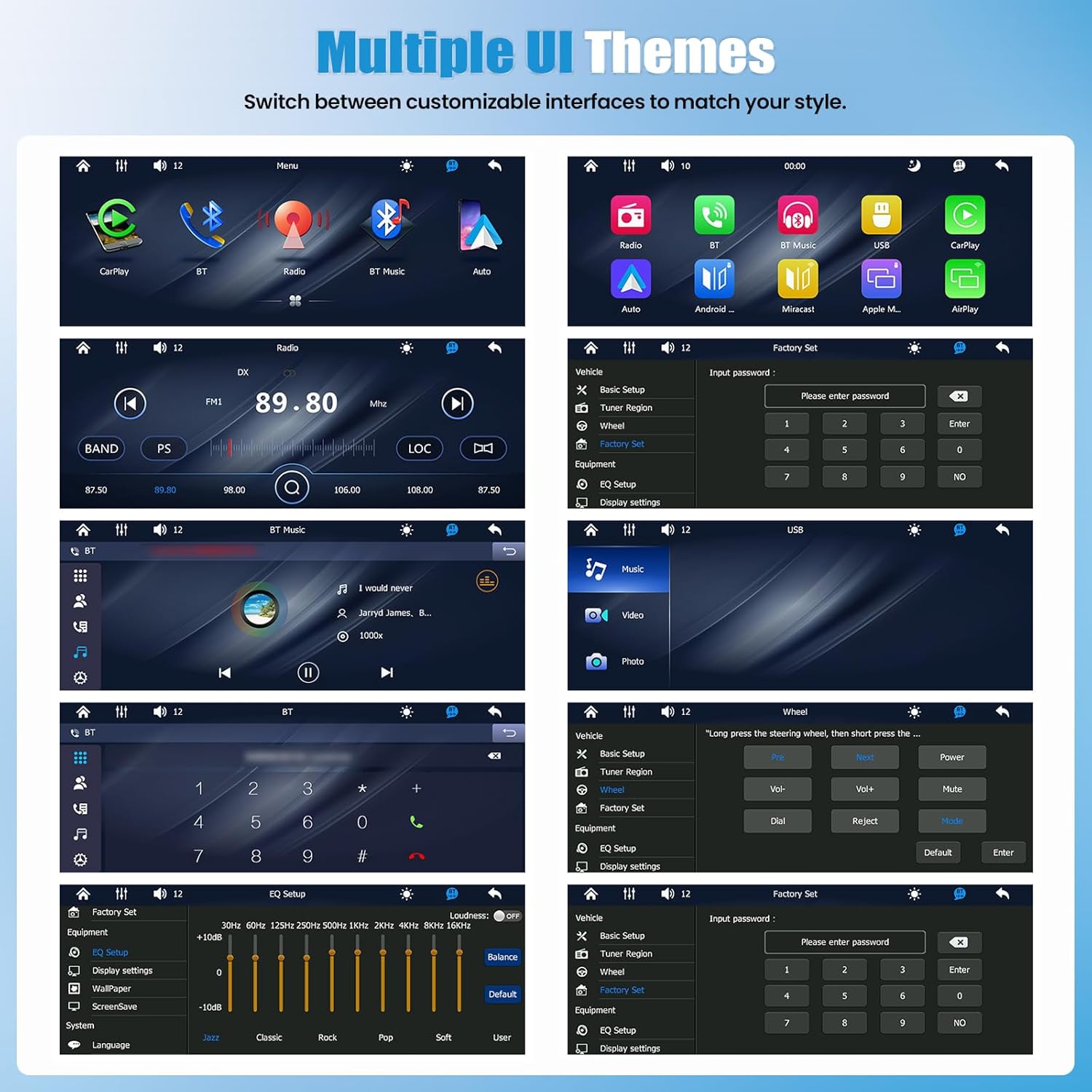
Image: The car stereo display showing the FM radio interface with frequency display (89.80 MHz) and controls for scanning and presets.
4.5 സ്റ്റിയറിംഗ് വീൽ നിയന്ത്രണം
If your vehicle supports steering wheel controls, you can configure them to operate the stereo, allowing you to manage audio and calls without taking your hands off the wheel.
- Access the "Steering Wheel Control" settings in the system menu.
- Follow the on-screen instructions to program each button on your steering wheel to the desired function (e.g., volume up/down, next/previous track, answer/end call).
Image: The car stereo display showing the "Steering Wheel Control" setup menu, with options to assign functions like volume, track skip, and call answer/reject to physical steering wheel buttons.
4.6 EQ ക്രമീകരണങ്ങൾ
Customize your audio output with the built-in equalizer settings to match your preferences.
- Navigate to the "EQ Settings" menu.
- Adjust frequency bands (e.g., 30Hz, 60Hz, 125Hz) to boost or cut specific audio ranges.
- Select from preset equalizer modes (e.g., Jazz, Classic, Rock, Pop, Soft) or create a custom profile.
Image: The car stereo display showing the "EQ Setup" menu with sliders for adjusting various frequency bands and options for preset sound modes like Jazz, Classic, Rock, Pop, and Soft.
4.7 Multiple UI Themes
Personalize your stereo's appearance by switching between various customizable user interface themes.
- Access the "Display Settings" or "Theme" menu.
- Browse and select your preferred UI theme.
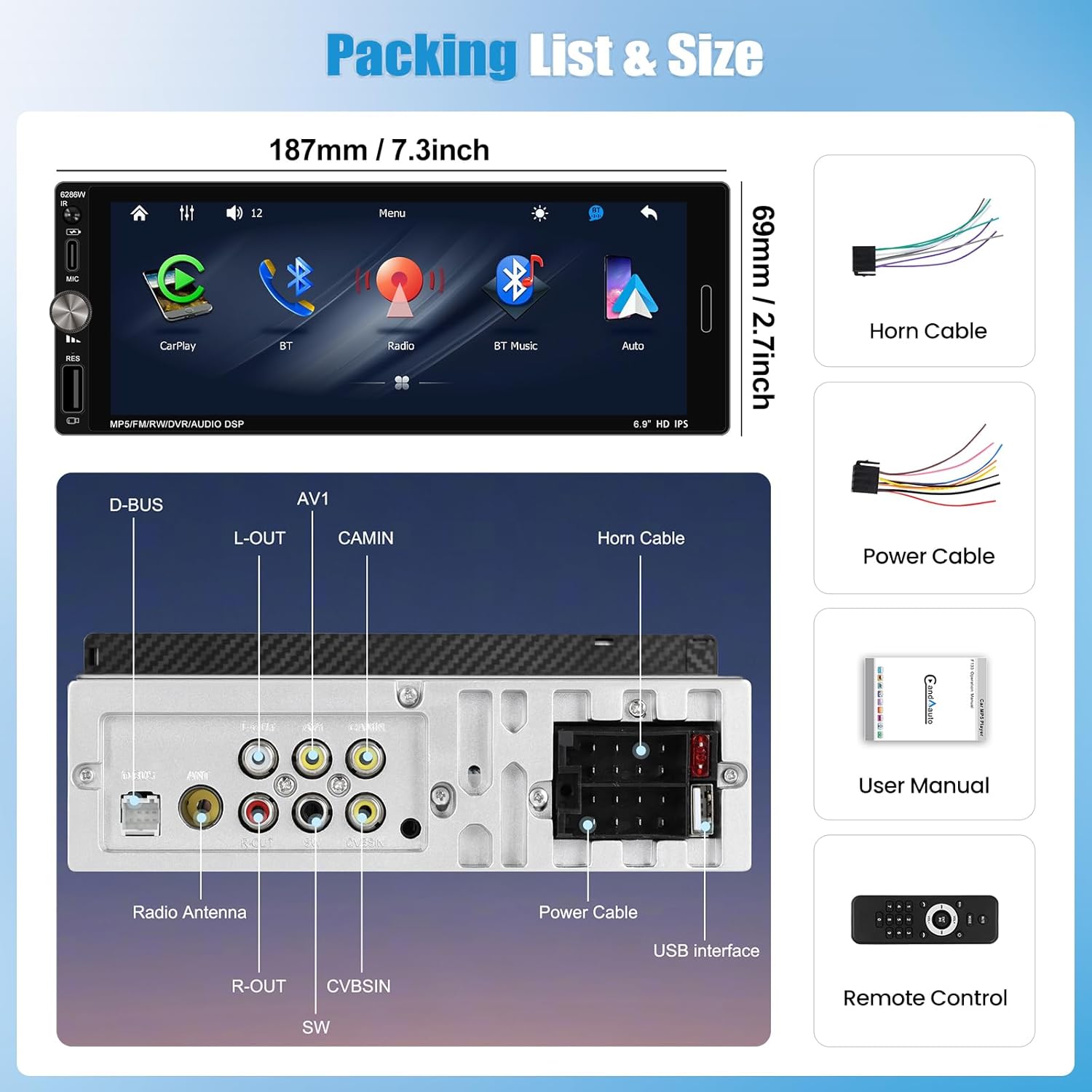
Image: A collage of several different user interface themes available on the SIXWIN car stereo, showing variations in icon styles, background colors, and layout for different functions like radio, Bluetooth, and media playback.
4.8 Multi-Port Playback & Charging
The unit features USB and Type-C inputs for direct media playback from storage devices and fast charging of compatible smartphones.
- Connect a USB drive or Type-C device to the corresponding port for media playback.
- Use the Type-C port to charge your smartphone while driving.

Image: The car stereo installed in a dashboard, with a smartphone connected via a Type-C cable for charging and a USB drive inserted into a USB port for data transmission.
5 സ്പെസിഫിക്കേഷനുകൾ
| ബ്രാൻഡ് | സിക്സ്വിൻ |
| മോഡൽ നമ്പർ | A4053 |
| പ്രദർശിപ്പിക്കുക | 7-inch Full HD Touch Screen (1280*480 resolution) |
| കണക്റ്റിവിറ്റി ടെക്നോളജി | Wireless CarPlay, Wireless Android Auto, Bluetooth, FM Radio, Mirror Link |
| കൺട്രോളർ തരം | ടച്ച് സ്ക്രീൻ |
| അനുയോജ്യമായ ഉപകരണങ്ങൾ | Smartphone (iOS, Android - excluding Samsung for Mirror Link) |
| കണക്റ്റർ തരം | Mini USB, Type-C |
| ഓഡിയോ put ട്ട്പുട്ട് മോഡ് | സ്റ്റീരിയോ |
| ഔട്ട്പുട്ട് പവർ | 4 വാട്ട്സ് |
| വാട്ട്tage | 45 വാട്ട്സ് |
| നിയന്ത്രണ രീതി | Touch, Steering Wheel Control |
| ഉൽപ്പന്ന അളവുകൾ (D x W x H) | 1"D x 1"W x 1"H (Unit dimensions: 187mm x 69mm) |
| ഇനത്തിൻ്റെ ഭാരം | 1 കിലോഗ്രാം |
6. പരിപാലനം
To ensure the longevity and optimal performance of your SIXWIN Car Stereo, follow these maintenance guidelines:
- സ്ക്രീൻ വൃത്തിയാക്കൽ: ടച്ച്സ്ക്രീൻ മൃദുവായി തുടയ്ക്കാൻ മൃദുവായ, ലിന്റ് രഹിത തുണി ഉപയോഗിക്കുക. കഠിനമായ പാടുകൾക്ക്, ചെറുതായി dampതുണിയിൽ വെള്ളം അല്ലെങ്കിൽ സ്ക്രീൻ-സേഫ് ക്ലീനർ ഉപയോഗിക്കുക. കഠിനമായ രാസവസ്തുക്കളോ ഉരച്ചിലുകളോ ഉള്ള വസ്തുക്കൾ ഒഴിവാക്കുക.
- പൊതുവായ ശുചീകരണം: യൂണിറ്റ് പൊടിയിൽ നിന്നും അവശിഷ്ടങ്ങളിൽ നിന്നും മുക്തമായി സൂക്ഷിക്കുക. ബട്ടണുകൾക്കും പോർട്ടുകൾക്കും ചുറ്റും വൃത്തിയാക്കാൻ മൃദുവായ ബ്രഷ് അല്ലെങ്കിൽ കംപ്രസ് ചെയ്ത വായു ഉപയോഗിക്കുക.
- താപനില: യൂണിറ്റ് ദീർഘനേരം ചൂടും തണുപ്പും ഉൾപ്പെടുന്ന തീവ്രമായ താപനിലയിൽ തുറന്നുകാട്ടുന്നത് ഒഴിവാക്കുക.
- കണക്ഷനുകൾ: എല്ലാ വയറിംഗ് കണക്ഷനുകളും സുരക്ഷിതമാണെന്നും തുരുമ്പെടുക്കലിൽ നിന്ന് മുക്തമാണെന്നും ഉറപ്പാക്കാൻ ഇടയ്ക്കിടെ പരിശോധിക്കുക.
7. പ്രശ്നപരിഹാരം
നിങ്ങളുടെ കാർ സ്റ്റീരിയോയിൽ പ്രശ്നങ്ങൾ നേരിടുകയാണെങ്കിൽ, ഇനിപ്പറയുന്ന പൊതുവായ പ്രശ്നങ്ങളും പരിഹാരങ്ങളും പരിശോധിക്കുക:
| പ്രശ്നം | സാധ്യമായ കാരണം | പരിഹാരം |
|---|---|---|
| പവർ ഇല്ല | അയഞ്ഞ പവർ കണക്ഷൻ; ഫ്യൂസ് പൊട്ടി. | Check power cables and connections. Inspect and replace any blown fuses in the vehicle or stereo wiring. |
| ശബ്ദമില്ല | സ്പീക്കർ വയറിംഗ് തെറ്റാണ്; ശബ്ദം വളരെ കുറവാണ്; മ്യൂട്ട് ഫംഗ്ഷൻ സജീവമാണ്. | Verify speaker connections. Increase volume. Check if the mute function is enabled. |
| വയർലെസ് കാർപ്ലേ/ആൻഡ്രോയിഡ് ഓട്ടോ കണക്റ്റ് ചെയ്യുന്നില്ല | Bluetooth/Wi-Fi off; Phone not paired; Software glitch. | Ensure Bluetooth and Wi-Fi are active on your phone. Re-pair the device. Restart both the phone and the car stereo. |
| Mirror Link not working with Samsung phone | പൊരുത്തക്കേട്. | The Mirror Link feature is explicitly stated as not compatible with Samsung devices. No solution available for Samsung phones. |
| Steering Wheel Controls not responding | Incorrect wiring; Not programmed. | Check the steering wheel control wiring. Ensure the controls are properly programmed in the stereo's settings menu. |
| Screen not bright enough in direct sunlight | Environmental factor. | Adjust screen brightness settings if available. This can be a limitation of the display technology in very bright conditions. |
8. വാറൻ്റിയും പിന്തുണയും
8.1 വാറൻ്റി വിവരങ്ങൾ
The SIXWIN Single Din Car Stereo P2 comes with a 1 വർഷത്തെ വാറൻ്റി വാങ്ങിയ തീയതി മുതൽ. സാധാരണ ഉപയോഗത്തിലുള്ള നിർമ്മാണ വൈകല്യങ്ങളും തകരാറുകളും ഈ വാറന്റി ഉൾക്കൊള്ളുന്നു. വാറന്റി ക്ലെയിമുകൾക്കായി നിങ്ങളുടെ വാങ്ങിയതിന്റെ തെളിവ് സൂക്ഷിക്കുക.
8.2 ഉപഭോക്തൃ പിന്തുണ
For online assistance, technical support, or further inquiries, please contact SIXWIN customer service:
- ഇമെയിൽ: sixwin_vip@163.com

Image: A customer service representative on the phone, with text indicating online help and user manual support via email: sixwin_vip@163.com.