1. ആമുഖം
Welcome to the instruction manual for your SONICAKE Sonic Cube II USB Audio Interface Mixer. This device is designed to provide high-quality audio recording, streaming, and podcasting capabilities for musicians, producers, and content creators. It features dual-channel analog preamps, 48V phantom power, and integrates with powerful computer software for digital modeling and DSP effects. This manual will guide you through the setup, operation, and maintenance of your Sonic Cube II, ensuring optimal performance and longevity.

Image 1.1: The SONICAKE Sonic Cube II USB Audio Interface Mixer.
2. ഉൽപ്പന്നം കഴിഞ്ഞുview
2.1 പ്രധാന സവിശേഷതകൾ
- High-Performance Converters: Supports recording and mixing at up to 24-bit/48kHz for high-quality audio reproduction with low noise.
- Dual-Channel Analog Preamps: Equipped with high-quality analog preamps for excellent dynamic range and low distortion, suitable for various instruments and microphones.
- +48V ഫാൻ്റം പവർ: Provides power for condenser microphones, ensuring compatibility with a wide range of professional audio equipment.
- Digital Modeling & DSP Effects: Includes powerful computer software with built-in digital modeling for guitar amplifiers and various DSP effects, enhancing creative possibilities.
- "ON AIR" Function: Simplifies live streaming with a dedicated function for ease of use.
- വിശാലമായ അനുയോജ്യത: Compatible with most recording software (DAWs) on Mac and Windows operating systems, including ProTools, Reaper, and Ableton.
- USB കണക്റ്റിവിറ്റി: Connects via USB-C/USB-A, offering reliable power and data transmission.

Image 2.1: The Sonic Cube II highlighting its high-quality analog preamps for superior sound.
2.2 നിയന്ത്രണങ്ങളും കണക്ഷനുകളും

Image 2.2: Front and rear panel diagram of the Sonic Cube II, illustrating all controls and connections.
- MIC 1 ഇൻപുട്ട്: XLR input for connecting a microphone.
- LINE/INST 2 Input: 1/4" (6.35mm) TRS input for connecting line-level instruments or high-impedance instruments like guitars.
- EFX / +48V Switch: Activates DSP effects or +48V phantom power for MIC 1.
- GAIN 1 Knob: Adjusts the input gain level for MIC 1.
- GAIN 2 Knob: Adjusts the input gain level for LINE/INST 2.
- RVB / HI-Z Switch: Activates reverb effect or sets LINE/INST 2 input to high impedance (HI-Z) for instruments.
- ഔട്ട്പുട്ട് നോബ്: Controls the overall output volume to balanced outputs and headphones.
- ON AIR / MONITOR Button: Engages direct monitoring for real-time input sound or activates the "ON AIR" function for streaming.
- ഹെഡ്ഫോൺ ഔട്ട്പുട്ട്: 1/4" (6.35mm) TRS stereo output for connecting headphones.
- യുഎസ്ബി പോർട്ട് (ടൈപ്പ്-സി): Connects the device to a computer for power and data transfer.
- AUTO OUTPUT Switch: Toggles automatic output routing.
- OTG Port (Type-C): For connecting to mobile devices (e.g., smartphones, tablets) for recording or streaming.
- BALANCED OUTPUT (L/R): 1/4" (6.35mm) TRS outputs for connecting to studio monitors or other audio equipment.
3. സജ്ജീകരണ ഗൈഡ്
3.1 സിസ്റ്റം ആവശ്യകതകൾ
- ഓപ്പറേറ്റിംഗ് സിസ്റ്റം: Windows, macOS.
- അനുയോജ്യമായ ഉപകരണങ്ങൾ: Personal Computer, Digital Audio Workstation (DAW).
- പിന്തുണയ്ക്കുന്ന സോഫ്റ്റ്വെയർ: ProTools, Reaper, Ableton, and other standard DAW software.
3.2 ഹാർഡ്വെയർ കണക്ഷൻ
- Connect the Sonic Cube II to your computer using a USB cable. The device is bus-powered, meaning it draws power directly from your computer via the USB connection.
- Connect your microphone to the MIC 1 XLR input.
- Connect your instrument (e.g., guitar, bass, keyboard) to the LINE/INST 2 1/4" input.
- Connect your headphones to the Headphone Output for monitoring.
- Connect your studio monitors to the BALANCED OUTPUT (L/R) using 1/4" TRS cables.

Image 3.1: Connecting the Sonic Cube II to a computer via USB for power and data.
3.3 സോഫ്റ്റ്വെയറും ഡ്രൈവറും ഇൻസ്റ്റാൾ ചെയ്യൽ
For optimal performance, it is recommended to install the dedicated drivers and software for the Sonic Cube II. While the device may function as a generic USB audio device, proprietary drivers often provide lower latency and access to advanced features.
- വിൻഡോസ് ഉപയോക്താക്കൾ: Search online for "Sonic Cube II Software & Firmware Download". Download and install both the "Sonic Mix Setup" and the "Sonicake USB ASIO Driver". This is crucial for proper device recognition and low-latency performance with DAWs.
- macOS Users: The device is generally plug-and-play with macOS. If specific drivers or software are available, they can be found on the official SONICAKE support webസൈറ്റ്.
After installation, restart your computer and ensure the Sonic Cube II is selected as your audio input and output device in your operating system's sound settings and your preferred Digital Audio Workstation (DAW).
4. പ്രവർത്തന നിർദ്ദേശങ്ങൾ
4.1 പവർ ഓൺ/ഓഫ്
The Sonic Cube II is USB bus-powered. It powers on automatically when connected to a powered USB port on your computer or mobile device. To power off, simply disconnect the USB cable.
4.2 ഇൻപുട്ട് ലെവൽ ക്രമീകരണം
- ഉപയോഗിക്കുക ഗെയ്ൻ 1 knob to adjust the input level for the microphone connected to MIC 1.
- ഉപയോഗിക്കുക ഗെയ്ൻ 2 knob to adjust the input level for the instrument or line-level device connected to LINE/INST 2.
- Monitor the input levels in your DAW to avoid clipping (distortion). Aim for levels that peak around -6dB to -3dB.
4.3 ഫാന്റം പവർ (+48V)
If you are using a condenser microphone with the MIC 1 input, you will need to activate +48V phantom power. Press the EFX / +48V switch to engage phantom power. Ensure your microphone requires phantom power before activating it. Dynamic microphones typically do not require phantom power.
4.4 Direct Monitoring and "ON AIR" Function
ദി ON AIR / MONITOR button allows for direct monitoring, enabling you to hear your input signal in real-time through your headphones or studio monitors without latency. This is essential for recording and live performance.
- അമർത്തുക ON AIR / MONITOR button to activate direct monitoring.
- When engaged, the button's indicator light will illuminate.
- This function also serves as an "ON AIR" mode for streamlined live streaming, routing your audio directly.

Image 4.1: The Sonic Cube II highlighting the "One-Click Monitoring" feature via the ON AIR / MONITOR button.
4.5 ഔട്ട്പുട്ട് ലെവൽ ക്രമീകരണം
വലുത് ഉപയോഗിക്കുക ഔട്ട്പുട്ട് knob to control the overall volume of the balanced outputs (L/R) and the headphone output. Adjust this to a comfortable listening level. The headphone output volume is linked to the main output knob.
5. Software and DSP Effects
The Sonic Cube II includes powerful computer software that expands its capabilities with digital modeling and DSP effects. This software allows you to access a variety of guitar amplifier models, cabinet simulations, and other digital signal processing effects directly on your computer.
- Install the "Sonic Mix Setup" software as described in Section 3.3.
- Launch the software to access the digital modeling and DSP effects interface.
- വ്യത്യസ്തമായ പരീക്ഷണങ്ങൾ amp models and effects to shape your sound for recording or live streaming.
- Ensure the software is correctly configured to use the Sonic Cube II as its audio input and output device.
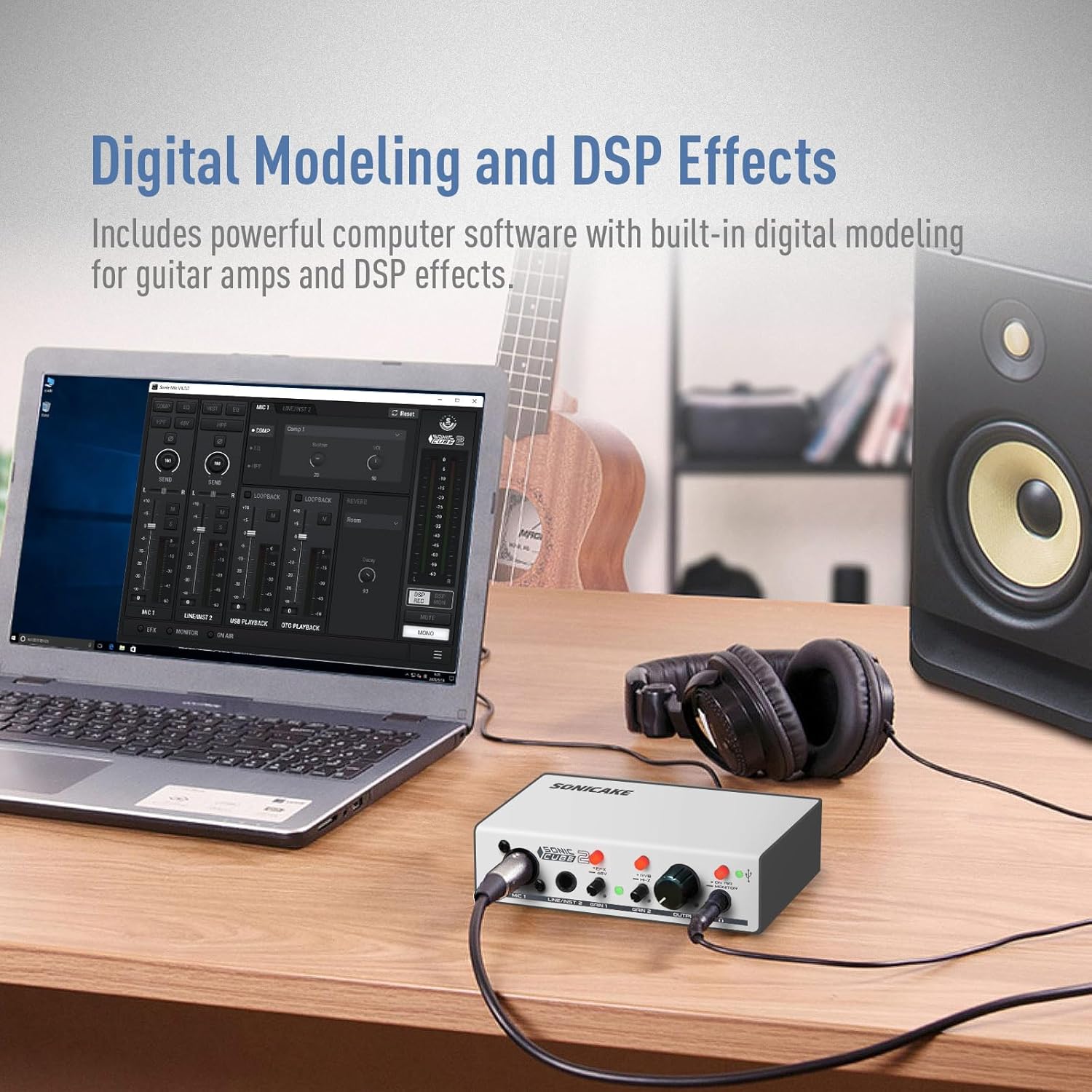
Image 5.1: The Sonic Cube II integrated with computer software for digital modeling and DSP effects.
6. പരിപാലനം
- വൃത്തിയാക്കൽ: ഉപകരണത്തിന്റെ പുറംഭാഗം വൃത്തിയാക്കാൻ മൃദുവായതും ഉണങ്ങിയതുമായ തുണി ഉപയോഗിക്കുക. ലിക്വിഡ് ക്ലീനറുകളോ ലായകങ്ങളോ ഉപയോഗിക്കുന്നത് ഒഴിവാക്കുക, കാരണം അവ ഫിനിഷിനോ ആന്തരിക ഘടകങ്ങൾക്കോ കേടുവരുത്തും.
- സംഭരണം: Store the Sonic Cube II in a cool, dry place away from direct sunlight, extreme temperatures, and high humidity.
- കൈകാര്യം ചെയ്യൽ: ഉപകരണം ശ്രദ്ധയോടെ കൈകാര്യം ചെയ്യുക. അത് താഴെയിടുകയോ ശക്തമായ ആഘാതങ്ങൾക്ക് വിധേയമാക്കുകയോ ചെയ്യരുത്.
- കണക്ഷനുകൾ: എല്ലാ കേബിൾ കണക്ഷനുകളിലും തേയ്മാനം സംഭവിച്ചിട്ടുണ്ടോയെന്ന് ഇടയ്ക്കിടെ പരിശോധിക്കുക. സിഗ്നൽ നഷ്ടമോ ഇടയ്ക്കിടെയുള്ള പ്രശ്നങ്ങളോ തടയുന്നതിന് കേബിളുകൾ സുരക്ഷിതമായി പ്ലഗ് ഇൻ ചെയ്തിട്ടുണ്ടെന്ന് ഉറപ്പാക്കുക.
7. പ്രശ്നപരിഹാരം
If you encounter issues with your Sonic Cube II, refer to the following troubleshooting tips:
- സൗണ്ട് ഔട്ട്പുട്ട് ഇല്ല:
- Ensure the Sonic Cube II is properly connected to your computer via USB and powered on.
- Check that the OUTPUT knob is turned up to an audible level.
- Verify that the Sonic Cube II is selected as the default audio output device in your computer's sound settings and your DAW.
- Check headphone and monitor connections.
- No Input Signal / Low Input Volume:
- Ensure your microphone or instrument is correctly connected to the appropriate input (MIC 1 or LINE/INST 2).
- ക്രമീകരിക്കുക ഗെയ്ൻ 1 or ഗെയ്ൻ 2 knobs to increase the input level.
- If using a condenser microphone, ensure +48V phantom power is activated via the EFX / +48V സ്വിച്ച്.
- Verify that the Sonic Cube II is selected as the default audio input device in your computer's sound settings and your DAW.
- Check microphone/instrument cables for damage.
- ഡ്രൈവർ പ്രശ്നങ്ങൾ (വിൻഡോസ്):
- If the device is not recognized or experiencing high latency, ensure you have installed both the "Sonic Mix Setup" and "Sonicake USB ASIO Driver" as described in Section 3.3.
- Try uninstalling and reinstalling the drivers.
- നിങ്ങളുടെ കമ്പ്യൂട്ടറിലെ മറ്റൊരു USB പോർട്ടിലേക്ക് ഉപകരണം ബന്ധിപ്പിക്കുക.
- വികലമായ ഓഡിയോ:
- കുറയ്ക്കുക ഗെയ്ൻ 1 or ഗെയ്ൻ 2 knobs to prevent input clipping.
- താഴ്ത്തുക ഔട്ട്പുട്ട് knob if the distortion occurs at the output stage.
- കേബിളുകൾക്കോ കണക്ഷനുകൾക്കോ തകരാറുണ്ടോയെന്ന് പരിശോധിക്കുക.
8 സ്പെസിഫിക്കേഷനുകൾ
| ഫീച്ചർ | സ്പെസിഫിക്കേഷൻ |
|---|---|
| ബ്രാൻഡ് | സോണികേക്ക് |
| മോഡൽ നമ്പർ | QAI-23 |
| ഇനത്തിൻ്റെ ഭാരം | 15.5 ഔൺസ് |
| പാക്കേജ് അളവുകൾ | 8.03 x 5.43 x 3.23 ഇഞ്ച് |
| കണക്റ്റിവിറ്റി ടെക്നോളജി | USB, XLR, 6.35mm TRS |
| ചാനലുകളുടെ എണ്ണം | 2 |
| അനുയോജ്യമായ ഉപകരണങ്ങൾ | DAW, Personal Computer |
| പിന്തുണയ്ക്കുന്ന സോഫ്റ്റ്വെയർ | ProTools, Reaper, Ableton (versions not specified) |
| ഓപ്പറേറ്റിംഗ് സിസ്റ്റം | വിൻഡോസ്, മാകോസ് |
| ഫാന്റം പവർ | +48V |
| മാക്സ് എസ്ampലെ റേറ്റ്/ബിറ്റ് ഡെപ്ത് | 48kHz / 24-ബിറ്റ് |
9. വാറൻ്റിയും പിന്തുണയും
For warranty information and technical support, please refer to the documentation included with your product or visit the official SONICAKE website. Keep your proof of purchase for warranty claims. If you encounter issues not covered in this manual, contacting SONICAKE customer support is recommended for further assistance.


