ആമുഖം
Thank you for choosing the MEETION BTM011 Wireless Bluetooth Vertical Ergonomic Mouse. This manual provides detailed instructions for setting up, operating, and maintaining your new mouse. Designed for comfort and efficiency, this mouse features a unique vertical angle, multi-device connectivity, and adjustable DPI settings to enhance your computing experience.

Image: The MEETION BTM011 Wireless Bluetooth Vertical Ergonomic Mouse, showcasing its design and included USB receiver and adapter.
Ergonomic Design Benefits
The MEETION BTM011 mouse is engineered with a 60° vertical angle, promoting a natural 'handshake' wrist and forearm position. This design helps to reduce pressure and strain, making it suitable for extended periods of use. The integrated thumb rest further supports a relaxed hand posture.

Image: Comparison illustrating the natural 'handshake' grip of a vertical mouse versus the pronated wrist position of a traditional mouse.
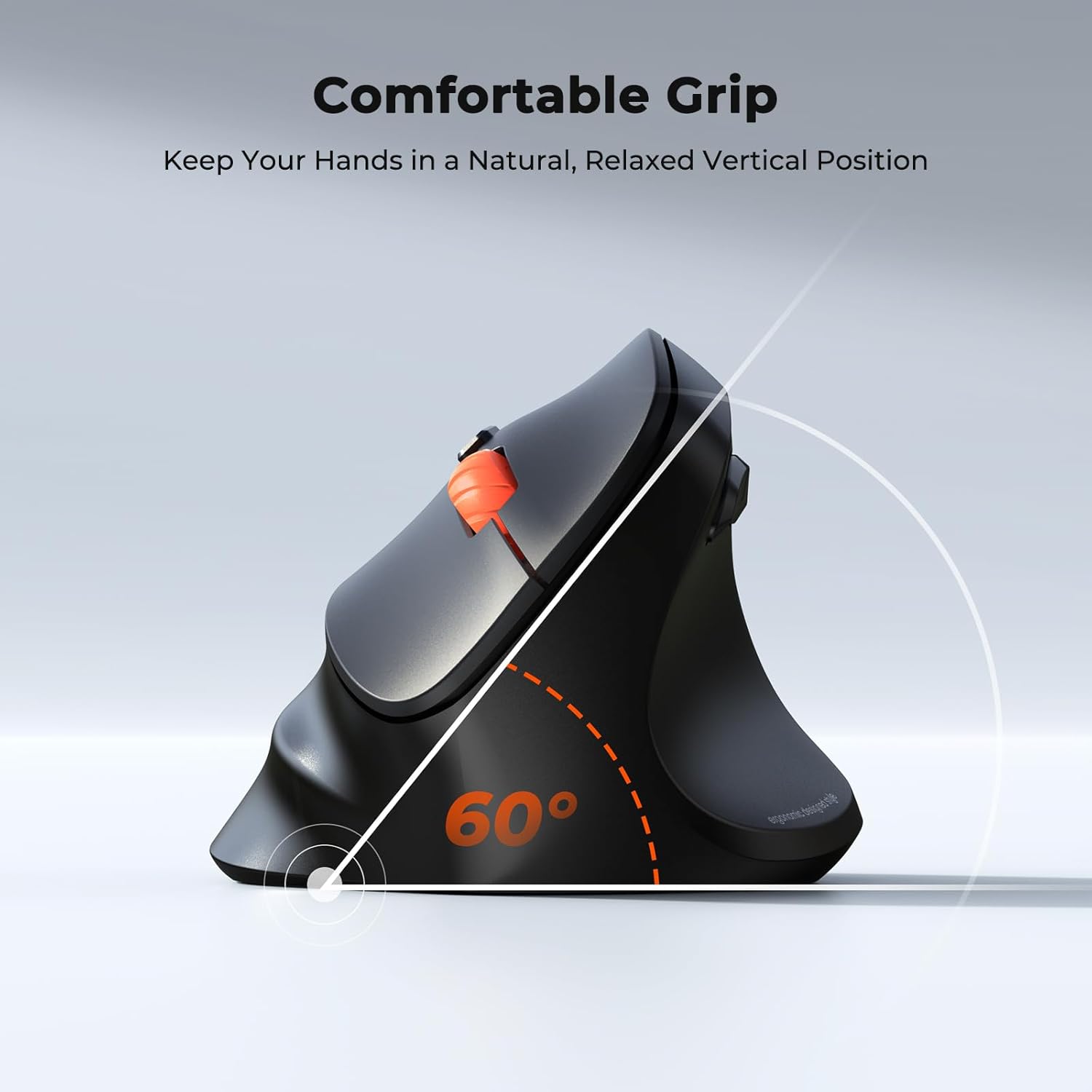
Image: Diagram highlighting the 60-degree vertical angle of the mouse, designed for ergonomic comfort.
പാക്കേജ് ഉള്ളടക്കം
- MEETION BTM011 Wireless Bluetooth Vertical Ergonomic Mouse
- USB-A Receiver (2.4GHz)
- USB-C അഡാപ്റ്റർ
- ഉപയോക്തൃ മാനുവൽ (ഈ പ്രമാണം)
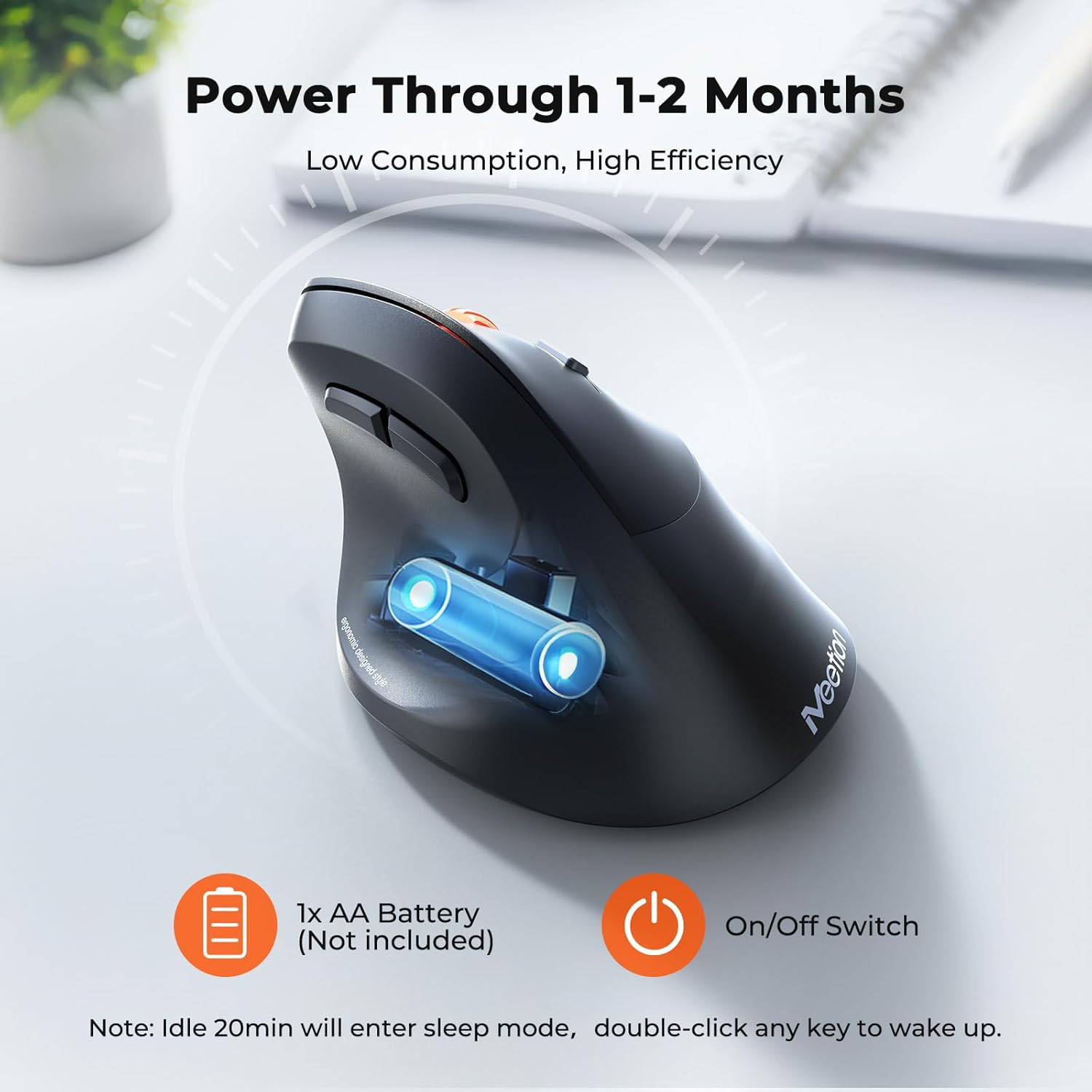
കുറിപ്പ്: One AA battery is required and not included in the package.
ഉൽപ്പന്നം കഴിഞ്ഞുview
Familiarize yourself with the buttons and indicators on your MEETION BTM011 mouse.
ചിത്രം: മുൻവശവും വശവും view of the mouse with labels for Left Button, Right Button, Scroll Wheel, DPI Switch Button, Forward Button, and Back Button.
ചിത്രം: താഴെ view of the mouse showing the Mode Switching Button, Power Switch (ON/OFF), 2.4G Connection Indicator, Bluetooth 1 Connection Indicator, Bluetooth 2 Connection Indicator, and Low Battery Indicator.
- ഇടത്/വലത് ക്ലിക്ക് ബട്ടണുകൾ: സ്റ്റാൻഡേർഡ് മൗസ് പ്രവർത്തനങ്ങൾ.
- സ്ക്രോൾ വീൽ: ലംബ സ്ക്രോളിംഗിനായി.
- ഫോർവേഡ്/ബാക്ക്വേർഡ് ബട്ടണുകൾ: നാവിഗേറ്റ് ചെയ്യുക web pages or folders (functionality may vary by operating system, primarily for Windows).
- ഡിപിഐ സ്വിച്ച് ബട്ടൺ: Adjust cursor sensitivity.
- Mode Switching Button (bottom): Switch between 2.4G, Bluetooth 1, and Bluetooth 2 connections.
- Power Switch (bottom): Turn the mouse ON or OFF.
- കണക്ഷൻ സൂചകങ്ങൾ: LEDs on the bottom indicate the active connection mode (Green for 2.4G, Blue for Bluetooth 1, Cyan for Bluetooth 2).
- കുറഞ്ഞ ബാറ്ററി സൂചകം: Alerts when battery replacement is needed.
സജ്ജമാക്കുക
1. ബാറ്ററി ഇൻസ്റ്റാളേഷൻ
- Locate the battery compartment on the bottom of the mouse.
- ബാറ്ററി കവർ തുറക്കുക.
- ശരിയായ പോളാരിറ്റി (+/-) ഉറപ്പാക്കിക്കൊണ്ട് ഒരു AA ബാറ്ററി ഇടുക.
- ബാറ്ററി കവർ അടയ്ക്കുക.

Image: Illustration of inserting an AA battery into the mouse and highlighting the On/Off switch.
2. 2.4G Wireless Mode Connection
- Take out the USB-A receiver from the mouse's battery compartment. If your computer only has USB-C ports, use the provided USB-C adapter.
- Insert the USB-A receiver (or USB-A receiver with USB-C adapter) into an available USB port on your computer.
- Turn the power switch on the bottom of the mouse to the 'ON' position.
- Press the Mode Switching Button on the bottom of the mouse until the 2.4G Connection Indicator (green LED) lights up.
- The mouse should now be connected and ready for use.
3. Bluetooth Mode Connection (BT1 / BT2)
- Turn the power switch on the bottom of the mouse to the 'ON' position.
- Press the Mode Switching Button on the bottom of the mouse to select either Bluetooth 1 (blue LED) or Bluetooth 2 (cyan LED). The selected indicator will blink, indicating it's in pairing mode.
- On your device (computer, laptop, tablet, smartphone), go to Bluetooth settings.
- ഇതിനായി തിരയുക new devices. You should find 'Meetion_M5_BT1' or 'Meetion_M5_BT2' in the list.
- Select the corresponding device name to pair. Once paired, the indicator light will stop blinking and remain solid.
- മറ്റൊരു ബ്ലൂടൂത്ത് ചാനൽ (BT1 അല്ലെങ്കിൽ BT2) ഉപയോഗിച്ച് രണ്ടാമത്തെ ബ്ലൂടൂത്ത് ഉപകരണത്തിലേക്ക് കണക്റ്റുചെയ്യാൻ ഈ ഘട്ടങ്ങൾ ആവർത്തിക്കുക.

Image: Diagram showing the mouse connected to a desktop PC via 2.4G, a laptop via Bluetooth 5.3, and a tablet via Bluetooth 5.3, illustrating multi-device support.
പ്രവർത്തന നിർദ്ദേശങ്ങൾ
DPI ക്രമീകരണം
The mouse offers four adjustable DPI (Dots Per Inch) levels: 1200, 1600, 2400, and 3200. DPI controls the sensitivity of the cursor movement. To change the DPI, press the DPI Switch Button located behind the scroll wheel. Each press will cycle through the available DPI settings.

Image: Illustration showing the DPI switch button and the four DPI levels (1200, 1600, 2400, 3200) with descriptions of typical use cases.
മൾട്ടി-ഡിവൈസ് സ്വിച്ചിംഗ്
To switch between connected devices, simply press the Mode Switching Button on the bottom of the mouse. The corresponding indicator light will illuminate to show which device is currently active.
പവർ സേവിംഗ് മോഡ്
To conserve battery life, the mouse automatically enters sleep mode after 20 minutes of inactivity. To wake the mouse, simply press any button. The mouse is powered by one AA battery, offering up to 3 months of battery life depending on usage.
മെയിൻ്റനൻസ്
- വൃത്തിയാക്കൽ: Use a soft, dry cloth to clean the mouse surface. Avoid using harsh chemicals or abrasive materials.
- ഒപ്റ്റിക്കൽ സെൻസർ: കൃത്യമായ ട്രാക്കിംഗ് ഉറപ്പാക്കാൻ മൗസിന്റെ അടിയിലുള്ള ഒപ്റ്റിക്കൽ സെൻസർ വൃത്തിയുള്ളതും പൊടിയോ അവശിഷ്ടങ്ങളോ ഇല്ലാതെ സൂക്ഷിക്കുക.
- ബാറ്ററി മാറ്റിസ്ഥാപിക്കൽ: When the low battery indicator lights up, replace the AA battery promptly to ensure uninterrupted operation.
- സംഭരണം: When not in use for an extended period, turn off the mouse using the power switch and store it in a dry, cool place.
ട്രബിൾഷൂട്ടിംഗ്
| പ്രശ്നം | സാധ്യമായ കാരണം | പരിഹാരം |
|---|---|---|
| മൗസ് പ്രതികരിക്കുന്നില്ല | Low battery; Power switch off; Receiver not connected; Incorrect mode selected. | Replace battery; Turn power switch ON; Ensure receiver is fully inserted; Switch to correct 2.4G or Bluetooth mode. |
| ബ്ലൂടൂത്ത് കണക്ഷൻ പ്രശ്നങ്ങൾ | Device Bluetooth off; Mouse not in pairing mode; Interference; Already connected to another device. | Ensure device Bluetooth is ON; Press mode switch button until indicator blinks for pairing; Move closer to device; Ensure the correct BT1/BT2 channel is selected. |
| ക്രമരഹിതമായ കഴ്സർ ചലനം | Dirty optical sensor; Uneven or reflective surface. | Clean the optical sensor with a soft cloth; Use the mouse on a clean, non-reflective mouse pad or surface. |
| Forward/Backward buttons not working | ഓപ്പറേറ്റിംഗ് സിസ്റ്റത്തിന്റെ പൊരുത്തക്കേട്. | These buttons are primarily designed for Windows operating systems and may not function on Mac OS or other systems. |
സ്പെസിഫിക്കേഷനുകൾ
| ഫീച്ചർ | വിശദാംശങ്ങൾ |
|---|---|
| മോഡൽ നമ്പർ | BTM011 |
| കണക്റ്റിവിറ്റി ടെക്നോളജി | Bluetooth 5.3 (x2), 2.4GHz Wireless (USB Receiver) |
| ഡിപിഐ ലെവലുകൾ | 1200, 1600, 2400, 3200 |
| ചലനം കണ്ടെത്തൽ | ഒപ്റ്റിക്കൽ |
| പ്രത്യേക സവിശേഷതകൾ | Ergonomic Design, Vertical, Portable, Multi-Device |
| പവർ ഉറവിടം | 1 x AA ബാറ്ററി (ഉൾപ്പെടുത്തിയിട്ടില്ല) |
| ഇനത്തിൻ്റെ ഭാരം | 5.3 ഔൺസ് |
| പാക്കേജ് അളവുകൾ | 5.24 x 3.5 x 2.99 ഇഞ്ച് |
| അനുയോജ്യത | Windows, Mac OS, Linux, Android |
വാറൻ്റിയും പിന്തുണയും
MEETION products are manufactured to high-quality standards. For warranty information or technical support, please refer to the contact details provided with your purchase or visit the official MEETION webസൈറ്റ്. വാറന്റി ക്ലെയിമുകൾക്കായി നിങ്ങളുടെ വാങ്ങലിന്റെ തെളിവ് സൂക്ഷിക്കുക.
സുരക്ഷാ വിവരങ്ങൾ
- മൗസിനെ തീവ്രമായ താപനിലയിലോ ഈർപ്പത്തിലോ തുറന്നുകാട്ടരുത്.
- ശക്തമായ ആഘാതങ്ങൾക്ക് മൗസ് വീഴ്ത്തുകയോ വിധേയമാക്കുകയോ ചെയ്യരുത്.
- കുട്ടികൾക്ക് ലഭ്യമാകാതെ സൂക്ഷിക്കുക.
- പ്രാദേശിക നിയന്ത്രണങ്ങൾ അനുസരിച്ച് ബാറ്ററികൾ നീക്കം ചെയ്യുക.


