ആമുഖം
This user manual provides comprehensive instructions for setting up, operating, maintaining, and troubleshooting your VEIKK Studio 16 Graphics Drawing Tablet. Please read this manual carefully before using the device to ensure optimal performance and longevity.
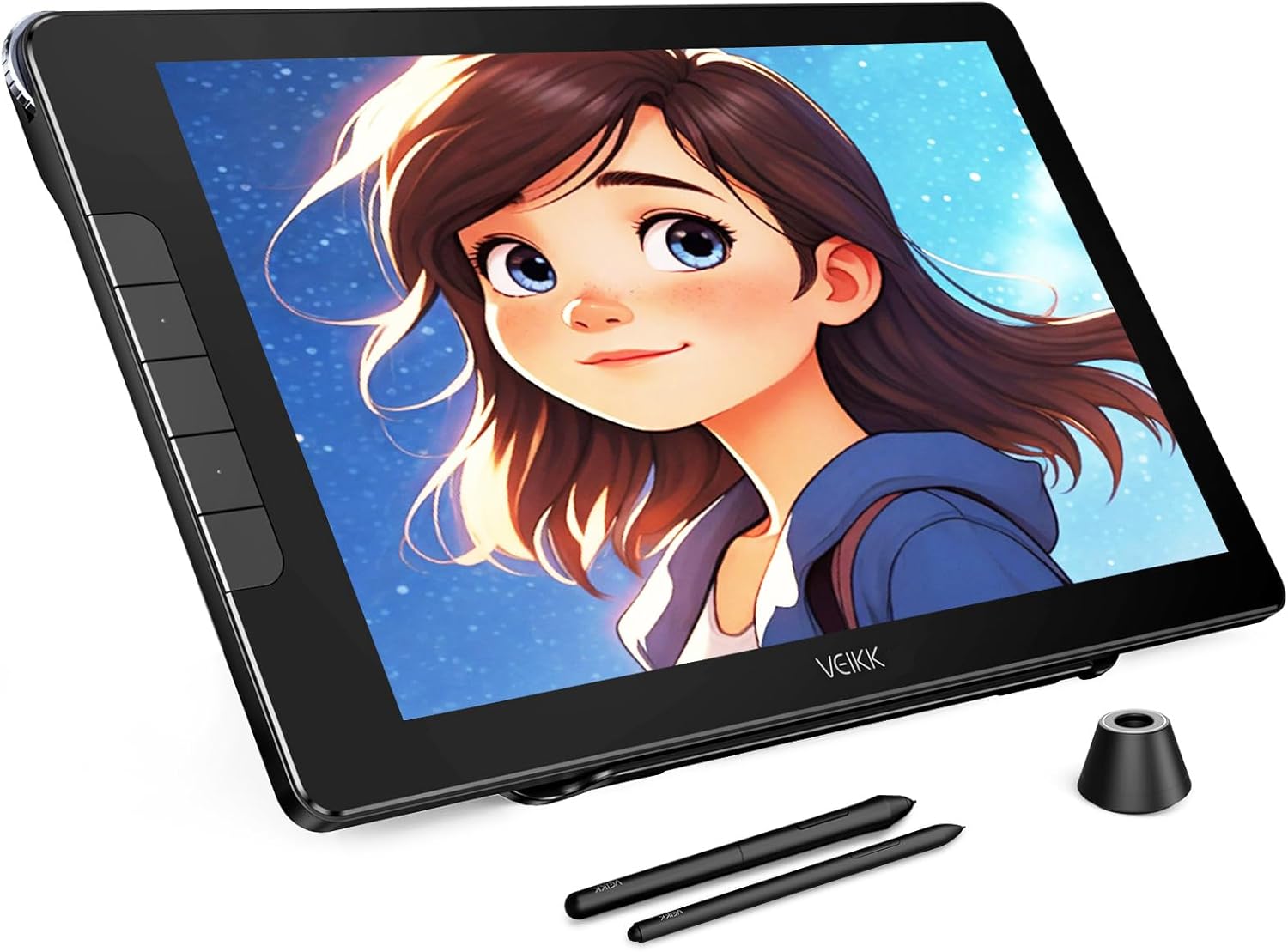
The VEIKK Studio 16 Graphics Drawing Tablet is designed for digital artists, offering a high-resolution display and precise pen input for creative work.
പാക്കേജ് ഉള്ളടക്കം
ആരംഭിക്കുന്നതിന് മുമ്പ്, താഴെ പട്ടികപ്പെടുത്തിയിരിക്കുന്ന എല്ലാ ഇനങ്ങളും നിങ്ങളുടെ പാക്കേജിൽ ഉൾപ്പെടുത്തിയിട്ടുണ്ടെന്ന് ദയവായി പരിശോധിക്കുക:
- IPS Pen Display x 1
- S100 Stand x 1
- Pens x 2 (Battery-Free)
- Pen Box x 1
- നിബ് റിമൂവർ x 1
- പെൻ ഹോൾഡർ x 1
- Artist Glove x 1
- ക്ലീനിംഗ് തുണി x 1
- പെൻ നിബ്സ് x 28
- USB എക്സ്റ്റൻഷൻ കേബിൾ x 1
- 3-in-1 USB Cable x 1
- USB-C മുതൽ USB-C കേബിൾ x 1 വരെ
- ദ്രുത ആരംഭ ഗൈഡ് x 1

A visual representation of all components included in the VEIKK Studio 16 package.
സജ്ജമാക്കുക
Follow these steps to set up your VEIKK Studio 16 Graphics Drawing Tablet:
- ഉപകരണം അൺപാക്ക് ചെയ്യുക: പാക്കേജിംഗിൽ നിന്ന് എല്ലാ ഘടകങ്ങളും ശ്രദ്ധാപൂർവ്വം നീക്കം ചെയ്യുക.
- കമ്പ്യൂട്ടറുമായി ബന്ധിപ്പിക്കുക:
- 3-ഇൻ-1 കേബിൾ ഉപയോഗിക്കുന്നു: Connect the HDMI, USB-A, and power (if needed) connectors to your computer and the corresponding port on the tablet.
- Using USB-C to USB-C Cable: For compatible devices, connect the tablet to your computer using a single USB-C to USB-C cable. Ensure your computer's USB-C port supports video output.
- ഡ്രൈവറുകൾ ഇൻസ്റ്റാൾ ചെയ്യുക: Download and install the latest drivers from the official VEIKK website. This is crucial for proper functionality and pressure sensitivity.
- പവർ ഓൺ: Press the power button on the tablet to turn it on.
- ഡിസ്പ്ലേ ക്രമീകരണങ്ങൾ കോൺഫിഗർ ചെയ്യുക: Adjust your computer's display settings to extend or duplicate your desktop to the tablet.
Watch this video for a detailed guide on unboxing, connecting, and setting up your VEIKK Studio 16 Drawing Tablet.

The tablet offers flexible connectivity options, including a single USB-C cable or a 3-in-1 cable for HDMI and USB connections.
പ്രവർത്തന നിർദ്ദേശങ്ങൾ
The VEIKK Studio 16 is designed for intuitive use with its battery-free pen and customizable features.
ബാറ്ററി രഹിത പേന ഉപയോഗിക്കുന്നു
The tablet comes with two battery-free pens (slim and standard sizes) that offer 16384 levels of pressure sensitivity and 60° tilt support. This allows for natural and precise drawing, mimicking traditional art tools.

The included battery-free pens provide high pressure sensitivity and tilt recognition for a natural drawing experience.

Utilize the adjustable S100 stand to find the most comfortable angle for your creative workflow.
ഇഷ്ടാനുസൃതമാക്കൽ
Enhance your workflow by customizing the tablet's shortcut keys and quick dial.
Shortcut Keys and Quick Dial
The VEIKK Studio 16 features 5 customizable shortcut keys and a quick dial. These can be programmed through the driver software to perform frequently used functions, such as zooming, adjusting brush sizes, or undo/redo actions, streamlining your creative process.

The quick dial and shortcut keys can be customized to suit your individual drawing habits and preferences.
മെയിൻ്റനൻസ്
Proper care and maintenance will ensure the longevity and optimal performance of your drawing tablet.
- സ്ക്രീൻ ക്ലീനിംഗ്: Use the provided cleaning cloth or a soft, lint-free cloth to gently wipe the screen. Avoid abrasive materials or harsh chemicals.
- Anti-Glare and Anti-Fingerprint Screen: The full-laminated AG glass minimizes reflections and reduces smudges, keeping your screen clear.
- പെൻ നിബ്സ്: Replace pen nibs when they show signs of wear to maintain drawing precision. Use the nib remover tool for easy replacement.
- സംഭരണം: When not in use, store the tablet in a cool, dry place away from direct sunlight and extreme temperatures.

The full-laminated anti-glare screen enhances visibility and reduces eye strain during long drawing sessions.
ട്രബിൾഷൂട്ടിംഗ്
If you encounter issues with your VEIKK Studio 16 tablet, refer to the common problems and solutions below:
| പ്രശ്നം | പരിഹാരം |
|---|---|
| ടാബ്ലെറ്റ് സ്ക്രീനിൽ ഡിസ്പ്ലേ ഇല്ല. |
|
| പേന പ്രതികരിക്കുന്നില്ല അല്ലെങ്കിൽ സമ്മർദ്ദ സംവേദനക്ഷമതയില്ല. |
|
| Tablet not recognized by computer. |
|
കൂടുതൽ സഹായത്തിന്, ദയവായി ഔദ്യോഗിക VEIKK പിന്തുണ സന്ദർശിക്കുക. webസൈറ്റ് അല്ലെങ്കിൽ ഉപഭോക്തൃ സേവനവുമായി ബന്ധപ്പെടുക.
സ്പെസിഫിക്കേഷനുകൾ
Detailed technical specifications for the VEIKK Studio 16 Graphics Drawing Tablet:
| ഫീച്ചർ | വിശദാംശങ്ങൾ |
|---|---|
| ഉൽപ്പന്ന അളവുകൾ | 22.83 x 15.35 x 0.04 ഇഞ്ച് |
| ഇനത്തിൻ്റെ ഭാരം | 3.11 പൗണ്ട് |
| മോഡൽ നമ്പർ | വി.കെ 1600 |
| കണക്റ്റിവിറ്റി ടെക്നോളജി | HDMI, ടൈപ്പ് C, USB |
| പ്രഷർ സെൻസിറ്റിവിറ്റി | 16384 Levels (60 Degrees Tilt) |
| ഓപ്പറേറ്റിംഗ് സിസ്റ്റം അനുയോജ്യത | Linux, Mac OS x 10.12 and above, Windows 7 and above |
| പ്രത്യേക സവിശേഷതകൾ | 1 Quick Dial & 5 Shortcuts Keys, 16K Pressure Battery Free Pen, Anti-Glare Glass Full Lamination |
| സ്ക്രീൻ വലിപ്പം | 15.6 ഇഞ്ച് |
| സ്ക്രീൻ റെസല്യൂഷൻ | 1920x1080 ഫുൾ എച്ച്ഡി |
| വർണ്ണ ഗാമറ്റ് | 125% sRGB |

Detailed dimensions of the VEIKK Studio 16 tablet for reference.
വാറൻ്റിയും പിന്തുണയും
VEIKK offers a one-year hardware service for the Studio 16 Graphics Drawing Tablet. All driver updates are provided free of charge.
For technical support, driver downloads, or warranty claims, please visit the official VEIKK website or contact their customer service team. Professional assistance is available to help resolve any issues you may encounter.
ഉദ്യോഗസ്ഥൻ Webസൈറ്റ്: www.veikk.com


