1. ആമുഖം
MUNBYN RW403B തെർമൽ ലേബൽ പ്രിന്റർ തിരഞ്ഞെടുത്തതിന് നന്ദി. ബ്ലൂടൂത്ത് കണക്റ്റിവിറ്റി, ഉയർന്ന കൃത്യതയുള്ള DAC സാങ്കേതികവിദ്യ, നിശബ്ദ പ്രവർത്തനം എന്നിവയുൾപ്പെടെയുള്ള നൂതന സവിശേഷതകൾ ഉപയോഗിച്ച് നിങ്ങളുടെ ലേബലിംഗ് ജോലികൾ കാര്യക്ഷമമാക്കുന്നതിനാണ് ഈ ഉപകരണം രൂപകൽപ്പന ചെയ്തിരിക്കുന്നത്. ഒപ്റ്റിമൽ പ്രകടനം ഉറപ്പാക്കാൻ നിങ്ങളുടെ പ്രിന്ററിന്റെ ഇൻസ്റ്റാളേഷൻ, പ്രവർത്തനം, പരിപാലനം എന്നിവയിലൂടെ ഈ മാനുവൽ നിങ്ങളെ നയിക്കും.
വീഡിയോ: കഴിഞ്ഞുview MUNBYN RW403B തെർമൽ ലേബൽ പ്രിന്ററിന്റെ, അതിന്റെ സവിശേഷതകളും വിവിധ ലേബലിംഗ് ആവശ്യങ്ങൾക്കുള്ള ഉപയോഗ എളുപ്പവും പ്രദർശിപ്പിച്ചുകൊണ്ട്.
2. പാക്കേജ് ഉള്ളടക്കം
പാക്കേജിൽ എല്ലാ ഇനങ്ങളും ഉണ്ടെന്ന് ദയവായി പരിശോധിക്കുക:
- MUNBYN RW403B തെർമൽ ലേബൽ പ്രിൻ്റർ
- പവർ അഡാപ്റ്റർ
- USB കേബിൾ
- ദ്രുത ആരംഭ ഗൈഡ്
- Sampലെ ലേബലുകൾ
3. പ്രിന്റർ ഓവർview
നിങ്ങളുടെ പ്രിന്ററിന്റെ പ്രധാന ഘടകങ്ങളുമായി പരിചയപ്പെടുക:
- പവർ ബട്ടൺ: പ്രിന്റർ ഓൺ/ഓഫ് ചെയ്യുന്നു.
- സ്റ്റാറ്റസ് ഇൻഡിക്കേറ്റർ ലൈറ്റ്: പ്രിന്റർ സ്റ്റാറ്റസ് പ്രദർശിപ്പിക്കുന്നു (ഉദാ: പവർ ഓൺ, പിശക്, പ്രിന്റിംഗ്).
- ലേബൽ എക്സിറ്റ് സ്ലോട്ട്: അച്ചടിച്ച ലേബലുകൾ ഉയർന്നുവരുന്നിടത്ത്.
- ലേബൽ റോൾ കമ്പാർട്ട്മെന്റ്: ലേബൽ റോൾ പിടിക്കുന്നു.
- USB പോർട്ട്: കമ്പ്യൂട്ടറുകളിലേക്കുള്ള വയർ കണക്ഷന്.
- പവർ പോർട്ട്: പവർ അഡാപ്റ്റർ ബന്ധിപ്പിക്കുന്നതിന്.

ചിത്രം: പ്രവർത്തനത്തിലുള്ള MUNBYN RW403B പ്രിന്റർ, അതിന്റെ ഒതുക്കമുള്ള രൂപകൽപ്പനയും ലേബൽ ഔട്ട്പുട്ടും പ്രദർശിപ്പിക്കുന്നു.
4. സജ്ജീകരണം
4.1 അൺപാക്കിംഗും പ്ലേസ്മെന്റും
- പാക്കേജിംഗിൽ നിന്ന് പ്രിന്ററും എല്ലാ അനുബന്ധ ഉപകരണങ്ങളും നീക്കം ചെയ്യുക.
- പ്രിന്റർ ഒരു സ്ഥിരതയുള്ളതും പരന്നതുമായ പ്രതലത്തിൽ സ്ഥാപിക്കുക.
4.2 പവർ കണക്ഷൻ
- പവർ അഡാപ്റ്റർ പ്രിന്ററിന്റെ പവർ പോർട്ടുമായി ബന്ധിപ്പിക്കുക.
- ഒരു മതിൽ ഔട്ട്ലെറ്റിലേക്ക് പവർ അഡാപ്റ്റർ പ്ലഗ് ചെയ്യുക.
- പ്രിന്റർ ഓണാക്കാൻ പവർ ബട്ടൺ അമർത്തുക. സ്റ്റാറ്റസ് ഇൻഡിക്കേറ്റർ ലൈറ്റ് പ്രകാശിക്കും.
4.3 ലേബലുകൾ ലോഡുചെയ്യുന്നു
- പ്രിൻ്റർ കവർ തുറക്കുക.
- ലേബൽ റോൾ ലേബൽ കമ്പാർട്ടുമെന്റിൽ വയ്ക്കുക, ലേബലുകൾ താഴെ നിന്ന് സുഗമമായി ഫീഡ് ചെയ്യുന്നുണ്ടെന്ന് ഉറപ്പാക്കുക.
- നിങ്ങളുടെ ലേബലുകളുടെ വീതിക്ക് അനുയോജ്യമായ രീതിയിൽ ലേബൽ ഗൈഡുകൾ ക്രമീകരിക്കുക.
- പ്രിന്റർ കവർ അടയ്ക്കുക. പ്രിന്റർ ലേബൽ വലുപ്പം സ്വയമേവ കണ്ടെത്തി കാലിബ്രേറ്റ് ചെയ്യും.

ചിത്രം: 1.57 മുതൽ 4.25 ഇഞ്ച് വരെ ലേബൽ വീതിയെ പിന്തുണയ്ക്കുന്ന, ക്രമീകരിക്കാവുന്ന ലേബൽ ഗൈഡുകൾ പ്രദർശിപ്പിക്കുന്ന പ്രിന്റർ.
4.4 സോഫ്റ്റ്വെയർ ഇൻസ്റ്റാളേഷനും കണക്റ്റിവിറ്റിയും
MUNBYN RW403B വിവിധ ഓപ്പറേറ്റിംഗ് സിസ്റ്റങ്ങളിലുടനീളം ബ്ലൂടൂത്ത്, യുഎസ്ബി കണക്റ്റിവിറ്റിയെ പിന്തുണയ്ക്കുന്നു.
- മൊബൈൽ ഉപകരണങ്ങൾക്ക് (iOS/Android): നിങ്ങളുടെ ഉപകരണത്തിന്റെ ആപ്പ് സ്റ്റോറിൽ നിന്ന് "Munbyn Print" ആപ്പ് ഡൗൺലോഡ് ചെയ്യുക. ബ്ലൂടൂത്ത് വഴി കണക്റ്റ് ചെയ്യാൻ ആപ്പിലെ നിർദ്ദേശങ്ങൾ പാലിക്കുക.
- ഡെസ്ക്ടോപ്പിനായി (മാക്/വിൻഡോസ്): ബ്ലൂടൂത്ത് കണക്റ്റിവിറ്റിക്ക്, നിങ്ങളുടെ കമ്പ്യൂട്ടറിന്റെ ബ്ലൂടൂത്ത് പ്രവർത്തനക്ഷമമാക്കിയിട്ടുണ്ടെന്ന് ഉറപ്പാക്കുകയും പ്രിന്ററുമായി ജോടിയാക്കുകയും ചെയ്യുക. USB കണക്ഷന്, നൽകിയിരിക്കുന്ന USB കേബിൾ ഉപയോഗിച്ച് പ്രിന്റർ നിങ്ങളുടെ കമ്പ്യൂട്ടറുമായി ബന്ധിപ്പിക്കുക. പ്രധാന ഷിപ്പിംഗ് പ്ലാറ്റ്ഫോമുകൾക്ക് സാധാരണയായി ഡ്രൈവർ ഇൻസ്റ്റാളേഷൻ ആവശ്യമില്ല.
- Chrome OS-ന്: "മുൻബിൻ എഡിറ്റർ" ഉപയോഗിക്കുക web ലേബൽ രൂപകൽപ്പനയ്ക്കും അച്ചടിക്കലിനുമുള്ള അപേക്ഷ.

ചിത്രം: വിവിധ ഉപകരണങ്ങൾക്കായി വയർലെസ് ബ്ലൂടൂത്ത്, വയർഡ് യുഎസ്ബി കണക്ഷനുകളെ പിന്തുണയ്ക്കുന്ന പ്രിന്ററിന്റെ വൈവിധ്യമാർന്ന കണക്റ്റിവിറ്റിയുടെ ചിത്രീകരണം.
5. പ്രവർത്തന നിർദ്ദേശങ്ങൾ
5.1 ഷിപ്പിംഗ് ലേബലുകൾ അച്ചടിക്കൽ
RW403B പ്രിന്റർ FedEx, UPS, USPS, Amazon, Shopify, Etsy, eBay തുടങ്ങിയ പ്രധാന ഷിപ്പിംഗ് പ്ലാറ്റ്ഫോമുകളുമായി പൊരുത്തപ്പെടുന്നു.
- നിങ്ങൾക്ക് ഇഷ്ടപ്പെട്ട പ്ലാറ്റ്ഫോമിൽ നിന്ന് ഷിപ്പിംഗ് ലേബൽ സൃഷ്ടിക്കുക.
- നിങ്ങളുടെ സോഫ്റ്റ്വെയർ ക്രമീകരണങ്ങളിലെ ലേബൽ വലുപ്പം പ്രിന്ററിൽ ലോഡ് ചെയ്തിരിക്കുന്ന ഫിസിക്കൽ ലേബലുകളുമായി പൊരുത്തപ്പെടുന്നുണ്ടെന്ന് ഉറപ്പാക്കുക (ഉദാ: 4x6 ഇഞ്ച്).
- നിങ്ങളുടെ പ്രിന്ററായി MUNBYN RW403B തിരഞ്ഞെടുത്ത് പ്രിന്റ് കമാൻഡ് ആരംഭിക്കുക.

ചിത്രം: ഒറ്റ ക്ലിക്ക് വയർലെസ് പ്രിന്റിംഗ് സവിശേഷത പ്രദർശിപ്പിക്കുന്നു, ഉപയോക്താക്കൾക്ക് അവരുടെ മൊബൈൽ ഉപകരണങ്ങളിൽ നിന്നോ കമ്പ്യൂട്ടറുകളിൽ നിന്നോ നേരിട്ട് ഷിപ്പിംഗ് ലേബലുകൾ പ്രിന്റ് ചെയ്യാൻ അനുവദിക്കുന്നു.
5.2 ഇഷ്ടാനുസൃത ലേബലുകൾ രൂപകൽപ്പന ചെയ്യുകയും അച്ചടിക്കുകയും ചെയ്യുന്നു
"മുൻബിൻ പ്രിന്റ്" ആപ്പ് (മൊബൈൽ) അല്ലെങ്കിൽ "മുൻബിൻ എഡിറ്റർ" (ക്രോം) ഉപയോഗിക്കുക web ആപ്ലിക്കേഷൻ) ഇഷ്ടാനുസൃത ലേബലുകൾ സൃഷ്ടിക്കാൻ.
- മുൻബിൻ പ്രിന്റ് ആപ്പ് അല്ലെങ്കിൽ മുൻബിൻ എഡിറ്റർ തുറക്കുക.
- 2,000-ത്തിലധികം ടെംപ്ലേറ്റുകളിൽ നിന്നും 3,500 മുൻകൂട്ടി തയ്യാറാക്കിയ ഡിസൈൻ ഘടകങ്ങളിൽ നിന്നും തിരഞ്ഞെടുക്കുക, അല്ലെങ്കിൽ പുതുതായി ആരംഭിക്കുക.
- ടെക്സ്റ്റ് (80-ലധികം ഫോണ്ടുകൾ ലഭ്യമാണ്), ചിത്രങ്ങൾ, OCR/വോയ്സ് റെക്കഗ്നിഷൻ എന്നിവയും അതിലേറെയും ഉപയോഗിച്ച് നിങ്ങളുടെ ലേബൽ ഇഷ്ടാനുസൃതമാക്കുക.
- പ്രീview നിങ്ങളുടെ ഡിസൈൻ പ്രിന്ററിലേക്ക് അയയ്ക്കുക.
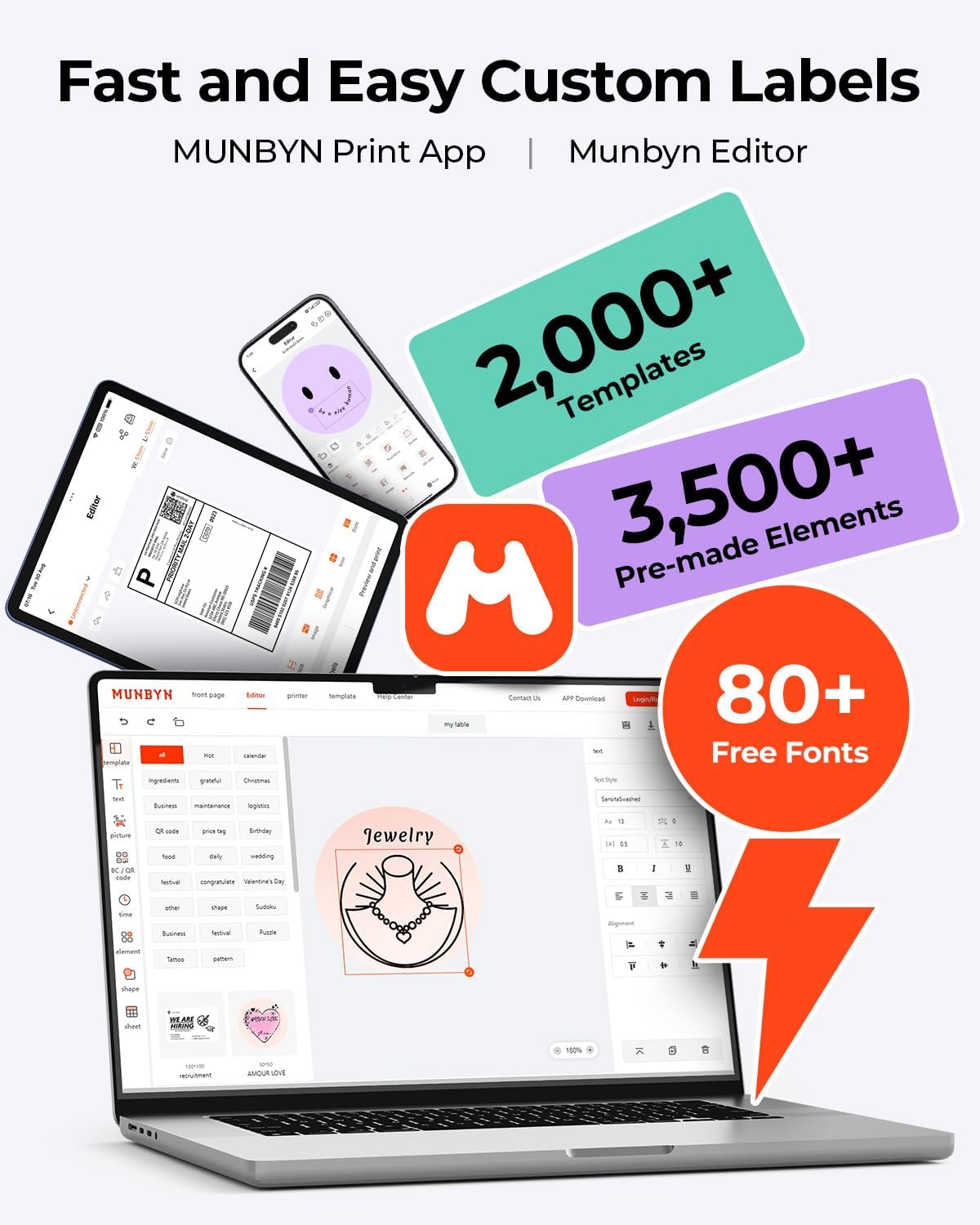
ചിത്രം: ടെംപ്ലേറ്റുകൾ, ഘടകങ്ങൾ, ഫോണ്ടുകൾ എന്നിവയുൾപ്പെടെ വേഗത്തിലും എളുപ്പത്തിലും ഇഷ്ടാനുസൃത ലേബൽ രൂപകൽപ്പനയ്ക്കായി മുൻബിൻ പ്രിന്റ് ആപ്പും എഡിറ്ററും വിപുലമായ ഉപകരണങ്ങൾ നൽകുന്നു.
6 പ്രധാന സവിശേഷതകൾ
- നൂതന DAC സാങ്കേതികവിദ്യ: RW403B-യിൽ 4 ഇഞ്ച് DAC ചിപ്പ് ഉണ്ട്, അത് യാന്ത്രികമായി കാലിബ്രേറ്റ് ചെയ്യുന്നു, 99.8% ലേബൽ അലൈൻമെന്റ് വൈകല്യങ്ങൾ ഇല്ലാതാക്കുകയും കുറ്റമറ്റ ലേബലുകൾക്ക് മിലിട്ടറി-ഗ്രേഡ് കൃത്യത ഉറപ്പാക്കുകയും ചെയ്യുന്നു.
- മെച്ചപ്പെടുത്തിയ പ്രിന്റ് വ്യക്തത: പ്രൊഫഷണൽ-ഗ്രേഡ് ഔട്ട്പുട്ടിനായി രൂപകൽപ്പന ചെയ്തിരിക്കുന്ന ഈ പ്രിന്റർ 0.1mm ഫോണ്ട് വായനാക്ഷമത ഉറപ്പാക്കുന്നു, റിട്ടേൺ സ്ലിപ്പുകൾ, ഇൻവെന്ററി, ഓർഗനൈസേഷൻ, ബ്രാൻഡിംഗ് എന്നിവയ്ക്കായി വ്യക്തമായ മോണോക്രോം ലേബലുകൾ നിർമ്മിക്കുന്നു.
- ശാന്തമായ പ്രവർത്തനം: 60 dB-യിൽ മാത്രം പ്രവർത്തിക്കുന്ന ഈ പ്രിന്റർ ടൈപ്പിംഗ് ചെയ്യുന്നതിനേക്കാൾ നിശബ്ദമാണ്, ഇത് ഹോം ഓഫീസുകളിലോ ലൈബ്രറികളിലോ പങ്കിട്ട വർക്ക്സ്പെയ്സുകളിലോ ശ്രദ്ധ കേന്ദ്രീകരിച്ചുള്ള ജോലി അനുവദിക്കുന്നു.
- അസാധാരണമായ ഈട്: ദീർഘായുസ്സിനായി രൂപകൽപ്പന ചെയ്തിരിക്കുന്ന RW403B, 970,000 ലേബലുകൾ വരെ പ്രിന്റ് ചെയ്യാൻ കഴിയും, ഇത് പല സ്റ്റാൻഡേർഡ് ഉപകരണങ്ങളെയും ഗണ്യമായി മറികടക്കുന്നു. ഇതിന്റെ പ്രൊഫഷണൽ-ഗ്രേഡ് ഡിസൈൻ പേപ്പർ ജാമുകൾ 0.01% ൽ താഴെയായി കുറയ്ക്കുന്നു.
- വൈവിധ്യമാർന്ന ലേബൽ പിന്തുണ: 1.57 മുതൽ 4.25 ഇഞ്ച് വരെ പ്രിന്റ് ചെയ്യാവുന്ന വീതി ഈ പ്രിന്ററിന് പിന്തുണയ്ക്കാൻ കഴിയും, വിവിധ ആപ്ലിക്കേഷനുകൾക്കായി വിവിധ തരം ലേബലുകളും വലുപ്പങ്ങളും ഇതിൽ ഉൾപ്പെടുന്നു.
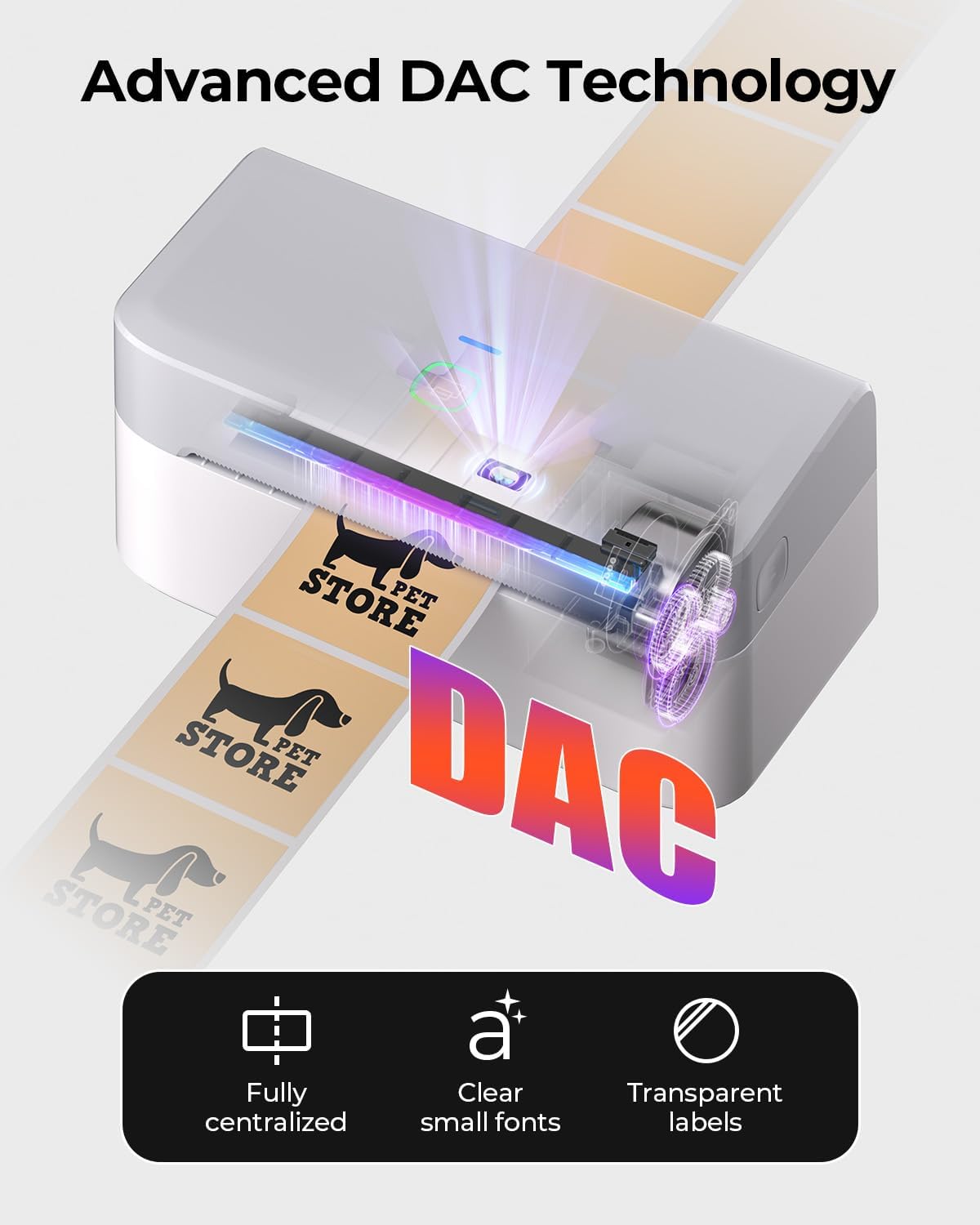
ചിത്രം: വിവിധ ലേബൽ തരങ്ങളിൽ കൃത്യമായ വിന്യാസവും വ്യക്തമായ പ്രിന്റിംഗും ഉറപ്പാക്കുന്ന പ്രിന്ററിന്റെ DAC സാങ്കേതികവിദ്യയുടെ ദൃശ്യ പ്രാതിനിധ്യം.
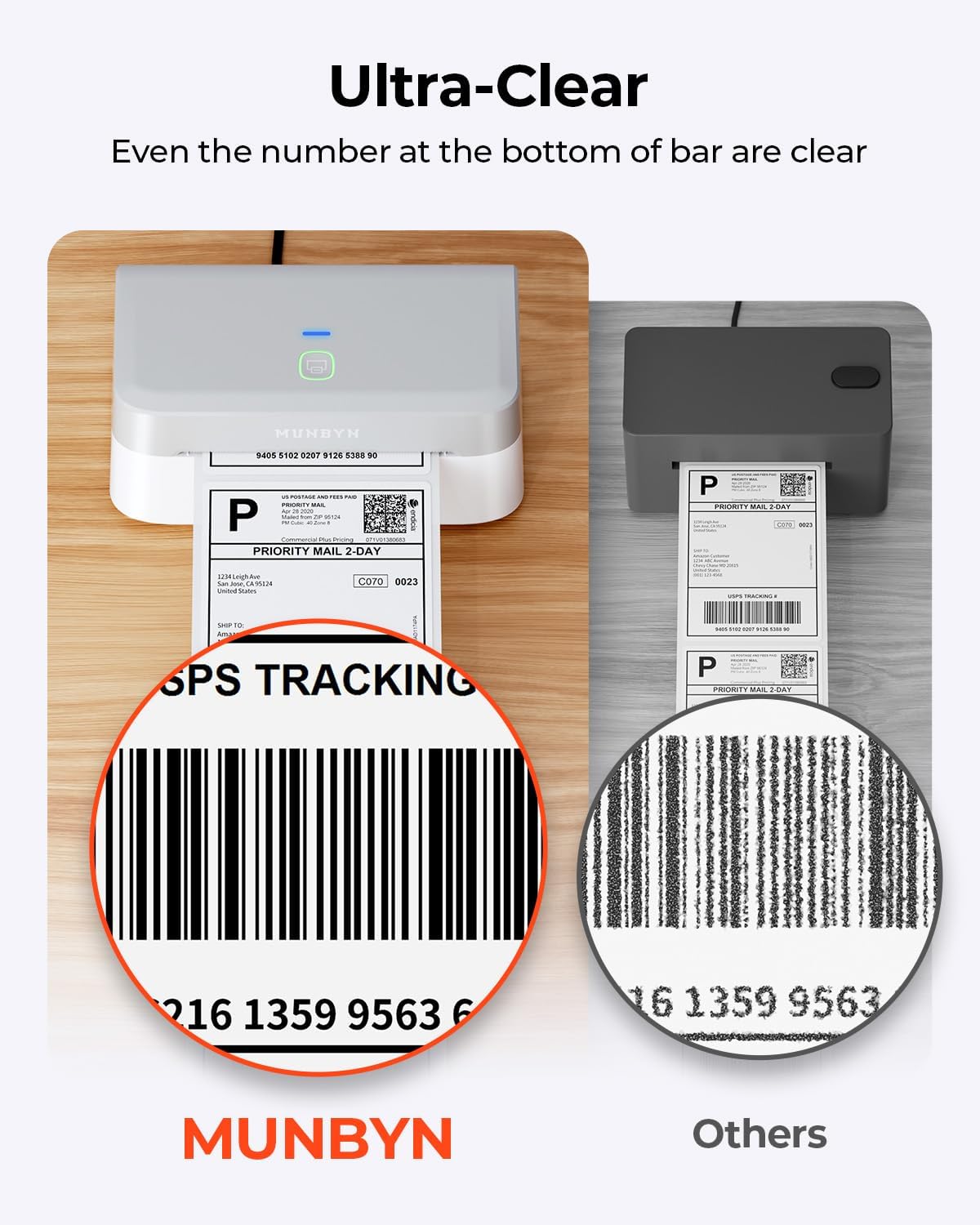
ചിത്രം: ബാർകോഡ് നമ്പറുകൾ പോലുള്ള ചെറിയ വിശദാംശങ്ങൾക്ക് പോലും, MUNBYN RW403B ഉപയോഗിച്ച് അച്ചടിച്ച ലേബലുകളുടെ മികച്ച വ്യക്തത എടുത്തുകാണിക്കുന്ന ഒരു ക്ലോസ്-അപ്പ് താരതമ്യം.

ചിത്രം: 970,000 ലേബലുകൾ വരെ അച്ചടിക്കാൻ കഴിവുള്ള MUNBYN RW403B യുടെ ശ്രദ്ധേയമായ ആയുസ്സ് താരതമ്യം ചെയ്യുന്ന ഒരു ചിത്രം, ഇത് സാധാരണ പ്രിന്ററുകളേക്കാൾ ആറ് മടങ്ങ് കൂടുതലാണ്.
7. പരിപാലനം
7.1 പ്രിന്റ് ഹെഡ് വൃത്തിയാക്കൽ
പ്രിന്റ് ഗുണനിലവാരം നിലനിർത്താൻ, പ്രിന്റ് ഹെഡ് പതിവായി വൃത്തിയാക്കുക:
- പ്രിന്റർ ഓഫാക്കി പവർ കോർഡ് അൺപ്ലഗ് ചെയ്യുക.
- പ്രിൻ്റർ കവർ തുറക്കുക.
- ആൽക്കഹോൾ സ്വാബ് അല്ലെങ്കിൽ മൃദുവായ, ലിന്റ് രഹിത തുണി ഉപയോഗിച്ച് പ്രിന്റ് ഹെഡ് സൌമ്യമായി തുടയ്ക്കുക d.ampഐസോപ്രോപൈൽ ആൽക്കഹോൾ ഉപയോഗിച്ചാണ് നിർവഹിച്ചത്.
- കവർ അടച്ച് പ്രിന്റർ വീണ്ടും ഓണാക്കുന്നതിന് മുമ്പ് പ്രിന്റ് ഹെഡ് പൂർണ്ണമായും ഉണങ്ങാൻ അനുവദിക്കുക.
7.2 പൊതു പരിചരണം
- പ്രിന്റർ പൊടിയിൽ നിന്നും അവശിഷ്ടങ്ങളിൽ നിന്നും മുക്തമായി സൂക്ഷിക്കുക.
- പ്രിന്റർ തീവ്രമായ താപനിലയിലോ നേരിട്ടുള്ള സൂര്യപ്രകാശത്തിലോ തുറന്നുകാട്ടുന്നത് ഒഴിവാക്കുക.
- പ്രിന്റ് ഹെഡിന് കേടുപാടുകൾ സംഭവിക്കുന്നത് തടയുന്നതിനും ഒപ്റ്റിമൽ പ്രിന്റ് ഫലങ്ങൾ ഉറപ്പാക്കുന്നതിനും ഉയർന്ന നിലവാരമുള്ള തെർമൽ ലേബലുകൾ മാത്രം ഉപയോഗിക്കുക.
8. പ്രശ്നപരിഹാരം
നിങ്ങളുടെ MUNBYN RW403B പ്രിന്ററിൽ പ്രശ്നങ്ങൾ നേരിടുകയാണെങ്കിൽ, ഇനിപ്പറയുന്ന പൊതുവായ പ്രശ്നങ്ങളും പരിഹാരങ്ങളും പരിശോധിക്കുക:
| പ്രശ്നം | സാധ്യമായ കാരണം | പരിഹാരം |
|---|---|---|
| പ്രിന്റർ പ്രതികരിക്കുന്നില്ല | വൈദ്യുതിയില്ല, കണക്ഷൻ തെറ്റാണ്, സോഫ്റ്റ്വെയർ പ്രശ്നം. | പവർ കേബിൾ പരിശോധിക്കുക, യുഎസ്ബി/ബ്ലൂടൂത്ത് കണക്ഷൻ പരിശോധിക്കുക, പ്രിന്റർ, കമ്പ്യൂട്ടർ/ആപ്പ് എന്നിവ പുനരാരംഭിക്കുക. |
| മോശം പ്രിന്റ് നിലവാരം | വൃത്തികെട്ട പ്രിന്റ് ഹെഡ്, നിലവാരം കുറഞ്ഞ ലേബലുകൾ, തെറ്റായ പ്രിന്റ് സാന്ദ്രത. | പ്രിന്റ് ഹെഡ് വൃത്തിയാക്കുക (സെക്ഷൻ 7.1), ശുപാർശ ചെയ്യുന്ന ലേബലുകൾ ഉപയോഗിക്കുക, സോഫ്റ്റ്വെയർ ക്രമീകരണങ്ങളിൽ പ്രിന്റ് സാന്ദ്രത ക്രമീകരിക്കുക. |
| ലേബലുകൾ ശരിയായി ഫീഡ് ചെയ്യുന്നില്ല | ലേബലുകൾ തെറ്റായി ലോഡ് ചെയ്തതിനാൽ, ലേബൽ ഗൈഡുകൾ ക്രമീകരിച്ചിട്ടില്ല. | ലേബലുകൾ ശരിയായി റീലോഡ് ചെയ്യുക, ലേബൽ ഗൈഡുകൾ നന്നായി യോജിക്കുന്ന തരത്തിൽ ക്രമീകരിക്കുക. |
| ബ്ലൂടൂത്ത് കണക്ഷൻ പ്രശ്നങ്ങൾ | ബ്ലൂടൂത്ത് പ്രവർത്തനക്ഷമമാക്കിയിട്ടില്ല, ജോടിയാക്കൽ പരാജയപ്പെട്ടു, തടസ്സം. | രണ്ട് ഉപകരണങ്ങളിലും ബ്ലൂടൂത്ത് ഓണാണെന്ന് ഉറപ്പാക്കുക, പ്രിന്റർ വീണ്ടും പെയർ ചെയ്യുക, പ്രിന്ററിന് അടുത്തേക്ക് നീക്കുക, മറ്റ് വയർലെസ് ഉപകരണങ്ങൾ ഒഴിവാക്കുക. |
9 സ്പെസിഫിക്കേഷനുകൾ
MUNBYN RW403B തെർമൽ ലേബൽ പ്രിന്ററിനായുള്ള വിശദമായ സാങ്കേതിക സവിശേഷതകൾ:
- മോഡൽ നമ്പർ: RW403B
- പ്രിൻ്റിംഗ് ടെക്നോളജി: തെർമൽ
- കണക്റ്റിവിറ്റി: ബ്ലൂടൂത്ത്, യുഎസ്ബി
- പരമാവധി മീഡിയ വലുപ്പം: 4 x 6 ഇഞ്ച് (10.16 സെ.മീ)
- പ്രിൻ്റ് റെസല്യൂഷൻ: 203 ഡിപിഐ
- പരമാവധി പ്രിന്റ് വേഗത (മോണോക്രോം): മിനിറ്റിൽ 72 പേജുകൾ (മിനിറ്റിൽ ലേബലുകൾ)
- അനുയോജ്യമായ ഉപകരണങ്ങൾ: ആൻഡ്രോയിഡ്, മാക്, പിസി, ഐഒഎസ്
- ഇനത്തിൻ്റെ ഭാരം: 1.3 കിലോഗ്രാം
- ഉൽപ്പന്ന അളവുകൾ: 31P x 7.5lx 10H സെന്റീമീറ്റർ
- പ്രത്യേക സവിശേഷതകൾ: ഓട്ടോമാറ്റിക് ഡോക്യുമെന്റ് ഫീഡർ, എനർജി സ്റ്റാർ, പോർട്ടബിൾ
10. വാറൻ്റിയും പിന്തുണയും
നിങ്ങളുടെ RW403B തെർമൽ ലേബൽ പ്രിന്ററിന് MUNBYN സമഗ്രമായ പിന്തുണ നൽകുന്നു:
- വാറൻ്റി: പരിമിത വാറന്റി (ഉൽപ്പന്ന രജിസ്ട്രേഷനിലോ പിന്തുണയുമായി ബന്ധപ്പെടുമ്പോഴോ വിശദാംശങ്ങൾ ലഭ്യമാണ്).
- സാങ്കേതിക സഹായം: 24 മാസത്തെ സാങ്കേതിക സഹായം ആസ്വദിക്കൂ. പിന്തുണയ്ക്കായി, ദയവായി ഔദ്യോഗിക MUNBYN സന്ദർശിക്കുക. webസൈറ്റ് അല്ലെങ്കിൽ അവരുടെ ഉപഭോക്തൃ സേവനവുമായി നേരിട്ട് ബന്ധപ്പെടുക.


