ആമുഖം
This manual provides detailed instructions for the setup, operation, and maintenance of your vretti K2 Bluetooth Thermal Label Maker. Please read this manual thoroughly before using the device to ensure proper functionality and to extend the product's lifespan.
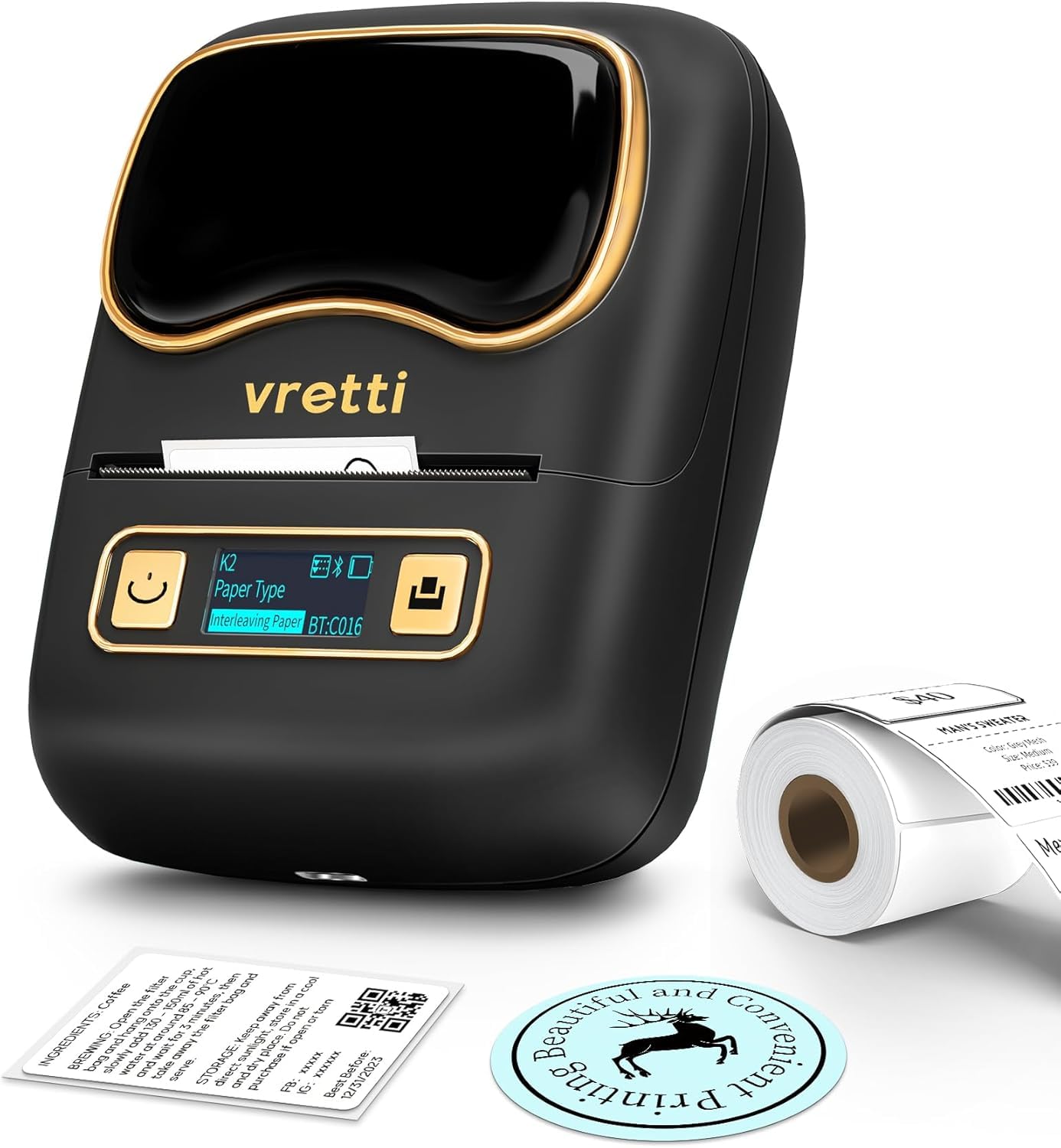
The vretti K2 Bluetooth Thermal Label Maker.
ഉൽപ്പന്നം കഴിഞ്ഞുview വീഡിയോ
ഈ വീഡിയോ ഒരു സംക്ഷിപ്ത വിവരണം നൽകുന്നുview of the vretti K2 label maker's features and common uses, such as creating labels for gifts and containers.
സുരക്ഷാ വിവരങ്ങൾ
- വെള്ളം, ഉയർന്ന ആർദ്രത എന്നിവയിൽ നിന്ന് ഉപകരണം അകറ്റി നിർത്തുക.
- തീവ്രമായ താപനിലയിലോ നേരിട്ടുള്ള സൂര്യപ്രകാശത്തിലോ ഉപകരണം തുറന്നുകാട്ടരുത്.
- Use only the specified power adapter and USB-C cable.
- ശക്തമായ ആഘാതങ്ങൾക്ക് ഉപകരണം ഇടുകയോ ഇടുകയോ ചെയ്യുന്നത് ഒഴിവാക്കുക.
- ഉപകരണം സ്വയം ഡിസ്അസംബ്ലിംഗ് ചെയ്യാനോ നന്നാക്കാനോ ശ്രമിക്കരുത്. സഹായത്തിന് ഉപഭോക്തൃ പിന്തുണയുമായി ബന്ധപ്പെടുക.
- കുട്ടികൾക്ക് ലഭ്യമാകാതെ സൂക്ഷിക്കുക.
പാക്കേജ് ഉള്ളടക്കം
നിങ്ങളുടെ പാക്കേജിൽ എല്ലാ ഇനങ്ങളും ഉണ്ടെന്ന് ഉറപ്പാക്കുക:
- vretti K2 Label Maker (x1)
- 50x30mm Paper Rolls (x1, pre-installed)
- ടൈപ്പ്-സി കേബിൾ (x1)
- ഉപയോക്തൃ മാനുവൽ (x1)

Contents included in the vretti K2 label maker package.
സജ്ജമാക്കുക
1. ലേബൽ പേപ്പർ ലോഡുചെയ്യുന്നു
- Press the open cover button on the left side of the device to open the cover.
- Push the baffle latch back to unlock the paper roll holder.
- Remove the privacy protection sticker from the label paper roll.
- Place the label paper roll into the compartment with the print side facing down.
- Push the baffle latch forward to lock the paper roll in place.
- Extend the label paper approximately 3mm from the paper outlet, then close the cover.
- Press and hold the power button for 3 seconds to turn on the device. The display will illuminate.
- Press the feed button to advance the paper and calibrate the label position.
This video demonstrates the correct procedure for installing label paper into the K2 label maker.
2. ആപ്പ് ഡൗൺലോഡും ബ്ലൂടൂത്ത് കണക്ഷനും
- Download the "Xeasy Label" app from the App Store (iOS) or Google Play Store (Android).
- Enable Bluetooth and GPS (location services) on your mobile phone.
- Open the "Xeasy Label" app. Click the '+' button in the upper right corner to search for devices.
- Select "K2" from the list of connectable devices and click "Connect". The app will indicate "Connection successful".

The 'Xeasy Label' app supports Bluetooth connection for both Android and iOS devices.
This video guides you through connecting your K2 label maker to your mobile phone via Bluetooth for printing.
പ്രവർത്തന നിർദ്ദേശങ്ങൾ
1. ലേബലുകൾ സൃഷ്ടിക്കലും എഡിറ്റ് ചെയ്യലും
- In the "Xeasy Label" app, select a label template that matches the dimensions of your physical label paper. For example, if your label paper is 50mm x 30mm, choose the corresponding template.
- Double-click on the template area to begin editing.
- Use the various tools in the app (Text, Frame, Sticker, Image, QR Code, Bar Code, Row Number, Shape, Table) to design your label.
- You can add text, images, icons, and adjust their size and position as needed.

The 'Xeasy Label' app offers multiple free templates, fonts, and icons for label design.
2. പ്രിൻ്റിംഗ് ലേബലുകൾ
- After designing your label, click the "Print Label" button in the app.
- Adjust the quantity of labels to print and the print density if necessary.
- Confirm your settings and initiate printing. The K2 label maker will print the labels.

Easy-to-follow steps for using the vretti K2 label maker.
3. പിന്തുണയ്ക്കുന്ന ലേബൽ തരങ്ങളും വലുപ്പങ്ങളും
The vretti K2 label maker supports various thermal label paper sizes, with a print range of 20mm to 58mm (approximately 1-2 inches) in width. This includes square, round, cable, and file ലേബലുകൾ.

The vretti K2 supports various label styles and sizes, fitting 1-2 inch width thermal labels.
4. ആപ്ലിക്കേഷൻ Exampലെസ്
The K2 label maker is versatile for various applications:
- ഓഫീസ് ഉപയോഗം: File labels, asset tags, memo labels.
- Business Use: Price labels, product labels, barcode labels for retail, coffee shops, and small businesses.
- വീട്ടുപയോഗം: Storage labels, food container labels, spice jar labels, medication labels.
- സമ്മാനങ്ങൾ: Personalized gift tags and decorative labels.

Examples of multiple occasions where the vretti K2 label maker can be used.
മെയിൻ്റനൻസ്
1. പ്രിന്റ് ഹെഡ് വൃത്തിയാക്കൽ
To ensure optimal print quality, clean the print head regularly:
- Turn off the label maker and disconnect it from power.
- പേപ്പർ കമ്പാർട്ട്മെന്റ് കവർ തുറക്കുക.
- പ്രിന്റ് ഹെഡ് ഒരു കോട്ടൺ സ്വാബ് ഉപയോഗിച്ച് മൃദുവായി തുടയ്ക്കുക dampഐസോപ്രോപൈൽ ആൽക്കഹോൾ ഉപയോഗിച്ചാണ് നിർവഹിച്ചത്.
- Allow the print head to dry completely before closing the cover and turning on the device.
2. ബാറ്ററി ചാർജിംഗ്
The K2 label maker is equipped with a 1500mAh rechargeable battery. When the battery indicator on the display is low, connect the device to a power source using the provided USB-C cable. A full charge allows for approximately 3 hours of continuous printing or up to 5000 labels.
ട്രബിൾഷൂട്ടിംഗ്
| പ്രശ്നം | സാധ്യമായ കാരണം | പരിഹാരം |
|---|---|---|
| ഉപകരണം ഓണാക്കില്ല. | ബാറ്ററി കുറവോ പവർ പ്രശ്നമോ. | Charge the device using the USB-C cable. Ensure the power button is pressed and held for 3 seconds. |
| ബ്ലൂടൂത്ത് വഴി ബന്ധിപ്പിക്കാൻ കഴിയില്ല. | Bluetooth or GPS is off; device not discoverable; incorrect pairing. | Ensure Bluetooth and GPS are enabled on your phone. Restart the label maker and the app. Try pairing again. |
| Poor print quality (faint, blurry, or blank). | Print head is dirty; incorrect label paper orientation; low print density setting. | Clean the print head. Ensure the label paper is loaded with the print side down. Increase print density in the app. |
| Paper jam or labels not feeding correctly. | Improperly loaded paper; foreign object in paper path. | Open the cover, remove any jammed paper, and re-load the paper correctly. Ensure the baffle latch is secured. |
| ആപ്പ് ക്രാഷാകുന്നു അല്ലെങ്കിൽ മരവിക്കുന്നു. | Software glitch; outdated app version. | Restart the app. Check for app updates in your device's app store. |
സ്പെസിഫിക്കേഷനുകൾ
| ഫീച്ചർ | വിശദാംശങ്ങൾ |
|---|---|
| മോഡലിൻ്റെ പേര് | K2 |
| ബ്രാൻഡ് | വ്രെത്തി |
| കണക്റ്റിവിറ്റി ടെക്നോളജി | ബ്ലൂടൂത്ത് |
| പ്രിൻ്റിംഗ് ടെക്നോളജി | തെർമൽ |
| പ്രിൻ്റർ ഔട്ട്പുട്ട് | മോണോക്രോം |
| പരമാവധി പ്രിൻ്റ് വീതി | 58 മിമി (2 ഇഞ്ച്) |
| പ്രിൻ്റ് റെസല്യൂഷൻ | 203 ഡിപിഐ |
| പ്രിൻ്റ് വേഗത | 30mm/s വരെ |
| ബാറ്ററി | 1500mAh Rechargeable (1 C battery included) |
| ചാർജിംഗ് ഇൻ്റർഫേസ് | USB-C |
| ഉൽപ്പന്ന അളവുകൾ | 4.5"D x 2.5"W x 3.4"H |
| ഇനത്തിൻ്റെ ഭാരം | 7.8 ഔൺസ് (0.49 പൗണ്ട്) |
| അനുയോജ്യമായ ഉപകരണങ്ങൾ | സ്മാർട്ട്ഫോണുകൾ (iOS & Android) |
| നിയന്ത്രണ രീതി | ആപ്പ് |
വാറൻ്റിയും പിന്തുണയും
വാറൻ്റി വിവരങ്ങൾ
The vretti K2 Bluetooth Thermal Label Maker comes with a limited warranty. Please refer to the warranty card included in your package or contact vretti customer support for specific terms and conditions.
ഉപഭോക്തൃ പിന്തുണ
For technical assistance, troubleshooting, or warranty claims, please contact vretti customer support through the following channels:
- Webസൈറ്റ്: Visit the official vretti webപതിവുചോദ്യങ്ങൾക്കും പിന്തുണാ ഉറവിടങ്ങൾക്കുമുള്ള സൈറ്റ്.
- ഇമെയിൽ: Refer to your product packaging or the quick start guide for customer service email addresses.
- ആമസോൺ സ്റ്റോർ: You can also reach out to the seller "vretti-us" directly through your Amazon order history for support.


