ആമുഖം
This manual provides instructions for the Blucalm USB Wired Headset (UCH30) and the Easilent UC Wired Headset (PL-H2) bundle. These headsets are designed to enhance your communication and audio experience in professional and personal settings. Please read this manual carefully before using your headsets to ensure proper operation and to maximize their features.
ഉൽപ്പന്നം കഴിഞ്ഞുview
The Blucalm UCH30 and Easilent PL-H2 headsets offer distinct features tailored for different user needs, bundled to provide a comprehensive audio solution.
Blucalm UCH30 Headset Features:
- Enhanced Audio & Noise Cancellation: Equipped with a 3-microphone array, the UCH30 intelligently blocks over 96% of background noise, including human voices and sudden noises. It features AENC Voice Protection for hearing safety.
- തിരക്കുള്ള വെളിച്ചം: An integrated 360° visible Busylight indicates your work status. A red light signifies 'Busy', while off indicates 'Available'. A flashing red light alerts for incoming calls (Teams only).
- ഇൻ-ലൈൻ നിയന്ത്രണം: User-friendly controls for Mic Mute/Unmute, Volume +/-, and MS Teams Call Answer/End.
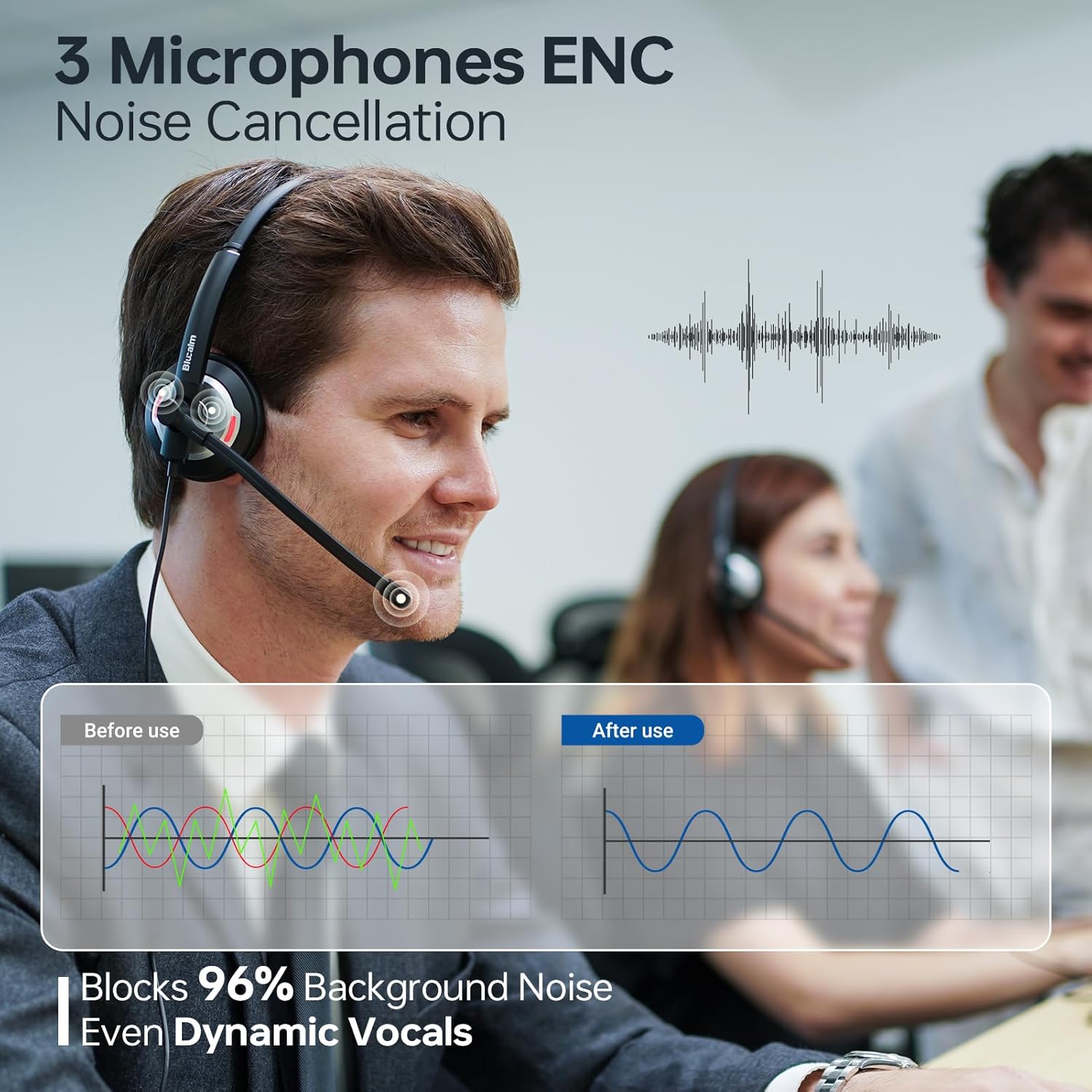
Figure 1: Blucalm UCH30 headset demonstrating 3-microphone Environmental Noise Cancellation (ENC), effectively reducing background noise by 96% for clearer communication.

Figure 2: The Blucalm UCH30's 360° visible Busylight, which automatically indicates your availability status to others, preventing interruptions.
Easilent PL-H2 Headset Features:
- ഭാരം കുറഞ്ഞതും സുഖകരവും: Weighing approximately 0.14 lb (61.8g), designed for extended wear with soft ear cushions.
- Immersive HD Sound: Features Adaptive Audio Processing to optimize sound for calls, music, or gaming, providing high-quality audio.
- Exceptional Audio Resolution: Equipped with 20mm speakers for clear sound reproduction.

Figure 3: The Easilent PL-H2 headset, highlighting its lightweight design (61.8g) for comfortable all-day use.

ചിത്രം 4: വിശദമായി view of the Easilent PL-H2's 20mm speaker, designed for exceptional audio resolution and immersive sound.
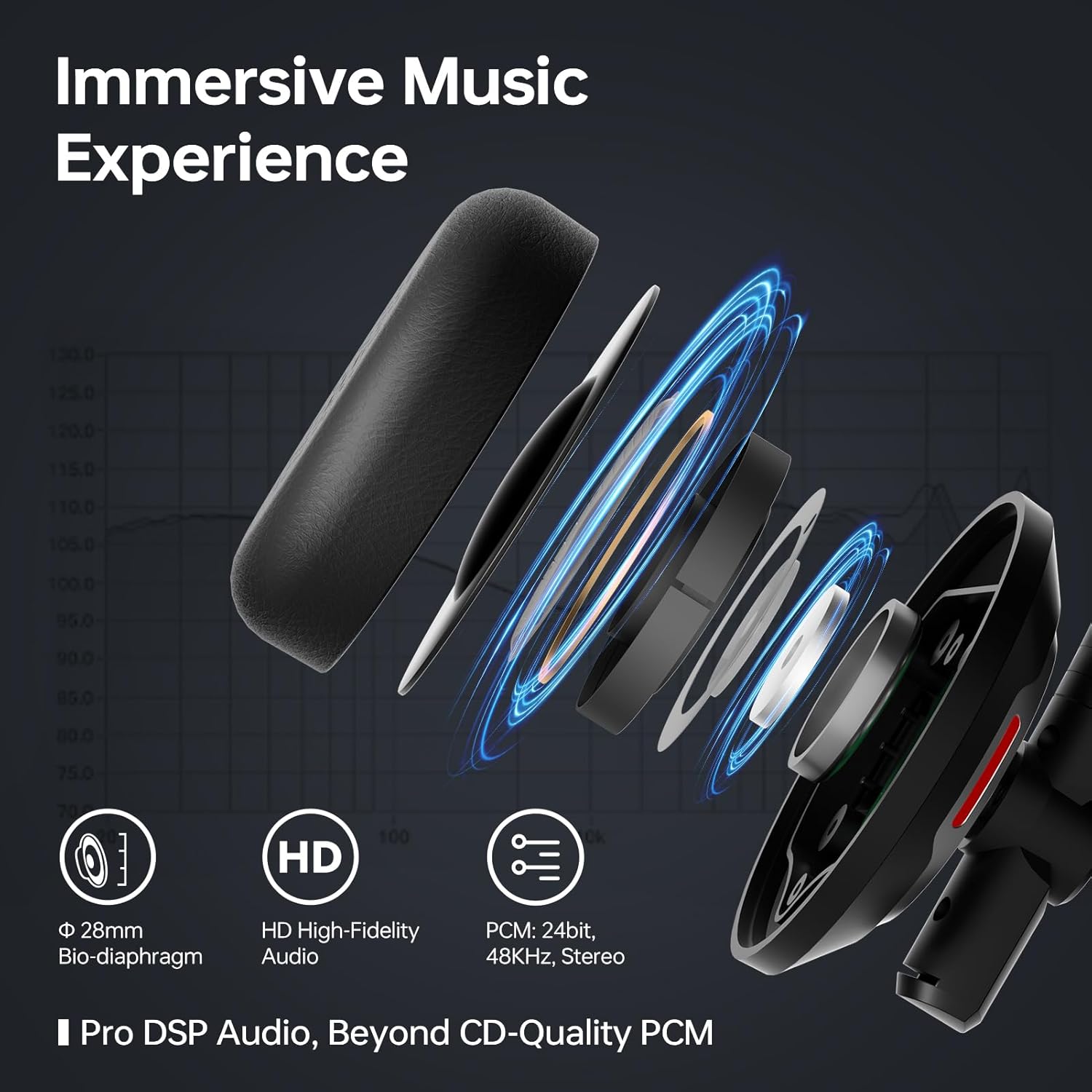
Figure 5: The Easilent PL-H2's audio architecture, featuring a 28mm Bio-diaphragm and HD High-Fidelity Audio for an immersive sound experience.
Shared Technologies:
- Customized Chip & Algorithms: Both headsets utilize customized chips and unique algorithms for optimized performance.
- എർഗണോമിക് ഡിസൈൻ: Features include a max 4.5cm adjustable headband, soft memory foam earcups, a 270° rotatable mic boom-arm, 180° rotating earcups, a resilient U-shape headband, and a 15° adaptive fit.
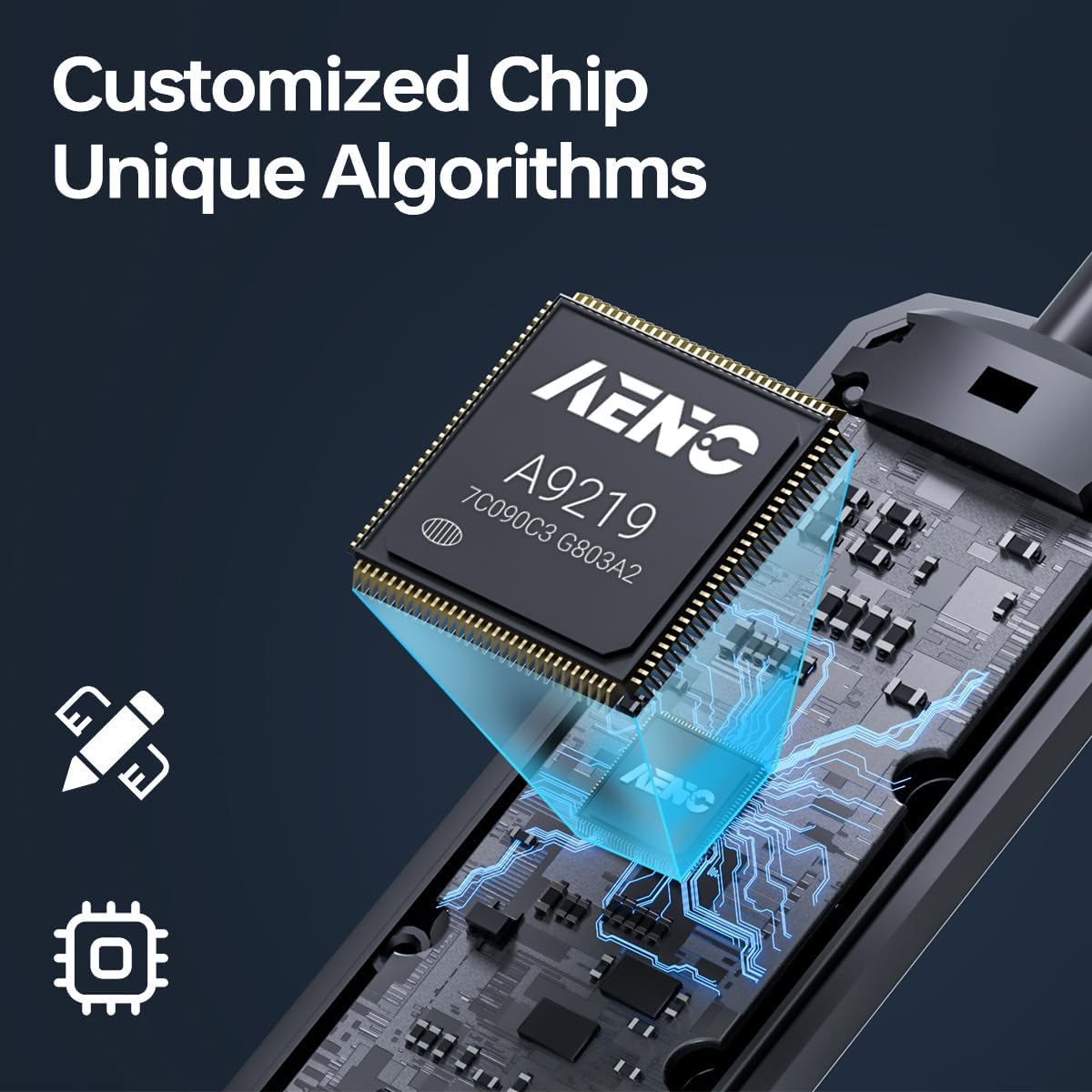
Figure 6: Representation of the customized chip (AENC A9219) and unique algorithms that power the advanced audio processing in both headsets.

Figure 7: Ergonomic design elements including adjustable headband, soft memory foam earcups, and a flexible microphone boom for personalized comfort and fit.
സജ്ജീകരണ നിർദ്ദേശങ്ങൾ
- ഹെഡ്സെറ്റ് ബന്ധിപ്പിക്കുക: Plug the USB connector of the headset into an available USB port on your computer or device.
- ഓട്ടോമാറ്റിക് ഡ്രൈവർ ഇൻസ്റ്റാളേഷൻ: Your operating system (Windows, macOS, etc.) should automatically detect the headset and install the necessary drivers. This may take a few moments.
- ഓഡിയോ ക്രമീകരണങ്ങൾ പരിശോധിക്കുക:
- വിൻഡോസ്: Go to 'Sound Settings' (right-click speaker icon in taskbar) and ensure the headset is selected as the default playback and recording device.
- മാകോസ്: Go to 'System Preferences' > 'Sound' and select the headset for both input and output.
- ഫിറ്റ് ക്രമീകരിക്കുക: Adjust the headband and microphone boom for a comfortable and optimal fit. The mic boom is 270° rotatable, allowing it to be worn on either side.
പ്രവർത്തന നിർദ്ദേശങ്ങൾ
Using the In-Line Control (UCH30):
- വോളിയം കൂട്ടുക (+): Press to increase listening volume.
- വോളിയം ഡൗൺ (-): Press to decrease listening volume.
- മൈക്രോഫോൺ നിശബ്ദമാക്കുക: Press the mute button to mute your microphone. The LED indicator on the control will typically change color to indicate mute status. Press again to unmute.
- Call Answer/End (MS Teams): For Microsoft Teams calls, press the dedicated button to answer or end a call.
Busylight Function (UCH30):
- റെഡ് ലൈറ്റ് ഓൺ: Indicates you are busy or on a call.
- ലൈറ്റ് ഓഫ്: Indicates you are available.
- മിന്നുന്ന ചുവന്ന വെളിച്ചം: Alerts for an incoming call (Microsoft Teams only).
മെയിൻ്റനൻസ്
- വൃത്തിയാക്കൽ: Use a soft, dry cloth to clean the headset. Do not use liquid cleaners or solvents.
- സംഭരണം: ഉപയോഗിക്കാത്തപ്പോൾ തണുത്തതും വരണ്ടതുമായ സ്ഥലത്ത് ഹെഡ്സെറ്റ് സൂക്ഷിക്കുക. ഉയർന്ന താപനില ഒഴിവാക്കുക.
- കേബിൾ കെയർ: Do not pull the cable excessively or bend it sharply to prevent damage.
- ചെവി തലയണകൾ: Periodically check ear cushions for wear and tear. Replace if necessary for optimal comfort and hygiene.
ട്രബിൾഷൂട്ടിംഗ്
| പ്രശ്നം | സാധ്യമായ കാരണം | പരിഹാരം |
|---|---|---|
| ഹെഡ്സെറ്റിൽ നിന്ന് ശബ്ദമില്ല. | Headset not selected as default audio device; volume too low; faulty connection. | Check sound settings on your computer. Increase volume using in-line control or computer settings. Re-plug the USB connector. Try a different USB port. |
| മൈക്രോഫോൺ പ്രവർത്തിക്കുന്നില്ല. | Microphone muted; headset not selected as default recording device; faulty connection. | Unmute microphone using in-line control. Check recording device settings on your computer. Re-plug the USB connector. |
| Busylight not functioning (UCH30). | Software conflict; headset not properly recognized. | Ensure the headset is fully recognized by your communication software (e.g., Microsoft Teams). Restart the application or computer. |
| മോശം ഓഡിയോ നിലവാരം. | Interference; incorrect audio settings; damaged cable. | Move away from other electronic devices. Check audio enhancement settings on your computer. Inspect the cable for damage. |
സ്പെസിഫിക്കേഷനുകൾ
| ഫീച്ചർ | വിവരണം |
|---|---|
| മോഡൽ | Blucalm UCH30, Easilent PL-H2 |
| കണക്റ്റിവിറ്റി | യുഎസ്ബി വയർഡ് |
| Microphone (UCH30) | 3-Microphone Array, Environmental Noise Cancellation (ENC) >96% |
| Busylight (UCH30) | 360° Visible, Status Indicator (Busy/Available/Incoming Call) |
| In-Line Control (UCH30) | Mic Mute/Unmute, Volume +/-, MS Teams Call Answer/End |
| Weight (PL-H2) | ഏകദേശം 0.14 lb (61.8g) |
| Speaker Size (PL-H2) | 20 മി.മീ |
| Mic Boom-Arm Rotation | 270° |
| ഇയർകപ്പ് റൊട്ടേഷൻ | 180° |
| ഹെഡ്ബാൻഡ് അഡ്ജസ്റ്റ്മെൻ്റ് | Max 4.5cm |
| ആദ്യം ലഭ്യമായ തീയതി | ഫെബ്രുവരി 20, 2025 |
വാറൻ്റിയും പിന്തുണയും
For warranty information and technical support, please refer to the documentation included with your purchase or visit the official Blucalm webസൈറ്റ്. വാറന്റി ക്ലെയിമുകൾക്കായി നിങ്ങളുടെ വാങ്ങലിന്റെ തെളിവ് സൂക്ഷിക്കുക.
ഓൺലൈൻ പിന്തുണ: Visit the Blucalm Store on Amazon


