1. ആമുഖം
Thank you for choosing the AULA F75 Pro Wireless Mechanical Keyboard and SC580 Wireless Gaming Mouse Combo. This manual provides detailed instructions for setting up, operating, and maintaining your new peripheral set. Please read this manual carefully before use to ensure optimal performance and longevity of your devices.

Image 1.1: The AULA F75 Pro Wireless Mechanical Keyboard and SC580 Wireless Gaming Mouse Combo.
2. പാക്കേജ് ഉള്ളടക്കം
അൺബോക്സിംഗ് ചെയ്യുമ്പോൾ പാക്കേജ് ഉള്ളടക്കങ്ങൾ പരിശോധിക്കുക:
- AULA F75 Pro വയർലെസ് മെക്കാനിക്കൽ കീബോർഡ്
- AULA SC580 വയർലെസ് ഗെയിമിംഗ് മൗസ്
- USB-C to USB-A Cable (for charging and wired connection)
- 2.4GHz യുഎസ്ബി റിസീവർ
- Keycap Puller (for keyboard)
- Switch Puller (for keyboard)
- ഉപയോക്തൃ മാനുവൽ (ഈ പ്രമാണം)
3. ഉൽപ്പന്നം കഴിഞ്ഞുview
3.1. AULA F75 Pro Wireless Mechanical Keyboard
The F75 Pro keyboard features a 75% layout with a knob, gasket structure, and hot-swappable switches for a customizable typing experience. It supports three connection modes: Bluetooth 5.0, 2.4GHz wireless, and USB-C wired.

Image 3.1: Key features of the AULA F75 Pro Mechanical Keyboard, including BT5.0/2.4G/Wired connectivity, Gasket Structure, Pre-lubed Linear Switches, RGB Backlit, 4000mAh Battery, Side-engraved PBT Keycaps, Hot Swappable switches, and a 75% Layout with Knob.
3.2. AULA SC580 Wireless Gaming Mouse
The SC580 mouse offers versatile connectivity with 2.4GHz wireless, Bluetooth 5.0, and USB-C wired modes. It features adjustable DPI levels and a high polling rate for precise control.
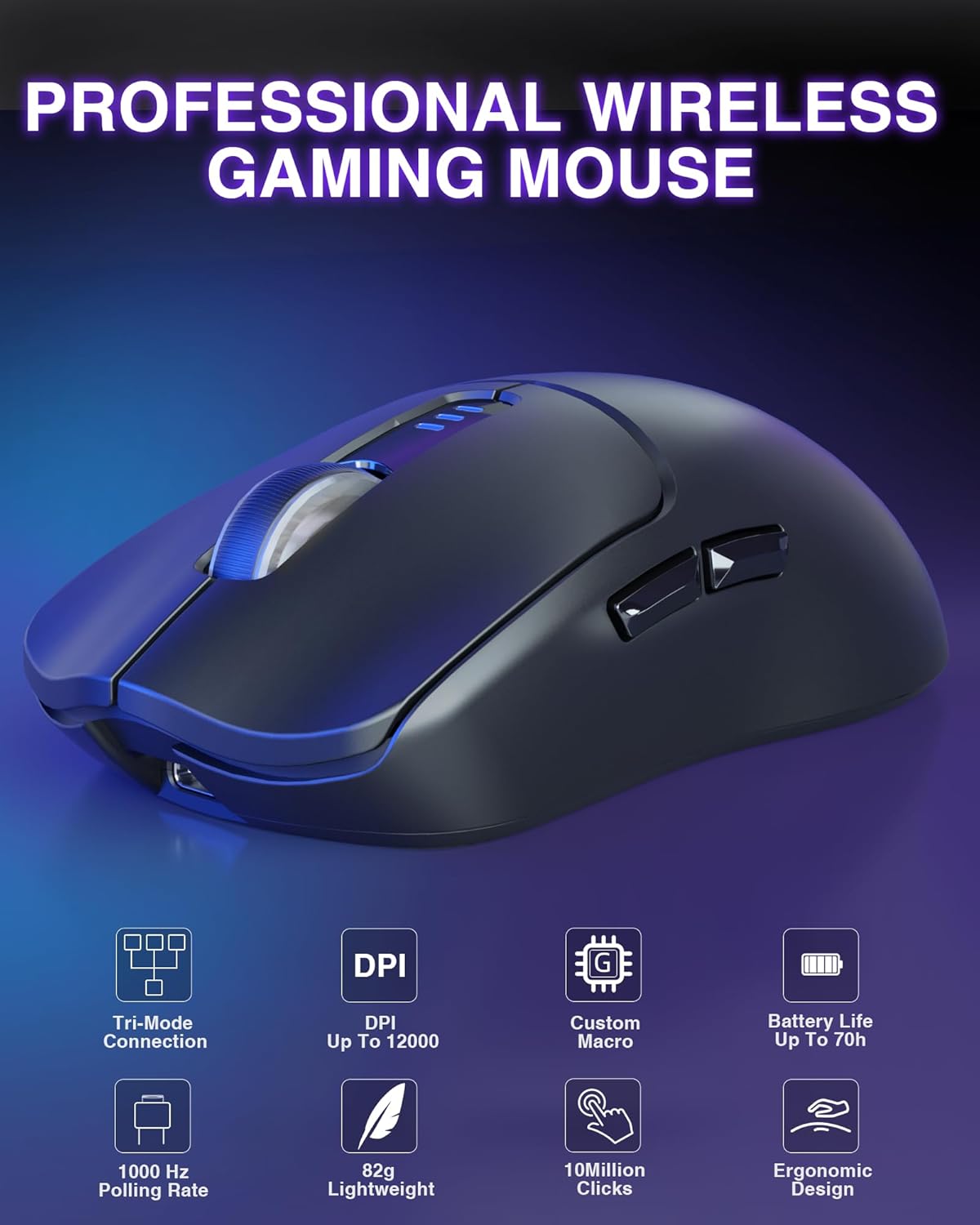
Image 3.2: Key features of the AULA SC580 Wireless Gaming Mouse, highlighting Tri-Mode Connection, DPI up to 12000, Custom Macro support, Battery Life up to 70h, 1000 Hz Polling Rate, 82g Lightweight design, 10 Million Clicks durability, and Ergonomic Design.
4. സജ്ജീകരണ ഗൈഡ്
4.1. Keyboard Setup (AULA F75 Pro)
- ചാർജിംഗ്: Connect the keyboard to a USB power source using the provided USB-C cable. The charging indicator will show status. A full charge provides extended wireless use.
- കണക്ഷൻ മോഡുകൾ: The F75 Pro supports three connection types. Use the switch on the keyboard to select your desired mode.
- 2.4GHz വയർലെസ്: Insert the 2.4GHz USB receiver into an available USB port on your computer. Switch the keyboard to 2.4G mode. The keyboard should connect automatically.
- ബ്ലൂടൂത്ത് 5.0: Switch the keyboard to Bluetooth mode. Press and hold FN + 1, FN + 2, അല്ലെങ്കിൽ FN + 3 for 3 seconds to enter pairing mode (the indicator light will flash rapidly). On your device, search for 'AULA F75 Pro' and connect. You can pair up to three Bluetooth devices.
- USB-C വയേർഡ്: Connect the keyboard directly to your computer using the USB-C cable. Switch the keyboard to wired mode.
- മാറുന്ന ഉപകരണങ്ങൾ: For Bluetooth, press FN + 1/2/3 to switch between paired devices. For 2.4GHz, ensure the receiver is connected and the keyboard is in 2.4G mode.

Image 4.1: The AULA F75 Pro Keyboard demonstrating its three connection modes: Bluetooth 5.0, 2.4GHz wireless, and USB-C wired, compatible with various devices like Switch, Xbox, PlayStation, PC, Laptop, Tablet, and Phone.
4.2. Mouse Setup (AULA SC580)
- ചാർജിംഗ്: Connect the mouse to a USB power source using the provided USB-C cable. The indicator lights will show charging status.
- കണക്ഷൻ മോഡുകൾ: The SC580 mouse also supports three connection types, selectable via a switch on the bottom of the mouse.
- 2.4GHz വയർലെസ്: Insert the 2.4GHz USB receiver into an available USB port. Switch the mouse to 2.4G mode.
- ബ്ലൂടൂത്ത് 5.0: Switch the mouse to Bluetooth mode (BT1 or BT2). Press and hold the pairing button (usually on the bottom) until the indicator flashes. On your device, search for 'AULA SC580' and connect. You can pair up to two Bluetooth devices.
- USB-C വയേർഡ്: Connect the mouse directly to your computer using the USB-C cable. Switch the mouse to wired mode.
- മാറുന്ന ഉപകരണങ്ങൾ: Use the switch on the bottom of the mouse to cycle between 2.4G, BT1, BT2, and wired modes.

Image 4.2: The AULA SC580 Gaming Mouse illustrating its Tri-Mode connectivity: 2.4GHz wireless, BT5.0, and Type-C Wired, compatible with various computing devices.
5. പ്രവർത്തന നിർദ്ദേശങ്ങൾ
5.1. Keyboard Functions (AULA F75 Pro)
- ഫംഗ്ഷൻ കീകൾ (F1-F12): Access multimedia and system functions by pressing the FN key in combination with the F-keys. Refer to the keycap legends for specific functions.
- വോളിയം നോബ്: Rotate the knob to adjust volume. Press the knob to mute/unmute audio.
- RGB ലൈറ്റിംഗ് നിയന്ത്രണം:
- എഫ്എൻ + \ |: Switch between 16 lighting effects or turn off the backlight.
- FN + ↑ ↓: Adjust lighting brightness.
- FN + ← →: ലൈറ്റിംഗ് വേഗത ക്രമീകരിക്കുക.
- ഹോട്ട്-സ്വാപ്പബിൾ സ്വിച്ചുകൾ: The keyboard supports 3-pin or 5-pin switches. Use the provided switch puller to carefully remove existing switches and insert new ones. Ensure switches are aligned correctly before pressing them into place.

Image 5.1: The AULA F75 Pro Keyboard showcasing its 16.8 Million RGB Backlit feature and controls for adjusting lighting effects, brightness, and speed using FN key combinations.
5.2. Mouse Functions (AULA SC580)
- DPI ക്രമീകരണം: Press the DPI button (usually located behind the scroll wheel) to cycle through preset DPI levels (800/1600/2400/3200/6400/12,000).
- പ്രോഗ്രാം ചെയ്യാവുന്ന ബട്ടണുകൾ: The mouse features multiple buttons that can be customized using dedicated software (if available from AULA's official webസൈറ്റ്).
- പോളിംഗ് നിരക്ക്: The mouse operates at a 1000Hz polling rate for responsive tracking.

Image 5.2: The AULA SC580 Mouse illustrating its 6 adjustable DPI levels, ranging from 800 to 12000, which can be set via the DPI button or custom software.
6. പരിപാലനം
- വൃത്തിയാക്കൽ: Use a soft, dry cloth to clean the surfaces of the keyboard and mouse. For deeper cleaning, dampen the cloth slightly with water or a mild cleaning solution. Avoid excessive moisture.
- കീക്യാപ്പ് ക്ലീനിംഗ് (കീബോർഡ്): Use the provided keycap puller to remove keycaps for thorough cleaning. Clean keycaps with mild soap and water, then dry completely before reattaching.
- ബാറ്ററി കെയർ: To prolong battery life, avoid fully discharging the devices frequently. Store in a cool, dry place when not in use for extended periods.
- സംഭരണം: Store the devices in a clean, dust-free environment.
7. പ്രശ്നപരിഹാരം
7.1. Keyboard Troubleshooting
- കീബോർഡ് പ്രതികരിക്കുന്നില്ല: Ensure the keyboard is charged. Check the connection mode switch (2.4G, BT, Wired) matches your setup. For 2.4G, ensure the receiver is properly inserted. For Bluetooth, re-pair the device. For wired, check the USB-C cable connection.
- കീകൾ പ്രവർത്തിക്കുന്നില്ല: If specific keys are not responding, ensure the switches are properly seated. If hot-swapped, try re-inserting or replacing the switch.
- RGB ലൈറ്റിംഗ് പ്രശ്നങ്ങൾ: Ensure the keyboard is powered on. Use FN + \ | to cycle through effects or turn on the backlight. Adjust brightness with FN + ↑ ↓.
7.2. Mouse Troubleshooting
- മൗസ് പ്രതികരിക്കുന്നില്ല: Ensure the mouse is charged. Check the connection mode switch on the bottom. For 2.4G, ensure the receiver is properly inserted. For Bluetooth, re-pair the device. For wired, check the USB-C cable connection.
- കഴ്സർ ക്രമരഹിതമാണ് അല്ലെങ്കിൽ ചലിക്കുന്നില്ല: Clean the optical sensor on the bottom of the mouse. Ensure you are using the mouse on a suitable surface.
- DPI മാറുന്നില്ല: Press the DPI button firmly. If using custom software, ensure settings are applied correctly.
8 സ്പെസിഫിക്കേഷനുകൾ
8.1. AULA F75 Pro Wireless Mechanical Keyboard
- കണക്റ്റിവിറ്റി: യുഎസ്ബി-സി വയേർഡ്, 2.4GHz വയർലെസ്, ബ്ലൂടൂത്ത് 5.0
- ലേഔട്ട്: 75% with Knob
- ഘടന: ഗാസ്കറ്റ് ഘടന
- സ്വിച്ചുകൾ: Hot-Swappable (3-pin/5-pin compatible), Pre-lubricated LEOBOG Reaper switches
- കീക്യാപ്പുകൾ: Side-engraved PBT
- ബാക്ക്ലൈറ്റ്: RGB (16.8 Million colors, multiple effects)
- ബാറ്ററി: 4000mAh റീചാർജ് ചെയ്യാവുന്നതാണ്
- അനുയോജ്യമായ ഉപകരണങ്ങൾ: PC, Laptop, Tablet, Smartphone, Gaming Console (PS, XBOX)
8.2. AULA SC580 Wireless Gaming Mouse
- കണക്റ്റിവിറ്റി: USB-C Wired, 2.4GHz Wireless, Bluetooth 5.0 (BT1, BT2)
- DPI ലെവലുകൾ: 800/1600/2400/3200/6400/12,000 (Adjustable)
- പോളിംഗ് നിരക്ക്: 1000Hz
- ബട്ടണുകൾ: പ്രോഗ്രാമബിൾ
- ബാറ്ററി ലൈഫ്: 70 മണിക്കൂർ വരെ (ഏകദേശം)
- ഭാരം: 82 ഗ്രാം (ലൈറ്റ്വെയിറ്റ്)
- ഈട്: 10 ദശലക്ഷം ക്ലിക്കുകൾ
- ഡിസൈൻ: എർഗണോമിക്
- അനുയോജ്യമായ സിസ്റ്റങ്ങൾ: Windows 7/8/10/XP/Vista, Mac OS, Linux, Android
9. വാറൻ്റിയും പിന്തുണയും
AULA products are designed for reliability and performance. For warranty information, please refer to the warranty card included with your purchase or visit the official AULA website. If you encounter any issues not covered in this manual, please contact AULA customer support for assistance.
AULA Customer Support: ദയവായി സന്ദർശിക്കുക AULA's official store page on Amazon അല്ലെങ്കിൽ അവരുടെ ഉദ്യോഗസ്ഥൻ webബന്ധപ്പെടാനുള്ള വിശദാംശങ്ങൾക്കും കൂടുതൽ പിന്തുണാ ഉറവിടങ്ങൾക്കുമായി സൈറ്റ്.


