ആമുഖം
This user manual provides comprehensive instructions for the installation, operation, and maintenance of your CP PLUS 3MP Smart Wi-fi CCTV Camera, model EZ-S31. Please read this manual thoroughly before using the product to ensure proper functionality and safety.
ഉൽപ്പന്നം കഴിഞ്ഞുview
പാക്കേജ് ഉള്ളടക്കം
പാക്കേജിൽ എല്ലാ ഇനങ്ങളും ഉണ്ടെന്ന് ഉറപ്പാക്കുക:
- ക്യാമറ
- USB കേബിൾ
- പവർ അഡാപ്റ്റർ
- ഉപയോക്തൃ മാനുവൽ (ഈ പ്രമാണം)
പ്രധാന സവിശേഷതകൾ
- 3MP Camera Quality: വ്യക്തവും വിശദവുമായ വീഡിയോ നൽകുന്നു.
- 360° Full Room Coverage: Pan and tilt functionality for comprehensive monitoring.
- Advanced Motion & Human Detection: Intelligent alerts for human movement, reducing false alarms.
- Crystal-Clear Full Color Night Vision: Captures vibrant video in low-light conditions up to 25 meters.
- ബിൽറ്റ്-ഇൻ മൈക്രോഫോണും സ്പീക്കറും: ടു-വേ ഓഡിയോ ആശയവിനിമയം പ്രാപ്തമാക്കുന്നു.
- SD കാർഡ് പിന്തുണ: പ്രാദേശിക സംഭരണത്തിനായി 256GB വരെ പിന്തുണയ്ക്കുന്നു.
- Ezyliv Mobile App Control: Compatible with iOS and Android devices for remote management.
- വയർലെസ് കണക്റ്റിവിറ്റി: Wi-Fi enabled for flexible placement.
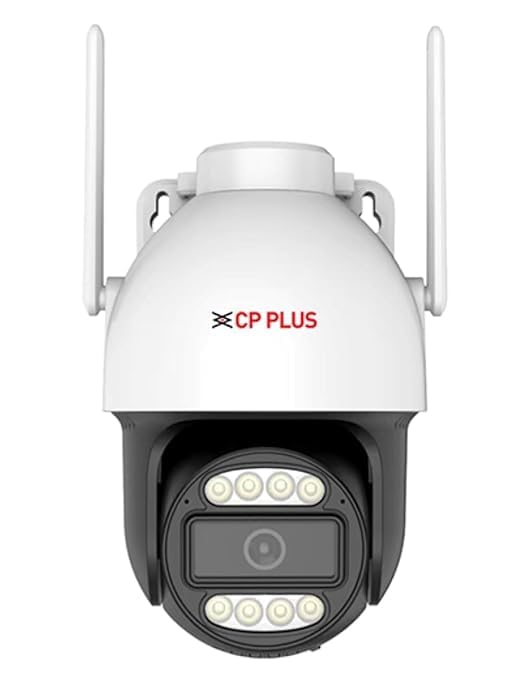
Figure 1: CP PLUS EZ-S31 Smart Wi-fi CCTV Camera with dual antennas.
സജ്ജീകരണ ഗൈഡ്
1. പവർ ചെയ്യുന്നു
Connect the provided USB cable to the camera and the power adapter. Plug the adapter into a standard electrical outlet. The camera will power on and initiate its startup sequence.
2. Mobile App Installation
ഡൗൺലോഡ് ചെയ്യുക Ezyliv mobile application from your device's app store (available for iOS and Android). ഇതിനായി തിരയുക "Ezyliv" and install the application.
3. Account Registration & Device Pairing
- Open the Ezyliv app and register a new account or log in if you already have one.
- Follow the in-app instructions to add a new device. Select your camera model (EZ-S31) from the list.
- Ensure your smartphone is connected to a 2.4GHz Wi-Fi network. The camera supports Wi-Fi connectivity.
- Scan the QR code displayed on the camera (if prompted) or follow the voice prompts from the camera to complete the Wi-Fi configuration.
4. SD കാർഡ് ഇൻസ്റ്റാളേഷൻ (ഓപ്ഷണൽ)
The camera supports local storage via an SD card up to 256GB. To install:
- Locate the SD card slot on the camera (refer to the product diagram in the app or physical camera).
- Gently insert a compatible microSD card into the slot until it clicks into place.
- Format the SD card through the Ezyliv app settings for optimal performance.

Figure 2: The camera supports up to 256GB SD card for local video storage.
പ്രവർത്തന നിർദ്ദേശങ്ങൾ
തത്സമയം View കൂടാതെ പാൻ/ടിൽറ്റ് നിയന്ത്രണം
Once connected, open the Ezyliv app and select your camera to view the live feed. Use the on-screen controls to pan (horizontal rotation) and tilt (vertical rotation) the camera for a 360° view of your room.
ടു-വേ ഓഡിയോ
The camera features a built-in microphone and speaker. Tap the microphone icon in the app to speak through the camera, and listen to audio from the camera's surroundings.
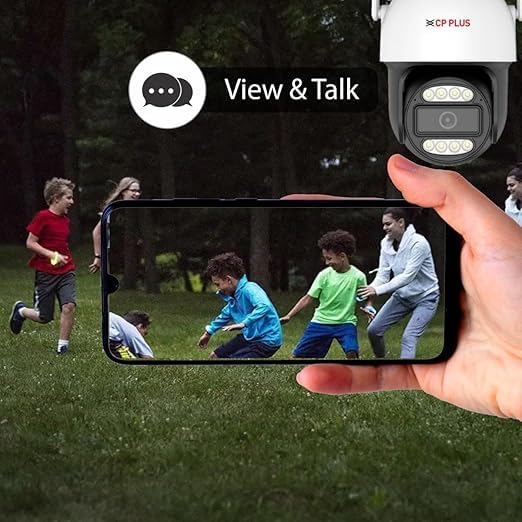
Figure 3: Utilize the two-way audio feature to communicate through the camera.
ചലനവും മനുഷ്യ കണ്ടെത്തലും
Enable motion detection and human detection features in the app settings. The camera will send intelligent alerts to your smartphone when human movement is detected, minimizing false alarms.
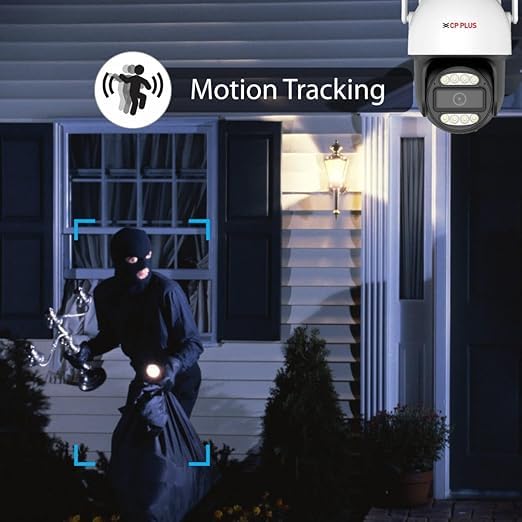
Figure 4: The camera's motion tracking feature follows detected movement.
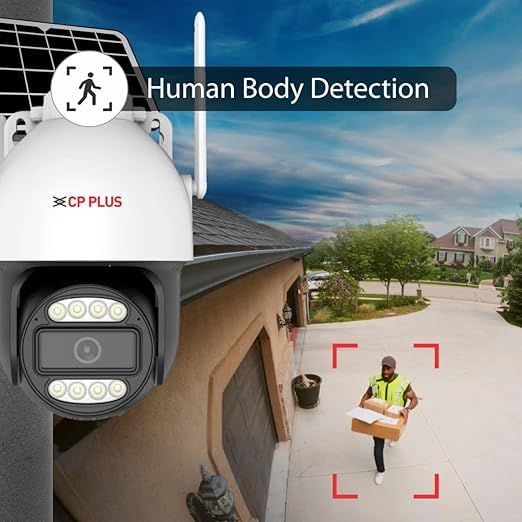
Figure 5: Advanced human detection ensures alerts are triggered by people, not pets or objects.
നൈറ്റ് വിഷൻ
The camera automatically switches to full-color night vision in low-light conditions, providing clear and detailed video even in darkness up to 25 meters.
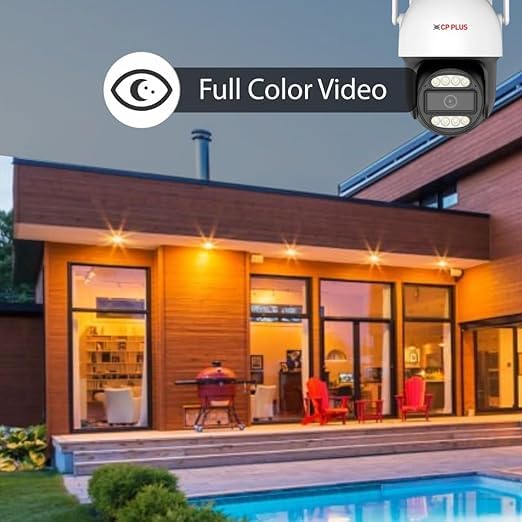
Figure 6: Experience clear, full-color video even in low-light conditions with advanced night vision.
വീഡിയോ റെക്കോർഡിംഗും പ്ലേബാക്കും
Recordings are stored on the installed SD card or can be accessed via cloud storage (if subscribed). Use the Ezyliv app to review രേഖപ്പെടുത്തി footage and playback specific events.
മെയിൻ്റനൻസ്
ക്യാമറ വൃത്തിയാക്കുന്നു
Regularly clean the camera lens and body with a soft, dry cloth to ensure clear image quality. Do not use harsh chemicals or abrasive cleaners.
ഫേംവെയർ അപ്ഡേറ്റുകൾ
Periodically check the Ezyliv app for available firmware updates. Keeping your camera's firmware updated ensures optimal performance, security, and access to new features.
SD കാർഡ് മാനേജ്മെൻ്റ്
If using an SD card for storage, it is recommended to format it periodically through the app to maintain performance and prevent data corruption. Back up important footagഫോർമാറ്റ് ചെയ്യുന്നതിന് മുമ്പ്.
ട്രബിൾഷൂട്ടിംഗ്
| പ്രശ്നം | സാധ്യമായ കാരണം | പരിഹാരം |
|---|---|---|
| ക്യാമറ ഓഫ്ലൈനാണ്/വൈഫൈയിലേക്ക് കണക്റ്റുചെയ്യാൻ കഴിയില്ല. | Incorrect Wi-Fi password; Camera too far from router; Router is 5GHz only; Network congestion. | Verify Wi-Fi password. Move camera closer to router. Ensure router supports 2.4GHz Wi-Fi. Restart router and camera. |
| മോശം ചിത്ര നിലവാരം | ലെൻസ് വൃത്തികേടാണ്; വെളിച്ചക്കുറവ്; നെറ്റ്വർക്ക് ബാൻഡ്വിഡ്ത്ത് പ്രശ്നങ്ങൾ. | Clean the camera lens. Ensure adequate lighting or verify night vision is active. Check internet connection speed. |
| മോഷൻ ഡിറ്റക്ഷൻ പ്രവർത്തിക്കുന്നില്ല | Detection sensitivity too low; Detection zone not set; Firmware outdated. | Adjust sensitivity in app. Set detection zones. Update camera firmware. |
| SD കാർഡ് റെക്കോർഡ് ചെയ്യുന്നില്ല | SD card full; SD card not formatted; Incompatible SD card. | Format SD card via app. Replace with a compatible card (Class 10 or higher). Check storage settings. |
If the problem persists, please contact CP PLUS customer support.
സാങ്കേതിക സവിശേഷതകൾ
- മോഡൽ: EZ-S31
- വീഡിയോ ക്യാപ്ചർ റെസല്യൂഷൻ: 3MP (1080p)
- കണക്റ്റിവിറ്റി: വൈഫൈ (2.4GHz)
- നൈറ്റ് വിഷൻ ശ്രേണി: 25 Metres (Full Color Night Vision)
- Viewഇൻ ആംഗിൾ: 83 ഡിഗ്രി
- പാൻ/ടിൽറ്റ്: 360° View
- സംഭരണം: Supports up to 256GB MicroSD Card
- ഓഡിയോ: ടു-വേ ടോക്ക് (ബിൽറ്റ്-ഇൻ മൈക്കും സ്പീക്കറും)
- കണ്ടെത്തൽ: Advanced Motion & Human Detection
- ഊർജ്ജ സ്രോതസ്സ്: കോർഡഡ് ഇലക്ട്രിക്
- മെറ്റീരിയൽ: പ്ലാസ്റ്റിക്
- അളവുകൾ (LxWxH): 12 x 12 x 18 സെൻ്റീമീറ്റർ
- ഭാരം: 450 ഗ്രാം
- നിയന്ത്രണ രീതി: Ezyliv App (iOS/Android)
- ഇൻസ്റ്റലേഷൻ തരം: Self Adhesive (Can be ceiling or wall mounted)
വാറൻ്റിയും പിന്തുണയും
For warranty information and customer support, please refer to the warranty card included with your product or visit the official CP PLUS website. You can also contact their support team through the Ezyliv mobile application.
നിർമ്മാതാവ്: ആദിത്യ ഇൻഫോടെക് ലിമിറ്റഡ്
ഉപഭോക്തൃ പിന്തുണ ലിങ്ക്: Visit the CP PLUS Store on Amazon


