1. ആമുഖം
നിങ്ങളുടെ ലോജിടെക് MK250 ബ്ലൂടൂത്ത് വയർലെസ് കീബോർഡും മൗസ് കോമ്പോയും സജ്ജീകരിക്കുന്നതിനും പ്രവർത്തിപ്പിക്കുന്നതിനും പരിപാലിക്കുന്നതിനുമുള്ള സമഗ്രമായ നിർദ്ദേശങ്ങൾ ഈ മാനുവൽ നൽകുന്നു. വിൻഡോസ്, മാകോസ് ഓപ്പറേറ്റിംഗ് സിസ്റ്റങ്ങളുമായി പൊരുത്തപ്പെടുന്ന, നിങ്ങളുടെ കമ്പ്യൂട്ടിംഗ് ആവശ്യങ്ങൾക്ക് വിശ്വസനീയവും കാര്യക്ഷമവുമായ വയർലെസ് പരിഹാരം ഈ കോംബോ വാഗ്ദാനം ചെയ്യുന്നു. നിങ്ങളുടെ പുതിയ ഉപകരണം ഉപയോഗിക്കുന്നതിന് മുമ്പ് ദയവായി ഈ മാനുവൽ നന്നായി വായിക്കുക.

ചിത്രം: ലോജിടെക് MK250 ബ്ലൂടൂത്ത് വയർലെസ് കീബോർഡും മൗസ് കോമ്പോയും.
2. പാക്കേജ് ഉള്ളടക്കം
നിങ്ങളുടെ പാക്കേജിൽ എല്ലാ ഇനങ്ങളും ഉണ്ടെന്ന് ഉറപ്പാക്കുക:
- ലോജിടെക് MK250 വയർലെസ് കീബോർഡ്
- ലോജിടെക് എം 196 വയർലെസ് മൗസ്
- 2 AAA ബാറ്ററികൾ (കീബോർഡിൽ മുൻകൂട്ടി ഇൻസ്റ്റാൾ ചെയ്തത്)
- 1 AA ബാറ്ററി (മൗസിൽ മുൻകൂട്ടി ഇൻസ്റ്റാൾ ചെയ്തത്)
- ഉപയോക്തൃ ഡോക്യുമെൻ്റേഷൻ

ചിത്രം: ലോജിടെക് MK250 കോംബോ പാക്കേജിന്റെ ഉള്ളടക്കം, കീബോർഡ്, മൗസ്, ഉൾപ്പെടുത്തിയ ബാറ്ററികൾ എന്നിവ കാണിക്കുന്നു.
3. സജ്ജീകരണം
3.1. ബാറ്ററി ഇൻസ്റ്റാളേഷൻ
കീബോർഡിന് 2 AAA ബാറ്ററികളും മൗസിന് 1 AA ബാറ്ററിയും ആവശ്യമാണ്. സാധാരണയായി ഇവ മുൻകൂട്ടി ഇൻസ്റ്റാൾ ചെയ്തിരിക്കും. ആദ്യ ഉപയോഗത്തിന് മുമ്പ് ബാറ്ററി പുൾ ടാബുകൾ നീക്കം ചെയ്യുക.
- കീബോർഡിന്റെയും മൗസിന്റെയും അടിഭാഗത്ത് ബാറ്ററി കമ്പാർട്ട്മെന്റ് കണ്ടെത്തുക.
- കമ്പാർട്ട്മെന്റ് കവർ തുറക്കുക.
- സംരക്ഷിത പുൾ ടാബ്(കൾ) ഉണ്ടെങ്കിൽ അത് നീക്കം ചെയ്യുക.
- പോളാരിറ്റി സൂചകങ്ങൾ (+/-) അനുസരിച്ച് ബാറ്ററികൾ ശരിയായി ഓറിയന്റഡ് ആണെന്ന് ഉറപ്പാക്കുക.
- ബാറ്ററി കമ്പാർട്ട്മെൻ്റ് കവർ സുരക്ഷിതമായി അടയ്ക്കുക.
3.2. ബ്ലൂടൂത്ത് ജോടിയാക്കൽ
ലോജിടെക് MK250 കോംബോ ബ്ലൂടൂത്ത് വഴി ബന്ധിപ്പിക്കുന്നു, ഇത് ഒരു USB റിസീവറിന്റെ ആവശ്യകത ഇല്ലാതാക്കുന്നു.
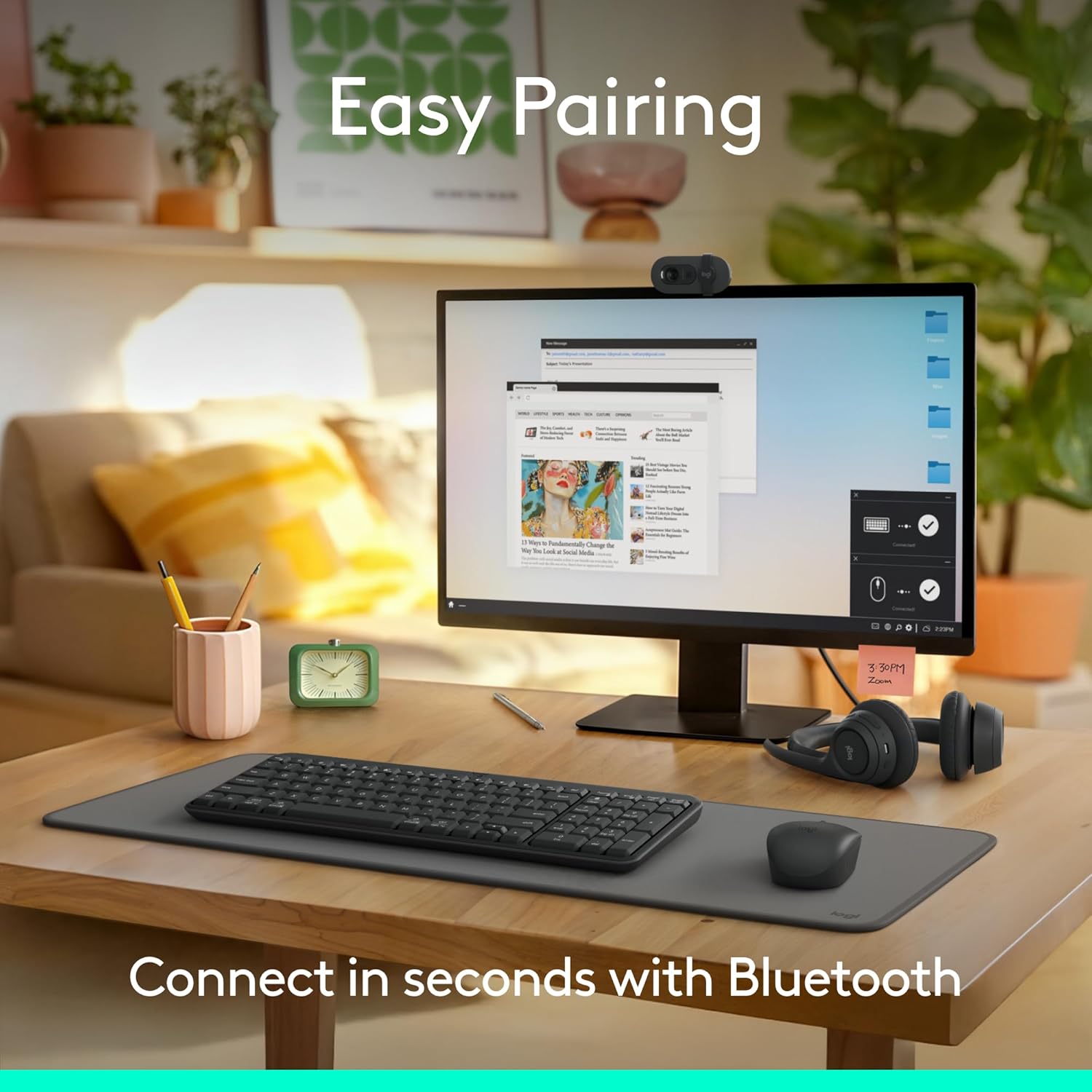
ചിത്രം: ലോജിടെക് MK250 കോമ്പോയുടെ എളുപ്പത്തിലുള്ള ജോടിയാക്കൽ പ്രക്രിയ പ്രദർശിപ്പിക്കുന്ന ഒരു വർക്ക്സ്പെയ്സ്.
3.2.1. കീബോർഡ് ജോടിയാക്കൽ
- കീബോർഡിന്റെ അടിവശത്തുള്ള ഓൺ/ഓഫ് സ്വിച്ച് ഉപയോഗിച്ച് കീബോർഡ് ഓണാക്കുക.
- എൽഇഡി ഇൻഡിക്കേറ്റർ വേഗത്തിൽ മിന്നിമറയുന്നത് വരെ കീബോർഡിന്റെ അടിവശത്തുള്ള ബ്ലൂടൂത്ത് പെയർ ബട്ടൺ 3 സെക്കൻഡ് അമർത്തിപ്പിടിക്കുക.
- നിങ്ങളുടെ കമ്പ്യൂട്ടറിൽ (Windows അല്ലെങ്കിൽ macOS), Bluetooth ക്രമീകരണങ്ങളിലേക്ക് നാവിഗേറ്റ് ചെയ്യുക.
- "ഒരു ഉപകരണം ചേർക്കുക" അല്ലെങ്കിൽ "ബ്ലൂടൂത്തും മറ്റ് ഉപകരണങ്ങളും" തിരഞ്ഞെടുക്കുക.
- "Bluetooth" തിരഞ്ഞെടുത്ത് ലഭ്യമായ ഉപകരണങ്ങളുടെ പട്ടികയിൽ "Logitech MK250 Keyboard" ദൃശ്യമാകുന്നതുവരെ കാത്തിരിക്കുക.
- ജോടിയാക്കൽ ആരംഭിക്കാൻ "ലോജിടെക് MK250 കീബോർഡിൽ" ക്ലിക്ക് ചെയ്യുക. ഒരു കോഡ് നൽകുന്നത് പോലുള്ള ഏതെങ്കിലും ഓൺ-സ്ക്രീൻ നിർദ്ദേശങ്ങൾ പാലിക്കുക.
- ജോടിയാക്കിക്കഴിഞ്ഞാൽ, കീബോർഡിലെ LED ഇൻഡിക്കേറ്റർ മിന്നിമറയുന്നത് നിർത്തുകയും കുറച്ച് സെക്കൻഡ് നേരത്തേക്ക് ദൃഢമായി തുടരുകയും ചെയ്യും, തുടർന്ന് വൈദ്യുതി ലാഭിക്കാൻ ഓഫാക്കും.

ചിത്രം: വിശദമായത് view കീബോർഡിന്റെ അടിവശത്ത്, ബ്ലൂടൂത്ത് ജോടിയാക്കൽ ബട്ടൺ ഹൈലൈറ്റ് ചെയ്യുന്നു.
3.2.2. മൗസ് ജോടിയാക്കൽ
- മൗസിന്റെ അടിവശത്തുള്ള ഓൺ/ഓഫ് സ്വിച്ച് ഉപയോഗിച്ച് അത് ഓണാക്കുക.
- എൽഇഡി ഇൻഡിക്കേറ്റർ മിന്നിമറയുന്നത് വരെ മൗസിന്റെ അടിഭാഗത്തുള്ള ജോടിയാക്കൽ ബട്ടൺ (പലപ്പോഴും ബ്ലൂടൂത്ത് ചിഹ്നമോ അതുപോലുള്ളതോ ആയ ലേബൽ) 3 സെക്കൻഡ് അമർത്തിപ്പിടിക്കുക.
- നിങ്ങളുടെ കമ്പ്യൂട്ടറിൽ, അതേ ബ്ലൂടൂത്ത് ക്രമീകരണങ്ങളിൽ, "ലോജിടെക് MK250 മൗസ്" അല്ലെങ്കിൽ "ലോജിടെക് M196" ദൃശ്യമാകുന്നതുവരെ കാത്തിരിക്കുക.
- ജോടിയാക്കാൻ മൗസിന്റെ പേരിൽ ക്ലിക്ക് ചെയ്യുക.
- കണക്ഷൻ വിജയകരമാകുമ്പോൾ LED ഇൻഡിക്കേറ്റർ മിന്നിമറയുന്നത് നിർത്തും.

ചിത്രം: മൗസിന്റെ അടിവശം, ജോടിയാക്കൽ ബട്ടണും ബാറ്ററി കമ്പാർട്ടുമെന്റും സൂചിപ്പിക്കുന്നു.
4. പ്രവർത്തന നിർദ്ദേശങ്ങൾ
4.1. കീബോർഡ് സവിശേഷതകൾ
- നംപാഡുള്ള കോംപാക്റ്റ് ലേഔട്ട്: പൂർണ്ണമായ ഒരു സംഖ്യാ കീപാഡും അവശ്യ ഫംഗ്ഷൻ കീകളും നിലനിർത്തിക്കൊണ്ട് സ്ഥലം ലാഭിക്കുന്ന രൂപകൽപ്പനയാണ് കീബോർഡിന്റെ സവിശേഷത.
- ഡീപ്-പ്രോfile കീകൾ: സുഖകരവും പരിചിതവുമായ ടൈപ്പിംഗ് അനുഭവത്തിനായി രൂപകൽപ്പന ചെയ്തിരിക്കുന്നു.
- ക്രമീകരിക്കാവുന്ന ടിൽറ്റ് കാലുകൾ: അടിവശത്ത് സ്ഥിതി ചെയ്യുന്ന ഇവ, എർഗണോമിക് സുഖത്തിനായി കീബോർഡ് ആംഗിൾ ക്രമീകരിക്കാൻ നിങ്ങളെ അനുവദിക്കുന്നു.
- സൗകര്യപ്രദമായ എഫ്-കീ ഷോർട്ട്കട്ടുകൾ: എഫ്-കീകളിൽ നിന്ന് നേരിട്ട് മീഡിയ നിയന്ത്രണങ്ങൾ, വോളിയം, മറ്റ് പ്രവർത്തനങ്ങൾ എന്നിവ ആക്സസ് ചെയ്യുക.

ചിത്രം: കീബോർഡിൽ സുഖകരമായി ടൈപ്പുചെയ്യാൻ ഉപയോക്താവിന്റെ കൈകൾ പ്രദർശിപ്പിക്കുന്നു.

ചിത്രം: ഒരു മേശപ്പുറത്തുള്ള കോംപാക്റ്റ് കീബോർഡും മൗസും കോമ്പോ, അതിന്റെ സ്ഥലം ലാഭിക്കുന്നതിനുള്ള ഗുണങ്ങൾ കാണിക്കുന്നു.
4.2. മൗസ് സവിശേഷതകൾ
- അംബിഡെക്സ്ട്രസ് ഡിസൈൻ: ഇടതും വലതും കൈകൾക്ക് സുഖകരമായി യോജിക്കുന്ന തരത്തിലാണ് മൗസിന്റെ ആകൃതി.
- സുഗമമായ ട്രാക്കിംഗ്: കൃത്യവും പ്രതികരിക്കുന്നതുമായ കഴ്സർ നിയന്ത്രണം നൽകുന്നു.
- ഒതുക്കമുള്ള വലിപ്പം: വിവിധ പരിതസ്ഥിതികളിൽ കൊണ്ടുപോകാനും ഉപയോഗിക്കാനും അനുയോജ്യം.
5. പരിപാലനം
5.1. വൃത്തിയാക്കൽ
നിങ്ങളുടെ കീബോർഡും മൗസും വൃത്തിയാക്കാൻ:
- രണ്ട് ഉപകരണങ്ങളും ഓഫാക്കിയിട്ടുണ്ടെന്ന് ഉറപ്പാക്കുക.
- നനവില്ലാത്തതും ലിനില്ലാത്തതുമായ തുണി ചെറുതായി ഉപയോഗിക്കുകampവെള്ളം അല്ലെങ്കിൽ അംഗീകൃത ഇലക്ട്രോണിക്സ് ക്ലീനർ ഉപയോഗിച്ച് നനച്ചത്.
- അമിതമായ ഈർപ്പം ഒഴിവാക്കുക, ഉപകരണങ്ങളിൽ നേരിട്ട് ക്ലീനറുകൾ തളിക്കരുത്.
- ചോർച്ചയെ പ്രതിരോധിക്കുന്ന രൂപകൽപ്പനയാണ് കീബോർഡിനുള്ളത്, അതായത് ചെറിയ ദ്രാവക ചോർച്ചകളെ പോലും ഇത് നേരിടും. എന്നിരുന്നാലും, ഇത് വാട്ടർപ്രൂഫ് അല്ല. ചോർച്ചയുണ്ടായാൽ, ഉടൻ തന്നെ കീബോർഡ് ഓഫ് ചെയ്യുക, വിച്ഛേദിക്കുക, പുനരുപയോഗിക്കുന്നതിന് മുമ്പ് പൂർണ്ണമായും ഉണങ്ങാൻ അനുവദിക്കുക.

ചിത്രം: ചോർച്ചയെ പ്രതിരോധിക്കുന്ന കഴിവുകൾ പ്രദർശിപ്പിക്കുന്ന കീബോർഡ്.
5.2. ബാറ്ററി മാറ്റിസ്ഥാപിക്കൽ
പ്രകടനം കുറയുമ്പോഴോ ബാറ്ററിയുടെ കുറഞ്ഞ സൂചകം (ഉണ്ടെങ്കിൽ) പ്രകാശിക്കുമ്പോഴോ ബാറ്ററികൾ മാറ്റിസ്ഥാപിക്കുക.
- കീബോർഡ്: 2 AAA ബാറ്ററികൾ (ഏകദേശം 12 മാസത്തെ ബാറ്ററി ലൈഫ്).
- മൗസ്: 1 AA ബാറ്ററി (ഏകദേശം 12 മാസത്തെ ബാറ്ററി ലൈഫ്).
- വിഭാഗം 3.1 ലെ ബാറ്ററി ഇൻസ്റ്റാളേഷൻ ഘട്ടങ്ങൾ പാലിക്കുക.
- പ്രാദേശിക നിയന്ത്രണങ്ങൾ അനുസരിച്ച് പഴയ ബാറ്ററികൾ ഉത്തരവാദിത്തത്തോടെ നീക്കം ചെയ്യുക.
6. പ്രശ്നപരിഹാരം
6.1. കണക്റ്റിവിറ്റി പ്രശ്നങ്ങൾ
- ഉപകരണം കണക്റ്റുചെയ്യുന്നില്ല:
- കീബോർഡും മൗസും ഓണാക്കിയിട്ടുണ്ടെന്ന് ഉറപ്പാക്കുക.
- നിങ്ങളുടെ കമ്പ്യൂട്ടറിൽ Bluetooth പ്രവർത്തനക്ഷമമാക്കിയിട്ടുണ്ടെന്ന് ഉറപ്പാക്കുക.
- കീബോർഡിൽ/മൗസിൽ ജോടിയാക്കൽ മോഡ് വീണ്ടും ആരംഭിക്കുക, നിങ്ങളുടെ കമ്പ്യൂട്ടറിലെ ഉപകരണങ്ങൾക്കായി വീണ്ടും സ്കാൻ ചെയ്യുക.
- ബാറ്ററി ലെവലുകൾ പരിശോധിച്ച് ആവശ്യമെങ്കിൽ മാറ്റിസ്ഥാപിക്കുക.
- റേഞ്ച് പ്രശ്നങ്ങൾ ഒഴിവാക്കാൻ ഉപകരണങ്ങൾ നിങ്ങളുടെ കമ്പ്യൂട്ടറിനടുത്തേക്ക് നീക്കുക.
- ഇടവിട്ടുള്ള കണക്ഷൻ:
- മറ്റ് ശക്തമായ വയർലെസ് സിഗ്നലുകളോ തടസ്സമുണ്ടാക്കുന്ന ഉപകരണങ്ങളോ ഇല്ലെന്ന് ഉറപ്പാക്കുക (ഉദാ: വൈ-ഫൈ റൂട്ടറുകൾ, മറ്റ് ബ്ലൂടൂത്ത് ഉപകരണങ്ങൾ).
- നിങ്ങളുടെ കമ്പ്യൂട്ടറിന്റെ ബ്ലൂടൂത്ത് ഡ്രൈവറുകൾ അപ്ഡേറ്റ് ചെയ്യുക.
- നിങ്ങളുടെ കമ്പ്യൂട്ടർ പുനരാരംഭിക്കുക.
6.2. കീബോർഡ്/മൗസ് പ്രതികരിക്കുന്നില്ല
- ബാറ്ററി ലെവലുകൾ പരിശോധിക്കുക.
- ഉപകരണം ഓണാണെന്ന് ഉറപ്പാക്കുക.
- കണക്റ്റ് ചെയ്തിട്ടുണ്ടെങ്കിൽ, ഉപകരണം ഓഫാക്കി വീണ്ടും ഓണാക്കാൻ ശ്രമിക്കുക.
- മൗസിന്, ഒപ്റ്റിക്കൽ സെൻസർ വൃത്തിയുള്ളതും തടസ്സമില്ലാത്തതുമാണെന്ന് ഉറപ്പാക്കുക.
7 സ്പെസിഫിക്കേഷനുകൾ
| ബ്രാൻഡ് | ലോജിടെക് |
| മോഡലിൻ്റെ പേര് | MK250 കീബോർഡും മൗസും |
| ഇനം മോഡൽ നമ്പർ | 920-013510 |
| കണക്റ്റിവിറ്റി ടെക്നോളജി | ബ്ലൂടൂത്ത് |
| അനുയോജ്യമായ ഉപകരണങ്ങൾ | ലാപ്ടോപ്പ്, പേഴ്സണൽ കമ്പ്യൂട്ടർ, ടാബ്ലെറ്റ് |
| ഓപ്പറേറ്റിംഗ് സിസ്റ്റം അനുയോജ്യത | Chrome OS, Windows 10/11 അല്ലെങ്കിൽ അതിനുശേഷമുള്ളത്, macOS 12 അല്ലെങ്കിൽ അതിനുശേഷമുള്ളത് |
| കീബോർഡ് ബാറ്ററി തരം | 2 x AAA (ഉൾപ്പെടുന്നു) |
| മൗസ് ബാറ്ററി തരം | 1 x AA (ഉൾപ്പെടുത്തിയിരിക്കുന്നു) |
| കണക്കാക്കിയ ബാറ്ററി ലൈഫ് | 12 മാസം (കീബോർഡും മൗസും) |
| ഉൽപ്പന്ന അളവുകൾ (LxWxH) | 18.03 x 5.98 x 1.73 ഇഞ്ച് (കോംബോ പാക്കേജ്) |
| ഇനത്തിൻ്റെ ഭാരം | 1.53 പൗണ്ട് (കോംബോ പാക്കേജ്) |
| മെറ്റീരിയൽ | കുറഞ്ഞത് 66% (മൗസ്) ഉം 64% (കീബോർഡ്) ഉം പുനരുപയോഗിച്ച വസ്തുക്കൾ ഉപയോഗിച്ച് നിർമ്മിച്ച പ്ലാസ്റ്റിക് ഭാഗങ്ങൾ. |

ചിത്രം: പുനരുപയോഗിച്ച വസ്തുക്കളിൽ നിന്നുള്ള നിർമ്മാണം എടുത്തുകാണിക്കുന്ന ലോജിടെക് MK250 കോംബോ.
8. വാറൻ്റിയും പിന്തുണയും
ലോജിടെക് ഉൽപ്പന്നങ്ങൾ ഉയർന്ന നിലവാരമുള്ള നിലവാരത്തിലാണ് നിർമ്മിക്കുന്നത്, കൂടാതെ പരിമിതമായ ഹാർഡ്വെയർ വാറണ്ടിയും ഇവയ്ക്ക് നൽകുന്നു. വിശദമായ വാറന്റി വിവരങ്ങൾക്ക്, ദയവായി നിങ്ങളുടെ ഉൽപ്പന്നത്തിനൊപ്പം ഉൾപ്പെടുത്തിയിരിക്കുന്ന വാറന്റി കാർഡ് പരിശോധിക്കുക അല്ലെങ്കിൽ ഔദ്യോഗിക ലോജിടെക് വെബ്സൈറ്റ് സന്ദർശിക്കുക. webസൈറ്റ്.
സാങ്കേതിക പിന്തുണയ്ക്കും, പതിവായി ചോദിക്കുന്ന ചോദ്യങ്ങൾക്കും, ഡ്രൈവർ ഡൗൺലോഡുകൾക്കും, ദയവായി ലോജിടെക് പിന്തുണ സന്ദർശിക്കുക. webസൈറ്റ്:


