ആമുഖം
The Logitech K250 Bluetooth® Keyboard offers effortless wireless connectivity, allowing for quick setup without a dongle and contributing to a clutter-free workspace. Designed for durability, it features a spill-resistant build and is constructed with a minimum of 64% recycled plastic. The keyboard provides a comfortable typing experience with its deep-profile keys and includes a numpad and essential function keys within a compact design, making it suitable for various environments and on-the-go use.
ഉൽപ്പന്നം കഴിഞ്ഞുview
The Logitech K250 is a compact wireless keyboard designed for efficiency and comfort. Key features include:
- ബ്ലൂടൂത്ത് കണക്റ്റിവിറ്റി: Connects quickly and easily without a USB dongle.
- മോടിയുള്ള ഡിസൈൻ: Built with long-lasting keys and a spill-resistant construction.
- സുഖപ്രദമായ ടൈപ്പിംഗ്: Features deep-profile keys and adjustable tilt legs for an ergonomic experience.
- സ്ഥലം ലാഭിക്കുന്ന ലേഔട്ട്: Compact design includes a full numpad and essential F-key shortcuts.
- സുസ്ഥിര വസ്തുക്കൾ: Plastic parts are made with a minimum of 64% recycled plastic.
- നീണ്ട ബാറ്ററി ലൈഫ്: Up to 12 months of daily use on a single set of batteries.

ചിത്രം 1: മുകളിൽ നിന്ന് താഴേക്ക് view of the Logitech K250 Bluetooth Keyboard, showcasing its compact layout and full numpad.

Figure 2: Diagram illustrating key features of the K250 keyboard, including the Bluetooth pair button, power/connect LED, and adjustable tilt legs on the underside.

ചിത്രം 3: ക്ലോസപ്പ് view of the K250 keyboard alongside recycled plastic pellets, emphasizing its construction from sustainable materials.
സജ്ജമാക്കുക
1. ബാറ്ററി ഇൻസ്റ്റാളേഷൻ
The Logitech K250 keyboard requires two AAA batteries, which are included in the package. To install the batteries:
- കീബോർഡിന്റെ അടിഭാഗത്ത് ബാറ്ററി കമ്പാർട്ട്മെന്റ് കണ്ടെത്തുക.
- ബാറ്ററി കമ്പാർട്ട്മെൻ്റ് കവർ തുറക്കുക.
- ശരിയായ പോളാരിറ്റി (+/-) ഉറപ്പാക്കിക്കൊണ്ട് രണ്ട് AAA ബാറ്ററികൾ ഇടുക.
- ബാറ്ററി കമ്പാർട്ട്മെൻ്റ് കവർ സുരക്ഷിതമായി അടയ്ക്കുക.
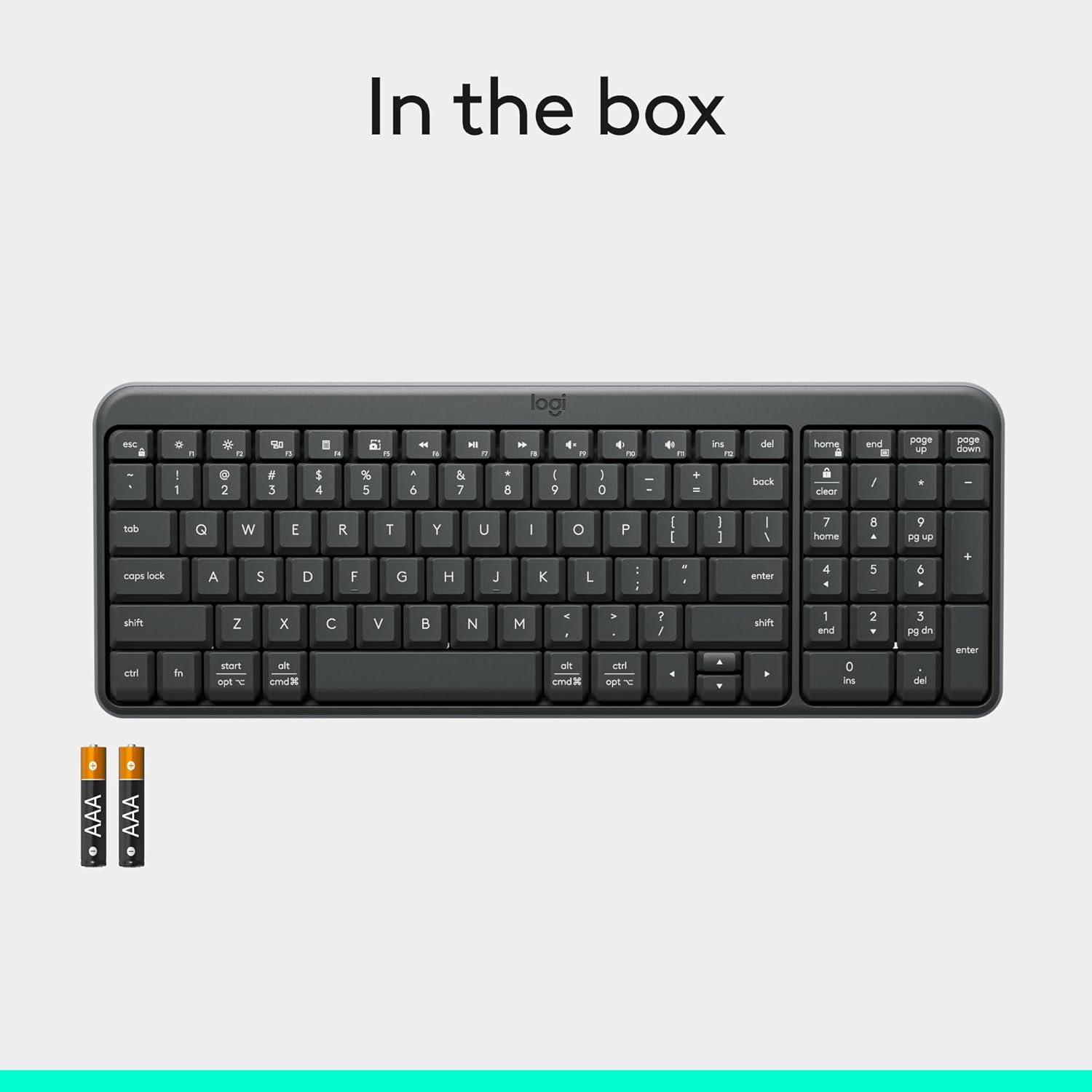
Figure 4: Contents of the K250 package, showing the keyboard and two AAA batteries.
2. ബ്ലൂടൂത്ത് ജോടിയാക്കൽ
The K250 keyboard connects wirelessly via Bluetooth, eliminating the need for a USB dongle. Follow these steps to pair your keyboard with your device:
- Ensure the keyboard is powered on. The power/connect LED (refer to Figure 2) should be active.
- Press and hold the Bluetooth pair button on the underside of the keyboard (refer to Figure 2) until the LED starts blinking, indicating it's in pairing mode.
- On your computer, tablet, or smartphone (Windows, macOS, etc.), navigate to your Bluetooth settings.
- ഇതിനായി തിരയുക available Bluetooth devices. The Logitech K250 should appear in the list.
- Select "Logitech K250" and follow any on-screen prompts to complete the pairing process. You may be asked to enter a code displayed on your screen using the keyboard.
- Once successfully paired, the power/connect LED on the keyboard will stop blinking and remain solid for a few seconds, then turn off to conserve power.

Figure 5: The Logitech K250 keyboard in a workspace, demonstrating easy Bluetooth pairing with a computer.
പ്രവർത്തന നിർദ്ദേശങ്ങൾ
അടിസ്ഥാന ഉപയോഗം
The Logitech K250 keyboard provides a familiar typing experience with its standard QWERTY layout and integrated numpad. The deep-profile keys are designed for comfortable and accurate keystrokes.
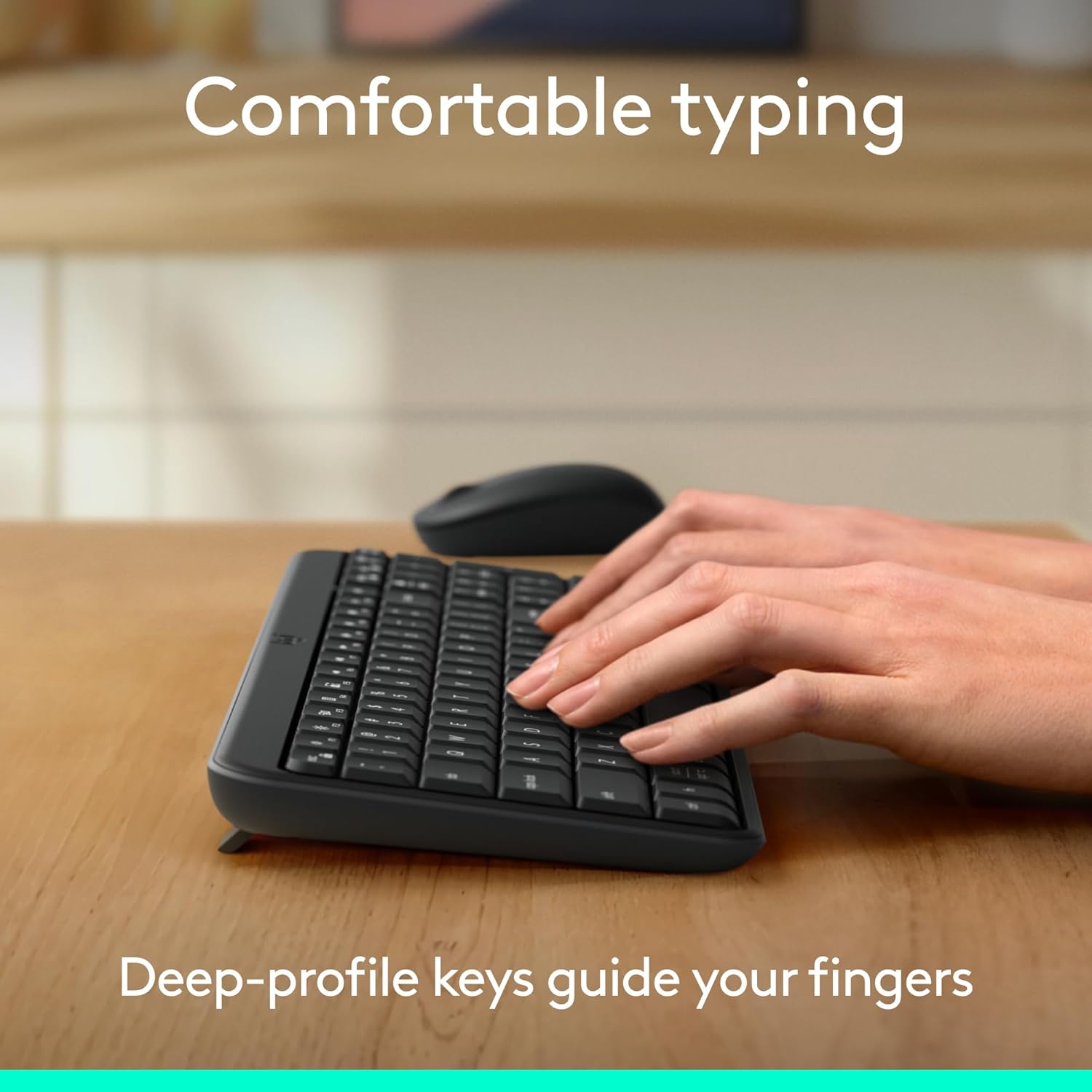
Figure 6: Hands demonstrating comfortable typing on the K250 keyboard, emphasizing the deep-profile കീകൾ.
Function Keys (F-keys) and Shortcuts
The K250 includes a row of F-keys (F1-F12) that can perform various functions, often in combination with the 'Fn' key. These shortcuts provide quick access to media controls, volume adjustments, and other system functions. Refer to your operating system's documentation for specific F-key functionalities.
Despite its compact size, the keyboard retains full functionality, including a dedicated numpad and arrow keys, making it versatile for both data entry and navigation.

Figure 7: The K250 keyboard integrated into a space-saving desk setup, demonstrating its compact yet functional design.
മെയിൻ്റനൻസ്
നിങ്ങളുടെ കീബോർഡ് വൃത്തിയാക്കുന്നു
To maintain the performance and appearance of your Logitech K250 keyboard, regular cleaning is recommended:
- വൃത്തിയാക്കുന്നതിന് മുമ്പ് നിങ്ങളുടെ ഉപകരണത്തിൽ നിന്ന് കീബോർഡ് വിച്ഛേദിക്കുക.
- നനവില്ലാത്തതും ലിനില്ലാത്തതുമായ തുണി ചെറുതായി ഉപയോഗിക്കുകampവെള്ളം അല്ലെങ്കിൽ മൃദുവായ ക്ലീനിംഗ് ലായനി ഉപയോഗിച്ചാണ്.
- Wipe down the keys and surface of the keyboard. Avoid excessive moisture.
- താക്കോലുകൾക്കിടയിലുള്ള അവശിഷ്ടങ്ങൾക്ക്, കംപ്രസ് ചെയ്ത വായു ഉപയോഗിക്കുക.
- കീബോർഡ് വെള്ളത്തിൽ മുക്കരുത് അല്ലെങ്കിൽ കഠിനമായ രാസവസ്തുക്കൾ ഉപയോഗിക്കരുത്.
ചോർച്ച പ്രതിരോധം
The K250 keyboard features a spill-resistant design, meaning it can withstand minor liquid spills. In case of a spill:
- Immediately disconnect the keyboard from your device.
- ഏതെങ്കിലും ദ്രാവകം കളയാൻ കീബോർഡ് തലകീഴായി തിരിക്കുക.
- വൃത്തിയുള്ള തുണി ഉപയോഗിച്ച് ഉപരിതലം ഉണക്കുക.
- Allow the keyboard to air dry completely before reconnecting it.
Note: Spill resistance is tested under limited conditions. Do not intentionally submerge the keyboard in liquid.

Figure 8: Illustration of the K250 keyboard's spill-resistant design, showing liquid on the keys.
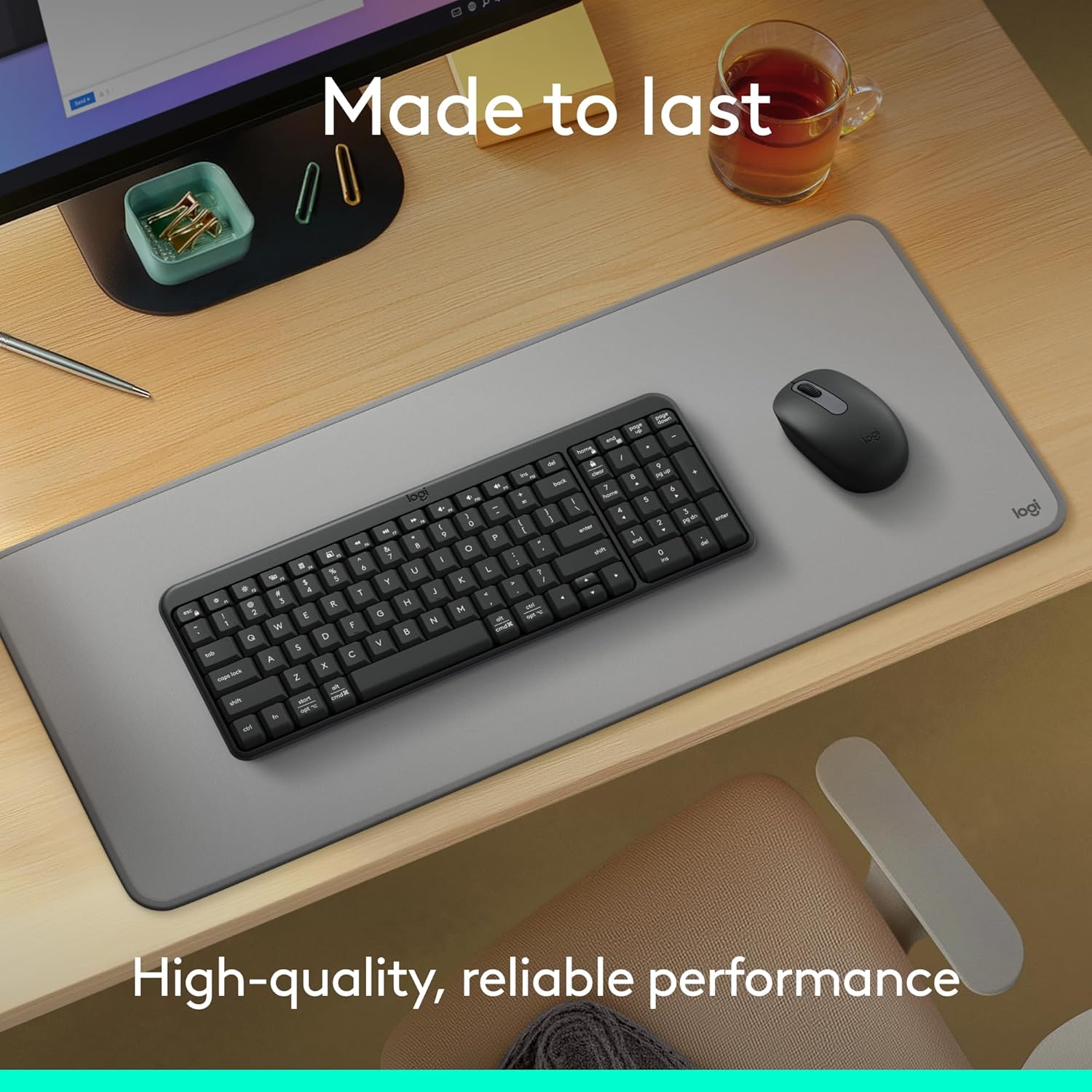
Figure 9: The K250 keyboard and a Logitech mouse on a desk, representing the product's durable construction.
ട്രബിൾഷൂട്ടിംഗ്
കണക്റ്റിവിറ്റി പ്രശ്നങ്ങൾ
- കീബോർഡ് കണക്റ്റ് ചെയ്യുന്നില്ല:
- കീബോർഡ് ബാറ്ററികൾ തീർന്നിട്ടില്ലെന്ന് ഉറപ്പാക്കുക. ആവശ്യമെങ്കിൽ അവ മാറ്റിസ്ഥാപിക്കുക.
- നിങ്ങളുടെ ഉപകരണത്തിൽ ബ്ലൂടൂത്ത് പ്രവർത്തനക്ഷമമാക്കിയിട്ടുണ്ടെന്ന് ഉറപ്പാക്കുക.
- Try re-pairing the keyboard by putting it into pairing mode and searching for it on your device's Bluetooth settings.
- Move the keyboard closer to your device to rule out range issues.
- നിങ്ങളുടെ ഉപകരണം പുനരാരംഭിച്ച് വീണ്ടും ജോടിയാക്കാൻ ശ്രമിക്കുക.
- ഇടവിട്ടുള്ള കണക്ഷൻ:
- തടസ്സമുണ്ടാക്കുന്ന മറ്റ് വയർലെസ് ഉപകരണങ്ങൾക്കായി പരിശോധിക്കുക.
- Ensure the keyboard is within optimal Bluetooth range.
- നിങ്ങളുടെ ഉപകരണത്തിന്റെ ബ്ലൂടൂത്ത് ഡ്രൈവറുകൾ അപ്ഡേറ്റ് ചെയ്യുക.
Key Functionality Issues
- Keys sticking or not responding:
- Clean around and under the affected keys using compressed air to remove debris.
- If a key feels physically stuck, gently press it multiple times to dislodge any obstruction.
- Ensure the keyboard is dry if it has recently been exposed to liquids.
- Incorrect character output:
- Check your device's language and keyboard layout settings.
- കീബോർഡും നിങ്ങളുടെ ഉപകരണവും പുനരാരംഭിക്കുക.
സ്പെസിഫിക്കേഷനുകൾ
| ഫീച്ചർ | വിശദാംശങ്ങൾ |
|---|---|
| ബ്രാൻഡ് | ലോജിടെക് |
| മോഡലിൻ്റെ പേര് | K250 |
| ഇനം മോഡൽ നമ്പർ | 920-013442 |
| കണക്റ്റിവിറ്റി ടെക്നോളജി | ബ്ലൂടൂത്ത് |
| നിറം | ഗ്രാഫൈറ്റ് |
| ഉൽപ്പന്ന അളവുകൾ (L x W x H) | 36.98 x 13.69 x 2.29 സെ.മീ |
| ഇനത്തിൻ്റെ ഭാരം | 380 ഗ്രാം |
| പവർ ഉറവിടം | ബാറ്ററി പവർ |
| ബാറ്ററികൾ ആവശ്യമാണ് | 2 AAA ബാറ്ററികൾ (ഉൾപ്പെട്ടിരിക്കുന്നു) |
| കീബോർഡ് വിവരണം | മെംബ്രൺ |
| അനുയോജ്യമായ ഉപകരണങ്ങൾ | ലാപ്ടോപ്പ്, പേഴ്സണൽ കമ്പ്യൂട്ടർ, ടാബ്ലെറ്റ് |
| പ്രത്യേക സവിശേഷതകൾ | Lightweight, Portable, Spill-Resistant, Made with Recycled Plastic |
വാറൻ്റിയും പിന്തുണയും
For warranty information, technical support, or further assistance with your Logitech K250 keyboard, please visit the official Logitech support website or contact their customer service. You can also find additional resources and product information on the Logitech store page on Amazon.


