1. ആമുഖവും അവസാനവുംview
നിങ്ങളുടെ ആസ്ട്രോഫോട്ടോഗ്രഫി ഇമേജിംഗ് സെഷനുകൾ കാര്യക്ഷമമാക്കുന്നതിനായി രൂപകൽപ്പന ചെയ്തിരിക്കുന്ന ഒരു സ്മാർട്ട് ഉപകരണമാണ് ZWO ASIAIR പ്ലസ്. ആസ്ട്രോഫോട്ടോഗ്രഫിക്കായി ZWO വികസിപ്പിച്ചെടുത്ത ഒരു സംയോജിത പരിഹാരമാണിത്, ഈ വിഭാഗത്തിലെ ലോകത്തിലെ ആദ്യത്തെ വലിയ വാണിജ്യ ഉൽപ്പന്നത്തെ പ്രതിനിധീകരിക്കുന്നു. പുതുതായി അപ്ഗ്രേഡ് ചെയ്ത മൂന്നാം പതിപ്പായ വയർലെസ് ഇന്റലിജന്റ് കൺട്രോളറാണ് ASIAIR പ്ലസ്.
മുൻ തലമുറകളുടെ വിജയത്തെ അടിസ്ഥാനമാക്കി, ASIAIR Plus നിങ്ങളുടെ ക്യാമറ, മൗണ്ട്, ഓട്ടോഫോക്കസ്, ഗൈഡിംഗ്, ഫിൽട്ടർ വീൽ, ഡ്യൂ ഹീറ്ററുകൾ, മറ്റ് ആസ്ട്രോഫോട്ടോഗ്രാഫി ആക്സസറികൾ എന്നിവയ്ക്ക് പവർ നൽകാനും നിയന്ത്രിക്കാനും പ്രാപ്തമാണ്. ഇത് ഏതെങ്കിലും ആപ്പിൾ അല്ലെങ്കിൽ ആൻഡ്രോയിഡ് സ്മാർട്ട്ഫോണിലേക്കോ ടാബ്ലെറ്റിലേക്കോ വയർലെസ് ആയി കണക്റ്റുചെയ്യുന്നു, ഇത് നിങ്ങളുടെ ടെലിസ്കോപ്പ് റിഗിനെ എളുപ്പത്തിൽ നിയന്ത്രിക്കാനും പവർ ചെയ്യാനും അനുവദിക്കുന്നു.
ASIAIR പ്ലസ്, ആസ്ട്രോഫോട്ടോഗ്രാഫിക്ക് ആവശ്യമായ ഉപകരണങ്ങൾ അതിന്റെ ബോഡിയിലൂടെ ബന്ധിപ്പിക്കുന്നു, വയർലെസ് നിയന്ത്രണത്തിനായി ഒരു മൊബൈൽ ഫോണിലോ ടാബ്ലെറ്റിലോ ASIAIR ആപ്പ് ഇൻസ്റ്റാൾ ചെയ്യുന്നു, കൂടാതെ ഇമേജ് പ്ലേറ്റ് സോൾവിംഗ്, സ്കോപ്പ് ഫോക്കസ്, പോളാർ അലൈൻ, ഓട്ടോ ഗൈഡിംഗ്, ഓട്ടോ-റൺ (ആളില്ലാത്ത ഇമേജിംഗ്), പ്ലാൻ (മൾട്ടി-ടാർഗെറ്റ്/മൊസൈക് ഇമേജിംഗ്), ലൈവ് സ്റ്റാക്കിംഗ്, വീഡിയോ (പ്ലാനറ്ററി ഇമേജിംഗ്) തുടങ്ങിയ വിവിധ ഫോട്ടോഗ്രാഫിക് നിർമ്മാണ പ്രക്രിയകൾ പൂർത്തിയാക്കുന്നു.

ചിത്രം 1: ZWO ASIAIR പ്ലസ് 256GB വൈ-ഫൈ സ്മാർട്ട് ക്യാമറ കൺട്രോളർ, മുകളിൽ view ആന്റിന ഉപയോഗിച്ച്.
2 പ്രധാന സവിശേഷതകൾ
- നിങ്ങളുടെ ഫോണോ ടാബ്ലെറ്റോ ഉപയോഗിച്ച് നിങ്ങളുടെ മുഴുവൻ ടെലിസ്കോപ്പ് റിഗും വയർലെസ് ആയി നിയന്ത്രിക്കുക.
- അനുയോജ്യമായ ക്യാമറകൾ, മൗണ്ടുകൾ, ഓട്ടോഫോക്കസറുകൾ, ഫിൽട്ടർ വീലുകൾ, ഡ്യൂ ഹീറ്ററുകൾ എന്നിവയും മറ്റും നിയന്ത്രിക്കുകയും പവർ ചെയ്യുകയും ചെയ്യുന്നു.
- വളരെ ഇഷ്ടാനുസൃതമാക്കാവുന്ന ഓട്ടോമേഷൻ ഉപയോഗിച്ച് നിങ്ങളുടെ ഇമേജിംഗ് രാത്രി മുഴുവൻ മുൻകൂട്ടി ആസൂത്രണം ചെയ്ത് നടപ്പിലാക്കുക.
- പോളാർ അലൈൻമെന്റ്, ഓട്ടോഫോക്കസ്, പ്ലേറ്റ് സോൾവിംഗ്, ഗൈഡിംഗ് എന്നിവ കൈകാര്യം ചെയ്യുന്നു.
- 256 ജിബി ഇന്റേണൽ സ്റ്റോറേജോടുകൂടി സജ്ജീകരിച്ചിരിക്കുന്നു.
- ZWO ക്യാമറകളിലും നിരവധി DSLR, മിറർലെസ്സ് ക്യാമറകളിലും പ്രവർത്തിക്കുന്നു.
- എല്ലാ ASI USB 3.0, മിനി സീരീസ് പ്രൊഫഷണൽ ആസ്ട്രോണമിക്കൽ ക്യാമറകളെയും പിന്തുണയ്ക്കുന്നു.
- ഏകദേശം 100 കാനൻ, നിക്കോൺ എസ്എൽആർ, മിറർലെസ്സ് ക്യാമറകളുടെ ഒരു ശേഖരം പിന്തുണയ്ക്കുന്നു.
- ZWO EAF, EFW എന്നിവയെ പിന്തുണയ്ക്കുന്നു.
- വിപണിയിൽ 400-ലധികം സാധാരണ ഭൂമധ്യരേഖാ അല്ലെങ്കിൽ ഭാഗിക ആൾട്ട്-അസിമുത്ത് മൗണ്ടുകളെ പിന്തുണയ്ക്കുന്നു.
3. ബോക്സിൽ എന്താണുള്ളത്?
പാക്കേജ് തുറക്കുമ്പോൾ, ഇനിപ്പറയുന്ന എല്ലാ ഘടകങ്ങളും ഉൾപ്പെടുത്തിയിട്ടുണ്ടെന്ന് ദയവായി പരിശോധിക്കുക:
- ASiAir പ്ലസ് ബോഡി
- 2x DC 0.5m പുരുഷ കേബിൾ
- 2x DC 1m പുരുഷ കേബിൾ
- DC 1.5 മീറ്റർ പുരുഷ-സ്ത്രീ എക്സ്റ്റൻഷൻ കേബിൾ
- USB 3.0 0.75m ടൈപ്പ്-ബി ഡാറ്റ കേബിൾ
- ആക്ടിവേഷൻ ഗൈഡ്
പവർ അഡാപ്റ്റർ ഉൾപ്പെടുത്തിയിട്ടില്ലെന്നും പ്രത്യേകം വാങ്ങണമെന്നും ദയവായി ശ്രദ്ധിക്കുക.
4. ഉൽപ്പന്ന സവിശേഷതകൾ

ചിത്രം 2: ASIAIR പ്ലസിന്റെ സാങ്കേതിക ഡ്രോയിംഗും അളവുകളും.
| ആട്രിബ്യൂട്ട് | മൂല്യം |
|---|---|
| ഉൽപ്പന്ന അളവുകൾ | 6 x 5 x 5 ഇഞ്ച് (15.24 x 12.7 x 12.7 സെ.മീ) |
| ഇനത്തിൻ്റെ ഭാരം | 8.5 ഔൺസ് (241 ഗ്രാം) |
| മോഡലിൻ്റെ പേര് | ഏഷ്യാരെയർ പ്ലസ് 256 ജിബി |
| ഫോക്കസ് തരം | മാനുവൽ ഫോക്കസ് |
| പവർ ഉറവിടം | DC 12V |
| ഫൈൻഡർസ്കോപ്പ് | റിഫ്ലെക്സ് |
| അനുയോജ്യമായ ഉപകരണങ്ങൾ | ജ്യോതിശാസ്ത്ര ഉപകരണങ്ങൾ, ദൂരദർശിനികൾ, ZWO ASI ക്യാമറകൾ |
| ആന്തരിക സംഭരണം | 256 ജിബി |
പോർട്ട് കോൺഫിഗറേഷൻ:
- ഇൻഡിക്കേറ്റർ ലൈറ്റോടുകൂടിയ 1x 12V 5A DC 5.5x2.1mm പവർ ഇൻപുട്ട് പോർട്ട്
- പവർ ഇൻഡിക്കേറ്റർ ലൈറ്റുകളുള്ള 4x 12V 3A DC 5.5x2.1mm പവർ ഔട്ട്പുട്ട് പോർട്ടുകൾ
- 2x USB 2.0 പോർട്ടുകൾ
- 2x USB 3.0 പോർട്ടുകൾ
- 1x USB C പോർട്ട്
- 1x ഗിഗാബിറ്റ് ഇഥർനെറ്റ് പോർട്ട്
- 1x DSLR SNAP ഷട്ടർ റിലീസ് കേബിൾ പോർട്ട്
- വൈ-ഫൈ ആന്റിന ബന്ധിപ്പിക്കുന്നതിനുള്ള 1x കോക്സിയൽ പോർട്ട് (ഉൾപ്പെടുത്തിയിരിക്കുന്നു)

ചിത്രം 3: ASIAIR Plus ഉം ASIAIR Mini ഉം തമ്മിലുള്ള സവിശേഷത താരതമ്യം.
5. സജ്ജീകരണ ഗൈഡ്
5.1 പവർ സപ്ലൈ ആവശ്യകതകൾ
ശുപാർശ ചെയ്യുന്ന പവർ സപ്ലൈ 11V-15V @ 2A-5A ആണ്. വോളിയംtage 9V-യിൽ താഴെയോ 15V-ൽ കൂടുതലോ ആണെങ്കിൽ, സുരക്ഷാ കാരണങ്ങളാൽ ASIAIR Plus ഓണാക്കാൻ കഴിയില്ല. അനുയോജ്യമായ 12V DC പവർ സപ്ലൈ (ഉൾപ്പെടുത്തിയിട്ടില്ല) ഉപയോഗിക്കുന്നുണ്ടെന്ന് ഉറപ്പാക്കുക.
5.2 നിങ്ങളുടെ ഉപകരണങ്ങൾ ബന്ധിപ്പിക്കുന്നു
- പവർ ബന്ധിപ്പിക്കുക: ASIAIR Plus-ലെ 12V 5A DC ഇൻപുട്ട് പോർട്ടിലേക്ക് അനുയോജ്യമായ ഒരു 12V DC പവർ സപ്ലൈ പ്ലഗ് ചെയ്യുക. ഇൻഡിക്കേറ്റർ ലൈറ്റ് പ്രകാശിക്കും.
- വൈഫൈ ആന്റിന ഘടിപ്പിക്കുക: ഉൾപ്പെടുത്തിയിരിക്കുന്ന വൈ-ഫൈ ആന്റിന കോക്സിയൽ പോർട്ടിലേക്ക് സ്ക്രൂ ചെയ്യുക.
- ക്യാമറകൾ ബന്ധിപ്പിക്കുക: നിങ്ങളുടെ ZWO ASI ക്യാമറകളോ അനുയോജ്യമായ DSLR/മിറർലെസ്സ് ക്യാമറകളോ USB 2.0 അല്ലെങ്കിൽ USB 3.0 പോർട്ടുകളുമായി ബന്ധിപ്പിക്കുക.
- മൗണ്ട് ബന്ധിപ്പിക്കുക: നിങ്ങളുടെ ഇക്വറ്റോറിയൽ അല്ലെങ്കിൽ ആൾട്ട്-അസിമുത്ത് മൗണ്ട് ഉചിതമായ USB പോർട്ടിലേക്ക് ബന്ധിപ്പിക്കുക.
- ആക്സസറികൾ ബന്ധിപ്പിക്കുക: ആവശ്യാനുസരണം, ഓട്ടോഫോക്കസറുകൾ, ഫിൽറ്റർ വീലുകൾ, ഡ്യൂ ഹീറ്ററുകൾ, മറ്റ് ആക്സസറികൾ എന്നിവ ശേഷിക്കുന്ന USB പോർട്ടുകളിലേക്കോ 12V DC ഔട്ട്പുട്ട് പോർട്ടുകളിലേക്കോ ബന്ധിപ്പിക്കുക.
- DSLR ഷട്ടർ റിലീസ്: ഒരു DSLR ഉപയോഗിക്കുകയാണെങ്കിൽ, DSLR SNAP ഷട്ടർ റിലീസ് കേബിൾ ഡെഡിക്കേറ്റഡ് പോർട്ടിലേക്ക് ബന്ധിപ്പിക്കുക.

ചിത്രം 4: മുകളിൽ view ASIAIR Plus-ന്റെ പവർ ഇൻപുട്ട്, ഔട്ട്പുട്ട് പോർട്ടുകൾ കാണിക്കുന്നു.
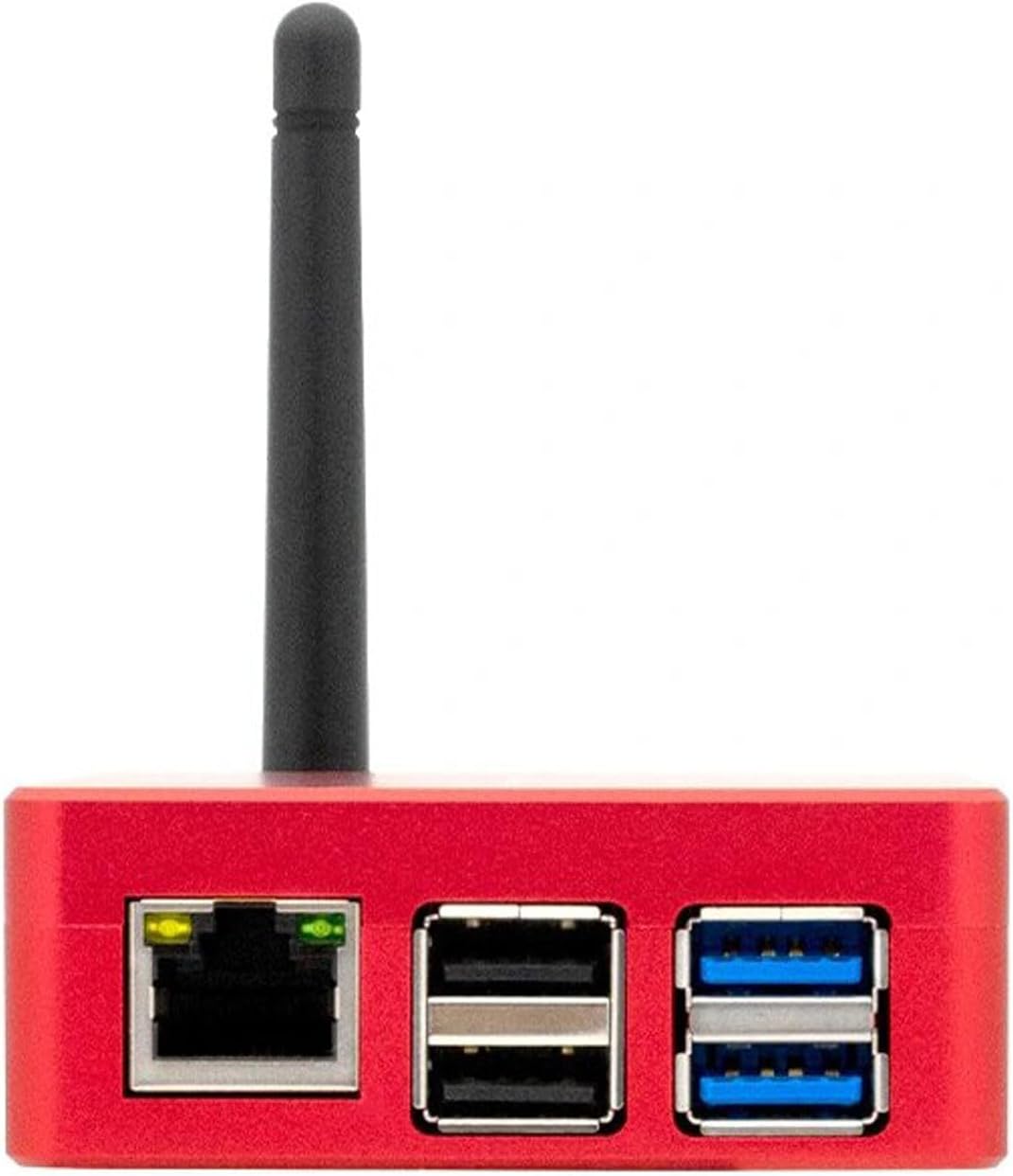
ചിത്രം 5: വശം view ASIAIR Plus-ന്റെ ഇതർനെറ്റ്, USB പോർട്ടുകൾ കാണിക്കുന്നു.
5.3 ആപ്പ് ഡൗൺലോഡും ഫേംവെയർ അപ്ഡേറ്റും
ആപ്ലിക്കേഷൻ ഡൗൺലോഡ് ചെയ്യാനും ഇൻസ്റ്റാൾ ചെയ്യാനും അപ്ഡേറ്റ് ചെയ്യാനും എല്ലാ പ്രധാന ആപ്പ് സ്റ്റോറുകളിലും (ആപ്പിൾ ആപ്പ് സ്റ്റോർ, ഗൂഗിൾ പ്ലേ സ്റ്റോർ) "ASIAIR" എന്ന കീവേഡ് തിരയാവുന്നതാണ്. ASIAIR വൈ-ഫൈയിലേക്ക് കണക്റ്റ് ചെയ്ത ശേഷം, പുതിയ ആപ്പ് പതിപ്പ് ഉപയോഗിച്ച് നിങ്ങൾക്ക് ഫേംവെയർ അപ്ഗ്രേഡ് ചെയ്യാൻ കഴിയും.
5.4 ബാഹ്യ സംഭരണവും USB-C പോർട്ടും
യുഎസ്ബി ഡ്രൈവുകൾ, എസ്എസ്ഡികൾ തുടങ്ങിയ ബാഹ്യ യുഎസ്ബി സ്റ്റോറേജിനെ ASIAIR പ്ലസ് പിന്തുണയ്ക്കുന്നു. ശുപാർശ ചെയ്യുന്ന സംഭരണ ശേഷി 512GB ആണ്, പരമാവധി 1TB. ഇത് നിലവിൽ മൂന്ന് file സിസ്റ്റം ഫോർമാറ്റുകൾ: NTFS, FAT32, exFAT.
ASIAIR Plus ഒരു കമ്പ്യൂട്ടറുമായി ബന്ധിപ്പിക്കുന്നതിനും കയറ്റുമതി ചെയ്യുന്നതിനും മാത്രമേ ടൈപ്പ്-സി പോർട്ട് ഉപയോഗിക്കൂ. fileഇന്റേണൽ സ്റ്റോറേജിൽ നിന്നുള്ളതാണ്. രണ്ട് അറ്റത്തും ടൈപ്പ്-സി പോർട്ടുകളുള്ള ഒരു ഡാറ്റ കേബിൾ ഈ ഫംഗ്ഷന് പിന്തുണയ്ക്കുന്നില്ല.
5.5 ബ്ലൂടൂത്ത് കണക്ഷൻ
ASIAIR Plus 256GB, ZWO AM5N, AM3 മൗണ്ടുകളിലേക്ക് ബ്ലൂടൂത്ത് കണക്ഷൻ പിന്തുണയ്ക്കുന്നു.
6. പ്രവർത്തന നിർദ്ദേശങ്ങൾ
ASIAIR Plus അതിന്റെ സമർപ്പിത മൊബൈൽ ആപ്ലിക്കേഷൻ വഴി വയർലെസ് ആയി നിയന്ത്രിക്കപ്പെടുന്നു. ASIAIR-ന്റെ Wi-Fi നെറ്റ്വർക്കിലേക്ക് കണക്റ്റുചെയ്തുകഴിഞ്ഞാൽ, നിങ്ങളുടെ ആസ്ട്രോഫോട്ടോഗ്രാഫി സെഷനു വേണ്ടി നിങ്ങൾക്ക് വിപുലമായ ഫംഗ്ഷനുകൾ ആക്സസ് ചെയ്യാൻ കഴിയും.
6.1 പ്രാരംഭ കണക്ഷൻ
- ASIAIR Plus ഓൺ ചെയ്യുക.
- നിങ്ങളുടെ സ്മാർട്ട്ഫോണിലോ ടാബ്ലെറ്റിലോ, Wi-Fi ക്രമീകരണങ്ങളിലേക്ക് പോയി ASIAIR-ന്റെ Wi-Fi നെറ്റ്വർക്കിലേക്ക് കണക്റ്റുചെയ്യുക (SSID സാധാരണയായി 'ASIAIR_' ൽ ആരംഭിക്കുന്നു). ഡിഫോൾട്ട് പാസ്വേഡ് ആക്ടിവേഷൻ ഗൈഡിൽ കാണാം.
- ASIAIR ആപ്പ് തുറക്കുക. ആപ്പ് നിങ്ങളുടെ ASIAIR Plus ഉപകരണം സ്വയമേവ കണ്ടെത്തി കണക്റ്റ് ചെയ്യണം.
6.2 കോർ ഫംഗ്ഷനുകൾ
- ഉപകരണ മാനേജ്മെൻ്റ്: ആപ്പിനുള്ളിൽ, ക്യാമറകൾ, മൗണ്ടുകൾ, ഫിൽട്ടർ വീലുകൾ, ഫോക്കസറുകൾ എന്നിവയുൾപ്പെടെ കണക്റ്റുചെയ്തിരിക്കുന്ന എല്ലാ ഉപകരണങ്ങളും നിങ്ങൾക്ക് കോൺഫിഗർ ചെയ്യാനും നിയന്ത്രിക്കാനും കഴിയും.
- ധ്രുവ വിന്യാസം: കൃത്യമായ ദൂരദർശിനി സജ്ജീകരണത്തിനായി ബിൽറ്റ്-ഇൻ പോളാർ അലൈൻമെന്റ് ദിനചര്യ ഉപയോഗിക്കുക.
- പ്ലേറ്റ് സോൾവിംഗ്: കൃത്യമായ GoTo-യ്ക്കും ഫ്രെയിമിംഗിനുമായി നിങ്ങളുടെ ദൂരദർശിനിയുടെ നിലവിലെ ആകാശ കോർഡിനേറ്റുകൾ കൃത്യമായി നിർണ്ണയിക്കുക.
- ഓട്ടോ ഗൈഡിംഗ്: ദീർഘനേരം നീണ്ടുനിൽക്കുന്ന ഇമേജിംഗിനായി കൃത്യമായ ട്രാക്കിംഗ് സാധ്യമാക്കുന്നതിന് ഒരു ഗൈഡ് ക്യാമറയും സ്കോപ്പും ബന്ധിപ്പിക്കുക.
- ഫോക്കസിംഗ്: മൂർച്ചയുള്ള ചിത്രങ്ങൾക്കായി ഇലക്ട്രോണിക് ഫോക്കസറുകൾ നിയന്ത്രിക്കുക.
- ഇമേജിംഗ് പ്ലാൻ: എക്സ്പോഷർ സമയങ്ങൾ, ഫ്രെയിമുകളുടെ എണ്ണം, ഫിൽട്ടർ മാറ്റങ്ങൾ എന്നിവയുൾപ്പെടെ വിശദമായ ഇമേജിംഗ് സീക്വൻസുകൾ സൃഷ്ടിക്കുക.
- ലൈവ് സ്റ്റാക്കിംഗ്: View നിരീക്ഷണത്തിലോ സജ്ജീകരണത്തിലോ പെട്ടെന്നുള്ള ദൃശ്യ ഫീഡ്ബാക്കിനായി തത്സമയം അടുക്കിയ ചിത്രങ്ങൾ.
- വീഡിയോ മോഡ്: പ്ലാനറ്ററി ഇമേജിംഗിനായി ഉയർന്ന ഫ്രെയിം റേറ്റ് വീഡിയോ എടുക്കുക.
7. പരിപാലനം
- വൃത്തിയാക്കൽ: ASIAIR Plus യൂണിറ്റ് വൃത്തിയായും പൊടി വിമുക്തമായും സൂക്ഷിക്കുക. വൃത്തിയാക്കാൻ മൃദുവായതും ഉണങ്ങിയതുമായ തുണി ഉപയോഗിക്കുക. ലിക്വിഡ് ക്ലീനറുകൾ ഒഴിവാക്കുക.
- സംഭരണം: ഉപയോഗത്തിലില്ലാത്തപ്പോൾ, ASIAIR Plus നേരിട്ട് സൂര്യപ്രകാശം ഏൽക്കുന്നതിൽ നിന്നും കടുത്ത താപനിലയിൽ നിന്നും അകറ്റി, വരണ്ടതും തണുത്തതുമായ അന്തരീക്ഷത്തിൽ സൂക്ഷിക്കുക.
- കേബിൾ മാനേജുമെന്റ്: പോർട്ടുകൾക്കോ കേബിളുകൾക്കോ കേടുപാടുകൾ സംഭവിക്കുന്നത് തടയാൻ എല്ലാ കേബിളുകളും വൃത്തിയായി ക്രമീകരിച്ചിട്ടുണ്ടെന്നും സമ്മർദ്ദത്തിലല്ലെന്നും ഉറപ്പാക്കുക.
- ഫേംവെയർ അപ്ഡേറ്റുകൾ: മികച്ച പ്രകടനവും പുതിയ സവിശേഷതകളിലേക്കുള്ള ആക്സസും ഉറപ്പാക്കാൻ ASIAIR ആപ്പ് വഴി പതിവായി ഫേംവെയർ അപ്ഡേറ്റുകൾ പരിശോധിച്ച് ഇൻസ്റ്റാൾ ചെയ്യുക.
8. പ്രശ്നപരിഹാരം
- ഉപകരണം പവർ ചെയ്യുന്നില്ല:
- 12V DC പവർ സപ്ലൈ 11V-15V @ 2A-5A ആവശ്യകത പാലിക്കുന്നുണ്ടെന്ന് ഉറപ്പാക്കുക.
- എല്ലാ പവർ കണക്ഷനുകളും സുരക്ഷിതമായി ഘടിപ്പിച്ചിട്ടുണ്ടോ എന്ന് പരിശോധിക്കുക.
- ASIAIR Plus-ലെ പവർ സ്വിച്ച് 'ഓൺ' സ്ഥാനത്താണെന്ന് ഉറപ്പാക്കുക.
- ASIAIR വൈ-ഫൈയിലേക്ക് കണക്റ്റുചെയ്യാൻ കഴിയില്ല:
- ASIAIR Plus ഓണാക്കിയിട്ടുണ്ടെന്നും Wi-Fi ആന്റിന സുരക്ഷിതമായി ഘടിപ്പിച്ചിട്ടുണ്ടെന്നും ഉറപ്പാക്കുക.
- നിങ്ങൾ ശരിയായ വൈഫൈ പാസ്വേഡാണോ നൽകുന്നതെന്ന് പരിശോധിക്കുക.
- ASIAIR Plus ഉം നിങ്ങളുടെ മൊബൈൽ ഉപകരണവും പുനരാരംഭിക്കാൻ ശ്രമിക്കുക.
- നിങ്ങളുടെ മൊബൈൽ ഉപകരണത്തിന്റെ വൈ-ഫൈ പ്രവർത്തനക്ഷമമാക്കിയിട്ടുണ്ടെന്നും വിമാന മോഡിലല്ലെന്നും ഉറപ്പാക്കുക.
- ആപ്പ് ASIAIR Plus കണ്ടെത്തുന്നില്ല:
- നിങ്ങളുടെ മൊബൈൽ ഉപകരണം ASIAIR-ന്റെ Wi-Fi നെറ്റ്വർക്കിലേക്ക് കണക്റ്റ് ചെയ്തിട്ടുണ്ടെന്ന് സ്ഥിരീകരിക്കുക.
- ASIAIR ആപ്പ് അടച്ച് വീണ്ടും തുറക്കുക.
- ഏറ്റവും പുതിയ പതിപ്പിലേക്ക് ആപ്പ് അപ്ഡേറ്റ് ചെയ്തിട്ടുണ്ടെന്ന് ഉറപ്പാക്കുക.
- ബന്ധിപ്പിച്ച ഉപകരണം തിരിച്ചറിഞ്ഞില്ല:
- ഉപകരണം ശരിയായ USB അല്ലെങ്കിൽ DC ഔട്ട്പുട്ട് പോർട്ടിലേക്ക് ശരിയായി ബന്ധിപ്പിച്ചിട്ടുണ്ടെന്ന് ഉറപ്പാക്കുക.
- ഉപകരണത്തിന് ബാഹ്യ വൈദ്യുതി ആവശ്യമുണ്ടോ എന്നും അത് വിതരണം ചെയ്യുന്നുണ്ടോ എന്നും പരിശോധിക്കുക.
- ASIAIR Plus-മായി ഉപകരണ അനുയോജ്യത പരിശോധിക്കുക.
- ഉപകരണം മറ്റൊരു USB പോർട്ടിലേക്ക് ബന്ധിപ്പിക്കാൻ ശ്രമിക്കുക.
- മന്ദഗതിയിലുള്ള ഡാറ്റ കൈമാറ്റം / ബാഹ്യ സംഭരണ പ്രശ്നങ്ങൾ:
- ബാഹ്യ സംഭരണം NTFS, FAT32, അല്ലെങ്കിൽ exFAT എന്നിവയിലേക്ക് ഫോർമാറ്റ് ചെയ്തിട്ടുണ്ടെന്ന് ഉറപ്പാക്കുക.
- യുഎസ്ബി കേബിളിന് കേടുപാടുകൾ സംഭവിച്ചിട്ടുണ്ടോ എന്ന് പരിശോധിക്കുക.
- ഡാറ്റ എക്സ്പോർട്ടിനായി USB-C പോർട്ട് ഉപയോഗിക്കുകയാണെങ്കിൽ, ടൈപ്പ്-സി മുതൽ ടൈപ്പ്-സി വരെയുളള കേബിളല്ല, സ്റ്റാൻഡേർഡ് USB-A മുതൽ USB-C വരെയുളള കേബിളാണ് ഉപയോഗിക്കുന്നതെന്ന് ഉറപ്പാക്കുക.
9. വാറൻ്റിയും പിന്തുണയും
വാറന്റി വിവരങ്ങൾക്കും സാങ്കേതിക പിന്തുണയ്ക്കും, ദയവായി ഔദ്യോഗിക ZWO കാണുക. webസൈറ്റിൽ ബന്ധപ്പെടുക അല്ലെങ്കിൽ ZWO ഉപഭോക്തൃ സേവനവുമായി നേരിട്ട് ബന്ധപ്പെടുക. ഏറ്റവും പുതിയ പിന്തുണാ ഉറവിടങ്ങൾ, പതിവുചോദ്യങ്ങൾ, കോൺടാക്റ്റ് വിശദാംശങ്ങൾ എന്നിവ സാധാരണയായി അവരുടെ ഔദ്യോഗിക ഉൽപ്പന്ന പിന്തുണ പേജുകളിൽ കാണാം.
നിങ്ങൾക്ക് സന്ദർശിക്കാം ആമസോണിലെ ZWO സ്റ്റോർ കൂടുതൽ ഉൽപ്പന്ന വിവരങ്ങൾക്കും ഉറവിടങ്ങൾക്കും.


