ആമുഖം
Thank you for choosing the SENGBIRCH Keyboard Case for your Lenovo Tab M11 11" 2024. This manual provides essential information for the proper setup, operation, and maintenance of your new keyboard case. Please read it thoroughly before use to ensure optimal performance and longevity of the product.
പാക്കേജ് ഉള്ളടക്കം
- 1 x Protective Case with Bluetooth Keyboard
- 1 x യുഎസ്ബി-സി ചാർജിംഗ് കേബിൾ
- 1 x ഉപയോക്തൃ മാനുവൽ
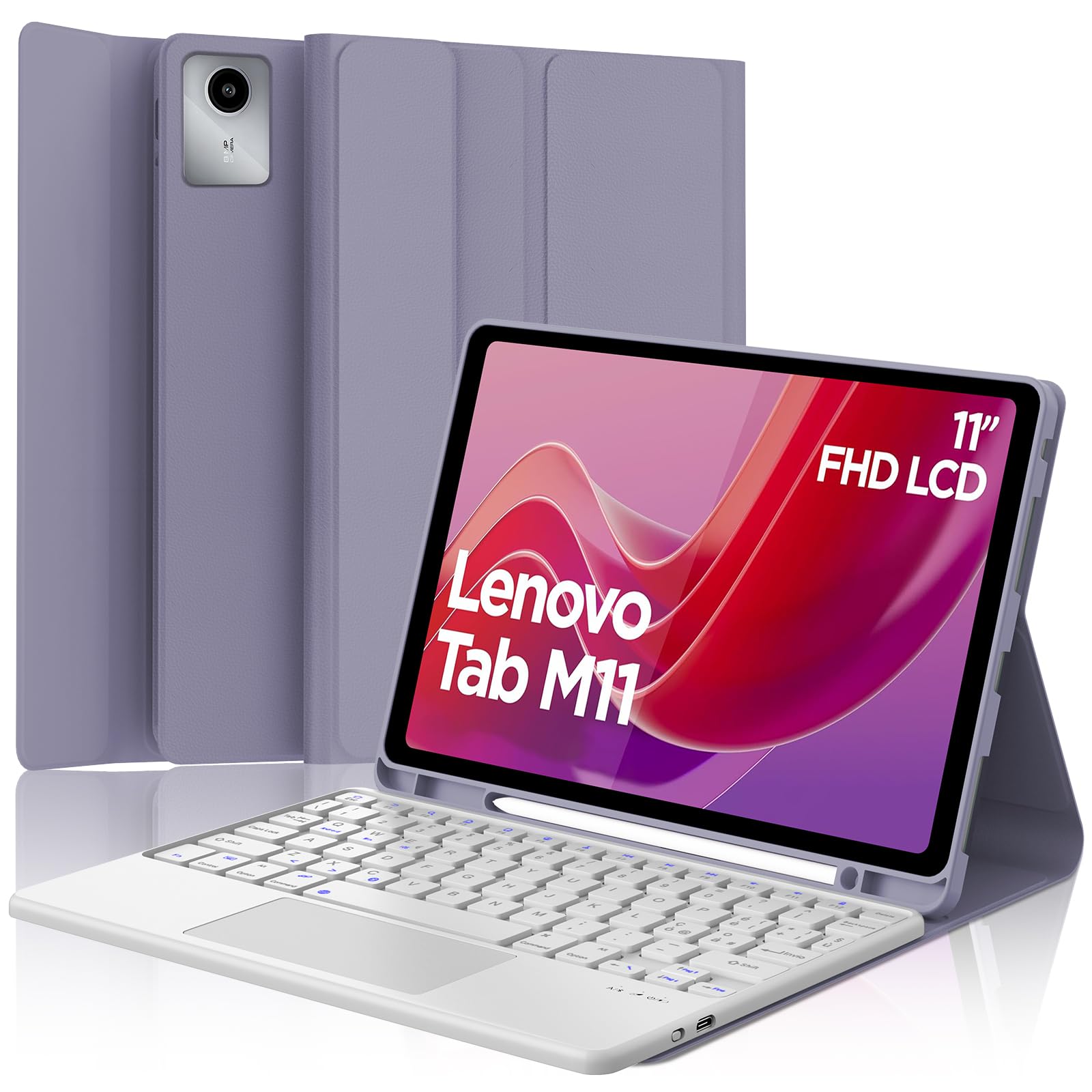
Image: The SENGBIRCH Keyboard Case for Lenovo Tab M11 11" 2024, showcasing the keyboard and protective cover.
സജ്ജീകരണ നിർദ്ദേശങ്ങൾ
1. അനുയോജ്യതാ പരിശോധന
This keyboard case is specifically designed for the Lenovo Tab M11 11" 2024 (Models TB330FU/TB330XU). Please verify your tablet model before proceeding.

Image: A visual guide illustrating compatibility with the Lenovo Tab M11 11" 2024 and incompatibility with other models like Lenovo Tab M10 Plus Gen 3 and Lenovo Tab M10.
2. കീബോർഡ് ചാർജ് ചെയ്യുന്നു
- നൽകിയിരിക്കുന്ന USB-C ചാർജിംഗ് കേബിൾ കീബോർഡിന്റെ ചാർജിംഗ് പോർട്ടുമായി ബന്ധിപ്പിക്കുക.
- കേബിളിന്റെ മറ്റേ അറ്റം ഒരു USB പവർ അഡാപ്റ്ററുമായി (ഉൾപ്പെടുത്തിയിട്ടില്ല) അല്ലെങ്കിൽ ഒരു കമ്പ്യൂട്ടറിന്റെ USB പോർട്ടുമായി ബന്ധിപ്പിക്കുക.
- The charging indicator light will illuminate. Allow 2-3 hours for a full charge.

Image: Close-up of the keyboard showing the USB-C charging port and a charging cable connected, indicating battery life and silent scissor keys.
3. ബ്ലൂടൂത്ത് ജോടിയാക്കൽ
- Ensure the keyboard is charged. Turn on the keyboard by sliding the power switch.
- അമർത്തുക ബന്ധിപ്പിക്കുക button on the keyboard (usually indicated by a Bluetooth icon). The Bluetooth indicator light will start blinking.
- On your Lenovo Tab M11, go to ക്രമീകരണങ്ങൾ > ബ്ലൂടൂത്ത് ബ്ലൂടൂത്ത് ഓണാക്കുക.
- Your tablet will search for available devices. Select "Bluetooth Keyboard" or a similar name from the list.
- Once paired, the Bluetooth indicator light on the keyboard will stop blinking.

Image: A diagram illustrating the wireless Bluetooth connection of the keyboard to various devices, including smartphones, tablets, and laptops, supporting iOS, Android, and Windows operating systems.
4. Inserting the Tablet into the Case
Carefully align your Lenovo Tab M11 with the protective case. Ensure all ports, buttons, and the camera are correctly aligned with the case's precise cutouts. The magnetic design will help secure the tablet and keyboard in place.
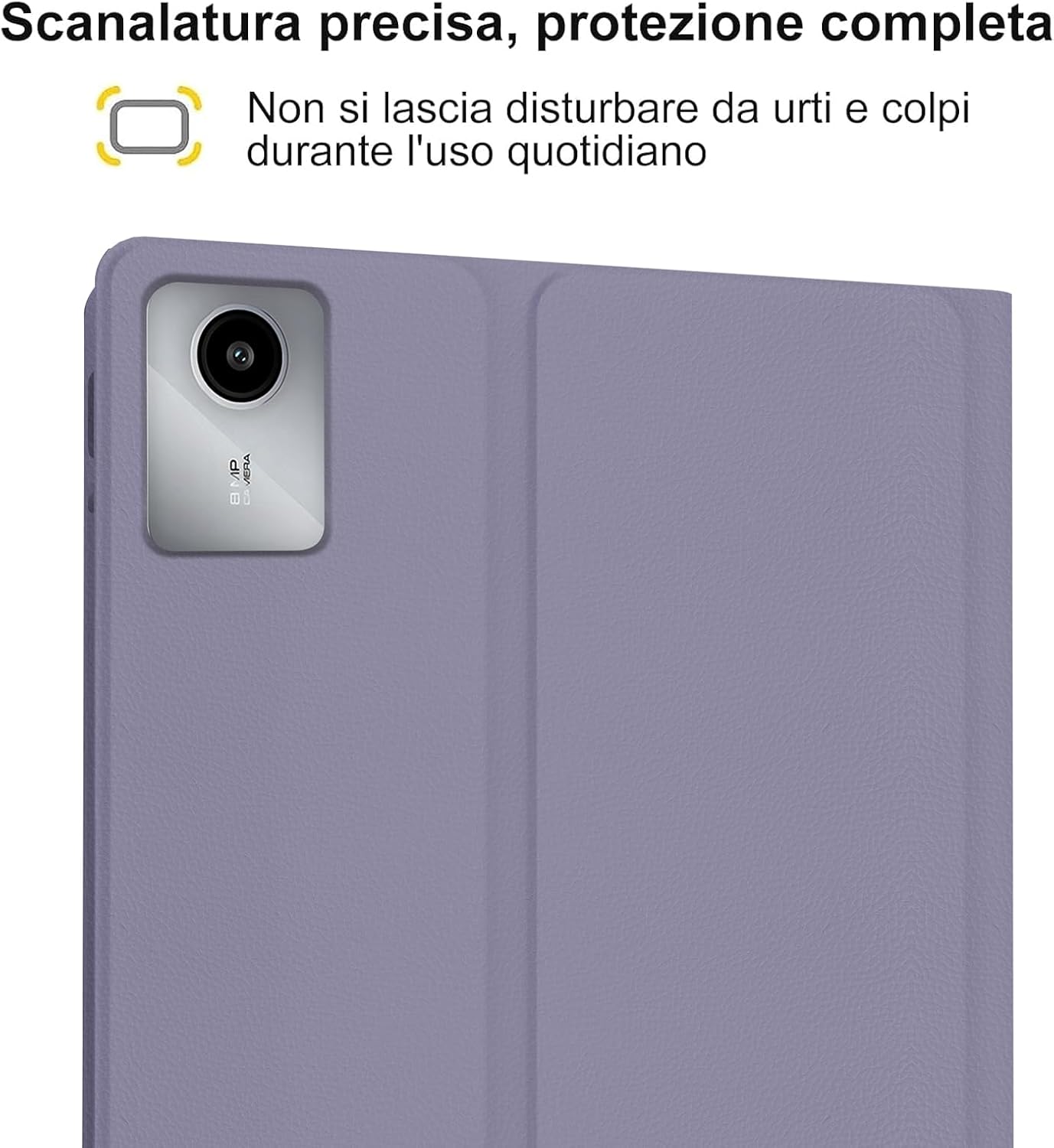
Image: A close-up of the tablet's camera module perfectly aligned with the precise cutout in the protective case, emphasizing full protection against daily impacts.
പ്രവർത്തന നിർദ്ദേശങ്ങൾ
1. Using the Keyboard
The keyboard features an Italian QWERTY layout. It provides a tactile typing experience with scissor-key mechanisms for comfortable and efficient input. Familiarize yourself with the function keys (Fn) for shortcuts.

ചിത്രം: വിശദമായ ഒരു ചിത്രം view of the Italian QWERTY keyboard layout, highlighting its magnetic attachment, over 100 hours of battery life, and USB-C charging capability.
2. Using the Trackpad
The integrated trackpad allows for precise navigation and control, similar to a laptop. It supports multi-touch gestures (e.g., two-finger scroll, pinch-to-zoom) depending on your tablet's operating system settings.
3. ബാക്ക്ലൈറ്റ് ക്രമീകരിക്കൽ
The keyboard features 7-color backlighting with 3 adjustable brightness levels. Use the dedicated backlight key (often indicated by a light bulb icon or Fn + a specific key) to cycle through colors and brightness settings.
4. Automatic Wake/Sleep Function
The case supports automatic wake/sleep functionality. Opening the case will wake your tablet, and closing it will put your tablet to sleep, conserving battery life.

Image: Two illustrations demonstrating the automatic wake-up function when the case is opened and the automatic sleep function when the case is closed.
5. ക്രമീകരിക്കാവുന്ന Viewing കോണുകൾ
The case allows you to adjust the tablet's viewing angle for comfortable use, whether typing, watching videos, or browsing. The non-slip grooves ensure stability at various angles.
Image: A diagram showing the tablet case propped up at different viewing angles (120°, 125°, 130°) with non-slip grooves for stability, illustrating ergonomic viewസ്ഥാനങ്ങൾ.
മെയിൻ്റനൻസ്
Cleaning the Case and Keyboard
- കേസിന്റെ പുറംഭാഗം മൃദുവായ, ഡി-ടൈപ്പ് ഉപയോഗിച്ച് തുടയ്ക്കുക.amp തുണി. കഠിനമായ രാസവസ്തുക്കളോ ഉരച്ചിലുകളുള്ള ക്ലീനറുകളോ ഒഴിവാക്കുക.
- For the keyboard, use a soft, dry cloth or a can of compressed air to remove dust and debris from between the keys.
- കീബോർഡ് വൃത്തിയാക്കുന്നതിനുമുമ്പ് അതിന്റെ പവർ ഓഫ് ചെയ്തിട്ടുണ്ടെന്ന് ഉറപ്പാക്കുക.
ബാറ്ററി കെയർ
- ബാറ്ററിയുടെ ആരോഗ്യം നിലനിർത്താൻ കീബോർഡ് പതിവായി ചാർജ് ചെയ്യുക.
- ബാറ്ററി ഇടയ്ക്കിടെ പൂർണ്ണമായും ഡിസ്ചാർജ് ചെയ്യുന്നത് ഒഴിവാക്കുക.
- കീബോർഡ് ദീർഘനേരം സൂക്ഷിക്കുകയാണെങ്കിൽ, ഏകദേശം 50% വരെ ചാർജ് ചെയ്ത് തണുത്തതും വരണ്ടതുമായ സ്ഥലത്ത് സൂക്ഷിക്കുക.
ട്രബിൾഷൂട്ടിംഗ്
കീബോർഡ് ബ്ലൂടൂത്ത് വഴി കണക്റ്റുചെയ്യുന്നില്ല
- ബാറ്ററി പരിശോധിക്കുക: കീബോർഡ് പൂർണ്ണമായും ചാർജ് ചെയ്തിട്ടുണ്ടെന്ന് ഉറപ്പാക്കുക.
- പവർ സൈക്കിൾ: കീബോർഡ് ഓഫാക്കി വീണ്ടും ഓണാക്കുക.
- വീണ്ടും ജോടി: Delete the keyboard from your tablet's Bluetooth device list and attempt to pair it again.
- Tablet Bluetooth: Ensure your tablet's Bluetooth is enabled and functioning correctly.
ബാക്ക്ലൈറ്റ് പ്രവർത്തിക്കുന്നില്ല
- പവർ പരിശോധിക്കുക: കീബോർഡിൽ ആവശ്യത്തിന് ബാറ്ററി ചാർജ് ഉണ്ടെന്ന് ഉറപ്പാക്കുക.
- Backlight Key: Press the backlight key (or Fn + backlight key) to cycle through brightness levels and colors.
Trackpad Not Responding
- ബ്ലൂടൂത്ത് കണക്ഷൻ: കീബോർഡ് ബ്ലൂടൂത്ത് വഴി ശരിയായി ബന്ധിപ്പിച്ചിട്ടുണ്ടെന്ന് ഉറപ്പാക്കുക.
- പുനരാരംഭിക്കുക: കീബോർഡ് ഓഫാക്കി ഓണാക്കുക.
- Tablet Settings: Check your tablet's settings for trackpad or mouse options to ensure it's enabled.
ചാർജിംഗ് പ്രശ്നങ്ങൾ
- കേബിൾ പരിശോധന: Ensure the USB-C cable is securely connected to both the keyboard and the power source.
- ഊർജ്ജ സ്രോതസ്സ്: Try a different USB power adapter or computer USB port.
- കേബിൾ കേടുപാടുകൾ: Inspect the charging cable for any signs of damage.
സ്പെസിഫിക്കേഷനുകൾ
| ഫീച്ചർ | വിശദാംശങ്ങൾ |
|---|---|
| ബ്രാൻഡ് | സെൻജിർച്ച് |
| അനുയോജ്യമായ ഉപകരണങ്ങൾ | Lenovo Tab M11 11" 2024 (TB330FU/TB330XU) |
| കണക്റ്റിവിറ്റി ടെക്നോളജി | ബ്ലൂടൂത്ത് |
| കീബോർഡ് വിവരണം | Accessible (Italian QWERTY Layout) |
| പ്രത്യേക ഫീച്ചർ | Trackpad, Backlit Keyboard (7 colors, 3 brightness levels) |
| പവർ ഉറവിടം | ബാറ്ററിയിൽ പ്രവർത്തിക്കുന്ന (ലിഥിയം പോളിമർ) |
| ബാറ്ററി ലൈഫ് (തുടർച്ചയായ ഉപയോഗം) | 24 മണിക്കൂർ വരെ (3 ദിവസം) |
| സ്റ്റാൻഡ്ബൈ സമയം | 3 മാസം |
| ചാർജിംഗ് സമയം | 2-3 hours (via USB-C) |
| മെറ്റീരിയൽ | TPU, ABS, Synthetic Leather |
| ഇനത്തിൻ്റെ ഭാരം | 700 ഗ്രാം |
| പാക്കേജ് അളവുകൾ | 26 x 18 x 3 സെ.മീ |
വാറൻ്റി വിവരങ്ങൾ
This SENGBIRCH product comes with a രണ്ട് വർഷത്തെ വാറൻ്റി from the date of purchase. This warranty covers manufacturing defects and issues arising from normal use. It does not cover damage caused by misuse, accidents, unauthorized modifications, or normal wear and tear.
വാറൻ്റി ക്ലെയിമുകൾക്കായി നിങ്ങളുടെ വാങ്ങിയതിൻ്റെ തെളിവ് സൂക്ഷിക്കുക.
പിന്തുണ
If you encounter any problems or have questions regarding your SENGBIRCH Keyboard Case, please do not hesitate to contact our customer support team. We are committed to providing satisfactory service and assistance.
For support, please refer to the contact information provided on the product packaging or the official SENGBIRCH webസൈറ്റ്.


