1. ആമുഖം
This manual provides comprehensive instructions for the setup, operation, and maintenance of your Ubiquiti UniFi Express 7 (UX7) router. The UX7 is a compact, high-performance cloud gateway designed to deliver WiFi 7 speed and flexibility for homes and small businesses. It offers ultra-fast wireless performance across 6 GHz, 5 GHz, and 2.4 GHz bands, supported by 6-stream MU-MIMO technology. With a 10G WAN port and 2.5G LAN port, it supports both wired and wireless mesh networking, device management, and scalability, all managed through the intuitive UniFi Controller.
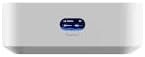
ചിത്രം 1: മുൻഭാഗം view of the Ubiquiti UniFi Express 7 (UX7) router, showcasing its compact design and the illuminated status display.
2 സുരക്ഷാ വിവരങ്ങൾ
- ഉപകരണം പ്രവർത്തിപ്പിക്കുന്നതിന് മുമ്പ് എല്ലാ നിർദ്ദേശങ്ങളും ശ്രദ്ധാപൂർവ്വം വായിക്കുക.
- ഉപകരണം വെള്ളത്തിലോ അമിതമായ ഈർപ്പത്തിലോ തുറന്നുകാട്ടരുത്.
- അമിതമായി ചൂടാക്കുന്നത് തടയാൻ ഉപകരണത്തിന് ചുറ്റും ശരിയായ വായുസഞ്ചാരം ഉറപ്പാക്കുക.
- ഉപകരണത്തിനൊപ്പം നൽകിയിട്ടുള്ള പവർ അഡാപ്റ്റർ മാത്രം ഉപയോഗിക്കുക.
- ഉപകരണം സ്വയം തുറക്കാനോ നന്നാക്കാനോ ശ്രമിക്കരുത്. എല്ലാ സേവനങ്ങളും യോഗ്യതയുള്ള ഉദ്യോഗസ്ഥരെ ഏൽപ്പിക്കുക.
- നേരിട്ട് സൂര്യപ്രകാശത്തിൽ നിന്നും താപ സ്രോതസ്സുകളിൽ നിന്നും ഉപകരണം അകറ്റി നിർത്തുക.
3. പാക്കേജ് ഉള്ളടക്കം
നിങ്ങളുടെ പാക്കേജിൽ എല്ലാ ഇനങ്ങളും ഉണ്ടെന്ന് ഉറപ്പാക്കുക:
- UniFi Express 7 (UX7) Router
- പവർ അഡാപ്റ്റർ
- മൗണ്ടിംഗ് പ്ലേറ്റ്
- ദ്രുത ആരംഭ ഗൈഡ്
4. ഉൽപ്പന്നം കഴിഞ്ഞുview
The UniFi Express 7 (UX7) is designed for optimal network performance and ease of management. Key features include:
- WiFi 7 Performance: Tri-band (6/5/2.4 GHz) connectivity with 6-stream MU-MIMO technology, offering speeds up to 5.7 Gbps on the 6 GHz band.
- 10G Wired Connectivity: Equipped with a 10 Gigabit Ethernet (GbE) WAN port and a 2.5 GbE LAN port for high-speed wired network backbone.
- Mesh-Ready: Functions as a standalone router or seamlessly integrates into existing UniFi mesh networks for expanded coverage.
- നെറ്റ്വർക്ക് നിയന്ത്രണം: Capable of managing over 30 UniFi devices and supporting more than 300 clients with ease through the UniFi Controller.
- ഒതുക്കമുള്ളതും സ്റ്റൈലിഷും: Features a small footprint and a front display for real-time network status monitoring.
തുറമുഖങ്ങളും സൂചകങ്ങളും:
The UX7 includes essential ports for connectivity and an intuitive display for status updates. Refer to the device's physical layout for exact port locations (e.g., WAN, LAN, Power) and LED indicators (e.g., Power, Status, Activity).
5. സജ്ജീകരണം
- പവർ ഓൺ: Connect the supplied power adapter to the UX7 and plug it into a power outlet. Wait for the device to power on and initialize.
- ഇന്റർനെറ്റിലേക്ക് (WAN) കണക്റ്റുചെയ്യുക: Connect your modem or internet service provider's (ISP) Ethernet cable to the 10G WAN port on the UX7.
- ലോക്കൽ നെറ്റ്വർക്കിലേക്ക് (LAN) കണക്റ്റുചെയ്യുക: If connecting a wired device, use an Ethernet cable to connect it to the 2.5G LAN port.
- പ്രാരംഭ കോൺഫിഗറേഷൻ:
- മൊബൈൽ ആപ്പ് സജ്ജീകരണം: Download the UniFi Network mobile app (available on iOS and Android). Follow the on-screen instructions to discover and set up your UX7.
- Web ബ്രൗസർ സജ്ജീകരണം: Alternatively, connect a computer to the UX7's LAN port or its default Wi-Fi network. Open a web browser and navigate to the default UniFi IP address (usually 192.168.1.1 or unifi.ui.com) to access the UniFi Controller setup wizard.
- Create/Adopt UniFi Network: Follow the wizard to create a new UniFi network or adopt the UX7 into an existing UniFi system. Configure your Wi-Fi network name (SSID) and password.
6. ഓപ്പറേഷൻ
Once set up, the UniFi Express 7 (UX7) operates as the central point of your network. Here's how to manage and utilize its features:
- ബന്ധിപ്പിക്കുന്ന ഉപകരണങ്ങൾ: Devices can connect to the UX7 via Wi-Fi (using the configured SSIDs) or via Ethernet cables to the LAN port.
- നെറ്റ്വർക്ക് മാനേജ്മെൻ്റ്: All network settings, device monitoring, and advanced configurations are performed through the UniFi Controller interface. Access it via the UniFi Network mobile app or a web browser (unifi.ui.com or your local UniFi Controller IP).
- Guest Networks: Create isolated guest networks for visitors, providing secure internet access without compromising your main network.
- ഗതാഗത മാനേജ്മെന്റ്: Utilize the UniFi Controller to monitor network traffic, set up Quality of Service (QoS) rules, and manage bandwidth for different applications or users.
- മെഷ് നെറ്റ്വർക്കിംഗ്: If you have other UniFi access points, the UX7 can seamlessly integrate them into a mesh network, extending Wi-Fi coverage throughout your property.
7. പരിപാലനം
- ഫേംവെയർ അപ്ഡേറ്റുകൾ: Regularly check for and install firmware updates through the UniFi Controller. Updates provide new features, performance improvements, and security patches.
- വൃത്തിയാക്കൽ: ഉപകരണത്തിന്റെ പുറംഭാഗം വൃത്തിയാക്കാൻ മൃദുവായതും ഉണങ്ങിയതുമായ തുണി ഉപയോഗിക്കുക. ലിക്വിഡ് ക്ലീനറുകളോ എയറോസോളുകളോ ഉപയോഗിക്കരുത്.
- പ്ലേസ്മെൻ്റ്: Ensure the UX7 is placed in an open area, away from obstructions, large metal objects, and other electronic devices that may cause interference. Optimal placement improves Wi-Fi signal strength and coverage.
- ബാക്കപ്പ് കോൺഫിഗറേഷൻ: Periodically back up your UniFi Controller configuration to prevent data loss in case of unforeseen issues.
8. പ്രശ്നപരിഹാരം
If you encounter issues with your UniFi Express 7 (UX7), try the following common troubleshooting steps:
- ഇൻ്റർനെറ്റ് കണക്ഷൻ ഇല്ല:
- നിങ്ങളുടെ മോഡം ശരിയായി പ്രവർത്തിക്കുന്നുണ്ടോയെന്ന് പരിശോധിക്കുക.
- Ensure the Ethernet cable from your modem is securely connected to the UX7's 10G WAN port.
- Restart both your modem and the UX7.
- Wi-Fi Not Visible/Connecting:
- Verify that the UX7 is powered on and its status indicator is normal.
- Check your Wi-Fi settings in the UniFi Controller to ensure the SSID is broadcast and the password is correct.
- Try restarting the UX7.
- കുറഞ്ഞ നെറ്റ്വർക്ക് വേഗത:
- നിങ്ങളുടെ ഇന്റർനെറ്റ് സേവന ദാതാവിന്റെ വേഗത പരിശോധിക്കുക.
- Ensure the UX7 is placed in an optimal location, free from interference.
- Monitor network usage through the UniFi Controller to identify bandwidth-heavy applications or devices.
- Consider adjusting Wi-Fi channels in the UniFi Controller to avoid congestion.
- Device Not Adopted in UniFi Controller:
- Ensure the UX7 is on the same network segment as your UniFi Controller.
- Try resetting the UX7 to factory defaults (refer to the Quick Start Guide for reset instructions) and attempt adoption again.
9 സ്പെസിഫിക്കേഷനുകൾ
| ഫീച്ചർ | വിശദാംശങ്ങൾ |
|---|---|
| മോഡലിൻ്റെ പേര് | UX7 |
| ബ്രാൻഡ് | യുബിക്വിറ്റി |
| ഫ്രീക്വൻസി ബാൻഡ് ക്ലാസ് | ട്രൈ-ബാൻഡ് (6 GHz, 5 GHz, 2.4 GHz) |
| വയർലെസ് കമ്മ്യൂണിക്കേഷൻ സ്റ്റാൻഡേർഡ് | 802.11ax (Wi-Fi 6E/7 capable) |
| WAN പോർട്ട് | 10 Gigabit Ethernet (10GbE) |
| ലാൻ പോർട്ട് | 2.5 Gigabit Ethernet (2.5GbE) |
| അനുയോജ്യമായ ഉപകരണങ്ങൾ | ലാപ്ടോപ്പ്, പേഴ്സണൽ കമ്പ്യൂട്ടർ, സ്മാർട്ട്ഫോൺ, ടാബ്ലെറ്റ് |
| ശുപാർശ ചെയ്യുന്ന ഉപയോഗങ്ങൾ | വീട്, ചെറിയ ഓഫീസ് |
| ഓപ്പറേറ്റിംഗ് സിസ്റ്റം | യൂണിഫൈ ഒഎസ് |
| പാക്കേജ് അളവുകൾ | 6 x 4 x 3 ഇഞ്ച് |
10. വാറൻ്റിയും പിന്തുണയും
വാറൻ്റി വിവരങ്ങൾ: This Ubiquiti product comes with a limited warranty. Please refer to the official Ubiquiti website or the warranty card included in your package for detailed terms and conditions regarding warranty coverage and duration.
സാങ്കേതിക സഹായം: For technical assistance, troubleshooting beyond this manual, or to report issues, please visit the official Ubiquiti support portal. You can find FAQs, knowledge base articles, and contact information for customer support at community.ui.com or help.ui.com.
പിന്തുണയുമായി ബന്ധപ്പെടുമ്പോൾ നിങ്ങളുടെ ഉൽപ്പന്ന മോഡലും സീരിയൽ നമ്പറും എപ്പോഴും തയ്യാറാണെന്ന് ഉറപ്പാക്കുക.


