ആമുഖം
This manual provides comprehensive instructions for the setup, operation, maintenance, and troubleshooting of your CHUWI Hi10 X2 and X1 dedicated 2-in-1 keyboard. Please read this guide carefully to ensure proper use and to maximize the lifespan of your device.
ഉൽപ്പന്നം കഴിഞ്ഞുview
The CHUWI Hi10 X2 and X1 dedicated keyboard transforms your 10.1-inch tablet into a versatile 2-in-1 laptop, enhancing productivity with a physical keyboard and a high-precision trackpad.

ചിത്രം 1: ടോപ്പ് ഡൗൺ view of the CHUWI Hi10 X2/X1 dedicated keyboard, displaying the full QWERTY layout and integrated trackpad.

ചിത്രം 2: കോണാകൃതിയിലുള്ളത് view of the CHUWI Hi10 X2/X1 dedicated keyboard, showcasing its slim design and the magnetic connector bar at the top.
സജ്ജീകരണ നിർദ്ദേശങ്ങൾ
Follow these steps to correctly attach your keyboard to the CHUWI Hi10 X2 or X1 tablet:
- Locate the Magnetic Connector: The keyboard features a magnetic connector bar on its back side, designed to align with your tablet's port.
- Connect to the Tablet: Align the magnetic connector bar with the corresponding port on your CHUWI Hi10 X2 or X1 tablet. The magnets will help secure the connection.
- ഉപയോഗത്തിനുള്ള സ്ഥാനം: After the initial connection, gently bend the section between the magnetic connector and the main keyboard body towards the keyboard side. This action will elevate the tablet to an optimal viewഇംഗും ടൈപ്പിംഗ് ആംഗിളും.
- ഉപയോഗത്തിന് തയ്യാറാണ്: Once positioned, your keyboard and tablet are ready for use.
ചിത്രം 3: The magnetic connector bar is located on the back of the keyboard, visible at the hinge area when connected to the tablet.
ചിത്രം 4: The keyboard magnetically attached to the tablet, showing the initial flat connection.
ചിത്രം 5: The keyboard section bent to achieve the working angle, elevating the tablet.
ചിത്രം 6: The keyboard and tablet are fully assembled and ready for typing.
പ്രവർത്തന നിർദ്ദേശങ്ങൾ
കീബോർഡ് പ്രവർത്തനങ്ങൾ
The keyboard provides a standard QWERTY layout with additional function keys (F1-F12) that may offer shortcuts depending on your tablet's operating system. Refer to your tablet's manual for specific function key operations.
ട്രാക്ക്പാഡ് ഉപയോഗം
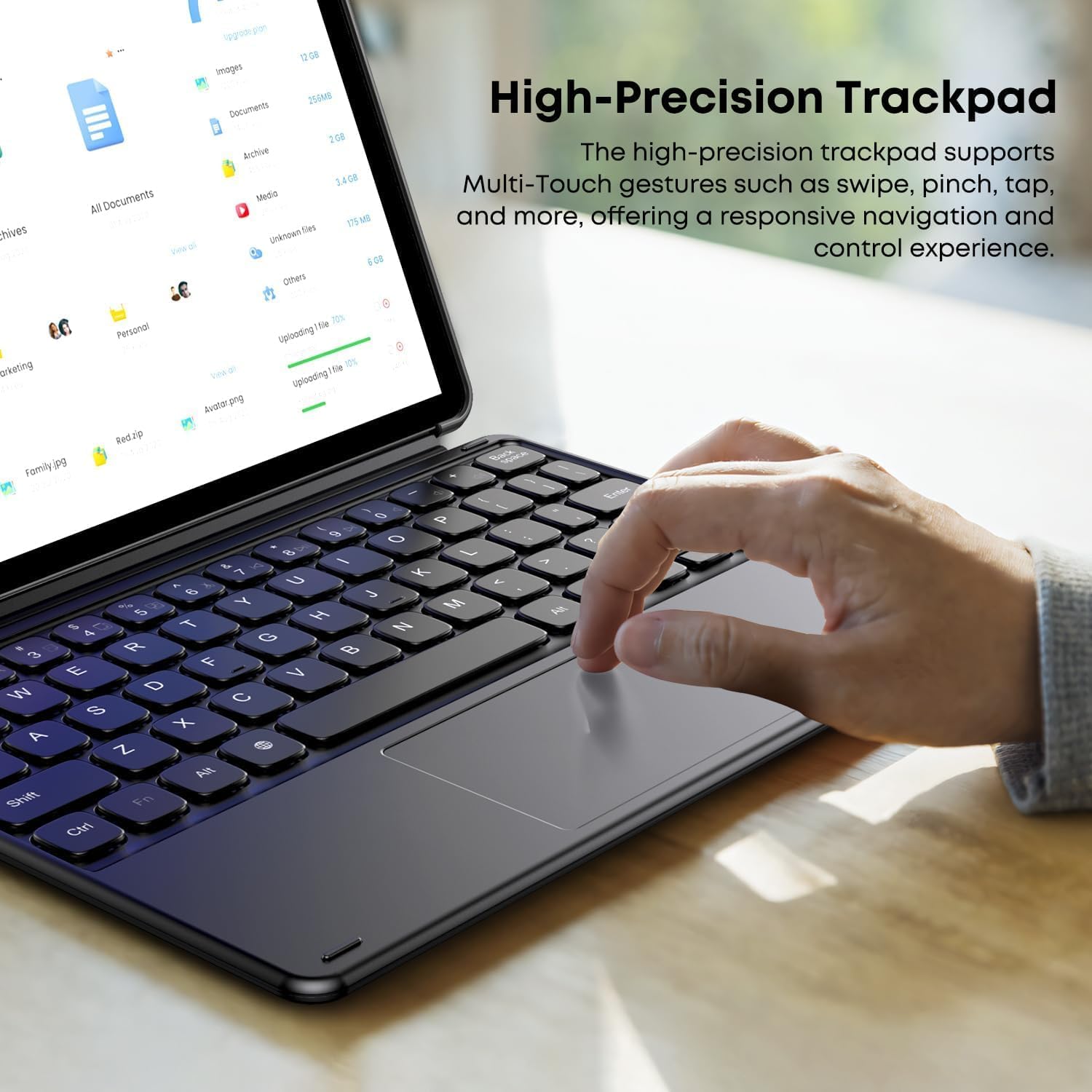
The integrated high-precision trackpad supports multi-touch gestures for intuitive navigation and control. Common gestures include:
- ടാപ്പ് ചെയ്യുക: ഇടത് ക്ലിക്കിന് ഒറ്റ ടാപ്പ്, വലത് ക്ലിക്കിന് രണ്ട് വിരലുകൾ കൊണ്ട് ടാപ്പ്.
- സ്വൈപ്പ്: Use two fingers to scroll up/down or left/right.
- പിഞ്ച്: സൂം ഇൻ അല്ലെങ്കിൽ ഔട്ട് ചെയ്യാൻ രണ്ട് വിരലുകൾ ഉപയോഗിക്കുക.
- Multi-finger gestures: Specific gestures may vary by operating system (e.g., three-finger swipe for task view).

ചിത്രം 7: High-precision trackpad supporting multi-touch gestures.
മെയിൻ്റനൻസ്
നിങ്ങളുടെ കീബോർഡിന്റെ ദീർഘായുസ്സും ഒപ്റ്റിമൽ പ്രകടനവും ഉറപ്പാക്കാൻ, ഈ പരിപാലന മാർഗ്ഗനിർദ്ദേശങ്ങൾ പാലിക്കുക:
- വൃത്തിയാക്കൽ: Use a soft, dry, lint-free cloth to wipe the keyboard and trackpad surfaces. For stubborn dirt, slightly dampവെള്ളമോ നേരിയ ക്ലീനിംഗ് ലായനിയോ ഉപയോഗിച്ച് തുണിയിൽ ഒട്ടിക്കുക, അങ്ങനെ ഉപകരണത്തിനുള്ളിൽ ദ്രാവകം പ്രവേശിക്കുന്നില്ലെന്ന് ഉറപ്പാക്കുക.
- ദ്രാവകങ്ങൾ ഒഴിവാക്കുക: Do not expose the keyboard to excessive moisture or spill liquids on it.
- സംഭരണം: When not in use, store the keyboard in a clean, dry environment, away from extreme temperatures.
- ശ്രദ്ധയോടെ കൈകാര്യം ചെയ്യുക: Avoid dropping the keyboard or applying excessive force to the keys or trackpad.
ട്രബിൾഷൂട്ടിംഗ്
കീബോർഡ് പ്രതികരിക്കുന്നില്ല
- കണക്ഷൻ പരിശോധിക്കുക: Ensure the magnetic connector is securely attached to your tablet and properly bent into the working position as described in the Setup section.
- Restart Tablet: Sometimes, a simple restart of your tablet can resolve connectivity issues.
- ക്ലീൻ കണക്ടറുകൾ: Inspect the magnetic connectors on both the keyboard and tablet for any dust or debris. Gently clean with a dry, soft cloth.
ട്രാക്ക്പാഡ് പ്രശ്നങ്ങൾ
- ട്രാക്ക്പാഡ് വൃത്തിയാക്കുക: Ensure the trackpad surface is clean and free from obstructions.
- Tablet Settings: Check your tablet's settings for trackpad sensitivity or gesture options.
If you encounter persistent issues or are unsure about the connection method, please contact customer support for assistance.
സ്പെസിഫിക്കേഷനുകൾ
| ഫീച്ചർ | വിശദാംശങ്ങൾ |
|---|---|
| ബ്രാൻഡ് | ചുവി |
| മോഡൽ നമ്പർ | HI10 X1 |
| കീബോർഡ് വിവരണം | സംയോജിപ്പിച്ചത് |
| കീബോർഡ് ലേഔട്ട് | QWERTY |
| Compatible Tablets | CHUWI Hi10 X2, CHUWI Hi10 X1 (10.1-inch) |
| ഇനത്തിൻ്റെ ഭാരം | 280 ഗ്രാം |
| പാക്കേജ് അളവുകൾ | 24.9 x 19.8 x 1.9 സെ.മീ |
വാറൻ്റിയും പിന്തുണയും
This product comes with a standard manufacturer's warranty. For detailed warranty information, please refer to the documentation included with your purchase or visit the official CHUWI webസൈറ്റ്.
For technical support, troubleshooting assistance, or inquiries regarding product functionality, please contact CHUWI customer service. If you have questions about the connection method, as mentioned in the product description, please reach out to the seller directly.
You can often find support contact information on the CHUWI official webസൈറ്റ് അല്ലെങ്കിൽ നിങ്ങളുടെ വാങ്ങൽ പ്ലാറ്റ്ഫോം വഴി.