1. ആമുഖം
This manual provides detailed instructions for the installation, operation, maintenance, and troubleshooting of your Sapphire Nitro+ AMD Radeon RX 9060 XT Gaming OC 16GB graphics card. Please read this manual thoroughly before installation and use to ensure proper functionality and to prevent damage to your system components.

Image: The Sapphire Nitro+ AMD Radeon RX 9060 XT Gaming OC graphics card displayed alongside its retail packaging.
2 സുരക്ഷാ വിവരങ്ങൾ
- ഏതെങ്കിലും ഹാർഡ്വെയർ ഘടകങ്ങൾ ഇൻസ്റ്റാൾ ചെയ്യുന്നതിനോ നീക്കം ചെയ്യുന്നതിനോ മുമ്പ് നിങ്ങളുടെ കമ്പ്യൂട്ടറിൽ നിന്ന് എല്ലായ്പ്പോഴും പവർ സപ്ലൈ വിച്ഛേദിക്കുക.
- സെൻസിറ്റീവ് ഇലക്ട്രോണിക് ഘടകങ്ങളെ തകരാറിലാക്കുന്ന സ്റ്റാറ്റിക് വൈദ്യുതി ഡിസ്ചാർജ് ചെയ്യുന്നതിന് ആന്റി-സ്റ്റാറ്റിക് റിസ്റ്റ് സ്ട്രാപ്പ് ധരിക്കുക അല്ലെങ്കിൽ നിലത്തുവീണ ലോഹ വസ്തുവിൽ ഇടയ്ക്കിടെ സ്പർശിക്കുക.
- Handle the graphics card by its edges to avoid touching the components on the PCB.
- കമ്പ്യൂട്ടർ കെയ്സിൽ അമിതമായി ചൂടാകുന്നത് തടയാൻ ശരിയായ വായുസഞ്ചാരം ഉറപ്പാക്കുക.
- Keep the graphics card away from moisture, dust, and extreme temperatures.
- If you encounter any difficulties during installation or operation, refer to the troubleshooting section or contact technical support.
3. പാക്കേജ് ഉള്ളടക്കം
നിങ്ങളുടെ പാക്കേജിൽ ഇനിപ്പറയുന്ന ഇനങ്ങൾ അടങ്ങിയിട്ടുണ്ടെന്ന് പരിശോധിക്കുക:
- Sapphire Nitro+ AMD Radeon RX 9060 XT Gaming OC Graphics Card
- ദ്രുത ഇൻസ്റ്റലേഷൻ ഗൈഡ് (ഉൾപ്പെടുത്തിയിട്ടുണ്ടെങ്കിൽ)
- Support Bracket (if included)
- ARGB Sync Cable (if included)

Image: The front of the retail box for the Sapphire Nitro+ AMD Radeon RX 9060 XT Gaming OC graphics card.

Image: The side of the retail box for the Sapphire Nitro+ AMD Radeon RX 9060 XT Gaming OC graphics card, showing product details.
4. സജ്ജീകരണവും ഇൻസ്റ്റാളേഷനും
4.1 പ്രീ-ഇൻസ്റ്റലേഷൻ പരിശോധനകൾ
- വൈദ്യുതി വിതരണം: നിങ്ങളുടെ പവർ സപ്ലൈ യൂണിറ്റ് (പിഎസ്യു) ശുപാർശ ചെയ്യുന്ന വാട്ട് പാലിക്കുന്നുണ്ടെന്ന് ഉറപ്പാക്കുക.tage for your system, including the graphics card. The RX 9060 XT typically requires a minimum 650W PSU with at least one 8-pin PCIe power connector.
- മദർബോർഡ്: Confirm your motherboard has an available PCI Express x16 slot.
- കേസ് ക്ലിയറൻസ്: Check your PC case for sufficient space to accommodate the graphics card's dimensions (approximately 9.45 x 4.88 x 0.04 inches or 240 x 124 x 1 mm).
- ബയോസ്/യുഇഎഫ്ഐ: Update your motherboard's BIOS/UEFI to the latest version for optimal compatibility.
4.2 ഫിസിക്കൽ ഇൻസ്റ്റലേഷൻ
- നിങ്ങളുടെ സിസ്റ്റം തയ്യാറാക്കുക: നിങ്ങളുടെ കമ്പ്യൂട്ടർ ഓഫ് ചെയ്ത് എല്ലാ കേബിളുകളും ഊരിവയ്ക്കുക. നിങ്ങളുടെ കമ്പ്യൂട്ടർ കേസ് തുറക്കുക.
- PCIe സ്ലോട്ട് കണ്ടെത്തുക: Identify an available PCI Express x16 slot on your motherboard. Remove any expansion slot covers from your case that correspond to the graphics card's position.
- ഗ്രാഫിക്സ് കാർഡ് ചേർക്കുക: Carefully align the graphics card with the PCIe slot and press it down firmly until it is securely seated. You should hear a click from the slot's retention clip.
- കാർഡ് സുരക്ഷിതമാക്കുക: സ്ക്രൂകൾ ഉപയോഗിച്ച് ഗ്രാഫിക്സ് കാർഡ് കേസിൽ ഉറപ്പിക്കുക.
- പവർ ബന്ധിപ്പിക്കുക: Connect the 8-pin PCIe power connector(s) from your power supply to the corresponding port(s) on the graphics card. The 8-pin power connector is located on the rear side of the card.
- ARGB കേബിൾ ബന്ധിപ്പിക്കുക (ഓപ്ഷണൽ): If your motherboard supports Addressable RGB (ARGB) and you wish to synchronize the card's lighting, connect the supplied ARGB sync cable from the graphics card to an available ARGB header on your motherboard. It is recommended to connect this cable before fully securing the card in the PCI-E slot.
- കേസ് അടയ്ക്കുക: നിങ്ങളുടെ കമ്പ്യൂട്ടർ കേസിന്റെ സൈഡ് പാനൽ മാറ്റിസ്ഥാപിക്കുക.
- ഡിസ്പ്ലേ ബന്ധിപ്പിക്കുക: Connect your monitor(s) to the graphics card's display outputs (HDMI or DisplayPort).

ചിത്രം: മുൻവശത്തെ കോണുള്ള ഒരു view of the Sapphire Nitro+ AMD Radeon RX 9060 XT Gaming OC graphics card, highlighting its triple-fan cooling system.
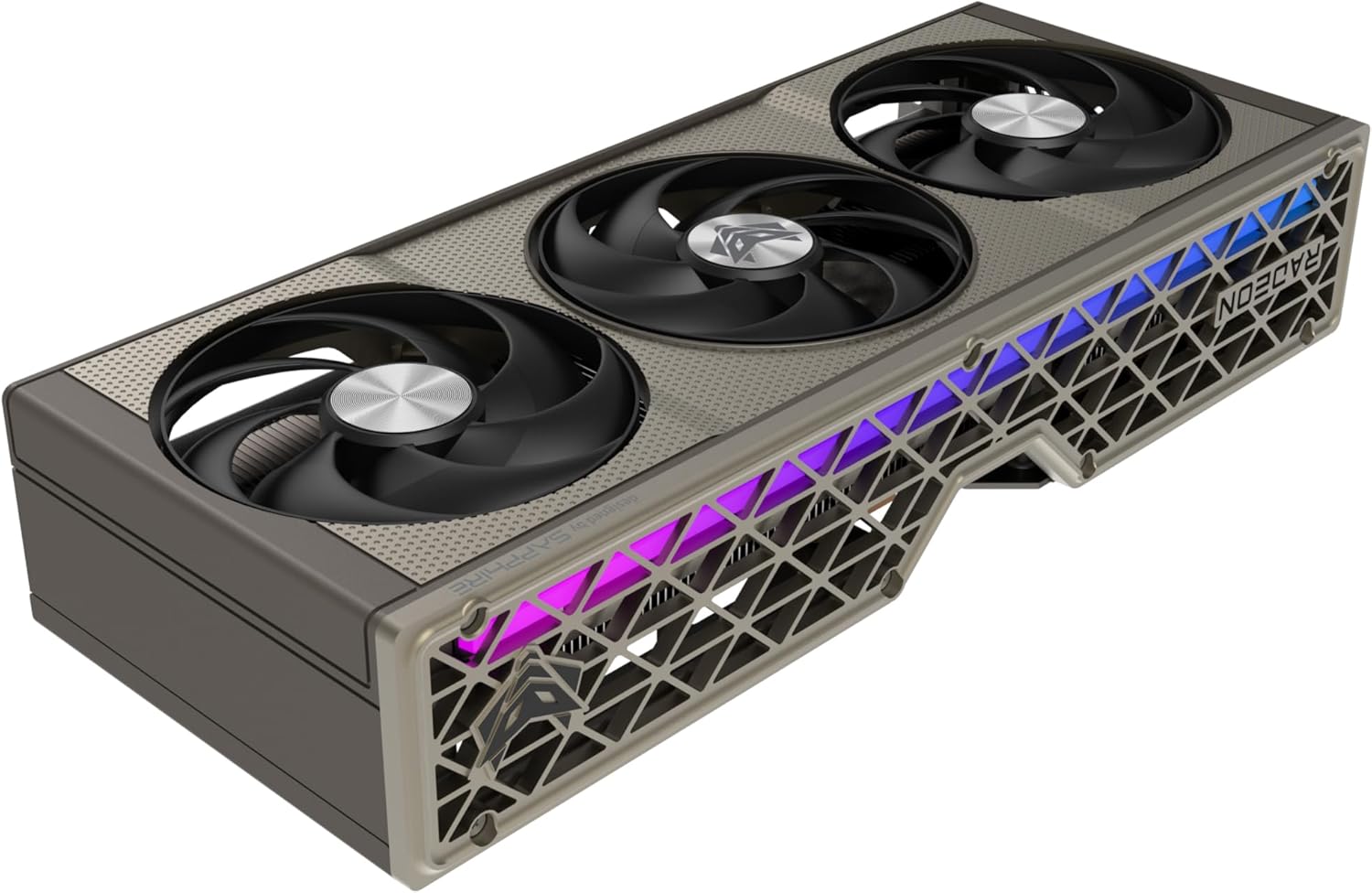
ചിത്രം: ഒരു വശം view of the Sapphire Nitro+ AMD Radeon RX 9060 XT Gaming OC graphics card, showing its thickness and cooling fins.
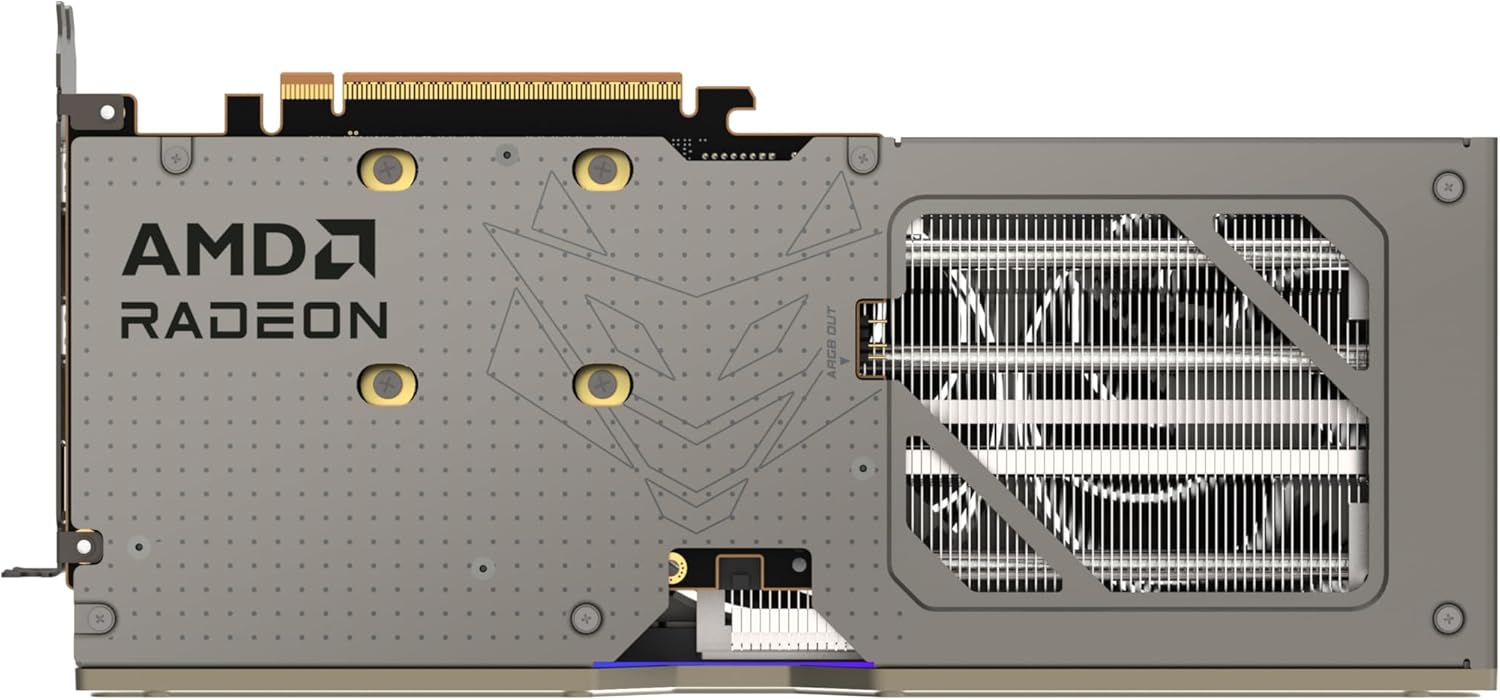
Image: The backplate of the Sapphire Nitro+ AMD Radeon RX 9060 XT Gaming OC graphics card, featuring the AMD Radeon logo and ventilation.
5. പ്രവർത്തന നിർദ്ദേശങ്ങൾ
5.1 ഡ്രൈവർ ഇൻസ്റ്റലേഷൻ
- പവർ ഓൺ: Connect all necessary peripherals and power on your computer.
- പ്രാരംഭ ബൂട്ട്: Your system may boot into a basic display mode.
- ഡ്രൈവറുകൾ ഡൗൺലോഡ് ചെയ്യുക: ഔദ്യോഗിക എഎംഡി സന്ദർശിക്കുക webസൈറ്റ് (www.amd.com/en/support) and download the latest AMD Radeon Software Adrenalin Edition drivers for your RX 9060 XT graphics card and operating system.
- ഡ്രൈവറുകൾ ഇൻസ്റ്റാൾ ചെയ്യുക: Run the downloaded installer and follow the on-screen instructions. It is recommended to perform a "Factory Reset" during installation if you are upgrading from a previous graphics card to ensure all old drivers are removed.
- പുനരാരംഭിക്കുക: ഡ്രൈവർ ഇൻസ്റ്റാളേഷൻ പൂർത്തിയായ ശേഷം നിങ്ങളുടെ കമ്പ്യൂട്ടർ പുനരാരംഭിക്കുക.
5.2 ഡിസ്പ്ലേ കണക്ഷനുകൾ
The Sapphire Nitro+ AMD Radeon RX 9060 XT Gaming OC features multiple display outputs for connecting monitors. Ensure your display cables are securely connected to the graphics card and your monitor.

ചിത്രം: ഒരു ക്ലോസ്-അപ്പ് view of the display output ports (HDMI and DisplayPort) on the Sapphire Nitro+ AMD Radeon RX 9060 XT Gaming OC graphics card.
- എച്ച്ഡിഎംഐ: Connects to HDMI-compatible displays.
- ഡിസ്പ്ലേ പോർട്ട്: Connects to DisplayPort-compatible displays.
6. പരിപാലനം
- വൃത്തിയാക്കൽ: Periodically clean the fans and heatsink of the graphics card to prevent dust buildup, which can impede cooling performance. Use compressed air to gently blow dust away from the fins and fan blades. Ensure the system is powered off and unplugged before cleaning.
- ഡ്രൈവർ അപ്ഡേറ്റുകൾ: Regularly check the AMD website for the latest driver updates. Keeping your drivers current ensures optimal performance, stability, and access to new features.
- സിസ്റ്റം വെന്റിലേഷൻ: Ensure your PC case has adequate airflow to dissipate heat generated by the graphics card and other components.
7. പ്രശ്നപരിഹാരം
7.1 ഡിസ്പ്ലേ ഔട്ട്പുട്ട് ഇല്ല
- Ensure the monitor is powered on and connected to the graphics card, not the motherboard's integrated graphics ports.
- ഗ്രാഫിക്സ് കാർഡ് പൂർണ്ണമായും PCIe സ്ലോട്ടിൽ ഇരിപ്പുണ്ടെന്നും സുരക്ഷിതമാണെന്നും ഉറപ്പാക്കുക.
- Check that all PCIe power connectors are securely attached to the graphics card.
- Try a different display cable or monitor to rule out cable/monitor issues.
- If you have another graphics card, test it in the same slot to check if the slot is functional.
7.2 Performance Issues or Crashes
- Ensure you have the latest AMD Radeon drivers installed. Consider performing a clean driver installation using AMD's cleanup utility.
- Monitor GPU temperatures using software like AMD Radeon Software. High temperatures can lead to throttling or instability. Ensure proper case ventilation.
- Check your power supply unit (PSU) to ensure it provides sufficient and stable power to the graphics card.
- Verify that your system's RAM and CPU are functioning correctly and are not bottlenecking the GPU.
7.3 RGB ലൈറ്റിംഗ് പ്രവർത്തിക്കുന്നില്ല
- Ensure the ARGB sync cable (if used) is correctly connected to both the graphics card and the motherboard's ARGB header.
- Check your motherboard's RGB software or the AMD Radeon Software for lighting control settings.
8 സ്പെസിഫിക്കേഷനുകൾ
| ഫീച്ചർ | വിശദാംശങ്ങൾ |
|---|---|
| മോഡൽ നമ്പർ | 11350-01-20G |
| ഗ്രാഫിക്സ് കോപ്രൊസസർ | Rrx9060xt |
| ബ്രാൻഡ് | നീലക്കല്ല് |
| ഗ്രാഫിക്സ് കാർഡ് റാം വലിപ്പം | 16 GB GDDR6 |
| മെമ്മറി സ്പീഡ് | 2500 MHz (ഫലപ്രദമായ 20 Gbps) |
| GPU ക്ലോക്ക് സ്പീഡ് | Up to 3320 MHz (Boost) |
| പരമാവധി സ്ക്രീൻ റെസല്യൂഷൻ | 3840x2160 (4K) |
| വീഡിയോ ഔട്ട്പുട്ട് ഇൻ്റർഫേസ് | ഡിസ്പ്ലേ പോർട്ട്, HDMI |
| ഇനത്തിൻ്റെ അളവുകൾ LxWxH | 9.45 x 4.88 x 0.04 ഇഞ്ച് (ഏകദേശം 240 x 124 x 1 മിമി) |
| ഇനത്തിൻ്റെ ഭാരം | 1.1 പൗണ്ട് (ഏകദേശം 0.5 കിലോഗ്രാം) |
9. വാറൻ്റിയും പിന്തുണയും
Your Sapphire Nitro+ AMD Radeon RX 9060 XT Gaming OC graphics card is covered by a manufacturer's warranty. For detailed warranty terms and conditions, please refer to the warranty information included with your product or visit the official Sapphire webസൈറ്റ്.
For technical support, driver downloads, and frequently asked questions, please visit the Sapphire support page: