1. ആമുഖം
This manual provides comprehensive instructions for the JVC 86-inch Roku TV 4K UHD Model SI86URF. It covers setup, operation, maintenance, and troubleshooting to ensure optimal performance and longevity of your television. Please read this manual thoroughly before using the product and retain it for future reference.

ചിത്രം 1.1: മുൻഭാഗം view of the JVC 86-inch Roku TV 4K UHD, showcasing its frameless design and vibrant display capabilities.
2. ബോക്സിൽ എന്താണുള്ളത്?
അൺപാക്ക് ചെയ്യുമ്പോൾ, ഇനിപ്പറയുന്ന എല്ലാ ഇനങ്ങളും ഉൾപ്പെടുത്തിയിട്ടുണ്ടെന്ന് ഉറപ്പാക്കുക:
- JVC 86-inch Roku TV (Model SI86URF)
- റിമോട്ട് കൺട്രോൾ (ബാറ്ററികൾക്കൊപ്പം)
- ടിവി സ്റ്റാൻഡുകൾ (2 കഷണങ്ങൾ)
- ടിവി സ്റ്റാൻഡുകൾക്കുള്ള സ്ക്രൂകൾ
- പവർ കോർഡ്
- ഉപയോക്തൃ മാനുവൽ (ഈ പ്രമാണം)
കുറിപ്പ്: ഏതെങ്കിലും ഇനങ്ങൾ നഷ്ടപ്പെട്ടാലോ കേടുപാടുകൾ സംഭവിച്ചാലോ, ദയവായി ഉപഭോക്തൃ പിന്തുണയുമായി ബന്ധപ്പെടുക.
3. ഉൽപ്പന്നം കഴിഞ്ഞുview
3.1 പ്രധാന സവിശേഷതകൾ
- 4K അൾട്രാ HD റെസല്യൂഷൻ: Delivers sharp and realistic images with four times the detail of Full HD.
- Roku TV Operating System: Provides easy navigation and access to thousands of streaming applications and channels.
- ഫ്രെയിംലെസ്സ് ഡിസൈൻ: ഒരു ഇമ്മേഴ്സീവ് വീഡിയോയ്ക്കായി സ്ക്രീൻ സ്പെയ്സ് പരമാവധിയാക്കുന്നു viewഅനുഭവം.
- ഒന്നിലധികം കണക്റ്റിവിറ്റി ഓപ്ഷനുകൾ: Equipped with HDMI and USB ports for connecting various external devices.
- ഡോൾബി അറ്റ്മോസ് ഓഡിയോ: Enhanced audio encoding for an immersive sound experience.
- Chromecast ബിൽറ്റ്-ഇൻ: Allows casting content from compatible devices.
3.2 TV Ports and Connections
The JVC SI86URF TV features various ports for connecting external devices. Refer to the diagram below for port identification.
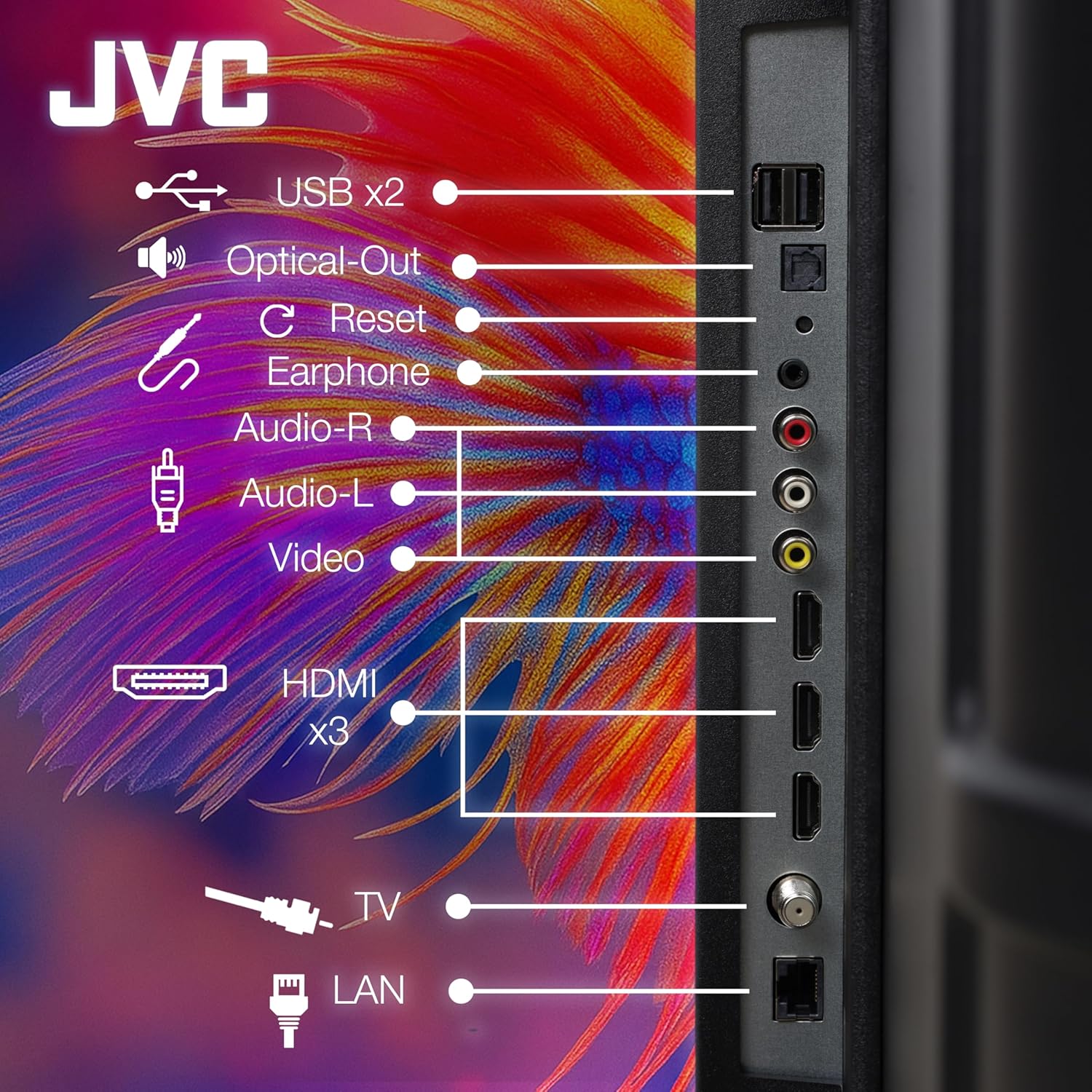
Image 3.2: Rear panel connections of the JVC Roku TV.
| തുറമുഖം | വിവരണം |
|---|---|
| USB x2 | മീഡിയ പ്ലേബാക്കിനായി USB സംഭരണ ഉപകരണങ്ങൾ ബന്ധിപ്പിക്കുക. |
| ഒപ്റ്റിക്കൽ-.ട്ട് | സൗണ്ട്ബാറുകളിലേക്കോ ഹോം തിയറ്റർ സിസ്റ്റങ്ങളിലേക്കോ ബന്ധിപ്പിക്കുന്നതിനുള്ള ഡിജിറ്റൽ ഓഡിയോ ഔട്ട്പുട്ട്. |
| പുനഃസജ്ജമാക്കുക | Button to reset the TV to factory settings. |
| ഇയർഫോൺ | ഹെഡ്ഫോണുകൾക്കായി 3.5mm ഓഡിയോ ജാക്ക്. |
| Audio-R / Audio-L | Analog audio input (RCA) for older devices. |
| വീഡിയോ | Composite video input (RCA) for older devices. |
| HDMI x3 | High-Definition Multimedia Interface for connecting Blu-ray players, game consoles, etc. |
| TV | Antenna/Cable input for receiving broadcast signals. |
| ലാൻ | വയർഡ് ഇന്റർനെറ്റ് കണക്ഷനുള്ള ഇഥർനെറ്റ് പോർട്ട്. |
4. സജ്ജീകരണം
4.1 ഫിസിക്കൽ ഇൻസ്റ്റലേഷൻ
You can install your JVC TV using the included stands or by wall-mounting (wall mount kit sold separately).
4.1.1 ടിവി സ്റ്റാൻഡുകൾ ഇൻസ്റ്റാൾ ചെയ്യുന്നു
- സ്ക്രീനിന് കേടുപാടുകൾ സംഭവിക്കാതിരിക്കാൻ ടിവി മൃദുവായതും വൃത്തിയുള്ളതുമായ ഒരു പ്രതലത്തിൽ ശ്രദ്ധാപൂർവ്വം മുഖം താഴേക്ക് വയ്ക്കുക.
- ടിവിയുടെ അടിയിലുള്ള അനുബന്ധ സ്ക്രൂ ദ്വാരങ്ങൾ ഉപയോഗിച്ച് ഓരോ സ്റ്റാൻഡും വിന്യസിക്കുക.
- നൽകിയിരിക്കുന്ന സ്ക്രൂകൾ ഉപയോഗിച്ച് സ്റ്റാൻഡുകൾ സുരക്ഷിതമാക്കുക.
- സ്ഥിരതയുള്ളതും നിരപ്പായതുമായ പ്രതലത്തിൽ ടിവി ശ്രദ്ധാപൂർവ്വം നിവർന്നുനിൽക്കുന്ന സ്ഥാനത്തേക്ക് ഉയർത്തുക.
4.1.2 വാൾ മൗണ്ടിംഗ് (ഓപ്ഷണൽ)
If you choose to wall-mount your TV, ensure you use a VESA-compatible wall mount kit appropriate for the TV's size and weight. Follow the instructions provided with your wall mount kit. It is recommended to seek professional installation for wall mounting.
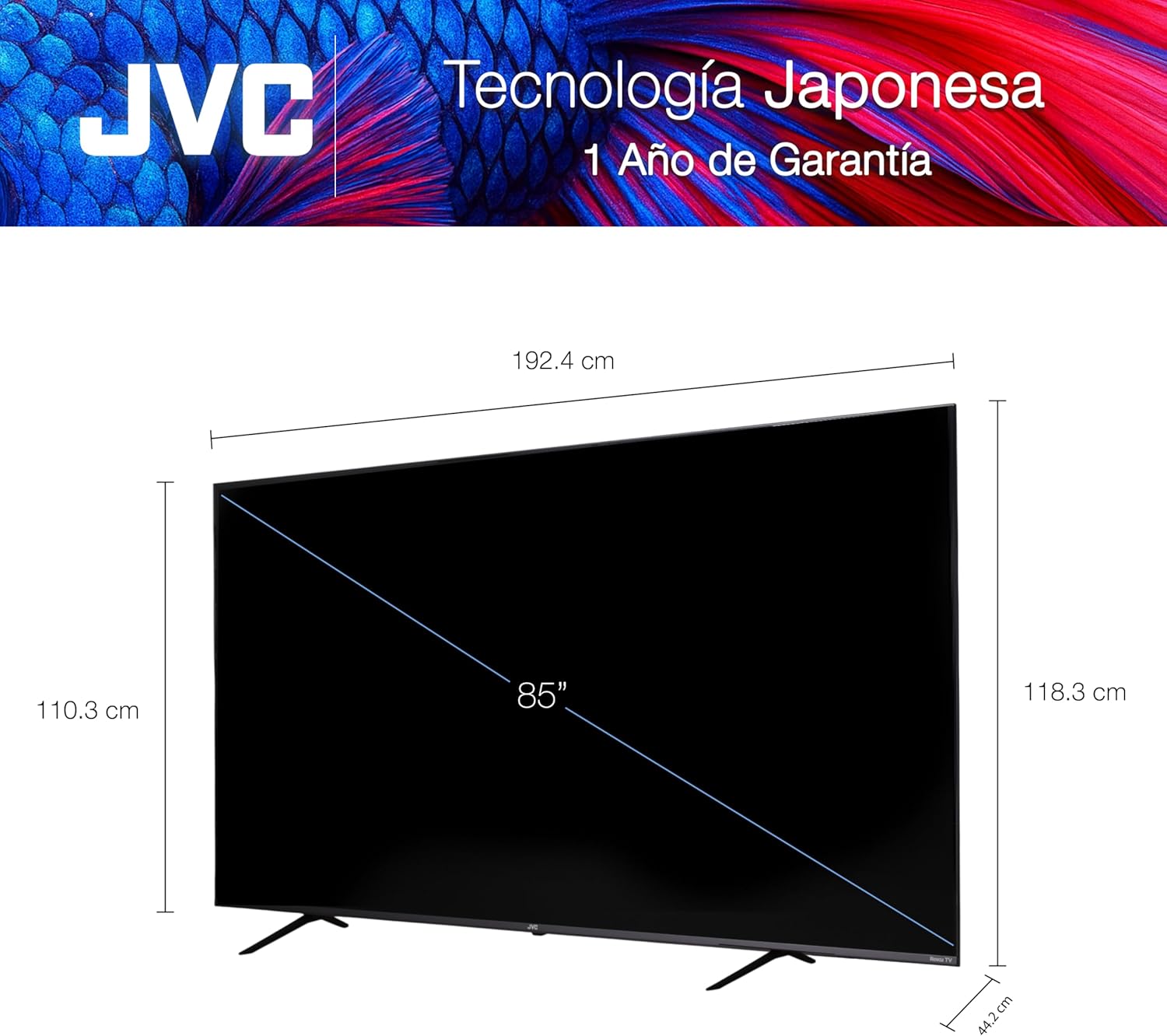
Image 4.1: TV dimensions for placement and mounting considerations.
4.2 പ്രാരംഭ പവർ ഓണും റോക്കു സജ്ജീകരണവും
- പവർ കോർഡ് ടിവിയിലേക്കും തുടർന്ന് ഒരു പവർ ഔട്ട്ലെറ്റിലേക്കും ബന്ധിപ്പിക്കുക.
- ഉൾപ്പെടുത്തിയിരിക്കുന്ന ബാറ്ററികൾ റിമോട്ട് കൺട്രോളിലേക്ക് തിരുകുക.
- ടിവി ഓണാക്കാൻ റിമോട്ട് കൺട്രോളിലെ പവർ ബട്ടൺ അമർത്തുക.
- Follow the on-screen instructions to complete the initial Roku TV setup, including language selection, network connection (Wi-Fi or Ethernet), and channel scanning (if connecting an antenna).
- You will be prompted to activate your Roku account. This is required to access streaming channels and features.

Image 4.2: JVC Roku TV displaying the Roku OS home screen in a living room environment.
4.3 ബാഹ്യ ഉപകരണങ്ങൾ ബന്ധിപ്പിക്കുന്നു
Use the appropriate ports (refer to Section 3.2) to connect your external devices.
- HDMI ഉപകരണങ്ങൾ: Connect Blu-ray players, game consoles, cable/satellite boxes, etc., to the HDMI ports.
- USB ഉപകരണങ്ങൾ: Connect USB flash drives for viewing photos, videos, or listening to music.
- ആന്റിന/കേബിൾ: Connect an antenna or cable TV feed to the "TV" port for over-the-air or basic cable channels.
- ഓഡിയോ സിസ്റ്റങ്ങൾ: Use the Optical-Out port for digital audio or the Audio-R/L ports for analog audio to connect to external sound systems.
5. ടിവി പ്രവർത്തിപ്പിക്കൽ
5.1 വിദൂര നിയന്ത്രണം
The included remote control allows you to navigate the Roku TV interface and control various functions.

Image 5.1: JVC Roku TV remote control and Roku OS interface.
Key remote functions typically include:
- ശക്തി: ടിവി ഓണാക്കുകയോ ഓഫാക്കുകയോ ചെയ്യുന്നു.
- ദിശാസൂചന പാഡ് (ഡി-പാഡ്): മെനുകളിലൂടെ സഞ്ചരിച്ച് ഇനങ്ങൾ തിരഞ്ഞെടുക്കുന്നു.
- ശരി/തിരഞ്ഞെടുക്കുക: തിരഞ്ഞെടുക്കലുകൾ സ്ഥിരീകരിക്കുന്നു.
- വീട്: റോക്കു ടിവി ഹോം സ്ക്രീനിലേക്ക് മടങ്ങുന്നു.
- തിരികെ: മുമ്പത്തെ സ്ക്രീനിലേക്ക് മടങ്ങുന്നു.
- വോളിയം കൂട്ടുക/താഴ്ത്തുക: ടിവി വോളിയം ക്രമീകരിക്കുന്നു.
- നിശബ്ദമാക്കുക: ശബ്ദം നിശബ്ദമാക്കുകയോ അൺമ്യൂട്ടുചെയ്യുകയോ ചെയ്യുന്നു.
- ചാനൽ മുകളിലേക്കും താഴേക്കും: Changes channels (for antenna/cable input).
- തൽക്ഷണ റീപ്ലേ: വീഡിയോ പ്ലേബാക്കിൽ കുറച്ച് സെക്കൻഡ് പിന്നോട്ട് പോകുന്നു.
- നക്ഷത്രം (*): തിരഞ്ഞെടുത്ത ഉള്ളടക്കത്തിനായുള്ള ഓപ്ഷനുകൾ മെനു ആക്സസ് ചെയ്യുന്നു.
- സമർപ്പിത ആപ്പ് ബട്ടണുകൾ: Quick access to popular streaming services (e.g., Netflix, Disney+, HBO Max).
5.2 Roku OS Navigation
The Roku TV home screen provides access to all your entertainment options. You can:
- Browse Streaming Channels: Add or remove channels from the Roku Channel Store.
- സ്വിച്ച് ഇൻപുട്ടുകൾ: Select connected devices (HDMI 1, HDMI 2, etc.) or the TV antenna input.
- ആക്സസ് ക്രമീകരണങ്ങൾ: Configure network, display, audio, and system settings.
- തിരയുക: വിവിധ സ്ട്രീമിംഗ് സേവനങ്ങളിലുടനീളം സിനിമകൾ, ടിവി ഷോകൾ, അഭിനേതാക്കൾ അല്ലെങ്കിൽ ചാനലുകൾ എന്നിവ കണ്ടെത്തുക.
5.3 Streaming and Casting
Your JVC Roku TV allows you to stream content from various applications and cast from compatible devices.
5.3.1 Using Streaming Services
Once connected to the internet and logged into your Roku account, you can access pre-installed streaming apps or download new ones from the Roku Channel Store. Navigate to the desired app using the remote and select it to launch.
5.3.2 ക്രോംകാസ്റ്റ് പ്രവർത്തനം
The built-in Chromecast feature allows you to cast content (videos, music, photos) from your smartphone, tablet, or computer directly to your TV. Ensure your casting device is connected to the same Wi-Fi network as your TV. Look for the Cast icon within compatible apps on your device.

Image 5.3: Demonstration of screen sharing or casting content to the JVC TV.
5.4 ഓഡിയോ ക്രമീകരണങ്ങൾ
The TV supports Dolby Atmos audio encoding. You can adjust audio settings through the Roku TV menu:
- പോകുക ക്രമീകരണങ്ങൾ > ഓഡിയോ.
- Adjust settings such as volume mode, audio effects, and digital audio output format.
- If using an external sound system, ensure the correct audio output is selected (e.g., Optical or HDMI ARC if supported).
6. പരിപാലനം
6.1 ടിവി വൃത്തിയാക്കൽ
- വൃത്തിയാക്കുന്നതിന് മുമ്പ് എപ്പോഴും ടിവി അൺപ്ലഗ് ചെയ്യുക.
- സ്ക്രീനും കാബിനറ്റും മൃദുവായതും ഉണങ്ങിയതും ലിന്റ് രഹിതവുമായ ഒരു തുണി ഉപയോഗിച്ച് സൌമ്യമായി തുടയ്ക്കുക.
- സ്ക്രീനിലെ കഠിനമായ അടയാളങ്ങൾക്ക്, നേരിയ തോതിൽ dampതുണിയിൽ വെള്ളം അല്ലെങ്കിൽ ഇലക്ട്രോണിക് ഉപകരണങ്ങൾക്കായി പ്രത്യേകം രൂപകൽപ്പന ചെയ്ത സ്ക്രീൻ-ക്ലീനിംഗ് ലായനി ഉപയോഗിക്കുക. സ്ക്രീനിലേക്ക് നേരിട്ട് ദ്രാവകം തളിക്കരുത്.
- ടിവിയുടെ ഫിനിഷിന് കേടുവരുത്തുന്നതിനാൽ അബ്രാസീവ് ക്ലീനറുകൾ, വാക്സുകൾ അല്ലെങ്കിൽ ലായകങ്ങൾ ഉപയോഗിക്കുന്നത് ഒഴിവാക്കുക.
6.2 സോഫ്റ്റ്വെയർ അപ്ഡേറ്റുകൾ
Your Roku TV automatically checks for and installs software updates when connected to the internet. This ensures you have the latest features and security enhancements. You can manually check for updates:
- പോകുക ക്രമീകരണങ്ങൾ > സിസ്റ്റം > സോഫ്റ്റ്വെയർ അപ്ഡേറ്റ്.
- തിരഞ്ഞെടുക്കുക ഇപ്പോൾ പരിശോധിക്കുക.
7. പ്രശ്നപരിഹാരം
If you encounter issues with your JVC Roku TV, refer to the following common problems and solutions:
| പ്രശ്നം | സാധ്യമായ പരിഹാരം |
|---|---|
| പവർ ഇല്ല |
|
| ചിത്രമില്ല, പക്ഷേ ശബ്ദം ഉണ്ട് |
|
| ശബ്ദമില്ല, പക്ഷേ ചിത്രം നിലവിലുണ്ട് |
|
| റിമോട്ട് കൺട്രോൾ പ്രവർത്തിക്കുന്നില്ല |
|
| നെറ്റ്വർക്ക് കണക്ഷൻ പ്രശ്നങ്ങൾ |
|
For further assistance, please contact JVC customer support.
8 സ്പെസിഫിക്കേഷനുകൾ
| ഫീച്ചർ | സ്പെസിഫിക്കേഷൻ |
|---|---|
| ബ്രാൻഡ് | ജെ.വി.സി |
| മോഡൽ | SI86URF |
| സ്ക്രീൻ വലിപ്പം | 86 ഇഞ്ച് |
| ഡിസ്പ്ലേ ടെക്നോളജി | എൽഇഡി |
| സ്ക്രീൻ തരം | VA |
| റെസലൂഷൻ | 4K UHD (3840 x 2160 പിക്സലുകൾ) |
| പുതുക്കിയ നിരക്ക് | 60 Hz |
| ഓപ്പറേറ്റിംഗ് സിസ്റ്റം | റോക്കു ഒഎസ് |
| പ്രത്യേക സവിശേഷതകൾ | Chromecast ബിൽറ്റ്-ഇൻ |
| ഓഡിയോ എൻകോഡിംഗ് | ഡോൾബി അറ്റ്മോസ് |
| ഔട്ട്പുട്ട് വാട്ട്tage | 20 വാട്ട്സ് |
| കണക്റ്റിവിറ്റി ടെക്നോളജി | HDMI, USB, LAN, Bluetooth |
| HDMI പോർട്ടുകൾ | 3 |
| USB പോർട്ടുകൾ | 2 |
| റിമോട്ട് കൺട്രോൾ ടെക്നോളജി | ഇൻഫ്രാറെഡ് |
| ഉൽപ്പന്ന അളവുകൾ (W x H x D) | 208 x 126 x 24 സെ.മീ (ഏകദേശം 81.9 x 49.6 x 9.4 ഇഞ്ച്) |
| ഉൽപ്പന്ന ഭാരം | 49 കി.ഗ്രാം (ഏകദേശം. 108 പൗണ്ട്) |
| ബാറ്ററികൾ ഉൾപ്പെടുത്തിയിട്ടുണ്ട് | അതെ (വിദൂര നിയന്ത്രണത്തിന്) |
| മൗണ്ടിംഗ് തരം | Wall Mount, Tabletop Stand |
9. വാറൻ്റിയും പിന്തുണയും
9.1 വാറൻ്റി വിവരങ്ങൾ
This JVC TV comes with a 1 വർഷത്തെ വാറൻ്റി from the date of purchase. This warranty covers manufacturing defects under normal use. It does not cover damage caused by misuse, accidents, unauthorized modifications, or acts of nature. Please retain your proof of purchase for warranty claims.
9.2 ഉപഭോക്തൃ പിന്തുണ
For technical assistance, troubleshooting beyond this manual, or warranty inquiries, please contact JVC customer support. Refer to the official JVC webബന്ധപ്പെടാനുള്ള വിശദാംശങ്ങൾക്ക് സൈറ്റ് അല്ലെങ്കിൽ നിങ്ങളുടെ വാങ്ങൽ ഡോക്യുമെന്റേഷൻ.
Please have your TV model number (SI86URF) and serial number ready when contacting support.


