ആമുഖം
This manual provides detailed instructions for the setup, operation, and maintenance of your ELECROW 5-inch Resistive Touch Screen and 7-inch Capacitive Touchscreen Mini Portable Monitors. These displays are designed for broad compatibility with various devices, including Raspberry Pi, Banana Pi, Jetson Nano, and Windows systems, offering versatile visual and interactive experiences.

Image: The ELECROW 5-inch resistive touchscreen (top) and 7-inch capacitive touchscreen (bottom) displays, showcasing their respective resolutions and touch features.
ഉൽപ്പന്ന സവിശേഷതകൾ
- HD Visual Enjoyment: The 5-inch display features an 800x480 resolution, while the 7-inch display supports 1024x600 resolution. Both IPS screens provide consistent colors and a 170° wide viewing ആംഗിൾ.
- Industrial-Grade Resistive Touchscreen (5-inch): Comes with a touch pen for easy use. Supports gloved hands or non-conductive tools, suitable for harsh environments with a 1 million touch lifespan.
- Sensitive Capacitive Touch Screen (7-inch): Supports up to 5-point multi-touch. No driver installation is required; simply connect via Micro USB and HDMI for immediate use.
- വിശാലമായ അനുയോജ്യത: Supports Raspberry Pi (all models), Banana Pi, Jetson Nano, and standard HDMI devices. Can also function as a secondary screen for TV boxes, Switch gaming displays, or extra Windows monitors.
- Plug and Play Display: Connect the screen to your device via the HDMI port and power it via the USB port for immediate functionality. Features a bezel-free design.
പാക്കേജ് ഉള്ളടക്കം
Please verify that all components are present in your package. Typical contents include:
- ELECROW 5-inch Resistive Touchscreen Monitor
- ELECROW 7-inch Capacitive Touchscreen Monitor
- HDMI കേബിൾ(കൾ)
- USB Power Cable(s)
- Touch Pen (for 5-inch resistive screen)
- മൗണ്ടിംഗ് ഹാർഡ്വെയർ (ബാധകമെങ്കിൽ)
Note: Specific accessories may vary. Refer to your product packaging or listing for exact details.
സജ്ജീകരണ നിർദ്ദേശങ്ങൾ
1. Parts Introduction (7-inch Display Exampലെ)
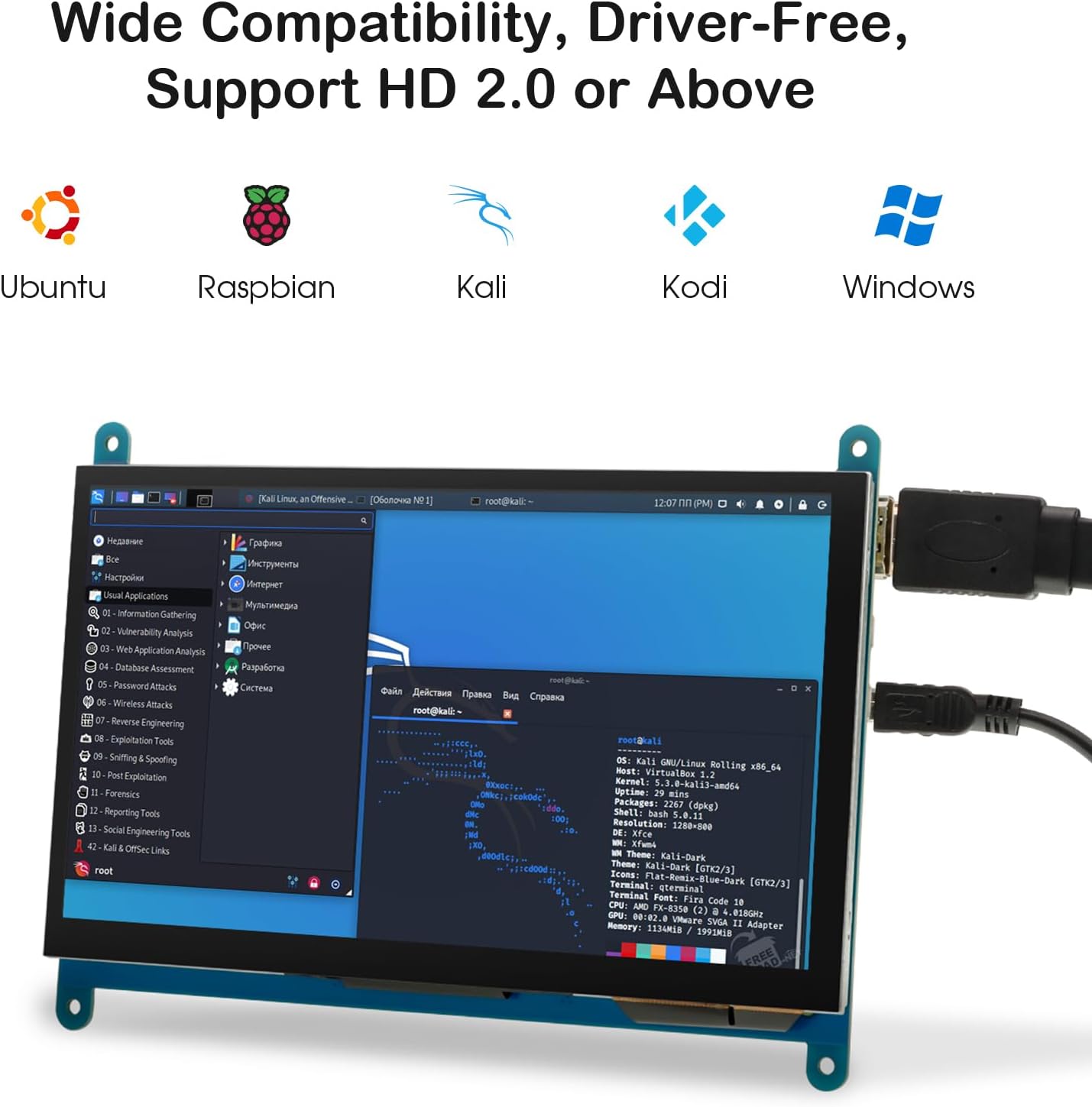
ചിത്രം: വിശദമായ ഒരു ചിത്രം view of the 7-inch LCD display's circuit board, highlighting the Backlight, USB Touch/Power, and HD Interface ports with dimensions.
Familiarize yourself with the ports on your monitor. Typically, you will find a Micro USB port for power and touch input, and an HDMI port for video input.
2. Connecting to Raspberry Pi (5-inch Display Exampലെ)

Image: The 5-inch LCD display connected to a Raspberry Pi board, illustrating the necessary HDMI and USB power/touch connections. Note: Raspberry Pi board is not included.
- Connect the HDMI cable from your Raspberry Pi's HDMI output to the monitor's HDMI input.
- Connect the Micro USB cable from a USB port on your Raspberry Pi (or an external 5V power adapter) to the monitor's Micro USB port for power and touch functionality.
- Ensure your Raspberry Pi's operating system is configured to output to the correct resolution (800x480 for 5-inch, 1024x600 for 7-inch). For touch functionality, no additional drivers are typically needed for standard Raspberry Pi OS distributions.
3. Connecting to Other Devices (Windows, Jetson Nano, etc.)

Image: The ELECROW monitors demonstrating compatibility with various applications, including connection to a Jetson Nano, a Raspberry Pi setup, and integration as a 3D printer interface.
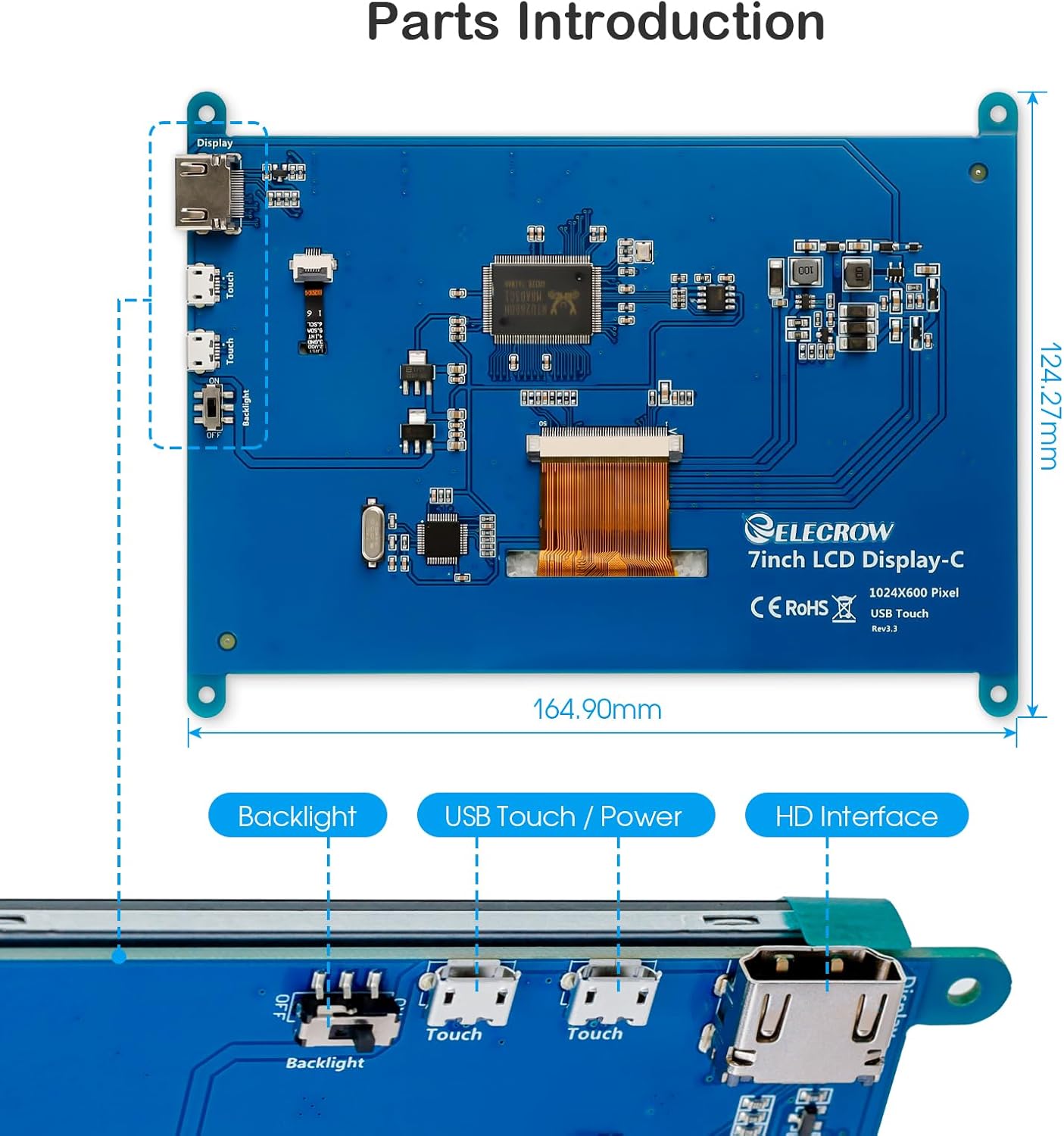
Image: The ELECROW monitor showcasing its wide compatibility by displaying interfaces from Ubuntu, Raspbian, Kali, Kodi, and Windows operating systems.
- Connect the HDMI cable from your device's HDMI output to the monitor's HDMI input.
- Connect the Micro USB cable from a USB port on your device (or an external 5V power adapter) to the monitor's Micro USB port for power and touch functionality.
- For Windows systems, the monitor should be recognized automatically as a secondary display. Touch functionality is typically plug-and-play. Adjust display settings in Windows to extend or duplicate your desktop.
പ്രവർത്തന നിർദ്ദേശങ്ങൾ
പവർ ചെയ്യുന്നത് ഓൺ/ഓഫ്
The monitor powers on automatically when it receives power through the Micro USB port and a video signal through the HDMI port. To power off, simply disconnect the power cable or shut down the connected device.
ടച്ച്സ്ക്രീൻ ഉപയോഗിക്കുന്നു
- 5-inch Resistive Touchscreen: Use the provided touch pen or a non-conductive tool for precise input. Apply light pressure to register touches.
- 7 ഇഞ്ച് കപ്പാസിറ്റീവ് ടച്ച്സ്ക്രീൻ: Supports up to 5-point multi-touch. Use your fingers for gestures like tapping, swiping, pinching, and zooming, similar to a smartphone or tablet.
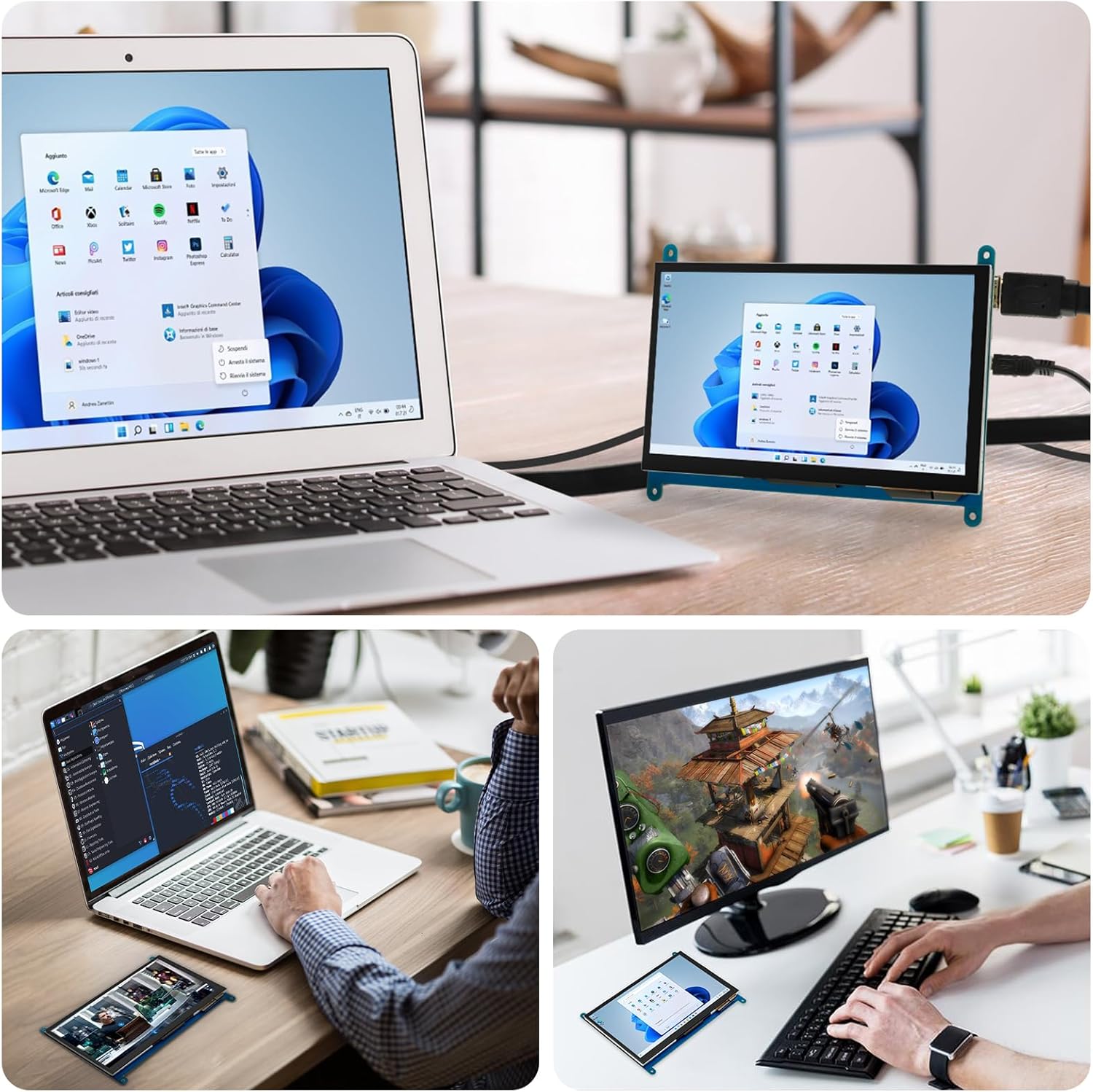
ചിത്രം: ഉദാamples of the ELECROW monitors in use, serving as a secondary display for a laptop, a dedicated screen for coding, and a compact monitor for gaming.
പ്രദർശന ക്രമീകരണങ്ങൾ
Most display settings, such as resolution and screen orientation, are managed through the operating system of your connected device (e.g., Raspberry Pi OS, Windows Display Settings). The monitors are designed to be plug-and-play, automatically adapting to common resolutions.
മെയിൻ്റനൻസ്
- വൃത്തിയാക്കൽ: സ്ക്രീൻ മൃദുവായി തുടയ്ക്കാൻ മൃദുവായ, ലിന്റ് രഹിത തുണി ഉപയോഗിക്കുക. കഠിനമായ കറകൾക്ക്, ചെറുതായി dampതുണിയിൽ വെള്ളം അല്ലെങ്കിൽ സ്ക്രീൻ-സേഫ് ക്ലീനർ ഉപയോഗിക്കുക. കഠിനമായ രാസവസ്തുക്കളോ ഉരച്ചിലുകളോ ഉള്ള വസ്തുക്കൾ ഒഴിവാക്കുക.
- സംഭരണം: When not in use, store the monitor in a cool, dry place away from direct sunlight and extreme temperatures.
- കൈകാര്യം ചെയ്യൽ: Handle the monitor by its edges. Avoid applying excessive pressure to the screen or dropping the device.
ട്രബിൾഷൂട്ടിംഗ്
| പ്രശ്നം | സാധ്യമായ കാരണം | പരിഹാരം |
|---|---|---|
| ഡിസ്പ്ലേ ഇല്ല/കറുത്ത സ്ക്രീൻ | No power; No video signal; Incorrect resolution. | Ensure USB power cable is connected and receiving power. Verify HDMI cable is securely connected to both devices. Check your device's display settings to ensure the correct resolution is outputted. |
| ടച്ച്സ്ക്രീൻ പ്രതികരിക്കുന്നില്ല | USB cable not connected; Driver issue (rare); Calibration needed. | Ensure the Micro USB cable is connected for both power and touch data. For Raspberry Pi, ensure the OS is configured for touch. For Windows, check Device Manager. Recalibrate touch if necessary (refer to OS documentation). |
| മിന്നുന്ന ഡിസ്പ്ലേ | Insufficient power; Loose cable connection. | Ensure the monitor is receiving stable 5V power. Check all cable connections for looseness. Try a different USB power source or cable. |
| Image is distorted or off-center | Incorrect resolution or aspect ratio setting. | Adjust the display resolution and scaling settings on your connected device to match the monitor's native resolution (800x480 for 5-inch, 1024x600 for 7-inch). |
സ്പെസിഫിക്കേഷനുകൾ
- ബ്രാൻഡ്: ഇലക്രോ
- ASIN: B0F9PB1NX7
- 5 ഇഞ്ച് ഡിസ്പ്ലേ:
- Resolution: 800x480
- ടച്ച് തരം: റെസിസ്റ്റീവ്
- Viewing Angle: 170° IPS
- 7 ഇഞ്ച് ഡിസ്പ്ലേ:
- Resolution: 1024x600
- Touch Type: Capacitive (5-point multi-touch)
- Viewing Angle: 170° IPS
- ഇൻ്റർഫേസ്: HDMI for video, Micro USB for power and touch
- അനുയോജ്യത: Raspberry Pi (all models), Banana Pi, Jetson Nano, BB Black, Windows, standard HDMI devices.
- പവർ ഇൻപുട്ട്: 5V via Micro USB

Image: Specifications for the 5-inch Resistive Touchscreen Monitor, detailing its features and dimensions.
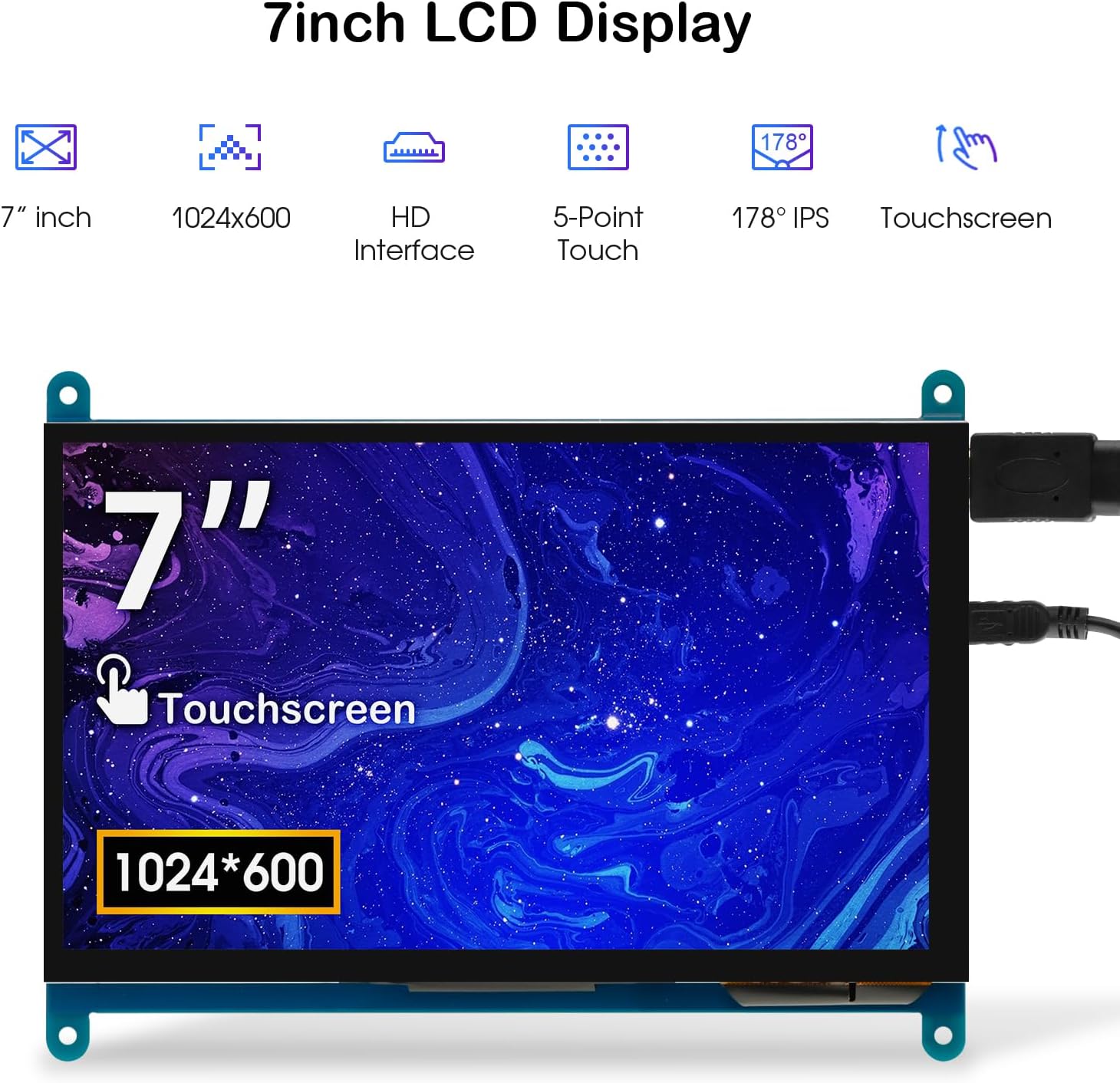
Image: Specifications for the 7-inch LCD Display, detailing its features and viewing ആംഗിൾ.
വാറൻ്റിയും പിന്തുണയും
ELECROW products are designed for reliability and performance. For warranty information, technical support, or service inquiries, please refer to the official ELECROW webസൈറ്റിൽ ബന്ധപ്പെടുക അല്ലെങ്കിൽ അവരുടെ ഉപഭോക്തൃ സേവനവുമായി നേരിട്ട് ബന്ധപ്പെടുക. വാറന്റി ക്ലെയിമുകൾക്കായി നിങ്ങളുടെ വാങ്ങൽ രസീത് സൂക്ഷിക്കുക.
ബന്ധപ്പെടാനുള്ള വിവരങ്ങൾ: ദയവായി സന്ദർശിക്കുക ELECROW Store on Amazon അല്ലെങ്കിൽ അവരുടെ ഉദ്യോഗസ്ഥൻ webഏറ്റവും കാലികമായ പിന്തുണാ ഉറവിടങ്ങൾക്കായുള്ള സൈറ്റ്.