1. ആമുഖം
This manual provides detailed instructions for the installation, setup, operation, and maintenance of your QttyElok F20-K WIFITY Wireless WiFi Tuya Fingerprint Access Controller. This device is designed to provide secure and convenient access control using multiple verification methods, including fingerprint, RFID card, password, and remote control via the Tuya Smart APP. Its waterproof design allows for both indoor and outdoor applications.

Image 1.1: QttyElok F20-K WIFITY Access Controller with mobile app interface.
2. ഉൽപ്പന്ന സവിശേഷതകൾ
- സ്മാർട്ട് കണക്റ്റിവിറ്റി: WiFi Tuya Smart APP support for remote unlocking, user management, and access record viewing.
- Dual Frequency Compatibility: Supports both 125KHz and 13.56MHz RFID cards, with a capacity for 100 fingerprints and 8000 RFID card users. Includes management card functionality for easy programming.
- വിപുലമായ സുരക്ഷ: Multiple verification modes including Tuya APP, fingerprint, RFID card, password, and card plus password combinations. Operates independently without requiring a computer or software connection.
- വാട്ടർപ്രൂഫ് ഡിസൈൻ: IP68-rated construction suitable for both indoor and outdoor environments. Features a touch panel interface with a blue backlight for clear visibility in low-light conditions.
- ബഹുമുഖ സംയോജനം: Equipped with WG26/34 Wiegand input/output interface, doorbell button connectivity, and adjustable door opening time from 1 to 99 seconds.
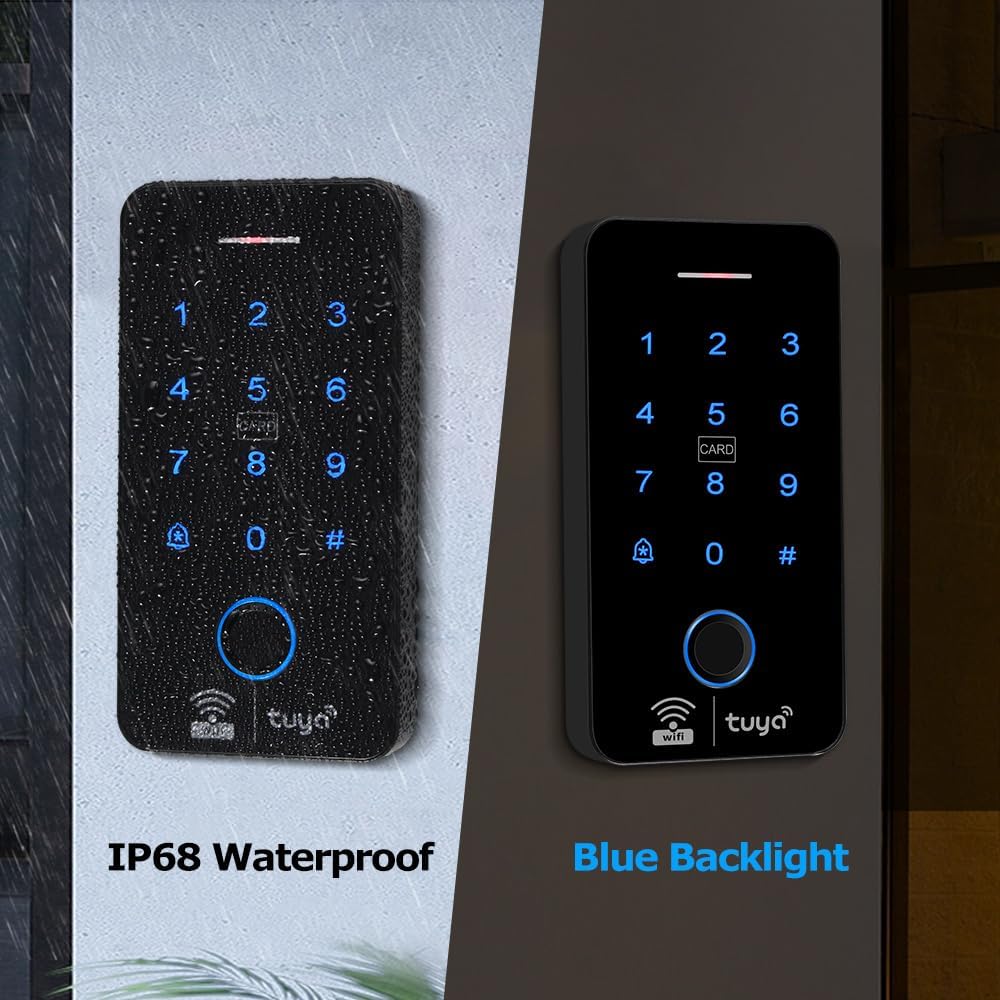
Image 2.1: IP68 waterproof rating and blue backlight for visibility.

Image 2.2: Features like fingerprint unlock, touch panel, and doorbell button.

ചിത്രം 2.3: കഴിഞ്ഞുview of multiple unlocking methods including Tuya App, fingerprint, RFID, and password.

Image 2.4: The access controller operating outdoors in rainy conditions, demonstrating its IP68 waterproof rating.
3. പാക്കേജ് ഉള്ളടക്കം
പാക്കേജിൽ എല്ലാ ഇനങ്ങളും ഉണ്ടെന്ന് ദയവായി പരിശോധിക്കുക:
- Access Controller (F20-K WIFITY)
- Keyfobs (RFID cards)
- ഉപയോക്തൃ മാനുവൽ
4 സ്പെസിഫിക്കേഷനുകൾ
| ഫീച്ചർ | വിശദാംശങ്ങൾ |
|---|---|
| നിർമ്മാതാവ് | QingTianTongYun |
| ഭാഗം നമ്പർ | F20-K TY01 |
| ഇനം മോഡൽ നമ്പർ | F20-K WIFITY |
| നിറം | കറുപ്പ് |
| മെറ്റീരിയൽ | പ്ലാസ്റ്റിക് |
| ഇനത്തിൻ്റെ ഭാരം | 8.8 ഔൺസ് (0.25 കിലോഗ്രാം) |
| പാക്കേജ് അളവുകൾ | 5.51 x 2.76 x 0.79 ഇഞ്ച് |
| വാല്യംtage | 12 വോൾട്ട് (DC) |
| വാട്ടർപ്രൂഫ് റേറ്റിംഗ് | IP68 |
| RFID ഫ്രീക്വൻസി | 125KHz & 13.56MHz (Dual Frequency) |
| ഉപയോക്തൃ ശേഷി | 100 Fingerprints, 8000 RFID Card Users |
| കണക്റ്റിവിറ്റി | WiFi, WG26/34 Wiegand I/O |

Image 4.1: Dimensions of the access controller.

Image 4.2: Diagram showing internal components and connection points.
5. ഇൻസ്റ്റലേഷൻ
Before installation, ensure the power supply is disconnected. Mount the access controller at the desired location, ensuring it is within WiFi range for app functionality. Refer to the wiring diagram in Section 7 for proper electrical connections.
- Choose a suitable mounting location, considering accessibility and environmental factors.
- Securely mount the access controller to the wall or door frame using appropriate fasteners.
- Connect the power supply (12V DC) and other necessary components (electric lock, exit button, doorbell) according to the wiring diagram.
- എല്ലാ കണക്ഷനുകളും സുരക്ഷിതവും ഇൻസുലേറ്റ് ചെയ്തതുമാണെന്ന് ഉറപ്പാക്കുക.
- ഉപകരണം ഓണാക്കുക.
6. സജ്ജീകരണവും കോൺഫിഗറേഷനും
6.1 Tuya Smart APP Download and Connection
To utilize the smart features, download and install the Tuya Smart APP on your smartphone.
- Scan the QR code provided in the product packaging or search for "TuyaSmart" in your device's app store (App Store for iOS, Google Play Store for Android).
- നിങ്ങളുടെ Tuya Smart അക്കൗണ്ടിൽ രജിസ്റ്റർ ചെയ്യുക അല്ലെങ്കിൽ ലോഗിൻ ചെയ്യുക.
- Add the device by selecting "Add Device" and following the on-screen instructions to connect the access controller to your WiFi network.

Image 6.1: Steps for downloading and connecting the Tuya Smart App.
6.2 Adding Users (Fingerprints, RFID Cards, Passwords)
Users can be added directly through the access controller's keypad or via the Tuya Smart APP.
- കീപാഡ് വഴി: Follow the programming instructions in the quick start guide to enter administrator mode and add new users (fingerprints, cards, or passwords).
- Via Tuya Smart APP:
- Open the Tuya Smart APP and select your access controller.
- Navigate to the "Member Manage" or "User Management" section.
- Select the option to add a new user and choose the desired verification method (fingerprint, card, or password).
- Follow the app's prompts to register the new user's credentials.

Image 6.2: Screenshots illustrating user management and settings within the Tuya Smart App.
7. പ്രവർത്തന നിർദ്ദേശങ്ങൾ
7.1 അൺലോക്ക് രീതികൾ
- ഫിംഗർപ്രിന്റ്: ഫിംഗർപ്രിൻ്റ് സെൻസറിൽ രജിസ്റ്റർ ചെയ്ത വിരൽ വയ്ക്കുക.
- RFID കാർഡ്: Present a registered RFID card to the card reading area.
- പാസ്വേഡ്: Enter your registered password on the keypad, followed by the '#' key.
- Tuya Smart APP: Open the app, select the device, and tap the unlock button.
- റിമോട്ട് കൺട്രോൾ: If a remote control is paired, press the unlock button on the remote.

Image 7.1: Remote unlocking functionality through the Tuya Smart App.
7.2 Temporary Password Unlock
The system supports generating one-time or time-limited temporary passwords for guests or service personnel. This feature is managed through the Tuya Smart APP.
- In the Tuya Smart APP, navigate to the "Temporary Code" section.
- Generate a new temporary password, specifying its validity period or if it's a one-time use code.
- Share the generated code with the intended user.

Image 7.2: Illustration of generating and sharing a temporary password via the app.
7.3 Normally Open Mode
For frequent entry and exit, the access controller can be configured to a "Normally Open" mode, keeping the door unlocked for a specified duration or indefinitely.
- Access the device settings in the Tuya Smart APP.
- Locate the "Door Keep Open" or "Normally Open Mode" setting.
- Configure the desired schedule or select "Forever" for continuous unlock.

Image 7.3: Setting the Normally Open mode for extended access.
8. വയറിംഗ് ഡയഗ്രം
The following diagram illustrates the standard wiring connections for the QttyElok F20-K WIFITY access controller with a power supply, electric lock, and exit button. Ensure all connections are made correctly to prevent damage to the device or connected components.

Image 8.1: Detailed wiring diagram for connecting the access controller to power, electric locks, and an exit button.
വയറിംഗ് കീ:
- ചുവപ്പ്: 12V (Power Input)
- കറുപ്പ്: GND (ഗ്രൗണ്ട്)
- മഞ്ഞ: NO/PUSH (Normally Open for Exit Button)
- ചാരനിറം: COM (Common for Lock)
- നീല: NC (Normally Closed for Lock)
- തവിട്ട്: KEY (Keypad Input)
- പർപ്പിൾ: BELL (Doorbell Output)
- വെള്ള: D1 (Wiegand Data 1)
- പച്ച: D0 (Wiegand Data 0)
9. പരിപാലനം
- വൃത്തിയാക്കൽ: Regularly wipe the keypad and fingerprint sensor with a soft, dry cloth. Avoid abrasive cleaners or solvents.
- ഫേംവെയർ അപ്ഡേറ്റുകൾ: Check the Tuya Smart APP periodically for available firmware updates to ensure optimal performance and security.
- വൈദ്യുതി വിതരണം: Ensure a stable 12V DC power supply. Fluctuations can affect device operation.
- പരിസ്ഥിതി വ്യവസ്ഥകൾ: While waterproof, avoid prolonged submersion or exposure to extreme temperatures beyond specified operating ranges.
10. പ്രശ്നപരിഹാരം
- ഉപകരണം പ്രതികരിക്കുന്നില്ല: Check power connections. Ensure the 12V DC power supply is active.
- Fingerprint/Card Not Recognized: Ensure the fingerprint sensor or card reader is clean. Re-register the fingerprint or card if issues persist. Verify the card frequency matches the device's dual frequency support.
- ആപ്പ് കണക്റ്റിവിറ്റി പ്രശ്നങ്ങൾ: Check your WiFi network connection. Ensure the device is within WiFi range and correctly paired with the Tuya Smart APP. Restart the device and your router if necessary.
- വാതിൽ തുറക്കുന്നില്ല: Verify wiring to the electric lock. Check the door opening time setting in the app. Ensure the lock mechanism is not obstructed.
- കീപാഡ് പ്രതികരിക്കുന്നില്ല: Ensure the touch panel is clean and dry. If the issue persists, a power cycle may be required.
11. വാറൻ്റിയും പിന്തുണയും
For warranty information and technical support, please refer to the documentation included with your purchase or contact QttyElok customer service through the retailer where the product was purchased. Keep your proof of purchase for warranty claims.