1. ആമുഖം
This manual provides essential information for setting up, operating, and maintaining your NIMO 17.3 Gaming Laptop. Please read this manual thoroughly to ensure proper usage and to maximize the performance and longevity of your device. Keep this manual for future reference.

ചിത്രം 1.1: മുൻഭാഗം view of the NIMO 17.3 Gaming Laptop. The laptop features a large display, a full-sized keyboard, and a sleek design.
2. പാക്കേജ് ഉള്ളടക്കം
പാക്കേജിൽ എല്ലാ ഇനങ്ങളും ഉണ്ടെന്ന് ഉറപ്പാക്കുക:
- 1 x NIMO 17.3 Gaming Laptop (Model Nimo N175)
- 1 x Type-C 100W PD Fast Charger
- 1 x ഉപയോക്തൃ മാനുവൽ (ഈ പ്രമാണം)
- Windows 11 Home Operating System (pre-installed)
3. ഉൽപ്പന്നം കഴിഞ്ഞുview
3.1. External Components and Ports
Familiarize yourself with the various ports and components of your NIMO laptop:
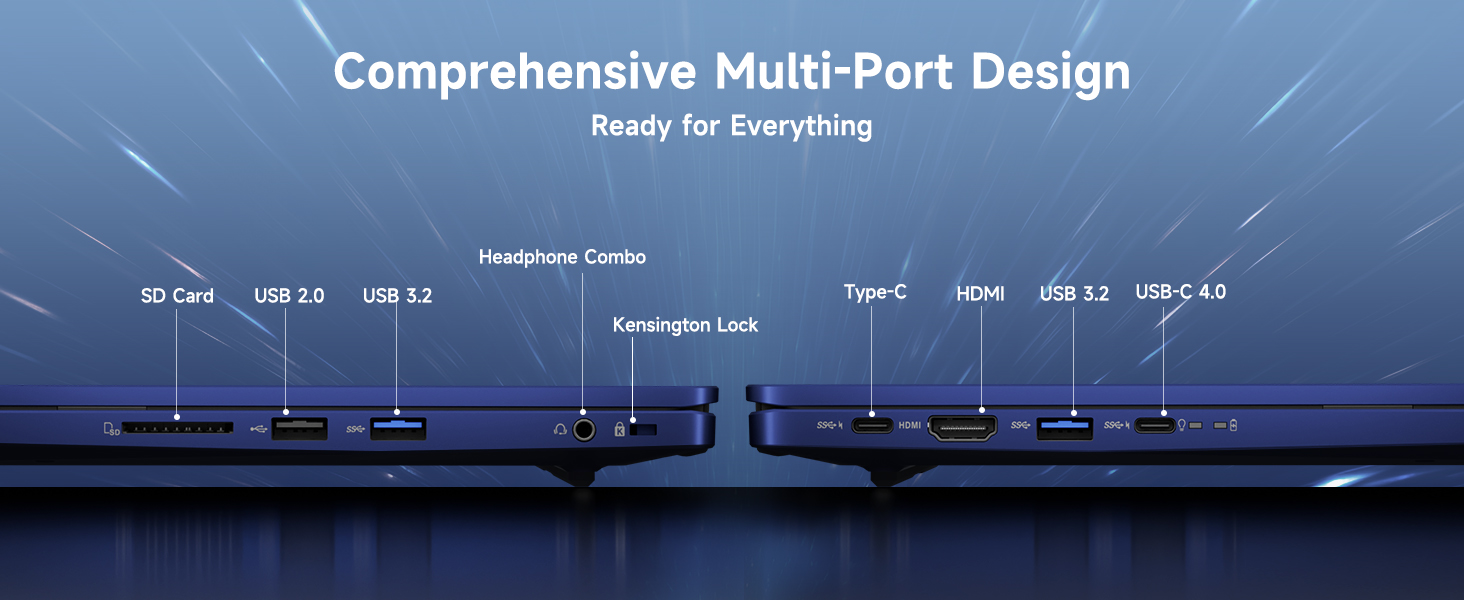
ചിത്രം 3.1: കഴിഞ്ഞുview of the comprehensive multi-port design on the NIMO laptop. Ports include SD Card reader, USB 2.0, USB 3.2, Headphone Combo jack, Kensington Lock slot, Type-C, HDMI, and USB-C 4.0.
- ഇടത് വശം: SD Card Reader, USB 2.0 Port, USB 3.2 Port, Headphone Combo Jack, Kensington Lock Slot.
- വലത് വശം: Type-C Port, HDMI Port, USB 3.2 Port, USB-C 4.0 Port.
- Top (Display): സംയോജിപ്പിച്ചത് Webcam with Privacy Switch.
- കീബോർഡ്: Backlit Keyboard, Fingerprint Reader (integrated into power button or touchpad area).
4. സജ്ജീകരണം
4.1. പ്രാരംഭ പവർ ഓൺ
- Connect the 100W Type-C PD Fast Charger to the laptop's USB-C port and a power outlet.
- ലാപ്ടോപ്പ് ലിഡ് തുറക്കുക.
- ലാപ്ടോപ്പ് ഓണാക്കാൻ പവർ ബട്ടൺ അമർത്തുക.
- ഭാഷ, പ്രദേശം, നെറ്റ്വർക്ക് കണക്ഷൻ, ഉപയോക്തൃ അക്കൗണ്ട് സൃഷ്ടിക്കൽ എന്നിവയുൾപ്പെടെ Windows 11 പ്രാരംഭ സജ്ജീകരണം പൂർത്തിയാക്കാൻ ഓൺ-സ്ക്രീൻ നിർദ്ദേശങ്ങൾ പാലിക്കുക.
4.2. പെരിഫറലുകൾ ബന്ധിപ്പിക്കുന്നു
Use the available USB ports (USB 2.0, USB 3.2, USB-C 4.0) to connect external devices such as a mouse, keyboard, or external storage drives. The HDMI port allows connection to an external monitor or TV.
4.3. നെറ്റ്വർക്ക് കണക്ഷൻ
During initial setup, you will be prompted to connect to a Wi-Fi network. You can also manage network settings via Windows Settings > Network & Internet.
5. പ്രവർത്തന നിർദ്ദേശങ്ങൾ
5.1. പവർ മാനേജ്മെന്റ്
- പവർ ഓൺ/ഓഫ്: ഓണാക്കാൻ പവർ ബട്ടൺ അമർത്തുക. ഷട്ട് ഡൗൺ ചെയ്യാൻ, ആരംഭിക്കുക ബട്ടൺ ക്ലിക്കുചെയ്യുക, തുടർന്ന് പവർ > ഷട്ട് ഡൗൺ ക്ലിക്കുചെയ്യുക.
- സ്ലീപ്പ് മോഡ്: ലിഡ് അടയ്ക്കുക അല്ലെങ്കിൽ ആരംഭിക്കുക ബട്ടൺ ക്ലിക്കുചെയ്യുക, തുടർന്ന് പവർ > സ്ലീപ്പ് ക്ലിക്കുചെയ്യുക.
- പുനരാരംഭിക്കുക: ആരംഭിക്കുക ബട്ടൺ ക്ലിക്കുചെയ്യുക, തുടർന്ന് പവർ > പുനരാരംഭിക്കുക.
5.2. കീബോർഡും ടച്ച്പാഡും ഉപയോഗിക്കൽ
The laptop features a full-sized keyboard with a numeric keypad and a precision touchpad. The keyboard is backlit for use in low-light conditions. Adjust backlight settings via function keys (refer to your specific model's key layout).
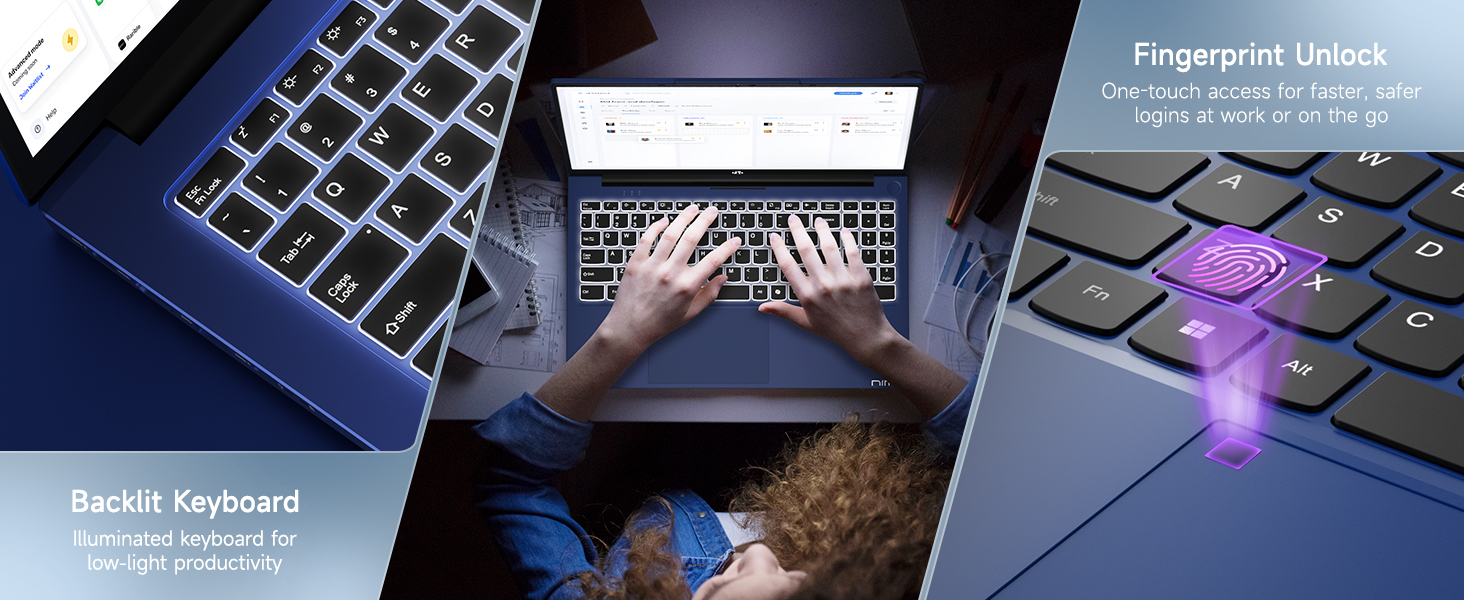
Image 5.1: The backlit keyboard illuminates for visibility in dim environments, and the fingerprint sensor provides quick, secure access.
5.3. ഫിംഗർപ്രിൻ്റ് അൺലോക്ക്
For enhanced security and quick access, configure the fingerprint reader:
- വിൻഡോസ് സെറ്റിംഗ്സ് > അക്കൗണ്ടുകൾ > സൈൻ-ഇൻ ഓപ്ഷനുകൾ എന്നതിലേക്ക് പോകുക.
- Under 'Windows Hello Fingerprint', click 'Set up' and follow the on-screen instructions to register your fingerprint.
5.4. Webcam Privacy Switch
സംയോജിത webcam includes a physical privacy switch to ensure your privacy. Slide the switch to cover or uncover the camera lens as needed.
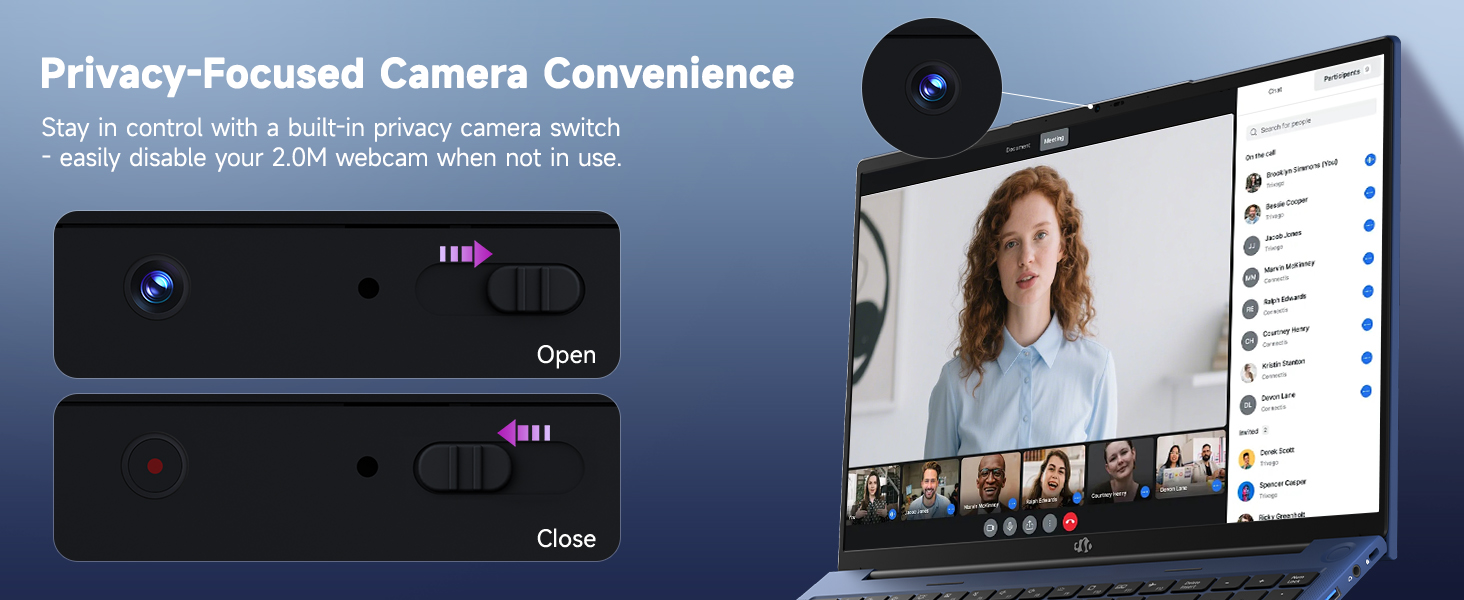
ചിത്രം 5.2: ദി webcam features a physical privacy switch, allowing users to disable the camera when not in use for enhanced security.
5.5. USB-C 4.0 Functionality
The USB-C 4.0 port offers versatile connectivity:
- ഡാറ്റ കൈമാറ്റം: Supports high-speed data transfer with compatible devices.
- ബാഹ്യ പ്രദർശനം: Connects to external monitors using a compatible USB-C to display adapter (not included).
- പവർ ഡെലിവറി (PD): Used for charging the laptop with the provided 100W PD charger.
- eGPU പിന്തുണ: Compatible with external GPU (eGPU) docks for enhanced graphics performance (eGPU dock not included).
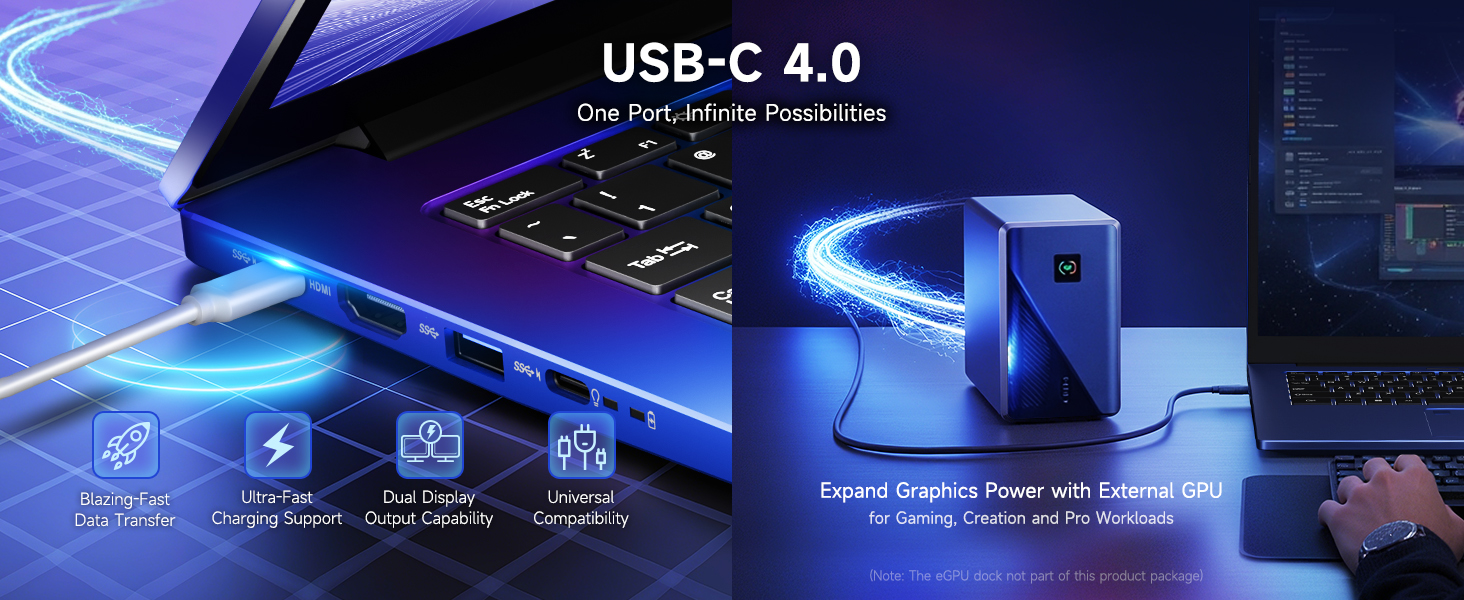
Image 5.3: The USB-C 4.0 port provides blazing-fast data transfer, external display output, charging support, and compatibility with external GPU docks.
6. പരിപാലനം
6.1. വൃത്തിയാക്കൽ
- സ്ക്രീനും പുറം പ്രതലങ്ങളും വൃത്തിയാക്കാൻ മൃദുവായ, ലിന്റ് രഹിത തുണി ഉപയോഗിക്കുക.
- കഠിനമായ അടയാളങ്ങൾക്ക്, ചെറുതായി dampതുണിയിൽ വെള്ളം അല്ലെങ്കിൽ സ്ക്രീൻ ക്ലീനിംഗ് ലായനി ഉപയോഗിച്ച് നനയ്ക്കുക.
- കഠിനമായ രാസവസ്തുക്കൾ, ഉരച്ചിലുകൾ, അല്ലെങ്കിൽ ലായകങ്ങൾ എന്നിവ ഒഴിവാക്കുക.
- കീബോർഡിലെ കീകളിലും വെന്റുകളിലും നിന്ന് പൊടി നീക്കം ചെയ്യാൻ കംപ്രസ് ചെയ്ത വായു ഉപയോഗിക്കുക.
6.2. ബാറ്ററി പരിചരണം
ബാറ്ററി ആയുസ്സ് വർദ്ധിപ്പിക്കാൻ:
- ബാറ്ററി ഇടയ്ക്കിടെ പൂർണ്ണമായും ഡിസ്ചാർജ് ചെയ്യുന്നത് ഒഴിവാക്കുക.
- ദീർഘനേരം ഉപയോഗിക്കാത്തപ്പോൾ ലാപ്ടോപ്പ് തണുത്തതും വരണ്ടതുമായ സ്ഥലത്ത് സൂക്ഷിക്കുക.
- Use the provided 100W PD charger for optimal charging.
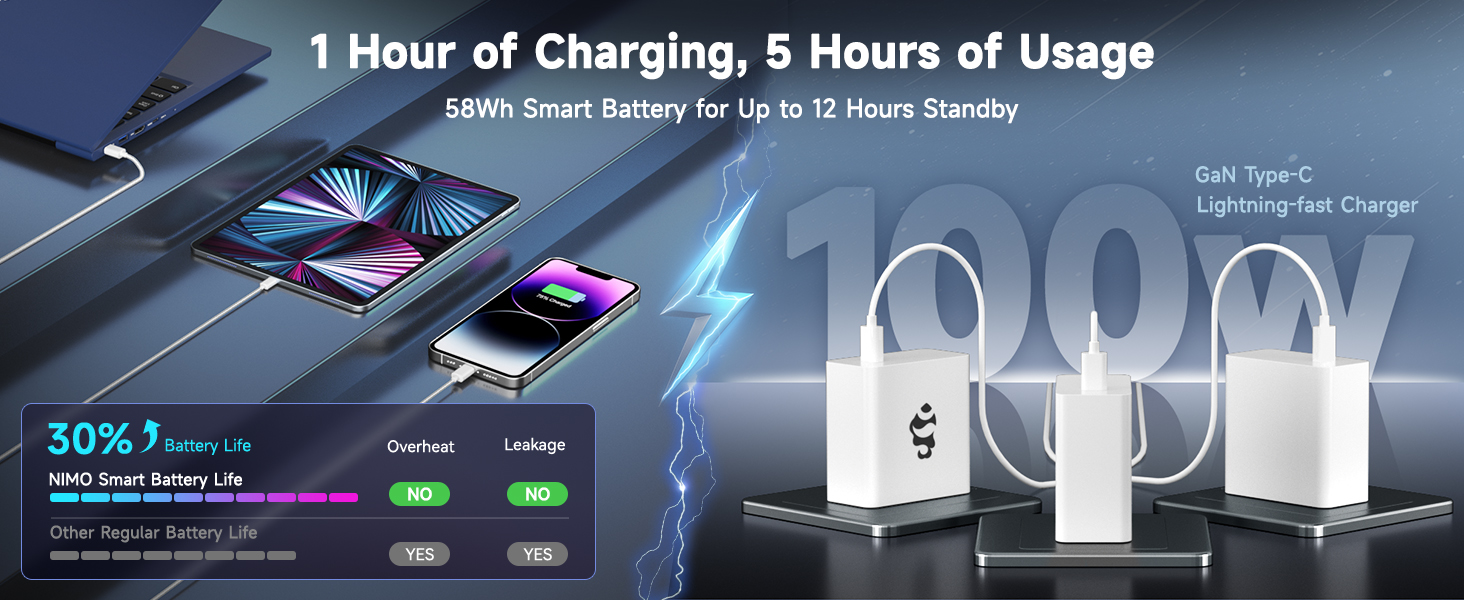
Image 6.1: The 100W GaN charger provides efficient power delivery, contributing to the laptop's smart battery optimization for extended usage.
6.3. സോഫ്റ്റ്വെയർ അപ്ഡേറ്റുകൾ
Regularly check for and install Windows updates and driver updates to ensure optimal performance and security. Go to Windows Settings > Windows Update.
7. പ്രശ്നപരിഹാരം
നിങ്ങൾ നേരിട്ടേക്കാവുന്ന പൊതുവായ പ്രശ്നങ്ങളെ ഈ വിഭാഗം അഭിസംബോധന ചെയ്യുന്നു.
- ലാപ്ടോപ്പ് പവർ ഓൺ ആകുന്നില്ല: Ensure the charger is properly connected and the power outlet is functional. Try holding the power button for 15-20 seconds to perform a hard reset.
- സ്ക്രീൻ ശൂന്യമാണ് അല്ലെങ്കിൽ മിന്നിമറയുന്നു: Restart the laptop. If connected to an external display, try disconnecting it. Check display settings in Windows.
- വൈഫൈ കണക്ഷൻ പ്രശ്നങ്ങൾ: Ensure Wi-Fi is enabled in Windows settings. Restart your router and the laptop. Update network drivers if necessary.
- മന്ദഗതിയിലുള്ള പ്രകടനം: Close unnecessary applications. Check for background processes in Task Manager. Ensure sufficient free space on the SSD. Run a system scan for malware.
- ഫിംഗർപ്രിന്റ് റീഡർ പ്രവർത്തിക്കുന്നില്ല: Ensure your finger is clean and dry. Re-register your fingerprint in Windows settings if the issue persists.
For issues not covered here, please refer to the Warranty and Support section for contact information.
8 സ്പെസിഫിക്കേഷനുകൾ
| ഫീച്ചർ | വിശദാംശങ്ങൾ |
|---|---|
| മോഡലിൻ്റെ പേര് | Nimo N175 |
| പ്രദർശിപ്പിക്കുക | 17.3-ഇഞ്ച് ഫുൾ HD (1920x1080) IPS |
| പ്രോസസ്സർ | AMD Ryzen 9 8945HS (5.2 GHz Max Boost, 8 Cores) |
| ഗ്രാഫിക്സ് | എഎംഡി റേഡിയൻ 780 എം |
| റാം | 16 ജിബി DDR5 (4800 മെഗാഹെർട്സ്) |
| സംഭരണം | 1TB SSD |
| ഓപ്പറേറ്റിംഗ് സിസ്റ്റം | വിൻഡോസ് 11 ഹോം |
| വയർലെസ് കണക്റ്റിവിറ്റി | 802.11a/b/g/n/ac |
| തുറമുഖങ്ങൾ | 1x USB 2.0, 3x USB 3.0 (or 3.2), 1x USB-C 4.0, 1x HDMI, 1x SD Card Reader, 1x Headphone Combo, 1x Kensington Lock |
| ബാറ്ററി ലൈഫ് | Approximately 6 hours (up to 12 hours standby) |
| ചാർജർ | 100W Type-C PD Fast Charger |
| അളവുകൾ (LxWxH) | 14.07 x 8.98 x 0.76 ഇഞ്ച് |
| ഭാരം | 3.8 പൗണ്ട് |
| പ്രത്യേക സവിശേഷതകൾ | Backlit Keyboard, Fingerprint Reader, HD Audio, Numeric Keypad, Webcam Privacy Switch |
9. വാറന്റി, പിന്തുണ വിവരങ്ങൾ
NIMO is committed to providing reliable products and customer service.
9.1. വാറൻ്റി
Your NIMO laptop comes with a 2 വർഷത്തെ വാറൻ്റി from the date of purchase, covering manufacturing defects and hardware malfunctions under normal use conditions.
9.2. റിട്ടേൺ പോളിസി
A 90 ദിവസത്തെ സൗജന്യ റിട്ടേൺ പോളിസി is provided, allowing returns for any reason within 90 days of purchase.
9.3. ഉപഭോക്തൃ പിന്തുണ
For technical assistance, warranty claims, or any product-related inquiries, please contact our U.S.-based support team:
- ഇമെയിൽ: service@nimopc.com
- ഓൺലൈൻ: Visit the official NIMO webപിന്തുണാ ഉറവിടങ്ങൾക്കും കോൺടാക്റ്റ് ഓപ്ഷനുകൾക്കുമുള്ള സൈറ്റ്.

Image 9.1: NIMO offers 2-year support, 90-day free returns, and dedicated customer service to ensure user satisfaction.


