1. ആമുഖം
This manual provides detailed instructions for the setup, operation, and maintenance of your Prechen 12.3-inch Portable Monitor, Model HD-123. Please read this manual thoroughly before using the product to ensure proper functionality and to prevent damage. Keep this manual for future reference.
2. ഉൽപ്പന്നം കഴിഞ്ഞുview
The Prechen HD-123 is a 12.3-inch IPS stretched bar display designed for use as a secondary monitor. It features a 1920x720 resolution, 300 nits brightness, 1200:1 contrast ratio, and 178° wide viewing angles. It includes built-in speakers and supports both USB-C and HDMI connectivity.
തുറമുഖങ്ങളും നിയന്ത്രണങ്ങളും

ചിത്രം: ക്ലോസ്-അപ്പ് view of the monitor's side, highlighting the 3.5mm headphone jack, power button, menu button, return button, and shortcut keys for brightness and volume. Two USB-C ports and one HDMI port are also visible.
- USB-C പോർട്ടുകൾ (x2): One port supports both video transmission and power delivery (full-featured USB 3.1). The other is for power only.
- എച്ച്ഡിഎംഐ പോർട്ട്: For video input.
- 3.5 എംഎം ഹെഡ്ഫോൺ ജാക്ക്: ഓഡിയോ ഔട്ട്പുട്ടിനായി.
- പവർ ബട്ടൺ: മോണിറ്റർ ഓൺ/ഓഫ് ചെയ്യുന്നു.
- മെനു ബട്ടൺ: ഓൺ-സ്ക്രീൻ ഡിസ്പ്ലേ (OSD) മെനു ആക്സസ് ചെയ്യുന്നു.
- റിട്ടേൺ ബട്ടൺ: Navigates back in the OSD menu.
- കുറുക്കുവഴി കീകൾ: Adjust brightness and volume directly.
3. സജ്ജീകരണം
മോണിറ്റർ ബന്ധിപ്പിക്കുന്നു
The monitor supports two primary connection methods: USB-C (single cable) and HDMI (with separate power).

Image: Illustration demonstrating how to connect the monitor using a single USB-C cable for both video and power, and an alternative method using an HDMI cable for video and a USB-A to USB-C cable for power.
- USB-C Connection (Single Cable):
- Ensure your device (laptop, smartphone, etc.) has a full-featured USB-C port that supports DisplayPort Alternate Mode and power delivery.
- നൽകിയിരിക്കുന്ന USB-C കേബിളിന്റെ ഒരു അറ്റം നിങ്ങളുടെ ഉപകരണത്തിന്റെ USB-C പോർട്ടുമായി ബന്ധിപ്പിക്കുക.
- Connect the other end of the USB-C to USB-C cable to the monitor's full-featured USB-C port. The monitor should automatically receive video signal and power.
- HDMI Connection (with separate power):
- Connect one end of an HDMI cable to your device's HDMI output.
- Connect the other end of the HDMI cable to the monitor's HDMI port.
- Connect the provided USB-A to USB-C power cable to a power source (e.g., wall adapter, laptop USB-A port) and the monitor's power-only USB-C port.
വെസ മൗണ്ടിംഗ്
The monitor supports 75x75mm VESA mounting for flexible positioning.

ചിത്രം: പിൻഭാഗം view of the monitor, indicating the 75x75mm VESA mounting pattern. A separate stand is shown next to it, demonstrating alternative placement options.
- Locate the four screw holes on the back of the monitor.
- Attach the monitor to a compatible 75x75mm VESA mount or arm using appropriate screws (not included).
4. പ്രവർത്തന നിർദ്ദേശങ്ങൾ
പവർ ഓൺ/ഓഫ്
- Press the Power Button to turn the monitor on.
- Press and hold the Power Button for 3 seconds to turn the monitor off.
ഓൺ-സ്ക്രീൻ ഡിസ്പ്ലേ (OSD) മെനു
Press the Menu Button to access the OSD menu. Use the shortcut keys (brightness/volume) to navigate and adjust settings. Press the Return Button to exit a submenu or the OSD menu.
- തെളിച്ചം/തീവ്രത: ഡിസ്പ്ലേ പ്രകാശവും കോൺട്രാസ്റ്റ് ലെവലുകളും ക്രമീകരിക്കുക.
- വർണ്ണ ക്രമീകരണങ്ങൾ: വർണ്ണ താപനില, നിറം, സാച്ചുറേഷൻ എന്നിവ പരിഷ്കരിക്കുക.
- ഇൻപുട്ട് ഉറവിടം: Manually select between USB-C and HDMI inputs if auto-detection fails.
- ഓഡിയോ ക്രമീകരണങ്ങൾ: Adjust volume for the built-in speakers or connected headphones.
- വീക്ഷണ അനുപാതം: Change the display aspect ratio if needed.
ഡിസ്പ്ലേ മോഡുകൾ
When connected to a computer, you can configure the display mode through your operating system's display settings:
- ഡ്യൂപ്ലിക്കേറ്റ് മോഡ്: The monitor mirrors the content of your primary display.
- വിപുലീകരണ മോഡ്: The monitor acts as an extension of your primary display, providing additional screen space.
- രണ്ടാമത്തെ സ്ക്രീൻ മാത്രം: Only the portable monitor displays content.
5. പരിപാലനം
- സ്ക്രീൻ വൃത്തിയാക്കൽ: മൃദുവായ, ലിൻ്റ് രഹിത തുണി ഉപയോഗിക്കുകampവെള്ളമോ സ്ക്രീൻ ക്ലീനറോ ഉപയോഗിച്ച് നനയ്ക്കുക. സ്ക്രീനിൽ നേരിട്ട് ക്ലീനർ സ്പ്രേ ചെയ്യരുത്.
- സി വൃത്തിയാക്കൽasing: മോണിറ്റർ തുടയ്ക്കുക casinമൃദുവായതും ഉണങ്ങിയതുമായ തുണി ഉപയോഗിച്ച് തടവുക. ഉരച്ചിലുകൾ ഉള്ള ക്ലീനറുകൾ ഒഴിവാക്കുക.
- സംഭരണം: ദീർഘനേരം ഉപയോഗിക്കാത്തപ്പോൾ, മോണിറ്റർ തണുത്തതും വരണ്ടതുമായ സ്ഥലത്ത് സൂക്ഷിക്കുക, നേരിട്ടുള്ള സൂര്യപ്രകാശത്തിൽ നിന്നും കടുത്ത താപനിലയിൽ നിന്നും അകറ്റി നിർത്തുക.
- കൈകാര്യം ചെയ്യൽ: Handle the monitor with care to avoid dropping or impacting the screen.
6. പ്രശ്നപരിഹാരം
- സിഗ്നലില്ല:
- എല്ലാ കേബിളുകളും സുരക്ഷിതമായി ബന്ധിപ്പിച്ചിട്ടുണ്ടെന്ന് ഉറപ്പാക്കുക.
- Verify that your device's USB-C port supports video output (DisplayPort Alt Mode) if using a single USB-C cable.
- If using HDMI, ensure the monitor is receiving power via the separate USB-C power cable.
- Try selecting the input source manually through the OSD menu.
- ശക്തിയില്ല:
- Check the power cable connection and the power source.
- Ensure the power adapter (if used) is functioning correctly.
- മിന്നുന്ന സ്ക്രീൻ:
- കേബിൾ കണക്ഷനുകൾക്ക് അയവുണ്ടോ എന്ന് പരിശോധിക്കുക.
- മറ്റൊരു കേബിളോ പോർട്ടോ പരീക്ഷിക്കുക.
- നിങ്ങളുടെ ഉപകരണത്തിന്റെ ഗ്രാഫിക്സ് ഡ്രൈവറുകൾ കാലികമാണെന്ന് ഉറപ്പാക്കുക.
- ശബ്ദമില്ല:
- Adjust the volume through the monitor's OSD menu and your connected device.
- Ensure the audio output is directed to the monitor in your device's sound settings.
7 സ്പെസിഫിക്കേഷനുകൾ
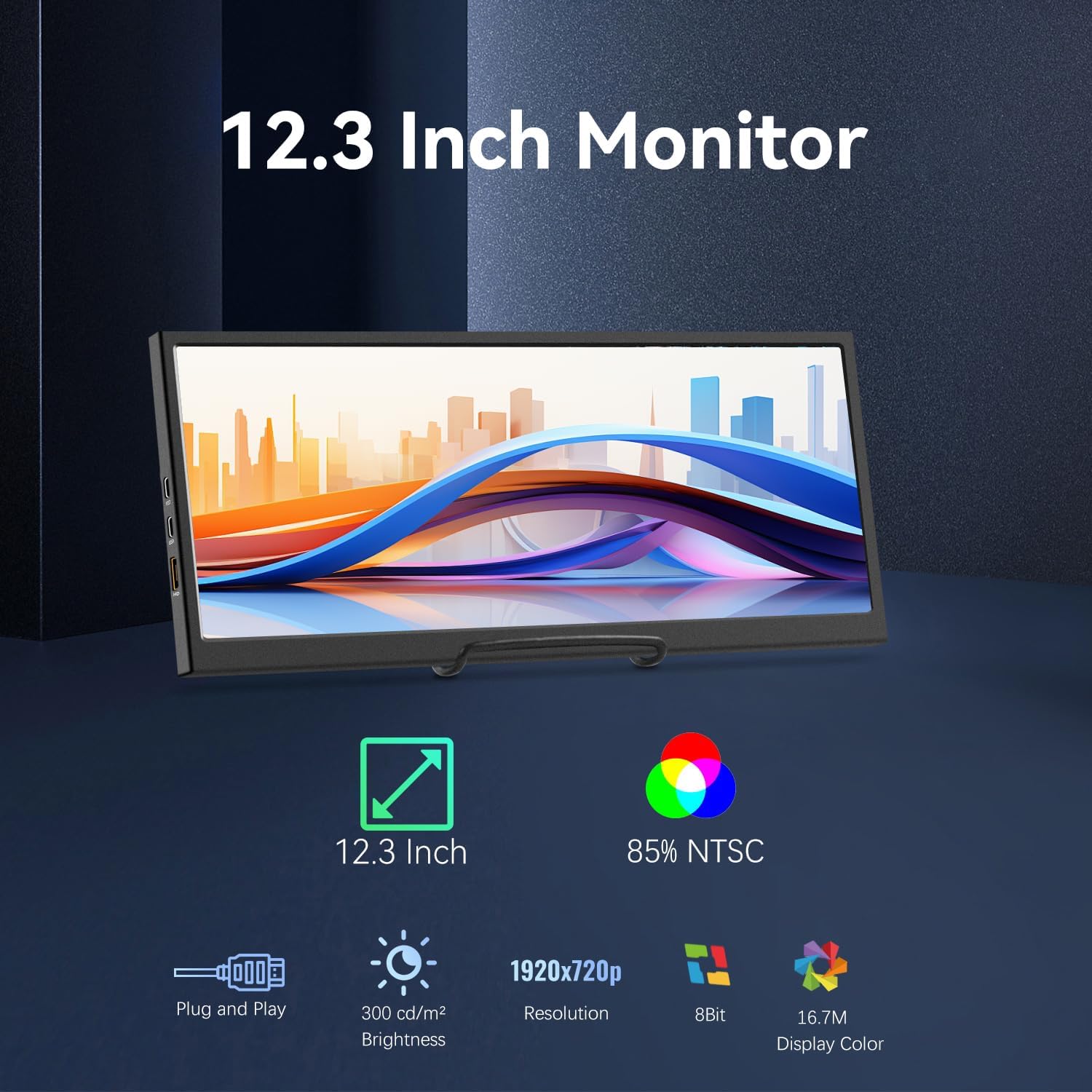
Image: Visual representation of the monitor's key features: 12.3-inch screen, 85% NTSC color gamut, Plug and Play functionality, 300 cd/m² brightness, 1920x720p resolution, 8-bit color, and 16.7M display colors.
| ഫീച്ചർ | സ്പെസിഫിക്കേഷൻ |
|---|---|
| മോഡൽ നമ്പർ | HD-123 |
| സ്ക്രീൻ വലിപ്പം | 12.3 ഇഞ്ച് |
| പാനൽ തരം | ഐപിഎസ് എൽസിഡി |
| റെസലൂഷൻ | 1920 x 720 പിക്സലുകൾ |
| തെളിച്ചം | 300 സിഡി/ചക്ര മീറ്റർ (നിറ്റ്സ്) |
| കോൺട്രാസ്റ്റ് റേഷ്യോ | 1200:1 |
| Viewing ആംഗിൾ | 178° |
| വർണ്ണ ഗാമറ്റ് | 85% NTSC |
| വർണ്ണ ആഴം | 8-bit (16.7 Million Colors) |
| കണക്റ്റിവിറ്റി | 2x USB-C (1 full-featured, 1 power-only), 1x HDMI |
| ഓഡിയോ | Built-in Speakers, 3.5mm Headphone Jack |
| മൗണ്ടിംഗ് | 75x75mm VESA Compatible |
| മെറ്റീരിയൽ | ലോഹം |
| ഉൽപ്പന്ന അളവുകൾ | 0.59 x 11.8 x 5.1 ഇഞ്ച് |
| ഇനത്തിൻ്റെ ഭാരം | 2.14 പൗണ്ട് |
8. വാറൻ്റി വിവരങ്ങൾ
Prechen products are covered by a limited warranty against defects in materials and workmanship. The specific warranty period may vary by region and retailer. Please retain your proof of purchase for warranty claims. For detailed warranty terms and conditions, refer to the warranty card included with your product or contact customer support.
9. പിന്തുണ
If you encounter any issues or have questions regarding your Prechen 12.3-inch Portable Monitor, please contact our customer support team. Provide your product model number (HD-123) and a detailed description of the issue for faster assistance.
- ഓൺലൈൻ പിന്തുണ: Visit the official Prechen webപതിവുചോദ്യങ്ങൾക്കും പിന്തുണാ ഉറവിടങ്ങൾക്കുമുള്ള സൈറ്റ്.
- ഇമെയിൽ പിന്തുണ: Refer to your product packaging or warranty card for contact email.


