1. ആമുഖം
This manual provides essential information for the installation, operation, and maintenance of your GIGABYTE GeForce RTX 5060 WINDFORCE MAX OC 8G Graphics Card. This high-performance graphics card is powered by the NVIDIA Blackwell architecture and DLSS 4, featuring 8GB of 128-bit GDDR7 memory and a PCIe 5.0 interface. It incorporates the WINDFORCE cooling system, a Hawk fan, server-grade thermal conductive gel, and a reinforced structure for optimal performance and durability. Please read this manual thoroughly before installation and use.
2 സുരക്ഷാ വിവരങ്ങൾ
- ഏതെങ്കിലും ഹാർഡ്വെയർ ഘടകങ്ങൾ ഇൻസ്റ്റാൾ ചെയ്യുന്നതിനോ നീക്കം ചെയ്യുന്നതിനോ മുമ്പ് നിങ്ങളുടെ കമ്പ്യൂട്ടറിൽ നിന്ന് എല്ലായ്പ്പോഴും പവർ സപ്ലൈ വിച്ഛേദിക്കുക.
- Wear an anti-static wrist strap or frequently touch a grounded metal object to prevent electrostatic discharge (ESD) damage to the graphics card and other components.
- സെൻസിറ്റീവ് ഘടകങ്ങൾ സ്പർശിക്കാതിരിക്കാൻ ഗ്രാഫിക്സ് കാർഡിന്റെ അരികുകളിൽ തന്നെ പിടിക്കുക.
- കമ്പ്യൂട്ടർ കെയ്സിൽ അമിതമായി ചൂടാകുന്നത് തടയാൻ ശരിയായ വായുസഞ്ചാരം ഉറപ്പാക്കുക.
- Do not attempt to repair the graphics card yourself. Refer to qualified service personnel for assistance.
3. പാക്കേജ് ഉള്ളടക്കം
നിങ്ങളുടെ പാക്കേജിൽ എല്ലാ ഇനങ്ങളും ഉണ്ടെന്ന് ഉറപ്പാക്കുക:
- GIGABYTE GeForce RTX 5060 WINDFORCE MAX OC 8G Graphics Card
- ഇൻസ്ട്രക്ഷൻ മാനുവൽ
Note: Additional accessories may vary by region or retailer.
4. സജ്ജീകരണം (ഇൻസ്റ്റലേഷൻ)
4.1 ഹാർഡ്വെയർ ഇൻസ്റ്റലേഷൻ
Before proceeding, ensure your system meets the minimum requirements, including a 450W power supply and a compatible PCI Express graphics slot.
- നിങ്ങളുടെ സിസ്റ്റം തയ്യാറാക്കുക: Turn off your computer and disconnect the power cable from the wall outlet. Open your computer case.
- പിസിഐ എക്സ്പ്രസ് സ്ലോട്ട് കണ്ടെത്തുക: നിങ്ങളുടെ മദർബോർഡിൽ ലഭ്യമായ ഒരു PCI എക്സ്പ്രസ് 5.0 x8 സ്ലോട്ട് തിരിച്ചറിയുക.
- സ്ലോട്ട് കവറുകൾ നീക്കം ചെയ്യുക: Remove the metal slot covers from the back of your computer case corresponding to the graphics card's size.
- ഗ്രാഫിക്സ് കാർഡ് ഇൻസ്റ്റാൾ ചെയ്യുക: Carefully align the graphics card with the PCI Express slot and press it firmly until it is securely seated. Ensure the retention clip on the motherboard clicks into place.
- Secure Graphics Card: സ്ക്രൂകൾ ഉപയോഗിച്ച് ഗ്രാഫിക്സ് കാർഡ് കമ്പ്യൂട്ടർ കേസിൽ ഉറപ്പിക്കുക.
- പവർ ബന്ധിപ്പിക്കുക: Connect the required 1x 8-pin PCIe power connector from your power supply to the graphics card.
- കേസ് അടയ്ക്കുക: നിങ്ങളുടെ കമ്പ്യൂട്ടർ കേസ് അടച്ച് പവർ കേബിൾ വീണ്ടും ബന്ധിപ്പിക്കുക.

ചിത്രം 1: മുൻഭാഗം view of the GIGABYTE GeForce RTX 5060 WINDFORCE MAX OC 8G Graphics Card.

ചിത്രം 2: വശം view of the GIGABYTE GeForce RTX 5060 WINDFORCE MAX OC 8G Graphics Card, showing the heatsink and power connector.
4.2 ഡ്രൈവർ ഇൻസ്റ്റലേഷൻ
After hardware installation, you need to install the latest drivers for optimal performance.
- പവർ ഓൺ: നിങ്ങളുടെ കമ്പ്യൂട്ടർ ഓണാക്കുക.
- ഡ്രൈവറുകൾ ഡൗൺലോഡ് ചെയ്യുക: ഔദ്യോഗിക GIGABYTE സന്ദർശിക്കുക webസൈറ്റ് (www.gigabyte.com) or NVIDIA webസൈറ്റ് (www.nvidia.com) to download the latest drivers for your GeForce RTX 5060 graphics card.
- ഡ്രൈവറുകൾ ഇൻസ്റ്റാൾ ചെയ്യുക: Follow the on-screen instructions to install the drivers. Restart your computer if prompted.
4.3 വിഷ്വൽ ഓവർview അൺബോക്സിംഗ്
Watch this official GIGABYTE video for a visual overview of the RTX 50 Series graphics cards and an unboxing experience.
Video 1: GIGABYTE GeForce RTX 50 Series - Official Trailer. This video provides a general overview of the RTX 50 series, highlighting key features and design elements.
Video 2: Gigabyte RTX 5060 8gb OC unboxing review by 'Remember This Tech'. This video demonstrates the unboxing process and initial impressions of the Gigabyte RTX 5060 graphics card, including its physical appearance and included accessories.
5. പ്രവർത്തിക്കുന്നു
5.1 ഡിസ്പ്ലേകൾ ബന്ധിപ്പിക്കൽ
The GIGABYTE GeForce RTX 5060 graphics card supports multiple display outputs for a versatile setup.
- ഡിസ്പ്ലേ പോർട്ട്: Connect up to three DisplayPort 2.1 compatible monitors using DisplayPort cables.
- എച്ച്ഡിഎംഐ: Connect one HDMI 2.1 compatible monitor or TV using an HDMI cable.
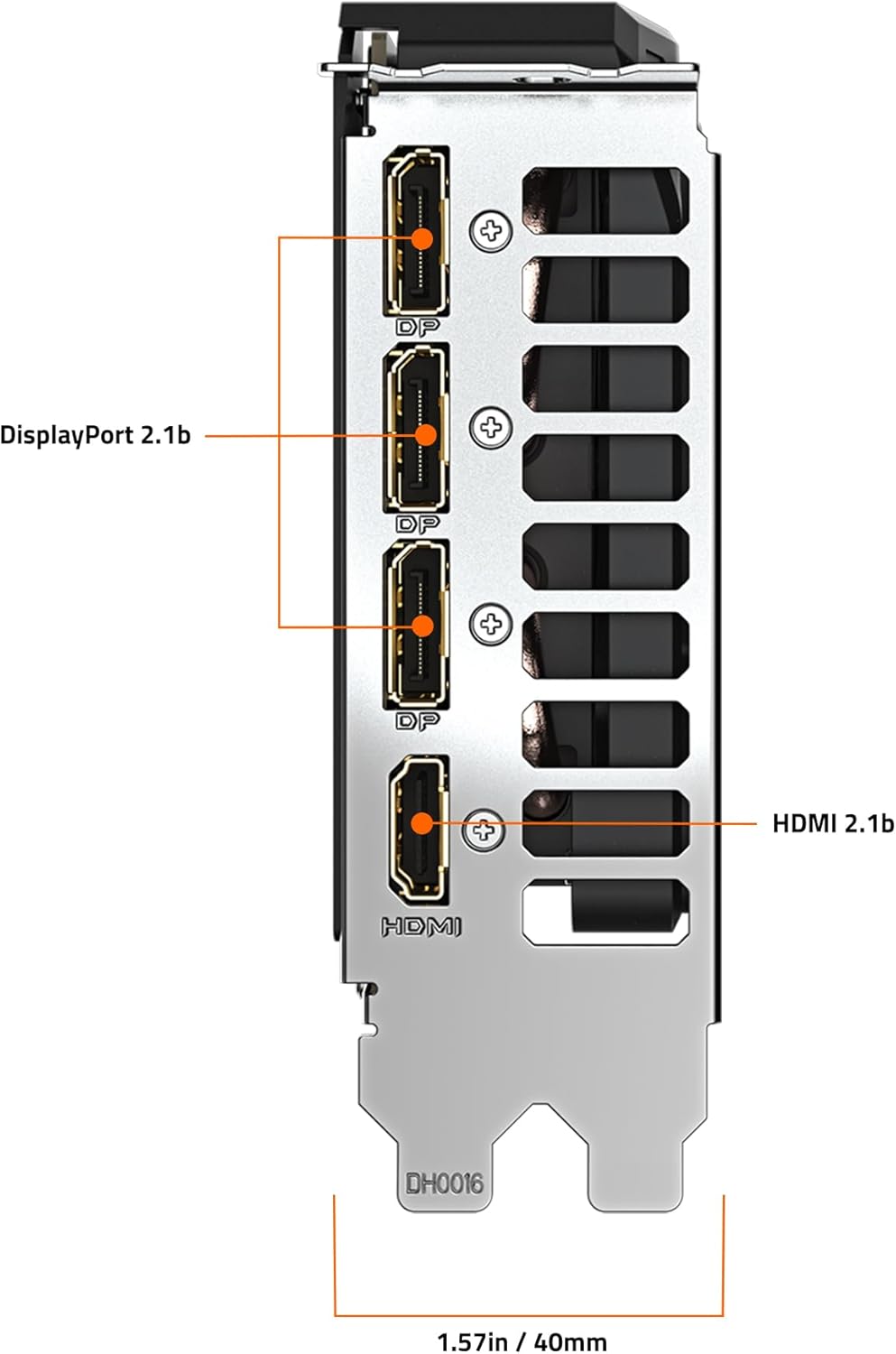
ചിത്രം 3: പിൻഭാഗം view of the GIGABYTE GeForce RTX 5060 WINDFORCE MAX OC 8G Graphics Card, highlighting the DisplayPort and HDMI output connectors.
5.2 സോഫ്റ്റ്വെയർ യൂട്ടിലിറ്റികൾ
Utilize GIGABYTE and NVIDIA software for enhanced control and customization:
- ഗിഗാബൈറ്റ് നിയന്ത്രണ കേന്ദ്രം: Download from the GIGABYTE website to monitor GPU status, adjust fan speeds, and customize RGB lighting (if applicable).
- എൻവിഡിയ നിയന്ത്രണ പാനൽ: Access advanced display settings, manage 3D settings, and configure features like DLSS and Ray Tracing.
6. പരിപാലനം
6.1 വൃത്തിയാക്കൽ
പതിവായി വൃത്തിയാക്കുന്നത് മികച്ച പ്രകടനം നിലനിർത്താൻ സഹായിക്കുകയും നിങ്ങളുടെ ഗ്രാഫിക്സ് കാർഡിന്റെ ആയുസ്സ് വർദ്ധിപ്പിക്കുകയും ചെയ്യുന്നു.
- പവർ ഓഫ്: വൃത്തിയാക്കുന്നതിന് മുമ്പ് എല്ലായ്പ്പോഴും നിങ്ങളുടെ കമ്പ്യൂട്ടർ ഓഫ് ചെയ്ത് പവർ സ്രോതസ്സിൽ നിന്ന് വിച്ഛേദിക്കുക.
- പൊടി നീക്കം: Use compressed air to gently blow dust from the fans, heatsink fins, and other components. Hold the fans in place to prevent over-spinning.
- ഉപരിതല ശുചീകരണം: നനവില്ലാത്തതും ലിനില്ലാത്തതുമായ തുണി ചെറുതായി ഉപയോഗിക്കുകampened with isopropyl alcohol to clean the exterior surfaces of the card. Avoid harsh chemicals.
6.2 ഡ്രൈവർ അപ്ഡേറ്റുകൾ
Keep your graphics drivers updated to ensure compatibility with the latest games and applications, and to benefit from performance improvements and bug fixes.
- ഇടയ്ക്കിടെ GIGABYTE അല്ലെങ്കിൽ NVIDIA പരിശോധിക്കുക website for new driver releases.
- Follow the provided instructions for driver installation.
7. പ്രശ്നപരിഹാരം
നിങ്ങളുടെ ഗ്രാഫിക്സ് കാർഡിൽ പ്രശ്നങ്ങൾ നേരിടുകയാണെങ്കിൽ, ഇനിപ്പറയുന്ന പൊതുവായ പ്രശ്നങ്ങളും പരിഹാരങ്ങളും പരിശോധിക്കുക:
| പ്രശ്നം | സാധ്യമായ കാരണം | പരിഹാരം |
|---|---|---|
| മോണിറ്ററിൽ ഡിസ്പ്ലേ ഇല്ല | Incorrect cable connection, loose card, power issue, driver problem. | Ensure display cables are securely connected. Re-seat the graphics card. Verify power connectors are attached. Reinstall or update drivers. |
| Low performance in games/applications | Outdated drivers, incorrect settings, insufficient power. | Update graphics drivers. Adjust in-game graphics settings. Ensure adequate power supply. Check for background applications consuming resources. |
| അമിതമായി ചൂടാകുന്നതോ അല്ലെങ്കിൽ ഉച്ചത്തിലുള്ള ഫാൻ ശബ്ദമോ | Dust accumulation, poor case airflow, high load. | Clean fans and heatsink. Improve case airflow. Monitor temperatures with GIGABYTE Control Center. Adjust fan curves if necessary. |
| System instability or crashes | Driver conflicts, overheating, faulty hardware. | Perform a clean driver installation. Monitor temperatures. Check other system components. |
8 സ്പെസിഫിക്കേഷനുകൾ
| ഫീച്ചർ | വിശദാംശങ്ങൾ |
|---|---|
| ഗ്രാഫിക്സ് പ്രോസസ്സിംഗ് യൂണിറ്റ് | NVIDIA GeForce RTX 5060 (Blackwell architecture) |
| വീഡിയോ മെമ്മറി | 8GB GDDR7 |
| മെമ്മറി ഇൻ്റർഫേസ് | 128-ബിറ്റ് |
| മെമ്മറി സ്പീഡ് | 28000 MHz |
| GPU ക്ലോക്ക് സ്പീഡ് | 2512 MHz (ബൂസ്റ്റ് ക്ലോക്ക്) |
| പിസിഐ എക്സ്പ്രസ് | PCIe 5.0 x8 |
| തണുപ്പിക്കൽ സംവിധാനം | WINDFORCE cooling system with Hawk fan |
| വീഡിയോ ഔട്ട്പുട്ട് ഇൻ്റർഫേസ് | 3x ഡിസ്പ്ലേ പോർട്ട് 2.1, 1x HDMI 2.1 |
| പരമാവധി സ്ക്രീൻ റെസല്യൂഷൻ | 3840x2160 |
| പവർ കണക്റ്റർ | 1x 8-പിൻ |
| ശുപാർശ ചെയ്യുന്ന പൊതുമേഖലാ സ്ഥാപനം | 450W or higher |
| അളവുകൾ (LxWxH) | 7.83 x 4.57 x 1.57 ഇഞ്ച് (199 x 116 x 40 മിമി) |
| ഇനത്തിൻ്റെ ഭാരം | 1.1 പൗണ്ട് |
| പ്രധാന സവിശേഷതകൾ | DLSS 4, AI Cores, 4th Gen Ray Tracing Cores, Reinforced structure, Server-grade Thermal conductive gel |
9. വാറൻ്റിയും പിന്തുണയും
GIGABYTE products are covered by a limited warranty. For detailed warranty information, technical support, and service inquiries, please visit the official GIGABYTE support webസൈറ്റ്:
ജിഗാബൈറ്റ് പിന്തുണ: https://www.gigabyte.com/Support
വാറൻ്റി ക്ലെയിമുകൾക്കായി നിങ്ങളുടെ വാങ്ങിയതിൻ്റെ തെളിവ് സൂക്ഷിക്കുക.