1. ആമുഖം
The Brother HL-L1242W is a compact monochrome laser printer designed for efficient printing in home or small office environments. This manual provides essential information for setting up, operating, and maintaining your printer to ensure optimal performance.
പ്രധാന സവിശേഷതകളിൽ ഇവ ഉൾപ്പെടുന്നു:
- Compact design for small spaces.
- Print speeds up to 20 pages per minute.
- Versatile connectivity with Wi-Fi (5 GHz) and USB.
- Support for printing from PCs and mobile applications.
- 150-sheet paper input tray.
- Includes a starter toner cartridge for up to 450 pages.
2. പ്രാരംഭ സജ്ജീകരണം
2.1 പ്രിൻ്റർ അൺപാക്ക് ചെയ്യുന്നു
പ്രിന്റർ അതിന്റെ പാക്കേജിംഗിൽ നിന്ന് ശ്രദ്ധാപൂർവ്വം നീക്കം ചെയ്യുക. പ്രിന്ററിന്റെ പുറംഭാഗത്തും ഉൾഭാഗത്തും നിന്ന് എല്ലാ സംരക്ഷണ ടേപ്പുകളും പാക്കിംഗ് വസ്തുക്കളും നീക്കം ചെയ്തിട്ടുണ്ടെന്ന് ഉറപ്പാക്കുക.
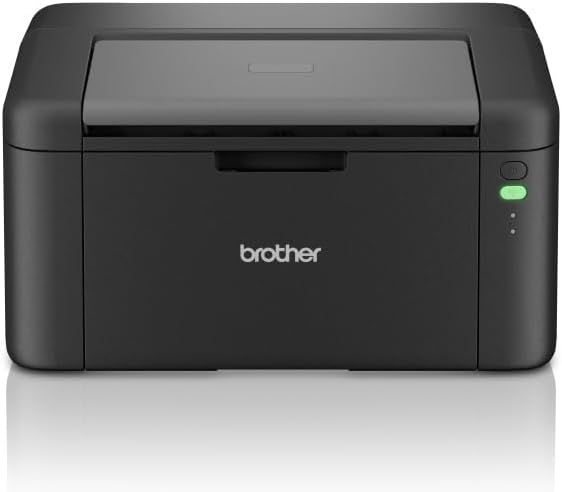
ചിത്രം 1: മുൻഭാഗം view of the Brother HL-L1242W printer, showing its compact design and control panel on the right side.
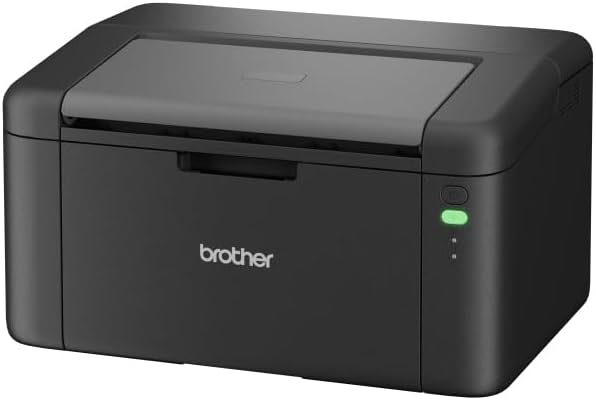
ചിത്രം 2: കോണാകൃതിയിലുള്ള മുൻഭാഗം view of the Brother HL-L1242W printer, highlighting its sleek, black finish and output tray.
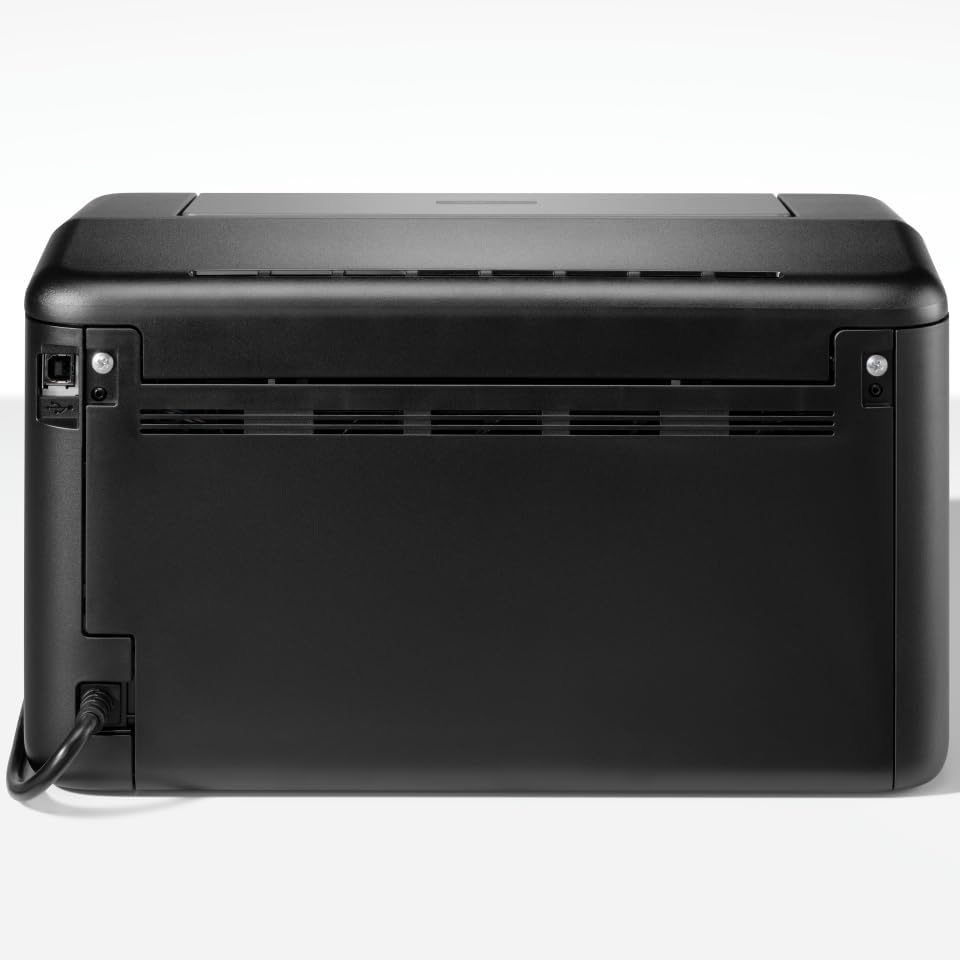
ചിത്രം 3: പിൻഭാഗം view of the Brother HL-L1242W printer, displaying the power input and USB port.
2.2 ടോണർ കാട്രിഡ്ജ് ഇൻസ്റ്റലേഷൻ
- Open the front cover of the printer to access the toner compartment.
- Locate the orange protective paper inside the compartment. This paper is attached to the toner support.
- Gently remove the toner support to detach the orange paper.
- Unpack the new toner cartridge from its sealed bag. Remove any orange plastic protective pieces from the toner cartridge.
- Insert the toner cartridge into the drum unit. Ensure it clicks into place.
- Slide the combined toner and drum unit back into the printer until it locks securely.
- മുൻ കവർ അടയ്ക്കുക.
2.3 പവർ കണക്ഷൻ
Connect the AC power cable to the printer and then to a power outlet. Press the power button to turn on the printer.
2.4 Connectivity and Driver Installation
Your Brother HL-L1242W printer supports both USB and Wi-Fi connectivity.
USB കണക്ഷൻ:
- ഒരു USB കേബിൾ ഉപയോഗിച്ച് പ്രിന്റർ നിങ്ങളുടെ കമ്പ്യൂട്ടറുമായി ബന്ധിപ്പിക്കുക (ഉൾപ്പെടുത്തിയിട്ടില്ല).
- Install the printer drivers from the official Brother support website. Follow the on-screen instructions.
Wi-Fi കണക്ഷൻ:
- Download the Brother iPrint&Scan app on your mobile device or visit the Brother support website for PC/Mac setup.
- Follow the instructions provided by the app or website to connect your printer to your wireless network. This process typically involves selecting your Wi-Fi network and entering the password.
- Ensure your printer and device are on the same network for successful wireless printing.
3. ഓപ്പറേഷൻ
3.1 പേപ്പർ ലോഡ് ചെയ്യുന്നു
Open the paper tray and load up to 150 sheets of plain or recycled A4 paper. Adjust the paper guides to fit the paper size.

Figure 4: A user loading paper into the front paper tray of the Brother HL-L1242W printer.
3.2 പ്രമാണങ്ങൾ അച്ചടിക്കൽ
Once the printer is connected and drivers are installed, you can print from your computer or mobile device.
- നിങ്ങൾ പ്രിന്റ് ചെയ്യാൻ ആഗ്രഹിക്കുന്ന പ്രമാണമോ ചിത്രമോ തുറക്കുക.
- Select the "Print" option from your application's menu (e.g., File > പ്രിന്റ് ചെയ്യുക).
- Choose your Brother HL-L1242W printer from the list of available printers.
- ആവശ്യാനുസരണം പ്രിന്റ് ക്രമീകരണങ്ങൾ ക്രമീകരിക്കുക (ഉദാ: പകർപ്പുകളുടെ എണ്ണം, പേപ്പർ വലുപ്പം).
- "പ്രിന്റ്" ക്ലിക്ക് ചെയ്യുക.
3.3 Duplex (Two-Sided) Printing
The HL-L1242W supports manual duplex printing.
- In your print settings, select the option for manual duplex printing.
- The printer will first print all odd-numbered pages.
- Once the first side is printed, a prompt will appear on your computer screen instructing you to reinsert the printed pages into the paper tray. Follow the on-screen instructions carefully regarding paper orientation.
- Confirm the reinsertion, and the printer will then print the even-numbered pages on the reverse side.
4. പരിപാലനം
4.1 ടോണർ കാട്രിഡ്ജ് മാറ്റിസ്ഥാപിക്കൽ
When the toner cartridge is low or empty, the printer's status indicator will alert you. Replace the toner cartridge with a genuine Brother TN-1150 toner cartridge for optimal print quality and printer longevity.
- പ്രിൻ്റർ ഓണാണെന്ന് ഉറപ്പാക്കുക.
- മുൻ കവർ തുറക്കുക.
- Remove the old toner cartridge and drum unit assembly.
- Separate the old toner cartridge from the drum unit. Dispose of the old toner cartridge according to local regulations.
- Unpack the new toner cartridge and install it into the drum unit until it locks.
- Reinsert the toner and drum unit assembly into the printer.
- മുൻ കവർ അടയ്ക്കുക.
The included starter toner cartridge is rated for approximately 450 pages. Actual yield may vary based on usage.
4.2 പ്രിന്റർ വൃത്തിയാക്കുന്നു
പതിവായി വൃത്തിയാക്കുന്നത് പ്രിന്റ് ഗുണനിലവാരം നിലനിർത്താനും നിങ്ങളുടെ പ്രിന്ററിന്റെ ആയുസ്സ് വർദ്ധിപ്പിക്കാനും സഹായിക്കുന്നു.
- പുറം: മൃദുവായ, ലിന്റ് രഹിത തുണി ഉപയോഗിച്ച് പ്രിന്ററിന്റെ പുറംഭാഗം തുടയ്ക്കുക. അബ്രാസീവ് ക്ലീനറുകളോ ലായകങ്ങളോ ഉപയോഗിക്കരുത്.
- ഇൻ്റീരിയർ: Periodically open the front cover and gently wipe away any loose toner dust with a dry, lint-free cloth. Avoid touching the drum unit's surface directly.
5. പ്രശ്നപരിഹാരം
This section addresses common issues you might encounter with your Brother HL-L1242W printer.
5.1 പ്രിന്റർ പ്രതികരിക്കുന്നില്ല
- പ്രിന്റർ ഓണാക്കിയിട്ടുണ്ടെന്നും പവർ കേബിൾ സുരക്ഷിതമായി ബന്ധിപ്പിച്ചിട്ടുണ്ടെന്നും ഉറപ്പാക്കുക.
- Check USB cable connections if using a wired connection.
- For Wi-Fi, verify that the printer is connected to your network and that your computer/mobile device is on the same network. Restarting the printer and your router may resolve connectivity issues.
- Confirm that the correct printer driver is installed and selected on your computer.
5.2 മോശം പ്രിന്റ് നിലവാരം
- Check the toner level. Replace the toner cartridge if it is low or empty.
- ലേസർ പ്രിന്റിംഗിന് അനുയോജ്യമായ പേപ്പർ ഉപയോഗിക്കുന്നുണ്ടെന്ന് ഉറപ്പാക്കുക.
- Clean the drum unit and other internal components as described in the maintenance section.
5.3 പേപ്പർ ജാം
- പ്രിന്റർ ഓഫ് ചെയ്ത് പവർ ഔട്ട്ലെറ്റിൽ നിന്ന് അത് ഊരിമാറ്റുക.
- Carefully open all covers and gently remove any jammed paper. Avoid tearing the paper, as small pieces can cause further issues.
- Ensure the paper is loaded correctly in the paper tray and that the paper guides are adjusted properly.
- എല്ലാ കവറുകളും അടയ്ക്കുക, പ്രിന്റർ പ്ലഗ് ഇൻ ചെയ്യുക, വീണ്ടും ഓണാക്കുക.
For more detailed troubleshooting, refer to the Brother support webസൈറ്റ് അല്ലെങ്കിൽ ഉപഭോക്തൃ സേവനവുമായി ബന്ധപ്പെടുക.
6 സ്പെസിഫിക്കേഷനുകൾ
| ഫീച്ചർ | സ്പെസിഫിക്കേഷൻ |
|---|---|
| മോഡലിൻ്റെ പേര് | HL-L1242W |
| പ്രിന്റർ തരം | മോണോക്രോം ലേസർ |
| പരമാവധി പ്രിന്റ് വേഗത (മോണോക്രോം) | മിനിറ്റിൽ 20 പേജുകൾ വരെ |
| പരമാവധി പ്രിന്റ് റെസലൂഷൻ | 2400 x 600 dpi |
| ഡ്യൂപ്ലക്സ് പ്രിൻ്റിംഗ് | മാനുവൽ |
| കണക്റ്റിവിറ്റി | വൈ-ഫൈ (5 GHz), യുഎസ്ബി |
| പേപ്പർ ഇൻപുട്ട് ശേഷി | 150 ഷീറ്റുകൾ വരെ |
| പരമാവധി മീഡിയ വലുപ്പം | A4 (210 x 297 mm) |
| പിന്തുണയ്ക്കുന്ന മീഡിയ തരങ്ങൾ | Plain paper, Recycled paper |
| വൈദ്യുതി ഉപഭോഗം | 380 Watts (printing) |
| അളവുകൾ (D x W x H) | 23.8 സെ.മീ x 34 സെ.മീ x 18.9 സെ.മീ |
| ഭാരം | 4764 ഗ്രാം |
| ഉൾപ്പെടുത്തിയ ഘടകങ്ങൾ | Brother HL-L1242W Printer, Starter Toner Cartridge(s), AC Power Cable, Warranty Card |
7. വാറൻ്റിയും പിന്തുണയും
7.1 ഉൽപ്പന്ന വാറന്റി
The Brother HL-L1242W printer comes with a standard manufacturer's warranty. Please refer to the warranty card included in your product packaging for specific terms, conditions, and duration of coverage.
7.2 ഉപഭോക്തൃ പിന്തുണ
For technical assistance, driver downloads, FAQs, and additional support resources, please visit the official Brother support website. You can also contact Brother customer service for personalized help.


