1. ആമുഖം
This manual provides detailed instructions for the installation, operation, maintenance, and troubleshooting of your Pisichen 27-Inch 2K 240Hz QHD Touch Screen Monitor. Please read this manual thoroughly before using the product to ensure proper setup and optimal performance. Keep this manual for future reference.
2 സുരക്ഷാ വിവരങ്ങൾ
മോണിറ്ററിന് കേടുപാടുകൾ സംഭവിക്കാതിരിക്കാനും ഉപയോക്തൃ സുരക്ഷ ഉറപ്പാക്കാനും ഇനിപ്പറയുന്ന സുരക്ഷാ മുൻകരുതലുകൾ പാലിക്കുക:
- മഴ, ഈർപ്പം അല്ലെങ്കിൽ തീവ്രമായ താപനിലകൾ മോണിറ്ററിനെ ഏൽപ്പിക്കരുത്.
- അമിതമായി ചൂടാകുന്നത് തടയാൻ മോണിറ്ററിന് ചുറ്റും ശരിയായ വായുസഞ്ചാരം ഉറപ്പാക്കുക.
- മോണിറ്ററിനൊപ്പം നൽകിയിരിക്കുന്ന പവർ അഡാപ്റ്റർ മാത്രം ഉപയോഗിക്കുക.
- പവർ കോഡിലോ മോണിറ്ററിലോ ഭാരമുള്ള വസ്തുക്കൾ വയ്ക്കുന്നത് ഒഴിവാക്കുക.
- മോണിറ്റർ വൃത്തിയാക്കുന്നതിന് മുമ്പ് ഔട്ട്ലെറ്റിൽ നിന്ന് പവർ കേബിൾ വിച്ഛേദിക്കുക.
- മോണിറ്റർ സ്വയം വേർപെടുത്താനോ നന്നാക്കാനോ ശ്രമിക്കരുത്. എല്ലാ സേവനങ്ങളും യോഗ്യതയുള്ള ഉദ്യോഗസ്ഥർക്ക് റഫർ ചെയ്യുക.
3. പാക്കേജ് ഉള്ളടക്കം
പാക്കേജിൽ എല്ലാ ഇനങ്ങളും ഉണ്ടെന്ന് ഉറപ്പാക്കുക:
- Pisichen 27-Inch 2K 240Hz QHD Touch Screen Monitor
- മോണിറ്റർ സ്റ്റാൻഡ് (ബേസും കഴുത്തും)
- പവർ അഡാപ്റ്റർ
- HDMI കേബിൾ
- ഡിസ്പ്ലേപോർട്ട് (DP) കേബിൾ
- യുഎസ്ബി-സി കേബിൾ
- USB-B Cable (for touchscreen functionality)
- ഉപയോക്തൃ മാനുവൽ
4. ഉൽപ്പന്നം കഴിഞ്ഞുview
The Pisichen 27-Inch 2K 240Hz QHD Touch Screen Monitor is designed for high-performance visual and interactive experiences. Key features include:
- ഡിസ്പ്ലേ: 27-inch QHD (2560x1440) IPS panel for wide viewകോണുകളും കൃത്യമായ നിറങ്ങളും.
- പുതുക്കൽ നിരക്ക്: 240Hz for ultra-smooth motion and reduced input lag.
- ടച്ച് സ്ക്രീൻ: 10-point multi-touch support for intuitive interaction.
- കണക്റ്റിവിറ്റി: HDMI, DisplayPort, USB-C, and USB-B ports for versatile device connections.
- അഡാപ്റ്റീവ് സമന്വയം: Reduces screen tearing and stuttering for fluid visuals.
- എർണോണോമിക്സ്: Features tilt adjustment for comfortable viewing.
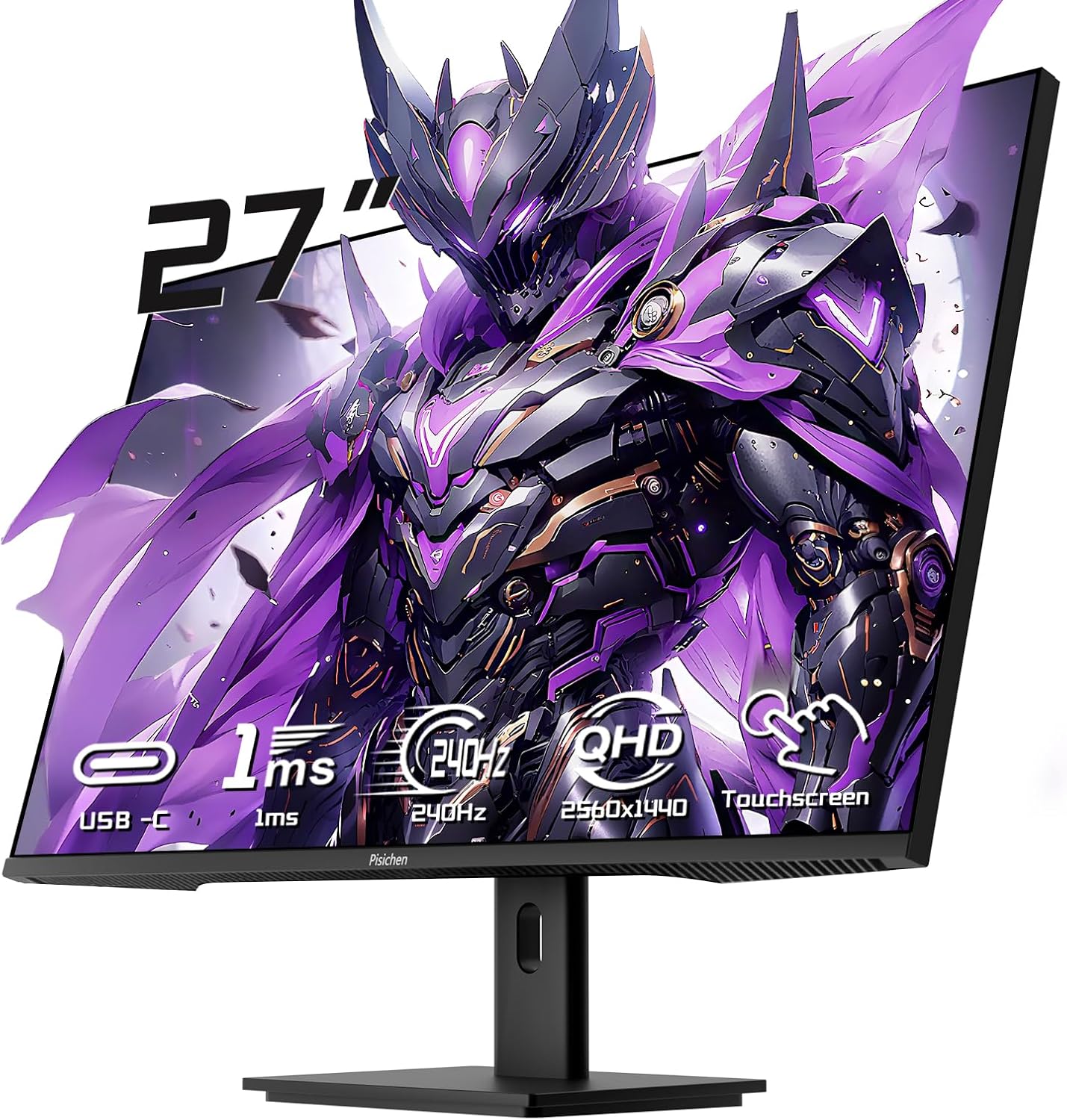
ചിത്രം 4.1: മുൻഭാഗം view of the Pisichen 27-Inch Touch Screen Monitor, highlighting its frameless design and key features like USB-C, 1ms response time, 240Hz refresh rate, QHD resolution, and touchscreen capability.
5. സജ്ജീകരണ നിർദ്ദേശങ്ങൾ
5.1 സ്റ്റാൻഡ് കൂട്ടിച്ചേർക്കൽ
- മോണിറ്ററിന്റെയും സ്റ്റാൻഡിന്റെയും ഘടകങ്ങൾ പാക്കേജിംഗിൽ നിന്ന് ശ്രദ്ധാപൂർവ്വം നീക്കം ചെയ്യുക.
- Attach the stand neck to the monitor's rear mounting point.
- നൽകിയിരിക്കുന്ന സ്ക്രൂകൾ ഉപയോഗിച്ച് സ്റ്റാൻഡ് ബേസ് സ്റ്റാൻഡ് നെക്കിൽ ഉറപ്പിക്കുക.
- കൂട്ടിച്ചേർത്ത മോണിറ്റർ ഒരു സ്ഥിരതയുള്ളതും പരന്നതുമായ പ്രതലത്തിൽ സ്ഥാപിക്കുക.
5.2 VESA മൗണ്ടിംഗ് (ഓപ്ഷണൽ)
The monitor supports VESA mounting for wall or arm installation. Remove the stand if attached. Use compatible VESA mounting hardware (not included) according to the VESA standard for this monitor.

Figure 5.1: Illustration comparing VESA wall mounting and the standard monitor base setup, demonstrating space-saving benefits of VESA mounting.
5.3 ഒരു ഉപകരണത്തിലേക്ക് ബന്ധിപ്പിക്കുന്നു
The monitor offers multiple connection options. Choose the appropriate cable for your device.
- HDMI/ഡിസ്പ്ലേ പോർട്ട്: Connect one end of the HDMI or DisplayPort cable to your computer's graphics card and the other end to the corresponding port on the monitor.
- യുഎസ്ബി-സി: For devices supporting video output via USB-C, connect the USB-C cable from your device to the monitor's USB-C port. This may also provide power and touch functionality depending on your device.
- USB-B (for Touchscreen Functionality): To enable the 10-point multi-touch feature, connect the USB-B cable from the monitor's USB-B port to an available USB-A port on your computer. This connection is crucial for touch input.
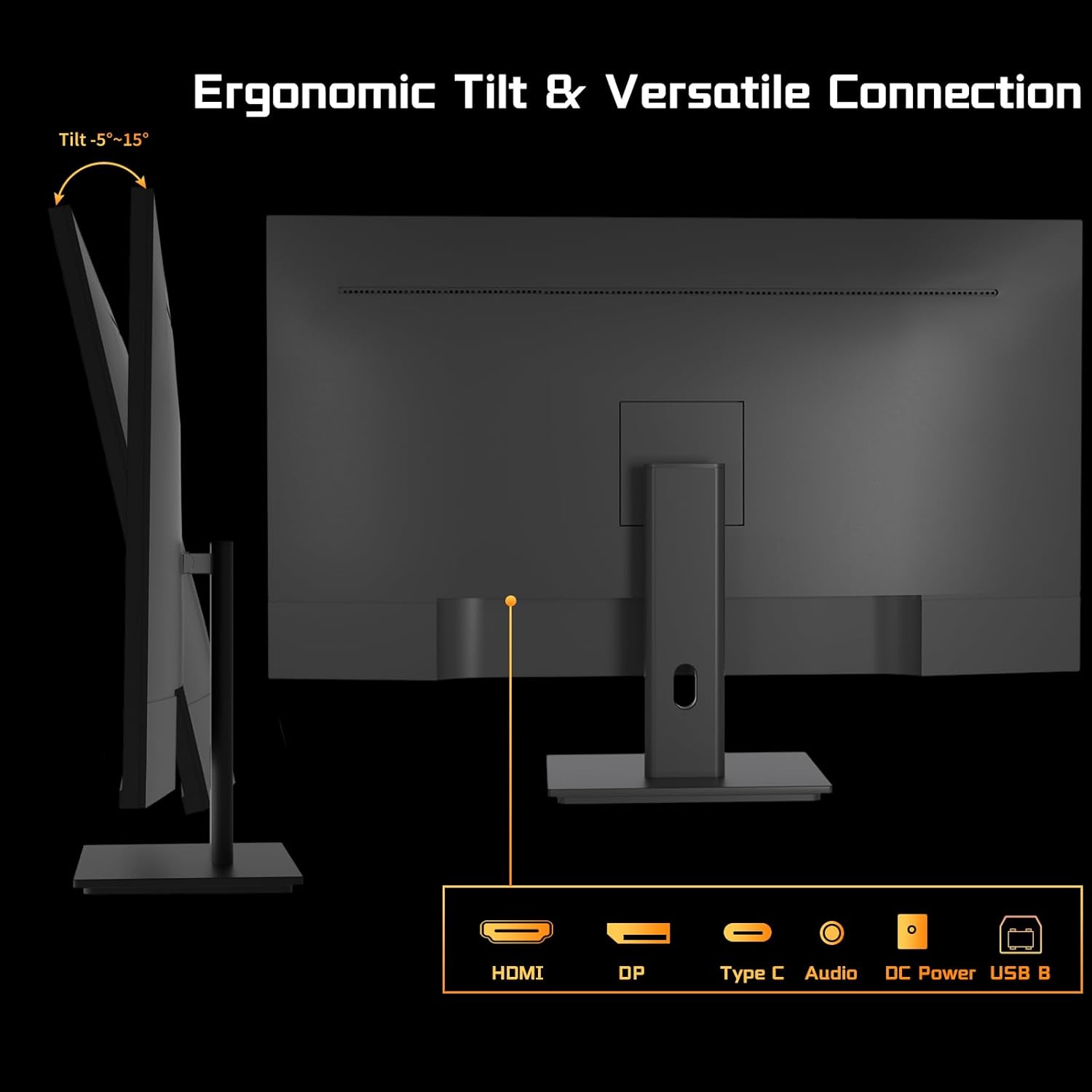
ചിത്രം 5.2: പിൻഭാഗം view of the monitor showing available ports: HDMI, DisplayPort, USB-C, Audio Out, DC Power, and USB-B. The USB-B port is essential for touchscreen functionality.

Figure 5.3: Connection diagram illustrating how to connect the monitor as a second display (HDMI/DP) and as a touchscreen monitor (HDMI/DP + USB-B for touch signal).
5.4 പവർ കണക്ഷൻ
Connect the power adapter to the monitor's DC power input, then plug the adapter into a power outlet.
5.5 പ്രാരംഭ പവർ ഓൺ
Press the power button on the monitor. The power indicator will illuminate, and the display will turn on. If no signal is detected, ensure all cables are securely connected and your computer is powered on.
6. പ്രവർത്തന നിർദ്ദേശങ്ങൾ
6.1 പവർ ഓൺ/ഓഫ്
മോണിറ്റർ ഓൺ അല്ലെങ്കിൽ ഓഫ് ചെയ്യുന്നതിന് അതിൽ സ്ഥിതിചെയ്യുന്ന പവർ ബട്ടൺ അമർത്തുക.
6.2 ഓൺ-സ്ക്രീൻ ഡിസ്പ്ലേ (OSD) മെനു
The OSD menu allows you to adjust various monitor settings. Use the buttons on the monitor (typically located on the back or bottom) to navigate the menu. Common settings include:
- തെളിച്ചം/തീവ്രത: Adjust display luminance.
- വർണ്ണ ക്രമീകരണങ്ങൾ: Modify color temperature, gamma, and saturation.
- ഇൻപുട്ട് ഉറവിടം: Manually select HDMI, DisplayPort, or USB-C input.
- ചിത്ര മോഡ്: Select predefined display modes (e.g., Standard, Game, Movie).
- അഡാപ്റ്റീവ് സമന്വയം: Enable or disable this feature for compatible graphics cards.
6.3 ടച്ച്സ്ക്രീൻ പ്രവർത്തനം
With the USB-B cable connected to your computer, the monitor functions as a 10-point multi-touch display. You can use gestures such as:
- ടാപ്പ് ചെയ്യുക: ഒരു മൗസ് ക്ലിക്കിന് തുല്യം.
- ഇരട്ട ടാപ്പ്: ഒരു ഇരട്ട ക്ലിക്കിന് തുല്യം.
- പിഞ്ച്-ടു-സൂം: സൂം ഇൻ അല്ലെങ്കിൽ ഔട്ട് ചെയ്യാൻ രണ്ട് വിരലുകൾ ഉപയോഗിക്കുക.
- സ്വൈപ്പ്: Navigate through content or scroll.
- വലിച്ചിടുക: Move items on the screen.
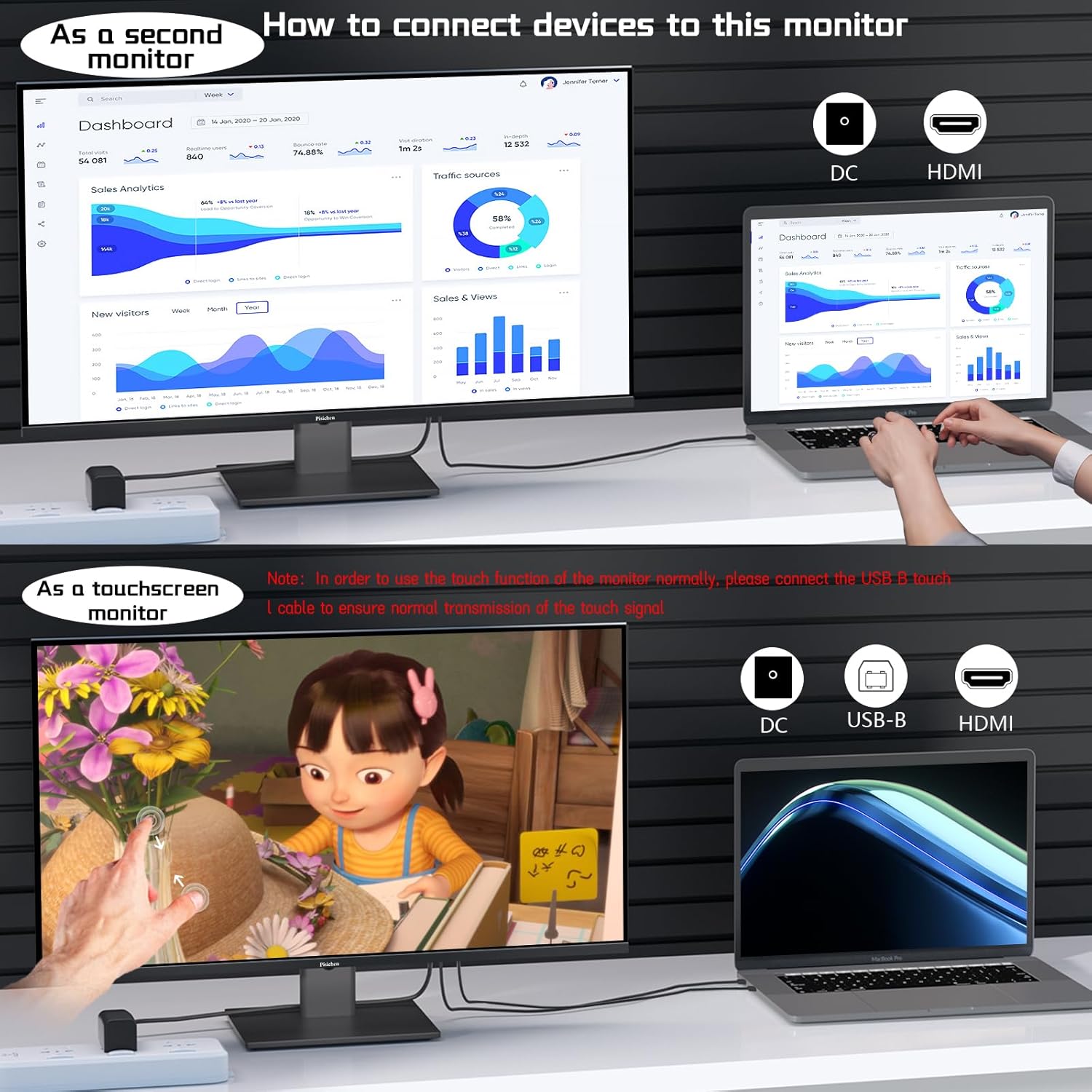
Figure 6.1: A user interacting with the monitor's touchscreen, demonstrating its application in business or productivity tasks.

Figure 6.2: Compatibility chart showing devices that support multi-touch (Laptops, Smartphones, Tablets, All-in-one PCs, Desktop Hosts) and devices where touch functionality is not supported (iPhone, iPad, Switch, Fire TV, PS3/4/5, Xbox, Steam Deck, and some Apple products like Mac mini).
6.4 പുതുക്കൽ നിരക്കും അഡാപ്റ്റീവ് സമന്വയവും
The monitor supports a 240Hz refresh rate. Ensure your computer's display settings are configured to utilize this refresh rate for the smoothest experience. Enable Adaptive Sync in the OSD menu and your graphics card settings to synchronize the monitor's refresh rate with your GPU's frame rate, reducing screen tearing.

Figure 6.3: Visual comparison demonstrating the smoothness of a 240Hz refresh rate compared to lower refresh rates, illustrating reduced lag and delay.
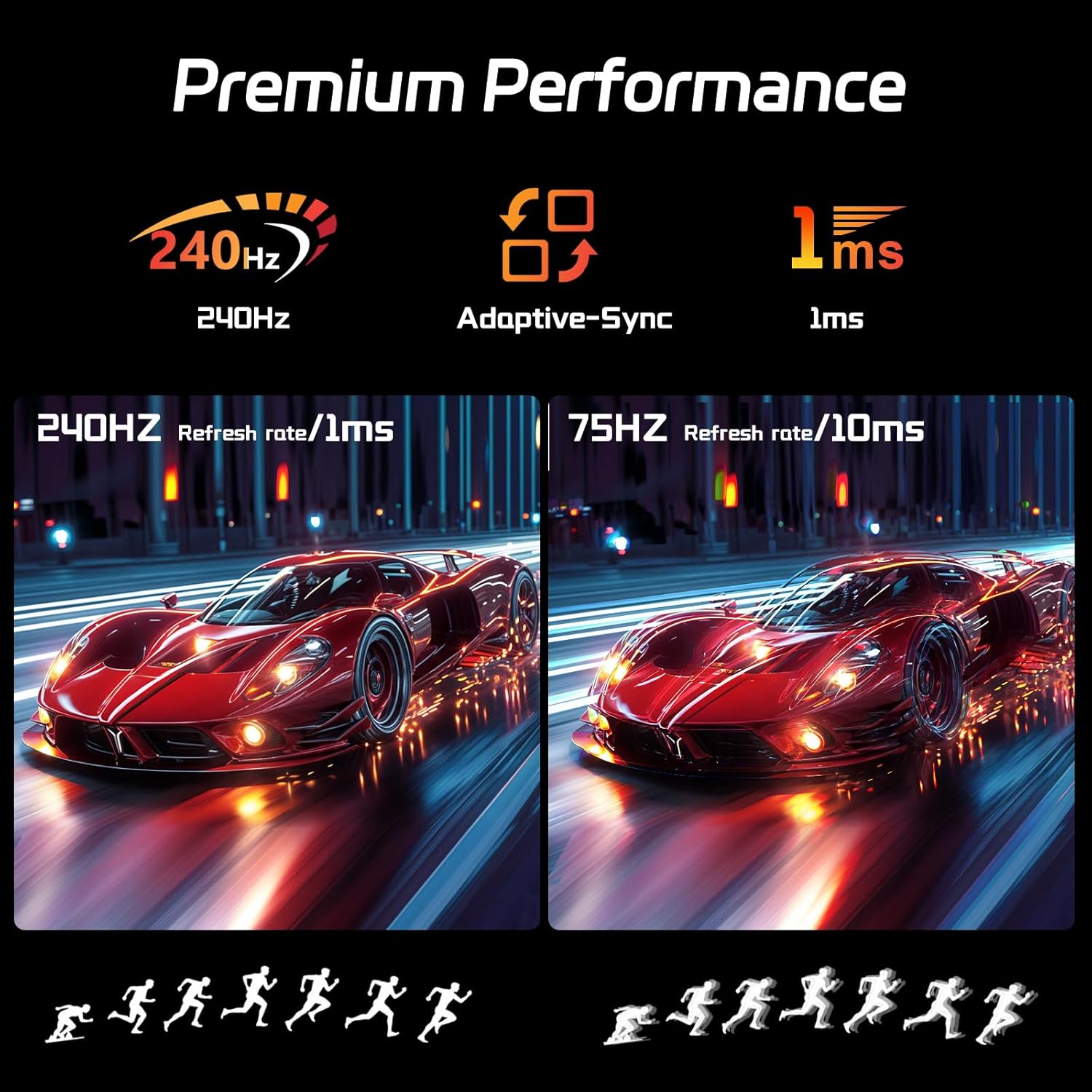
Figure 6.4: Illustration of premium performance features including 240Hz refresh rate, Adaptive-Sync, and 1ms response time, with a visual comparison of motion clarity at 240Hz versus 75Hz.
6.5 Eye-Friendly Technology
The monitor incorporates technology to reduce screen flicker and blue light emissions, aiming to minimize eye strain during prolonged use. These features can typically be adjusted or enabled through the OSD menu.

Figure 6.5: Visual representation of Eye-Friendly Technology, showing how it reduces screen flicker and blue light to enhance user comfort.
7. പരിപാലനം
- സ്ക്രീൻ വൃത്തിയാക്കൽ: മൃദുവായ, ലിന്റ് രഹിത തുണി ഉപയോഗിച്ച് സ്ക്രീൻ സൌമ്യമായി തുടയ്ക്കുക. കഠിനമായ പാടുകൾക്ക്, നേരിയ തോതിൽ dampen the cloth with water or a non-abrasive screen cleaner. Do not spray cleaner directly onto the screen.
- സി വൃത്തിയാക്കൽasing: മോണിറ്റർ തുടയ്ക്കാൻ മൃദുവായതും ഉണങ്ങിയതുമായ തുണി ഉപയോഗിക്കുക casing. കഠിനമായ രാസവസ്തുക്കളോ ഉരച്ചിലുകളോ ഉള്ള വസ്തുക്കൾ ഉപയോഗിക്കുന്നത് ഒഴിവാക്കുക.
- സംഭരണം: മോണിറ്റർ ദീർഘനേരം സൂക്ഷിക്കുകയാണെങ്കിൽ, അത് പവറിൽ നിന്ന് വിച്ഛേദിക്കുക, പൊടിയിൽ നിന്ന് സംരക്ഷിക്കാൻ മൂടുക, തണുത്തതും വരണ്ടതുമായ സ്ഥലത്ത് സൂക്ഷിക്കുക.
8. പ്രശ്നപരിഹാരം
| പ്രശ്നം | സാധ്യമായ കാരണം | പരിഹാരം |
|---|---|---|
| സ്ക്രീനിൽ ചിത്രമൊന്നുമില്ല | Monitor not powered on; incorrect input source; loose video cable. | പവർ കേബിൾ ബന്ധിപ്പിച്ചിട്ടുണ്ടെന്നും മോണിറ്റർ ഓണാണെന്നും ഉറപ്പാക്കുക. OSD വഴി ശരിയായ ഇൻപുട്ട് ഉറവിടം തിരഞ്ഞെടുക്കുക. വീഡിയോ കേബിൾ കണക്ഷനുകൾ പരിശോധിക്കുക. |
| ടച്ച്സ്ക്രീൻ പ്രതികരിക്കുന്നില്ല | USB-B cable not connected; incorrect driver; incompatible device. | Ensure USB-B cable is connected from monitor to computer. Check device compatibility. Calibrate touch input in OS settings if multiple touchscreens are present. |
| ചിത്രം മിന്നിമറയുന്നു അല്ലെങ്കിൽ വികലമാകുന്നു | Faulty video cable; incorrect resolution/refresh rate; graphics card issue. | Replace video cable. Adjust resolution/refresh rate in OS settings. Update graphics drivers. |
| മോണിറ്റർ സ്പീക്കറുകളിൽ നിന്ന് ശബ്ദമില്ല | Volume too low; audio output not selected; no audio signal via video cable. | Increase monitor volume. Ensure monitor is selected as audio output in OS. Check if video cable supports audio transmission. |
9 സ്പെസിഫിക്കേഷനുകൾ
| ഫീച്ചർ | വിശദാംശങ്ങൾ |
|---|---|
| സ്ക്രീൻ വലിപ്പം | 27 ഇഞ്ച് |
| റെസലൂഷൻ | 2560 x 1440 പിക്സലുകൾ (QHD വൈഡ് 1440p) |
| പുതുക്കിയ നിരക്ക് | 240Hz |
| പാനൽ തരം | ഐ.പി.എസ് |
| ടച്ച് സ്ക്രീൻ | 10-പോയിൻ്റ് മൾട്ടി-ടച്ച് |
| വീക്ഷണാനുപാതം | 16:9 |
| ചിത്രത്തിന്റെ തെളിച്ചം | 400 കാൻഡെല (cd/m²) |
| കണക്റ്റിവിറ്റി | HDMI, DisplayPort, USB-C, USB-B |
| ഉൽപ്പന്ന അളവുകൾ | 0.7 x 24 x 14.1 ഇഞ്ച് |
| ഇനത്തിൻ്റെ ഭാരം | 13.52 പൗണ്ട് |
| നിർമ്മാതാവ് | Shenzhen Konowa Electronics Co., LTD |
| മോഡൽ നമ്പർ | 27INTS-2K-240HZ |
10. വാറൻ്റിയും പിന്തുണയും
This Pisichen monitor comes with a standard manufacturer's warranty. For specific warranty terms and conditions, please refer to the warranty card included in your package or visit the official Pisichen website. For technical support, troubleshooting assistance beyond this manual, or to inquire about warranty claims, please contact Pisichen customer service through their official channels.
ഓൺലൈൻ പിന്തുണ: Visit the Pisichen Store on Amazon