1. ആമുഖം
The Rokid AR Spatial Glasses Max2, paired with the Rokid Station2, offers an immersive augmented reality experience with a 3-screen display, high-resolution visuals, and versatile connectivity. This manual provides essential information for setup, operation, and maintenance to ensure optimal performance and user satisfaction.
2. ബോക്സിൽ എന്താണുള്ളത്?
Your Rokid AR Spatial Glasses Max2 and Station2 package includes the following items:
- Rokid Max2 AR glasses
- Rokid Station2
- യുഎസ്ബി സി കേബിൾ

Image: Unboxing the Rokid Max2 AR glasses and Station2, showing all included components.
3. ഉൽപ്പന്നം കഴിഞ്ഞുview
Rokid Max2 AR Glasses
- Micro OLED Display: 1920×1200 resolution, 120Hz refresh rate, 600 nits brightness, 108% sRGB.
- ഭാരം: ഏകദേശം 75 ഗ്രാം.
- ആശ്വാസം: Soft, flexible temples and redesigned airy cushioning nose pad for reduced pressure fatigue.
- Myopia & IPD Adjustment: Supports up to 600 degrees myopia correction (astigmatism not supported). Auto IPD adjustment (55–72mm) when paired with Station2.
- ഓഡിയോ: Built-in speakers with 3D Spatial Audio.
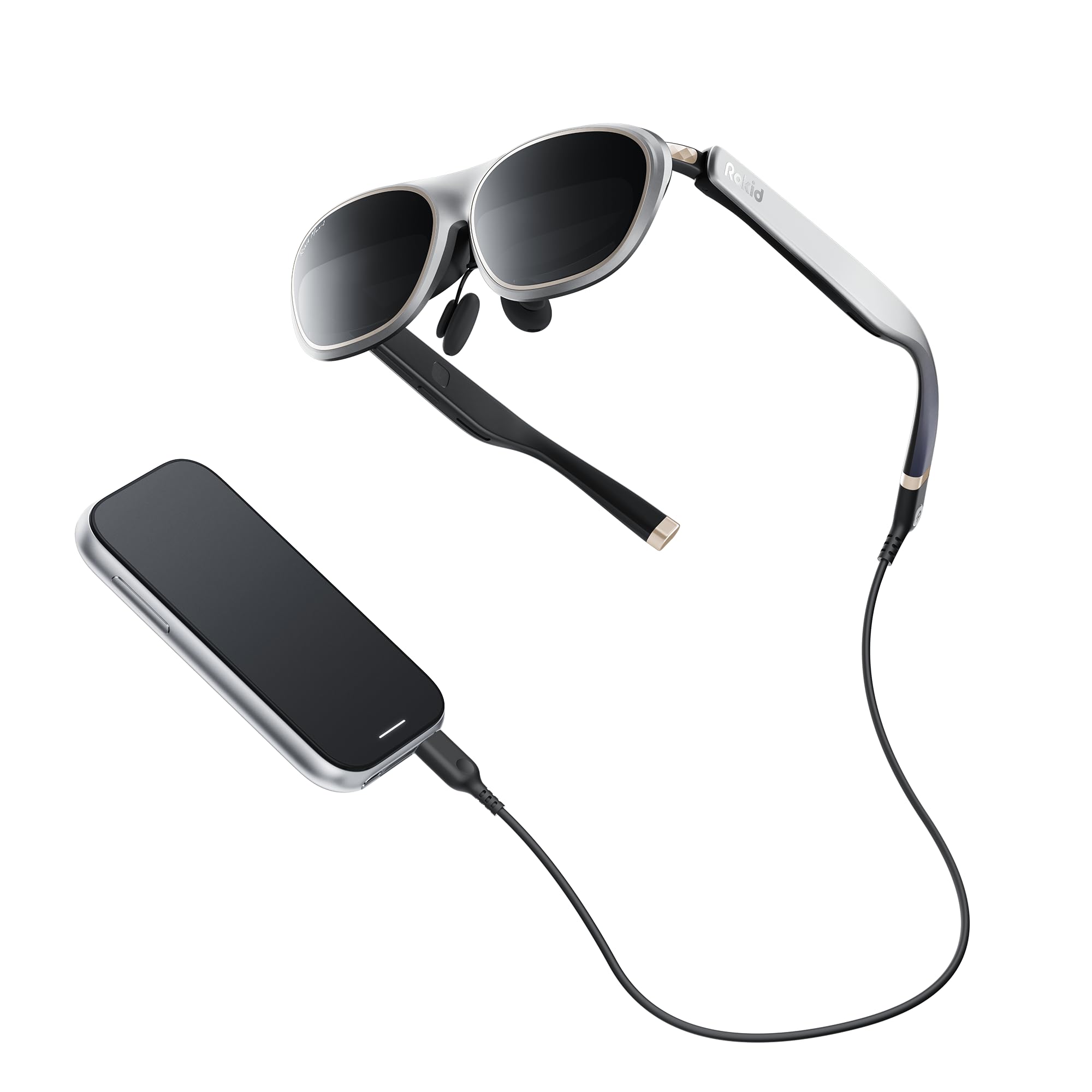
Image: The Rokid Max2 AR Glasses, showcasing their sleek design and integrated components.
Rokid Station2
- ബാറ്ററി: 5000mAh (3.5h runtime).
- മെമ്മറി/സ്റ്റോറേജ്: 8GB RAM + 128GB storage.
- കണക്റ്റിവിറ്റി: Wi-Fi 6, Bluetooth 5.2, Dual Type-C ports.
- ഓപ്പറേറ്റിംഗ് സിസ്റ്റം: YodaOS-Master.
- ഭാരം: 0.31 കിലോ.

Image: The Rokid Station2, a compact spatial computer designed to power the AR glasses.
4. സജ്ജീകരണം
Connecting the Rokid Max2 Glasses
The Rokid Max2 glasses connect via a USB-C cable. Ensure your device supports DisplayPort Alt Mode for direct connection.
- iOS/iPadOS/macOS: Connect directly using the included Type-C cable.
- ആൻഡ്രോയിഡ് ഫോണുകൾ: Most Android phones supporting DisplayPort can connect directly via USB-C. For phones without DisplayPort, wireless connection via DLNA protocol (Miracast and ChromeCast are single-screen only) is supported through the Station2.
- Windows Laptops: Laptops with USB-C ports can connect directly. Laptops without USB-C but with an HDMI port can connect via an HDMI adapter.

Image: Diagram illustrating various connectivity options for Rokid Max2 glasses with different devices.
Connecting to Gaming Devices
For an enhanced gaming experience, connect your Rokid AR Spatial Glasses to popular gaming consoles:
- നിൻ്റെൻഡോ സ്വിച്ച്: Use the Rokid Hub for plug & play functionality.
- PS5, Xbox: Connect via an HDMI adapter.
- Steam Deck: Supports direct connection.
Video: Demonstration of connecting Rokid AR Spatial glasses to gaming consoles like PS5 and Nintendo Switch for an immersive gaming experience.
5. പ്രവർത്തന നിർദ്ദേശങ്ങൾ
പവർ ചെയ്യുന്നത് ഓൺ/ഓഫ്
To power on the Rokid Station2, press and hold the power button located on the side of the device until the indicator light illuminates. To power off, press and hold the power button again until the indicator light turns off.
Display Modes and Screen Sizes
The Rokid AR Spatial Glasses offer various display modes and adjustable screen sizes to suit your needs:
- 3-Screen Multitasking: Allows simultaneous use of up to 3 applications for enhanced productivity or entertainment. (Note: On Android phones, 3-screen display is supported via DLNA protocol only; Miracast and ChromeCast are limited to single-screen mode).
- 4 Smart Modes:
- വായനാ രീതി: Optimized for e-books with glare-free, eye-friendly visuals. Screen moves with head (0DoF).
- Giant Screen Mode: ഒരു ഇമ്മേഴ്സീവ് നൽകുന്നു viewing experience with the display fixed in space (3DoF).
- സ്പോർട്സ് മോഡ്: Screen moves with head (0DoF), ideal for use in moving scenarios.
- മൾട്ടി-സ്ക്രീൻ മോഡ്: Supports multiple applications with the display fixed in space (3DoF).
- 3 Screen Sizes: Each mode is adjustable to Wide (16:9), Narrow (3:4), or Ultra-Wide (21:9) ratios. In Giant Screen Mode, the aspect ratio can expand up to 32:9.
Video: Practical demonstration of the three-sided display feature in AR Spatial, showing multiple screens in use.
Interaction and Controls
Navigate the interface using various intuitive methods:
- Gesture-based Spatial Rays: Point and select using hand gestures.
- വോയ്സ് കമാൻഡുകൾ: Control functions using your voice.
- സ്പർശിക്കുക: Utilize the touch interface on the Station2.
- ബാഹ്യ ഉപകരണങ്ങൾ: Connect gamepads or keyboards via Bluetooth or USB for precise control.

Image: Visual representation of different interaction methods for Rokid AR Spatial, including ray casting and touch controls.
Myopia and IPD Adjustment
Adjust the focus and interpupillary distance (IPD) for optimal viewing clarity:
- Myopia Adjustment: Fine-tune the adjustment dials on top of the glasses to correct myopia up to 600 degrees. Users with higher myopia may need separate prescription lenses.
- IPD ക്രമീകരണം: The Station2 provides automatic IPD adjustment between 55–72mm.

Image: Close-up of the myopia adjustment dial on the Rokid Max2 glasses, allowing users to fine-tune focus.
6. പരിപാലനം
വൃത്തിയാക്കൽ
To maintain optimal visual clarity, regularly clean the lenses and surfaces of your Rokid Max2 glasses and Station2. Use a soft, lint-free cloth. For stubborn smudges, a small amount of lens cleaning solution designed for optical surfaces can be applied to the cloth, not directly to the lenses.
Lens Fitting and Replacement
The Rokid Max2 glasses allow for easy lens fitting and replacement, particularly for prescription lenses. Follow these steps:
- Gently remove the existing nose pad and any installed corrective lenses.
- Align your new prescription lenses with the designated slots.
- Carefully press the lenses into place until they click securely.
- Reattach the nose pad, ensuring it is firmly in position.
Video: A step-by-step demonstration of how to fit and replace lenses on the Rokid Max2 AR glasses.
7. പ്രശ്നപരിഹാരം
If you encounter issues with your Rokid AR Spatial Glasses or Station2, consider the following common solutions:
- മങ്ങിയ കാഴ്ച: Ensure the myopia adjustment dials are correctly set for your vision. If you have astigmatism or myopia greater than 600 degrees, separate prescription lenses may be required.
- Screen Drift: In 3DoF modes (Giant Screen, Multi-Screen), the display should remain fixed. If the screen drifts, try restarting the device or recalibrating the spatial tracking.
- അമിത ചൂടാക്കൽ: The Station2 may generate heat during extended use or charging. Ensure adequate ventilation and avoid covering the device. If it becomes excessively hot, discontinue use and allow it to cool.
- ആപ്പ് അനുയോജ്യത: Some applications, particularly those not optimized for AR or specific aspect ratios (e.g., File Assistant), may not function as expected. Ensure your YodaOS-Master system is updated for the latest compatibility.
- കണക്ഷൻ പ്രശ്നങ്ങൾ: Verify that all cables are securely connected and that your host device supports the necessary DisplayPort Alt Mode or DLNA protocols.
8 സ്പെസിഫിക്കേഷനുകൾ
| ഫീച്ചർ | വിശദാംശങ്ങൾ |
|---|---|
| ഉൽപ്പന്ന അളവുകൾ | 8.66 x 6.69 x 5.31 ഇഞ്ച് |
| ഇനത്തിൻ്റെ ഭാരം | 2.4 പൗണ്ട് |
| ഇനം മോഡൽ നമ്പർ | AR spatial |
| ബാറ്ററികൾ | 1 D ബാറ്ററികൾ ആവശ്യമാണ്. (ഉൾപ്പെടുത്തിയിരിക്കുന്നു) |
| സ്റ്റാൻഡിംഗ് സ്ക്രീൻ ഡിസ്പ്ലേ വലുപ്പം | 360 ഇഞ്ച് |
| മെമ്മറി സ്റ്റോറേജ് കപ്പാസിറ്റി | 8 ജിബി |
| ഇൻസ്റ്റാൾ ചെയ്ത RAM മെമ്മറി വലുപ്പം | 8 ജിബി |
| ഓപ്പറേറ്റിംഗ് സിസ്റ്റം | YodaOS-Master |
| പ്രത്യേക ഫീച്ചർ | 3D Spatial Audio, Built-In Speakers, IPD Adjustment Dial, Three-Screen Display |
| ബാറ്ററി ശേഷി | 5000 മില്ലിamp മണിക്കൂറുകൾ |
| കണക്റ്റിവിറ്റി ടെക്നോളജി | ബ്ലൂടൂത്ത്, യുഎസ്ബി, വൈ-ഫൈ |
| വയർലെസ് കമ്മ്യൂണിക്കേഷൻ സ്റ്റാൻഡേർഡ് | 802.11ax |
| ബാറ്ററി സെൽ കോമ്പോസിഷൻ | ലിഥിയം അയോൺ |
| ജിപിഎസ് | GPS ഇല്ല |
| ആകൃതി | ദീർഘചതുരം |
| സ്ക്രീൻ വലിപ്പം | 360 ഇഞ്ച് |
9. വാറണ്ടിയും പിന്തുണയും
For warranty information and technical support, please refer to the official Rokid website or contact customer service through the details provided in your product packaging. You can also visit the ആമസോണിലെ റോക്കിഡ് സ്റ്റോർ അധിക വിഭവങ്ങൾക്കും ഉൽപ്പന്ന വിവരങ്ങൾക്കും.


