1. ആമുഖം
This manual provides comprehensive instructions for the Maxwest Gravity G64 Smartphone. It covers setup, operation, maintenance, and troubleshooting to help you maximize your device's capabilities. Please read this manual thoroughly before using your new smartphone.
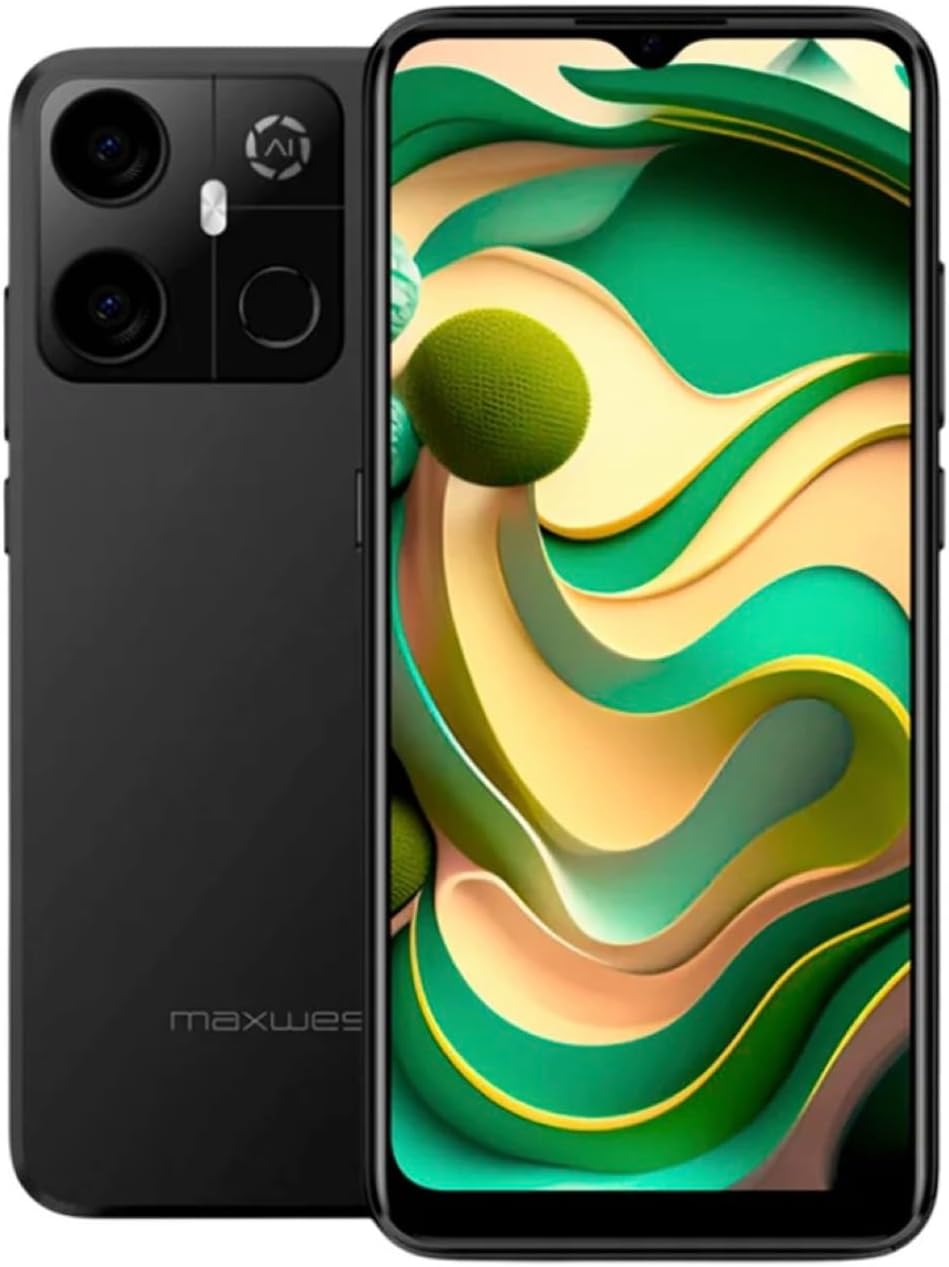
Image: Maxwest Gravity G64 Smartphone, front and back view. The front displays a vibrant screen, while the rear highlights the camera module and Maxwest branding.
2. സജ്ജീകരണം
2.1. ബോക്സിൽ എന്താണുള്ളത്?
- Maxwest Gravity G64 Smartphone
- പവർ അഡാപ്റ്റർ
- Battery (1 C battery, included)
2.2. സിം കാർഡും മെമ്മറി കാർഡും ഇൻസ്റ്റാൾ ചെയ്യൽ
Locate the SIM card tray on the side of your device. Use the provided SIM ejector tool to open the tray. Insert your Nano-SIM card(s) and/or microSD card into the designated slots. Ensure the cards are correctly oriented before reinserting the tray firmly into the phone.
2.3. പ്രാരംഭ പവർ ഓണും ചാർജിംഗും
Press and hold the power button located on the side of the phone until the Maxwest logo appears. For first-time use, it is recommended to fully charge the device. Connect the USB Type-C cable to the phone's charging port and the power adapter to a wall outlet. The battery indicator will show charging status.
3. ഓപ്പറേഷൻ
3.1. അടിസ്ഥാന നാവിഗേഷൻ
The Gravity G64 features a responsive touchscreen. Swipe up, down, left, or right to navigate through menus and home screens. Tap icons to open applications. Use pinch-to-zoom gestures for images and web പേജുകൾ.
3.2. ഡിസ്പ്ലേ സവിശേഷതകൾ
The 6.57-inch HD+ display with a 60Hz refresh rate provides clear visuals and smooth scrolling. Adjust brightness and display settings via the 'Settings' menu under 'Display'.
3.3. ക്യാമറ ഉപയോഗം
Launch the Camera application to utilize the 16MP AI Camera system. Tap to focus, pinch to zoom, and use the on-screen shutter button to capture photos. Explore various modes like Portrait, Panorama, and Night mode for enhanced photography.
3.4. സുരക്ഷാ സവിശേഷതകൾ
Your Gravity G64 offers dual security options: Fingerprint Sensor and Face Unlock. To set these up, navigate to 'Settings' > 'Security & privacy' > 'Device unlock'. Follow the on-screen instructions to register your fingerprint(s) and face data.
3.5. കണക്റ്റിവിറ്റി
- 4G സെല്ലുലാർ: Insert a compatible SIM card to access 4G networks. Manage mobile data settings in 'Settings' > 'Network & internet'.
- വൈഫൈ: Connect to wireless networks via 'Settings' > 'Network & internet' > 'Wi-Fi'. Select your desired network and enter the password if required.
- ബ്ലൂടൂത്ത്: Pair with Bluetooth devices (headphones, speakers) through 'Settings' > 'Connected devices' > 'Bluetooth'.
3.6. ഓപ്പറേറ്റിംഗ് സിസ്റ്റം
The device runs on Android 14, providing access to the latest features, security updates, and a vast ecosystem of applications available on the Google Play Store.
4. പരിപാലനം
4.1. ബാറ്ററി പരിചരണം
To prolong battery life, avoid extreme temperatures. Use only the provided power adapter and USB Type-C cable for charging. Avoid completely draining the battery frequently.
4.2. സോഫ്റ്റ്വെയർ അപ്ഡേറ്റുകൾ
Regularly check for software updates to ensure optimal performance and security. Go to 'Settings' > 'System' > 'System update' to check for and install available updates.
4.3. നിങ്ങളുടെ ഉപകരണം വൃത്തിയാക്കൽ
നിങ്ങളുടെ ഫോണിന്റെ സ്ക്രീനും ബോഡിയും വൃത്തിയാക്കാൻ മൃദുവായ, ലിന്റ് രഹിത തുണി ഉപയോഗിക്കുക. ഉപകരണത്തിന് കേടുവരുത്തുന്ന കഠിനമായ രാസവസ്തുക്കളോ ഉരച്ചിലുകളുള്ള വസ്തുക്കളോ ഉപയോഗിക്കുന്നത് ഒഴിവാക്കുക.
5. പ്രശ്നപരിഹാരം
- ഉപകരണം ഓണാക്കുന്നില്ല: ബാറ്ററി ചാർജ് ചെയ്തിട്ടുണ്ടെന്ന് ഉറപ്പാക്കുക. ചാർജർ കണക്റ്റ് ചെയ്ത് വീണ്ടും ശ്രമിക്കുക.
- ആപ്പുകൾ ക്രാഷാകുകയോ മരവിക്കുകയോ ചെയ്യുന്നു: Close and reopen the app. If the issue persists, restart the phone. Clear app cache or reinstall the app.
- മോശം നെറ്റ്വർക്ക് സിഗ്നൽ: Check your SIM card installation. Move to an area with better coverage. Contact your carrier if issues persist.
- Fingerprint/Face Unlock not working: Ensure your fingers are clean and dry, or your face is clearly visible. Re-register your biometric data if necessary.
- ഫാക്ടറി പുന et സജ്ജമാക്കുക: As a last resort, you can perform a factory reset. Go to 'Settings' > 'System' > 'Reset options' > 'Erase all data (factory reset)'. Warning: This will erase all data on your phone. Back up important data first.
6 സ്പെസിഫിക്കേഷനുകൾ
| ഫീച്ചർ | വിശദാംശങ്ങൾ |
|---|---|
| മോഡലിൻ്റെ പേര് | Gravity G64 |
| പ്രദർശിപ്പിക്കുക | 6.57-inch HD+ (60Hz Refresh Rate) |
| പ്രോസസ്സർ | Octa-Core Engine |
| റാം | 8 ജിബി |
| ആന്തരിക സംഭരണം | 64 ജിബി |
| പിൻ ക്യാമറ | 16MP AI Camera System |
| ഓപ്പറേറ്റിംഗ് സിസ്റ്റം | ആൻഡ്രോയിഡ് 14 |
| ബാറ്ററി ശേഷി | 4000 mAh |
| കണക്റ്റിവിറ്റി | 4G, Bluetooth, Wi-Fi, USB Type-C |
| സുരക്ഷ | ഫിംഗർപ്രിന്റ് സെൻസർ, ഫേസ് അൺലോക്ക് |
| അളവുകൾ | 6.43 x 3.31 x 0.35 ഇഞ്ച് |
| ഭാരം | 1.21 പൗണ്ട് |
7. വാറൻ്റിയും പിന്തുണയും
7.1. വാറൻ്റി വിവരങ്ങൾ
For detailed warranty information, please refer to the warranty card included with your product or visit the official Maxwest webസൈറ്റ്. വാറന്റി ക്ലെയിമുകൾക്കായി നിങ്ങളുടെ വാങ്ങലിന്റെ തെളിവ് സൂക്ഷിക്കുക.
7.2. ഉപഭോക്തൃ പിന്തുണ
If you encounter any issues not covered in this manual, please contact Maxwest customer support. Contact details can typically be found on the Maxwest official webസൈറ്റ് അല്ലെങ്കിൽ ഉൽപ്പന്ന പാക്കേജിംഗിൽ.


