1. ആമുഖം
Thank you for choosing the Oakcastle IR200 Internet Radio. This manual provides essential information for the safe and efficient operation of your device. Please read it thoroughly before use and retain it for future reference.
The Oakcastle IR200 is a versatile audio system offering multiple listening options, including Internet Radio, DAB+, FM, Bluetooth 5.3, and AUX input. It features a color display, remote control, and podcast support for a comprehensive audio experience.
2. പാക്കേജ് ഉള്ളടക്കം
Carefully unpack the box and ensure all items listed below are present and in good condition:
- Oakcastle IR200 Internet Radio Unit
- പവർ കേബിൾ
- റിമോട്ട് കൺട്രോൾ
- ഉപയോക്തൃ മാനുവൽ (ഈ പ്രമാണം)
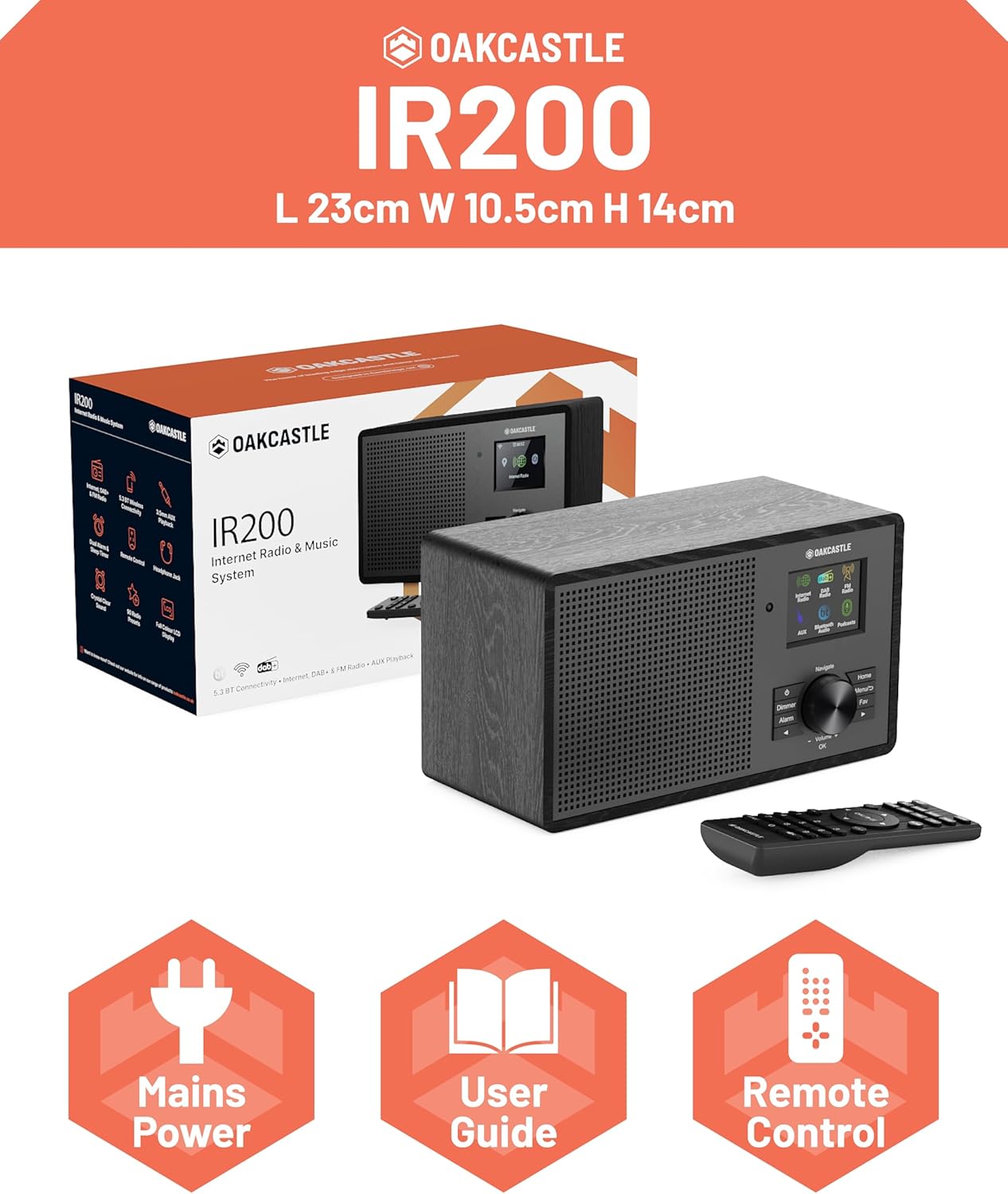
Image 2.1: Contents of the Oakcastle IR200 package, including the radio unit, its box, power cable, remote control, and user manual.
3. ഉൽപ്പന്നം കഴിഞ്ഞുview
Familiarize yourself with the main components and controls of your Oakcastle IR200 radio.
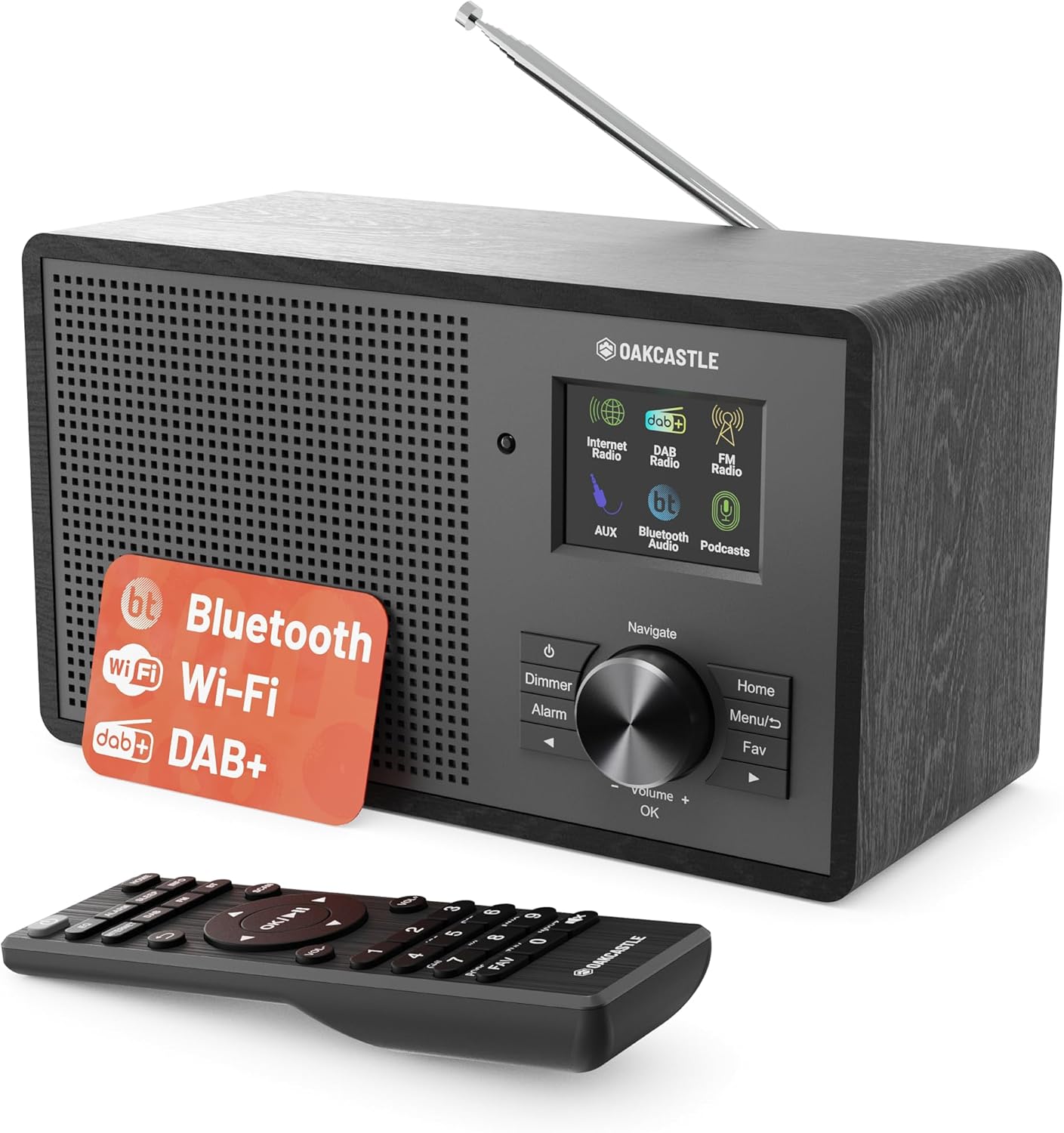
ചിത്രം 3.1: മുൻഭാഗം view of the Oakcastle IR200 radio, showcasing the display, control knob, buttons, and the included remote control.
3.1 ഫ്രണ്ട് പാനൽ നിയന്ത്രണങ്ങൾ
- ഡിസ്പ്ലേ സ്ക്രീൻ: സ്റ്റേഷൻ വിവരങ്ങൾ, സമയം, മെനു ഓപ്ഷനുകൾ എന്നിവ കാണിക്കുന്നു.
- Navigate/Volume/OK Knob: Rotate to navigate menus or adjust volume; press to confirm selections.
- പവർ ബട്ടൺ: Turns the unit on/off or puts it into standby.
- മങ്ങിയ ബട്ടൺ: ഡിസ്പ്ലേ തെളിച്ചം ക്രമീകരിക്കുന്നു.
- അലാറം ബട്ടൺ: Accesses alarm settings.
- ഹോം ബട്ടണ്: പ്രധാന മെനുവിലേക്ക് മടങ്ങുന്നു.
- മെനു ബട്ടൺ: Accesses mode-specific menus.
- പ്രിയപ്പെട്ട ബട്ടൺ: Accesses favorite station presets.
3.2 പിൻ പാനൽ കണക്ഷനുകൾ

ചിത്രം 3.2: പിൻഭാഗം view of the Oakcastle IR200, highlighting the headphone output and AUX input ports.
- ടെലിസ്കോപ്പിക് ആന്റിന: For DAB+ and FM reception.
- AUX ഇൻപുട്ട്: ബാഹ്യ ഓഡിയോ ഉപകരണങ്ങൾ ബന്ധിപ്പിക്കുക.
- ഹെഡ്ഫോൺ ഔട്ട്പുട്ട്: സ്വകാര്യ ശ്രവണത്തിനായി ഹെഡ്ഫോണുകൾ ബന്ധിപ്പിക്കുക.
- DC IN: പവർ അഡാപ്റ്റർ കണക്ഷൻ.
4. പ്രാരംഭ സജ്ജീകരണം
4.1 പവർ കണക്ഷൻ
- Insert the power cable into the DC IN port on the rear of the radio.
- Plug the other end of the power cable into a wall socket.
- Press the Power button on the front panel or remote control to turn on the radio.
4.2 ആന്റിന ക്രമീകരണം
For optimal DAB+ and FM reception, fully extend the telescopic antenna located at the rear of the unit.
4.3 Network Connection (for Internet Radio)
- Upon first power-on, the radio will guide you through the network setup.
- Select "Network Wizard" or "Wi-Fi Setup" from the menu.
- ലഭ്യമായ വൈഫൈ നെറ്റ്വർക്കുകൾക്കായി റേഡിയോ സ്കാൻ ചെയ്യും. ലിസ്റ്റിൽ നിന്ന് നിങ്ങളുടെ നെറ്റ്വർക്ക് തിരഞ്ഞെടുക്കുക.
- Enter your Wi-Fi password using the navigation knob and OK button.
- കണക്റ്റ് ചെയ്തുകഴിഞ്ഞാൽ, റേഡിയോ ഒരു സ്ഥിരീകരണ സന്ദേശം പ്രദർശിപ്പിക്കും.
5 ഓപ്പറേറ്റിംഗ് മോഡുകൾ
The Oakcastle IR200 offers several listening modes. Press the "Home" button to access the main menu and select your desired mode.
5.1 ഇൻ്റർനെറ്റ് റേഡിയോ
Access thousands of global radio stations via your Wi-Fi connection.

Image 5.1: The radio's display screen in Internet Radio mode, showing station information.
- From the main menu, select "Internet Radio".
- You can browse stations by location, genre, or search by name.
- Rotate the Navigate knob to scroll through options and press OK to select.
- To save a station as a favorite, press the "Fav" button during playback.
5.2 DAB+ Radio
ഉയർന്ന നിലവാരമുള്ള ഡിജിറ്റൽ റേഡിയോ പ്രക്ഷേപണങ്ങൾ ആസ്വദിക്കൂ.

Image 5.2: The radio's display screen in DAB+ Radio mode, showing the current station.
- From the main menu, select "DAB+ Radio".
- The radio will automatically scan for available DAB+ stations.
- Use the Navigate knob to select a station from the list.
- To save a station as a favorite, press the "Fav" button during playback.
5.3 എഫ്എം റേഡിയോ
Tune into traditional analog FM broadcasts.
- പ്രധാന മെനുവിൽ നിന്ന്, "FM റേഡിയോ" തിരഞ്ഞെടുക്കുക.
- To auto-scan for stations, press and hold the OK button or use the scan function via the menu.
- To manually tune, rotate the Navigate knob.
- To save a station as a favorite, press the "Fav" button during playback.
5.4 ബ്ലൂടൂത്ത് കണക്റ്റിവിറ്റി
നിങ്ങളുടെ ബ്ലൂടൂത്ത് പ്രാപ്തമാക്കിയ ഉപകരണങ്ങളിൽ നിന്ന് വയർലെസ് ആയി ഓഡിയോ സ്ട്രീം ചെയ്യുക.

Image 5.3: The radio's display screen in Bluetooth mode, indicating readiness for pairing.
- From the main menu, select "Bluetooth". The radio will enter pairing mode.
- On your external device (e.g., smartphone), enable Bluetooth and search for "Oakcastle IR200".
- Select "Oakcastle IR200" to pair. Once connected, you can stream audio.
5.5 AUX ഇൻപുട്ട്
Connect external audio sources using a 3.5mm audio cable.
- Connect one end of a 3.5mm audio cable to the AUX IN port on the rear of the radio.
- മറ്റേ അറ്റം നിങ്ങളുടെ ബാഹ്യ ഉപകരണത്തിന്റെ ഹെഡ്ഫോൺ ജാക്കിലേക്കോ ഓഡിയോ ഔട്ട്പുട്ടിലേക്കോ ബന്ധിപ്പിക്കുക.
- From the main menu, select "AUX".
- നിങ്ങളുടെ ബാഹ്യ ഉപകരണത്തിൽ നിന്ന് പ്ലേബാക്ക് നിയന്ത്രിക്കുക.
5.6 പോഡ്കാസ്റ്റുകൾ
Browse and listen to a wide range of podcasts.
- From the main menu, select "Podcasts".
- Browse podcasts by category or search for specific titles.
- Select a podcast to start listening.
6. ക്രമീകരണങ്ങളും സവിശേഷതകളും
6.1 സിസ്റ്റം ക്രമീകരണങ്ങൾ
Access general system settings via the main menu to configure time, language, display, and more.
- സമയം/തീയതി: Set time format, synchronize time.
- ഭാഷ: Select your preferred language for the menu.
- ഡിസ്പ്ലേ: Adjust backlight, color scheme.
- നെറ്റ്വർക്ക്: Reconfigure Wi-Fi settings.
- സോഫ്റ്റ്വെയർ അപ്ഡേറ്റ്: Check for and install firmware updates.
6.2 ഇക്വലൈസർ (EQ)
Customize the audio output to your preference using the equalizer settings, accessible via the remote control or system menu.
6.3 പ്രീസെറ്റുകൾ
The radio supports over 90 presets for your favorite Internet, DAB+, and FM stations. To recall a preset, press the "Fav" button and select from the list.
6.4 അലാറങ്ങൾ
Set alarms to wake up to your favorite radio station or a buzzer sound. Access alarm settings via the "Alarm" button on the front panel or remote.
7. റിമോട്ട് കൺട്രോൾ
The included remote control provides convenient access to all radio functions from a distance.
Ensure batteries are correctly inserted. Point the remote control towards the front of the radio for optimal response.
7.1 വിദൂര നിയന്ത്രണ പ്രവർത്തനങ്ങൾ
- ശക്തി: On/Off/Standby.
- വോളിയം +/-: വോളിയം ലെവൽ ക്രമീകരിക്കുക.
- നാവിഗേഷൻ ബട്ടണുകൾ (മുകളിലേക്ക്/താഴേക്ക്/ഇടത്/വലത്): മെനുകൾ നാവിഗേറ്റ് ചെയ്യുക.
- ശരി: തിരഞ്ഞെടുക്കൽ സ്ഥിരീകരിക്കുക.
- Mode Buttons (Internet, DAB, FM, Bluetooth, AUX): മോഡുകൾക്കിടയിൽ മാറുക.
- Preset Buttons (1-90+): Directly select saved favorite stations.
- EQ: ഇക്വലൈസർ ക്രമീകരണങ്ങൾ ആക്സസ് ചെയ്യുക.
- മെനു: Access mode-specific menus.
- ഇഷ്ടം: Access favorite station list.
8. പരിപാലനം
8.1 വൃത്തിയാക്കൽ
To clean the radio, use a soft, dry cloth. Do not use abrasive cleaners, waxes, or solvents as these may damage the finish.
8.2 പൊതു പരിചരണം
- Keep the unit away from direct sunlight, heat sources, and moisture.
- യൂണിറ്റ് താഴെയിടുകയോ ശക്തമായ ആഘാതങ്ങൾക്ക് വിധേയമാക്കുകയോ ചെയ്യുന്നത് ഒഴിവാക്കുക.
- യൂണിറ്റിന് ചുറ്റും ശരിയായ വായുസഞ്ചാരം ഉറപ്പാക്കുക.
9. പ്രശ്നപരിഹാരം
| പ്രശ്നം | സാധ്യമായ കാരണം | പരിഹാരം |
|---|---|---|
| ശക്തിയില്ല | Power cable not connected; wall socket not active. | Check power cable connection; try a different wall socket. |
| ശബ്ദമില്ല | ശബ്ദം വളരെ കുറവാണ്; മ്യൂട്ട് സജീവമാക്കി; തെറ്റായ ഉറവിടം തിരഞ്ഞെടുത്തു. | Increase volume; Check mute status; Select correct input mode. |
| Internet Radio not connecting | Incorrect Wi-Fi password; Weak Wi-Fi signal; Router issue. | Re-enter Wi-Fi password; Move radio closer to router; Restart router. |
| മോശം DAB+/FM റിസപ്ഷൻ | Antenna not extended; Poor signal area. | Fully extend antenna; Reposition radio for better signal. |
| ബ്ലൂടൂത്ത് ജോടിയാക്കുന്നില്ല | Radio not in pairing mode; Device too far; Device already paired. | Ensure radio is in Bluetooth mode; Move device closer; Unpair from other devices. |
10 സ്പെസിഫിക്കേഷനുകൾ
| ഫീച്ചർ | വിശദാംശങ്ങൾ |
|---|---|
| ബ്രാൻഡ് | ഓക്ക്കാസിൽ |
| മോഡൽ | IR200 |
| നിറം | കറുപ്പ് |
| കണക്റ്റിവിറ്റി ടെക്നോളജി | Wi-Fi, Bluetooth 5.3, AUX |
| ട്യൂണിംഗ് സാങ്കേതികവിദ്യ | Internet Radio, DAB+, FM |
| പ്രത്യേക സവിശേഷതകൾ | Bluetooth, EQ, Podcasts, Internet Radio, Remote Control |
| പവർ ഉറവിടം | Electric Cable (Mains) |
| ഉൽപ്പന്ന അളവുകൾ (H x W x D) | 14 സെ.മീ x 10.5 സെ.മീ x 23 സെ.മീ (ഏകദേശം) |
| ഉൽപ്പന്ന ഭാരം | 0.94 കി.ഗ്രാം |
| അനുയോജ്യമായ ഉപകരണങ്ങൾ | MP3 Player, Smartphone, Tablet |
11. വാറൻ്റിയും പിന്തുണയും
11.1 വാറൻ്റി വിവരങ്ങൾ
The Oakcastle IR200 comes with a standard warranty. An extended 3-year warranty is available upon product registration on the manufacturer's website. Please refer to the warranty card included in your package or visit the official Oakcastle webവിശദാംശങ്ങൾക്ക് സൈറ്റ്.
11.2 ഉപഭോക്തൃ പിന്തുണ
For technical assistance, troubleshooting, or further inquiries, please contact Oakcastle customer support. Contact details can typically be found on the official Oakcastle webസൈറ്റ് അല്ലെങ്കിൽ വാറന്റി കാർഡിൽ.


