ആമുഖം
This manual provides detailed instructions for the WIWU Magnetic Detachable Keyboard Case (Model MK-005). This 3-in-1 accessory enhances your iPad experience by offering a protective case, a magnetic stand, and a Bluetooth keyboard with a trackpad. Please read this manual thoroughly before use to ensure proper functionality and longevity of your device.
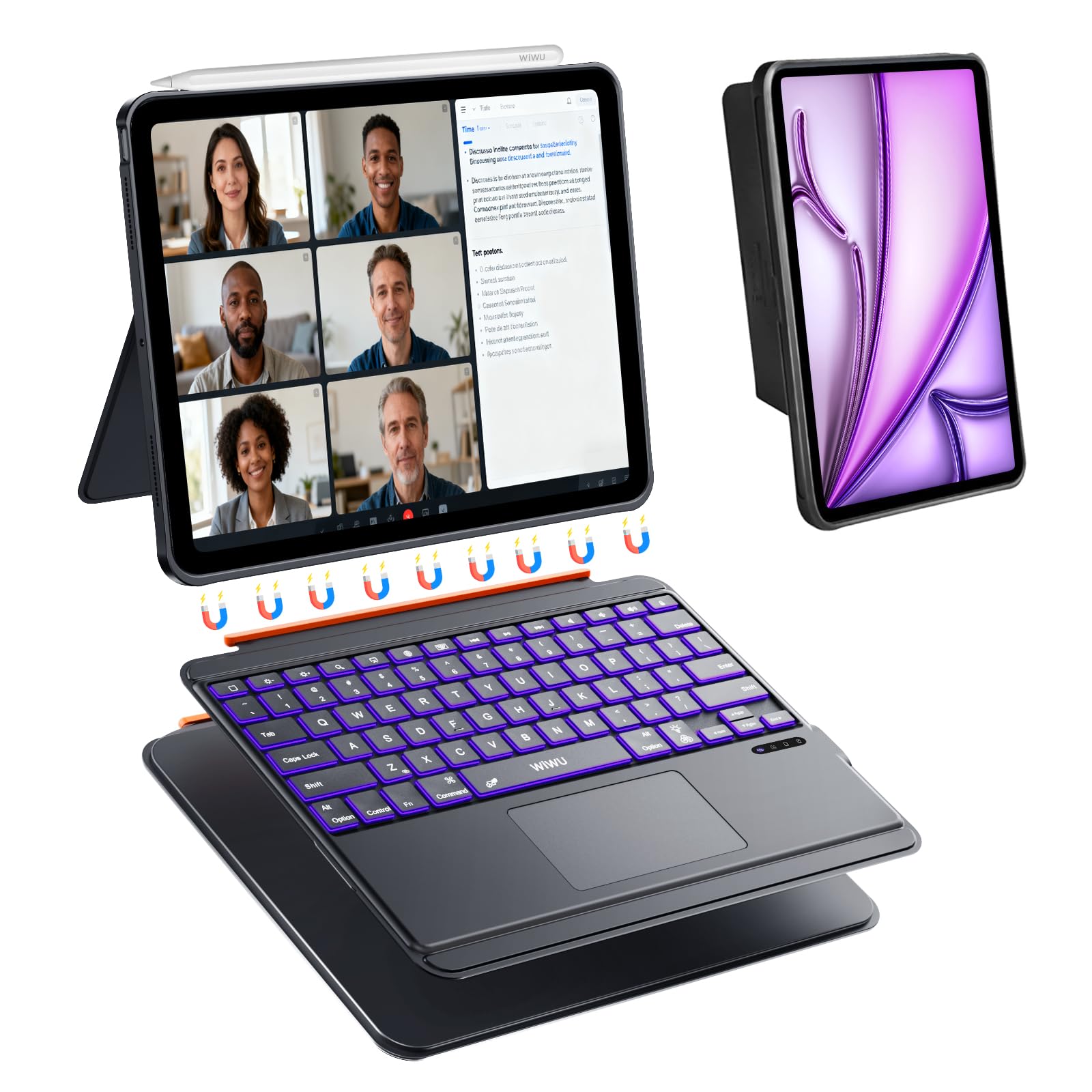
Image: The WIWU Magnetic Detachable Keyboard Case shown with an iPad, highlighting its sleek design and integrated keyboard.
അനുയോജ്യമായ ഐപാഡ് മോഡലുകൾ
The WIWU Magnetic Detachable Keyboard Case is specifically designed for the following iPad models:
- iPad Air 13 inch (M3 2025 / M2 2024)
- iPad Pro 12.9 inch (6th Generation)
- iPad Pro 12.9 inch (5th Generation)
- iPad Pro 12.9 inch (4th Generation)
- iPad Pro 12.9 inch (3rd Generation)
Important: Please verify your iPad model number before attaching the case to ensure compatibility.
Compatible model numbers include: A3268, A3269, A3271, A2898, A2899, A2900, A2436, A2437, A2764, A2766, A2378, A2461, A2379, A2462, A2229, A2069, A2232, A2233, A1876, A2014, A1895, A1983.

Image: Visual guide illustrating the different iPad models compatible with the keyboard case, along with their respective model numbers.
പാക്കേജ് ഉള്ളടക്കം
പാക്കേജ് തുറക്കുമ്പോൾ, നിങ്ങൾക്ക് ഇനിപ്പറയുന്ന ഇനങ്ങൾ കണ്ടെത്താനാകും:
- 1 x WIWU Magnetic Detachable Keyboard Case (Model MK-005)
- 1 x യുഎസ്ബി-സി ചാർജിംഗ് കേബിൾ
- 1 x ഉപയോക്തൃ മാനുവൽ (ഈ പ്രമാണം)
സജ്ജീകരണ നിർദ്ദേശങ്ങൾ
1. Attaching Your iPad to the Case
- Align your compatible iPad with the protective back cover of the case.
- Gently press the iPad into the case until it is securely seated. The case is designed for a snug fit to protect your device.

Image: A user attaching the iPad to the magnetic back cover of the keyboard case.
2. കീബോർഡ് ചാർജ് ചെയ്യുന്നു
Before initial use, fully charge the keyboard. The keyboard features a USB-C charging port.
- Locate the USB-C charging port on the side of the keyboard.
- Connect the provided USB-C charging cable to the keyboard and a suitable power source (e.g., USB wall adapter, computer USB port).
- The charging indicator light will illuminate. A full charge typically takes approximately 2 hours and provides up to 100 hours of use.

Image: The keyboard connected to a USB-C charging cable, showing the charging port location.
3. ബ്ലൂടൂത്ത് ജോടിയാക്കൽ
- Ensure the keyboard is charged and powered on using the switch located on the side. The Bluetooth indicator light will flash.
- നിങ്ങളുടെ iPad-ൽ, പോകുക ക്രമീകരണങ്ങൾ > ബ്ലൂടൂത്ത്.
- Turn on Bluetooth. Your iPad will search for nearby devices.
- Locate "MK-005" in the list of "Other Devices" and tap to connect.
- A Bluetooth Pairing Request pop-up may appear. Tap "Pair" to confirm the connection.
- Once connected, the Bluetooth indicator light on the keyboard will stop flashing and remain solid, and "MK-005" will appear under "My Devices" as "Connected".
Video: This video demonstrates the process of connecting the keyboard to your iPad via Bluetooth and activating the trackpad function.

Image: Step-by-step interface screenshots guiding users through the Bluetooth connection and setup process on their iPad.
പ്രവർത്തന നിർദ്ദേശങ്ങൾ
1. കീബോർഡും ട്രാക്ക്പാഡും ഉപയോഗിക്കുന്നു
- Activating the Trackpad: After connecting via Bluetooth, press എഫ്എൻ + സ്പെയ്സ്ബാർ to activate the trackpad function.
- ടൈപ്പിംഗ്: The scissor-switch keys offer a comfortable and responsive typing experience.
- ട്രാക്ക്പാഡ് ആംഗ്യങ്ങൾ: The multi-touch trackpad supports 18 intuitive gestures for navigation, clicking, and app switching. Refer to the gesture guide below.
- iPad OS Shortcuts: Utilize multimedia shortcuts for increased efficiency, such as quick screenshots or returning to the desktop.

Image: A visual guide detailing 18 single-finger touch gestures for the trackpad, compatible with iPad OS 14.5 and above.
2. Adjusting Backlight Colors and Brightness
The keyboard features 7 RGB backlight colors and 3 levels of brightness for comfortable typing in various lighting conditions.
- To change backlight colors, press the RGB key (often combined with Fn).
- To adjust brightness levels, use the dedicated brightness keys (often combined with Fn).

ചിത്രം: വിശദമായത് view of the keyboard's backlit keys, scissor-switch mechanism, and iPad OS shortcut keys.
3. Magnetic Detachable Design and Adjustable Stand
The 3-in-1 magnetic design allows for versatile use:
- കീബോർഡ് മോഡ്: Attach the keyboard magnetically for typing.
- ടാബ്ലെറ്റ് മോഡ്: Detach the keyboard and use only the protective case for a lighter tablet experience.
- ക്രമീകരിക്കാവുന്ന സ്റ്റാൻഡ്: The foldable stand allows for angle adjustments from 0° to 170°, suitable for various viewing and typing positions.

Image: Illustration of the 3-in-1 magnetic detachable design, showing how the keyboard and back panel can be used together or separately.

Image: Visuals demonstrating the adjustable viewing angles (up to 170°) and the lightweight nature of the case with and without the keyboard.
വീഡിയോ: ഒരു ചെറിയ വീഡിയോ പ്രദർശനംasing the magnetic detachment of the keyboard and the adjustable stand feature of the iPad case.
മെയിൻ്റനൻസ്
- കേസ് വൃത്തിയാക്കൽ: ഒരു സോഫ്റ്റ് ഉപയോഗിക്കുക, ഡിamp cloth to wipe the PU leather case. Avoid harsh chemicals or abrasive cleaners.
- കീബോർഡ് വൃത്തിയാക്കൽ: Use a soft, dry cloth or a can of compressed air to clean between the keys. Do not immerse the keyboard in water.
- സംഭരണം: When not in use, store the keyboard case in a cool, dry place.
- ബാറ്ററി കെയർ: ബാറ്ററി ലൈഫ് വർദ്ധിപ്പിക്കാൻ, കീബോർഡ് ഇടയ്ക്കിടെ പൂർണ്ണമായും ഡിസ്ചാർജ് ചെയ്യുന്നത് ഒഴിവാക്കുക. പതിവായി ചാർജ് ചെയ്യുക.
ട്രബിൾഷൂട്ടിംഗ്
കീബോർഡ് ബ്ലൂടൂത്ത് വഴി കണക്റ്റുചെയ്യുന്നില്ല
- കീബോർഡ് ഓണാക്കിയിട്ടുണ്ടെന്നും പൂർണ്ണമായും ചാർജ് ചെയ്തിട്ടുണ്ടെന്നും ഉറപ്പാക്കുക.
- നിങ്ങളുടെ iPad-ൽ Bluetooth പ്രവർത്തനക്ഷമമാക്കിയിട്ടുണ്ടെന്ന് ഉറപ്പാക്കുക.
- Forget the device ("MK-005") from your iPad's Bluetooth settings and attempt to re-pair.
- നിങ്ങളുടെ ഐപാഡും കീബോർഡും പുനരാരംഭിക്കുക.
- Ensure the keyboard is within the effective Bluetooth range (typically 10 meters).
Trackpad Not Responding
- Ensure the keyboard is successfully connected via Bluetooth.
- Activate the trackpad by pressing എഫ്എൻ + സ്പെയ്സ്ബാർ.
- Check if your iPad's operating system is iOS 14.5 or later for full gesture support.
ബാക്ക്ലൈറ്റ് പ്രവർത്തിക്കുന്നില്ല
- കീബോർഡ് ഓണാണെന്നും ആവശ്യത്തിന് ബാറ്ററി ചാർജ് ഉണ്ടെന്നും ഉറപ്പാക്കുക.
- Use the dedicated backlight keys (often combined with Fn) to turn on/off or adjust brightness/color.
സ്പെസിഫിക്കേഷനുകൾ
| ഫീച്ചർ | വിശദാംശങ്ങൾ |
|---|---|
| മോഡൽ നമ്പർ | എംകെ-005 |
| ഉൽപ്പന്ന അളവുകൾ | 12.52 x 10.24 x 1.02 ഇഞ്ച് |
| ഇനത്തിൻ്റെ ഭാരം | 2.9 പൗണ്ട് |
| കണക്റ്റിവിറ്റി ടെക്നോളജി | ബ്ലൂടൂത്ത് 5.3 |
| കീബോർഡ് വിവരണം | Multi-Functional, Scissor-Switch Keys |
| പ്രത്യേക ഫീച്ചർ | Trackpad, 7 RGB Backlit Colors, Adjustable Stand (0°-170°), Magnetic Detachable Design |
| മെറ്റീരിയൽ | PU Leather (case) |
| പവർ ഉറവിടം | USB Powered (USB-C) |
| ബാറ്ററി ലൈഫ് | Up to 100 hours of use (2 hours charging time) |
വാറൻ്റിയും പിന്തുണയും
For warranty information and customer support, please refer to the official WIWU webനിങ്ങളുടെ സൈറ്റിൽ ബന്ധപ്പെടുക അല്ലെങ്കിൽ നിങ്ങളുടെ റീട്ടെയിലറെ ബന്ധപ്പെടുക. ഏതെങ്കിലും വാറന്റി ക്ലെയിമുകൾക്ക് വാങ്ങിയതിന്റെ തെളിവായി നിങ്ങളുടെ വാങ്ങൽ രസീത് സൂക്ഷിക്കുക.
നിർമ്മാതാവ്: Shenzhen Jimashi trading Co.Ltd
ബ്രാൻഡ്: WIWU
കൂടുതൽ സഹായത്തിന്, സന്ദർശിക്കുക WIWU Official Store on Amazon.


