1. ആമുഖം
This manual provides comprehensive instructions for the installation, operation, and maintenance of your VEEMENT V200Pro 2.5K Car Dash Cam. Please read this manual carefully before using the device to ensure proper functionality and safety. Keep this manual for future reference.
2. പാക്കേജ് ഉള്ളടക്കം
താഴെ ലിസ്റ്റ് ചെയ്തിരിക്കുന്ന എല്ലാ ഇനങ്ങളും നിങ്ങളുടെ പാക്കേജിൽ ഉൾപ്പെടുത്തിയിട്ടുണ്ടെന്ന് ഉറപ്പാക്കുക:
- 1 x VEEMENT V200Pro Dash Cam
- 1 x കാർ ചാർജർ
- 2 x Electrostatic Stickers
- 1 x Spare 3M Adhesive Pad
- 1 x Easy Pry Tool
- 1 x User Manual + Installation Guide

Image: All components included in the VEEMENT V200Pro Dash Cam package, laid out for clear viewing.
3. ഉൽപ്പന്നം കഴിഞ്ഞുview
The VEEMENT V200Pro is a compact 2.5K car dash camera designed to record driving footage. It features a 1.47-inch display, a 160° wide-angle lens, and various recording modes.
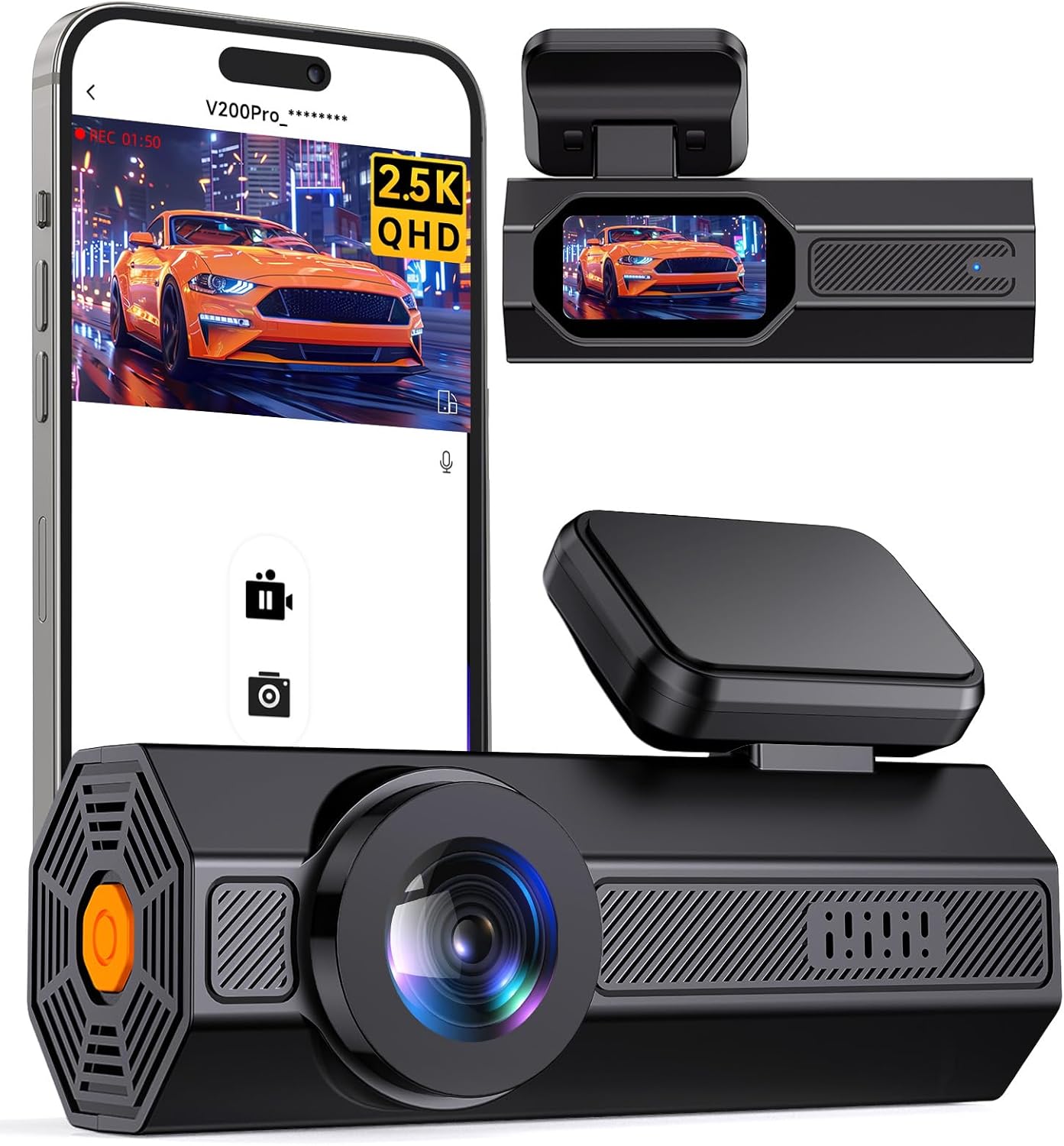
Image: The VEEMENT V200Pro Dash Cam shown alongside a smartphone displaying its companion app interface.
4. സജ്ജീകരണവും ഇൻസ്റ്റാളേഷനും
4.1. മെമ്മറി കാർഡ് ചേർക്കുന്നു
The V200Pro requires a Micro SD card (not included) for recording. Use a U1 grade or higher SD card with a maximum capacity of 256GB for optimal performance.
- Locate the Micro SD card slot on the side of the dash cam.
- Insert the Micro SD card with the gold contacts facing the back of the dash cam until it clicks into place.
- നീക്കം ചെയ്യാൻ, കാർഡ് ക്ലിക്ക് ചെയ്യുന്നതുവരെ സൌമ്യമായി തള്ളുക, തുടർന്ന് സ്ലോട്ടിൽ നിന്ന് അത് പുറത്തെടുക്കുക.

Image: A Micro SD card being inserted into the designated slot on the side of the dash cam.
4.2. ഡാഷ് കാം മൌണ്ട് ചെയ്യുന്നു
The V200Pro is designed for windshield mounting using the provided adhesive pad.
- ഡാഷ്ക്യാം ഘടിപ്പിക്കുന്ന വിൻഡ്ഷീൽഡ് ഭാഗം വൃത്തിയാക്കുക. പൊടിയും ഗ്രീസും ഇല്ലെന്ന് ഉറപ്പാക്കുക.
- Attach an electrostatic sticker to the cleaned area of the windshield. This helps protect the windshield and makes removal easier.
- Peel off the protective film from the 3M adhesive pad and firmly press the dash cam mount onto the electrostatic sticker. Hold for 30 seconds.
- Adjust the camera angle using the 60° rotatable bracket to ensure a clear view റോഡിൻ്റെ.

Image: The dash cam discreetly installed on the upper center of a car's windshield, showing minimal obstruction to the driver's view.

Image: A diagram demonstrating the flexible 60-degree rotation capability of the dash cam's mounting bracket, allowing for optimal angle adjustment.
4.3. പവർ കണക്ഷൻ
Connect the provided car charger to the dash cam's power port and plug the other end into your vehicle's cigarette lighter socket. The dash cam will power on automatically when the vehicle starts and power off when the engine is turned off.
5. പ്രവർത്തന നിർദ്ദേശങ്ങൾ
5.1. അടിസ്ഥാന പ്രവർത്തനം
- പവർ ഓൺ/ഓഫ്: The dash cam powers on automatically with vehicle ignition and powers off when the engine is off. Manual power control may be available via a dedicated button (refer to the included Installation Guide for button layout).
- റെക്കോർഡിംഗ്: Once powered on and with a valid SD card inserted, the dash cam begins recording automatically. A red indicator light or on-screen icon typically confirms recording status.
- ഡിസ്പ്ലേ: The 1.47-inch display allows for real-time viewing of recordings and menu navigation.
5.2. വീഡിയോ ഗുണനിലവാരം
The V200Pro records video at 2.5K (2560x1440P) resolution with a 160° wide-angle lens, capturing clear details of license plates and road signs.

Image: A visual representation of the dash cam's 2.5K QHD recording capability and 160-degree wide-angle view, showing a car from behind on a road.
5.3. ലൂപ്പ് റെക്കോർഡിംഗ്
When the memory card reaches its storage limit, the dash cam automatically overwrites the oldest recordings with new footage. This ensures continuous recording without manual intervention. Video segments are typically recorded in 1, 2, or 3-minute intervals.

Image: A chart illustrating the approximate recording duration for different Micro SD card capacities (32GB, 64GB, 128GB, 256GB) with loop recording enabled.
5.4. G-Sensor (Emergency Recording)
The built-in G-Sensor detects sudden impacts or collisions. When triggered, it automatically locks the current video segment, preventing it from being overwritten by loop recording. These emergency videos are stored in a separate, protected folder on the SD card.

Image: An illustration depicting two cars involved in a collision, with a prominent lock icon symbolizing the G-Sensor's function to secure incident footage.
5.5. പാർക്കിംഗ് മോണിറ്റർ
The 24-hour parking monitor feature provides surveillance when your vehicle is parked. It automatically activates and records video upon detecting collisions or motion (depending on settings). Note: This feature requires a hardwire kit (ASIN: B0D93L49TD), which is sold separately.

Image: The VEEMENT V200Pro Dash Cam displayed alongside a hardwire kit, indicating its necessity for enabling 24-hour parking monitoring.

Image: An illustration of a car under a protective shield with a '24H' icon, signifying continuous parking monitoring.
5.6. Time-Lapse Recording (Parking Mode)
When the hardwire kit is installed and parking mode is active, the dash cam can record in time-lapse mode (e.g., 1 frame per second). This compresses long periods of parking surveillance into shorter video files, conserving memory card space while providing continuous coverage.

Image: A smartphone screen showing a compressed time-lapse video recorded by the dash cam, demonstrating the feature's output.
5.7. Super Night Vision
The V200Pro is equipped with an F1.6 large aperture and a 6-layer glass lens, which increases light intake by 60%. Combined with Wide Dynamic Range (WDR) technology, this enhances recording clarity in low-light conditions, providing clear footagരാത്രിയിൽ ഇ.

Image: A car driving on a road at night, demonstrating the enhanced visibility and clarity provided by the dash cam's super night vision feature.
6. ആപ്പ് നിയന്ത്രണം (വൈഫൈ)
The V200Pro features built-in 2.4G WiFi for seamless connection to its companion app on iOS and Android smartphones. This allows for convenient management of recordings.
6.1. ആപ്പിലേക്ക് ബന്ധിപ്പിക്കുന്നു
- Download the 'VeeCar' app from the App Store (iOS) or Google Play Store (Android).
- ഡാഷ് കാം ഓൺ ചെയ്യുക.
- On your smartphone, go to WiFi settings and connect to the dash cam's WiFi network (SSID and password can be found in the dash cam's settings or included guide).
- Open the VeeCar app. The app should automatically connect to the dash cam.

Image: A hand holding a smartphone displaying the dash cam's app interface, showing options for viewing, sharing, editing, and downloading videos.

Image: A smartphone displaying the VeeCar app, showing live footage from the dash cam and options for app control.
6.2. ആപ്പ് പ്രവർത്തനങ്ങൾ
Through the VeeCar app, you can:
- View തത്സമയംtagഡാഷ് ക്യാമറയിൽ നിന്ന് ഇ.
- Review റെക്കോർഡ് ചെയ്ത വീഡിയോകളും ഫോട്ടോകളും.
- Download recordings directly to your smartphone.
- ഡാഷ് ക്യാം ക്രമീകരണങ്ങൾ ക്രമീകരിക്കുക.
- Share videos and photos.
7. പരിപാലനം
- വൃത്തിയാക്കൽ: Use a soft, dry cloth to clean the dash cam lens and body. Avoid using abrasive cleaners or solvents.
- SD കാർഡ് ഫോർമാറ്റിംഗ്: Regularly format the Micro SD card (at least once a month) within the dash cam's settings to ensure optimal performance and prevent data corruption. Back up any important fileഫോർമാറ്റ് ചെയ്യുന്നതിന് മുമ്പ് എസ്.
- താപനില: The dash cam is designed to operate in temperatures from -40℉ to 185℉ (-40℃ to 85℃). Avoid prolonged exposure to extreme temperatures outside this range.

ചിത്രം: ഒരു ആന്തരികം view of the dash cam's circuit board, highlighting its aluminum alloy shell for heat dissipation and overall durability.
8. പ്രശ്നപരിഹാരം
- ഡാഷ് കാം ഓണാക്കുന്നില്ല: Check the car charger connection and ensure the vehicle's cigarette lighter socket is functioning.
- റെക്കോർഡിംഗ് പിശകുകൾ: Ensure a U1 grade or higher Micro SD card is inserted and formatted. Try formatting the card again or using a different card.
- വൈഫൈ കണക്ഷൻ പ്രശ്നങ്ങൾ: Ensure the dash cam's WiFi is enabled. Restart both the dash cam and your smartphone. Verify you are connecting to the correct WiFi network.
- പാർക്കിംഗ് മോണിറ്റർ പ്രവർത്തിക്കുന്നില്ല: ഓപ്ഷണൽ ഹാർഡ്വയർ കിറ്റ് ശരിയായി ഇൻസ്റ്റാൾ ചെയ്തിട്ടുണ്ടെന്നും ബന്ധിപ്പിച്ചിട്ടുണ്ടെന്നും ഉറപ്പാക്കുക.
- Blurred Footage: Clean the dash cam lens. Ensure the protective film has been removed from the lens.
9 സ്പെസിഫിക്കേഷനുകൾ
| ഫീച്ചർ | സ്പെസിഫിക്കേഷൻ |
|---|---|
| മോഡലിൻ്റെ പേര് | V200Pro |
| വീഡിയോ ക്യാപ്ചർ റെസല്യൂഷൻ | 2.5K (2560x1440P) |
| ഫീൽഡ് View | 160 ഡിഗ്രി |
| പ്രദർശിപ്പിക്കുക | 1.47" IPS ഡിസ്പ്ലേ |
| കണക്റ്റിവിറ്റി ടെക്നോളജി | Wi-Fi (2.4G) |
| പ്രത്യേക സവിശേഷതകൾ | Compact Design, WDR, G-Sensor, Loop Recording, Night Vision, Parking Monitor (requires hardwire kit), Speaker |
| മൗണ്ടിംഗ് തരം | വിൻഡ്ഷീൽഡ് മ .ണ്ട് |
| ഉൽപ്പന്ന അളവുകൾ | 1.2 x 3.6 x 1.8 ഇഞ്ച് |
| ഇനത്തിൻ്റെ ഭാരം | 8.4 ഔൺസ് |
| പ്രവർത്തന താപനില | -40℉ മുതൽ 185℉ വരെ (-40℃ മുതൽ 85℃ വരെ) |
| പരമാവധി SD കാർഡ് പിന്തുണ | 256GB (U1 grade or higher recommended) |
10. വാറൻ്റിയും പിന്തുണയും
Warranty information and specific customer support details are not provided in the available product data. Please refer to the product packaging or the manufacturer's official website for warranty terms and contact information for technical support.
