1. ആമുഖം
This manual provides essential information for setting up, operating, maintaining, and troubleshooting your GMKtec Mini PC M3 Ultra. Please read this manual thoroughly before using the device to ensure proper functionality and longevity.
The GMKtec Mini PC M3 Ultra is a compact desktop computer powered by an Intel Core i7-12700H processor, featuring 14 cores and 20 threads with a maximum turbo frequency of 4.7 GHz. It includes Intel Iris Xe Graphics, 16GB DDR4 RAM, and a 1TB NVMe SSD, designed for various computing tasks from daily use to demanding applications.

ചിത്രം: മുൻവശവും വശവും view of the GMKtec Mini PC M3 Ultra, showcasing its compact design and ventilation.
2. പാക്കേജ് ഉള്ളടക്കം
താഴെ ലിസ്റ്റ് ചെയ്തിരിക്കുന്ന എല്ലാ ഇനങ്ങളും നിങ്ങളുടെ പാക്കേജിൽ ഉൾപ്പെടുത്തിയിട്ടുണ്ടെന്ന് ഉറപ്പാക്കുക:
- 1 x Nucbox M3 Ultra Mini PC
- 1 x പവർ സപ്ലൈ & കേബിൾ
- 1 x ഉപയോക്തൃ മാനുവൽ (ഈ പ്രമാണം)
- 1 x HDMI കേബിൾ
- സ്ക്രൂകളുള്ള 1 x VESA മൗണ്ട്
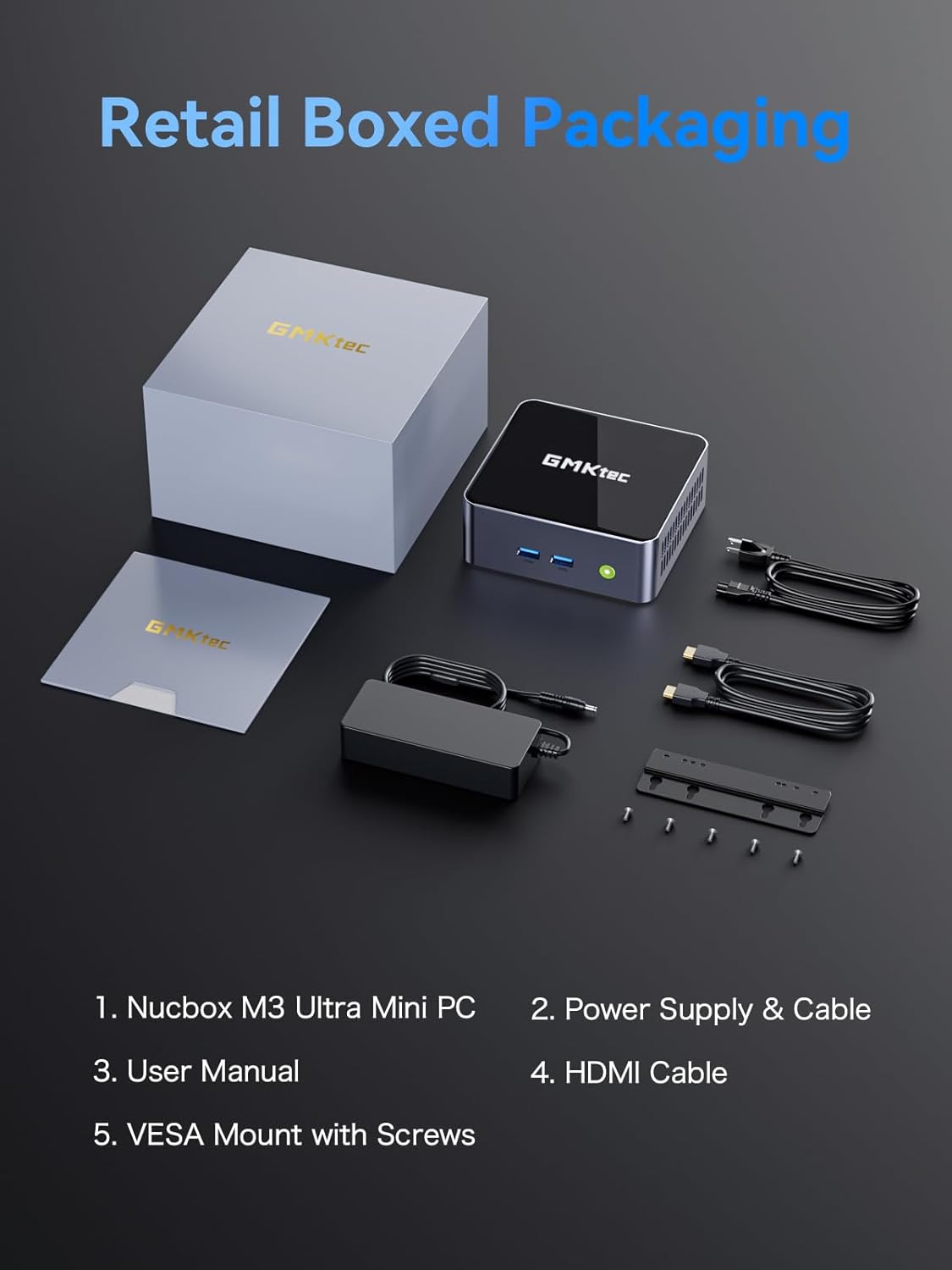
Image: Contents of the GMKtec Mini PC M3 Ultra retail package, including the mini PC, power adapter, cables, user manual, and VESA mount.
3. ഉൽപ്പന്നം കഴിഞ്ഞുview
The GMKtec Mini PC M3 Ultra features a comprehensive set of ports for connectivity and expansion.
ഫ്രണ്ട് പാനൽ
- പവർ ബട്ടൺ: ഉപകരണം ഓണാക്കാനോ ഓഫാക്കാനോ.
- USB 3.2 (x2): അതിവേഗ ഡാറ്റാ ട്രാൻസ്ഫർ പോർട്ടുകൾ.
പിൻ പാനൽ
- DC IN (20V/5A 100W): പവർ ഇൻപുട്ട് പോർട്ട്.
- HDMI (4K@60Hz) (x2): Video output ports for connecting displays.
- 2.5G LAN (Intel I226-V): High-speed Ethernet port for network connectivity.
- USB 3.2 (x1): അതിവേഗ ഡാറ്റാ ട്രാൻസ്ഫർ പോർട്ട്.
- USB 2.0 (x1): സ്റ്റാൻഡേർഡ് ഡാറ്റ ട്രാൻസ്ഫർ പോർട്ട്.
- Type-C (DP1.4/DATA): Multi-function port supporting DisplayPort 1.4 video output and data transfer.
- 3.5mm CTIA: Audio jack for headphones or speakers.

ചിത്രം: വിശദമായത് view of the front and rear ports on the GMKtec Mini PC M3 Ultra, indicating their functions.
4. പ്രാരംഭ സജ്ജീകരണം
Follow these steps to set up your Mini PC:
- ഡിസ്പ്ലേ ബന്ധിപ്പിക്കുക: Connect your monitor(s) to the HDMI ports or the Type-C port using appropriate cables.
- പെരിഫറലുകൾ ബന്ധിപ്പിക്കുക: നിങ്ങളുടെ കീബോർഡ്, മൗസ്, മറ്റ് യുഎസ്ബി ഉപകരണങ്ങൾ എന്നിവ ലഭ്യമായ യുഎസ്ബി പോർട്ടുകളിലേക്ക് പ്ലഗ് ഇൻ ചെയ്യുക.
- നെറ്റ്വർക്ക് ബന്ധിപ്പിക്കുക (ഓപ്ഷണൽ): For a wired connection, connect an Ethernet cable from your router or modem to the 2.5G LAN port. For wireless, ensure your WiFi network is available.
- പവർ ബന്ധിപ്പിക്കുക: Plug the power adapter into the DC IN port on the Mini PC, then connect the power cable to an electrical outlet.
- പവർ ഓൺ: Press the power button on the front of the Mini PC. The system will boot up.
5. പ്രവർത്തന നിർദ്ദേശങ്ങൾ
ഓപ്പറേറ്റിംഗ് സിസ്റ്റം
The Mini PC comes with an operating system pre-installed (OS POR). Follow the on-screen instructions for initial setup, including language, region, and user account creation. The device is compatible with various operating systems, including Windows 10, Linux, and Ubuntu.
അടിസ്ഥാന പ്രവർത്തനം
- പവർ ഓൺ/ഓഫ്: Press the power button once to turn on. To turn off, use the operating system's shutdown function or press and hold the power button for 5 seconds.
- പുനരാരംഭിക്കുക: ഓപ്പറേറ്റിംഗ് സിസ്റ്റത്തിന്റെ റീസ്റ്റാർട്ട് ഫംഗ്ഷൻ ഉപയോഗിക്കുക.
- സ്ലീപ്പ് മോഡ്: ഓപ്പറേറ്റിംഗ് സിസ്റ്റത്തിന്റെ സ്ലീപ്പ് ഫംഗ്ഷൻ ഉപയോഗിക്കുക.
Auto Power On and Wake-on-LAN
The Mini PC supports 'Auto Power On' and 'Wake-on-LAN' features. These can typically be configured within the system's BIOS settings. Refer to your operating system or BIOS documentation for detailed instructions on enabling and configuring these features.
6. Hardware Expansion (RAM & SSD)
The GMKtec Mini PC M3 Ultra is designed for easy upgrades of its RAM and storage components.
Memory (RAM) Expansion
The device is equipped with dual 16GB DDR4 RAM and supports expansion up to 64GB (via two SO-DIMM slots).
Storage (SSD) Expansion
The Mini PC includes a 1TB M.2 PCIe 2280 SSD. It supports expansion up to 16TB. Additionally, there is support for a second M.2 SATA/PCIEX4 2242 drive, also expandable up to 16TB.
To upgrade or install additional components, carefully open the chassis as per the instructions provided in the full user manual (if available) or by a qualified technician. Ensure the device is powered off and unplugged before performing any hardware modifications.

ചിത്രം: ആന്തരികം view of the GMKtec Mini PC M3 Ultra, highlighting the M.2 2280 PCIe SSD slot, M.2 2242 SATA/PCIEX4 slot, and dual DDR4 SO-DIMM slots for memory expansion.
7. തണുപ്പിക്കൽ സംവിധാനം
The M3 Ultra Mini PC incorporates an upgraded quiet cooling fan system designed for efficient heat dissipation. It features copper cooling pipes and multiple exhaust vents to maintain optimal operating temperatures and ensure stable performance.
- Dual Turbo Cooling: Enhances airflow and heat removal.
- Two-way Convection Air Inlet: Optimizes air circulation within the chassis.
- Quiet Cooling Design: Minimizes operational noise.

Image: Diagram illustrating the dual turbo cooling, two-way convection air inlet, and quiet cooling design of the GMKtec Mini PC M3 Ultra.
8. കണക്റ്റിവിറ്റി
Wired Network (2.5GbE NIC LAN)
The built-in Intel Ethernet Controller I226-V provides a 2.5 Gbit/s connection speed, offering significantly faster network performance compared to traditional Gigabit Ethernet. This is beneficial for large data transfers, online gaming, and streaming.
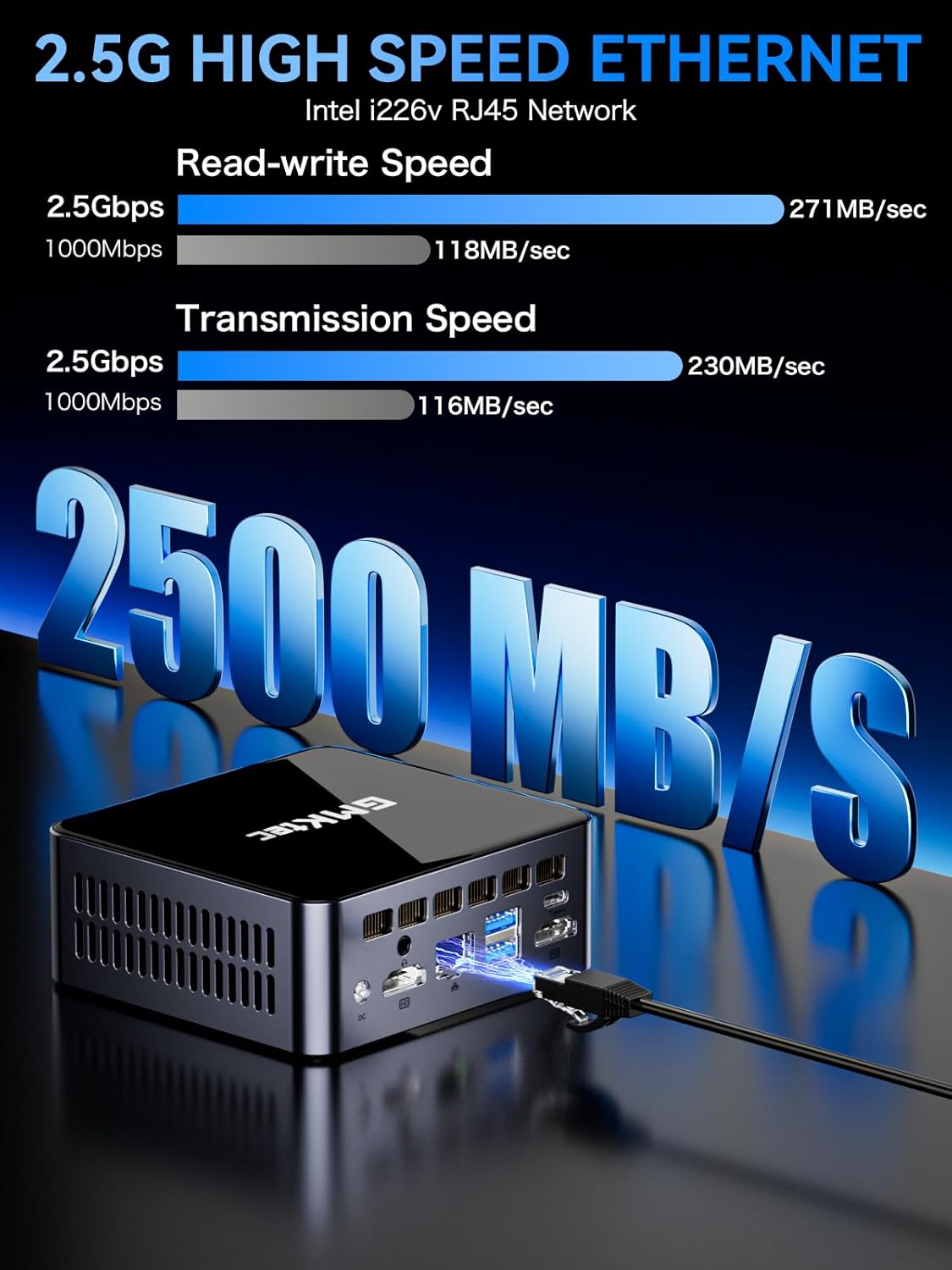
Image: Visual representation of 2.5G high-speed Ethernet performance on the GMKtec Mini PC M3 Ultra, showing read-write and transmission speeds compared to 1000Mbps.
Wireless Connectivity (WiFi 6 + Bluetooth 5.2)
The Mini PC supports WiFi 6 (802.11ax) and Bluetooth 5.2 technologies. WiFi 6 offers faster internet speeds, lower latency, and improved network efficiency for stable and quick connections. Bluetooth 5.2 enables seamless connection with wireless peripherals such as keyboards, mice, and audio devices.
9. Triple 4K Display Setup
The GMKtec M3 Ultra supports up to three 4K displays simultaneously, enhancing productivity and providing an extended workspace. This is achieved through its dual HDMI ports and one Type-C (DP1.4/DATA) port.
Connecting Multiple Displays
- Connect your primary monitor to one of the HDMI ports.
- Connect a second monitor to the other HDMI port.
- Connect a third monitor to the Type-C port using a compatible USB-C to DisplayPort cable or adapter.
- Once connected, configure your display settings within your operating system to extend or duplicate your desktop across the monitors.

Image: A user enjoying a triple 4K display setup powered by the GMKtec Mini PC M3 Ultra, demonstrating its multi-monitor capabilities for gaming and productivity.
10. പരിപാലനം
To ensure the longevity and optimal performance of your Mini PC, follow these maintenance guidelines:
- വൃത്തിയായി സൂക്ഷിക്കു: Regularly clean the exterior of the Mini PC with a soft, dry cloth. Use compressed air to clear dust from ventilation openings.
- ശരിയായ വെൻ്റിലേഷൻ: Ensure the Mini PC is placed in a well-ventilated area, away from direct sunlight or heat sources. Do not block the air vents.
- സോഫ്റ്റ്വെയർ അപ്ഡേറ്റുകൾ: സുരക്ഷയും പ്രകടനവും ഉറപ്പാക്കാൻ നിങ്ങളുടെ ഓപ്പറേറ്റിംഗ് സിസ്റ്റവും ഡ്രൈവറുകളും അപ്ഡേറ്റ് ചെയ്ത് സൂക്ഷിക്കുക.
- സുരക്ഷിതമായി പവർ ഓഫ് ചെയ്യുക: Always shut down the system properly through the operating system before unplugging the power.
- ദ്രാവകങ്ങൾ ഒഴിവാക്കുക: Keep the Mini PC away from liquids to prevent damage.
11. പ്രശ്നപരിഹാരം
If you encounter issues with your GMKtec Mini PC, refer to the following common troubleshooting steps:
പവർ ഇല്ല
- പവർ അഡാപ്റ്റർ മിനി പിസിയിലേക്കും പ്രവർത്തിക്കുന്ന ഒരു പവർ ഔട്ട്ലെറ്റിലേക്കും സുരക്ഷിതമായി ബന്ധിപ്പിച്ചിട്ടുണ്ടെന്ന് ഉറപ്പാക്കുക.
- മറ്റൊരു ഉപകരണം പ്ലഗ് ഇൻ ചെയ്ത് പവർ ഔട്ട്ലെറ്റ് പ്രവർത്തനക്ഷമമാണെന്ന് ഉറപ്പാക്കുക.
ഡിസ്പ്ലേ ഇല്ല
- Check that the display cable (HDMI, USB-C) is securely connected to both the Mini PC and the monitor.
- മോണിറ്റർ ഓണാക്കിയിട്ടുണ്ടെന്നും ശരിയായ ഇൻപുട്ട് ഉറവിടത്തിലേക്ക് സജ്ജീകരിച്ചിട്ടുണ്ടെന്നും ഉറപ്പാക്കുക.
- Try connecting to a different display or using a different cable.
ഇൻ്റർനെറ്റ് കണക്ഷനില്ല
- വയർ: Check the Ethernet cable connection. Verify your router/modem is working.
- വയർലെസ്: Ensure WiFi is enabled in the operating system. Check if you are connected to the correct network and entered the password correctly. Restart your router/modem.
സിസ്റ്റം മന്ദഗതിയിലാകൽ അല്ലെങ്കിൽ മരവിപ്പിക്കൽ
- പശ്ചാത്തലത്തിൽ പ്രവർത്തിക്കുന്ന അനാവശ്യ ആപ്ലിക്കേഷനുകൾ അടയ്ക്കുക.
- നിങ്ങളുടെ SSD-യിൽ മതിയായ സംഭരണ സ്ഥലം ഉണ്ടോ എന്ന് പരിശോധിക്കുക.
- മിനി പിസിക്ക് ആവശ്യത്തിന് വായുസഞ്ചാരം ലഭിക്കുന്നുണ്ടെന്നും അമിതമായി ചൂടാകുന്നില്ലെന്നും ഉറപ്പാക്കുക.
- ഡ്രൈവറുകളും ഓപ്പറേറ്റിംഗ് സിസ്റ്റവും അപ്ഡേറ്റ് ചെയ്യുക.
ഈ ഘട്ടങ്ങൾ നിങ്ങളുടെ പ്രശ്നം പരിഹരിക്കുന്നില്ലെങ്കിൽ, ദയവായി ഉപഭോക്തൃ പിന്തുണയുമായി ബന്ധപ്പെടുക.
12 സാങ്കേതിക സവിശേഷതകൾ
| ഘടകം | സ്പെസിഫിക്കേഷൻ |
|---|---|
| പ്രോസസ്സർ | Intel Core i7-12700H (14 Cores/20 Threads, up to 4.7 GHz, 24 MB Cache) |
| ഗ്രാഫിക്സ് | Intel Iris Xe Graphics (up to 1.45GHz) |
| മെമ്മറി (റാം) | 16GB DDR4 (Dual Channel SO-DIMM, expandable up to 64GB) |
| സംഭരണം | 1TB M.2 PCIe 2280 SSD (expandable up to 16TB) |
| Secondary Storage Slot | M.2 SATA/PCIEX4 2242 (expandable up to 16TB) |
| വീഡിയോ ഔട്ട്പുട്ട് | 2 x HDMI (4K@60Hz), 1 x Type-C (DP1.4/DATA) - Triple 4K Display Support |
| ഇഥർനെറ്റ് | 2.5GbE NIC LAN (Intel I226-V) |
| വയർലെസ് കണക്റ്റിവിറ്റി | വൈഫൈ 6 (802.11ax), ബ്ലൂടൂത്ത് 5.2 |
| USB പോർട്ടുകൾ | 3 x USB 3.2, 1 x USB 2.0, 1 x Type-C (DP1.4/DATA) |
| ഓഡിയോ | 3.5mm CTIA Audio Jack |
| വൈദ്യുതി വിതരണം | 20V/5A (100W) |
| ഓപ്പറേറ്റിംഗ് സിസ്റ്റം | OS Pre-installed (Compatible with Windows 10, Linux, Ubuntu) |
| അളവുകൾ | ഏകദേശം 6.46 x 6.22 x 4.69 ഇഞ്ച് (പാക്കേജ് അളവുകൾ) |
| ഭാരം | ഏകദേശം 3.27 പൗണ്ട് |
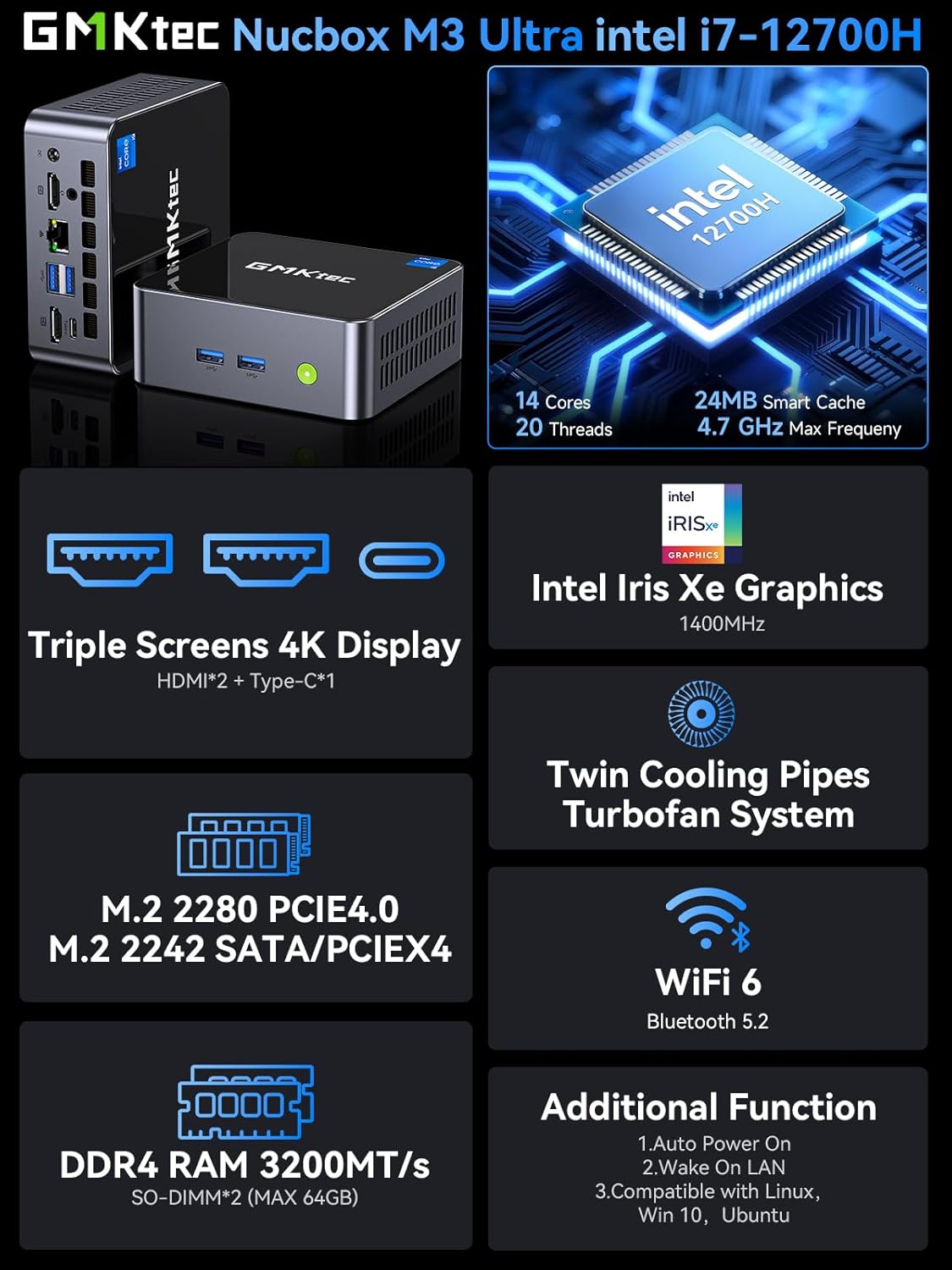
Image: Summary of key features for the GMKtec Nucbox M3 Ultra, including CPU, GPU, display, storage, cooling, and connectivity.
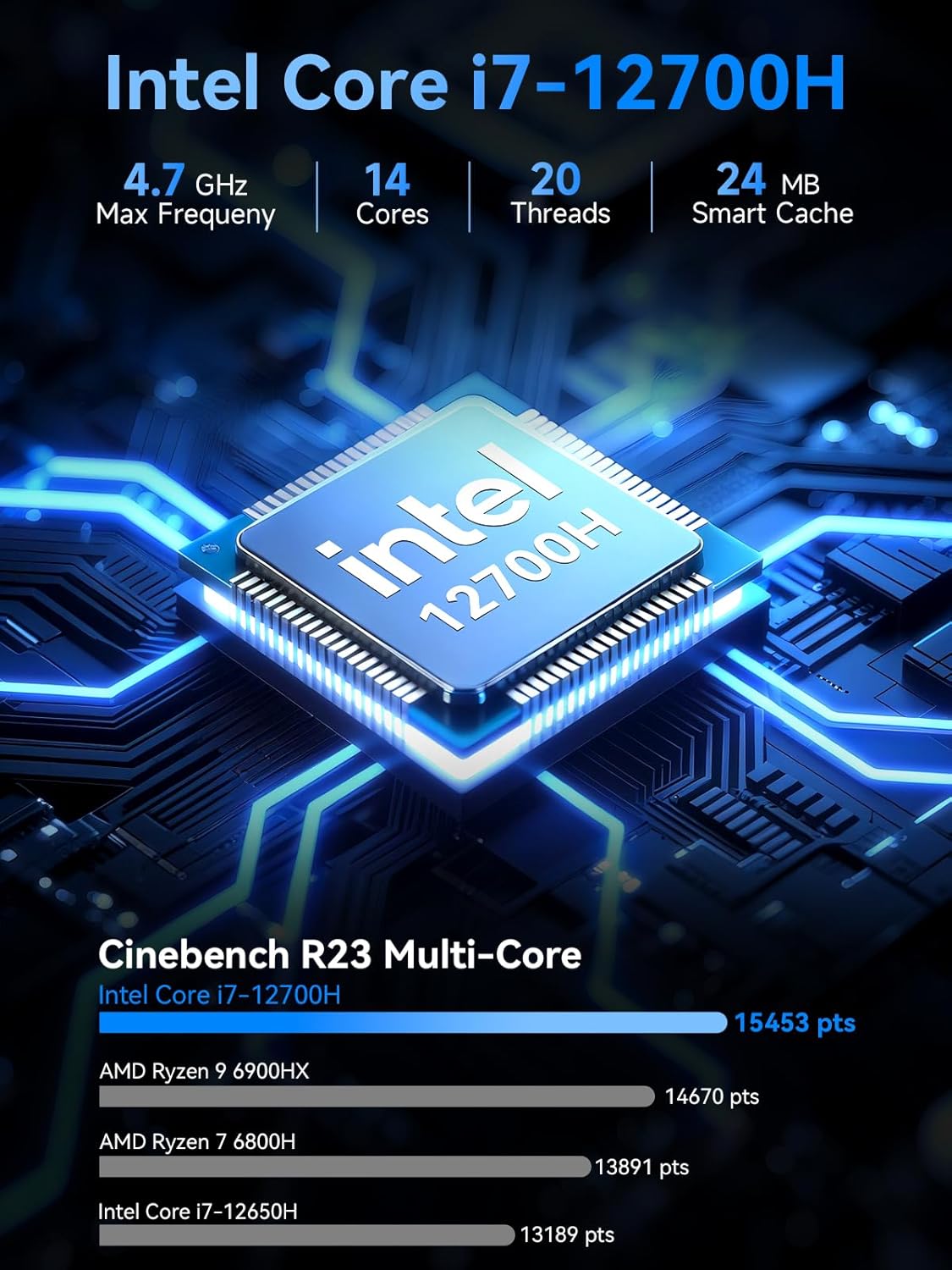
Image: Detailed specifications of the Intel Core i7-12700H processor, including core count, threads, max frequency, and Cinebench R23 multi-core performance comparison.
13. വാറൻ്റി വിവരങ്ങൾ
GMKtec provides a 1 വർഷത്തെ പരിമിത വാറൻ്റി for each Mini PC, effective from the date of purchase. This warranty covers all defects attributed to design and workmanship. For warranty claims or service, please retain your proof of purchase.
14. ഉപഭോക്തൃ പിന്തുണ
Should you require assistance, have questions, or encounter issues not covered in this manual, please contact the GMKtec professional after-sales support team. Refer to the contact information provided with your product packaging or visit the official GMKtec webപിന്തുണാ വിശദാംശങ്ങൾക്കുള്ള സൈറ്റ്.


