1. ആമുഖം
Welcome to the GIGABYTE AORUS Supreme 5 Gaming Desktop PC. This high-performance system is engineered for an exceptional gaming and computing experience, featuring an AMD Ryzen 7 9800X3D Processor, NVIDIA GeForce RTX 5090 Graphics Card, 64GB DDR5 RAM, and a 2TB Gen5 NVMe SSD. This manual provides essential information for setting up, operating, maintaining, and troubleshooting your new desktop PC to ensure optimal performance and longevity.
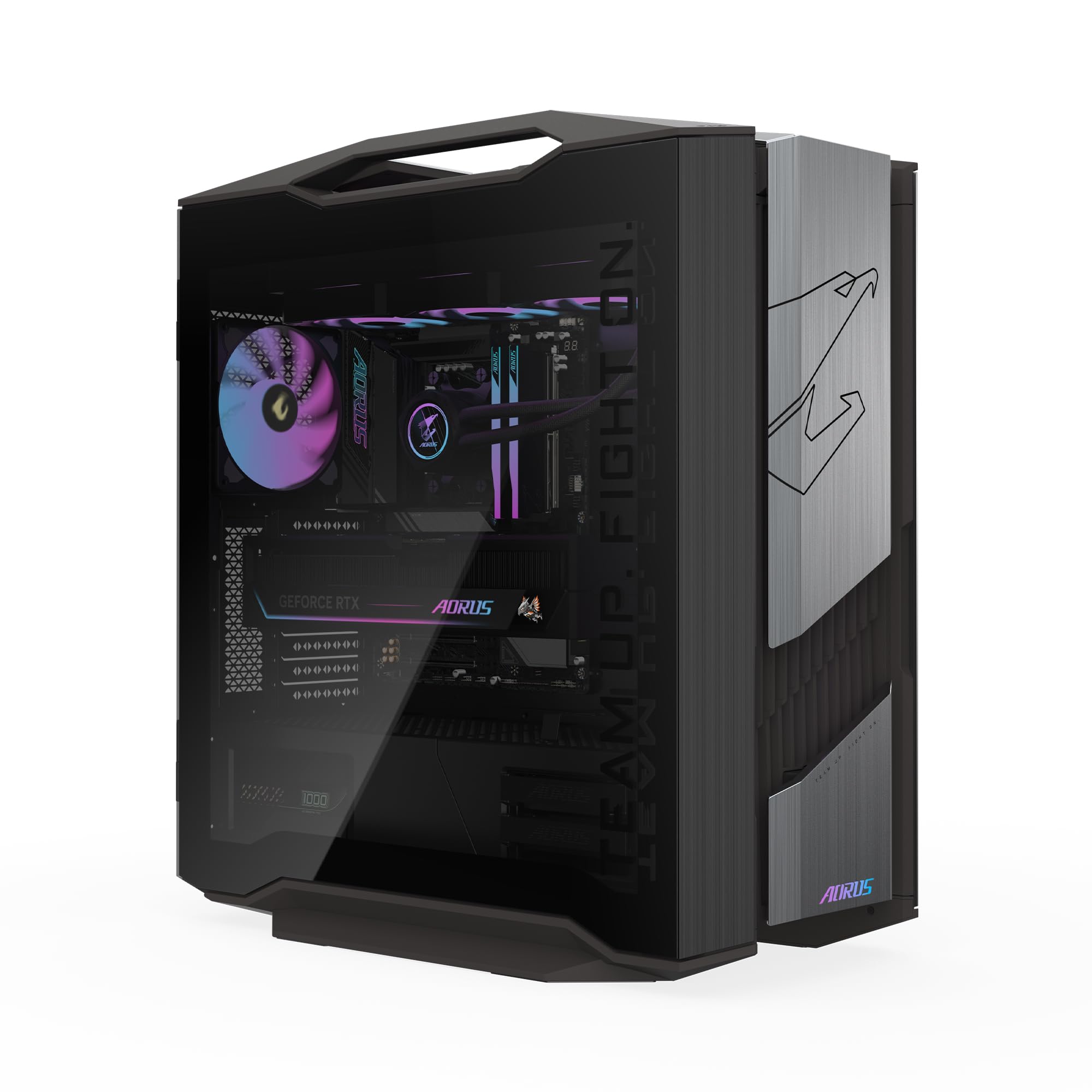
Image 1.1: GIGABYTE AORUS Supreme 5 Gaming Desktop PC.
2 സുരക്ഷാ വിവരങ്ങൾ
Please read the following safety guidelines carefully before using your GIGABYTE AORUS Supreme 5 Gaming Desktop PC:
- വൈദ്യുതി വിതരണം: Use only the power supply cable provided with the system. Ensure the power outlet is properly grounded.
- വെൻ്റിലേഷൻ: Do not block any ventilation openings. Maintain adequate space around the PC for proper airflow to prevent overheating.
- ദ്രാവകവും ഈർപ്പവും: Keep the PC away from liquids, moisture, and high humidity environments.
- പ്ലേസ്മെൻ്റ്: Place the PC on a stable, flat surface. Avoid placing it near heat sources or in direct sunlight.
- സേവനം: Do not attempt to service the PC yourself. Refer all servicing to qualified service personnel. Opening the chassis may void your warranty.
- വൃത്തിയാക്കൽ: Disconnect the power cable before cleaning. Use a soft, dry cloth. Avoid liquid cleaners.
3. പാക്കേജ് ഉള്ളടക്കം
നിങ്ങളുടെ പാക്കേജിൽ എല്ലാ ഇനങ്ങളും ഉണ്ടെന്ന് ഉറപ്പാക്കുക:
- GIGABYTE AORUS Supreme 5 Gaming Desktop PC
- പവർ കേബിൾ
- ഉപയോക്തൃ മാനുവൽ (ഈ പ്രമാണം)
- വാറൻ്റി കാർഡ്
4. ഉൽപ്പന്നം കഴിഞ്ഞുview
4.1. External Features
The AORUS Supreme 5 features a sleek mid-tower chassis with a tempered glass side panel, allowing a view of the internal components and customizable RGB lighting.

ചിത്രം 4.1: മുൻഭാഗം view of the AORUS Supreme 5 PC.

ചിത്രം 4.2: വശം view of the AORUS Supreme 5 PC, showcasing the tempered glass panel.
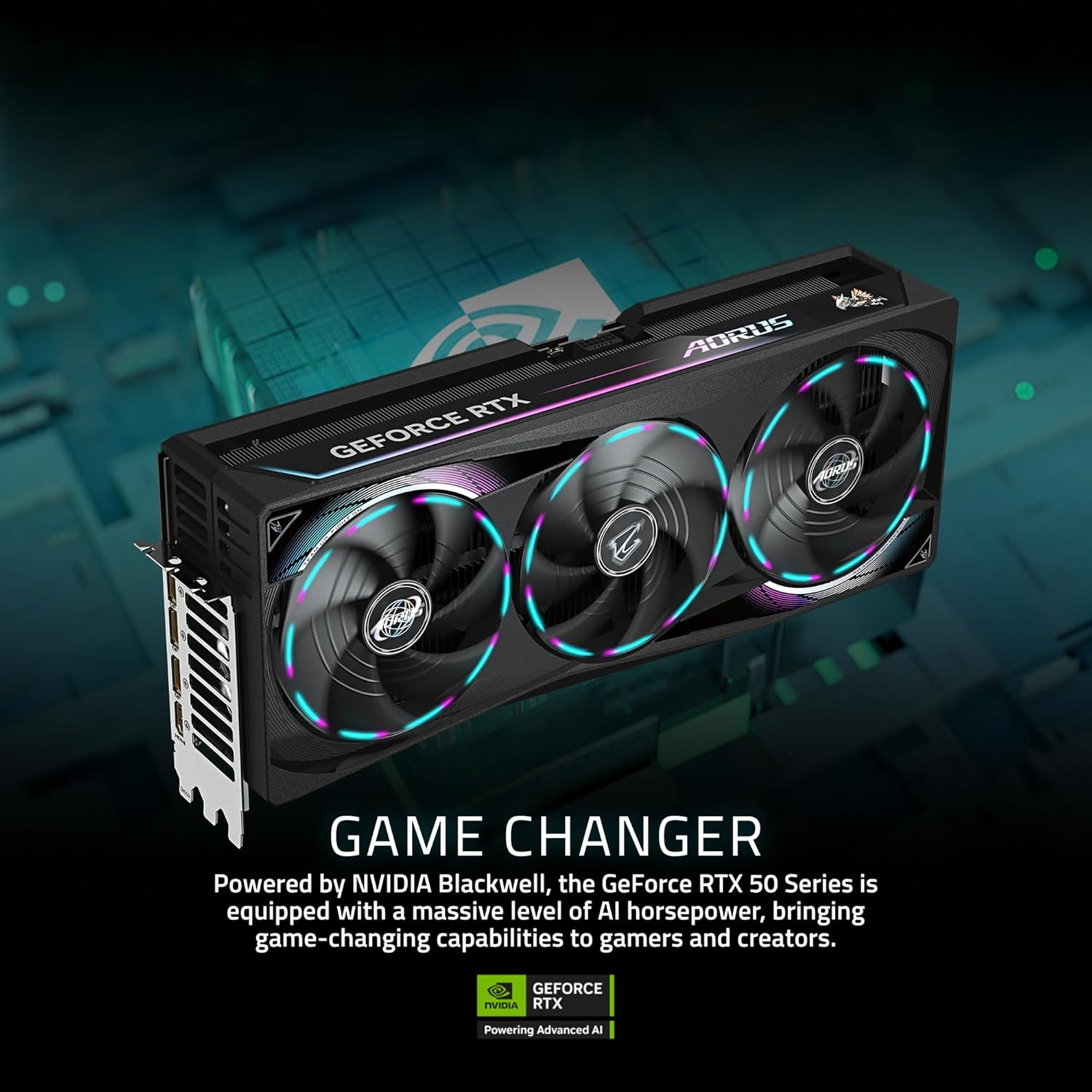
ചിത്രം 4.3: പിൻഭാഗം view of the AORUS Supreme 5 PC.
4.2. ആന്തരിക ഘടകങ്ങൾ
The AORUS Supreme 5 is equipped with cutting-edge hardware for superior performance.
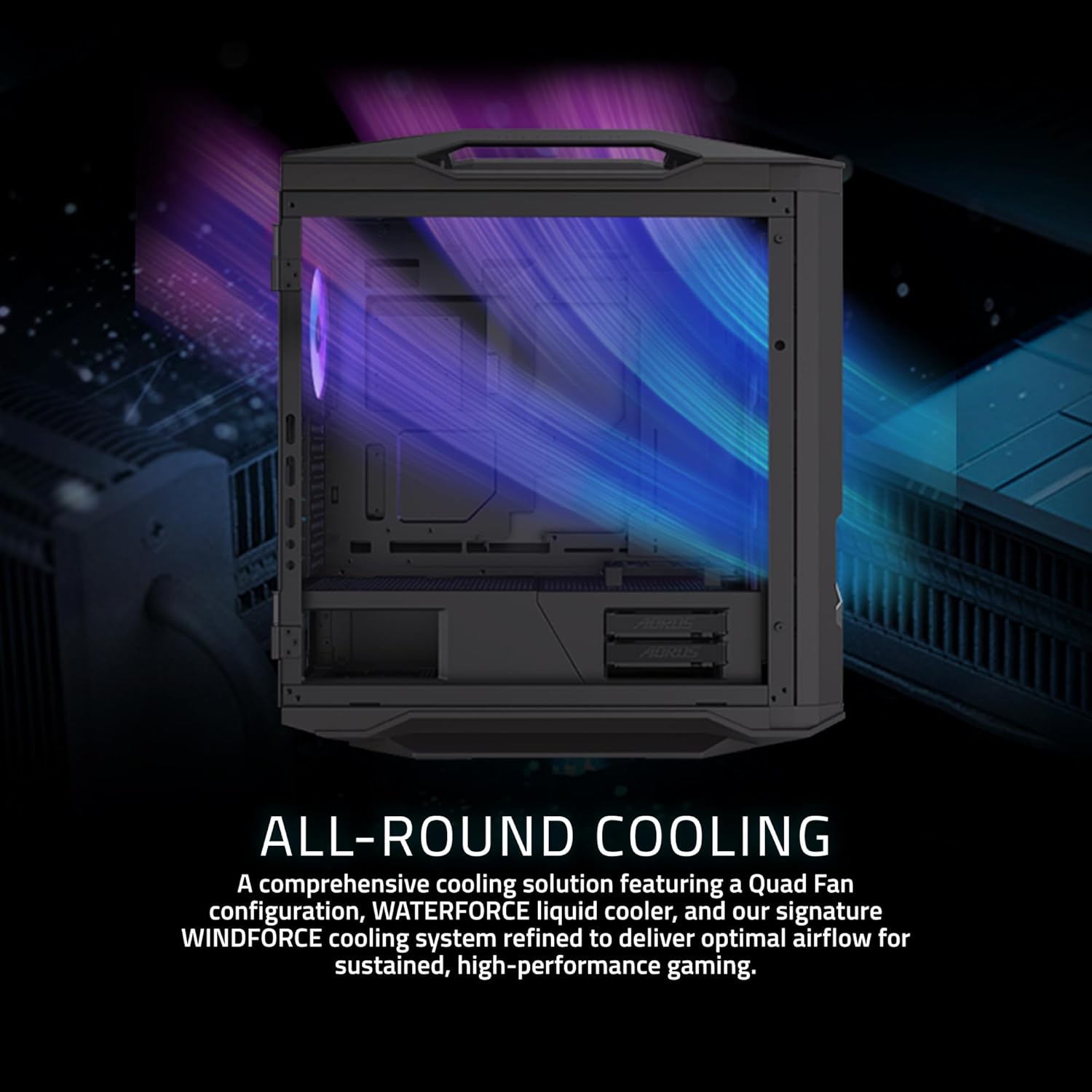
ചിത്രം 4.4: ആന്തരികം view of the PC, showing the AMD Ryzen 7 9800X3D Processor, NVIDIA GeForce RTX 5090 GPU, 64GB DDR5 RAM, 2TB Gen5 NVMe SSD, and 1000W 80+ Platinum Power Supply.

Image 4.5: Close-up of the AMD Ryzen 7 9800X3D Processor, featuring 2nd Gen AMD 3D V-Cache Technology.

Image 4.6: Close-up of the NVIDIA GeForce RTX 5090 Graphics Card, powered by NVIDIA Blackwell architecture.
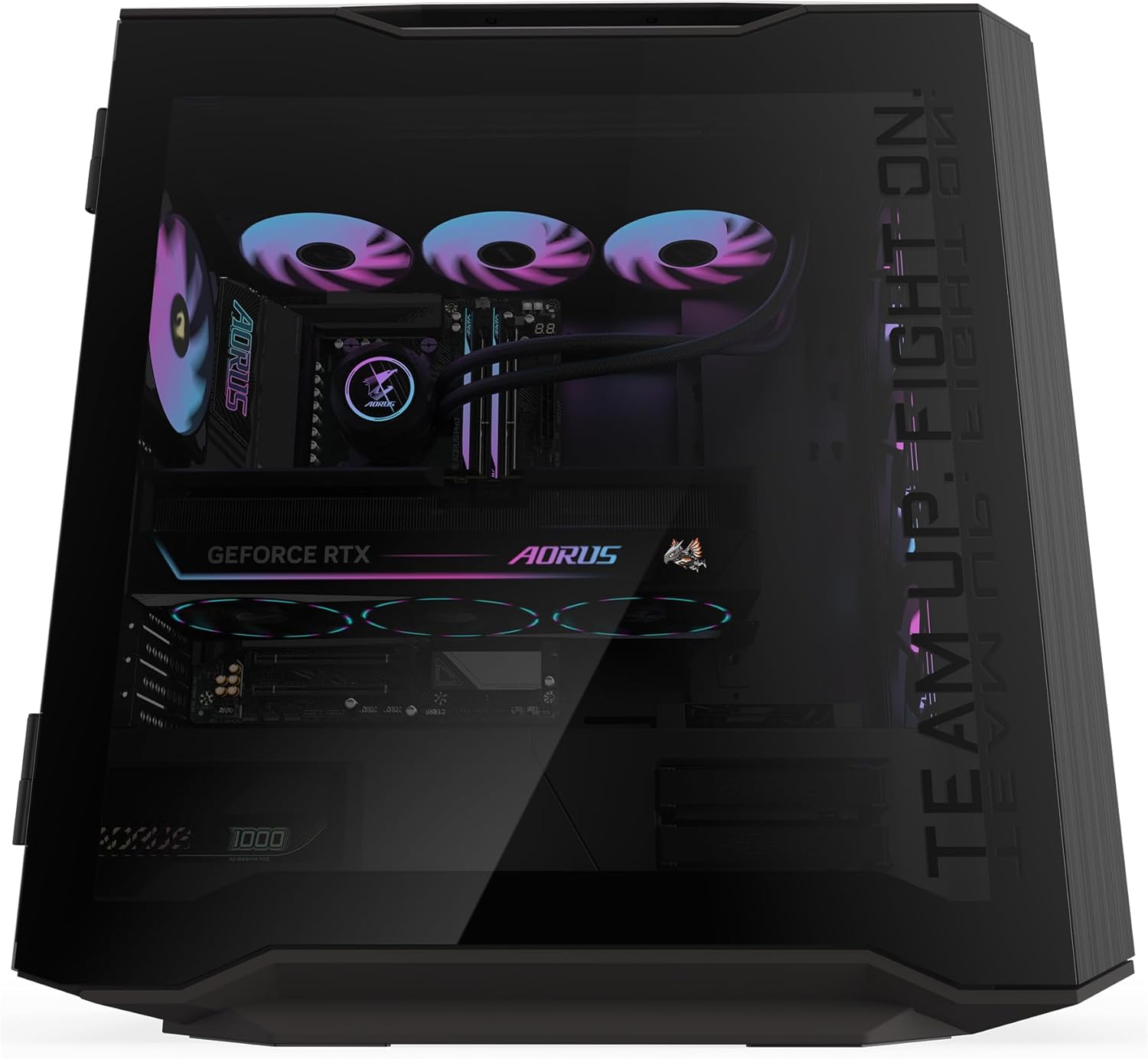
Image 4.7: The comprehensive AORUS liquid cooling solution, featuring a Quad Fan configuration and WINDFORCE cooling system for optimal airflow.
4.3. ഫ്രണ്ട്, റിയർ പോർട്ടുകൾ
The PC provides a variety of ports for connecting peripherals and displays.

Image 4.8: Diagram illustrating the front and rear I/O ports.
ഫ്രണ്ട് പാനൽ പോർട്ടുകൾ:
- 1 x USB 3.2 Gen 2 Type-C
- പവർ ബട്ടൺ
- റീസെറ്റ് ബട്ടൺ
- 4 x USB 3.0
- RGB LED സ്വിച്ച്
- 1 x ഓഡിയോ ജാക്ക്
പിൻ പാനൽ പോർട്ടുകൾ:
- 2 x USB 2.0
- 1 x HDMI
- 4 x USB 3.2 Gen 1
- 2 x USB 4 Type-C (up to 40Gb/s with DP-Alt)
- 3 x USB 3.2 Gen 2
- Wi-Fi 7 Antenna Connectors
- 1 x Optical S/PDIF Out
- 2 x ഓഡിയോ ജാക്കുകൾ
- 2.5 GbE LAN Port
5. സജ്ജീകരണം
5.1 അൺപാക്ക് ചെയ്യുന്നു
- പിസി അതിന്റെ പാക്കേജിംഗിൽ നിന്ന് ശ്രദ്ധാപൂർവ്വം നീക്കം ചെയ്യുക.
- Place the PC on a stable, flat surface with adequate ventilation.
- Remove any protective films or internal packaging materials.
5.2. പെരിഫറലുകൾ ബന്ധിപ്പിക്കുന്നു
- നിരീക്ഷിക്കുക: Connect your monitor to the graphics card's DisplayPort or HDMI output. Ensure the cable is securely fastened.
- കീബോർഡും മൗസും: Connect your keyboard and mouse to any available USB ports on the rear or front panel.
- നെറ്റ്വർക്ക്: For a wired connection, connect an Ethernet cable from your router/modem to the LAN port on the rear panel. For Wi-Fi, ensure the Wi-Fi antennas are securely attached to the rear panel connectors.
- ഓഡിയോ: Connect speakers or headphones to the appropriate audio jacks on the rear or front panel.
5.3. പവർ കണക്ഷൻ
- Connect the provided power cable to the power input on the rear of the PC.
- പവർ കേബിളിന്റെ മറ്റേ അറ്റം ഒരു ഗ്രൗണ്ടഡ് ഇലക്ട്രിക്കൽ ഔട്ട്ലെറ്റിലേക്ക് പ്ലഗ് ചെയ്യുക.
6. പ്രവർത്തന നിർദ്ദേശങ്ങൾ
6.1. പ്രാരംഭ പവർ ഓൺ
- Ensure all peripherals are connected and the power cable is plugged in.
- Press the Power Button on the front panel of the PC.
- Follow the on-screen instructions to complete the Windows 11 setup process. This typically involves selecting your region, language, and setting up a user account.
6.2. RGB Fusion 2.0
Your AORUS Supreme 5 PC features customizable RGB lighting. Use the GIGABYTE Control Center (GCC) software to personalize and synchronize lighting effects across compatible components. The RGB LED Switch on the front panel can also cycle through preset lighting modes.
6.3. സിസ്റ്റം അപ്ഡേറ്റുകൾ
Regularly update your operating system, drivers, and GIGABYTE software to ensure optimal performance, security, and compatibility. Windows Update can be accessed via ക്രമീകരണങ്ങൾ > വിൻഡോസ് അപ്ഡേറ്റ്. Driver updates can be managed through GIGABYTE's official website or the GIGABYTE Control Center.
7. പരിപാലനം
Proper maintenance helps extend the lifespan and performance of your PC.
- പൊടി വൃത്തിയാക്കൽ: Periodically clean dust from the PC's exterior and ventilation openings using compressed air or a soft brush. Ensure the PC is powered off and unplugged before cleaning.
- സോഫ്റ്റ്വെയർ മെയിൻ്റനൻസ്: Keep your operating system and drivers updated. Run antivirus scans regularly and manage startup programs to maintain system responsiveness.
- കേബിൾ മാനേജുമെന്റ്: വായുസഞ്ചാര തടസ്സവും ആകസ്മികമായ വിച്ഛേദങ്ങളും തടയുന്നതിന് ആന്തരികവും ബാഹ്യവുമായ കേബിളുകൾ വൃത്തിയായി ക്രമീകരിച്ചിട്ടുണ്ടെന്ന് ഉറപ്പാക്കുക.
- പരിസ്ഥിതി വ്യവസ്ഥകൾ: Operate the PC in a cool, dry, and well-ventilated environment to prevent overheating.
8. പ്രശ്നപരിഹാരം
നിങ്ങളുടെ പിസിയിൽ പ്രശ്നങ്ങൾ നേരിടുകയാണെങ്കിൽ, താഴെ പറയുന്ന പൊതുവായ ട്രബിൾഷൂട്ടിംഗ് ഘട്ടങ്ങൾ പരിശോധിക്കുക:
- ശക്തിയില്ല:
- പവർ കേബിൾ പിസിയിലേക്കും വാൾ ഔട്ട്ലെറ്റിലേക്കും സുരക്ഷിതമായി ബന്ധിപ്പിച്ചിട്ടുണ്ടോയെന്ന് പരിശോധിക്കുക.
- Ensure the power switch on the power supply unit (at the rear of the PC) is in the 'ON' position.
- ഔട്ട്ലെറ്റിന് പവർ ഉണ്ടെന്ന് ഉറപ്പാക്കാൻ മറ്റൊരു ഉപകരണം ഉപയോഗിച്ച് അത് പരിശോധിക്കുക.
- ഡിസ്പ്ലേ ഇല്ല:
- Verify that the monitor is powered on and the video cable is securely connected to both the PC's graphics card and the monitor.
- മോണിറ്ററിന്റെ ഇൻപുട്ട് ഉറവിടം ശരിയായി സജ്ജീകരിച്ചിട്ടുണ്ടെന്ന് ഉറപ്പാക്കുക (ഉദാ. HDMI, DisplayPort).
- ലഭ്യമെങ്കിൽ മറ്റൊരു വീഡിയോ കേബിളോ മോണിറ്ററോ പരീക്ഷിച്ചുനോക്കൂ.
- സിസ്റ്റം സ്ലോഡൗൺ/പ്രകടന പ്രശ്നങ്ങൾ:
- ടാസ്ക് മാനേജർ (Ctrl+Shift+Esc) ഉപയോഗിച്ച് അമിതമായ ഉറവിടങ്ങൾ ഉപയോഗിക്കുന്ന പശ്ചാത്തല ആപ്ലിക്കേഷനുകൾ പരിശോധിക്കുക.
- Ensure all drivers (especially graphics drivers) and Windows are up to date.
- Monitor system temperatures using GIGABYTE Control Center or other monitoring software to check for overheating.
- പെരിഫറലുകൾ പ്രവർത്തിക്കുന്നില്ല:
- മറ്റൊരു USB പോർട്ടിലേക്ക് പെരിഫറൽ ബന്ധിപ്പിക്കാൻ ശ്രമിക്കുക.
- പെരിഫറലിന്റെ ഡ്രൈവറുകൾ ഇൻസ്റ്റാൾ ചെയ്തിട്ടുണ്ടെന്നും കാലികമാണെന്നും ഉറപ്പാക്കുക.
- പിസി പുനരാരംഭിക്കുക.
If these steps do not resolve the issue, please contact GIGABYTE customer support for further assistance.
9 സ്പെസിഫിക്കേഷനുകൾ
Key technical specifications for the GIGABYTE AORUS Supreme 5 AS5A7N9-5000:
| ഘടകം | സ്പെസിഫിക്കേഷൻ |
|---|---|
| ബ്രാൻഡ് | ജിഗാബൈറ്റ് |
| മോഡൽ നമ്പർ | AORUS Supreme 5 AS5A7N9-5000 |
| ഓപ്പറേറ്റിംഗ് സിസ്റ്റം | വിൻഡോസ് 11 ഹോം |
| സിപിയു മോഡൽ | AMD Ryzen™ 7 9800X3D |
| സിപിയു വേഗത | 4.7 GHz |
| ഗ്രാഫിക്സ് കോപ്രൊസസർ | AORUS GeForce RTX™ 5090 MASTER |
| ഗ്രാഫിക്സ് കാർഡ് റാം | 32 GB GDDR7 |
| റാം മെമ്മറി ഇൻസ്റ്റാൾ ചെയ്തു | 64 GB DDR5 |
| മെമ്മറി സ്പീഡ് | 5600 MHz |
| സംഭരണം | 2 TB Gen5 NVMe SSD |
| വയർലെസ് ടെക്നോളജി | വൈഫൈ 7, ബ്ലൂടൂത്ത് |
| ലാൻ | 2.5 ജിഗാബൈറ്റ് ഇഥർനെറ്റ് |
| മൊത്തം USB പോർട്ടുകൾ | 11 (including USB 3.2 Gen 2, USB 4 Type-C, USB 3.2 Gen 1, USB 2.0) |
| വീഡിയോ ഔട്ട്പുട്ട് | ഡിസ്പ്ലേ പോർട്ട്, HDMI |
| പരമാവധി ഡിസ്പ്ലേ റെസല്യൂഷൻ | 7680 x 4320 |
10. വാറൻ്റിയും പിന്തുണയും
Your GIGABYTE AORUS Supreme 5 Gaming Desktop PC comes with a 1 വർഷത്തെ നിർമ്മാതാവിൻ്റെ വാറൻ്റി.
For technical support, warranty claims, or additional information, please visit the official GIGABYTE website or contact their customer service department. Keep your purchase receipt and the product's serial number handy when contacting support.
ജിഗാബൈറ്റ് പിന്തുണ: www.gigabyte.com/support (www.gigabyte.com/support) എന്ന വെബ്സൈറ്റ് സന്ദർശിക്കുക.


