1. ഉൽപ്പന്നം കഴിഞ്ഞുview
The JOMAA 78 Keys Dual Mode Wireless Trackball Keyboard offers versatile connectivity and ergonomic design for enhanced productivity across multiple devices. Featuring both 2.4GHz wireless and Bluetooth 5.0, it allows seamless switching between up to three connected devices. The integrated 19mm optical trackball provides precise cursor control, eliminating the need for a separate mouse and saving valuable desk space. Its compact, lightweight, and energy-efficient design makes it ideal for various computing environments.

Image 1: JOMAA 78 Keys Dual Mode Wireless Trackball Keyboard
This image displays the sleek, silver-colored JOMAA 78 Keys Dual Mode Wireless Trackball Keyboard, highlighting its compact layout and integrated trackball. The image also shows icons indicating system-wide compatibility (Windows, Mac, iOS, Android), multi-device association (three devices), and dual wireless connectivity (Bluetooth/2.4G).
2. പാക്കേജ് ഉള്ളടക്കം
- JOMAA 78 Keys Dual Mode Wireless Trackball Keyboard
- 2.4GHz USB Receiver (stored inside the keyboard's battery compartment)
- യുഎസ്ബി ചാർജിംഗ് കേബിൾ
- ദ്രുത ആരംഭ ഗൈഡ്
- 2 x AA Batteries (included, pre-installed in some models)
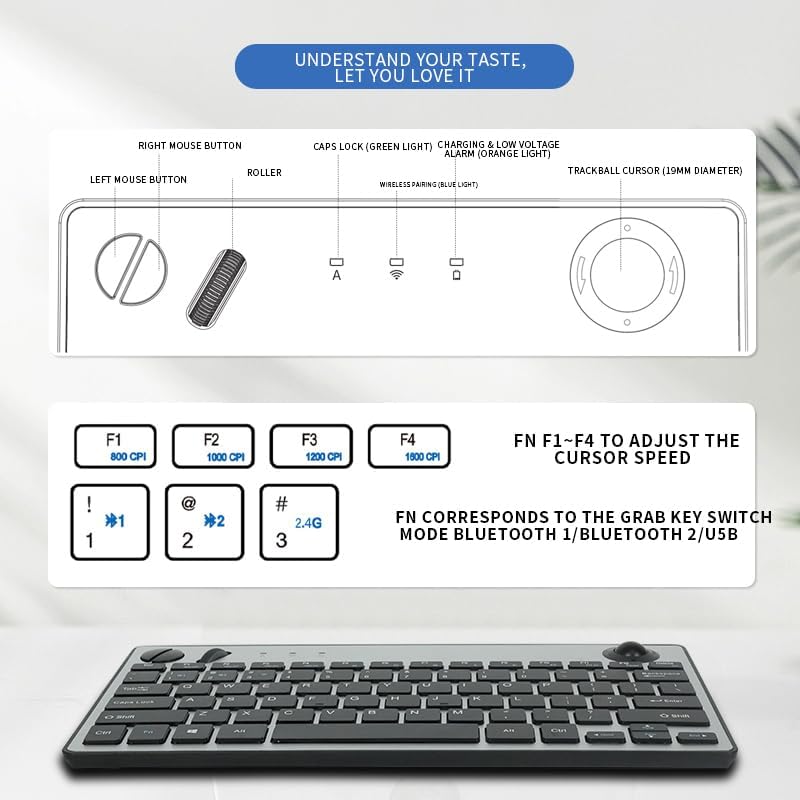
Image 2: JOMAA Keyboard Package Contents Diagram
This diagram illustrates the various components of the JOMAA keyboard, including the keyboard itself, the left and right mouse buttons, the roller, Caps Lock indicator, charging and low voltage alarm lights, and the 19mm trackball. It also details the DPI adjustment keys (F1-F4) and the function keys for switching between Bluetooth 1, Bluetooth 2, and USB modes.
3. ഉൽപ്പന്ന സവിശേഷതകൾ
- Dual-Mode Wireless Connectivity: Supports stable 2.4GHz wireless (nano receiver included) and advanced Bluetooth 5.0 connection.
- മൾട്ടി-ഡിവൈസ് ജോടിയാക്കൽ: Easily pair with and switch between up to 3 devices (PC, tablet, phone) simultaneously.
- വിശാലമായ അനുയോജ്യത: Broadly compatible with Windows, macOS, iOS, and Android operating systems.
- Integrated Trackball Design: Features a built-in 19mm precision optical trackball for accurate and smooth cursor control, eliminating the need for a separate mouse.
- ഊർജ്ജ-കാര്യക്ഷമമായ: Low power consumption (≤10mA working current) for long-lasting battery life with 2 AA batteries.
- പോർട്ടബിൾ ഡിസൈൻ: Compact 78-key layout and lightweight (403g) for travel or clutter-free workspaces.
- പ്ലഗ് ആൻഡ് പ്ലേ: No drivers needed for 2.4G connection; quick Bluetooth pairing.
- ഉപയോക്തൃ സൗഹൃദ എർഗണോമിക്സ്: Thoughtful key layout and thumb-operated trackball designed to reduce arm movement and wrist strain.

Image 3: JOMAA Keyboard Multi-Device Compatibility
This image illustrates the keyboard's ability to connect to multiple devices, including a smartphone, tablet, and desktop computer, via Bluetooth (BT1, BT2) and a 2.4G USB receiver, allowing for seamless switching between them.
4. സജ്ജീകരണ നിർദ്ദേശങ്ങൾ
4.1. ബാറ്ററി ഇൻസ്റ്റാളേഷൻ
- കീബോർഡിന്റെ അടിഭാഗത്ത് ബാറ്ററി കമ്പാർട്ട്മെന്റ് കണ്ടെത്തുക.
- സ്ലൈഡ് ചെയ്ത് ബാറ്ററി കവർ തുറക്കുക.
- ശരിയായ പോളാരിറ്റി (+/-) ഉറപ്പാക്കിക്കൊണ്ട് 2 AA ബാറ്ററികൾ ഇടുക.
- ബാറ്ററി കവർ സുരക്ഷിതമായി അടയ്ക്കുക.
4.2. 2.4GHz വയർലെസ് കണക്ഷൻ
- Locate the 2.4GHz USB receiver, usually stored in the keyboard's battery compartment.
- നിങ്ങളുടെ കമ്പ്യൂട്ടറിലോ ഉപകരണത്തിലോ ലഭ്യമായ ഒരു USB പോർട്ടിലേക്ക് USB റിസീവർ പ്ലഗ് ചെയ്യുക.
- Slide the power switch on the keyboard to the 'ON' position.
- Press the 'FN' key + '3' key (labeled 2.4G) to select 2.4G mode. The indicator light will illuminate.
- Your device should automatically detect and connect to the keyboard.
4.3. ബ്ലൂടൂത്ത് ജോടിയാക്കൽ
കീബോർഡ് രണ്ട് ബ്ലൂടൂത്ത് ചാനലുകളെ (BT1, BT2) പിന്തുണയ്ക്കുന്നു.
- Slide the power switch on the keyboard to the 'ON' position.
- Press and hold the 'FN' key + '1' key (for BT1) or 'FN' key + '2' key (for BT2) for 3-5 seconds until the corresponding Bluetooth indicator light starts blinking rapidly. This indicates the keyboard is in pairing mode.
- നിങ്ങളുടെ ഉപകരണത്തിൽ (കമ്പ്യൂട്ടർ, ടാബ്ലെറ്റ്, സ്മാർട്ട്ഫോൺ), ബ്ലൂടൂത്ത് ക്രമീകരണങ്ങളിലേക്ക് പോകുക.
- ഇതിനായി തിരയുക new devices and select "JOMAA Keyboard" (or similar name) from the list.
- Follow any on-screen prompts to complete the pairing process. The indicator light on the keyboard will stop blinking and remain solid once connected.
- To pair another device, repeat steps 2-5 using the other available Bluetooth channel.
Video 1: JOMAA Keyboard Unboxing and Setup
This video demonstrates the unboxing of the JOMAA keyboard, showing its sleek design and how to install the batteries and connect via the 2.4GHz USB receiver. It highlights the ease of setup and the keyboard's sturdy construction.
5. പ്രവർത്തന നിർദ്ദേശങ്ങൾ
5.1. ഉപകരണങ്ങൾക്കിടയിൽ മാറൽ
Once paired, you can switch between connected devices by pressing the 'FN' key along with the corresponding channel key:
- FN + 1: ബ്ലൂടൂത്ത് ഉപകരണം 1-ലേക്ക് മാറുക
- FN + 2: ബ്ലൂടൂത്ത് ഉപകരണം 2-ലേക്ക് മാറുക
- FN + 3: Switch to 2.4GHz USB Receiver Device
5.2. ട്രാക്ക്ബോൾ ഉപയോഗം
The integrated 19mm optical trackball is located on the right side of the keyboard. Use your thumb to control the cursor movement. The left and right mouse click buttons are positioned conveniently next to the trackball.

Image 4: JOMAA Keyboard Trackball and X-Structure
This image highlights the smooth trackball for accurate and precise cursor positioning. It also features a diagram illustrating the X-Structure of the keys, which provides a steady and great rebound feeling for comfortable typing.
5.3. Adjusting Trackball DPI (Cursor Speed)
You can adjust the trackball's DPI (dots per inch) to change cursor sensitivity:
- FN + F1: 800 സി.പി.ഐ
- FN + F2: 1000 സി.പി.ഐ
- FN + F3: 1200 സി.പി.ഐ
- FN + F4: 1600 സി.പി.ഐ
5.4. മീഡിയയും ഫംഗ്ഷൻ കീകളും
The F1-F12 keys have secondary media functions. To activate these, press the 'FN' key simultaneously with the desired F-key.
- FN + F5: മുമ്പത്തെ ട്രാക്ക്
- FN + F6: പ്ലേ/താൽക്കാലികമായി നിർത്തുക
- FN + F7: അടുത്ത ട്രാക്ക്
- FN + F8: നിശബ്ദമാക്കുക
- FN + F9: വോളിയം ഡൗൺ
- FN + F10: വോളിയം കൂട്ടുക
6. ബാറ്ററി വിവരങ്ങളും ചാർജിംഗും
The keyboard operates on 2 AA batteries. For optimal performance and battery life, use high-quality alkaline batteries. The low power consumption design ensures extended usage.
- കുറഞ്ഞ വോളിയംtagഇ അലാറം: An orange indicator light will illuminate when the battery level is low, signaling that batteries need replacement.
- ചാർജിംഗ്: If your model supports rechargeable batteries, use the provided USB charging cable to connect the keyboard to a power source. The charging indicator light will show charging status.
7. പരിപാലനം
- വൃത്തിയാക്കൽ: കീബോർഡ് പ്രതലം വൃത്തിയാക്കാൻ മൃദുവായതും ഉണങ്ങിയതുമായ തുണി ഉപയോഗിക്കുക. കഠിനമായ അഴുക്കിന്, ചെറുതായി dampവെള്ളം അല്ലെങ്കിൽ നേരിയ ക്ലീനിംഗ് ലായനി ഉപയോഗിച്ച് തുണി തുടയ്ക്കുക. അമിതമായ ഈർപ്പം ഒഴിവാക്കുക.
- ട്രാക്ക്ബോൾ വൃത്തിയാക്കൽ: Periodically remove the trackball (if removable) and clean its housing and the ball itself to ensure smooth operation.
- സംഭരണം: When not in use for extended periods, turn off the keyboard to conserve battery life. Store in a cool, dry place.
8. പ്രശ്നപരിഹാരം
8.1. കണക്റ്റിവിറ്റി പ്രശ്നങ്ങൾ
- ബന്ധമില്ല: Ensure the keyboard is powered on and the correct channel (BT1, BT2, or 2.4G) is selected.
- 2.4GHz: Verify the USB receiver is securely plugged into your device. Try a different USB port.
- ബ്ലൂടൂത്ത്: Ensure Bluetooth is enabled on your device and the keyboard is in pairing mode (blinking indicator). Remove previous pairings on your device and try re-pairing.
- ഇടപെടൽ: കീബോർഡ് നിങ്ങളുടെ ഉപകരണത്തിന് അടുത്തേക്ക് നീക്കി, തടസ്സമുണ്ടാക്കാൻ സാധ്യതയുള്ള മറ്റ് വയർലെസ് ഉപകരണങ്ങളിൽ നിന്ന് അകറ്റി നിർത്തുക.
8.2. കീബോർഡ് പ്രതികരിക്കുന്നില്ല
- ബാറ്ററി പരിശോധന: Replace batteries if the low voltage indicator is on or if the keyboard is unresponsive.
- പവർ സൈക്കിൾ: കീബോർഡ് ഓഫാക്കുക, കുറച്ച് നിമിഷങ്ങൾ കാത്തിരിക്കുക, തുടർന്ന് അത് വീണ്ടും ഓണാക്കുക.
- വീണ്ടും ജോടി: If issues persist, try re-pairing the keyboard with your device.
8.3. Trackball Not Working
- Clean Trackball: Dust or debris can affect trackball performance. Clean the trackball and its housing as described in the Maintenance section.
- DPI ക്രമീകരണം: Ensure the DPI setting is not too low (FN + F1). Adjust to a higher setting if needed.
9 സ്പെസിഫിക്കേഷനുകൾ
| മോഡൽ | 78 Keys Dual Mode Wireless Trackball Keyboard |
| കണക്റ്റിവിറ്റി ടെക്നോളജി | Bluetooth 5.0, 2.4GHz USB |
| കീകളുടെ എണ്ണം | 78 |
| ട്രാക്ക്ബോൾ വലുപ്പം | 19mm Optical |
| ഓപ്പറേറ്റിംഗ് സിസ്റ്റം അനുയോജ്യത | Windows, macOS, iOS, Android |
| ഓപ്പറേറ്റിംഗ് വോളിയംtage | 3V |
| പ്രവർത്തിക്കുന്ന കറൻ്റ് | ≤10mA |
| ട്രാൻസ്മിഷൻ ദൂരം | 7-10 meters (33 feet) |
| പവർ ഉറവിടം | 2 x AA ബാറ്ററികൾ |
| ഇനത്തിൻ്റെ ഭാരം | 1.14 pounds (403g without battery) |
| അളവുകൾ | 12.6 x 10.63 x 1.57 ഇഞ്ച് |

Image 5: JOMAA Keyboard Dimensions and Specifications
ഈ ചിത്രം വിശദമായ ഒരു വിവരണം നൽകുന്നു view of the keyboard's dimensions (28.6cm length, 14.9cm width, 3.1cm height) and lists key specifications such as transmission distance (7-10m), number of keys (78), compatible OS (Windows 7/10/11, Mac 10.6-15.2), operating current (≤10mA), trackball size (19mm), weight (403g without battery), and operating voltagഇ (3V).
10. വാറൻ്റിയും പിന്തുണയും
For warranty information, technical support, or customer service inquiries, please refer to the official JOMAA webസൈറ്റിൽ ബന്ധപ്പെടുക അല്ലെങ്കിൽ അവരുടെ ഉപഭോക്തൃ പിന്തുണയുമായി നേരിട്ട് ബന്ധപ്പെടുക. വാറന്റി ക്ലെയിമുകൾക്കായി നിങ്ങളുടെ വാങ്ങൽ രസീത് സൂക്ഷിക്കുക.


