ആമുഖം
Thank you for choosing the Vandlion V11B Digital Voice Recorder. This manual provides detailed instructions on how to set up, operate, and maintain your device. Please read it carefully to ensure optimal performance and longevity of your recorder.

Image: The Vandlion V11B Digital Voice Recorder, a compact device shown held in a hand, highlighting its portable design.
ബോക്സിൽ എന്താണുള്ളത്
പാക്കേജിൽ എല്ലാ ഇനങ്ങളും ഉണ്ടെന്ന് ഉറപ്പാക്കുക:
- 1 x Digital voice recorder
- 1 x USB-C ഡാറ്റ കേബിൾ
- 1 x ഹെഡ്ഫോൺ
- 1 x ഉപയോക്തൃ മാനുവൽ (ഈ പ്രമാണം)

Image: A visual representation of the package contents, including the digital voice recorder, USB-C cable, headphones, lanyard, and user manual.
ഉപകരണം കഴിഞ്ഞുview
Familiarize yourself with the physical components of your Vandlion V11B recorder.

ചിത്രം: വിശദമായ ഒരു ചിത്രം view of the Vandlion V11B digital voice recorder, showing its display, control buttons (REC, SAVE, POWER, RESET), and integrated carabiner clip.

Image: The Vandlion V11B digital voice recorder shown attached to a backpack and a belt loop, illustrating its compact size and ease of carrying.
പ്രധാന സവിശേഷതകളിൽ ഇവ ഉൾപ്പെടുന്നു:
- ഡിസ്പ്ലേ സ്ക്രീൻ: Shows recording status, time, battery level, and file വിവരങ്ങൾ.
- REC/SAVE Switch: Slide up to start recording, slide down to save.
- പവർ ബട്ടൺ: ഓൺ/ഓഫ് ചെയ്യാൻ അമർത്തിപ്പിടിക്കുക.
- റീസെറ്റ് ബട്ടൺ: Small pinhole button for factory reset if needed.
- യുഎസ്ബി-സി പോർട്ട്: ചാർജിംഗിനും ഡാറ്റ കൈമാറ്റത്തിനും.
- ഹെഡ്ഫോൺ ജാക്ക്: 3.5mm port for audio playback.
- സംയോജിത ക്ലിപ്പ്: എളുപ്പമുള്ള പോർട്ടബിലിറ്റിക്ക്.
സജ്ജമാക്കുക
1 ഉപകരണം ചാർജ് ചെയ്യുന്നു
Before first use, fully charge the recorder. Connect the supplied USB-C cable to the device's USB-C port and the other end to a computer or a USB power adapter (not included).
- ഒരു പൂർണ്ണ ചാർജിന് ഏകദേശം 1.5 മണിക്കൂർ.
- A fully charged device provides up to 20 മണിക്കൂർ of continuous recording.
- ഡിസ്പ്ലേ ചാർജിംഗ് നില സൂചിപ്പിക്കും.

Image: The Vandlion V11B digital voice recorder connected to a laptop via its USB-C port for charging and data transfer.
2. പവർ ഓൺ/ഓഫ്
- പവർ ഓൺ ചെയ്യാൻ: അമർത്തിപ്പിടിക്കുക പവർ സ്ക്രീൻ പ്രകാശിക്കുന്നത് വരെ ബട്ടൺ അമർത്തുക.
- പവർ ഓഫ് ചെയ്യാൻ: അമർത്തിപ്പിടിക്കുക പവർ സ്ക്രീൻ ഓഫാകുന്നതുവരെ ബട്ടൺ.
പ്രവർത്തന നിർദ്ദേശങ്ങൾ
1. One-Button Recording
The device features a simple slide switch for quick recording.
- To start recording: Slide the REC/SAVE switch upwards to the "REC" position. The device will begin recording immediately.
- To save recording: Slide the REC/SAVE switch downwards to the "SAVE" position. The current recording will be saved, and the device will stop recording.

Image: An illustration demonstrating the one-button recording function, showing a finger sliding the REC/SAVE switch to initiate recording.
2. AI Noise Reduction
The Vandlion V11B incorporates an advanced AI chip to enhance audio clarity by reducing background noise.
- This feature automatically identifies and minimizes distracting sounds, focusing on human speech.
- It is active during recording to provide high-fidelity voice capture.

Image: A graphic illustrating how AI noise reduction works, showing various types of noise (wind, static, hum) being filtered out to produce clear sound.
3. Voice Activated Recording (VOR)
The Voice Activated Recording function allows the device to record only when sound is detected, conserving memory and battery life.
- To enable VOR: Access the device's menu by long pressing the പ്ലേ/താൽക്കാലികമായി നിർത്തുക/സ്ഥിരീകരിക്കുക button when not recording, then navigate to the VOR settings. Set VOR to "ON".
- Once enabled, slide the REC/SAVE button to "REC". The recorder will start recording when sound above a set threshold (e.g., >65dB) is detected and pause when sound falls below the threshold (e.g., <65dB).
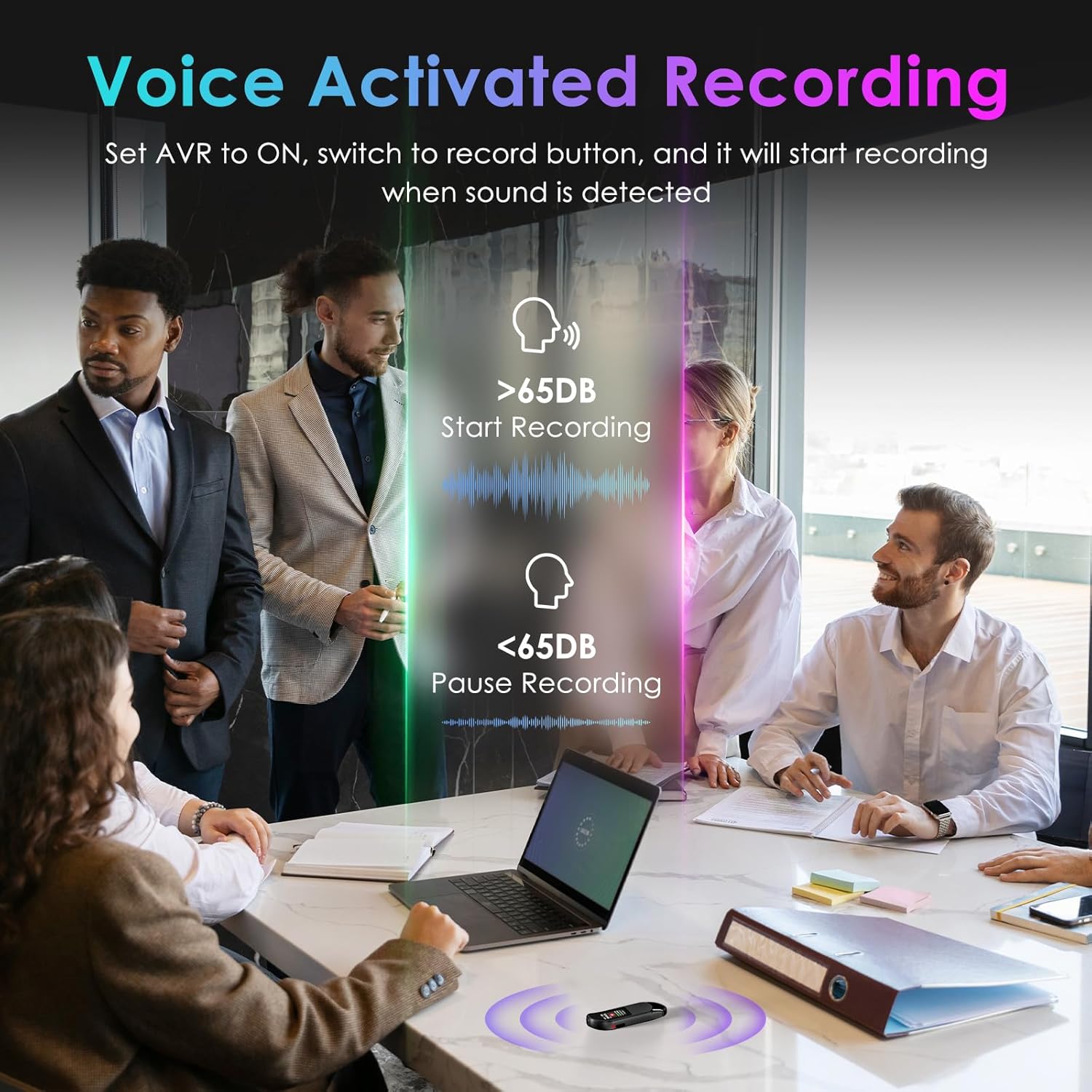
Image: A visual demonstrating voice-activated recording in a meeting, showing the device starting to record when sound is above 65dB and pausing when below.
4. പ്ലേബാക്ക്
You can listen to your recordings directly from the device using headphones or by transferring files to a computer or Android phone.
- ഹെഡ്ഫോണുകൾ ഉപയോഗിക്കുന്നത്: Connect the included headphones to the 3.5mm jack. Use the control buttons (Vol+, Vol-, Previous, Next, Play/Pause/Confirm) on the headphone cable to navigate and play recordings.
- Connecting to Computer/Phone: കൈമാറ്റം files as described in the "File Management" section below.

Image: A diagram showing various playback methods: using wired headphones, connecting to a computer, and connecting to an Android phone. The image also illustrates the control buttons on the headphone cable for navigation.
5. പാസ്വേഡ് സംരക്ഷണം
To protect your recordings, you can set a 4-digit password.
- To set a password: Access the device's menu (long press the പ്ലേ/താൽക്കാലികമായി നിർത്തുക/സ്ഥിരീകരിക്കുക button when not recording) and navigate to the "Password" settings. Follow the on-screen prompts to set your 4-digit code.
- Once enabled, the password will be required to access the device's files.

Image: A visual representation of the password protection feature, showing the device screen prompting for a 4-digit password.
6. File മാനേജ്മെന്റും കൈമാറ്റവും
Recordings are saved with timestamps for easy organization. You can transfer files to a computer (Windows/Mac) or an Android phone.
- Connect the device to your computer or Android phone using the supplied USB-C cable.
- The device will appear as a removable storage drive.
- You can then drag and drop recording files (MP3 or WAV format) to your desired location.
- കുറിപ്പ്: This device is not compatible with iPhones for direct file കൈമാറ്റം.

Image: The Vandlion V11B connected to a laptop via USB-C, demonstrating file transfer and showing example filenames with timestamps.
മെയിൻ്റനൻസ്
- ഉപകരണം വരണ്ടതാക്കുകയും കടുത്ത താപനിലയിൽ നിന്ന് അകറ്റി നിർത്തുകയും ചെയ്യുക.
- മൃദുവായതും ഉണങ്ങിയതുമായ തുണി ഉപയോഗിച്ച് ഉപകരണം വൃത്തിയാക്കുക. ലിക്വിഡ് ക്ലീനറുകൾ ഉപയോഗിക്കരുത്.
- ഉപകരണം ഉപേക്ഷിക്കുകയോ ശക്തമായ ആഘാതങ്ങൾക്ക് വിധേയമാക്കുകയോ ചെയ്യരുത്.
- Regularly back up your recordings to prevent data loss.
- If the device becomes unresponsive, use a small pin to press the പുനഃസജ്ജമാക്കുക ബട്ടൺ.
ട്രബിൾഷൂട്ടിംഗ്
| പ്രശ്നം | സാധ്യമായ കാരണം | പരിഹാരം |
|---|---|---|
| ഉപകരണം പവർ ഓണാക്കുന്നില്ല. | കുറഞ്ഞ ബാറ്ററി. | കുറഞ്ഞത് 1.5 മണിക്കൂറെങ്കിലും ഉപകരണം ചാർജ് ചെയ്യുക. |
| രേഖപ്പെടുത്താൻ കഴിയില്ല. | Memory full; device frozen. | കൈമാറ്റം files to a computer to free up space. Press the RESET button. |
| മോശം ഓഡിയോ നിലവാരം. | Microphone obstructed; excessive background noise. | Ensure microphone is clear. Use AI Noise Reduction in appropriate environments. |
| കൈമാറാൻ കഴിയില്ല files to iPhone. | Device is not compatible with iPhone for direct transfer. | കൈമാറ്റം files to a computer (Windows/Mac) or Android phone instead. |
| പാസ്വേഡ് മറന്നോ. | പാസ്വേഡ് നഷ്ടപ്പെട്ടു. | Contact customer support for assistance. A factory reset might be required, which will erase all data. |
സ്പെസിഫിക്കേഷനുകൾ
| ഫീച്ചർ | വിശദാംശങ്ങൾ |
|---|---|
| മോഡൽ നമ്പർ | V11B |
| മെമ്മറി സ്റ്റോറേജ് കപ്പാസിറ്റി | 64 ജിബി (900 മണിക്കൂർ വരെ റെക്കോർഡിംഗ്) |
| റെക്കോർഡിംഗ് ഫോർമാറ്റ് | MP3 ഓഡിയോ, WAV |
| ഓഡിയോ നിലവാരം | 1536Kbps Crystal Audio |
| ശബ്ദം കുറയ്ക്കൽ | AI നോയ്സ് റദ്ദാക്കൽ |
| ബാറ്ററി ലൈഫ് (റെക്കോർഡിംഗ്) | 20 മണിക്കൂർ വരെ |
| ചാർജിംഗ് സമയം | ഏകദേശം 1.5 മണിക്കൂർ |
| അനുയോജ്യമായ ഉപകരണങ്ങൾ | Personal Computer (Windows/Mac), Smartphone (Android) |
| ഹാർഡ്വെയർ ഇന്റർഫേസ് | യുഎസ്ബി ടൈപ്പ് സി |
| മൈക്രോഫോൺ ഫോം ഫാക്ടർ | ബിൽറ്റ്-ഇൻ |
| ഹെഡ്ഫോണുകൾ ജാക്ക് | 3.5 മില്ലിമീറ്റർ |
| ഉൽപ്പന്ന അളവുകൾ | 0.39"D x 0.86"W x 2.99"H (10mm x 22mm x 76mm) |
| ഇനത്തിൻ്റെ ഭാരം | 1.41 ഔൺസ് (40 ഗ്രാം) |
| ദൃശ്യമായ സ്ക്രീൻ ഡയഗണൽ | 1" / 3 സെ.മീ |
വാറൻ്റിയും പിന്തുണയും
Vandlion products are built for performance and durability. For warranty information or technical support, please refer to the contact details provided with your purchase or visit the official Vandlion webസൈറ്റ്.
For common issues, please consult the Troubleshooting section of this manual.
നിർമ്മാതാവ്: വാൻഡ്ലിയോൺ
പ്രധാനപ്പെട്ട കുറിപ്പുകൾ
- Always ensure the device is fully charged before important recording sessions.
- Regularly transfer and back up your recordings to avoid data loss.
- The device does not have a built-in speaker; headphones or external playback devices are required to listen to recordings.