1. ആമുഖം
Welcome to the XBJ A5pro Touch Screen Portable Projector user manual. This guide provides detailed instructions for setting up, operating, maintaining, and troubleshooting your new smart projector. Please read this manual thoroughly before use to ensure optimal performance and longevity of your device.
The XBJ A5pro combines the functionality of a portable projector with an interactive touchscreen, offering versatile entertainment and presentation options. Featuring Wi-Fi 6, Bluetooth 5.2, native 1080P resolution with 4K decoding support, and a 180° rotatable stand, it is designed for both indoor and outdoor use.
2. ഉൽപ്പന്ന സവിശേഷതകൾ
- Unique Touchscreen Design: Seamlessly switch between tablet mode for interactive control and projector mode for large-screen display (30-300 inches).
- Quiet & Portable & Long Lamp ജീവിതം: Ultra-quiet cooling system (<30dB) extends lamp life up to 85,000 hours. The 180° rotatable stand allows projection on various surfaces.
- Native 1080P & 4K Decoding: Delivers sharp images with 800 ANSI lumens, auto-focus, and auto-keystone correction.
- Built-in Apps & Two-way Bluetooth Function: Integrated Android OS with pre-installed apps. Dual-band Wi-Fi 6 ensures low-latency streaming. Bluetooth 5.2 for audio synchronization and external speaker connection.
- ഒന്നിലധികം കണക്റ്റിവിറ്റി ഓപ്ഷനുകൾ: USB, HDMI, and audio ports for connecting various devices like gaming consoles, laptops, and external speakers.
3. സജ്ജീകരണം
3.1 അൺബോക്സിംഗും പ്രാരംഭ പരിശോധനയും
Carefully remove all components from the packaging. Verify that all items listed in the 'What's in the Box' section are present and undamaged. If any items are missing or damaged, please contact customer support.
3.2 പവർ കണക്ഷൻ
- പ്രൊജക്ടറിന്റെ പവർ ഇൻപുട്ട് പോർട്ടിലേക്ക് പവർ കോർഡ് ബന്ധിപ്പിക്കുക.
- പവർ കോർഡിന്റെ മറ്റേ അറ്റം അനുയോജ്യമായ പവർ ഔട്ട്ലെറ്റിലേക്ക് പ്ലഗ് ചെയ്യുക.
- The projector will power on automatically or can be powered on using the power button on the device or remote control.
3.3 Placement and Adjustment
Place the projector on a stable, flat surface. The 180° rotatable stand allows for flexible positioning, including projecting onto walls, ceilings, or tents.
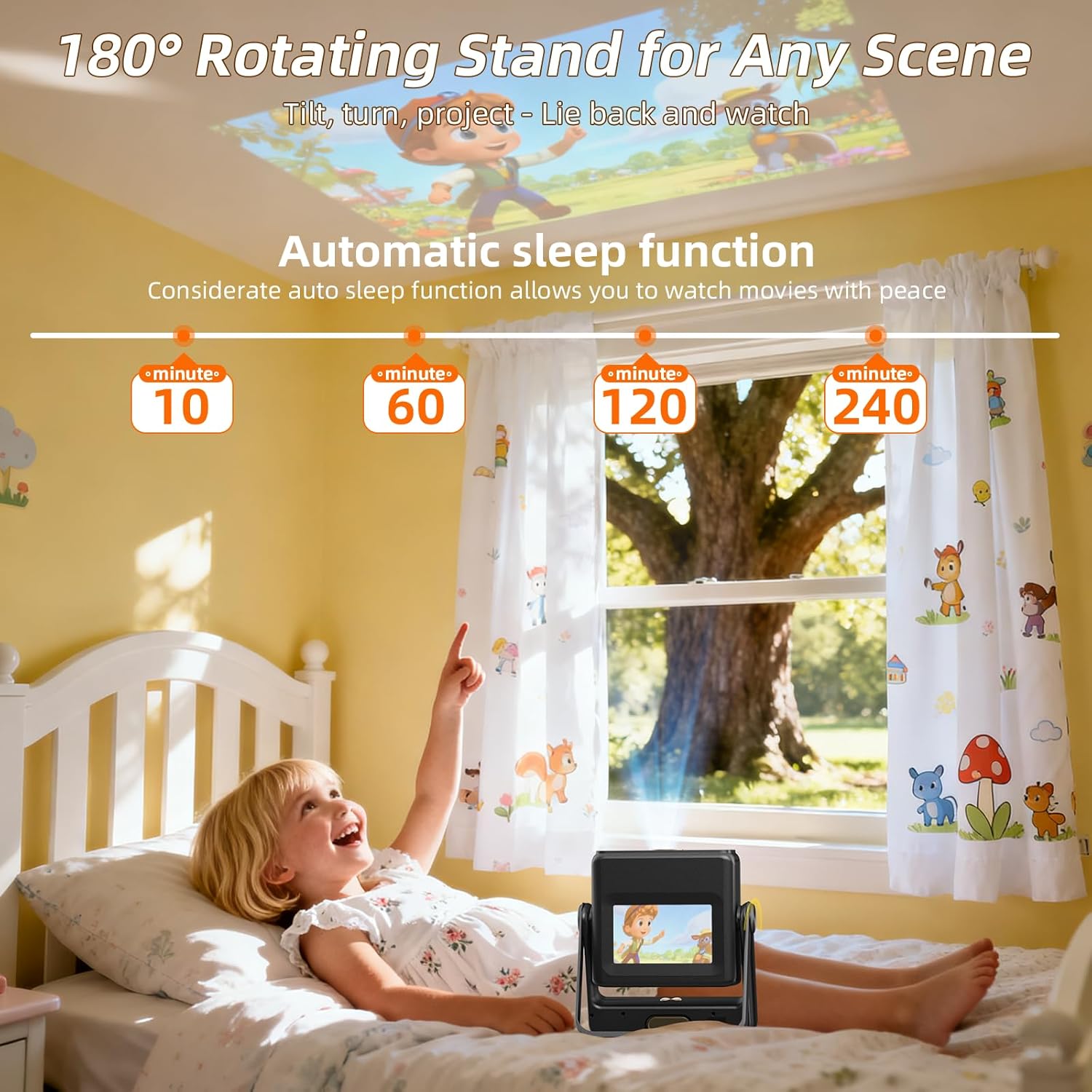
Figure 1: XBJ A5pro projector demonstrating its 180° rotatable stand for flexible projection angles.
- Adjust the projector's angle using the rotatable stand to direct the image onto your desired surface.
- The projector features automatic focus and keystone correction. Allow a few moments for the device to adjust the image clarity and shape.
- For manual focus adjustment, use the remote control's focus buttons (F+ / F-).
Video 1: Demonstration of the XBJ A5pro's touchscreen and automatic focus/keystone adjustment when moved or tilted.
4. പ്രവർത്തന നിർദ്ദേശങ്ങൾ
4.1 മോഡുകൾക്കിടയിൽ മാറൽ
The XBJ A5pro offers two primary modes: Tablet Mode and Projector Mode. You can easily switch between them:
- ടാബ്ലെറ്റ് മോഡ്: Use the built-in 7-inch touchscreen for direct interaction with the Android OS and apps.
- പ്രൊജക്ടർ മോഡ്: Project the interface and content onto a larger screen.

Figure 2: Illustration of the XBJ A5pro's dual functionality: Tablet Mode for direct interaction and Projector Mode for large-screen display.
4.2 ഇന്റർഫേസ് നാവിഗേറ്റ് ചെയ്യൽ
The projector runs on an Android OS. You can navigate using:
- ടച്ച് സ്ക്രീൻ: Directly interact with the display in Tablet Mode.
- റിമോട്ട് കൺട്രോൾ: Use the included remote for navigation, app selection, volume control, and voice commands. Dedicated buttons for popular streaming apps (YouTube, Netflix, Prime Video, Google Play) are available.
4.3 കണക്റ്റിവിറ്റി
4.3.1 വൈഫൈ കണക്ഷൻ
- Go to 'Settings' on the home screen.
- 'നെറ്റ്വർക്ക് & ഇന്റർനെറ്റ്' അല്ലെങ്കിൽ 'വൈ-ഫൈ' തിരഞ്ഞെടുക്കുക.
- Choose your desired Wi-Fi network and enter the password.
- Connect to a 5G Wi-Fi network for optimal streaming and screen mirroring performance.
4.3.2 ബ്ലൂടൂത്ത് കണക്ഷൻ
The projector supports Two-way Bluetooth 5.2, allowing connection to external Bluetooth speakers or using the projector as a Bluetooth speaker itself.
- Go to 'Settings' on the home screen.
- Select 'Connected Devices' or 'Bluetooth'.
- ബ്ലൂടൂത്ത് ഓണാക്കി ലഭ്യമായ ഉപകരണങ്ങൾക്കായി തിരയുക.
- Select your desired device to pair.

Figure 3: XBJ A5pro's two-way Bluetooth functionality for connecting to phones or external speakers.
4.3.3 HDMI and USB Connections
The projector includes HDMI and USB ports for wired connections.
- Connect your device (e.g., TV Stick, PC, gaming console) to the appropriate HDMI or USB port on the back of the projector.
- The projector should automatically detect the input. If not, navigate to the 'Source' menu on the home screen to select the correct input.

ചിത്രം 4: പിൻഭാഗം view of the XBJ A5pro projector highlighting its various connectivity ports.
4.4 സ്ക്രീൻ മിററിംഗ്
The projector supports screen mirroring from smartphones and other devices via Wi-Fi 6.
പ്രധാന കുറിപ്പ്: Due to HDCP (High-bandwidth Digital Content Protection) agreements, screen mirroring may not work with certain streaming apps (e.g., Hulu, Netflix) directly from your phone. To view content from these apps, please use a TV Stick/Chrome-cast inserted into the projector or connect via HDMI to a laptop/PC.

Figure 5: XBJ A5pro projector showcasing its screen mirroring capabilities via dual-band Wi-Fi 6.
5. പരിപാലനം
5.1 വൃത്തിയാക്കൽ
- ലെൻസ്: ഒപ്റ്റിക്കൽ ലെൻസുകൾക്കായി പ്രത്യേകം രൂപകൽപ്പന ചെയ്ത മൃദുവായ, ലിന്റ് രഹിത തുണി ഉപയോഗിക്കുക. അബ്രസീവ് ക്ലീനറുകളോ ലായകങ്ങളോ ഉപയോഗിക്കരുത്.
- പുറം: മൃദുവായതും ഉണങ്ങിയതുമായ തുണി ഉപയോഗിച്ച് പ്രൊജക്ടറിന്റെ പുറംഭാഗം തുടയ്ക്കുക. ഉപകരണത്തിൽ നേരിട്ട് ലിക്വിഡ് ക്ലീനറുകൾ ഉപയോഗിക്കുന്നത് ഒഴിവാക്കുക.
- പൊടി ഫിൽട്ടർ: The projector features a built-in dust filter. Regularly check and clean the filter to maintain optimal performance and extend lifespan.

ചിത്രം 6: ആന്തരിക view of the XBJ A5pro's fully enclosed optical design and built-in dust filter.
5.2 സംഭരണം
When not in use, store the projector in a cool, dry place away from direct sunlight and extreme temperatures. Use the original packaging or a protective case to prevent dust and damage.
6. പ്രശ്നപരിഹാരം
- No Image/Sound during Screen Mirroring: This is often due to HDCP protection on certain streaming apps. Use a TV Stick/Chrome-cast or HDMI connection instead.
- ചിത്രം മങ്ങിയതാണ്: Allow the automatic focus to adjust. If still blurry, use the remote control's F+ / F- buttons for manual adjustment.
- ചിത്രം വികലമാണ് (ട്രപസോയിഡ് ആകൃതി): The projector has automatic keystone correction. If manual adjustment is needed, access the 'Projection Settings' in the menu.
- No Wi-Fi/Bluetooth Connection: Ensure the Wi-Fi/Bluetooth function is enabled in 'Settings'. Check your network connection and device compatibility.
- Item Received Damaged: If the product is damaged during shipping, contact XBJ customer support for assistance.
7 സ്പെസിഫിക്കേഷനുകൾ
| ഫീച്ചർ | സ്പെസിഫിക്കേഷൻ |
|---|---|
| ബ്രാൻഡ് | XBJ |
| മോഡൽ | A5pro |
| ഡിസ്പ്ലേ റെസല്യൂഷൻ | Native 1920 x 1080 (Supports 4K decoding) |
| തെളിച്ചം | 800 ആൻസി ലുമെൻസ് |
| കണക്റ്റിവിറ്റി ടെക്നോളജി | Bluetooth 5.2, USB, Wi-Fi 6 (Dual-band) |
| പ്രത്യേക സവിശേഷതകൾ | Auto Focus, Auto Keystone Correction, Built-In Cooling System, Built-In Speaker, Portable, Touch Screen, 180° Rotatable Stand |
| ഇനത്തിൻ്റെ ഭാരം | 5.77 പൗണ്ട് |
| പാക്കേജ് അളവുകൾ | 15.39 x 13.07 x 5.59 ഇഞ്ച് |
8. ബോക്സിൽ എന്താണുള്ളത്?
- XBJ A5pro Touchscreen Projector
- റിമോട്ട് കൺട്രോൾ
- HDMI കേബിൾ
- പവർ കോർഡ്
- ഉപയോക്തൃ മാനുവൽ (ഈ പ്രമാണം)
9. വാറൻ്റിയും പിന്തുണയും
XBJ is committed to providing high-quality products and customer satisfaction. If you encounter any issues with your product, please refer to the troubleshooting section or contact our customer support team.
- ഉപഭോക്തൃ പിന്തുണ: For technical assistance or product inquiries, please contact us. We are fully responsible for products sold via our official store.
- ഇമെയിൽ: ESzxkj@outlook.com
- മാറ്റിസ്ഥാപിക്കൽ: In case of product damage during Amazon shipping, we offer replacements.

Figure 7: XBJ Customer Support details for technical assistance and replacements.


