1. ആമുഖം
The ACEMAGICIAN M1 Mini Gaming PC is a high-performance, compact desktop computer designed for demanding tasks such as gaming, content creation, and professional workloads. Powered by an Intel Core i9-13900HK processor, 32GB DDR4 RAM, and a 1TB PCIe 4.0 NVMe SSD, it offers robust performance in a small form factor. This manual provides essential information for setting up, operating, maintaining, and troubleshooting your device.
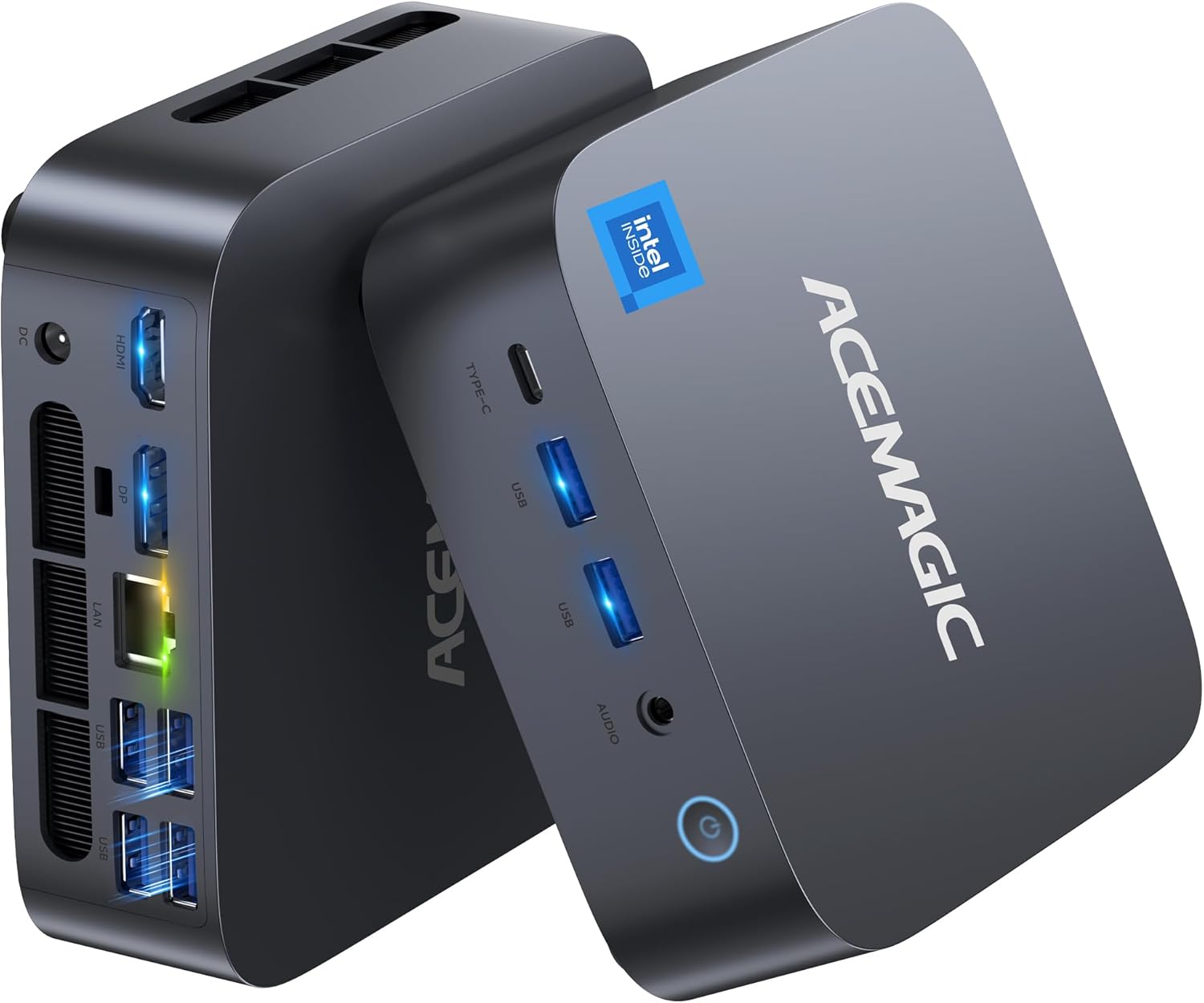
Figure 1: ACEMAGICIAN M1 Mini Gaming PC - Front and Rear View
2. പാക്കേജ് ഉള്ളടക്കം
താഴെ ലിസ്റ്റ് ചെയ്തിരിക്കുന്ന എല്ലാ ഇനങ്ങളും നിങ്ങളുടെ പാക്കേജിൽ ഉൾപ്പെടുത്തിയിട്ടുണ്ടെന്ന് ദയവായി പരിശോധിക്കുക:
- 1 x M1 Mini PC
- 1 x പവർ അഡാപ്റ്റർ
- 1 x HDMI കേബിൾ
- സ്ക്രൂകളുള്ള 1 x VESA മൗണ്ട്
- 1 x ഉപയോക്തൃ മാനുവൽ

Figure 2: Diagram of included accessories
3. സജ്ജീകരണ ഗൈഡ്
- പവർ ബന്ധിപ്പിക്കുക: Plug the power adapter into the DC IN port on the rear of the Mini PC, then connect it to a power outlet.
- ഡിസ്പ്ലേ ബന്ധിപ്പിക്കുക: Connect your monitor(s) to the Mini PC using the provided HDMI cable or a DisplayPort cable (not included). The Mini PC supports triple display output via HDMI, DisplayPort, and USB4 (DisplayPort Alt-Mode).
- പെരിഫറലുകൾ ബന്ധിപ്പിക്കുക: നിങ്ങളുടെ കീബോർഡ്, മൗസ്, മറ്റ് യുഎസ്ബി ഉപകരണങ്ങൾ എന്നിവ ലഭ്യമായ യുഎസ്ബി പോർട്ടുകളിലേക്ക് ബന്ധിപ്പിക്കുക.
- നെറ്റ്വർക്ക് കണക്ഷൻ: For a wired connection, plug an Ethernet cable into the 2.5GbE LAN port. For wireless, the Mini PC supports WiFi 6E and Bluetooth 5.2, which can be configured during the initial Windows setup.
- പവർ ഓൺ: Press the power button located on the front of the Mini PC. The system will boot into the pre-installed Windows 11 Pro operating system.
- പ്രാരംഭ വിൻഡോസ് സജ്ജീകരണം: ഭാഷാ തിരഞ്ഞെടുപ്പ്, നെറ്റ്വർക്ക് കോൺഫിഗറേഷൻ, ഉപയോക്തൃ അക്കൗണ്ട് സൃഷ്ടിക്കൽ എന്നിവയുൾപ്പെടെ Windows 11 Pro സജ്ജീകരണം പൂർത്തിയാക്കാൻ ഓൺ-സ്ക്രീൻ നിർദ്ദേശങ്ങൾ പാലിക്കുക.
വീഡിയോ 1: വേഗത്തിൽ പൂർത്തിയാക്കുകview of ACEMAGICIAN M1 Mini PC setup and features.
Video 2: ACEMAGICIAN M1 Mini PC in action, demonstrating its compact size and connectivity.
4. പ്രവർത്തന നിർദ്ദേശങ്ങൾ
The ACEMAGICIAN M1 Mini PC runs on Windows 11 Pro, offering a familiar and intuitive user experience. Its powerful hardware configuration ensures smooth performance across various applications.
4.1. പൊതുവായ ഉപയോഗം
- മൾട്ടിടാസ്കിംഗ്: The Intel Core i9-13900HK processor with 14 cores and 20 threads, combined with 32GB DDR4 RAM, allows for seamless multitasking. You can run multiple applications simultaneously without performance degradation.
- 4K Video Playback & Editing: The integrated Intel Iris Xe Graphics supports 4K video output at 60Hz, making it suitable for high-resolution media consumption and video editing tasks.
- ഗെയിമിംഗ്: The Mini PC is capable of running many modern games at medium settings, providing a smooth gaming experience for titles like Fortnite, League of Legends, and Valorant.
4.2. Triple Display Output
Enhance your productivity by connecting up to three displays simultaneously. Utilize the HDMI 2.0, DisplayPort 1.4, and USB4 (DisplayPort Alt-Mode) ports to create an expansive workspace.
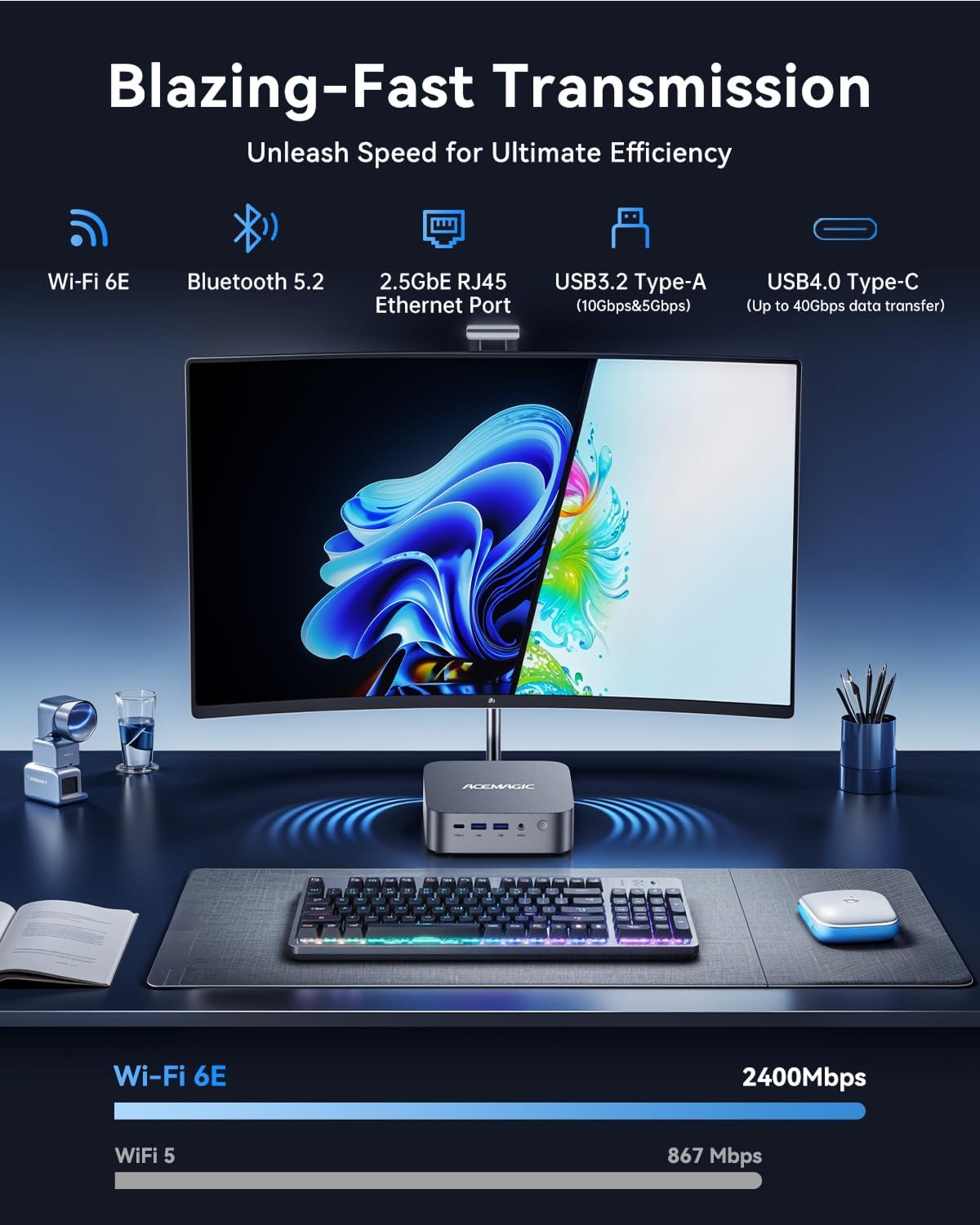
Figure 3: Triple display setup for enhanced productivity
5. കണക്റ്റിവിറ്റി
The M1 Mini PC offers a wide range of connectivity options for all your peripherals and networking needs:
5.1. Front Ports
- 1 x USB4 Type-C (40Gbps data transfer, DisplayPort Alt-Mode, PD 15W Output)
- 2 x USB 3.2 Gen2 ടൈപ്പ്-എ
- 1 x 3.5mm Audio Jack (Headphone + Microphone support)
- 1 x പവർ ബട്ടൺ
5.2. Rear Ports
- 1 x HDMI 2.0 (4K@60Hz)
- 1 x DisplayPort 1.4 (8K@30Hz / 4K@120Hz)
- 1 x 2.5GbE RJ45 Ethernet Port
- 4 x USB 3.2 Gen1 ടൈപ്പ്-എ
- 1 x DC IN (Power Input)
5.3. വയർലെസ് കണക്റ്റിവിറ്റി
- Wi-Fi 6E: For high-speed, stable wireless internet connection.
- ബ്ലൂടൂത്ത് 5.2: കീബോർഡുകൾ, മൗസുകൾ, ഹെഡ്ഫോണുകൾ പോലുള്ള വയർലെസ് പെരിഫറലുകൾ ബന്ധിപ്പിക്കുന്നതിന്.

ചിത്രം 4: വിശദമായി view of front and rear ports
6. സംഭരണവും മെമ്മറിയും
The M1 Mini PC is equipped with ample storage and high-speed memory to handle demanding applications:
- റാം: 32GB (2x16GB) DDR4 RAM at 3200MHz, expandable up to 64GB.
- SSD: 1TB PCIe 4.0 NVMe SSD, with 2 M.2 2280 slots for expansion up to 4TB (supports both NVMe and SATA SSDs).
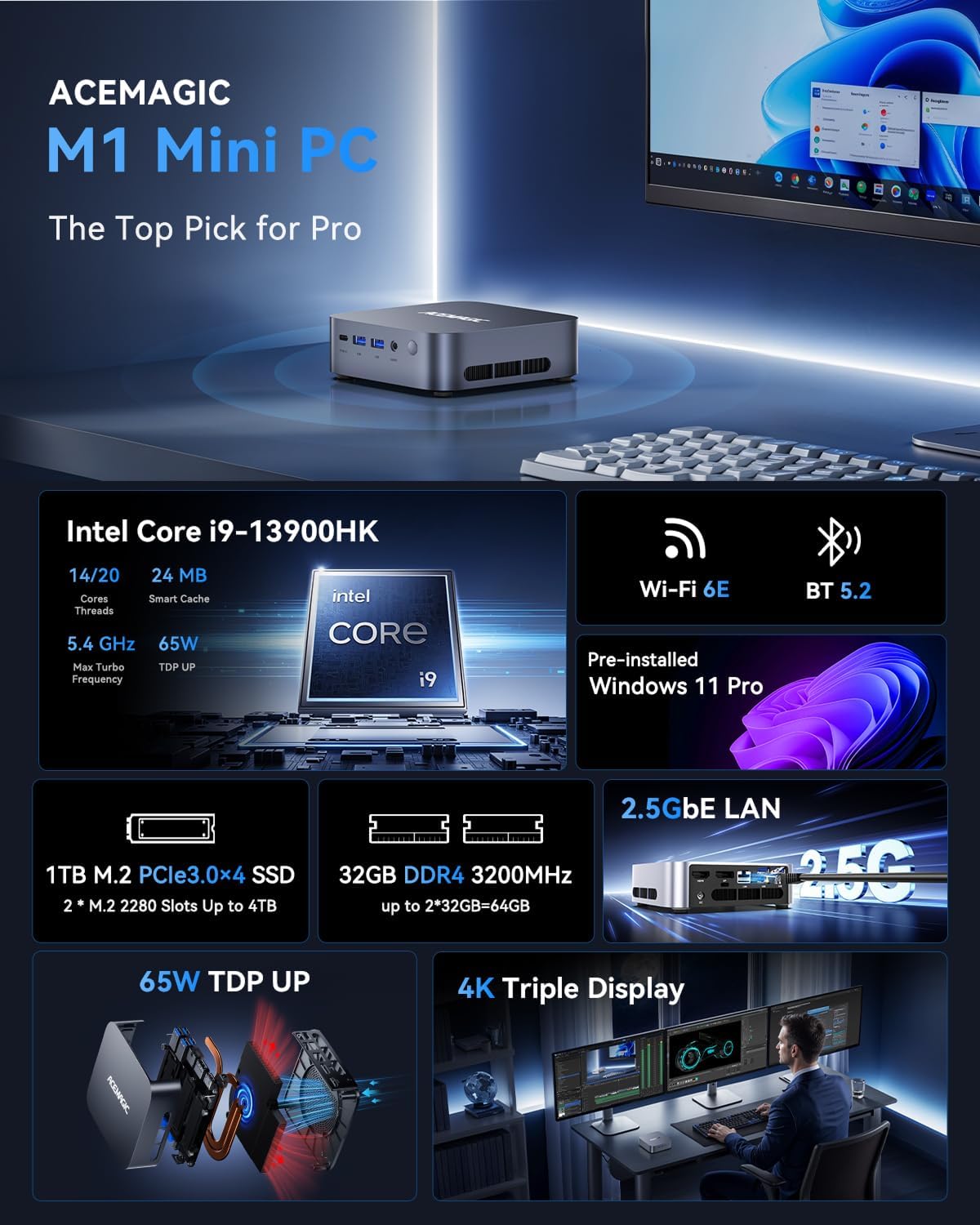
ചിത്രം 5: ആന്തരിക view showing RAM and M.2 SSD slots
7. തണുപ്പിക്കൽ സംവിധാനം
The ACEMAGICIAN M1 Mini PC features an advanced dual-fan cooling system with copper pipes and dual air duct design. This ensures quiet and efficient operation, preventing overheating even during intensive workloads, gaming, or content creation.

Figure 6: Diagram of the quiet and efficient dual-fan cooling system
8 സാങ്കേതിക സവിശേഷതകൾ
| ഫീച്ചർ | സ്പെസിഫിക്കേഷൻ |
|---|---|
| മോഡൽ | M1 |
| പ്രോസസ്സർ | Intel Core i9-13900HK (14 Cores/20 Threads, up to 5.4GHz) |
| ഗ്രാഫിക്സ് | Intel Iris Xe Graphics eligible (Integrated) |
| റാം | 32GB DDR4 3200MHz (64GB വരെ വികസിപ്പിക്കാം) |
| സംഭരണം | 1TB PCIe 4.0 NVMe SSD (Expandable to 4TB) |
| ഓപ്പറേറ്റിംഗ് സിസ്റ്റം | വിൻഡോസ് 11 പ്രോ |
| വീഡിയോ ഔട്ട്പുട്ട് | HDMI 2.0, DisplayPort 1.4, USB4 (DP Alt-Mode) - Triple Display Support |
| USB പോർട്ടുകൾ | 1 x USB4 Type-C, 2 x USB 3.2 Gen2 Type-A (Front), 4 x USB 3.2 Gen1 Type-A (Rear) |
| നെറ്റ്വർക്ക് | 2.5GbE LAN, Wi-Fi 6E, Bluetooth 5.2 |
| ഓഡിയോ | 3.5 മില്ലീമീറ്റർ ഓഡിയോ ജാക്ക് |
| അളവുകൾ | 6.42 x 6.38 x 4.49 ഇഞ്ച് |
| ഭാരം | 2.97 പൗണ്ട് |
9. പ്രശ്നപരിഹാരം
If you encounter issues with your ACEMAGICIAN M1 Mini PC, please refer to the following common solutions:
- ഡിസ്പ്ലേ ഇല്ല: Ensure all display cables (HDMI, DisplayPort, USB4) are securely connected to both the Mini PC and the monitor. Verify the monitor is powered on and set to the correct input source.
- ശക്തിയില്ല: Check that the power adapter is correctly plugged into the Mini PC and a working power outlet. Try a different outlet if necessary.
- പെരിഫറൽ കണ്ടെത്തിയില്ല: Ensure USB devices are properly connected. Try a different USB port. For wireless devices, check Bluetooth settings and ensure drivers are up to date.
- മന്ദഗതിയിലുള്ള പ്രകടനം: Close unnecessary applications. Check Task Manager for high CPU/RAM usage. Ensure Windows and drivers are updated.
- നെറ്റ്വർക്ക് പ്രശ്നങ്ങൾ: For wired connections, check the Ethernet cable and router. For Wi-Fi, ensure the Mini PC is within range of your router and the Wi-Fi adapter is enabled. Restarting the router may also help.
10. പരിപാലനം
To ensure the longevity and optimal performance of your Mini PC, follow these maintenance guidelines:
- വൃത്തിയായി സൂക്ഷിക്കു: Regularly clean the exterior of the Mini PC with a soft, dry cloth. Use compressed air to gently clear dust from ventilation holes to maintain proper airflow.
- വെന്റിലേഷൻ ഉറപ്പാക്കുക: Do not block the ventilation openings. Place the Mini PC in a well-ventilated area to prevent overheating.
- സോഫ്റ്റ്വെയർ അപ്ഡേറ്റുകൾ: Keep your Windows operating system and device drivers updated to ensure stability, security, and optimal performance.
- സുരക്ഷിതമായ ഷട്ട്ഡൗൺ: Always shut down the Mini PC properly through the Windows operating system to prevent data corruption.
11. വാറൻ്റിയും പിന്തുണയും
The ACEMAGICIAN M1 Mini PC comes with a 3 വർഷത്തെ വാറൻ്റി, providing extended protection for your investment. For any questions, technical assistance, or warranty claims, please contact our support team:
- പിന്തുണ ഇമെയിൽ: service@acemagicians.com
- Telephone (US): +1 800 908 1980
- ആമസോൺ പിന്തുണ: Log in to your Amazon buyer account, find your order, and click "Get Help."

Figure 7: ACEMAGICIAN Customer Support Details


