1. ആമുഖം
The Hollyland Lyra UHD 4K Webcam is designed to provide high-quality video and audio for various applications, including live streaming, video calls, and gaming. This manual provides essential information on setting up, operating, and maintaining your Lyra webമികച്ച പ്രകടനം ഉറപ്പാക്കാൻ ക്യാമറ.
2. പാക്കേജ് ഉള്ളടക്കം
താഴെ ലിസ്റ്റ് ചെയ്തിരിക്കുന്ന എല്ലാ ഇനങ്ങളും നിങ്ങളുടെ പാക്കേജിൽ ഉൾപ്പെടുത്തിയിട്ടുണ്ടെന്ന് ഉറപ്പാക്കുക:
- ലൈറ Webക്യാമറ x 1
- USB-C മുതൽ USB-A അഡാപ്റ്റർ x 1 വരെ
- Magnetic Mount x 1
- ദ്രുത ഗൈഡ് x 1
- വാറൻ്റി കാർഡ് x 1

Figure 2.1: Contents of the Hollyland Lyra Webcam package. The image displays the Lyra webcam, a magnetic mount, a USB-C to USB-A adapter, a quick guide, and a warranty card.
3 പ്രധാന സവിശേഷതകൾ
- 4K & 50MP Video Quality: Captures true 4K video at 30 frames per second (fps) with a 50MP sensor, delivering high-detail visuals suitable for professional meetings and live streams.
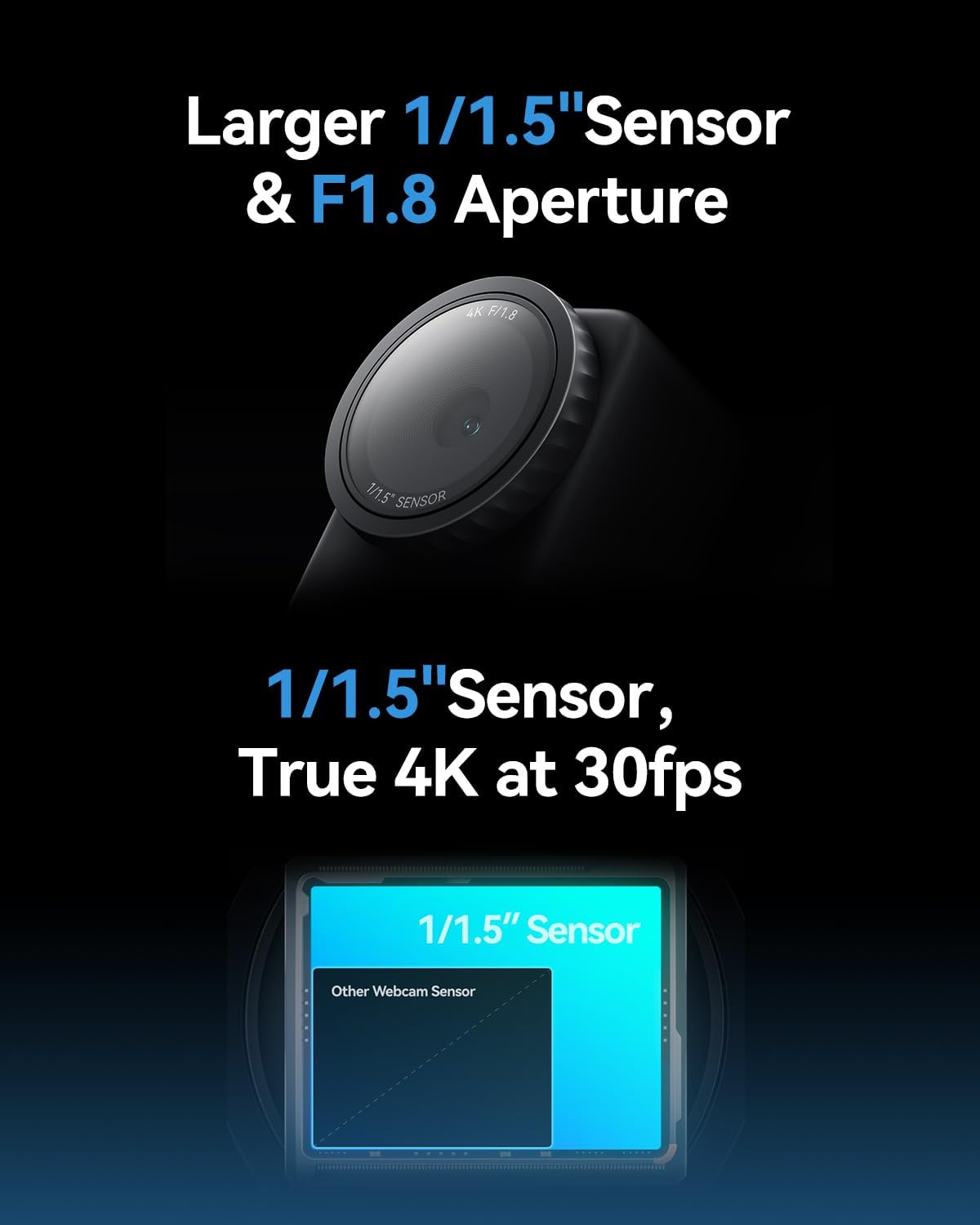
Figure 3.1: Visual representation of the Lyra's 1/1.5" sensor size compared to other webcams, highlighting its superior light capture and true 4K at 30fps capability.
- Large 1/1.5" CMOS Sensor: Equipped with a 1/1.5" CMOS sensor, which is significantly larger than typical webcam sensors, allowing for superior light capture and clear video even in low-light conditions.
- F/1.8 Aperture: Features an f/1.8 aperture for a shallow depth of field, enhancing the subject's prominence against a softly blurred background, ideal for professional-looking streams and calls.
- Phase Detection Autofocus (PDAF): Utilizes advanced PDAF technology for rapid and precise autofocusing, ensuring the subject remains sharp even with movement.
- AI Tuning: Incorporates self-developed AE (Auto Exposure) and AWB (Auto White Balance) algorithms that intelligently adjust image parameters in real-time based on lighting conditions, simplifying professional-grade image quality.
- AI Tracking & Smart Auto-Framing: Automatically tracks and keeps the subject centered in the frame, even when moving. It also auto-frames multiple participants and adjusts as new speakers join.
- വിശാലമായ അനുയോജ്യത: Seamlessly integrates with popular platforms such as Zoom, Microsoft Teams, Twitch, Google Meet, and OBS Studio.
- Green Screen Functionality: Hollyland's cutout algorithm provides precise background removal for green, blue, or red screens, preserving fine details for virtual productions.
- Image Overlay: Allows easy enhancement of meetings or live streams with overlays, animations, and custom background images from a built-in library or user uploads.
- Skin Perfecting: Advanced algorithms provide skin-perfecting features like foundation changing and skin evening for a flawless on-camera appearance.
4. സജ്ജീകരണം
Follow these steps for initial setup of your Hollyland Lyra Webക്യാം:
- മൗണ്ട് ചെയ്യുന്നു Webക്യാം: Attach the magnetic mount to the top of your monitor or laptop screen. The webcam can then be magnetically attached to the mount.
- കമ്പ്യൂട്ടറിലേക്ക് ബന്ധിപ്പിക്കുന്നു: Connect the Lyra webcam to your computer using the provided USB-C cable. If your computer only has USB-A ports, use the included USB-C to USB-A adapter. The webപ്ലഗ്-ആൻഡ്-പ്ലേ പ്രവർത്തനത്തിനായി ക്യാം രൂപകൽപ്പന ചെയ്തിരിക്കുന്നു.
- പ്രാരംഭ പവർ ഓൺ: ഒരിക്കൽ ബന്ധിപ്പിച്ചാൽ, ദി webcam should power on automatically. A green indicator light will illuminate on the webക്യാം
- സോഫ്റ്റ്വെയർ തിരിച്ചറിയൽ: Your operating system (Windows/macOS) should automatically detect the webcam. You can then select it as your video input device in your preferred video conferencing or streaming application.

Figure 4.1: The Hollyland Lyra Webക്യാം ലാപ്ടോപ്പ് സ്ക്രീനിൽ സുരക്ഷിതമായി ഘടിപ്പിച്ചിരിക്കുന്നു, ഉപയോഗിക്കാൻ തയ്യാറാണ്.
5. പ്രവർത്തന നിർദ്ദേശങ്ങൾ
The Lyra webcam is designed for ease of use. For basic operation, simply select it as your video and audio input in your chosen application (e.g., Zoom, Teams, OBS Studio).
5.1 സ്വകാര്യതാ ഷട്ടർ
ദി webcam features a built-in physical privacy shutter. To activate or deactivate the shutter, gently rotate the lens ring left or right. This will physically block or unblock the camera lens.

Figure 5.1: The Lyra webcam demonstrating its physical privacy shutter, which can be activated by rotating the lens ring.
5.2 Vertical/Horizontal Mounting
The magnetic mount allows for flexible orientation. You can easily rotate the webcam on its magnetic base to switch between horizontal (landscape) and vertical (portrait) video modes without needing to adjust software settings for cropping.
6. HollyStudio Software Control
For advanced control and customization, download and install the HollyStudio software from the official Hollyland website. This software provides access to various settings and features:
- ചിത്ര നിയന്ത്രണം: Adjust focal length, shutter speed, ISO, white balance, exposure, contrast, saturation, and sharpness.
- AI സവിശേഷതകൾ: Access AI Tracking, Smart Auto-Framing, Green Screen, Image Overlay, and Skin Perfecting algorithms.
- ഓഡിയോ ക്രമീകരണങ്ങൾ: Control input volume and noise cancellation for the built-in microphone or connected external microphones.
- രംഗ മാനേജ്മെന്റ്: Create and save custom scene templates for quick switching between different camera settings and framing.
Note: The Mac version of HollyStudio currently supports basic parameter adjustments. Advanced features such as green screen, image overlay, skin beauty, and color correction magic may not yet be available on macOS and will be added in future updates.

Figure 6.1: The HollyStudio software interface, displaying options for image control, AI features, and scene management.
7 സ്പെസിഫിക്കേഷനുകൾ
| ഫീച്ചർ | സ്പെസിഫിക്കേഷൻ |
|---|---|
| ബ്രാൻഡ് | ഹോളിലാൻഡ് |
| മോഡൽ നമ്പർ | ലൈറ |
| ഫോട്ടോ സെൻസർ ടെക്നോളജി | സിഎംഒഎസ് (1/1.5") |
| വീഡിയോ ക്യാപ്ചർ റെസല്യൂഷൻ | 4K |
| പരമാവധി അപ്പേർച്ചർ | F/1.8 |
| പരമാവധി ഫോക്കൽ ദൈർഘ്യം | 26 മില്ലിമീറ്റർ |
| കണക്റ്റിവിറ്റി ടെക്നോളജി | USB |
| പ്രത്യേക സവിശേഷതകൾ | AI Tracking, Auto-Framing, Green Screen, Skin Perfecting, Image Overlay |
| ഇനത്തിൻ്റെ ഭാരം | 12.8 ഔൺസ് |
| ഉൽപ്പന്ന അളവുകൾ | 5.4 x 4.15 x 3.35 ഇഞ്ച് |
8. പ്രശ്നപരിഹാരം
- Webക്യാമറ കണ്ടെത്തിയില്ല: യുഎസ്ബി കേബിൾ രണ്ടിലേക്കും സുരക്ഷിതമായി ബന്ധിപ്പിച്ചിട്ടുണ്ടെന്ന് ഉറപ്പാക്കുക webcam and your computer. Try a different USB port or cable. Restart your computer.
- മോശം ചിത്രത്തിന്റെ ഗുണനിലവാരം: Check your lighting conditions. Ensure the lens is clean and the privacy shutter is fully open. Adjust settings in HollyStudio or your application (exposure, white balance, sharpness).
- ഓഡിയോ പ്രശ്നങ്ങൾ: പരിശോധിച്ചുറപ്പിക്കുക webcam is selected as the audio input device in your application. Check microphone volume levels. Ensure noise cancellation is configured correctly in HollyStudio.
- Software Crashing/Not Opening: Ensure your operating system is up to date. Check for HollyStudio software updates. Temporarily disable other camera-related plugins or software that might conflict.
- അമിത ചൂടാക്കൽ: While some warmth is normal for high-performance devices, excessive heat may indicate an issue. Ensure proper ventilation around the webcam. If overheating persists, contact support.
9. പരിപാലനം
- ലെൻസ് വൃത്തിയാക്കൽ: മൃദുവായ, ലിന്റ് രഹിത തുണി ഉപയോഗിച്ച് ലെൻസ് സൌമ്യമായി തുടയ്ക്കുക. കഠിനമായ രാസവസ്തുക്കളോ ഉരച്ചിലുകളോ ഉള്ള വസ്തുക്കൾ ഉപയോഗിക്കുന്നത് ഒഴിവാക്കുക.
- സംഭരണം: ഉപയോഗത്തിലില്ലാത്തപ്പോൾ, സംഭരിക്കുക webcam in a clean, dry place. Use the privacy shutter to protect the lens from dust and scratches.
- സോഫ്റ്റ്വെയർ അപ്ഡേറ്റുകൾ: Regularly check for and install firmware and software updates for the Hollyland Lyra Webcam and HollyStudio to ensure optimal performance and access to new features.
10. വാറൻ്റിയും പിന്തുണയും
Your Hollyland Lyra Webcam comes with a limited warranty. Please refer to the included Warranty Card for detailed terms and conditions. For technical support, product inquiries, or warranty claims, please visit the official Hollyland webസൈറ്റ് അല്ലെങ്കിൽ അവരുടെ ഉപഭോക്തൃ സേവനവുമായി ബന്ധപ്പെടുക.


