1. ആമുഖം
Thank you for choosing the Blackstorm 27-inch QHD Mini-LED Gaming Monitor. This monitor is designed to provide an exceptional visual experience for gaming enthusiasts, offering unparalleled precision and performance. Featuring a 27-inch IPS panel with advanced Mini-LED backlighting, it delivers superior image quality, making every gaming moment vivid and immersive. This manual will guide you through the setup, operation, and maintenance of your new monitor.
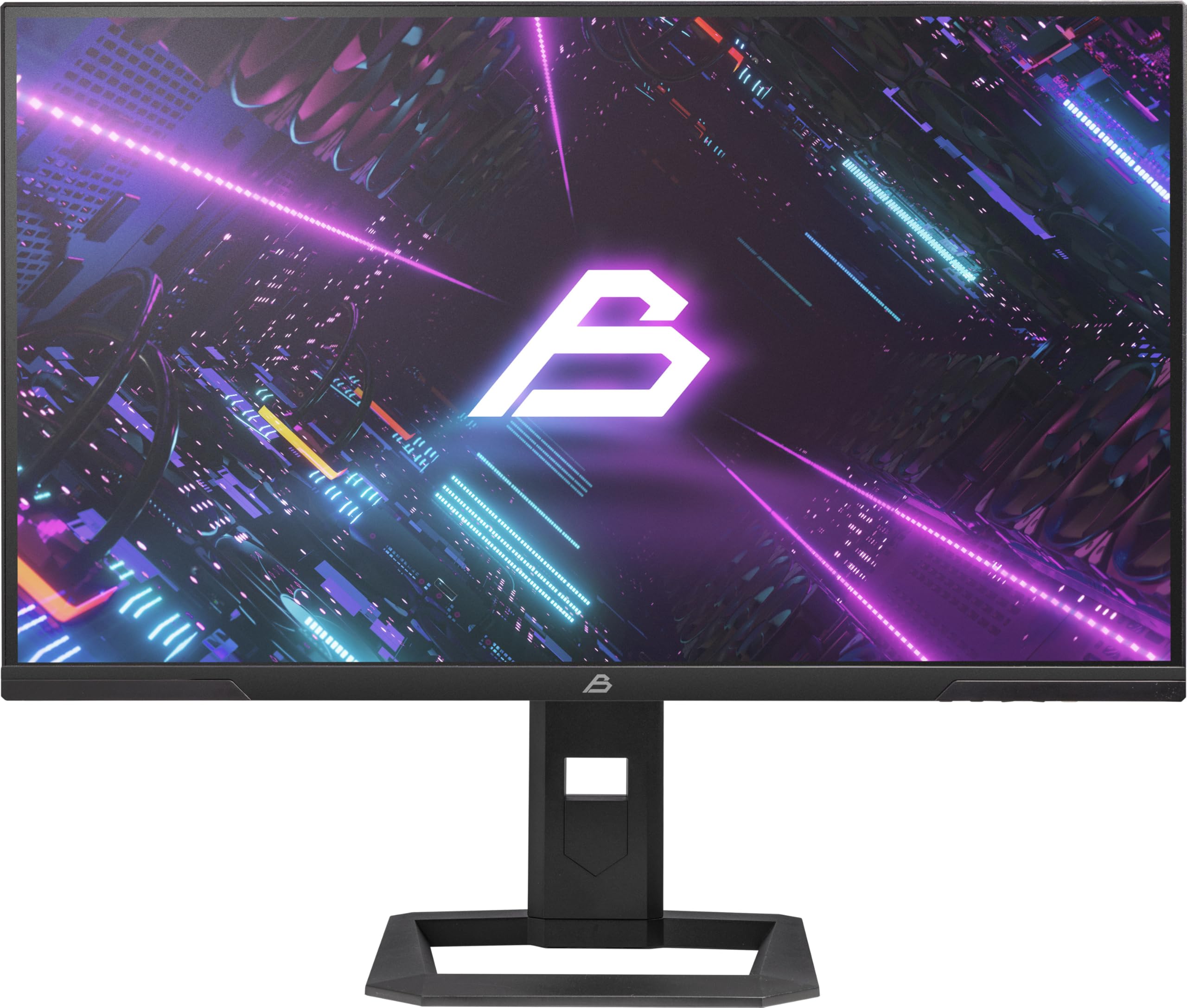
ചിത്രം 1: മുൻഭാഗം view of the Blackstorm 27-inch QHD Mini-LED Gaming Monitor.
2 പ്രധാന സവിശേഷതകൾ
- High-Performance Gaming Display: A 27-inch IPS panel with Mini-LED backlighting provides exceptional brightness, contrast, and color reproduction, ideal for visual precision and performance in all game types.
- സുഗമമായ ഗെയിമിംഗ് അനുഭവം: WQHD resolution (2560 x 1440) and a 180 Hz refresh rate ensure smooth, detailed visuals. A rapid 2 ms response time is crucial for fast-paced games.
- Superior Color Reproduction and Brightness: Covers 99% of AdobeRGB and DCI-P3 color spaces for accurate and vibrant colors. Features 450 nits (SDR) brightness and HDR1000 compatibility for an impressive gaming experience in any environment.
- Ergonomic Design and Connectivity: The ergonomic stand allows for height, tilt, swivel, and pivot adjustments. VESA 100x100 mount compatible. Includes HDMI 2.1 and DisplayPort 1.4 connections for high-resolution, fast image transfer.
- അഡ്വാൻസ്ഡ് ഡിസ്പ്ലേ ടെക്നോളജി: IPS panel with Mini-LED technology, 576 dimming zones, and a 1,000,000:1 contrast ratio.
3. പാക്കേജ് ഉള്ളടക്കം
പാക്കേജിലെ ഉള്ളടക്കങ്ങൾ ശ്രദ്ധാപൂർവ്വം പരിശോധിക്കുക. എന്തെങ്കിലും ഇനങ്ങൾ നഷ്ടപ്പെട്ടാലോ കേടുപാടുകൾ സംഭവിച്ചാലോ, നിങ്ങളുടെ റീട്ടെയിലറെ ബന്ധപ്പെടുക.
- Blackstorm 27-inch QHD Mini-LED Gaming Monitor
- മോണിറ്റർ സ്റ്റാൻഡ് (ബേസും കഴുത്തും)
- പവർ കേബിൾ
- HDMI കേബിൾ
- ഡിസ്പ്ലേ പോർട്ട് കേബിൾ
- ഉപയോക്തൃ മാനുവൽ (ഈ പ്രമാണം)
- വാറൻ്റി കാർഡ് (ബാധകമെങ്കിൽ)
4. സജ്ജീകരണ നിർദ്ദേശങ്ങൾ
4.1 സ്റ്റാൻഡ് കൂട്ടിച്ചേർക്കൽ
- മോണിറ്ററിന്റെയും സ്റ്റാൻഡിന്റെയും ഘടകങ്ങൾ പാക്കേജിംഗിൽ നിന്ന് ശ്രദ്ധാപൂർവ്വം നീക്കം ചെയ്യുക.
- സ്റ്റാൻഡ് നെക്ക് മോണിറ്റർ പാനലിൽ ഘടിപ്പിക്കുക. അത് സുരക്ഷിതമായി സ്ഥലത്ത് ക്ലിക്ക് ചെയ്യുന്നുണ്ടെന്ന് ഉറപ്പാക്കുക അല്ലെങ്കിൽ ക്വിക്ക് സ്റ്റാർട്ട് ഗൈഡിൽ സൂചിപ്പിച്ചിരിക്കുന്നതുപോലെ സ്ക്രൂകൾ ഉപയോഗിച്ച് ഉറപ്പിച്ചിട്ടുണ്ടെന്ന് ഉറപ്പാക്കുക.
- Attach the stand base to the stand neck. Tighten any screws firmly to ensure stability.
- കൂട്ടിച്ചേർത്ത മോണിറ്റർ ഒരു സ്ഥിരതയുള്ളതും പരന്നതുമായ പ്രതലത്തിൽ സ്ഥാപിക്കുക.

ചിത്രം 2: പിൻഭാഗം view of the monitor showing the stand attachment and port area.
4.2 ഒരു കമ്പ്യൂട്ടറിലേക്ക് ബന്ധിപ്പിക്കുന്നു
- Ensure both your computer and the monitor are powered off.
- Connect one end of the provided HDMI or DisplayPort cable to the corresponding port on your computer's graphics card.
- Connect the other end of the cable to the HDMI 2.1 or DisplayPort 1.4 input on the back of the monitor.
- മോണിറ്ററിന്റെ പവർ ഇൻപുട്ടിലേക്ക് പവർ കേബിൾ ബന്ധിപ്പിക്കുക, തുടർന്ന് മറ്റേ അറ്റം ഒരു പവർ ഔട്ട്ലെറ്റിലേക്ക് പ്ലഗ് ചെയ്യുക.
- Power on your computer, then power on the monitor. The monitor should automatically detect the input signal.
4.3 എർഗണോമിക് ക്രമീകരണങ്ങൾ
മോണിറ്റർ സ്റ്റാൻഡ് നിങ്ങളുടെ ഒപ്റ്റിമൈസ് ചെയ്യുന്നതിന് വിവിധ ക്രമീകരണങ്ങൾ അനുവദിക്കുന്നു viewആശ്വാസം:
- ഉയരം ക്രമീകരിക്കൽ: മോണിറ്റർ നിങ്ങൾക്ക് ആവശ്യമുള്ള ഉയരത്തിലേക്ക് മുകളിലേക്കോ താഴേക്കോ പതുക്കെ തള്ളുകയോ വലിക്കുകയോ ചെയ്യുക.
- ടിൽറ്റ് അഡ്ജസ്റ്റ്മെന്റ്: ഒപ്റ്റിമൽ കണ്ടെത്താൻ മോണിറ്റർ സ്ക്രീൻ മുന്നോട്ടോ പിന്നോട്ടോ ചരിക്കുക. viewing ആംഗിൾ.
- സ്വിവൽ അഡ്ജസ്റ്റ്മെന്റ്: മോണിറ്റർ അതിന്റെ അടിഭാഗത്ത് ഇടത്തോട്ടോ വലത്തോട്ടോ തിരിക്കുക.
- പിവറ്റ് അഡ്ജസ്റ്റ്മെന്റ്: Rotate the monitor 90 degrees to switch between landscape and portrait orientation.

ചിത്രം 3: വശം view illustrating the monitor's adjustable stand.
5. മോണിറ്റർ പ്രവർത്തിപ്പിക്കുക
5.1 ഓൺ-സ്ക്രീൻ ഡിസ്പ്ലേ (OSD) മെനു
The OSD menu allows you to adjust various monitor settings. Typically, buttons are located on the back or bottom edge of the monitor. Refer to the quick start guide for exact button locations.
- Press the OSD button to open the menu.
- മെനു ഓപ്ഷനുകളിലൂടെ ബ്രൗസ് ചെയ്യാൻ നാവിഗേഷൻ ബട്ടണുകൾ (മുകളിലേക്ക്/താഴേക്ക്/ഇടത്തേക്ക്/വലത്തേക്ക്) ഉപയോഗിക്കുക.
- ഒരു ഉപ-മെനുവിൽ പ്രവേശിക്കുന്നതിനോ ഒരു ക്രമീകരണം സ്ഥിരീകരിക്കുന്നതിനോ തിരഞ്ഞെടുക്കുക ബട്ടൺ അമർത്തുക.
- Press the exit button to return to the previous menu or close the OSD.
5.2 ഡിസ്പ്ലേ സെറ്റിംഗ്സ് ക്രമീകരിക്കൽ
നിങ്ങൾക്ക് ക്രമീകരിക്കാൻ കഴിയുന്ന പ്രധാന ക്രമീകരണങ്ങളിൽ ഇവ ഉൾപ്പെടുന്നു:
- തെളിച്ചം/തീവ്രത: Adjust for optimal visual comfort.
- വർണ്ണ ക്രമീകരണങ്ങൾ: Fine-tune color temperature, gamma, and color space (e.g., AdobeRGB, DCI-P3).
- പുതുക്കൽ നിരക്ക്: Ensure your computer's display settings are configured to utilize the monitor's 180 Hz refresh rate for the smoothest experience.
- HDR മോഡ്: Enable HDR1000 for compatible content to experience enhanced dynamic range.
- ഡൈനാമിക് ബാക്ക്ലൈറ്റ്: This feature enhances depth and realism. For competitive gaming requiring extreme responsiveness, you may choose to disable dynamic backlighting for a more consistent and precise image.
6. പരിപാലനം
ശരിയായ പരിചരണം നിങ്ങളുടെ മോണിറ്ററിന്റെ ദീർഘായുസ്സും മികച്ച പ്രകടനവും ഉറപ്പാക്കുന്നു.
- സ്ക്രീൻ വൃത്തിയാക്കൽ:
- വൃത്തിയാക്കുന്നതിന് മുമ്പ് എല്ലായ്പ്പോഴും മോണിറ്റർ ഓഫ് ചെയ്ത് അൺപ്ലഗ് ചെയ്യുക.
- നനവില്ലാത്തതും ലിനില്ലാത്തതുമായ തുണി ചെറുതായി ഉപയോഗിക്കുകampവെള്ളം അല്ലെങ്കിൽ അമോണിയ രഹിത, ആൽക്കഹോൾ രഹിത സ്ക്രീൻ ക്ലീനർ ഉപയോഗിച്ച് നനച്ചു.
- Wipe the screen gently to remove dust and smudges. Avoid applying direct pressure.
- സി വൃത്തിയാക്കൽasing:
- മോണിറ്റർ തുടയ്ക്കാൻ മൃദുവായതും ഉണങ്ങിയതുമായ തുണി ഉപയോഗിക്കുക casing.
- ഉപരിതലത്തിന് കേടുവരുത്തുന്ന ഉരച്ചിലുകളോ ലായകങ്ങളോ ഉപയോഗിക്കുന്നത് ഒഴിവാക്കുക.
- വെൻ്റിലേഷൻ: അമിതമായി ചൂടാകുന്നത് തടയാൻ മോണിറ്ററിന്റെ വെന്റിലേഷൻ ദ്വാരങ്ങൾ അടഞ്ഞിട്ടില്ലെന്ന് ഉറപ്പാക്കുക.
- സംഭരണം: ദീർഘനേരം ഉപയോഗിക്കാത്തപ്പോൾ, മോണിറ്റർ തണുത്തതും വരണ്ടതുമായ സ്ഥലത്ത് സൂക്ഷിക്കുക, അതിന്റെ യഥാർത്ഥ പാക്കേജിംഗിൽ തന്നെ സൂക്ഷിക്കുന്നതാണ് നല്ലത്.
7. പ്രശ്നപരിഹാരം
നിങ്ങളുടെ മോണിറ്ററിൽ പ്രശ്നങ്ങൾ നേരിടുകയാണെങ്കിൽ, ഇനിപ്പറയുന്ന പൊതുവായ പരിഹാരങ്ങൾ പരിശോധിക്കുക:
| പ്രശ്നം | സാധ്യമായ പരിഹാരം |
|---|---|
| No image on screen / "No Signal" message |
|
| ചിത്രം മങ്ങിയതോ വളച്ചൊടിച്ചതോ ആണ് |
|
| മോണിറ്റർ പവർ ഓൺ ചെയ്യുന്നില്ല |
|
| നിറങ്ങൾ തെറ്റായി കാണപ്പെടുന്നു |
|
If the problem persists after trying these solutions, please contact Blackstorm customer support.
8 സാങ്കേതിക സവിശേഷതകൾ
| ഫീച്ചർ | സ്പെസിഫിക്കേഷൻ |
|---|---|
| ബ്രാൻഡ് | ബ്ലാക്ക്സ്റ്റോം |
| മോഡൽ | GMF27QHD180-MLED |
| സ്ക്രീൻ വലിപ്പം | 27 ഇഞ്ച് |
| ഡിസ്പ്ലേ ടെക്നോളജി | IPS with Mini-LED |
| റെസലൂഷൻ | 2560 x 1440 പിക്സലുകൾ (WQHD) |
| പുതുക്കിയ നിരക്ക് | 180 Hz |
| പ്രതികരണ സമയം | 2 മില്ലിസെക്കൻഡ് |
| Brightness (SDR) | 450 candela/square meter |
| കോൺട്രാസ്റ്റ് റേഷ്യോ | 1,000,000:1 |
| വർണ്ണ ഗാമറ്റ് | 99% AdobeRGB, DCI-P3 |
| HDR പിന്തുണ | HDR1000 |
| ഡിമ്മിംഗ് സോണുകൾ | 576 |
| വീക്ഷണാനുപാതം | 16:9 (1.77:1) |
| ഹാർഡ്വെയർ ഇന്റർഫേസ് | ഡിസ്പ്ലേ പോർട്ട് 1.4, HDMI 2.1 |
| പ്രത്യേക സവിശേഷതകൾ | HDR, Height Adjustment, Tilt Adjustment, Swivel Adjustment, Pivot Adjustment, Adjustable Stand |
| VESA അനുയോജ്യത | 100x100 മി.മീ |
| ഉൽപ്പന്ന അളവുകൾ | 23.5 x 54 x 96 സെ.മീ; 12.66 കി.ഗ്രാം |

Figure 4: Energy efficiency label. For more details, visit EPREL ഡാറ്റാബേസ്.
9. വാറൻ്റിയും പിന്തുണയും
For warranty information, please refer to the separate warranty card included with your product or visit the official Blackstorm website. For technical support, troubleshooting assistance beyond this manual, or service inquiries, please contact Blackstorm customer support through their official channels.
കൂടുതൽ വിവരങ്ങളും ബന്ധപ്പെടാനുള്ള വിശദാംശങ്ങളും നിങ്ങൾക്ക് ഇവിടെ കണ്ടെത്താനാകും Blackstorm Store on Amazon.


