1. ആമുഖം
Welcome to your new HP OmniDesk M03 AI Desktop PC. This manual provides essential information for setting up, operating, maintaining, and troubleshooting your device. Please read this guide thoroughly to ensure proper use and to maximize the performance of your desktop computer.
2. പാക്കേജ് ഉള്ളടക്കം
താഴെ ലിസ്റ്റ് ചെയ്തിരിക്കുന്ന എല്ലാ ഇനങ്ങളും നിങ്ങളുടെ പാക്കേജിൽ ഉൾപ്പെടുത്തിയിട്ടുണ്ടെന്ന് ഉറപ്പാക്കുക. ഏതെങ്കിലും ഇനങ്ങൾ നഷ്ടപ്പെട്ടിട്ടുണ്ടെങ്കിലോ കേടായിട്ടുണ്ടെങ്കിലോ, ദയവായി നിങ്ങളുടെ റീട്ടെയിലറെ ബന്ധപ്പെടുക.

Image: Contents of the HP OmniDesk M03 package, including the desktop PC, wireless keyboard, and wireless mouse.
- HP OmniDesk Desktop PC
- വയർലെസ് കീബോർഡ്
- മൗസ്
- ദ്രുത സജ്ജീകരണ ഗൈഡ്
- പവർ കേബിൾ
3. ഫിസിക്കൽ ഓവർview
3.1 ഫ്രണ്ട് പാനൽ

Image: Front panel of the HP OmniDesk M03, highlighting the power button and various front-facing USB and audio ports.
- പവർ ബട്ടൺ
- ഹെഡ്ഫോൺ/മൈക്രോഫോൺ കോംബോ ജാക്ക്
- 1x USB Type-C 5Gbps
- 1x USB Type-C 10Gbps
- 2x USB Type-A 5Gbps
- 2x USB Type-A 10Gbps
3.2 പിൻ പാനൽ

Image: Rear panel of the HP OmniDesk M03, detailing the various connectivity options including video outputs, USB ports, and network port.
- 4x USB 2.0 ടൈപ്പ്-എ
- 1x RJ45 (ഗിഗാബൈറ്റ് ഇഥർനെറ്റ്)
- 3x DisplayPort 1.4a Output
- 1x HDMI 2.1 Output
- 1x 1/8" / 3.5 mm Headphone/Microphone Input/Output
- 1x 1/8" / 3.5 mm Line Input
- 1x 1/8" / 3.5 mm Line Output
3.3 അളവുകളും ഭാരവും
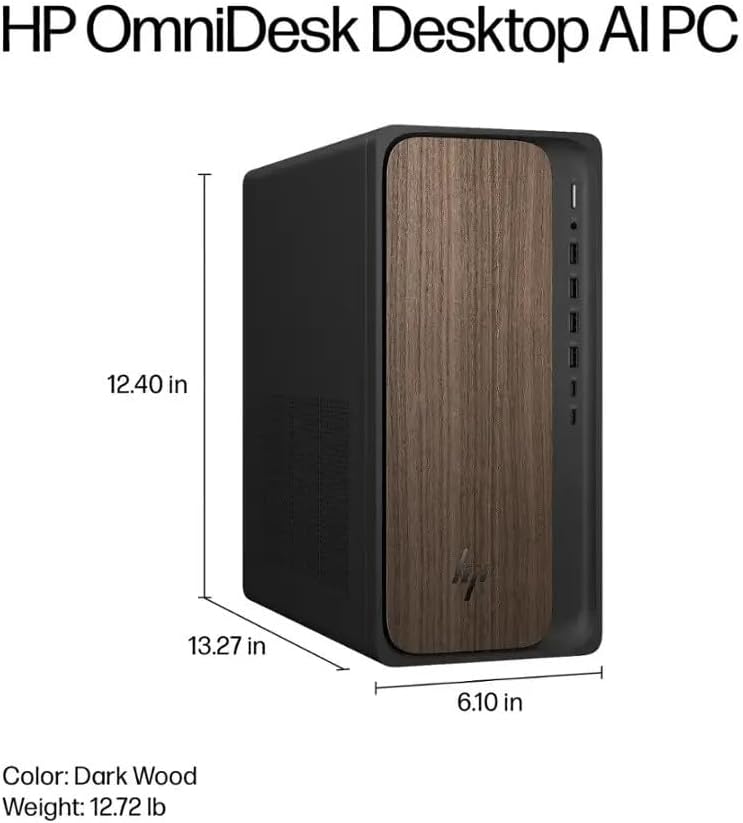
Image: Diagram illustrating the height, width, and depth of the HP OmniDesk M03 desktop PC.
- അളവുകൾ (H x W x D): 13.3 x 6.1 x 12.4 ഇഞ്ച് (33.8 x 15.5 x 31.5 സെ.മീ)
- ഭാരം: ഏകദേശം 12.72 പൗണ്ട് (5.77 കി.ഗ്രാം)
4. സജ്ജീകരണം
4.1 പ്രാരംഭ സജ്ജീകരണം
- അൺപാക്ക്: Carefully remove the HP OmniDesk M03 PC and all accessories from the packaging.
- മോണിറ്റർ ബന്ധിപ്പിക്കുക: Connect your monitor to one of the DisplayPort or HDMI outputs on the rear panel of the PC.
- പെരിഫറലുകൾ ബന്ധിപ്പിക്കുക: Plug in the wireless keyboard and mouse. Ensure they are powered on and paired according to their respective instructions.
- പവർ ബന്ധിപ്പിക്കുക: പവർ കേബിൾ പിസിയുടെ പവർ ഇൻപുട്ടിലേക്കും തുടർന്ന് ഗ്രൗണ്ടഡ് ഇലക്ട്രിക്കൽ ഔട്ട്ലെറ്റിലേക്കും ബന്ധിപ്പിക്കുക.
- പവർ ഓൺ: Press the power button located on the front panel of the PC.
- വിൻഡോസ് സജ്ജീകരണം: Follow the on-screen instructions to complete the initial setup of Windows 11 Home. This may include setting up your user account, network connection, and privacy settings.
5. പ്രവർത്തന നിർദ്ദേശങ്ങൾ
5.1 പവർ ഓൺ/ഓഫ്
- പവർ ഓണാക്കാൻ: Press the power button on the front panel of the PC.
- ഷട്ട് ഡൗൺ ചെയ്യാൻ: In Windows 11, click the ആരംഭിക്കുക ബട്ടൺ, തുടർന്ന് തിരഞ്ഞെടുക്കുക ശക്തി, തിരഞ്ഞെടുക്കുക ഷട്ട് ഡൗൺ.
- പുനരാരംഭിക്കാൻ: In Windows 11, click the ആരംഭിക്കുക ബട്ടൺ, തുടർന്ന് തിരഞ്ഞെടുക്കുക ശക്തി, തിരഞ്ഞെടുക്കുക പുനരാരംഭിക്കുക.
5.2 Connecting Peripherals and Network
- USB ഉപകരണങ്ങൾ: Use the available USB Type-A and Type-C ports on both the front and rear panels to connect external devices such as external hard drives, printers, or webക്യാമറകൾ.
- വയർലെസ് കണക്റ്റിവിറ്റി: The HP OmniDesk M03 supports Wi-Fi 6 (802.11ax) with MU-MIMO and Bluetooth 5.4 for wireless network and peripheral connections. Access these settings via the Windows ക്രമീകരണങ്ങൾ മെനു.
- വയർഡ് നെറ്റ്വർക്ക്: Connect an Ethernet cable to the RJ45 port on the rear panel for a wired network connection.
6. പരിപാലനം
6.1 വൃത്തിയാക്കൽ
- പുറം: Use a soft, dry, lint-free cloth to clean the exterior surfaces of the PC. Avoid using liquid cleaners directly on the components.
- വെൻ്റിലേഷൻ: Ensure that the ventilation openings are clear of dust and obstructions to maintain proper airflow.
6.2 സോഫ്റ്റ്വെയർ അപ്ഡേറ്റുകൾ
- വിൻഡോസ് അപ്ഡേറ്റുകൾ: Regularly check for and install Windows updates to ensure your operating system has the latest security patches and features. Go to ക്രമീകരണങ്ങൾ > വിൻഡോസ് അപ്ഡേറ്റ്.
- ഡ്രൈവർ അപ്ഡേറ്റുകൾ: Keep your device drivers, especially for graphics and chipset, updated for optimal performance and compatibility. These can often be found on the HP support webസൈറ്റ് അല്ലെങ്കിൽ വിൻഡോസ് അപ്ഡേറ്റ് വഴി.
7. പ്രശ്നപരിഹാരം
7.1 പൊതുവായ പ്രശ്നങ്ങളും പരിഹാരങ്ങളും
- ശക്തിയില്ല:
ലക്ഷണം: The PC does not turn on when the power button is pressed.
പരിഹാരം: Ensure the power cable is securely connected to both the PC and a functional electrical outlet. Test the outlet with another device. - ഡിസ്പ്ലേ ഇല്ല:
ലക്ഷണം: The monitor shows no signal or remains black.
പരിഹാരം: Verify that the monitor is powered on and the video cable (DisplayPort or HDMI) is securely connected to both the PC and the monitor. Try connecting the monitor to a different video output port on the PC. - കീബോർഡ്/മൗസ് പ്രതികരിക്കുന്നില്ല:
ലക്ഷണം: The wireless keyboard or mouse does not function.
പരിഹാരം: Check the batteries in the keyboard and mouse. Ensure they are properly paired with the PC. For wired peripherals, verify USB connections. - ഇൻ്റർനെറ്റ് കണക്ഷൻ ഇല്ല:
ലക്ഷണം: ഇന്റർനെറ്റ് ആക്സസ് ചെയ്യാൻ കഴിയുന്നില്ല.
പരിഹാരം: For Wi-Fi, check network settings in Windows and ensure you are connected to the correct network. For wired connections, verify the Ethernet cable is properly connected to both the PC and the router/modem. Restart your router/modem if necessary.
8 സ്പെസിഫിക്കേഷനുകൾ
8.1 സാങ്കേതിക വിശദാംശങ്ങൾ
| ഫീച്ചർ | വിശദാംശങ്ങൾ |
|---|---|
| മോഡൽ | HP OmniDesk M03 |
| ഓപ്പറേറ്റിംഗ് സിസ്റ്റം | Windows 11 ഹോം (64-ബിറ്റ്) |
| പ്രോസസ്സർ | Intel Core Ultra 7 265 (20-Core, up to 5.30 GHz) with Intel AI Boost |
| റാം | 16 ജിബി ഡിഡിആർ5 5600 മെഗാഹെട്സ് |
| സംഭരണം | 8TB PCIe NVMe M.2 സോളിഡ് സ്റ്റേറ്റ് ഡ്രൈവ് |
| ഗ്രാഫിക്സ് | NVIDIA GeForce RTX 5060Ti 8GB GDDR7 |
| വയർലെസ് കണക്റ്റിവിറ്റി | Wi-Fi 6 (802.11ax) with MU-MIMO, Bluetooth 5.4 |
| വയർഡ് കണക്റ്റിവിറ്റി | ഗിഗാബിറ്റ് ഇഥർനെറ്റ് (RJ45) |
| ഫ്രണ്ട് പോർട്ടുകൾ | 1x USB-C 3.1/3.2 Gen 2, 1x USB-C 3.0 / 3.1/3.2 Gen 1, 2x USB-A 3.1/3.2 Gen 2, 1x Headphone/Microphone Combo |
| പിൻ തുറമുഖങ്ങൾ | 4x USB 2.0, 2x USB-A 3.0 / 3.1/3.2 Gen 1, 3x DisplayPort 1.4a, 1x HDMI 2.1, 1x RJ45, Audio Line In/Out |
| അളവുകൾ (H x W x D) | 13.3 x 6.1 x 12.4 ഇഞ്ച് |
| ഭാരം | 12.72 പൗണ്ട് |
| നിറം | ഇരുണ്ട മരം |
9. വാറൻ്റിയും പിന്തുണയും
9.1 വാറൻ്റി വിവരങ്ങൾ
This HP OmniDesk M03 AI Desktop PC comes with a 2 വർഷത്തെ വാറൻ്റി provided by Techno Intelligence. Please retain your proof of purchase for warranty claims.
9.2 സാങ്കേതിക പിന്തുണ
For technical assistance and support related to your product, please contact Techno Intelligence. Refer to your purchase documentation for specific contact details.
For general HP product information and support resources, you may visit the official HP പിന്തുണ webസൈറ്റ്.