ആമുഖം
This manual provides instructions for the setup, operation, and maintenance of your DC Wireless Keyboard and Mouse Combo. This full-size ergonomic keyboard features a wrist rest and a silent 6-button mouse, designed for comfortable and efficient use with various devices.
പാക്കേജ് ഉള്ളടക്കം
- വയർലെസ് കീബോർഡ്
- വയർലെസ് മൗസ്
- 2-in-1 USB Receiver (USB-A and USB-C compatible)
- ഉപയോക്തൃ മാനുവൽ (ഈ പ്രമാണം)
Note: AAA batteries for the keyboard (1x) and mouse (2x) are not included and must be purchased separately.
സജ്ജമാക്കുക
1. ബാറ്ററി ഇൻസ്റ്റാളേഷൻ
Install the required batteries into both the keyboard and mouse. Ensure correct polarity.
- കീബോർഡ്: Requires 1x AAA battery. Locate the battery compartment on the underside of the keyboard.
- മൗസ്: Requires 2x AAA batteries. Locate the battery compartment on the underside of the mouse.
After installing batteries, turn on the keyboard and mouse using their respective ON/OFF switches.

Image: Underside of the mouse, illustrating the battery compartment, the USB receiver storage slot, and the ON/OFF switch. The USB-C adapter is also visible.

Image: Diagram showing the battery requirements (1 AAA for keyboard, 2 AAA for mouse) and the auto-sleep feature for power saving.
2. യുഎസ്ബി റിസീവർ ബന്ധിപ്പിക്കുന്നു
The keyboard and mouse share a single USB receiver for connection. This receiver supports both USB-A and USB-C ports.
- Locate the USB receiver, typically stored in the mouse's battery compartment.
- Plug the USB receiver into an available USB-A or USB-C port on your computer or device. Use the included USB-C adapter if necessary.
- The keyboard and mouse will automatically connect to your device. No additional software or drivers are required.
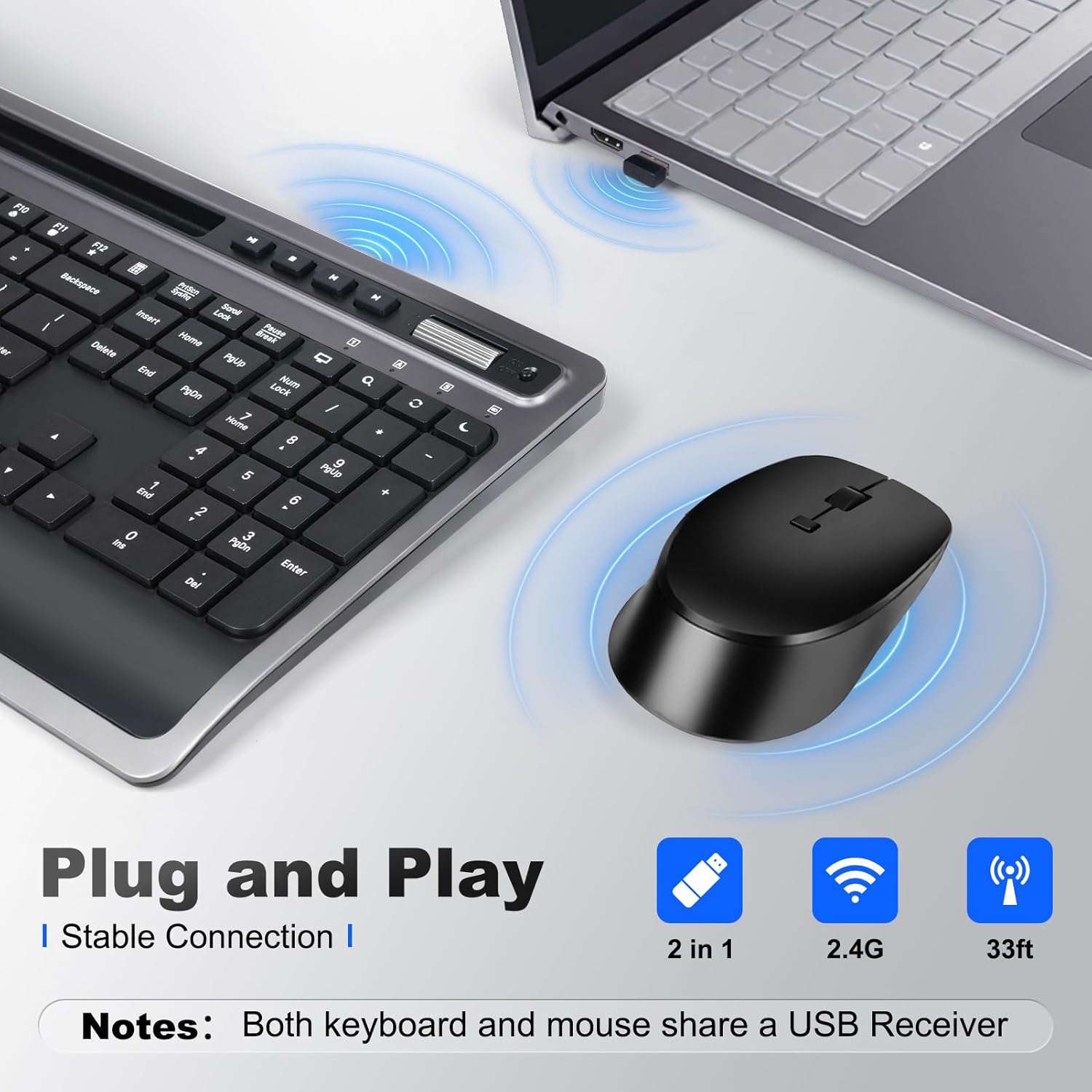
Image: A close-up of the keyboard and mouse, showing the USB receiver plugged into a laptop, indicating a stable 2.4G wireless connection.
3. Adjusting Keyboard Tilt
For optimal typing comfort, the keyboard features foldable stands on the underside. Extend these stands to achieve an 8-degree tilt, which can help reduce wrist strain during prolonged use.

Image: A visual comparison demonstrating the ergonomic benefit of the integrated wrist rest, promoting a more natural hand position.

Image: The keyboard shown with its foldable stand extended, providing an 8-degree tilt for improved ergonomic comfort.
പ്രവർത്തന നിർദ്ദേശങ്ങൾ
കീബോർഡ് പ്രവർത്തനങ്ങൾ
The keyboard features a full-size layout with dedicated function keys and multimedia shortcuts.
- മൾട്ടിമീഡിയ കീകൾ: Dedicated keys for Play/Pause, Stop, Previous Track, Next Track, Volume Up, Volume Down.
- Function (Fn) Combinations: Use the 'Fn' key in combination with F1-F12 for additional shortcuts such as Media Player, Volume control, Mute, Search, Refresh, Dormancy, My Computer, and Email.
- ഇന്റഗ്രേറ്റഡ് ഫോൺ/ടാബ്ലെറ്റ് ഹോൾഡർ: A slot above the function keys allows you to securely hold your smartphone or tablet for easy viewഇംഗും മൾട്ടിടാസ്കിംഗും.
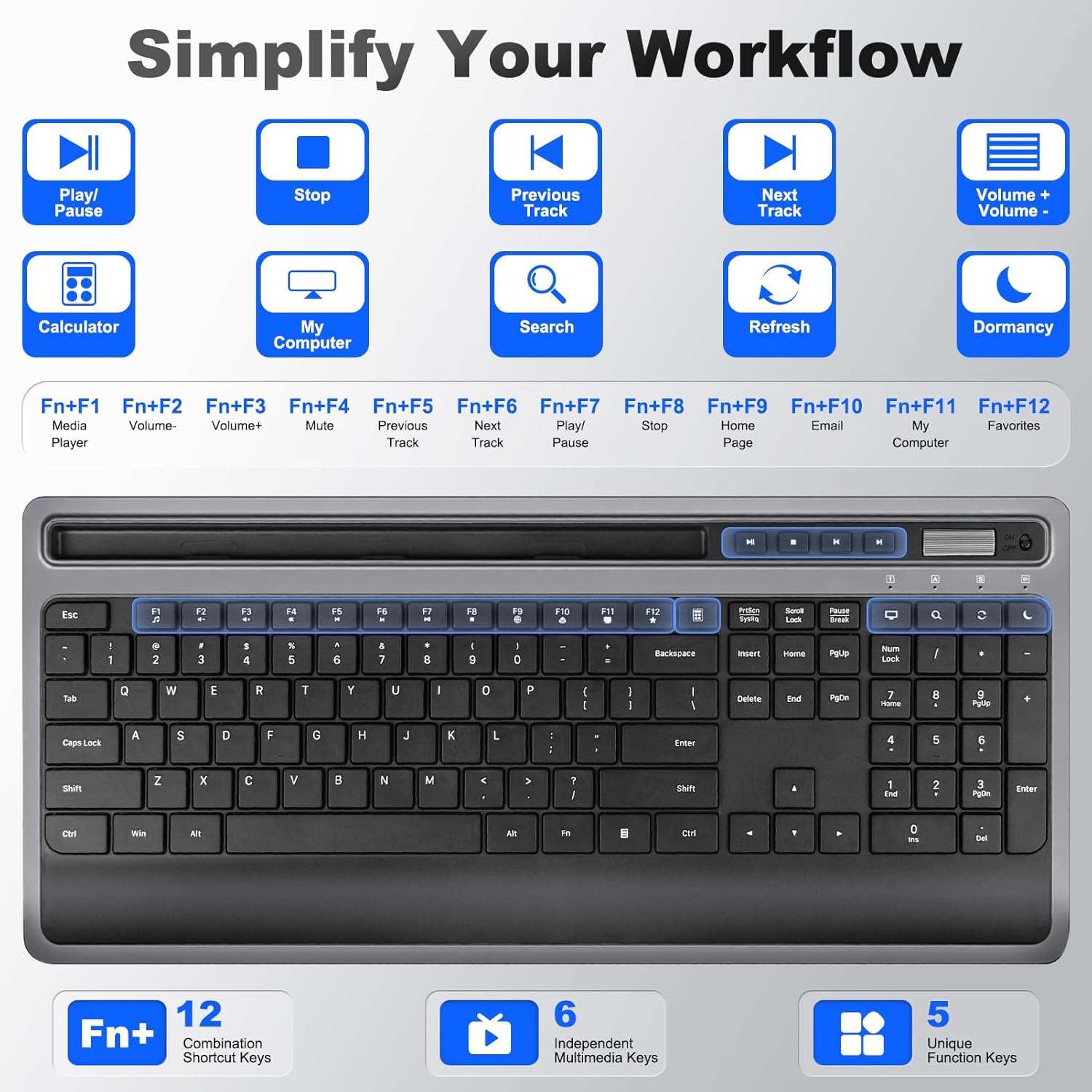
ചിത്രം: വിശദമായ ഒരു ചിത്രം view of the keyboard, illustrating the dedicated multimedia keys and the various functions accessible via the 'Fn' key combinations (F1-F12).

Image: A user operating the keyboard, with a smartphone and tablet placed in the integrated holder, demonstrating its utility for multitasking.
ചിത്രം: ഒരു ക്ലോസ്-അപ്പ് view of the integrated phone/tablet holder on the keyboard, showing a tablet securely placed within the slot.
മൗസ് പ്രവർത്തനങ്ങൾ
The silent 6-button mouse offers precise control and quiet operation.
- ബട്ടണുകൾ: Left Click, Right Click, Scroll Wheel, DPI Adjustment, Forward, Back.
- DPI ക്രമീകരണം: Cycle through DPI settings (800, 1200, 1600) to adjust cursor sensitivity.
- നിശബ്ദ ക്ലിക്കുകൾ: Designed for quiet operation, minimizing distractions.

ചിത്രം: പൊട്ടിത്തെറിച്ച ഒരു view diagram of the mouse, labeling its six buttons (Left, Right, Scroll Wheel, DPI, Forward, Back) and indicating the adjustable DPI settings (800, 1200, 1600).
അനുയോജ്യത
This combo is broadly compatible with various operating systems and devices:
- വിൻഡോസ്
- macOS
- ഐഒഎസ്
- ആൻഡ്രോയിഡ്
- Chrome OS
Compatible devices include desktops, laptops, tablets, Macbook, Personal Computer, Surface, and iMac.
Image: A graphic displaying the logos of Windows, Chrome OS, Mac OS, iOS, and Android, signifying the broad operating system compatibility of the keyboard and mouse combo.
യാന്ത്രിക-സ്ലീപ്പ് മോഡ്
To conserve battery life, both the keyboard and mouse feature an auto-sleep mode. If inactive for a period (e.g., 5 minutes), they will enter a low-power state. To wake them up, simply press any key on the keyboard or move/click the mouse.
മെയിൻ്റനൻസ്
വൃത്തിയാക്കൽ
നിങ്ങളുടെ കീബോർഡും മൗസും വൃത്തിയാക്കാൻ:
- രണ്ട് ഉപകരണങ്ങളും ഓഫാക്കിയിട്ടുണ്ടെന്ന് ഉറപ്പാക്കുക.
- മൃദുവായ, ലിൻ്റ് രഹിത തുണി ഉപയോഗിക്കുകampവെള്ളം അല്ലെങ്കിൽ മൃദുവായ ക്ലീനിംഗ് ലായനി ഉപയോഗിച്ചാണ്.
- അമിതമായ ഈർപ്പം ഒഴിവാക്കുക, ഉപകരണങ്ങളിൽ നേരിട്ട് ക്ലീനറുകൾ തളിക്കരുത്.
- For crevices, use compressed air or a soft brush.
ബാറ്ററി മാറ്റിസ്ഥാപിക്കൽ
When the devices become unresponsive or exhibit intermittent connectivity, it may be time to replace the batteries. Follow the battery installation steps in the Setup section.
ട്രബിൾഷൂട്ടിംഗ്
- No connection/Unresponsive:
- ബാറ്ററികൾ ശരിയായി ഇൻസ്റ്റാൾ ചെയ്തിട്ടുണ്ടെന്നും ചാർജ്ജ് ചെയ്തിട്ടുണ്ടെന്നും ഉറപ്പാക്കുക.
- Verify both keyboard and mouse are switched ON.
- പ്രവർത്തിക്കുന്ന ഒരു USB പോർട്ടിലേക്ക് USB റിസീവർ സുരക്ഷിതമായി പ്ലഗ് ചെയ്തിട്ടുണ്ടെന്ന് ഉറപ്പാക്കുക. മറ്റൊരു USB പോർട്ട് പരീക്ഷിക്കുക.
- ഇടപെടൽ ഒഴിവാക്കാൻ ഉപകരണങ്ങൾ റിസീവറിന് അടുത്തേക്ക് നീക്കുക.
- നിങ്ങളുടെ കമ്പ്യൂട്ടറോ ഉപകരണമോ പുനരാരംഭിക്കുക.
- Lagging/Delayed response:
- ബാറ്ററികൾ കുറവാണെങ്കിൽ അവ മാറ്റിസ്ഥാപിക്കുക.
- Reduce distance between devices and receiver.
- Avoid using the devices on metallic surfaces, which can interfere with the wireless signal.
- മൗസ് കഴ്സർ ക്രമരഹിതം:
- Clean the mouse sensor on the underside.
- വൃത്തിയുള്ളതും പ്രതിഫലിക്കാത്തതുമായ ഒരു പ്രതലത്തിലോ മൗസ് പാഡിലോ മൗസ് ഉപയോഗിക്കുക.
- Adjust DPI settings if the cursor is too fast or too slow.
സ്പെസിഫിക്കേഷനുകൾ
| ഉൽപ്പന്ന അളവുകൾ | 11.2 x 5.2 x 0.7 ഇഞ്ച് (കീബോർഡ്) |
| ഇനത്തിൻ്റെ ഭാരം | 2.18 പൗണ്ട് |
| കണക്റ്റിവിറ്റി ടെക്നോളജി | 2.4G Wireless (USB-A, USB-C) |
| പ്രത്യേക സവിശേഷതകൾ | Ergonomic design, USB-C compatible, Volume Roller, Wrist Rest, Phone Holder |
| അനുയോജ്യമായ ഉപകരണങ്ങൾ | Macbook, Personal Computer, Surface, iMac, Windows, macOS, iOS, Android, Chrome OS |
| മൗസ് DPI ക്രമീകരണങ്ങൾ | 800, 1200, 1600 |
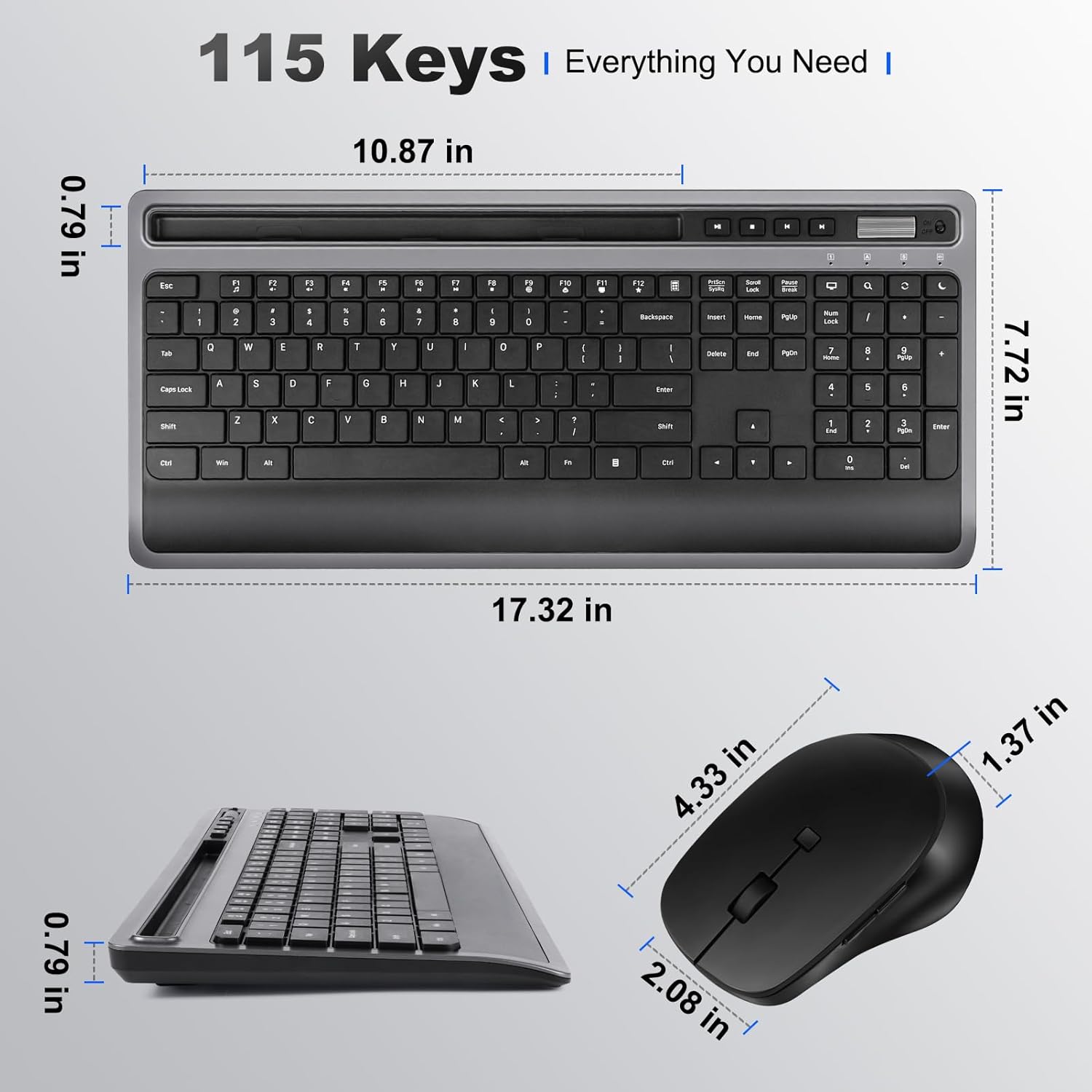
Image: Technical drawing illustrating the precise dimensions of both the keyboard and the mouse.
വാറൻ്റി വിവരങ്ങൾ
Please refer to the product packaging or the seller's information for specific warranty details. Typically, products come with a limited warranty covering manufacturing defects from the date of purchase.
പിന്തുണ
For further assistance or technical support, please contact the seller directly through your purchase platform or refer to the contact information provided on the product packaging.